
GIF Toolkit
Create compact looping GIFs in ComfyUI with preset sizing, visual multi-text placement, optional blinking and preview-first export.
Nodes (13)
The one node keeping your test runs from filling output/
A manual that lives inside the workflow
Three text layers you drag around with the mouse
The small node that trims your clip and plans the blinking
The node that decides how big your GIF is
The predecessor, still loadable, still useful to understand
One caption, dragged into place
Where the text actually gets burned into every frame
Check the caption on one frame before you commit to forty
Caption placement without the canvas, by anchor point
The old name for the help node, and why its panel stays blank
An old alias of the blink-schedule node — and not the modern one
The pre-rename preset node, still loading old workflows fine
ComfyUI-GIFToolkit
🌐 Language: English | Deutsch
Create compact looping GIFs from short videos directly in ComfyUI, with preset sizing, visual multi-text placement, optional blinking, a preview-first export flow, and an English on-canvas guide.
Status: Published to the ComfyUI Registry. Install through ComfyUI Manager by searching for GIF Toolkit.
Overview
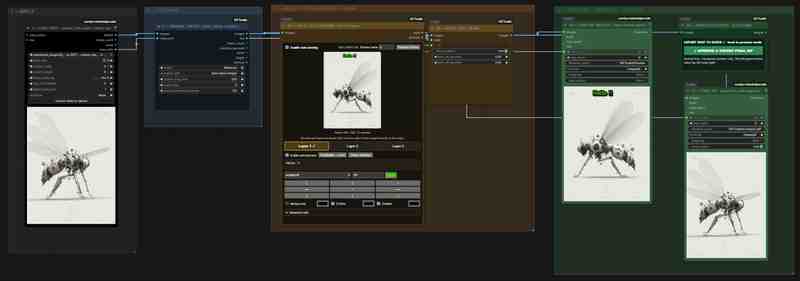
ComfyUI-GIFToolkit adds custom helper nodes and a ready-to-use workflow for short looping GIFs.
The workflow:
- loads video through VideoHelperSuite
- controls target size, aspect ratio, FPS and duration
- supports up to 3 independent text layers
- previews the text and GIF before permanent output
- writes the final GIF only after explicit approval
The text designer is visual: text can be clicked directly on the preview frame and dragged with the mouse.
Requirements
- ComfyUI
- ComfyUI-VideoHelperSuite
- this repository:
ComfyUI-GIFToolkit
ComfyUI-GIFToolkit currently has no additional pip dependencies.
Third-party dependency
The example workflow uses nodes from ComfyUI-VideoHelperSuite by Kosinkadink.
VideoHelperSuite is not bundled with this repository. Install it separately from its upstream repository or through ComfyUI Manager. Its copyright and license terms remain with the upstream project.
Installation
Git
From ComfyUI/custom_nodes:
cd ComfyUI/custom_nodes
git clone https://github.com/oekobudde/ComfyUI-GIFToolkit.git
Fully restart ComfyUI afterwards.
ZIP
- Download the repository ZIP.
- Extract it.
- Place it at
ComfyUI/custom_nodes/ComfyUI-GIFToolkit. - Fully restart ComfyUI.
Load the workflow
workflows/ComfyUI_GIF_Maker.json
Main sections:
1 → LOAD VIDEO
      ↓
2 → PREPARE
      ↓
3 → MULTI-TEXT DESIGNER + BLINK
      ↓
4 → TEMP PREVIEW → APPROVE → FINAL EXPORT
Quick start
- Select a short video in
1 → LOAD VIDEO. - Start with
Balancedin2 → PREPARE. - Keep
aspect_ratio = Auto (Input Image)to preserve the source ratio. - Run the workflow once.
- Place and style text in GIF Multi-Text Designer.
- Review the temporary GIF at
4A. - When satisfied, click ✓ APPROVE & EXPORT FINAL GIF.
A normal Run does not permanently write the final GIF.
Presets
| Preset | Long side | FPS | max duration | Use |
|---|---:|---:|---:|---|
| Small | 288 px | 6 | 4.0 s | small chat GIF |
| Balanced | 320 px | 8 | 5.0 s | good default |
| Quality | 384 px | 10 | 5.5 s | higher quality |
| Custom | custom | custom | custom | manual control |
Field reference — English
0 · GIF Toolkit Guide / Help
The on-canvas guide uses English by default and no longer has its own language selector. Non-English UI translations should use ComfyUI's locale system rather than an in-node language switch.
1 · VHS Load Video
Provided by ComfyUI-VideoHelperSuite.
Important fields:
video– input videoforce_rate– load FPS, default 12custom_width / custom_height– default 0 / 0frame_load_cap– default 144skip_first_framesselect_every_nth
2 · GIF Prepare / Preset
Controls:
- preset
- aspect ratio
- target size
- FPS
- maximum duration
Auto (Input Image) preserves the source aspect ratio. A fixed ratio performs a centered crop.
3A · GIF Multi-Text Designer
The central text UI.
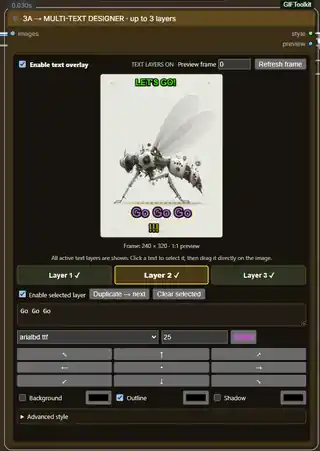
Enable text overlay
Global master switch.
- on → enabled text layers are rendered
- off → no text is rendered and frames pass through unchanged
No manual node bypass is required.
Text layers
The current version supports exactly 3 layers.
Every layer has independent:
- enable state
- text
- font
- font size
- font color
- X/Y position
- background
- background color / opacity
- padding
- corner radius
- outline / outline color / width
- shadow / shadow color / X/Y
- line spacing
Layer selection
Use:
Layer 1 Layer 2 Layer 3
The gold-highlighted layer is selected.
Clicking a visible text directly on the preview also selects its layer.
Dragging
Drag the selected text directly on the image.
Positions are stored as relative percentages, so they remain meaningful across output sizes.
Enable selected layer
Enables or disables only the selected layer.
Duplicate → next
Copies the active layer into the next slot and offsets it slightly.
Clear selected
Clears and disables only the selected layer.
3×3 position grid
Quick placement shortcuts:
↖   ↑   ↗
←   •   →
↙   ↓   ↘
Background / Outline / Shadow
Each layer has independent styling.
Advanced style
Contains:
- outline width
- padding
- corner radius
- background opacity
- shadow X/Y
- line spacing
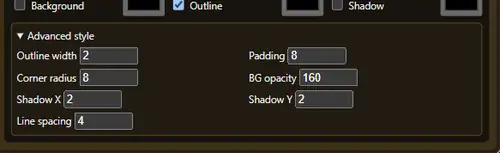
The node automatically fits its height when Advanced style opens or closes.
Preview frame
Selects the frame shown in the designer.
Refresh frame queues a preview run without permanently writing the final GIF.
3B · GIF Text Overlay
Applies all enabled layers to the full frame batch.
blink_enabled
- on → all active layers blink together
- off → all active layers remain continuously visible
blink_on_seconds / blink_off_seconds
Shared blink rhythm.
Per-layer blink timing is not included yet.
4A · TEMP GIF PREVIEW
Uses VHS Video Combine with save_output = false.
A normal Run creates only a temporary GIF for review.
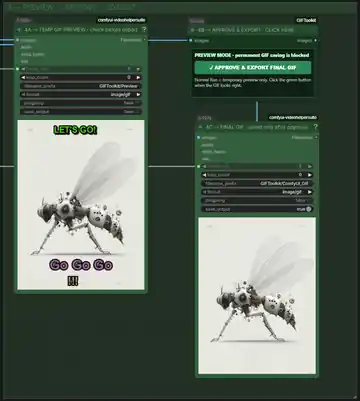
4B · GIF Export Gate
Blocks permanent output by default.
When satisfied, click:
✓ APPROVE & EXPORT FINAL GIF
It performs one export run, then returns to preview mode.
4C · FINAL GIF
The final VHS Video Combine writes to:
ComfyUI/output/GIFToolkit
only after approval.
No text?
Turn off:
Enable text overlay
All three layers are bypassed at once and frames pass through unchanged.
Troubleshooting
No source frame is visible before the first Run
Before the first Run, the designer uses a black background and already shows enabled text layers. Run once to load the real source frame behind the text.
Text cannot be dragged
Check that:
Enable text overlayis on- the selected layer is enabled
- the layer contains text
Layer 2 or 3 does not appear
Select it and enable Enable selected layer.
Final GIF is not saved
This is intentional in Preview mode. Click ✓ APPROVE & EXPORT FINAL GIF.
GIF is too large
Reduce duration, long-side size, or FPS.
Missing Nodes
Required:
- ComfyUI-VideoHelperSuite
- ComfyUI-GIFToolkit
License
MIT License. See LICENSE.