
ComfyUI-FL-MiniMaxH3
MiniMax H3 prompt timelines, beat-planned sampling, temporal reshots, native latent upscaling, pixel-space refinement, and shot assembly for ComfyUI
Nodes (23)
The tiny H3 bridge node your upscale workflow quietly depends on
The H3 sampler that renders every planned shot on its own
Turn a beat-grid prompt schedule into renderable H3 shots
The VAE round trip that keeps the audio
Upscaling H3 video without a VAE round trip
The forgettable node in front of every H3 neural upscale (you still need it)
Block-Level Strength Without a Second Model
Stitching the Shots Back Together — and Refusing to Guess the Order
The Half of Motion Refine That Only Runs Once
Stretch the Fast Parts, Refine Them, Then Put the Clock Back
The Half of Motion Refine That Burns the GPU — and the Report That Tells You Why
The Fan-Out Node Behind Shot-Plan Refinement
Neural Latent Upscale 2D
The 3D neural latent upscale for H3
One Scene In, Four Locked-Camera Plates Out
The H3 node that turns a prompt into an actual edit timeline
Stitch the shots back
H3 motion context without visible overlap
Splice your H3 reshot back into the source — frame-exact
Regenerate a slice of an existing video, not the whole thing
This node splices your H3 transition for you
Make the tail of one clip become the head of another — H3 Transition Prep
Your H3 model, minus the quadratic attention bill — and no turbo
FL MiniMax H3
MiniMax H3 workflow nodes for ComfyUI. The pack adds strict prompt timelines, beat-aligned render planning, full-frame temporal reshots, optional cross-shot motion context, grouped and independent shot sampling, native latent upscaling, pixel-space refinement, and final shot assembly while preserving MiniMax H3's nested video/audio latent format.


Features
- Strict prompt timelines - Schedule prompt conditioning over H3 video tokens in seconds, frames, or beats
- Reference-aware conditioning - Use H3 reference images, videos, video audio, and standalone audio
- Beat shot planning - Turn an
FL_PROMPT_SCHEDULEinto independently renderable or explicitly grouped shots - Temporal reshots - Move and resize a frame-exact interval on a source-video timeline, regenerate that entire span, and keep the rest of the clip intact
- Hard-cut motion context - Condition each render on a configurable authored tail from the previous render without showing overlap frames
- Nested latent sampling - Sample MiniMax H3 video and audio latents without flattening their native structure
- VDN-H3 acceleration - Apply the trained Video Delta Attention branch without the unwanted turbo adapter
- Native latent upscaling - Resize only video latent height and width without a VAE round trip
- Unified sampler previews - Watch sampling progress and completed base or upscale renders in one embedded player
- Pixel-space refinement - Decode, resize, re-encode, and refine through an explicit sampling-step window
- Motion refinement - Temporarily stretch fast motion, optionally upscale, refine with overlapping contexts, and restore the source frame count
- Shot assembly - Decode and concatenate planned renders in timeline order
- Workflow compatibility - Keeps the original Fill Nodes node IDs, sockets, custom types, and metadata
Node reference
FL MiniMax H3 LoRA Block Loader
Connect MODEL → LoRA Block Loader → sampler and select an installed H3 LoRA. This node loads that adapter itself; do not also load the same file upstream unless you intend to stack it twice. Chain nodes to control multiple adapters independently.
All multipliers default to 1, matching ComfyUI's standard model-only LoRA loader. strength_model scales the whole adapter; blocks_strength, refiner_strength, and other_strength control the main transformer stack, token-refiner stack, and remaining targets. The token refiner is part of H3, not the external Qwen encoder. The connected model supplies the block counts.
Use optional zero-based, inclusive overrides, one per line:
blocks.0-9=0.5
blocks.25=0
refiner.0-1=0.8
An override replaces its group's multiplier. Effective strength is strength_model × multiplier; later rules win and # comments are allowed. Zero disables this adapter's contribution at that target; negative values invert it. Existing upstream patches are unchanged. block_report lists effective strengths and matched adapter targets, including blocks absent from a sparse LoRA. ComfyUI logs unmatched checkpoint keys.
Start with all ones and change one range at a time using the same seed. Blocks do not have guaranteed “motion” or “style” roles. Selectively weakening a Turbo/distillation LoRA can break its low-step behavior. This node changes adapter weights, not the sampler or model architecture, and does not promise faster inference.
FL MiniMax H3 Motion Refine
Start with the example workflow, which separates the cached baseline render from the compact refinement pass. Select your installed models and reference image before running.
Connect a completed native H3 latent, its positive conditioning, the H3 model, video vae, and audio_vae. The node decodes the baseline, optionally enlarges it, stretches motion-heavy intervals, re-encodes video and stretched audio, runs partial denoising, and selects the original-clock frames from the result. It outputs only images and a report; keep the original soundtrack connected directly to Create Video at 24 fps.
This node requires ComfyUI-MAINodes, including the H3TimeSmear.plan addition, and the companion ComfyUI H3 VAE methods encode_h3_frame_sequence and decode_h3_selected. These additions are part of the local streaming implementation, not assumed available in upstream releases. Other FL nodes still load without MAINodes.
Preparation and sampling expand into two internal nodes cached by ComfyUI. Changing the refinement seed, steps, strength, sampler, scheduler, or audio strength can reuse preparation; changes to the source, VAEs, coverage or resize inputs invalidate it. Reuse depends on the active ComfyUI cache policy and is lost on restart or eviction. No persistent tensor cache is added.
For a planned latent list, connect optional shot_plan to the exact plan used by Beat KSampler. With Shot Motion Context, connect its output to both samplers. Each shot gets its own preparation/sampling stages and conditioning from the plan; positive is unused in this mode. Seeds increment from the refinement seed by shot index. The node removes hidden prefixes and padding at recovery, then assembles one image batch with the authored frame count and hard cuts. Previous-shot references come from the original baseline renders, not earlier refined outputs. Hidden video prefixes remain un-stretched and protected from denoising.
In shot-plan mode, optional baseline_images and baseline_audio refer to the full assembled timeline. Authored regions are sliced per shot; missing hidden/padded regions come from the rendered latent. Supplying baseline audio requires audio_vae, including with coverage off. Keep that original assembled soundtrack on the export path.
Optional baseline_images and baseline_audio accept shared decodes of the same source latent, avoiding duplicate work in comparison workflows. Indexed encoding builds one native 17-frame input chunk at a time; selected decoding retains only the recovered frames after normal overlap blending. Both retain the original temporal computation and normalization. Full source images and expanded latents still occupy memory; this is not end-to-end video streaming.
target_long_side: 0 keeps the source dimensions; a larger multiple of 32 enables spatial upscaling. Temporal recovery never shrinks the requested spatial output.strength: 0.50 runs 12 steps from the tail of a 25-step schedule, matching MAINodes injection rather than KSampler's denoise convention.motion_coverage: balanced, economical, or wide use the oracle presets. uniform uses the advancedmax_hold; off bypasses temporal stretching for a spatial-only benchmark.steps: full schedule budget, not the number of executed refinement steps.context_budget: 0 samples the whole expanded clip, matching the original workflow. A nonzero frame-equivalent budget snaps down to H3 windows, with static scheduling and pyramid fusion. The advanced overlap snaps to latent boundaries; a causal anchor can add one latent position. This reduces per-window model work, not full-clip latent, VAE, or host-memory allocations. It requires H3-aware multimodal context support in ComfyUI.seed: fixed by default. Leave the baseline sampler outside this node so refinement changes can reuse its cached result.
Advanced inputs also expose sampler/scheduler, overlap, audio strength (default 0.5), short-tail expansion, and spatial resize method. The report gives frame counts, dimensions, actual steps, window count, preparation timings and current render timings. Cached preparation timings describe the original preparation, not time spent again. Timings are wall-clock stage measurements, not a CUDA kernel profile. Cancellation is checked between major stages and native VAE chunks; normal ComfyUI sampling progress/previews remain available.
Without shot_plan, use one independent shot and connect positive. Ordinary H3 references remain reference material. Image-anchor times and FL H3 packed temporal conditioning masks are remapped onto the stretched clock, including masks at a new spatial size. Temporal masks are re-quantized onto H3's native grid, not made frame-independent. Timed video/audio guides, spatial conditioning masks, ControlNet/area conditioning, and temporal reshots remain unsupported. Hidden previous-shot context requires the matching shot plan. Source noise masks are not reused; shot-plan mode creates its own prefix protection. Single-shot output retains the native rendered frame count, including padding. Adaptive analysis requires at least 22 source frames; use uniform or off for shorter renders. Stretched clips have a minimum of 39 frames internally.
For comparison, hold the baseline and refinement seed fixed and test coverage off versus balanced, first at source size and then at a larger target size. Exact recovery restores frame timing; it does not promise original pixels, recovered ground-truth detail, or flicker-free restoration. No adapter or new model weights are required.
Prompting and planning
FL MiniMax H3 Prompt Timeline
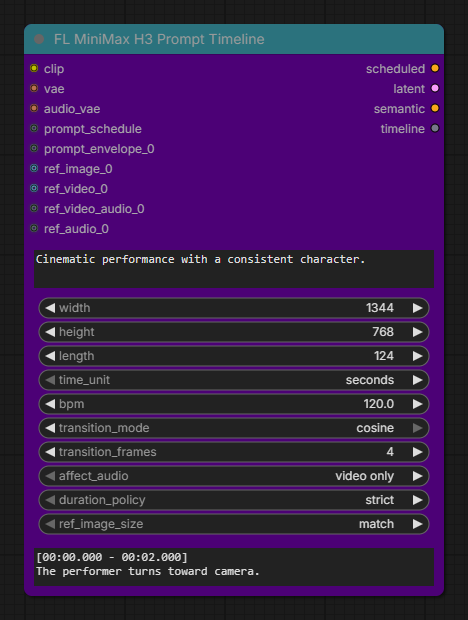
Creates the native nested H3 video/audio latent and its prompt conditioning. Use a manual timeline or connect an exact FL_PROMPT_SCHEDULE; a connected schedule takes precedence. Optional prompt envelopes and H3 image, video, soundtrack, and audio references are encoded into the same reusable timeline.
- Important inputs: H3 text encoder, video VAE, audio VAE, global prompt, manual or connected timeline, output dimensions and length, transition controls, reactive envelopes, and references.
- Outputs: strict
scheduledconditioning for the first pass, nativelatent, fastsemanticconditioning for refinement, and the reusable encodedtimeline.
FL MiniMax H3 Apply Timeline
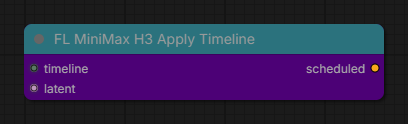
Rebuilds strict time-masked conditioning for an H3 latent whose spatial dimensions changed while its video and audio duration stayed the same. This is the bridge between Latent Upscale and a second standard sampler pass.
- Inputs: an encoded H3
timelineand the resized nestedlatent. - Output: rebuilt
scheduledconditioning at the latent's new spatial dimensions.
FL MiniMax H3 Beat Shot Planner
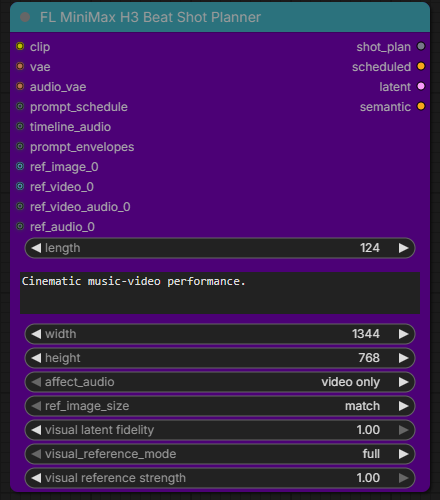
Converts an exact 24 fps beat prompt schedule into grouped or independent H3 render units and slices the matching timeline audio for each render. Without a connected schedule it plans one continuous render, making the node usable as a compact alternative to Prompt Timeline.
- Important inputs: H3 encoders, optional schedule and aligned audio, global prompt, dimensions, audio-mask policy, visual-reference mode, reference strength and fidelity, reactive envelopes, and references.
- Outputs: the complete
shot_planplus the first render'sscheduled,latent, andsemanticvalues for standard-sampler workflows.
FL MiniMax H3 Shot Motion Context
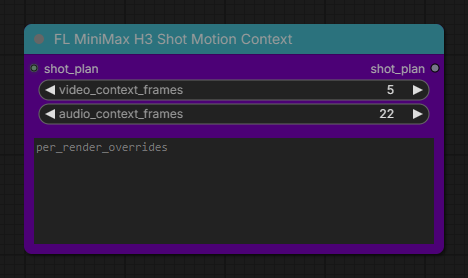
Carries a configurable authored video and audio tail from each completed render into the next render as hidden conditioning. The assembler removes that prefix, so visible shot boundaries remain hard cuts.
- Inputs: a
shot_plan, an H3-native video context window, audio context measured on the 24 fps timeline, and optional per-render overrides such as3: 22, 39. - Output: a metadata-preserving motion-context
shot_planfor every downstream beat sampler.
Sampling and refinement
FL MiniMax H3 VDN
Applies the official Stage-DMD-250 Video Delta Attention branch and its required Stage-B adapter to a native MiniMax H3 model. On first use, the node downloads only the branch, model specification, metadata, and default adapter into models/vdn/stage-dmd-step-250. The optional turbo adapter is neither downloaded nor applied. VDN weights stream through ComfyUI's model-management path to avoid keeping an additional persistent GPU copy.
- Inputs: MiniMax H3 model and Stage-B adapter strength.
- Output: cloned H3 model with grouped VDN hybrid attention.
- Download: approximately 4.3 GiB from
OpenVDN/vdn-minimax-h3, pinned to the tested revision.
FL MiniMax H3 Beat KSampler
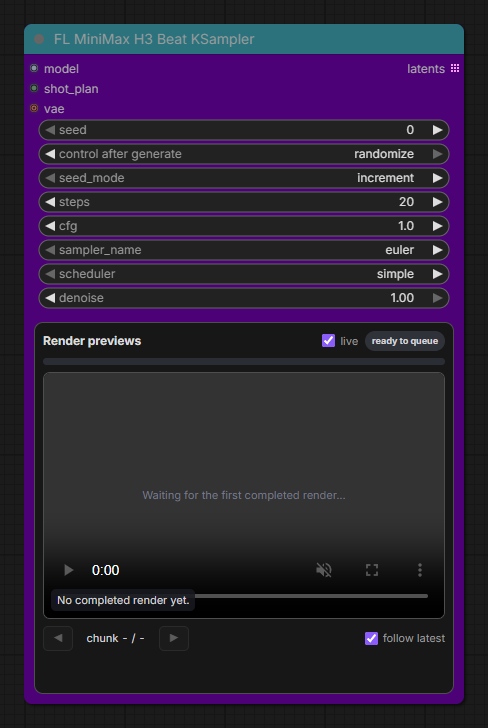
Samples every planned H3 render independently with fixed or incrementing seeds. The embedded dashboard follows live latent previews and can optionally decode a silent MP4 after each completed render.
- Inputs: H3 model, exact
shot_plan, seed policy, sampler settings, and an optional video VAE required by visual motion context or completed-render previews. - Output: one editable native H3
latentper planned render as a ComfyUI list output.
FL MiniMax H3 Beat Pixel Upscale KSampler
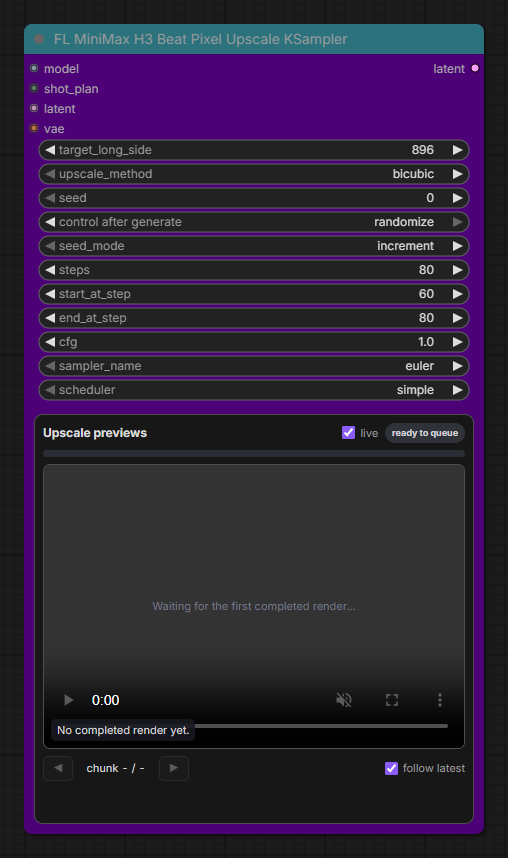
Processes each planned render through a video-VAE round trip: decode to pixels, resize proportionally, re-encode, rebuild conditioning, and sample only the configured portion of the refinement schedule. Audio and shot metadata are preserved.
- Inputs: H3 model, the exact source
shot_plan, sampled latent list, video VAE, target long side, interpolation method, seed policy, and total/start/end sampling steps. - Output: refined native H3
latentvalues ready for assembly or another metadata-preserving latent operation.
Latent and output utilities
FL MiniMax H3 Latent Upscale
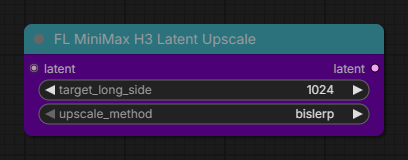
Interpolates only the spatial dimensions of the H3 video latent without decoding it. Temporal length, audio latent, noise masks, shot boundaries, reshot data, and other metadata are retained.
- Inputs: a native nested H3
latent, target pixel long side, and latent interpolation method. - Output: spatially enlarged H3
latent. Use Apply Timeline before a refinement sampler.
FL MiniMax H3 Neural Latent Upscale
The model loader and 2D/3D nodes apply learned MiniMax H3 latent upscaler checkpoints from models/latent_upscale_models. The 2D node is the faster spatial path; the 3D node adds joint spatiotemporal processing, target-dimension and megapixel modes, alignment, and local temporal chunking. Both operate only on the 24-channel video stream while preserving the native audio tensor, metadata, duration, and resized nested noise mask.
- Loader: select a compatible
.safetensorsor.pthcheckpoint and Comfy-managed precision. - 2D: set a 1×–4× spatial scale.
- 3D: choose scale, target pixel dimensions, or megapixels; use
temporal_chunk_size=32for long clips or0for full context. - Weights: place a checkpoint from LBH-123-AI/Minimax_h3_latent_Upscaler in
ComfyUI/models/latent_upscale_models/.
These learned nodes save the H3 VAE decode/upscale/encode round trip, but a subsequent high-resolution refinement pass still has high-resolution VRAM requirements.
FL MiniMax H3 Shot Assembler
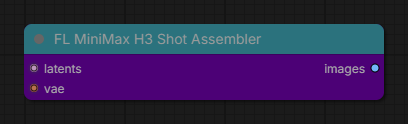
Decodes planned render latents separately, removes H3 padding and hidden motion-context prefixes, validates their timeline metadata, and concatenates the authored frames in order.
- Inputs: the complete H3 latent list and the H3 video VAE.
- Output: one
imagesbatch with hard cuts at the authored shot boundaries.
Temporal reshooting
FL MiniMax H3 Temporal Reshot Planner
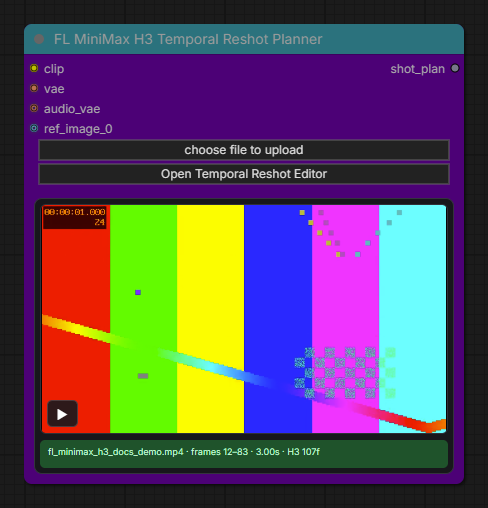
Normalizes a local source video to a 24 fps editing timeline and builds one source-anchored full-frame temporal inpaint plan. The compact node previews the selected range; the editor provides source browsing, exact frame controls, context handles, H3 alignment diagnostics, prompting, and reference sizing.
- Inputs: H3 text encoder and video VAE, local source video, replacement prompt, optional audio VAE, and optional reference images.
- Output: a one-render
shot_planwith the source fingerprint, protected surrounding latent, replacement mask, context, and assembly metadata.
FL MiniMax H3 Temporal Reshot Assembler
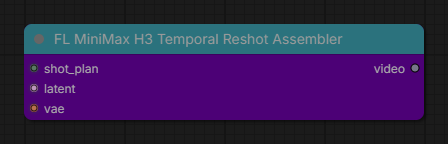
Decodes the sampled replacement, extracts the exact authored interval, and splices it into the original source. Frames outside the selection remain unchanged, and source audio, frame rate, metadata, alpha, and bit depth are retained.
- Inputs: the exact planner
shot_plan, sampled H3latent, and H3 video VAE. - Output: a native ComfyUI
videoready for Save Video.
Installation
ComfyUI Manager
Search for FL MiniMax H3 and install the pack from the Comfy Registry.
Manual
cd ComfyUI/custom_nodes
git clone https://github.com/filliptm/ComfyUI-FL-MiniMaxH3.git
Restart ComfyUI after installation.
Example workflows
- MiniMax H3 Manual Timeline uses current ComfyUI and this pack. It demonstrates Prompt Timeline, native latent upscale, Apply Timeline, standard H3 sampling, video/audio decode, and Save Video.
- MiniMax H3 Beat Scheduled adds ComfyUI Fill Nodes for audio analysis and demonstrates beat planning, hard-cut motion context, independent sampling, pixel refinement, assembly, and final audio muxing.
- MiniMax H3 Temporal Reshot uses current ComfyUI and this pack. Choose a local source in the planner, sample the replacement, and pass it to the source-preserving assembler.
The workflows contain portable output prefixes and no source media. Replace their model selections with compatible files available in your ComfyUI installation.
Required ComfyUI support
This pack uses the MiniMax H3 implementation included with current ComfyUI. It does not bundle or download model weights.
A normal H3 workflow uses:
| Component | Typical model |
|-----------|---------------|
| Diffusion model | A supported MiniMax H3 ref2va diffusion model |
| Text encoder | MiniMax-compatible Qwen3-VL text encoder |
| Video VAE | minimax_h3_video_vae_fp16.safetensors |
| Audio VAE | minimax_h3_audio_vae_fp32.safetensors |
Use ComfyUI's standard model loaders and supported H3 model formats. Model files remain in the normal ComfyUI model directories.
Quick start: one continuous H3 render
- Load the H3 text encoder, video VAE, and audio VAE.
- Add FL MiniMax H3 Prompt Timeline.
- Connect any reference images, videos, or audio.
- Enter the global prompt and timeline sections.
- Connect
scheduledto the first sampler. - Decode the resulting nested video and audio latent with the standard H3 VAEs.
Manual frame syntax:
[0 - 48]
Wide establishing shot. The subject turns toward camera.

[48 - 96]
Hard cut to a low tracking shot as the subject moves forward.
Frame ranges are zero-based and their end is exclusive.
Temporal reshot workflow
Use the reshot path when the edit is a span of time rather than an object mask:
FL MiniMax H3 Temporal Reshot Planner
    -> FL MiniMax H3 Beat KSampler
    -> FL MiniMax H3 Temporal Reshot Assembler
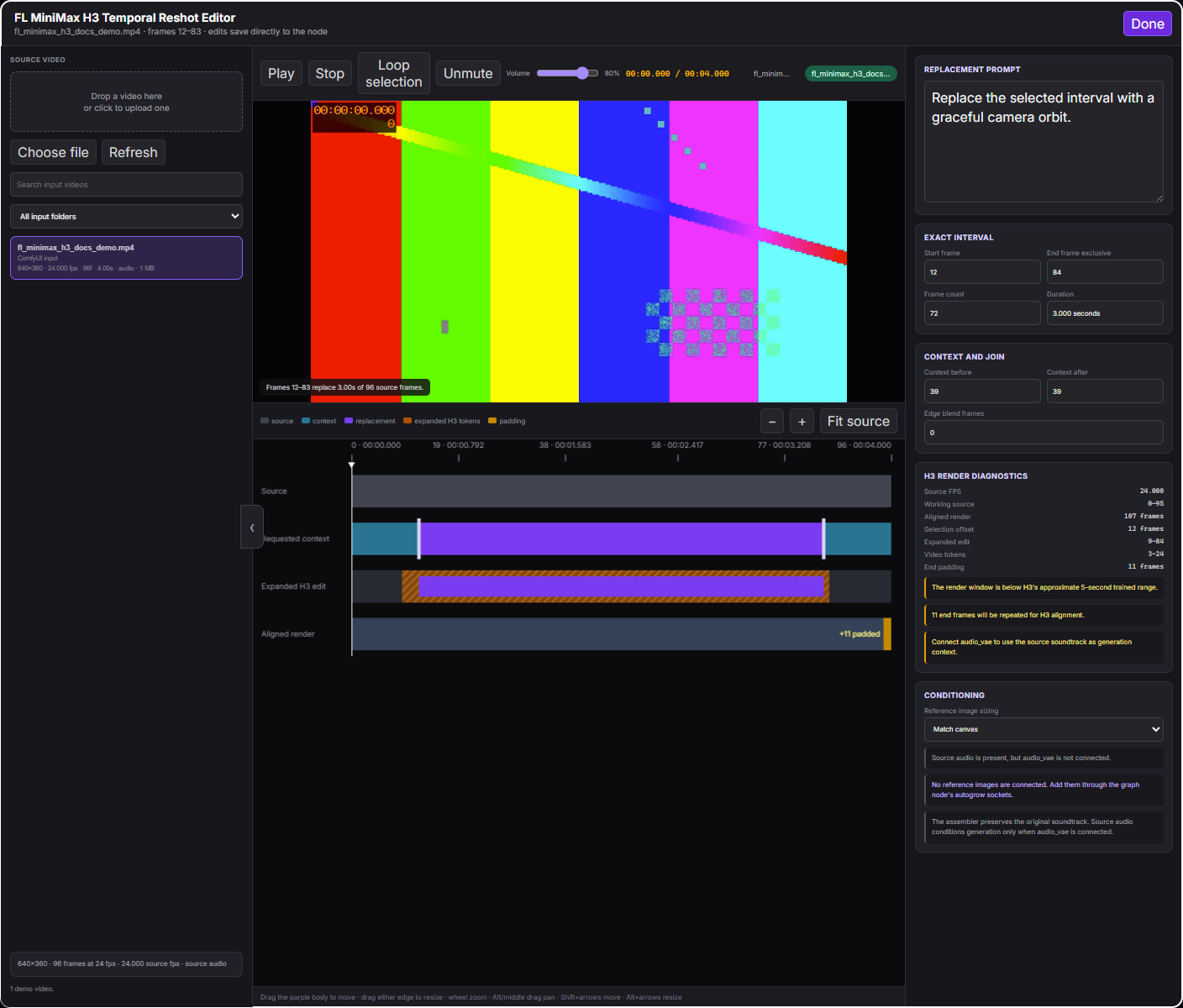
- Click Open Temporal Reshot Editor. Browse recursively under ComfyUI's input directory, search the local source library, or drop/upload a video into it. Sources at other frame rates, including variable-frame-rate videos, are normalized locally to a 24 fps editing timeline.
- Drag the purple interval to move it, drag either edge to resize it, or enter exact frame values in the inspector. Wheel zooms the timeline; Alt-drag or middle-drag pans it.
- Set source context before and after the selection. Teal shows retained context, purple is the exact replacement, and the hatched range shows any extra H3 temporal tokens that must be sampled coherently.
- Enter the new prompt in the modal and connect optional reference images on the node. Connect the audio VAE when source sound should condition the new motion; the assembler always keeps the original soundtrack.
- Close the editor with Done or Escape. Changes save directly to the node, whose compact preview loops the selected interval without taking over the graph canvas.
- Sample the one-render plan with FL MiniMax H3 Beat KSampler, then connect that latent, the exact plan, and the video VAE to Temporal Reshot Assembler.
The sampler denoises full spatial frames only across the H3 tokens intersecting the selection. Source latent is re-injected everywhere else at every step. The assembler decodes the working window, extracts the exact authored interval, resizes it back to source dimensions, and overwrites only those source frames. edge_blend_frames optionally softens the two temporal joins inside the selected range; it never changes a frame outside it.
Current limitations are deliberate: one interval per planner, no spatial/object mask, and no latent or pixel-upscale pass between sampling and reshot assembly. The H3 working window snaps to the model's 17k+5 frame grid; the UI warns when it falls outside H3's approximate 124–362-frame trained range. The assembler materializes and normalizes the full source video in memory, so long or high-resolution sources require substantial system RAM.
Beat-scheduled music-video workflow
The recommended audio-reactive path uses FL Audio Beat Prompt Schedule from ComfyUI Fill Nodes:
FL Audio Beat Prompt Schedule
    -> prompt_schedule, audio, prompt_envelopes
    -> FL MiniMax H3 Beat Shot Planner
    -> optional FL MiniMax H3 Shot Motion Context
    -> FL MiniMax H3 Beat KSampler
    -> optional FL MiniMax H3 Beat Pixel Upscale KSampler
    -> FL MiniMax H3 Shot Assembler
Fill Nodes is recommended for this beat-sequenced path but is not required for the manual Prompt Timeline workflow.
The scheduler owns waveform analysis, beat-grid editing, audio trimming, prompt blocks, crossfades, render groups, and up to three live reactive-prompt envelopes. The H3 planner consumes FL_PROMPT_SCHEDULE, the aligned audio crop, and one FL_PROMPT_ENVELOPE_SET without importing or duplicating the audio implementation. It slices and rebases every reactive prompt for each planned shot.
Render groups
The scheduler can mark touching prompt sections as one render group:
- Grouped sections are encoded and rendered together so H3 can model internal cuts with shared context.
- Ungrouped sections become independent renders.
- The sampler always returns one editable nested latent per planned render.
- The assembler restores the planned timeline order after sampling or refinement.
This provides explicit control over which cuts share generative context without forcing the entire music video into one long render.
Hard-cut motion context
Place FL MiniMax H3 Shot Motion Context between the Beat Shot Planner and every beat sampler. Also connect the video VAE to the Beat KSampler's optional vae input when video context is nonzero.
video_context_framesaccepts H3-native context windows0,1,5,22, or39.audio_context_framesaccepts0through240frames on the 24 fps video timeline.per_render_overridesuses 1-based destination renders, for example3: 22, 39.- The first render has no previous context. A requested context cannot exceed the previous render's authored length.
- Context is generated as a hidden prefix, protected during pixel-upscale refinement, and removed by the Shot Assembler. The visible transition remains a hard cut.
The Beat KSampler installs a marker-scoped H3 hook through ComfyUI's model patcher on a cloned model; it does not modify ComfyUI files or the connected model. Workflows without this node take the original H3 path. The hook prepares the payload before diffusion-model wrappers, so it can run with Spectrum H3 enabled.
Larger video context can substantially increase the destination render length on H3's temporal grid. Start with 5 video frames and 22 audio frames. The example workflow is wired with those defaults. Its final video still uses the scheduler's original audio track; audio context guides joint generation but does not replace that muxed track.
Prompt Timeline outputs
scheduled- strict temporal conditioning for the initial sampling passlatent- native nested H3 video/audio latentsemantic- single semantic conditioning suitable for low-denoise refinementtimeline- reusable encoded timeline for Apply Timeline
Use Apply Timeline when a spatial resize or VAE round trip changes the video latent width and height but preserves its temporal dimensions.
Native latent upscale
FL MiniMax H3 Latent Upscale interpolates the video stream directly in latent space. It preserves video duration, the original audio tensor, shot boundaries, motion-context metadata, and other latent dictionary fields. The target long side and proportional short side remain aligned to 32-pixel H3 canvases.
The node does not create detail by itself. Decode its output for a fast final enlargement, or rebuild conditioning with Apply Timeline before a low-denoise refinement pass. A 2x spatial upscale creates roughly 4x as many video tokens for downstream sampling.
Base KSampler
    -> FL MiniMax H3 Latent Upscale
    -> FL MiniMax H3 Apply Timeline
    -> low-denoise KSampler
    -> decode
Use bislerp as the general latent interpolation method. The existing Beat Pixel Upscale KSampler remains the VAE round-trip refinement path.
For a learned upscale, use FL MiniMax H3 Load Latent Upscaler with either Neural Latent Upscale 2D or 3D. The loader detects the checkpoint architecture and delegates loading/offloading to ComfyUI. Unlike the interpolation node, the neural variants normalize with H3's model-native per-channel statistics and reconstruct detail learned by the checkpoint. The audio half of the nested AV latent is never processed or replaced.
Pixel upscale refinement
FL MiniMax H3 Beat Pixel Upscale KSampler performs this sequence for each planned render:
- Decode the video latent through the H3 video VAE.
- Resize pixels proportionally to the requested long side.
- Re-encode the resized frames into H3 latent space.
- Reapply the render's prompt timeline at the new spatial dimensions.
- Sample from
start_at_stepthroughend_at_stepwithin the configured totalstepsschedule.
The output remains a native nested H3 latent so it can continue through other latent-aware ComfyUI nodes before decoding.
Live chunk previews
The Beat KSampler and Beat Pixel Upscale KSampler use one embedded preview player for the full render lifecycle. The player shows ComfyUI's live latent preview while a chunk is sampling, then replaces it with that chunk's completed MP4 when live is enabled. Native and Video Helper Suite preview widgets are hidden only on these two FL samplers so the same preview is not repeated below the player.
Sampling previews follow ComfyUI's existing preview settings and add no extra model work. Completed MP4 generation is off by default and does not change sampler settings, latent outputs, shot metadata, or final audio. Enabling live adds one extra video-VAE decode and preview encode per completed render. Preview errors are shown in the dashboard without failing the latent render. A cached sampler does not regenerate completed previews.
The first Beat KSampler finishes its complete latent list before downstream nodes can start because ComfyUI list outputs are not streamed between nodes. Once the pixel-upscale sampler begins processing that list, its completed renders appear incrementally as well.
Key parameters
- length - Requested video frame count at H3's fixed 24 FPS
- affect_audio - Apply scheduled text masks to video only or to video and audio tokens
- duration_policy - Reject, clamp, or fit schedule ranges that exceed the aligned H3 duration
- ref_image_size - Match the output canvas or allow H3's maximum reference area
- target_long_side - Pixel long side used by either upscale path; must be divisible by 32
- video_context_frames / audio_context_frames - Previous authored material used to guide each next hard-cut render
- steps / start_at_step / end_at_step - Total refinement schedule and the explicit portion sampled after the pixel resize and VAE round trip
- seed_mode - Increment the base seed per planned render or keep it fixed
Migration from Fill Nodes
These nodes were originally distributed inside ComfyUI_Fill-Nodes. Existing workflows do not need node replacement because the node IDs are unchanged. When a workflow saved before version 1.2.0 is loaded, the Beat Pixel Upscale KSampler converts its former steps and denoise values to the equivalent total, start, and end step window.
To avoid duplicate registrations:
- Update Fill Nodes to a version where the MiniMax nodes have been removed.
- Install this pack.
- Restart ComfyUI.
Do not combine this pack with an older Fill Nodes release that still registers the migrated MiniMax node IDs.
Requirements
- A current ComfyUI installation with MiniMax H3 support
- MiniMax H3 model, text encoder, video VAE, and audio VAE files
huggingface_hubfor the explicitly triggered VDN model download- Sufficient VRAM for the selected model, resolution, frame count, and reference media
- ComfyUI Fill Nodes only when using its audio beat scheduler or audio-reactive envelope ecosystem
VDN downloads occur only when the VDN node is executed and required files are missing. The pack does not download the turbo adapter.