
ComfyUI-ScenePromptViewer
card-per-image folder viewer with editable prompts and per-image output sockets.
Nodes (3)
Save batch results under their original filenames — before you lose your mind
The tiny text node that makes ScenePromptViewer's per-slot prompts usable
Your whole image folder on one node — with a prompt card for every image
ComfyUI Scene Prompt Viewer
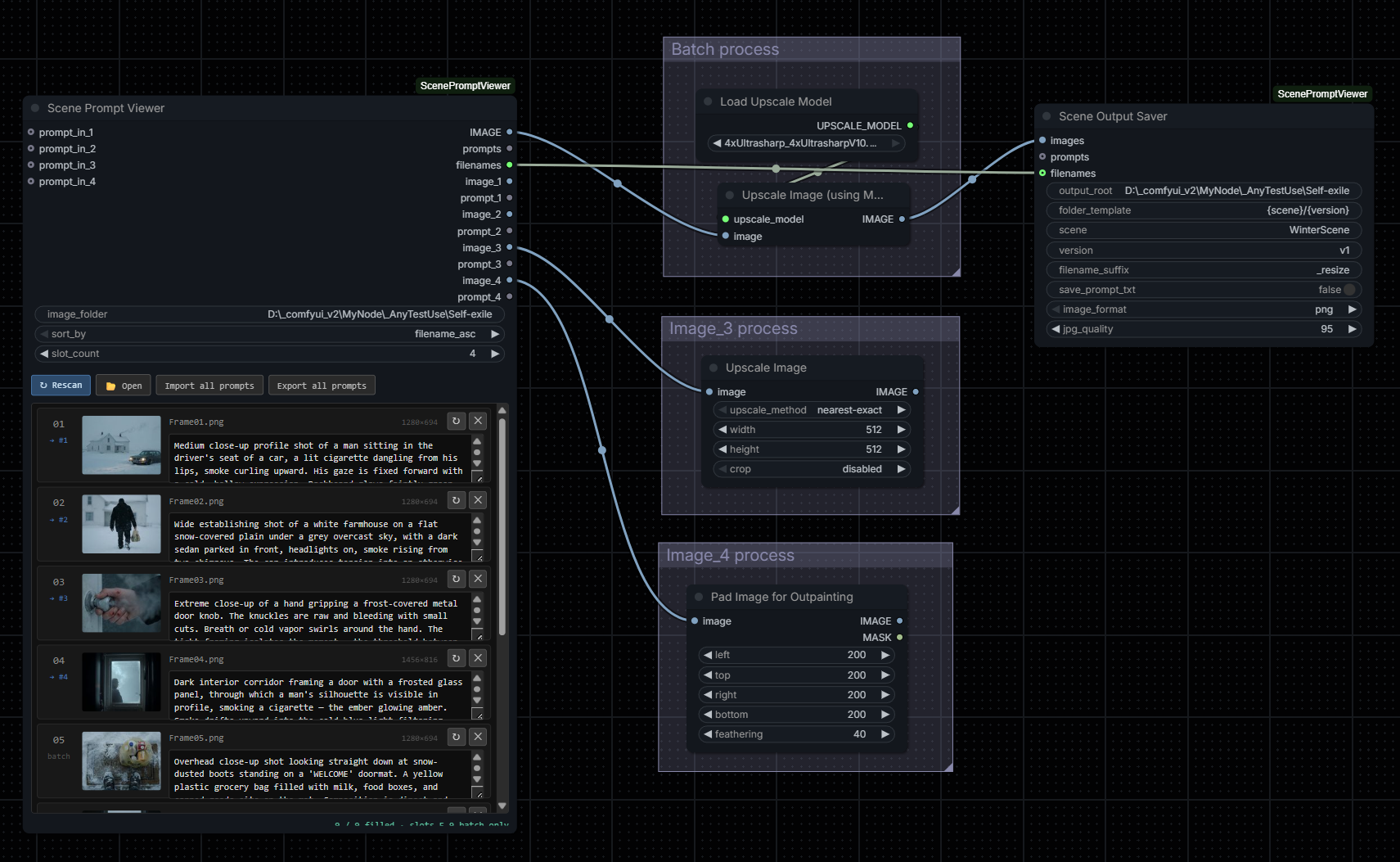
A ComfyUI custom node that lets you load a folder of images, preview each one with its own editable prompt directly on the node, batch process them through any downstream workflow, and save the results using the original filenames.
Nodes
-
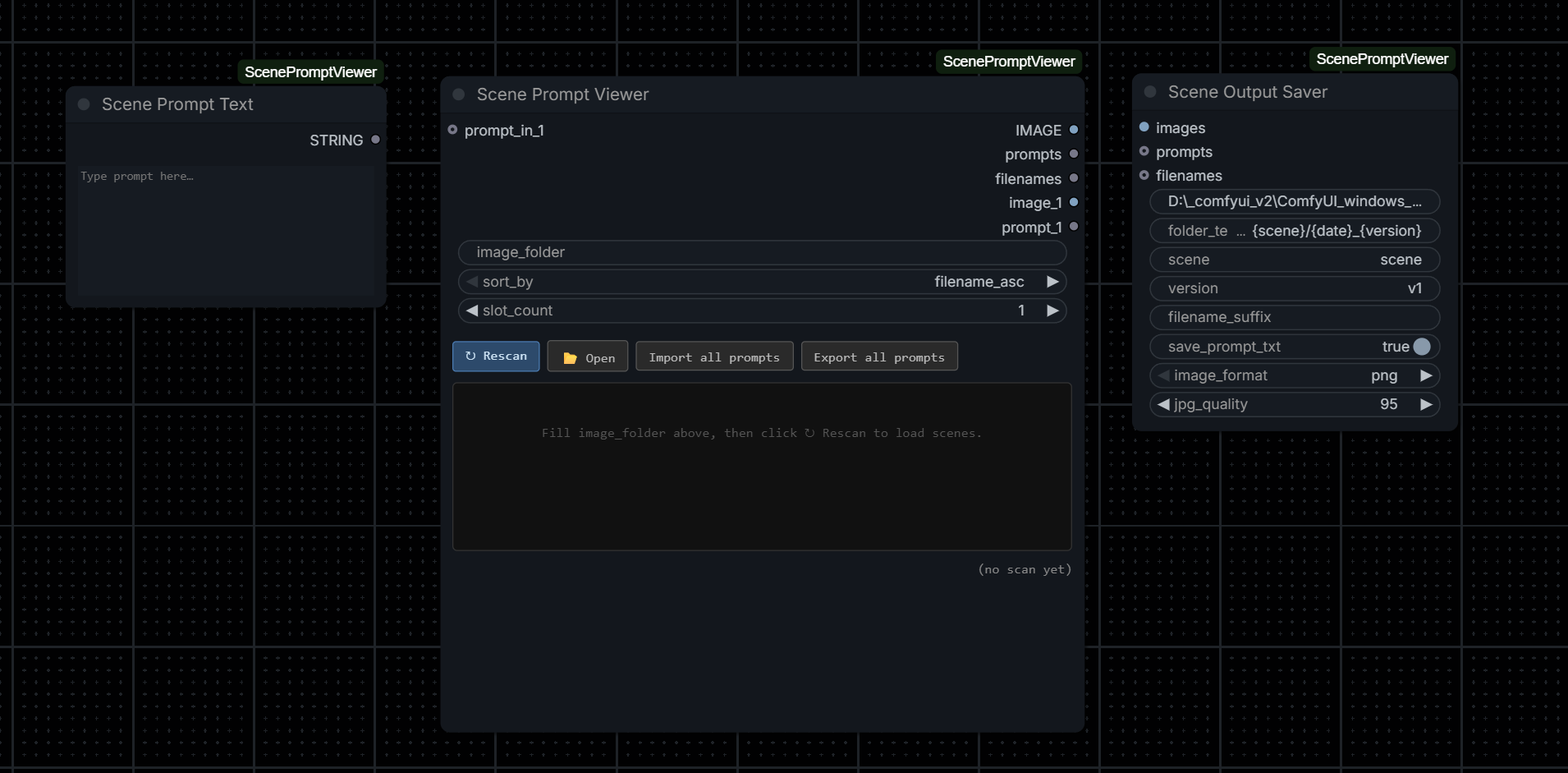
Scene Prompt Viewer — main node Scans a folder and shows a card per image. Outputs IMAGE batch, prompts, and filenames. Use
slot_countto expose individualimage_N/prompt_Nsockets for per-image handling. -
Scene Output Saver — output node, designed to pair with Scene Prompt Viewer Receives the IMAGE batch and filenames, builds a subfolder from your template, and saves each file using its original name.
-
Scene Prompt Text — helper node A multiline text input for feeding longer prompts into
prompt_in_Noverrides.
Use cases
- Batch image processing with original filenames preserved
Send a whole folder through any processing node. Results are saved with the same filenames as the source — not sequential numbers.
Scene Prompt Viewer → image processing → Scene Output Saver
When using individual sockets for single-image processing, the built-in Save Image node with a manually typed filename is simpler than Scene Output Saver, which is designed for batch use.
- Visual library browser with individual handling
See your entire image folder at a glance without opening multiple Load Image nodes. Use slot_count to pull out specific images into separate downstream workflows — all within the same node.
Tip:
promptsoutputs all prompts joined by newline. To split them per image, pair with a string-split node from your installed packs.
Install
Install via ComfyUI Manager by searching ScenePromptViewer in the Node Pack tab, or clone manually:
cd ComfyUI/custom_nodes
git clone https://github.com/yixuanzona/ComfyUI-ScenePromptViewer.git
Restart ComfyUI. All nodes appear under image → utils.
Quick start
- Drop Scene Prompt Viewer onto the canvas, paste your image folder path, click ↻ Rescan
- Write a prompt on each card if needed
- Connect
IMAGE→ your processing nodes → Scene Output Saver; connectfilenamesdirectly to Scene Output Saver - Set
sceneandversionin Scene Output Saver, then Queue
Scene Prompt Viewer
Toolbar
| Button | Action | |--------|--------| | ↻ Rescan | Re-scan folder, restore hidden scenes | | 📂 Open | Open folder in file explorer | | Import all prompts | Fill all cards from a pasted block | | Export all prompts | Copy all prompts to clipboard |
Per-card buttons
| Button | Action | |--------|--------| | ↻ | Reload this card's thumbnail | | ✕ | Hide this scene for the session (Rescan to restore) |
Scene Output Saver
Settings
| Field | Default | Description |
|-------|---------|-------------|
| output_root | ComfyUI output folder | Root save directory — accepts any absolute path |
| folder_template | {scene}/{date}_{version} | Subfolder structure — supports {scene} {date} {version} |
| scene | scene | Your project or batch name |
| version | v1 | Label for this run |
| filename_suffix | (empty) | Appended before the extension — e.g. _resize → WinterScene_resize.png |
Example — scene = Scene01, version = v1, filename_suffix = _resize:
ComfyUI/output/Scene01/20260612_v1/
  WinterScene_resize.png
  CityScene_resize.png
  ...
Each run gets its own subfolder by changing
version. This keeps iterations clearly separated and prevents previous outputs from being overwritten.
Notes
- Batch output handles any number of images — individual sockets (
slot_count) go up to 8 for images needing separate treatment - Recommended batch size is around 20 images for smooth performance
- Only top-level files are scanned, no subfolders
- For VRAM-heavy processing nodes, keep batch sizes manageable to avoid out-of-memory errors
MIT License