
ComfyUI SAM3
Custom Nodes to work with SAM3
Nodes (3)
ComfyUI SAM3
ComfyUI custom node pack for SAM3 (Segment Anything Model 3) - Meta's state-of-the-art image segmentation model. This extension enables text-prompt-based object segmentation directly within your ComfyUI workflows.
Overview
SAM3 is a powerful zero-shot segmentation model that can identify and segment objects in images using natural language prompts. This custom node pack brings SAM3's capabilities to ComfyUI, allowing you to:
- Segment objects using text descriptions (e.g., "person", "car", "dog")
- Filter results by confidence threshold
- Control minimum object dimensions
- Output individual masks for each detected object
- Generate a combined mask of all detections
- Visualize results with colored overlays, bounding boxes, and confidence scores
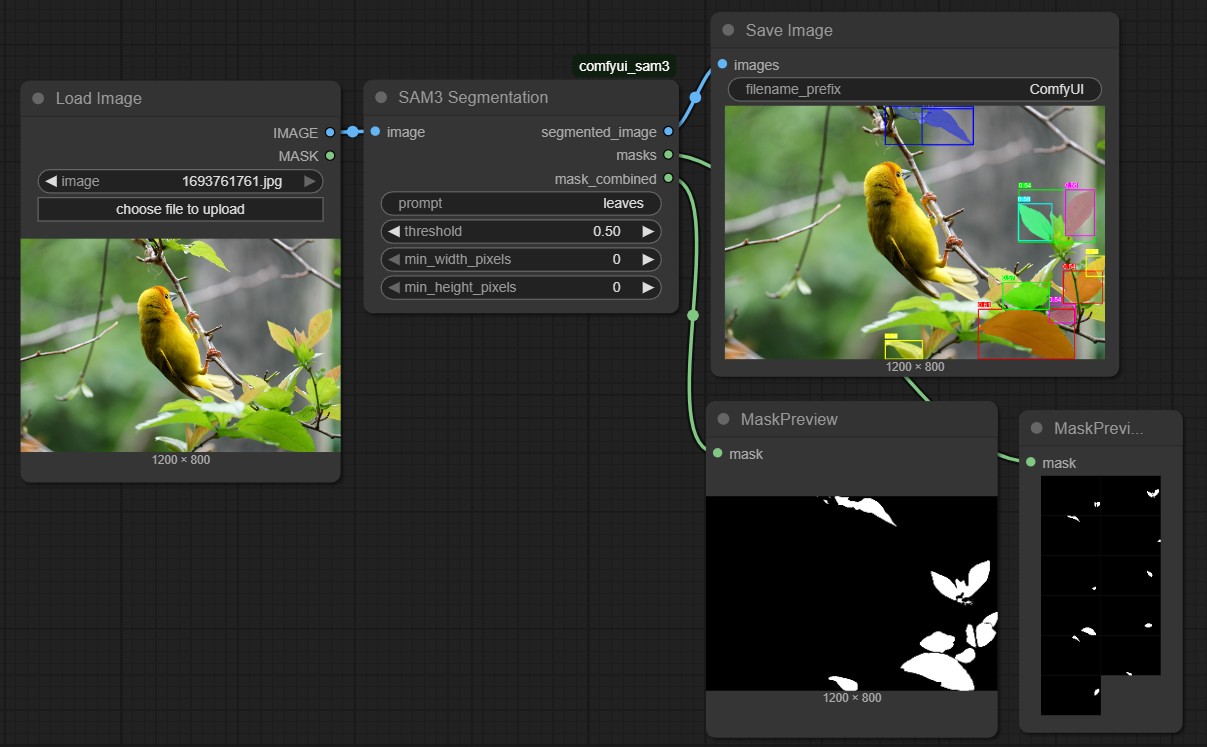
Quickstart
-
Clone this repository under
ComfyUI/custom_nodes. -
Install the dependencies:
pip install -r requirements.txt -
Model Setup - Choose one of the following options:
Option A: Auto-download from HuggingFace (recommended)
- Request model access at https://huggingface.co/facebook/sam3
- Login to huggingface using
hf auth login - The model will automatically download on first use
Option B: Manual checkpoint placement
- Download
sam3.ptmanually from https://huggingface.co/facebook/sam3/tree/main - Place the checkpoint file at:
ComfyUI/models/sam3/sam3.pt - The node will automatically detect and use the local checkpoint
-
Restart ComfyUI.
-
Load example workflow from
workflow_example/Workflow_SAM3_image_text.json
Features
SAM3 Segmentation Node
Inputs:
- image - Input image to segment (or batch of images for video model)
- prompt (STRING) - Text description of objects to segment (e.g., "person", "car", "building")
- threshold (FLOAT, 0.0-1.0) - Minimum confidence score threshold for detections (default: 0.5)
- min_width_pixels (INT) - Minimum bounding box width in pixels (default: 0)
- min_height_pixels (INT) - Minimum bounding box height in pixels (default: 0)
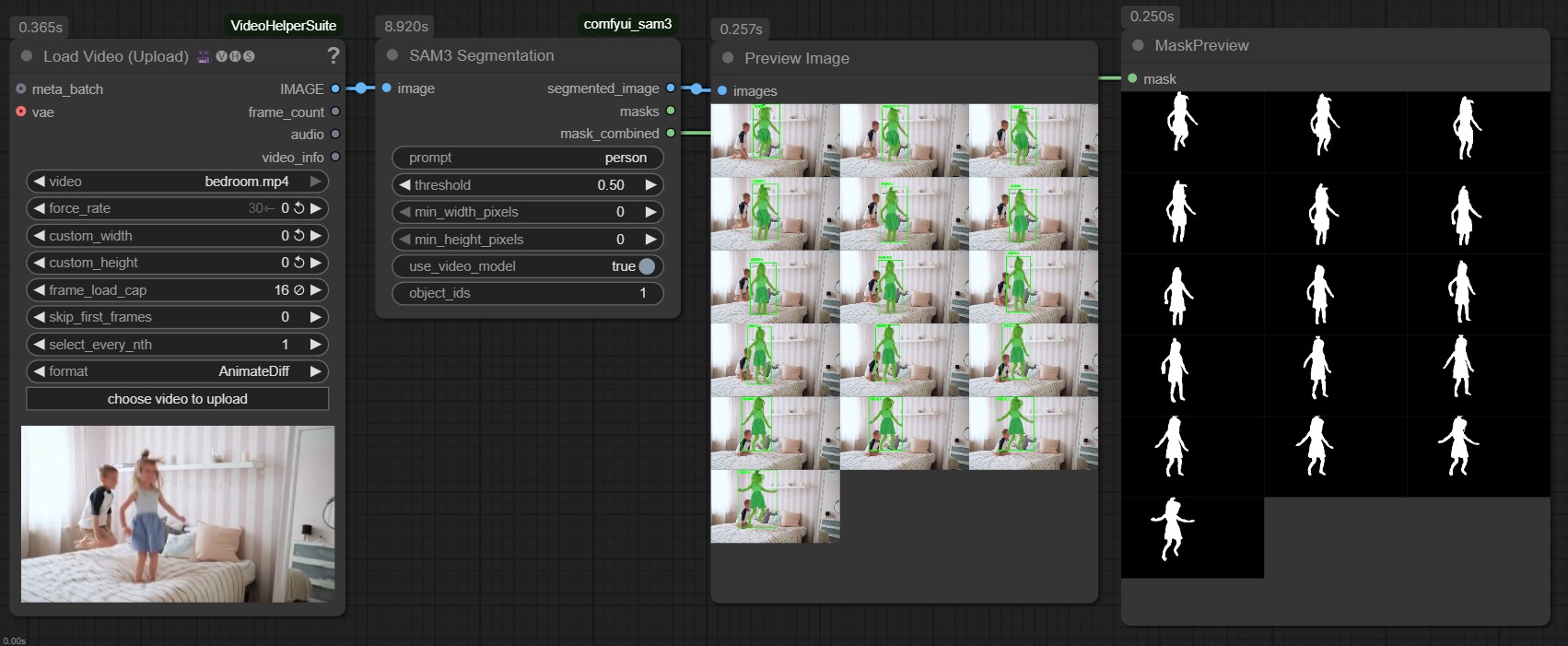
- use_video_model (BOOLEAN) - Enable video model for temporal tracking across frames (default: False)
- object_ids (STRING, optional) - Comma-separated list of object IDs to track (video model only, e.g., "0,1,2")
Outputs:
- segmented_image (IMAGE) - Visualization with colored mask overlays, bounding boxes, and confidence scores
- masks (MASK) - Batch of individual binary masks, one for each detected object
[B, H, W] - mask_combined (MASK) - Single merged mask containing all detected objects
[1, H, W] - segs (SEGS) - Segmentation objects compatible with ComfyUI-Impact-Pack, containing cropped images, masks, bounding boxes, and metadata for each detection
Model Modes
Image Model (default)
- Processes each frame independently
- Faster inference
- No temporal consistency between frames
- Best for single images or when frame-to-frame tracking is not needed
Video Model
- Enables temporal tracking across multiple frames
- Assigns consistent object IDs across frames
- Tracks object movement and maintains identity
- Perfect for video sequences or animation frames
- Supports selective tracking via
object_idsparameter - Example: Set
object_ids="0,2"to track only objects with IDs 0 and 2
Video Model Features:
- Object IDs are displayed on visualization with format "ID:X score"
- Objects maintain the same ID and color across frames
- Can filter specific objects by providing comma-separated IDs
- Leave
object_idsempty to track all detected objects
Example Use Cases:
- Remove backgrounds by segmenting people or objects
- Isolate specific elements in a scene for further processing
- Create masks for inpainting workflows
- Generate batch masks for multiple objects of the same type
- Filter detections by size to focus on foreground/background objects
- Track objects across video frames with consistent IDs (video model)
- Follow specific objects through animation sequences (video model)
Mask Outline Node
Creates an outline version of a mask with configurable width and position.
Inputs:
- mask (MASK) - Input mask to create outline from
- outline_width (INT, 1-100) - Width of the outline in pixels (default: 5)
- mode (ENUM) - Where to create the outline:
inside- Outline inside the mask boundaryoutside- Outline outside the mask boundaryboth- Outline on both sides of the boundary
Outputs:
- outline_mask (MASK) - The outline mask
Features:
- Properly handles masks that touch image edges (creates outline along the edge)
- Supports batch processing
- Uses elliptical structuring element for smooth outlines
Example Use Cases:
- Create stroke effects around segmented objects
- Generate selection borders for targetting in image edit models
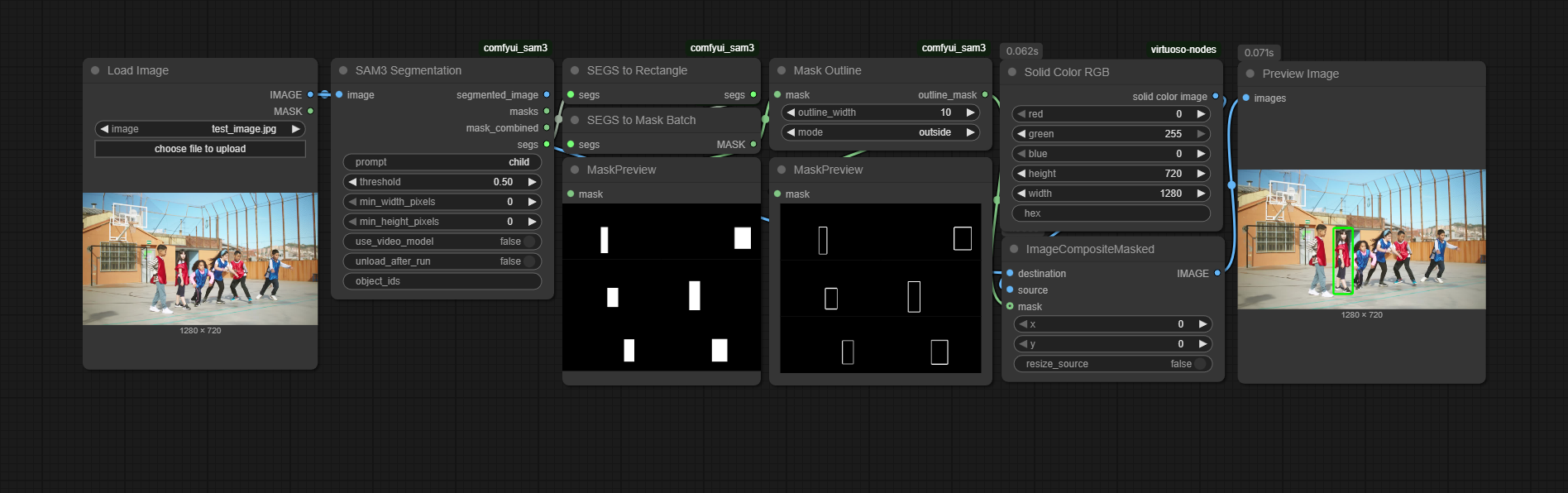
SEGS to Rectangle Node
Converts SEGS with polygon-shaped masks into SEGS with rectangular masks that fully encompass the original shapes.
Inputs:
- segs (SEGS) - Input SEGS with polygon masks
Outputs:
- segs (SEGS) - SEGS with rectangular masks covering the full bounding box
Features:
- Converts complex polygon masks to simple rectangular masks
- Preserves all SEG metadata (confidence, labels, crop regions, etc.)
- Useful for workflows that need rectangular regions instead of precise segmentation
Example Use Cases:
- Prepare regions for inpainting where full rectangular coverage is needed
- Simplify masks for certain post-processing operations
- Create bounding box masks from detailed segmentation results