
Elegant Nodes
Utility nodes built to work inside subgraphs: buttons, live results and previews stay usable on the subgraph node. A seed with random/fixed controls, a seeded random number, an aspect-ratio resolution selector, plain-text previews with concat/switch, a math expression node and an image folder loader with file names and filtering.
Nodes (7)
A calculator that shows its work
Give your numbers somewhere to go
The five-second sanity check
Stop Feeding ComfyUI One Image at a Time
Random That You Can Still Reproduce
Pick a shape, keep the pixel count
Fix the seed problem, not the seed value
Built for subgraphs
<img src="docs/images/subgraph.png" width="360" align="right" alt="One subgraph node with the seed buttons, the resolution result and the math preview">Subgraphs are great for packing a workflow into one tidy node, but buttons, live results and previews usually stay hidden inside, so you keep opening the subgraph to use or check them. ComfyUI's own Preview as Text, for example, shows nothing on the subgraph node.
Every Elegant node keeps working from the subgraph node. The node on the right is a subgraph holding an Elegant Seed, a Resolution Selector and a Math preview, used without opening it:
- Buttons: 🎲 Random, ♻️ Last seed → fixed and 🎲 Random → fixed act on the subgraph node's own seed.
- Live results: the resolution result updates as you change the promoted widgets.
- Previews: text and math results show on the subgraph node, and their last values are saved with the workflow, so they're there right after loading.
- Every copy of a subgraph keeps its own seed and shows its own values.
Nothing to set up: promote the widgets you want (ComfyUI promotes seed automatically), and
the rest follows. Demote them and it goes away.
The nodes
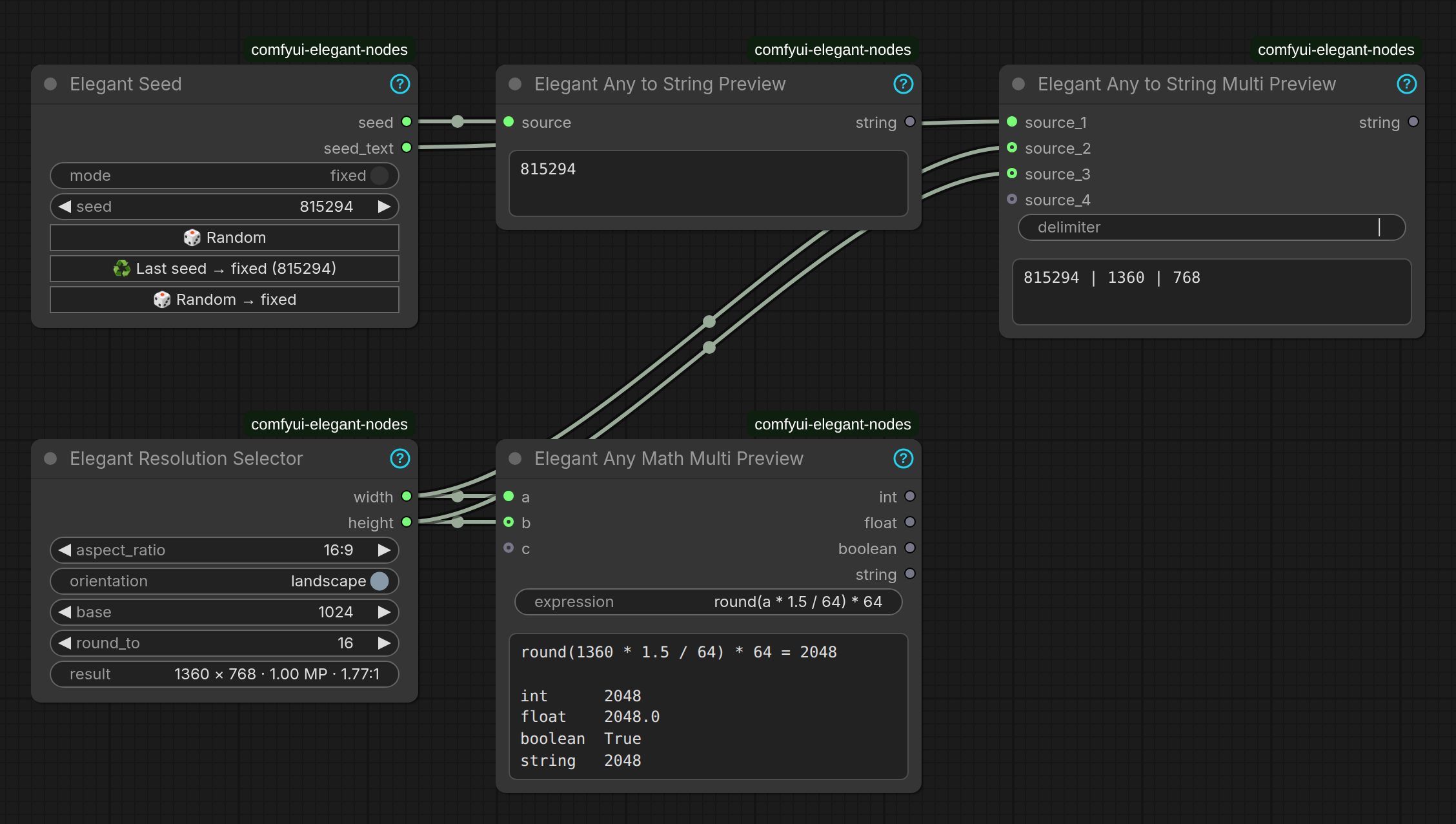
| Node | What it does | On the subgraph node |
|------|--------------|----------------------|
| Elegant Seed | A seed with a random/fixed switch and buttons to reuse or re-roll it. | Seed buttons, per copy |
| Elegant Resolution Selector | Width and height from an aspect ratio, keeping the pixel count steady. | Live result |
| Elegant Any to String Preview | Any value as plain text. | Text preview |
| Elegant Any to String Multi Preview | Several values joined as text, or one picked by index (switch). | Text preview |
| Elegant Any Math Multi Preview | A math expression over any number of inputs, with a worked-out preview. | Worked-out result |
| Elegant Load Image (from Folder) | The images in a folder, optionally filtered (*train_??5.*), plus each file's name (or name without extension, or full path). | List of loaded files |
| Elegant Random Number | A seeded random int or float between min and max: ComfyUI's standard seed plus the seed buttons. | Seed buttons and value, per copy |
All nodes are in the utilities → elegant category. Click the cyan ? in a node's title for detailed help on that node.
Installation
ComfyUI-Manager: search for Elegant Nodes and click Install.
Comfy CLI:
comfy node install elegant-nodes
Manually:
cd ComfyUI/custom_nodes
git clone https://github.com/wipeer/comfyui-elegant-nodes.git
pip install -r comfyui-elegant-nodes/requirements.txt
Restart ComfyUI and refresh the browser.
Requirements: ComfyUI 0.4.0 or newer (the nodes use the V3 node API with auto-growing inputs). The only Python dependency is simpleeval, which ComfyUI already installs.
Node details
Elegant Seed
Based on ComfyUI's built-in Seed node.
| Control | What it does |
|---------|--------------|
| mode | random: a new seed for every run. fixed: the seed in the field is always used. |
| seed | Shows the seed; type one to use it for the next run, in either mode. |
| 🎲 Random | New seed now, and switch to random. |
| ♻️ Last seed → fixed | Put back the seed of the last finished run (the image you see) and switch to fixed. The label shows that seed. Runs still queued or generating don't count. |
| 🎲 Random → fixed | New seed, and switch to fixed. |
Outputs: seed (INT) and seed_text (STRING).
In random mode the node follows ComfyUI's setting Settings → Lite Graph → Node Widget →
Widget control mode:
- after (default): the run uses the seed you see, then a new one appears. To get back the seed of an image you liked, use ♻️ Last seed → fixed.
- before: a new seed is made just before the run, so the field shows the seed that was used.
The last seed is saved with the workflow. In a batch, every run gets its own seed and the last one is remembered. Random seeds go up to 2⁵³ − 1, the largest number the browser handles exactly (like ComfyUI's own randomize).
In a subgraph: seed is promoted automatically and the three buttons appear on the subgraph
node. Promote mode too to get the switch there; otherwise the switch inside is used.
Elegant Resolution Selector
| Control | What it does |
|---------|--------------|
| aspect_ratio | 1:1, 5:4, 9:7, 4:3, 3:2, 16:9, 21:9. In portrait the list shows them flipped (4:5 … 9:21). |
| orientation | landscape or portrait. No effect at 1:1. |
| base | Side of the square image. 1024 gives about 1 MP for every ratio (SDXL, Flux); 512 for SD 1.5. |
| round_to | Width and height become multiples of 8, 16 (default), 32 or 64. 16 suits Flux/SD3, 64 matches SDXL training sizes. |
| result | Read-only, live: e.g. 1360 × 768 · 1.00 MP · 1.77:1 (ratio after rounding; 1 MP = 1024 × 1024). |
Outputs: width and height (INT), e.g. into Empty Latent Image.
The size is width = base × √ratio and height = base ÷ √ratio, each rounded. At base 1024
and round to 16: 1:1 → 1024 × 1024, 4:3 → 1184 × 880, 3:2 → 1248 × 832, 16:9 → 1360 × 768,
21:9 → 1568 × 672.
In a subgraph: promote any of its widgets and the result field appears on the subgraph node, following the promoted values live.
Elegant Any to String Preview
Turns any value into text, shows it in a plain-text box you can select and copy, and outputs it
as string. Uses the same conversion as ComfyUI's
Preview as Text,
without the Markdown mode: text stays as is, numbers and booleans become their value, lists and
dictionaries become indented JSON, and anything else (tensors, latents, …) is printed.
Switch wrap_text (an advanced input, off by default) on to wrap long lines to the width of the box instead of scrolling sideways; the box grows to fit.
In a subgraph: after each run the text also appears on the subgraph node, so you can check a value without opening it. The box is there as soon as the node is inside a subgraph, and the last text is saved with the workflow, so it shows again right after loading.
Elegant Any to String Multi Preview
The same for several values: joined with a delimiter (concat), or one of them picked by index (switch).
source_1,source_2, …: a new input appears each time you connect the last free one (up to 20). Disconnect one and the gap closes.delimiter: concat mode, default\n(new line).\tis a tab and\\a backslash; anything else is used as typed, e.g.,or|.wrap_text(advanced): wrap long lines to the box width, like the single preview.mode:concatjoins all sources;switchuses only the source chosen byindex. Only the settings the mode uses are shown:delimiter(andprefix/suffixwhen switched on) in concat,indexin switch. The others move to the advanced settings, greyed out.use_prefix/use_suffix(advanced, concat): switch on to show aprefix/suffixfield. Its text is added before / after the joined text, with\nand\tlike the delimiter: e.g. prefixFruits:\ngivesFruits:,apple,bananaon separate lines.index: switch mode, which source to use, counting from 1 (source_1). Connect a number to choose it from elsewhere, e.g. an Elegant Random Number for a random pick.out_of_range(advanced): what an index outside the connected sources does:error(default) stops with a message,clampuses the first source below 1 and the last one above,wrapcounts around.
Outputs: string (the joined text, or the chosen source as text) and value: in switch mode the
chosen source unchanged, so the switch works for images, models, latents… anything. ComfyUI
still computes every connected source, also the ones not picked.
In a subgraph: the joined text appears on the subgraph node, like the single preview. The box
there follows the node's wrap_text switch, or the subgraph node's own if you promote it.
Elegant Any Math Multi Preview
Evaluates an expression over the inputs a, b, c, … and outputs the result as int,
float, boolean and string. The preview shows the expression with the real values filled in:
1  + (2 / 2) - 3 = -1

int      -1
float    -1.0
boolean  True
string   -1.0
- Inputs accept any type, and text that looks like a number is used as one. A new input
appears each time you connect the last free one (up to
z).valuesis the list of all inputs, e.g.sum(values). - Operators:
+ - * / // % **,== != < <= > >=,and or not,x if condition else y. - Functions:
sum min max abs round pow sqrt ceil floor log log2 log10 exp sin cos tan clamp int float str bool. Constants:pi,tau. - Seeded random:
rand(seed)(0 to 1),randint(seed, low, high),uniform(seed, low, high). The same seed always gives the same number, e.g.randint(a, 1, 6)with an Elegant Seed asa. - Outputs:
intcuts decimals off (1.77 → 1; useround(…)to round),booleanis False for 0 or empty text. If the result is text that isn't a number,intandfloatare 0. - Examples:
a / b,round(a / 64) * 64,max(a, b),a * b / 1048576(megapixels),clamp(a, 1, 150),a % 2 == 0,a + "_" + str(b).
Expressions are evaluated with simpleeval, like ComfyUI's own Math Expression node: only math, no Python code, and huge powers are refused. Errors such as division by zero or an unconnected input stop the run with a message.
In a subgraph: the worked-out result appears on the subgraph node after each run.
Elegant Random Number
A random number between min and max (both included), drawn from a seed: the same seed always gives the same number, so you can get a value back.
- seed is ComfyUI's standard seed, like KSampler's, with its own control after generate
(
fixed,increment,decrement,randomize). ComfyUI changes it before or after each run, per the Widget control mode setting. - 🎲 Random: new seed now, control set to
randomize. ♻️ Last seed → fixed: the seed of the last finished run, control set tofixed. 🎲 Random → fixed: new seed, control set tofixed. - number_type:
intfor a whole number,floatfor a decimal one. - Outputs
int,floatandstring; the preview shows the value, range and seed.
Connect its int to a Multi Preview's index in switch mode for a random pick from a list.
In a subgraph: seed is promoted automatically and the seed buttons appear on the subgraph
node; the value shows there after each run. control after generate stays on the node inside
(ComfyUI doesn't promote it), and the buttons set it there.
Elegant Load Image (from Folder)
ComfyUI's Load Image (from Folder), plus the file name of each image.
| Control | What it does |
|---------|--------------|
| folder | A folder inside ComfyUI's input directory. Its images are loaded (PNG, JPG, WEBP, BMP, TIFF). Press R to refresh the list after adding one. |
| filter | Load only images whose file name matches, e.g. *train_??5.*: * is anything, ? one character, [abc] one of a, b, c. Upper/lower case is ignored. Empty: all images. |
| include_subfolders | Advanced (⚙). Also load images in subfolders, at any depth. The filter still matches only the file name. |
| start_index | Number of the first image to load, counting from 1, after filtering and sorting. Past the last image, the run stops with a message. |
| limit | Most images to load from start_index on; 0 (default) loads all the rest. E.g. start 5, limit 4: images 5 to 8. |
| filename_format | Advanced (⚙). What filename holds: file name (photo.png, default), name without extension (photo) or full path (the file's path on the ComfyUI server). |
Outputs, both lists in the same order, so the nodes after it run once per image:
images: the images (they may have different sizes).filename: each image's name, e.g. into a Save Image prefix to keep the original names.
Compared to ComfyUI's node, files load in name order with numbers by value (img2 before
img10; with subfolders, by path inside the folder), camera rotation (EXIF) is applied, and the
node runs again when files in the folder are added, removed or changed. The preview lists the
loaded files, e.g. 4 images from pets · 12 of 120 match *train_* · #5–#8 of 12. No matching image stops the run
with a message.
In a subgraph: the list of loaded files appears on the subgraph node after each run.
Advanced settings
Rarely needed settings (wrap_text, out_of_range, use_prefix, use_suffix,
filename_format, include_subfolders, and the Multi Preview settings its mode doesn't use) are advanced inputs, hidden by default. Click
the cyan ⚙ in the node's title to show or hide them, in both the classic and the Vue nodes
view. It uses the node's own "show advanced" state, so it stays in sync with ComfyUI's Show
advanced inputs button and the side panel, and it's saved with the workflow.
Help
Each node has a cyan ? in its title that opens detailed help, including every operator and function of the math node.
<img src="docs/images/help.png" width="560" alt="Help dialog of the math node">Known limitations and plans
See TODO.md for what doesn't work yet (mostly ComfyUI limitations, with workarounds) and ideas for later versions.
Upgrading from earlier versions
Elegant Random Number from 1.3.0 had its own random/fixed mode switch; it now uses
ComfyUI's standard seed control. In workflows saved with 1.3.0 its values land in the wrong
fields: delete the node and add it again.
Version 1.0.0 renamed some node ids. Workflows saved with an earlier version show those nodes as missing; replace them with the new ones:
| Before | Now |
|--------|-----|
| Elegant Resolution (ElegantResolution) | Elegant Resolution Selector |
| Elegant Any to String (ElegantAnyToString) | Elegant Any to String Preview |
| Elegant Any to String (Advanced) (ElegantAnyToStringAdvanced) | Elegant Any to String Multi Preview |
Development
__init__.py        ComfyUI entry point
node_list.json     node ids and short descriptions, for ComfyUI-Manager
nodes/             node definitions (V3 schema)
core/              logic without ComfyUI imports (resolution, text, math, random, switch, files)
web/js/            frontend: seed buttons, live result, previews, ⚙ advanced, ? help
tests/             pytest tests for core/ (and that node_list.json is complete)
Run the tests (they need only simpleeval and pytest; Node.js enables one extra check):
pip install -r requirements.txt pytest
pytest tests
Releases are published to the Comfy Registry by GitHub Actions
when the version in pyproject.toml changes on main.