
Prompt Tools
Stop hand-crafting prompts. Pipe your ideas through an LLM right inside ComfyUI — works with local backends (Ollama, vLLM, no API cost, full privacy) or cloud APIs (OpenAI, Claude via OpenRouter, Gemini), and ships text-to-image, multi-reference vision-to-prompt, pipeline composition, and AI/manual switching nodes.
Nodes (4)
Type what you want, let your LoRA folder write the rest
A local LLM writes your FLUX, SDXL and Pony prompts for you
The boring AI/manual prompt switch that keeps your workflow alive
Pull a usable prompt back out of a reference image
comfyui-prompt-tools
LLM-powered prompt-engineering tools for ComfyUI. Four nodes that share a common engine selector with five pluggable backends — Ollama, vLLM, OpenAI, Claude (via OpenRouter) and Gemini:
- PromptHelper — Translates short user input into a fully-formed prompt for FLUX, FLUX Kontext, Qwen Image Edit, SDXL, Z-Image, Pony/Illustrious, Krea 2, or LTX video (2.3 and 2.5).
- VisionPromptHelper — Extracts or edits prompts from one or two reference
images via a vision LLM. Modes split into edit-modes (transform an image)
and describe-modes (extract one aspect as a snippet). A
target_modelselector decides how the generated prompt addresses the reference images (image 1,Picture 1,<image1>). - PromptComposer — Fuses 1–5 description snippets and a user instruction into one final prompt via LLM call. Output styles: FLUX.2 – Natural Language, SDXL – Tags, Z-Image – Compact, Wan 2.2 – Motion, LTX-2.3 – Video with Audio, SDXL Pony – Photoreal, SDXL Pony – Anime/Illustrious, Krea 2 – Natural Language, LTX-2.5 – Multi-Shot Video with Audio.
- TextMux — Switches a CLIPTextEncode input between an AI-enhanced source and a manual override.
Status
Stable / v1.1. Install via ComfyUI-Manager
once the registry entry is published, or git clone directly into
custom_nodes/ (see below).
See CHANGELOG.md for the release history.
Supported LLM providers
| Provider | Status | Notes | |---|---|---| | Ollama | Stable | Local; no API key required. | | vLLM | Stable | Local / self-hosted; OpenAI-compatible endpoint. | | OpenAI | Stable | API key required. Bring your own. | | Google Gemini | Stable | API key required. Uses the OpenAI-compatible endpoint. | | OpenRouter (Claude) | Experimental — untested by the author | Code path is identical to the OpenAI one (OpenAI-compatible endpoint). Should work out of the box, but please report rough edges via Issues. |
API keys can be entered via the PromptTools Settings tab in ComfyUI
(see screenshots below). Keys are written to a gitignored
config/api_keys.yaml with 0600 permissions and never leave the
ComfyUI host.
Installation
Clone into your ComfyUI custom_nodes/ directory and install the one
runtime dependency (pyyaml, optional but enables URL/model autocomplete):
cd /path/to/ComfyUI/custom_nodes
git clone [email protected]:wernerberHH/comfyui-prompt-tools.git
pip install pyyaml
Restart ComfyUI to load the nodes. If pyyaml is absent the nodes still work
— the engine URL / model fields just degrade to plain text inputs.
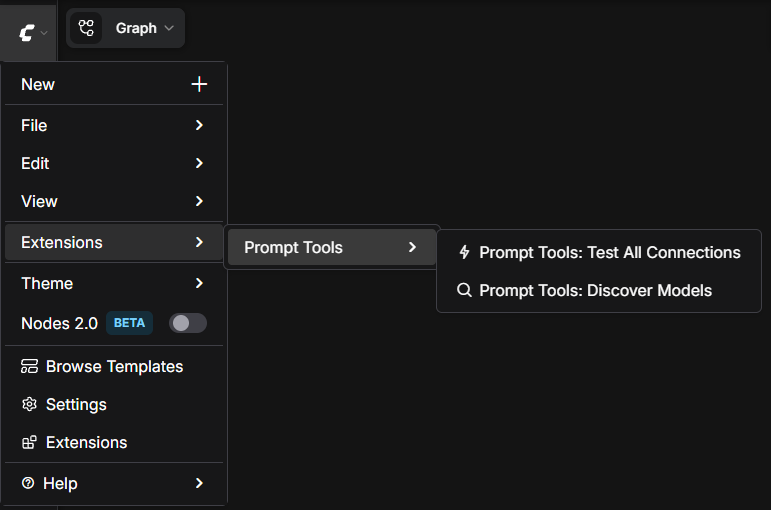
After restart, the package adds a Prompt Tools submenu under
Extensions with two utility commands — Test All Connections (pings
every configured provider once) and Discover Models (refreshes the
model dropdowns from each provider's live /models endpoint).
Configuring providers
You have two ways to tell the nodes where your LLMs live and what API keys to use:
-
Settings UI (recommended for API keys) — go to
Settings → PromptToolsin ComfyUI. Every supported provider has a URL field and an API-key field. Saved values land in a gitignored,0600-protectedconfig/api_keys.yamlnext to the package, so keys never end up inendpoints.yamlor anything that gets committed.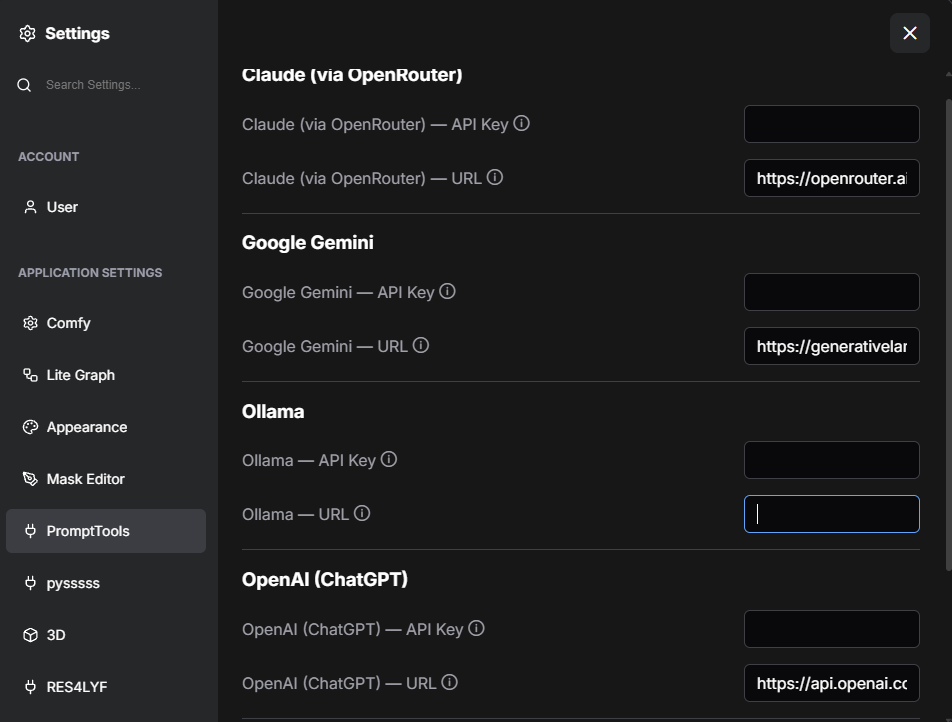
-
endpoints.yaml(recommended for URLs + the model dropdowns) — see below.
You can mix the two: typical setup is to put URLs and model lists in
endpoints.yaml (so the dropdowns are populated for autocomplete) and
API keys in the Settings UI (so they stay out of the YAML file).
Quickstart: endpoints.yaml
The engine selector in every node (engine dropdown + base_url + model)
can auto-populate the URL and model dropdowns from a config file. To enable:
cd /path/to/ComfyUI/custom_nodes/comfyui-prompt-tools/config
cp endpoints.yaml.example endpoints.yaml
# edit endpoints.yaml — point it at your Ollama / vLLM servers and cloud endpoints
endpoints.yaml is gitignored, so your URLs and model names stay private.
The committed .example file is used as fallback when no user file is
present, so the nodes always work out of the box.
The base_url and model dropdowns show every URL and every model across
all engines in one combined list — ComfyUI's INPUT_TYPES can't filter
by the current engine selection. You're responsible for picking a URL and
model that match your chosen engine; a mismatch surfaces as a connection
error at run time.
Schema:
engines:
  ollama:
    - url: "http://localhost:11434"
      models: ["qwen3-vl:8b", "llama3.2:3b"]
  vllm:
    - url: "http://localhost:8000/v1"
      models: ["Qwen/Qwen2.5-7B-Instruct"]
The committed endpoints.yaml.example also documents the network
topology choice (same-host vs separate-hosts deployment) in its
header, including the Docker-bridge gotcha for same-host container
deployments — if ComfyUI runs in a Docker container with default
bridge networking, it can't reach the host as localhost, and you
need either network_mode: host or host.docker.internal.
Mode, style and target-model lists
Every dropdown value — PromptHelper modes, PromptComposer output styles,
VisionPromptHelper modes, and the target models the prompts are written
for — comes from one file: config/catalog.yaml.example. Adding a mode or
a model is one entry there plus, where applicable, one template file. No
code change.
To change the lists without losing your edits on git pull, put your
entries in a sibling config/catalog.yaml (gitignored). It is overlaid on
the shipped file, matched by id: same id replaces the fields you list,
a new id is appended, enabled: false hides an entry.
cd /path/to/ComfyUI/custom_nodes/comfyui-prompt-tools
cp config/catalog.yaml.example config/catalog.yaml   # then trim it down
# restart ComfyUI to reload the lists
The file documents every field inline. See
docs/adding-a-mode.md for the walkthrough and
docs/architecture/prompt-catalog.md
for how it fits together.
Labels shown in the dropdowns are frozen once released, because a saved
workflow stores them as plain strings. The labels used before v1.2.0 are
kept as aliases in the catalog and keep working.
Per-model system prompts
PromptHelper, VisionPromptHelper, and PromptComposer can use
model-family-specific variants of any system prompt. When you pick a
model whose name matches one of the known families (built-in:
qwen3-vl*, qwen3*, gemma*, llama*, plus any you register in
config/model_families.yaml), the loader prefers <mode>.<family>.txt
over the default if such a file exists in system_prompts/. No
override files ship with the public release — drop your own
<mode>.<family>.txt into system_prompts/ to activate the cascade. The fallback is silent —
modes without an override use the default, exactly as before. See
docs/system-prompt-overrides.md
for the cascade and how to author your own override.
Updating
Before you update, read the upgrade notice at the top of
CHANGELOG.md. It covers the two things an update cannot
do for you. Any system_prompts/<name>.txt you created stays in place and
keeps hiding the shipped template, so those modes keep their old wording and
ignore the target_model setting. And the dropdown labels were renamed: old
workflows still load, but a workflow saved with this version no longer opens
in 1.1.x. The notice says how to spot both and what to do about it.
cd /path/to/ComfyUI/custom_nodes/comfyui-prompt-tools
git pull
# restart your ComfyUI instance to reload the nodes
Local copies can hide the updated templates
System prompts resolve system_prompts/<name>.txt (your copy, gitignored)
before system_prompts/<name>.txt.example (the shipped template). That is
what keeps your edits through a git pull — and it means an update cannot
reach a template you have a copy of. Neither git pull nor the
ComfyUI-Manager removes your .txt files, by design.
So after an update, the nodes check their own template directory once at startup and summarise what they find in the ComfyUI log. To read it without leaving the browser, run the command Toggle Logs Bottom Panel from the ComfyUI command palette:
Local system-prompt copies take precedence over the shipped templates,
so these files hide the versions that came with the package:

  outdated-copy (2) — unchanged copies of an older shipped template — they
  hide the current one. Delete them to pick up the shipped version.
    .../system_prompts/vision_outfit_transfer.txt
    .../system_prompts/_shared_rules.txt

  customized (1) — your own edits — the shipped template stays hidden.
  Re-apply your changes on top of the new .txt.example, or delete the copy
  to take the shipped version as it is.
    .../system_prompts/vision_combined_edit.txt  [no {imgN} placeholders —
      the target_model setting has no effect on this mode]

  Also present: 17 copies are identical to the current shipped template
  (nothing to do); 1 local override has no shipped counterpart (left alone).

  No file was changed or deleted. See docs/system-prompt-overrides.md for
  how to clean up.
What the labels mean, and what to do:
| Label | What it is | What to do |
|---|---|---|
| outdated-copy | An unchanged copy of a template from an earlier release | Delete the .txt. You lose nothing — you never edited it — and the improved template takes over. |
| customized | A copy you actually edited | Your call. To pick up the improvements, diff your .txt against the new .txt.example and re-apply your changes; to drop them, delete the .txt. |
| stale-shipped-override | A model-family override (<name>.<family>.txt) left behind by an older release | Delete it unless you specifically want that older wording — it hides the current base template for that model family. |
| identical | A copy with the same content as the current template | Nothing. Counted, not listed. |
| local override | A <name>.<family>.txt you wrote yourself | Nothing. It is yours; there is no shipped version it could be behind. |
| unverified | The comparison could not be made | Only happens if system_prompts/shipped_hashes.json is missing or unreadable. The nodes work normally. |
Cleaning up is plain file deletion — the check never touches a file itself:
cd /path/to/ComfyUI/custom_nodes/comfyui-prompt-tools/comfyui_prompt_tools/system_prompts
# compare one of your copies against the shipped template first
diff vision_outfit_transfer.txt vision_outfit_transfer.txt.example
# then remove the copy you no longer want to keep
rm vision_outfit_transfer.txt
# restart ComfyUI
Each node also names the file its system prompt came from per run:
PromptComposer and VisionPromptHelper in their debug_info output,
PromptHelper in its log line — e.g.
Template: vision_outfit_transfer.txt (local copy, customized).
Modes (PromptHelper)
| Mode | Output style | Use case | |---|---|---| | FLUX Kontext – Scene Edit | Natural-language edit instructions | Single-image edits via FLUX Kontext | | FLUX Kontext – Couple Scene | Two-image multi-reference instructions | Add a second person to a scene | | Qwen-Image-Edit – Couple Scene | Three-image multi-reference instructions | Couple compositing with pose ref | | FLUX – Text-to-Image | Rich natural-language description | Standalone FLUX text-to-image | | Z-Image – Text-to-Image | Dense natural-language description | Standalone Z-Image Turbo text-to-image | | SDXL – Photorealistic | Comma-separated SDXL phrases | SDXL realistic-photo workflows | | SDXL Pony – Illustrious | Booru-style tag list with score tags | Pony Diffusion / Illustrious XL | | Z-Image – Random Character | Long natural-language description | Bulk character ideation on Z-Image | | SDXL Pony – Random Character | Tag list with random variation slots | Bulk character ideation on Pony | | Krea 2 – Text-to-Image | Detailed natural-language paragraph | Standalone Krea 2 text-to-image | | LTX-2.3 – Video with Audio | Single-shot clip description with audio | LTX-2.3 video with synchronized sound | | LTX-2.5 – Multi-Shot Video with Audio | Chronological 1–4 shot description with cuts and audio | LTX-2.5 video with synchronized sound | | Custom System Prompt | User-supplied | Anything else |
The two Random Character modes use configurable pools (ethnicity, age,
mood, hair, optional lighting / setting / outfit_style). Items in a pool are
separated by either commas or newlines. IS_CHANGED returns NaN for these
modes so each queue produces a fresh random pick instead of a cached result.
Modes (VisionPromptHelper)
Set target_model to the image model the prompt is for — it decides how
the output addresses the reference images:
| target_model | Reference wording in the output |
|---|---|
| Generic (default) | image 1, image 2 |
| FLUX.2, FLUX Kontext | image 1, image 2 |
| Krea 2, Qwen-Image-Edit 2511 | Picture 1, Picture 2 |
| Qwen-Image 2.1 | <image1>, <image2> |
Wire the images in the same order as on the image model — image_1 here
is the first image there. Describe modes emit no image reference at all,
since their snippet is pasted into a larger prompt downstream.
Edit modes — input one (or two for Outfit Transfer) reference images, output an edit-instruction prompt:
| Mode | Use case | |---|---| | Outfit Transfer | Transfer the outfit from the second image onto the person in the first | | Hair Change | Change hairstyle while preserving identity | | Body Reshape | Adjust body shape (with anatomy safety) | | Background Change | Replace background | | Pose Change | Change pose while preserving identity | | Combined Edit | Multi-aspect edit in one prompt | | Outpaint (Zoom Out) | Extend a crop of a person into a full-body shot, completing build, outfit and footwear |
Describe modes — input one reference image, output a short snippet about that aspect (ready to feed into PromptComposer):
| Mode | What it describes | |---|---| | Describe Face | Facial features only | | Describe Hair | Hair color, length, style, texture | | Describe Body | Body shape, build, proportions | | Describe Pose | Body pose, gesture, gaze direction | | Describe Outfit | Clothing, materials, cuts, colors | | Describe Background | Environment, setting, mood | | Describe Lighting | Light direction, hardness, color temp | | Describe Composition | Framing, perspective, camera angle |
Pipeline-of-specialists workflow
Ready-to-load demo workflows live in examples/ — see
examples/README.md for a description of each
one, the models they expect, and which LLM provider they default to.
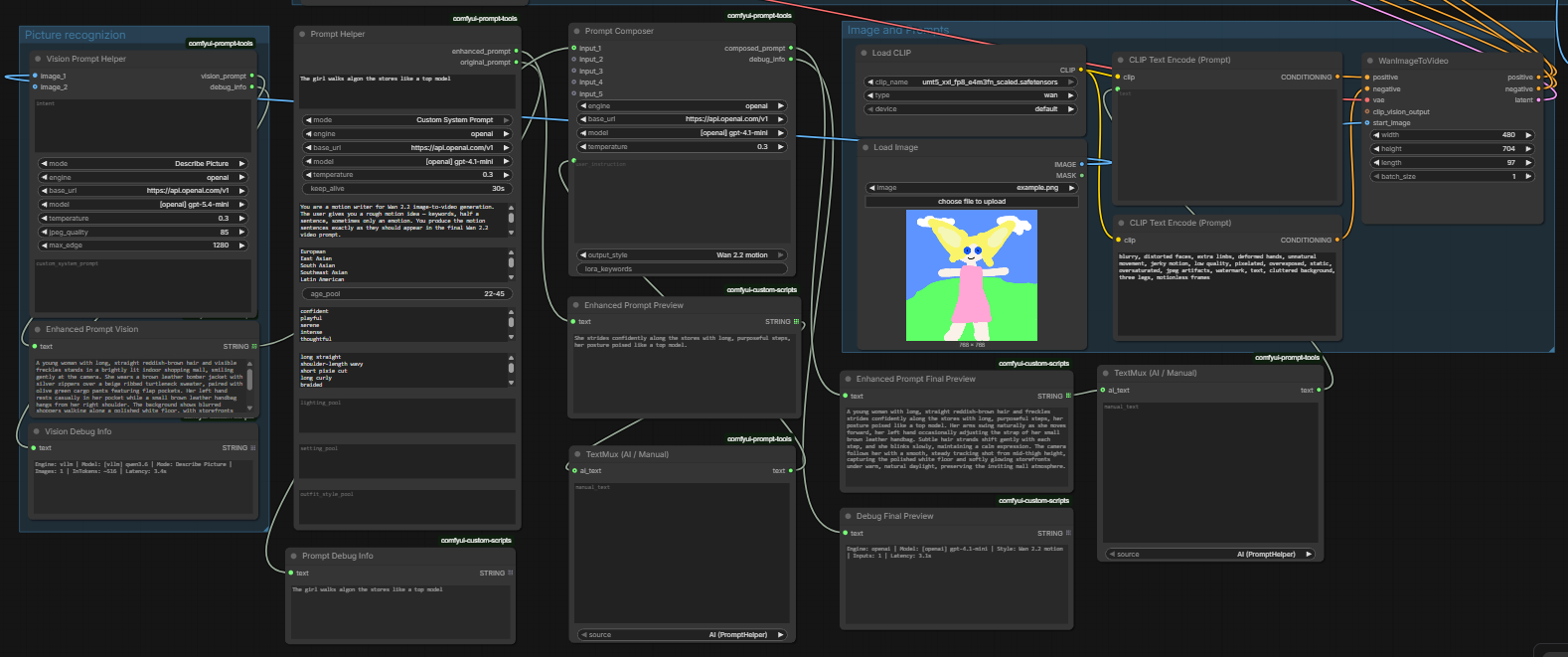
Below: the Wan 2.2 image-to-video demo workflow (examples/video_v1_wan22_i2v_demo.json),
which exercises all four nodes — VisionPromptHelper for scene
description, PromptHelper for motion writing, PromptComposer for
fusion, and TextMux for an AI/manual override switch.
See docs/composer-workflow-guide.md for a
worked write-up of how to chain describe-modes into PromptComposer for
multi-subject identity-stable scene generation.
Where to wire each PromptHelper: user_instruction vs the five inputs
The PromptComposer has one user_instruction field (multiline text)
and five generic input slots. They are not interchangeable:
| Field | Role in the composer | Wire this when your helper produces… |
|-------|---------------------|--------------------------------------|
| user_instruction | Dominant intent. Decides scene framing, emphasis, mood (image styles) or motion + camera (Wan video style). Wins on conflict. | …the overall scene idea — what is being shown, the mood, the motion, the camera, the framing. |
| input_1 … input_5 | Raw material. Aspect snippets the composer fuses into the dominant intent; drops snippets that don't fit. | …a single aspect — face, hair, body, outfit, background, lighting, composition, etc. |
Rule of thumb
- If the helper answers "what is shown?" → wire it into
user_instruction. - If the helper answers "what does one aspect of it look like?" → wire it into one of the five inputs.
For image composers (Z-Image, FLUX.2, SDXL styles): user_instruction
holds the scene, subject framing and mood; the inputs hold per-aspect detail.
For the Wan 2.2 video composer: user_instruction holds the motion and
camera intent; the inputs hold subject and atmosphere. Image-description
snippets in the inputs are explicitly not treated as motion sources — putting
movement into an input slot will weaken it. If your Wan output looks static,
that's the first thing to check.
If you only have one helper that produces a complete scene description, route
it into user_instruction and leave the input slots empty. If you have several
aspect-specific helpers (the classic "pipeline of specialists" pattern),
each goes into an input slot and you write the user_instruction text
yourself as the connective tissue.
Testing
pip install -e ".[test]"
python -m pytest tests/unit/ -v
The suite is hermetic — no network, no real model calls. Engine HTTP layers
are patched via fixtures in tests/conftest.py.
Repository layout
comfyui-prompt-tools/
├── __init__.py                       ComfyUI loader entry point
├── comfyui_prompt_tools/
│   ├── __init__.py                   package
│   ├── catalog.py                    prompt-catalog loader + validation
│   ├── prompts.py                    system-prompt loader
│   ├── vision_prompts.py             vision-mode loader
│   ├── config_loader.py              endpoints.yaml reader
│   ├── post_processing.py            output cleanup
│   ├── random_pools.py               pool-pick helpers
│   ├── image_io.py                   tensor → base64 helper
│   ├── engines/
│   │   ├── ollama_client.py          /api/chat client
│   │   └── openai_client.py          /v1/chat/completions client (vLLM)
│   ├── nodes/
│   │   ├── base_prompt_node.py       shared engine selector
│   │   ├── prompt_helper.py
│   │   ├── vision_prompt_helper.py
│   │   ├── prompt_composer.py
│   │   └── text_mux.py
│   ├── template_status.py            reports local copies hiding templates
│   └── system_prompts/
│       ├── _shared_rules.txt.example
│       ├── shipped_hashes.json       digests of every template ever shipped
│       └── <mode>.txt.example        one template per mode (committed)
│                                      copy to <mode>.txt to customise locally
├── config/
│   ├── catalog.yaml.example          mode / style / target-model lists
│   │                                  copy to catalog.yaml to overlay locally
│   └── endpoints.yaml.example        URL / model autocomplete config
├── docs/                             pipeline patterns, mode-adding guide,
│   │                                  system-prompt override docs
│   └── architecture/                 prompt-catalog architecture + diagrams
├── scripts/
│   └── update_shipped_hashes.py      regenerate shipped_hashes.json
└── tests/unit/                       hermetic unit tests
License
MIT — see LICENSE.