
Comfy 76
FET-style audio compression for ComfyUI, inspired by the 1176 Rev D (blackface). Live preview, real-time controls, dry/wet A/B, and oversampled rendering.
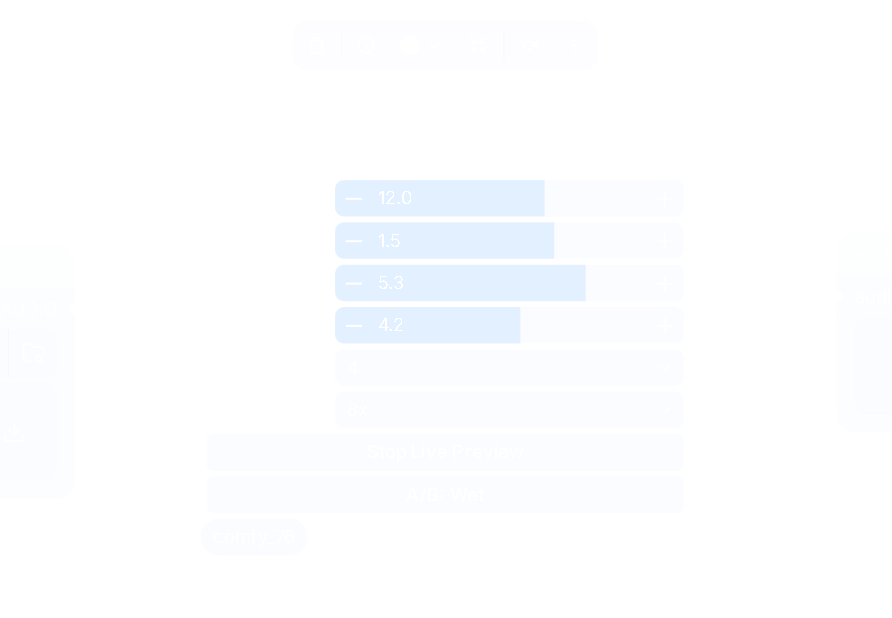
Comfy 76 brings FET-style compression inspired by the 1176 Rev D (blackface) to ComfyUI. Features live looping preview, real-time knob adjustments, dry/wet A/B, adjustable attack and release, selectable ratios, and up to 8x oversampled rendering. Dial in your sound without re-queuing, then render it directly into your audio workflow.
COMFY 76
A FET-style compressor for ComfyUI with live preview, real-time controls, and oversampled rendering.
Inspired by the classic 1176 Rev D (blackface), Comfy 76 uses a simplified nonlinear JFET feedback model for compression and coloration. It is not a component-accurate hardware simulation.
Queue your audio once, start Live Preview, and adjust the controls while the clip loops. No re-queuing is needed to hear knob changes.
FEATURES
- Live looping preview with real-time control adjustments.
- Dry/wet A/B comparison.
- Adjustable input and output gain.
- Attack and release controls.
- Ratios of 4, 8, 12, 20, and an approximate all-buttons mode.
- Offline rendering with 1x, 2x, 4x, or 8x oversampling.
- Linked multichannel detection.
- Optional black node appearance with white text and controls.
INSTALLATION
Create this folder inside your ComfyUI installation:
custom_nodes/comfy_76/
Place these files inside it:
init.py requirements.txt web/live_preview.js web/live_processor.mjs web/appearance.js
The appearance.js file is optional and provides the black-and-white node styling.
Install dependencies using the same Python environment that runs ComfyUI.
For a standard installation, run this from the ComfyUI directory:
python -m pip install -r custom_nodes/comfy_76/requirements.txt
For Windows Portable, run this from the portable root directory:
.\python_embeded\python.exe -m pip install -r .\ComfyUI\custom_nodes\comfy_76\requirements.txt
Restart ComfyUI and hard-refresh your browser.
Find Comfy 76 in the node menu under audio/effects.
QUICK START
Connect your nodes like this:
Load Audio -> Comfy 76 -> Preview Audio
- Select your source audio.
- Queue the workflow once and wait for it to finish.
- Click Live Preview on the Comfy 76 node.
- Adjust the compressor while the audio loops.
- Use A/B to compare the processed and original audio.
- Queue again when you want to render your chosen settings.
To save the result, connect Comfy 76 to an audio-saving node.
Stop any other audio players before starting Live Preview so you do not hear multiple streams playing at once.
CONTROLS
Input dB
Controls gain before compression. Increase it to drive the signal harder into compression and nonlinear coloration.
There is no threshold knob. Input gain determines how hard the signal hits the model's internal threshold.
Output dB
Controls gain after compression. Use it to set the final level and match the loudness of the processed and original audio.
Attack
Controls how quickly compression responds.
1 is slowest. 7 is fastest.
Slower settings allow more transient energy through.
Release
Controls how quickly gain reduction recovers.
1 is slowest. 7 is fastest.
Ratio
Select 4, 8, 12, 20, or All (approx).
These are nominal model settings rather than measured hardware specifications. All (approx) provides an alternate compression voicing, not an exact recreation of the hardware's all-buttons behavior.
Oversampling
Select 1x, 2x, 4x, or 8x for queued rendering.
Higher settings increase processing cost and can reduce aliasing from the nonlinear model.
This setting does not affect Live Preview.
Live Preview
Starts looping playback of the source loaded by the most recent completed execution. Click again to stop playback.
A/B: Wet / Dry
Switches live playback between processed and original audio.
This button affects the live monitor only. It does not bypass compression in the queued render.
SUGGESTED STARTING SETTINGS
Input: 0 dB, then increase to taste Output: Adjust to match the original loudness Attack: 4 Release: 4 Ratio: 4 Oversampling: 4x
Start at a comfortable listening volume, especially when increasing input or output gain.
LIVE PREVIEW AND RENDERED OUTPUT
Live Preview runs in the browser at 1x processing and uses the browser audio context's sample rate.
Queued rendering runs in ComfyUI's Python backend and uses your selected oversampling setting.
The live monitor includes 12 dB of attenuation for headroom. This affects dry and wet playback equally and does not change the rendered output.
Live Preview also includes a final clipping guard. The offline render does not, so reduce Output dB if your export clips.
Both paths use the same underlying compression model, but they are not sample-identical. Live controls are smoothed, compressor state continues across playback and loop boundaries, and browser sample-rate conversion may apply.
Offline rendering starts with fresh compressor state.
Live Preview plays the first clip in an audio batch. Queued rendering processes every clip in the batch.
WHICH PLAY BUTTON TO USE
The Load Audio player plays the original file.
The Preview Audio player plays the last queued render.
The Live Preview button on Comfy 76 responds to knob changes while the audio plays.
For real-time adjustment, use Live Preview on Comfy 76 itself.
CHANGING THE SOURCE AUDIO
- Stop Live Preview.
- Select another source file.
- Queue the workflow and wait for it to finish.
- Start Live Preview again.
Queuing a different source does not replace a loop that is already playing.
BROWSER REQUIREMENTS
Live Preview requires a browser with Web Audio and AudioWorklet support.
Open ComfyUI through localhost or HTTPS.
For local use, the usual address is:
http://localhost:8188
Plain HTTP access through another machine's IP address may prevent AudioWorklet from running.
Live Preview processes loaded audio clips. It is not a microphone input, DAW insert, or system-audio processor.
APPEARANCE
The optional appearance.js extension gives Comfy 76 a black body, dark controls, and white text.
It targets canvas-rendered ComfyUI controls. Frontends using DOM/Vue-rendered controls may require additional styling.
The extension is intended to style Comfy 76 only.
TROUBLESHOOTING
Comfy 76 does not appear:
- Check that init.py is inside custom_nodes/comfy_76/.
- Make sure the filename does not end in .txt.
- Restart ComfyUI.
- Check the startup terminal for import errors.
- Install dependencies in ComfyUI's Python environment.
Live Preview buttons are missing:
- Check that the web folder contains both live-preview files.
- Keep the processor filename as live_processor.mjs.
- Restart ComfyUI and hard-refresh the browser.
- Check the browser console for JavaScript errors.
Live Preview asks you to queue first:
- Connect Comfy 76 to Preview Audio or an audio-saving output.
- Queue the workflow and wait for it to finish.
Knob changes do not affect playback:
- Use Live Preview on Comfy 76, not a separate audio player.
- Make sure A/B is set to Wet.
Live Preview will not start:
- Open ComfyUI through localhost or HTTPS.
- Allow browser audio playback if prompted.
- Check the browser console for errors.
- Queue again if ComfyUI restarted or temporary files were cleared.
The sound is too loud or distorted:
- Reduce Input dB or Output dB.
- Excessive monitor gain can hit the live clipping guard.
- Offline output is not peak-limited.
Live Preview sounds quieter than the export:
- This is expected.
- Live monitoring has 12 dB of attenuation.
- Rendered output does not include that attenuation.
The first render takes longer:
- Numba compiles the processing function on first use.
- Later executions can reuse it during the same ComfyUI session.
Playback stutters:
- Try a shorter clip.
- Close demanding browser tabs.
- Keep the ComfyUI tab active.
The black-and-white appearance is missing:
- Check that web/appearance.js is installed.
- Restart ComfyUI and hard-refresh the browser.
- Styling support depends on your frontend.
TEMPORARY FILES
Each completed execution writes a dry float-WAV file to ComfyUI's temporary directory for browser preview.
Long clips require additional disk space and browser memory.
Comfy 76 does not immediately delete these files after playback. Cleanup follows ComfyUI's temporary-file handling.
UPGRADING FROM THE EARLIER NODE
Folder: comfy_76 Registered node ID: comfy_76 Display name: Comfy 76
Remove the earlier comfy_1176 installation if you no longer need it.
Existing workflows referencing the old node must have their compressor replaced with Comfy 76.
MODEL LIMITATIONS
Comfy 76 does not fully reproduce the original hardware's:
- Input and output transformers.
- Discrete preamplifier and line-amplifier stages.
- Gain-control amplifier and detector circuitry.
- Ratio pushbutton network.
- Component tolerances, noise, or calibration.
- Metering circuitry.
The DSP uses effective model parameters rather than a direct transcription of the original circuit's component values.
REFERENCES AND ACKNOWLEDGMENTS
This custom node vibecoded by Corey Milner, Calgary Alberta, is released into the public domain with no limitations or warranties. It is not an exact re-creation of the original circuit, but it gives a quality working emulation for similar audio compression in Comfy UI natively.
The classic 1176 Rev D (blackface) compressor provides the hardware inspiration.
Hardware reference material includes M. Nats' DIY 1176LN Rev D, Version 2 schematic and bill of materials, dated 30 April 2008.
Comfy 76 does not implement that schematic as a complete component-level simulation. Its JFET parameters, detector calibration, timing behavior, and all-buttons response are simplified DSP approximations.
TRADEMARK NOTICE
Third-party product names and trademarks belong to their respective owners. References to the 1176 and Rev D hardware are used solely to identify the design inspiration.
Comfy 76 is an independent project and is not affiliated with, sponsored by, or endorsed by Universal Audio or M. Nats.