
PLaMo Prompt Translator
Local PLaMo 3 prompt translation for ComfyUI through LM Studio, with 53 language choices and automatic long-text splitting.
PLaMo Prompt Translator for ComfyUI
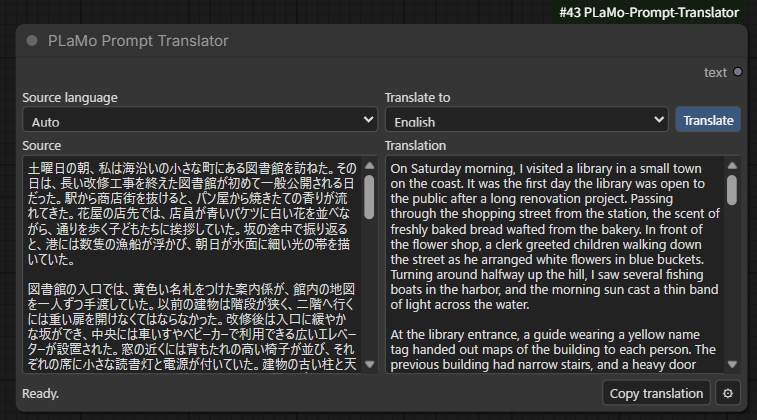
Translate image prompts and plain text in ComfyUI using PLaMo 3 Translate 0.8B and a local LM Studio server. Edit the source and translation side by side, then send the result to another node as a STRING.
Install the custom node
Run these commands from the ComfyUI folder that contains custom_nodes.
cd custom_nodes
git clone https://github.com/ukr8b3g-cmyk/ComfyUI-PLaMo-Prompt-Translator.git
For a manual install, download Source code (zip) from the latest release. Extract the folder into custom_nodes and name it ComfyUI-PLaMo-Prompt-Translator. Its __init__.py should be directly inside that folder. Restart ComfyUI, reload the browser tab, and search for PLaMo Prompt Translator under PLaMo / Text.
The node uses the Python environment and aiohttp supplied by ComfyUI. It requires Python 3.10 or newer and no extra pip packages. Install LM Studio and download the model separately.
Install LM Studio and download PLaMo
-
Download and run the desktop installer for your OS from the official LM Studio download page. On Windows, choose Download LM Studio for Windows under Download LM Studio.
-
In LM Studio, open Discover and search for
pfnet/plamo-3-translate-0.8b-GGUF. Choose the pfnet result and downloadplamo-3-translate-0.8b-Q4_K_M.gguf(about 573 MB). PFN model card · LM Studio model download guide
-
On the same computer as the ComfyUI backend, open Model Server (called Developer in some versions) and turn on the server switch. Check that Status: Running appears. The default address is
http://127.0.0.1:1234. LM Studio server guide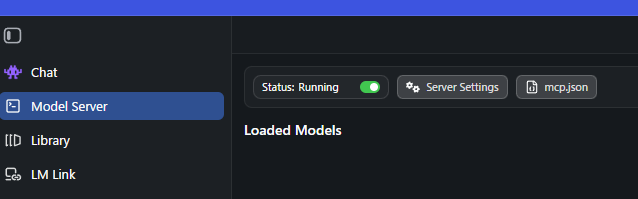
-
In the ComfyUI node, open Connection settings using the gear icon. Enter the server URL, click Refresh models / Check connection, select the downloaded PLaMo model, and click Save settings. Enter an API token if LM Studio has authentication enabled. The first translation loads the selected model if needed.
<img src="docs/images/comfyui-connection-settings.png" alt="PLaMo connection settings showing the server URL, model, total timeout, and maximum output tokens" width="420">
Translate and use the result
- Set Source language to Auto for detection, or choose the source language. Set Translate to to the language you want.
- Paste plain text on the left and click Translate. Review or edit the text on the right. Copy translation copies it to the clipboard.
- Connect text to a compatible STRING input, such as Preview as Text or a CLIP Text Encode node with its text widget converted to an input. Run passes the accepted text to connected nodes.
- Use Use current text to accept a manually entered or partial translation after reviewing it. The workflow saves the text, languages, and acceptance state. Example workflow
Connection settings apply to all PLaMo nodes. Use Unload selected model to free the selected LM Studio model. An API token entered in the dialog stays in that browser tab. The ComfyUI server can also read COMFYUI_PLAMO_API_TOKEN from its environment.
Translate the natural-language portion of a prompt first. Add LoRA references, weights, wildcards or prompt-control syntax to the edited result.
Live translation
Click Live OFF beside Translate to enable automatic translation. Live ON is red; its tooltip explains the action. Translation starts 800 ms after typing stops, after IME composition completes. Only the newest input is translated next; stale replies do not overwrite edits. Click again to turn it off. Errors are not retried continuously. Run still sends the accepted text without starting translation. The switch is saved per node in the workflow; reopening alone does not start translation.
Long text and token limits
One click on Translate sends long text in pieces. Each piece contains up to 2,000 source characters. The node prefers a paragraph break and falls back to a line, sentence or word boundary where possible. It translates the pieces in order and joins the results. If a piece reaches the token cap, the node can split that piece further and retry. An unresolved cutoff is shown as a partial result for review.
Maximum output tokens is the limit for each LM Studio request. Choose 256, 512, 1024 or 2048 in Connection settings. The default is 512. The joined translation can exceed 2048 tokens, and the full operation uses the configured Total timeout. The node accepts up to 16,000 source characters (64 KiB UTF-8) and 64,000 combined result characters (256 KiB UTF-8).
In a Windows test with ComfyUI and LM Studio, a 14,098-character English passage produced 2,588 Japanese completion tokens over eight requests from one Translate click. The complete result reached Preview as Text on Run. Validation details
Supported languages
PLaMo 3 Translate supports 53 language choices. Simplified and Traditional Chinese are separate choices. Hugging Face shows 52 because its language badge groups them together. Auto is available for the source. The target is selected explicitly and defaults to English. PFN language list
<img src="docs/images/comfyui-source-language.png" alt="Source language menu with Auto first" width="230"> <img src="docs/images/comfyui-target-language.png" alt="Translate to menu with English first" width="187">| Language | Language | Language |
| --- | --- | --- |
| English en | Chinese (Simplified) zh-hans | Chinese (Traditional) zh-hant |
| Japanese ja | Korean ko | Arabic ar |
| Azerbaijani az | Belarusian be | Bulgarian bg |
| Bengali bn | Catalan ca | Cebuano ceb |
| German de | Spanish es | Estonian et |
| Basque eu | Persian fa | French fr |
| Gujarati gu | Hebrew he | Hindi hi |
| Croatian hr | Hungarian hu | Armenian hy |
| Indonesian id | Italian it | Javanese jv |
| Georgian ka | Kazakh kk | Khmer km |
| Lithuanian lt | Latvian lv | Malayalam ml |
| Marathi mr | Malay ms | Burmese my |
| Nepali ne | Dutch nl | Punjabi pa |
| Polish pl | Russian ru | Sinhala si |
| Slovak sk | Slovenian sl | Serbian sr |
| Swahili sw | Tamil ta | Telugu te |
| Thai th | Tagalog tl | Urdu ur |
| Uzbek uz | Vietnamese vi | |
Latest release · Change log · API example · References and model license · Forge Neo version
<a id="japanese"></a>
日本語
PLaMo 3 Translate 0.8B を LM Studio で動かし、ComfyUI から画像生成プロンプトや自然文を翻訳するノードです。原文と訳文を左右に並べ、訳文を編集してから STRING として次のノードへ渡せます。
カスタムノードをインストール
ComfyUI本体のフォルダーで実行します。
cd custom_nodes
git clone https://github.com/ukr8b3g-cmyk/ComfyUI-PLaMo-Prompt-Translator.git
手動で入れる場合は、最新リリース から Source code (zip) をダウンロードします。展開したフォルダーを custom_nodes に入れ、名前を ComfyUI-PLaMo-Prompt-Translator にします。フォルダー直下に __init__.py があることを確認してください。ComfyUIを再起動してブラウザーを再読み込みし、PLaMo / Text の PLaMo Prompt Translator を追加します。
Python 3.10以降のComfyUI環境で、同梱の aiohttp を使います。追加のpipインストールは不要です。LM Studioとモデルは別途入手してください。
LM StudioとPLaMoを準備
-
LM Studio公式ダウンロードページ で、使っているOSのデスクトップ版インストーラーをダウンロードして実行します。Windowsでは Download LM Studio の Download LM Studio for Windows を選びます。
-
LM Studioの Discover を開き、
pfnet/plamo-3-translate-0.8b-GGUFを検索します。配布元が pfnet のモデルを選び、plamo-3-translate-0.8b-Q4_K_M.gguf(約573 MB)をダウンロードします。PFNのモデルページ · LM Studio公式のモデル取得手順 -
ComfyUI本体と同じPCで Model Server(バージョンによっては Developer)を開き、サーバーのスイッチをオンにします。Status: Running を確認してください。接続先の初期値は
http://127.0.0.1:1234です。LM Studio公式のサーバー手順 -
ノード右下の 歯車 を開き、接続先を入力します。モデル一覧更新・接続確認 を押してPLaMoを選び、設定を保存 します。LM Studioで認証を使っている場合は、APIトークンも入力します。モデルが未ロードなら、初回の翻訳時に読み込みます。
<img src="docs/images/comfyui-connection-settings.png" alt="接続先、モデル、全体タイムアウト、最大出力トークン数を表示した接続設定" width="420">
翻訳して使う
- 原文の言語 は 自動 のままでも、手動で選んでも使えます。翻訳先 を指定します。
- 左に原文を貼って 翻訳 を押します。右の訳文は編集でき、訳文をコピー でコピーできます。
- ノードの text 出力を Preview as Text や CLIP Text Encode の文字列入力に接続します。CLIP Text Encodeの入力欄は必要に応じて入力端子へ変換します。Run を押すと採用済みの訳文が接続先に渡ります。サンプルワークフロー
- 手入力した訳文や途中までの訳文を使う場合は、内容を確認して 現在の訳文を使う を押します。原文、言語、編集した訳文と採用状態はワークフローに保存されます。
接続設定はすべてのPLaMoノードで共通です。モデルを解放する場合は、接続設定の 選択モデルを解放 を使います。設定画面で入力したAPIトークンは、そのブラウザータブ内だけに保持されます。ComfyUI本体の環境変数 COMFYUI_PLAMO_API_TOKEN も使えます。
LoRA参照、重み、ワイルドカードなどを含む場合は、自然文部分を先に翻訳し、必要な構文を訳文へ追加してください。
自動翻訳
Translateの隣の Live OFF/自動翻訳 OFF を押すと自動翻訳がオンになります。オンは赤色で、マウスを重ねると説明が表示されます。入力停止から800ミリ秒後、日本語IMEの変換確定後に翻訳します。待機するのは最新の原文だけで、古い応答で手編集を上書きしません。もう一度押すとオフになり、エラー時に再試行を繰り返すこともありません。Runは採用済みの訳文を渡す処理のままです。オン・オフはノードごとにワークフローへ保存し、開き直しただけでは翻訳しません。
2,000文字を超える長文とトークン上限
翻訳は1回押すだけです。原文は1区間あたり最大2,000文字で、できるだけ段落の切れ目で分けます。段落だけで収まらない場合は、改行、文、単語の切れ目を使います。区間を順に翻訳して、訳文をひとつに結合します。途中で切れた区間はさらに分けて再翻訳します。それでも切れた場合は、部分訳として確認できます。
歯車の 最大出力トークン数(256/512/1024/2048、初期値512)は、LM Studioに送る1リクエストごとの上限です。結合した訳文は2,048トークンを超えて出力できます。設定の 全体タイムアウト(秒) は、分割を含む処理全体に適用されます。原文は最大 16,000文字(UTF-8で64 KiB)、結合後の訳文は最大 64,000文字(UTF-8で256 KiB) です。
Windowsの実機検証では、14,098文字の英語をTranslate 1回で日本語へ翻訳し、LM Studioへの8リクエストから計2,588出力トークンを得ました。Runでも接続先の Preview as Text に同じ全文が渡りました。検証記録
対応言語
PLaMo 3 Translateの53の言語選択肢に対応します。中国語の簡体字と繁体字を別々に選べます。Hugging Faceのバッジでは中国語がひとつにまとめられるため、52言語と表示されます。自動 は原文の言語で選べます。翻訳先の初期値は 英語 です。PFN公式の対応言語
<img src="docs/images/comfyui-source-language.png" alt="先頭にAutoがある原文言語の一覧" width="230"> <img src="docs/images/comfyui-target-language.png" alt="先頭に英語がある翻訳先言語の一覧" width="187">| 言語 | 言語 | 言語 |
| --- | --- | --- |
| 英語 en | 中国語(簡体字) zh-hans | 中国語(繁体字) zh-hant |
| 日本語 ja | 韓国語 ko | アラビア語 ar |
| アゼルバイジャン語 az | ベラルーシ語 be | ブルガリア語 bg |
| ベンガル語 bn | カタルーニャ語 ca | セブアノ語 ceb |
| ドイツ語 de | スペイン語 es | エストニア語 et |
| バスク語 eu | ペルシャ語 fa | フランス語 fr |
| グジャラート語 gu | ヘブライ語 he | ヒンディー語 hi |
| クロアチア語 hr | ハンガリー語 hu | アルメニア語 hy |
| インドネシア語 id | イタリア語 it | ジャワ語 jv |
| ジョージア語 ka | カザフ語 kk | クメール語 km |
| リトアニア語 lt | ラトビア語 lv | マラヤーラム語 ml |
| マラーティー語 mr | マレー語 ms | ビルマ語 my |
| ネパール語 ne | オランダ語 nl | パンジャーブ語 pa |
| ポーランド語 pl | ロシア語 ru | シンハラ語 si |
| スロバキア語 sk | スロベニア語 sl | セルビア語 sr |
| スワヒリ語 sw | タミル語 ta | テルグ語 te |
| タイ語 th | タガログ語 tl | ウルドゥー語 ur |
| ウズベク語 uz | ベトナム語 vi | |
最新リリース · 変更履歴 · APIの使用例 · 参考資料とモデルのライセンス · Forge Neo版