comfyui-compshare
This is a custom node for ComfyUI that allows you to use the Compshare API directly in ComfyUI. Compshare is a high-performance AI inference platform providing powerful image generation models including popular text-to-image and image editing models without local GPU setup. a/compshare docs 优云智算的ComfyUI的自定义节点,可直接在ComfyUI中使用优云智算的生图API。优云智算是一个高性能的AI推理平台,提供强大的图像生成模型(文生图、图生图、图像编辑)和行业领先的推理速度,无需本地GPU设置即可使用。a/优云智算官网
Nodes (34)
Seedance 2.0, the ByteDance video model, as an API node
Gemini 3 Pro Image (aka Nano Banana Pro), the best image editor you can't run locally
Cheap image-to-video, the pack's workhorse
The character-consistency video node
The cheap, cheerful text-to-video node
One node that does t2v, i2v, and motion control
Video editing with a reference clip
200+ models behind one dropdown
Flux, without the 24GB download
The flagship multi-image editor
Flagship quality from a sentence
The expert single-image editor
The sensible default generator
OpenAI's editor, with a mask input
OpenAI's text-to-image, no OpenAI account needed
The boring node that makes multi-image work
The Modelverse Input Files node
Save it, preview it, wire it on
The 'pencil sketch it' node that actually obeys
The Modelverse text-to-image node
Modelverse Step1X Edit
Modelverse Wan-AI image-to-video
Wan 2.2 text-to-video without the 14B download
Google's Gemini image model in ComfyUI
Sora 2 in ComfyUI, minus the VRAM bill
Prompt to footage, with a credit card in the middle
How the Modelverse Client powers the whole pack
The Modelverse node that keeps your API key out of your workflow files
Veo 3.1 with real audio, right in your ComfyUI graph
Vidu Extend
A still in, a moving scene out
Vidu Reference2Video
Vidu StartEnd2Video between two frames
Three Vidu tiers behind one dropdown
Compshare API for ComfyUI
This plugin provides seamless integration with compshare's ModelVerse API, enabling you to use powerful AI models directly within ComfyUI for image generation and editing tasks.
Quick Start
Installation
-
Install via Custom Node Manager (Recommended)
- Open ComfyUI
- Go to Manager → Custom Nodes Manager
- Search for "comfyui-compshare"
- Click Install
- Restart ComfyUI
-
Configure API Key
- Get your API key: Console
- Add your API key in the
Modelverse Clientnode - Alternatively, create a
config.inifile withMODELVERSE_API_KEY=your_api_key
Basic Usage
- Add a
Modelverse Clientnode to your workflow - Choose your desired model from the supported models below
- Connect the appropriate input/output nodes
- Run your workflow
Supported Models
Our plugin supports the following models, each optimized for specific use cases:
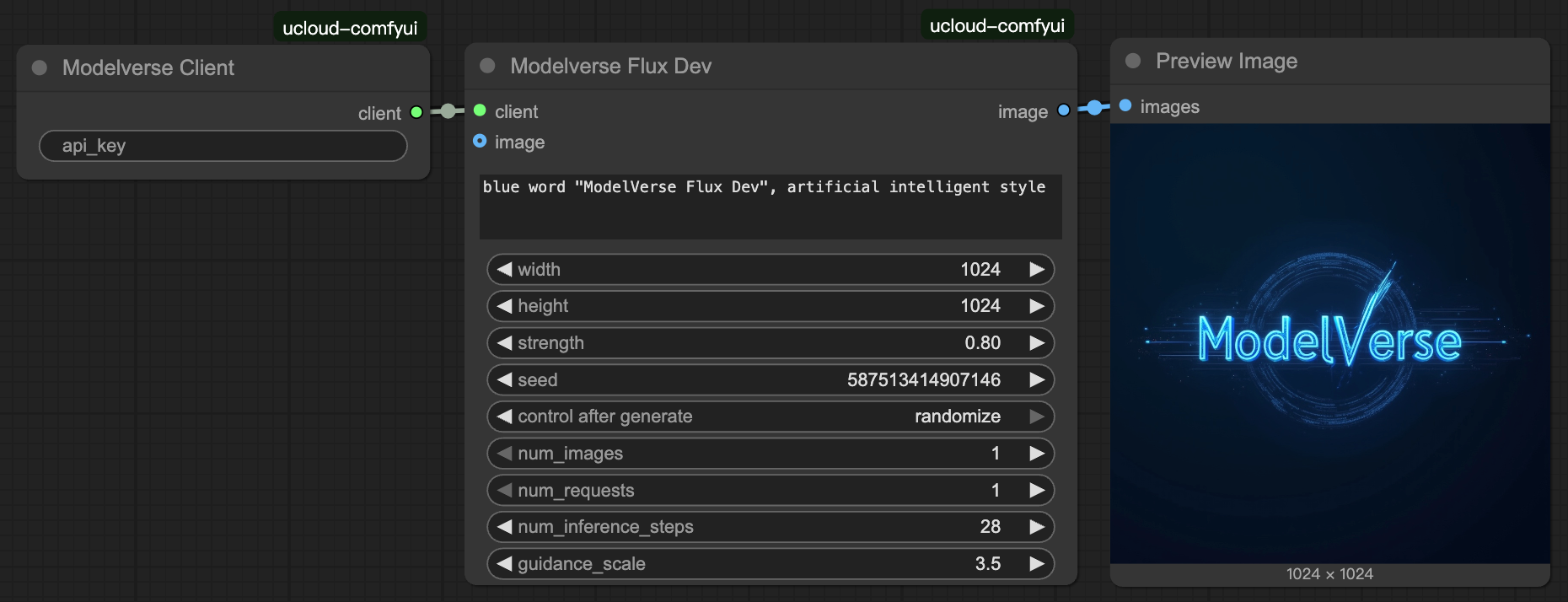
- Flux Dev - Foundation model with strong stylization capabilities
- Flux Kontext Pro Text2Image - Specialized for text-to-image generation
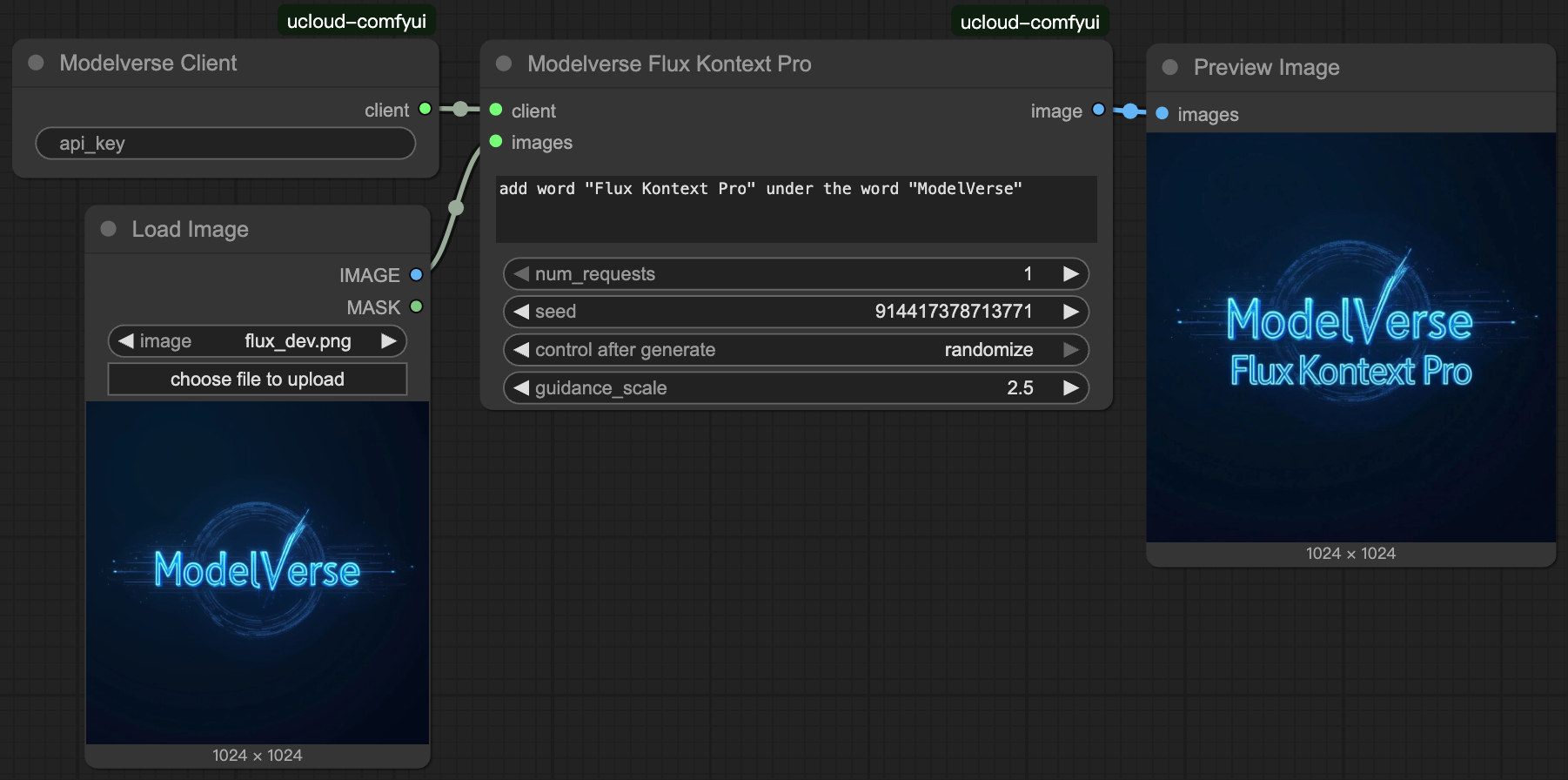
- Flux Kontext Pro - Expert single image editing and enhancement
- Flux Kontext Pro (Multi-inputs) - Batch processing for multiple images
- Flux Kontext Max Text2Image - Premium text-to-image generation with highest quality
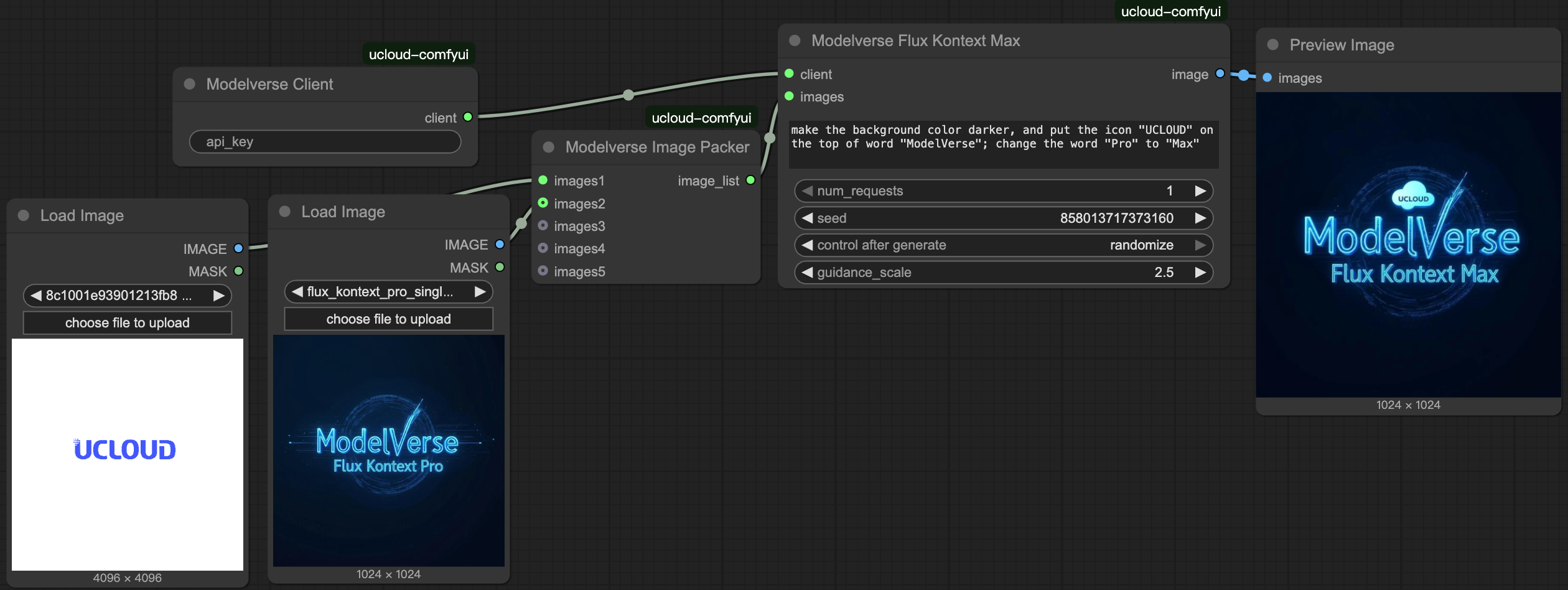
- Flux Kontext Max - Flagship single image editing with advanced features
- Flux Kontext Max (Multi-inputs) - Most powerful multi-image processing
- Step1X-Edit - Precision local editing and inpainting
Note: (Multi-inputs) models use the same node interface as their single-input counterparts. Check the example workflows below for implementation details.
Example Workflows
Build your own workflow with Modelverse nodes. You can check the following images, drag them into ComfyUI GUI and autoload example workflows.
| Flux Dev | Flux Kontext Pro | Flux Kontext Max (Multi-inputs) | |:-:|:-:|:-:| | <img src="assets/flux_dev.png" width="200" height="200"> | <img src="assets/flux_kontext_pro_single.png" width="200" height="200"> | <img src="assets/flux_kontext_max_multi.png" width="200" height="200"> |
In case the above images does not work for you, check the screenshot below:
Text-to-Image with Flux Dev
Single image editting with Flux Kontext Pro
Multi image editting with Flux Kontext Max