
ComfyUI-Block-Space
A Figma-style layout and snapping engine for the ComfyUI canvas.
ComfyUI-Block-Space <img src="assets/logo.svg" alt="Logo" width="32" height="32" align="center">
A Figma-style layout and snapping engine for the ComfyUI canvas.
Tired of messy workflows and nodes overlapping? Block-Space replaces ComfyUI's default snapping with an intelligent, spatial-aware layout engine that brings professional UI design mechanics to your node graphs.
✨ Features
- Intelligent Raycast Snapping: Nodes automatically align to the Top, Bottom, and Center of nearby nodes as you drag them.
- Topological Adjacency (Occlusion): The engine is smart enough to ignore nodes that are blocked by other nodes, ensuring you only snap to immediate neighbors in your column or row.
- Isolated Node Support: Dragging a node into empty space? It will scan the global rhythm of your canvas to keep your entire graph perfectly aligned horizontally and vertically.
- Visual Feedback: Figma-style "SNAP" badges and alignment lines let you know exactly what your node is locking onto.
- Predictable Resizing: Expanding a node snaps its dimensions to match the widths and heights of surrounding nodes for a uniform look.
🚀 Installation
Method 1: ComfyUI Manager (Recommended)
- Open the ComfyUI Manager.
- Search for
ComfyUI-Block-Space. - Click Install and restart ComfyUI.
Method 2: Manual Git Clone
Navigate to your ComfyUI custom_nodes folder in your terminal and run:
git clone https://github.com/tywoodev/ComfyUI-Block-Space.git
Restart ComfyUI.
Visual Deep Dive
The goal of Block Space is to transform ComfyUI into a pixel-perfect, high-efficiency design environment.
1. High-Fidelity Snapping & Harmonizing
Precision snapping that understands the visual geometry of your nodes.
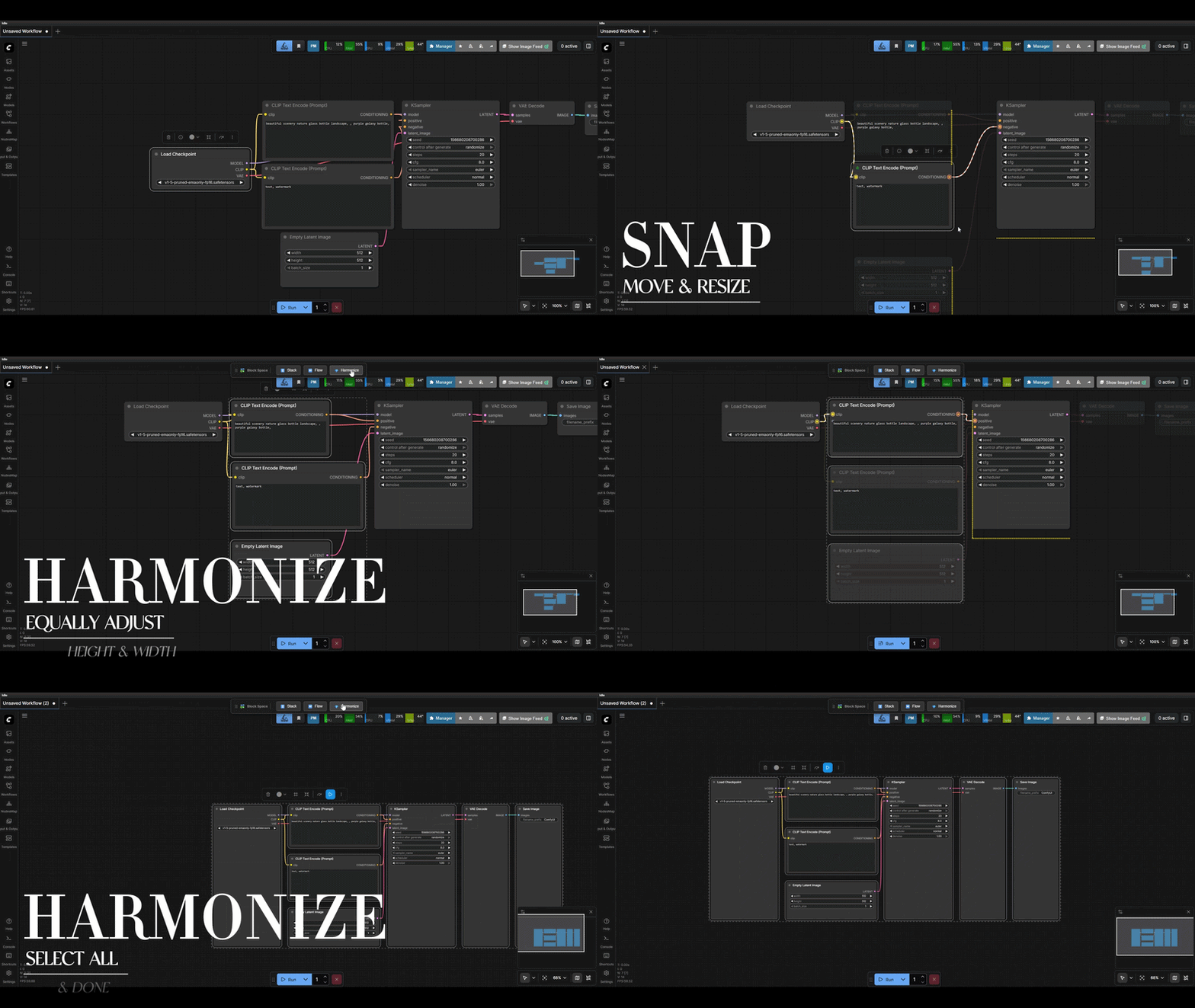
- True Margins: Snapping is 100% accurate to your settings, correctly accounting for node title bars so your gaps are always exactly the number of pixels you intended.
- Harmonize Action: Instantly transform messy node clusters into perfectly aligned blocks. Our intelligent layout engine detects columns, enforces uniform widths, and balances heights for a professional, "boxed" look. You can trigger this from the node/canvas context menus, the selection toolbox, or via the Ctrl + Alt + Space keyboard shortcut (whenever more than 1 node is selected).
- Visual Guides: Dotted alignment lines appear during drags and resizes to frame your nodes and show exactly which edges are being aligned.
2. Animated Flow Visualization
Gain instant clarity on your data flow with high-visibility animations and port indicators.
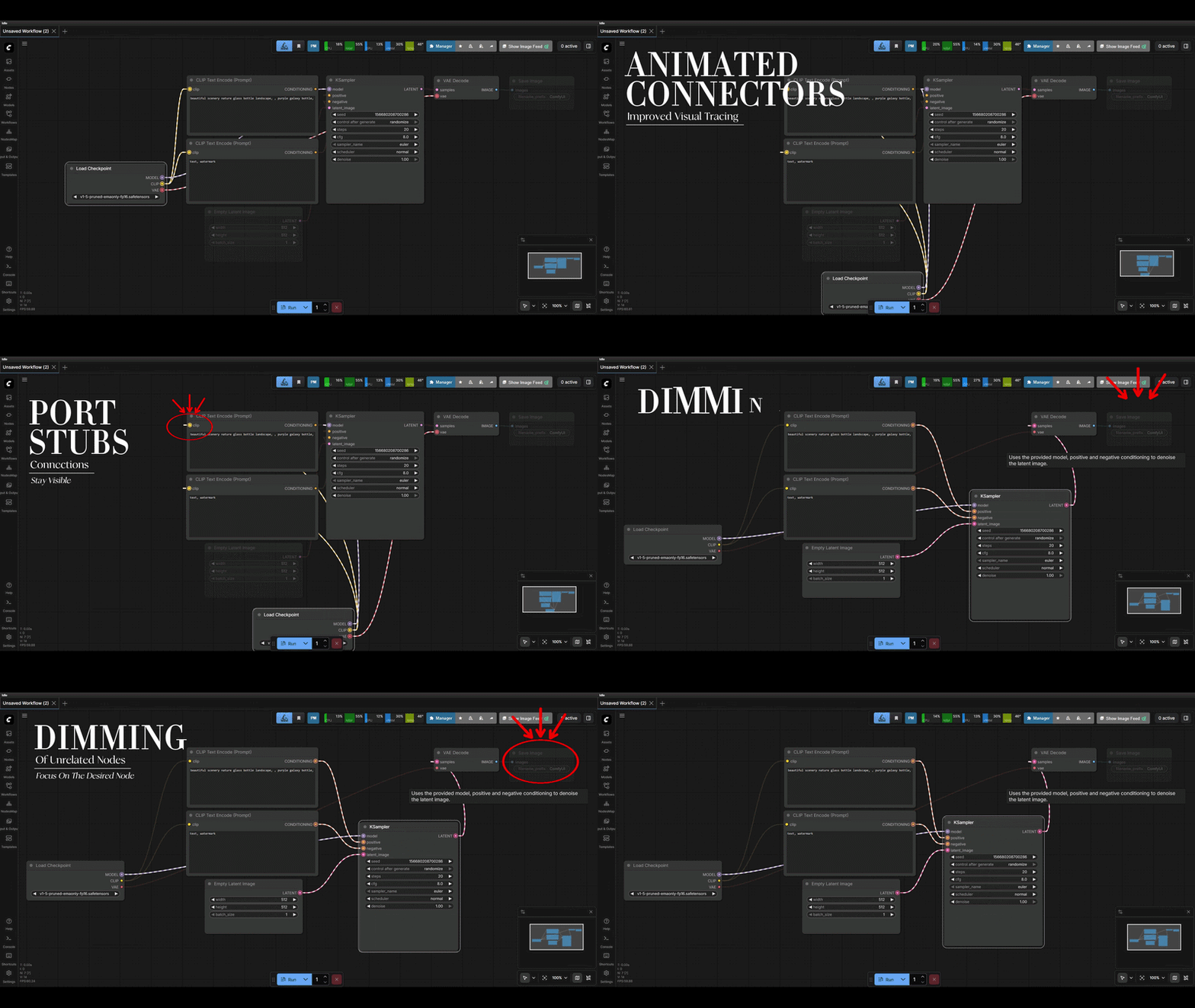
- Port Color Matching: The pulse animations and connection rings automatically match the color of the port (e.g., purple for CONDITIONING, yellow for CLIP), making it easy to follow paths in dense workflows.
- Enhanced Stubs: High-contrast rings (stubs) appear on active ports during focus, providing clear visual targets for easier tracing and connection management.
- White-Dashed Overlays: Animated overlays ensure you can see your active connections clearly against any background or node color.
3. Custom Connector Types
Choose the aesthetic that best fits your workflow and reduces visual noise.
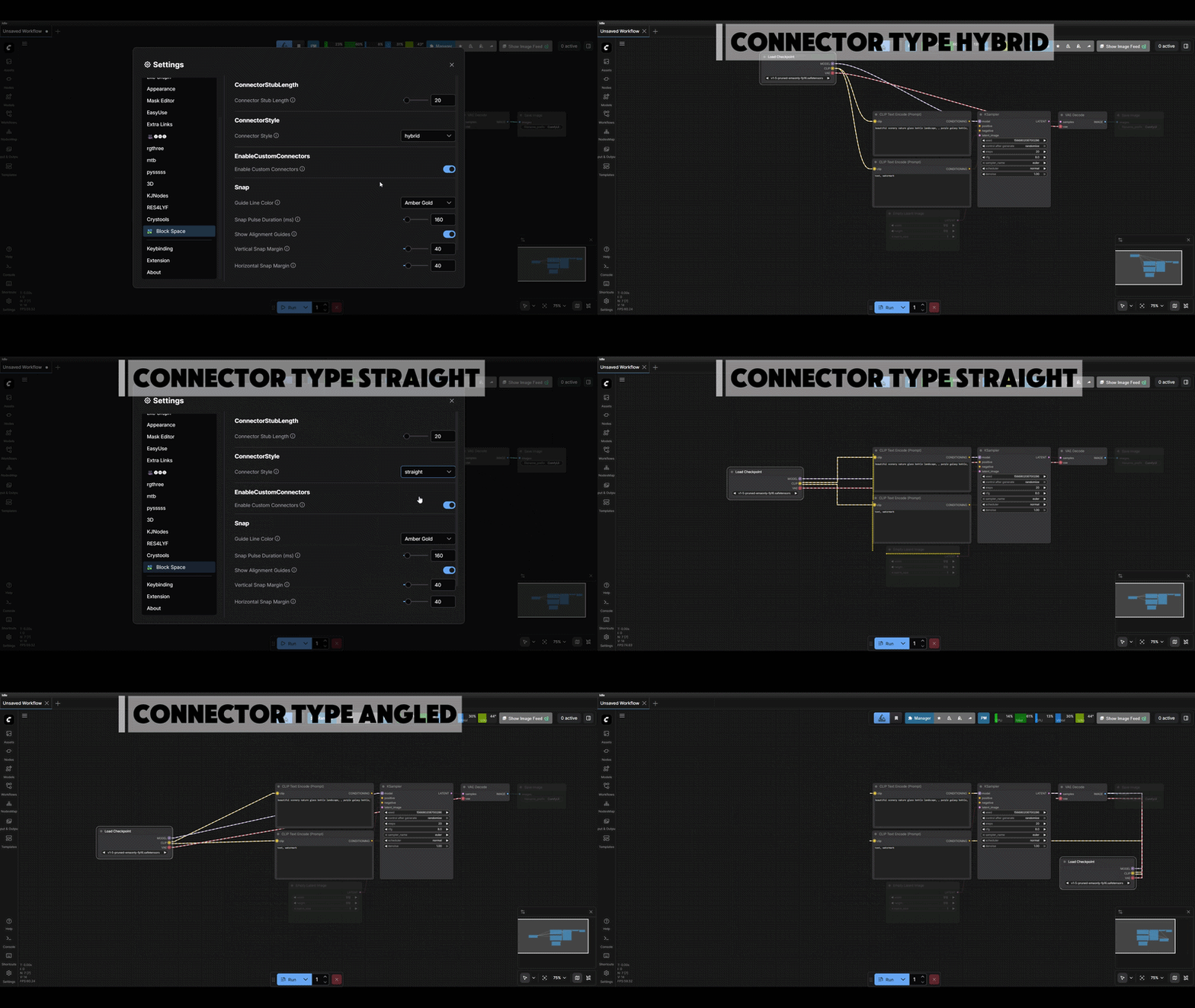
- Hybrid Style: The best of both worlds. Features elegant curves for short hops and straight lines for longer runs, maintaining a clean yet organic look.
- Straight Style: Minimalist and direct. Perfect for high-density workflows where reducing overlapping curves is a priority.
- Angled Style: A technical, "circuit-board" aesthetic that creates very clear horizontal and vertical pathways, ideal for highly structured layouts.
- Hidden Style: Maximum visual clarity. All wires and flow animations are hidden by default and only reveal themselves (using the Hybrid style) when you click and hold a node.
4. Shift to Bypass Snapping
Handle intricate positioning with ease without fighting the alignment engine.
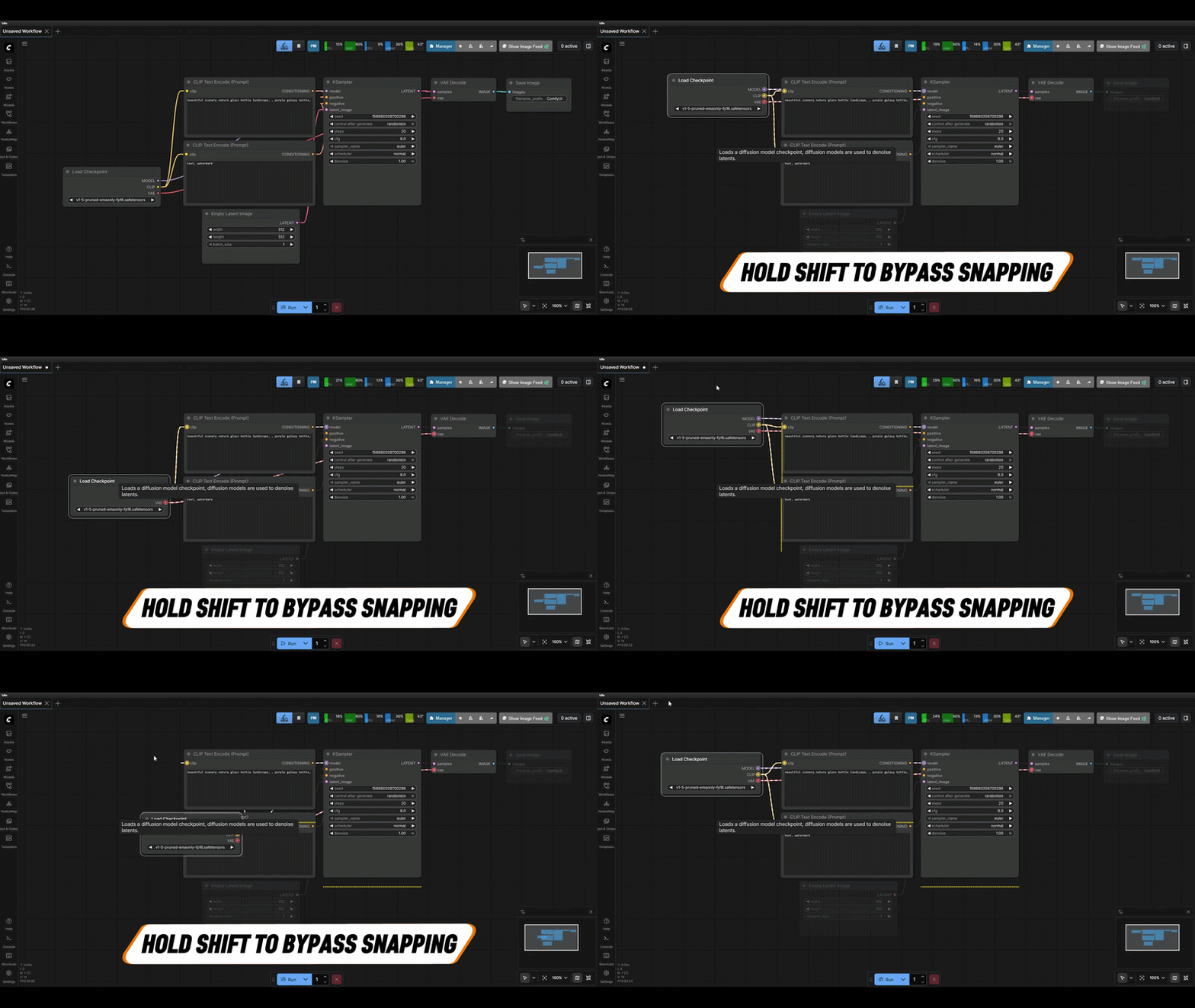
- Micro-Adjustments: Hold the Shift key while dragging or resizing to temporarily disable snapping. This allows for pixel-perfect placement in tight spaces where you need a node to sit between standard grid points.
- Total Control: Bypass gives you the freedom to handle unique edge cases without needing to toggle snapping off in the settings menu.
5. Settings Panel
Customize your experience with an intuitive settings interface.
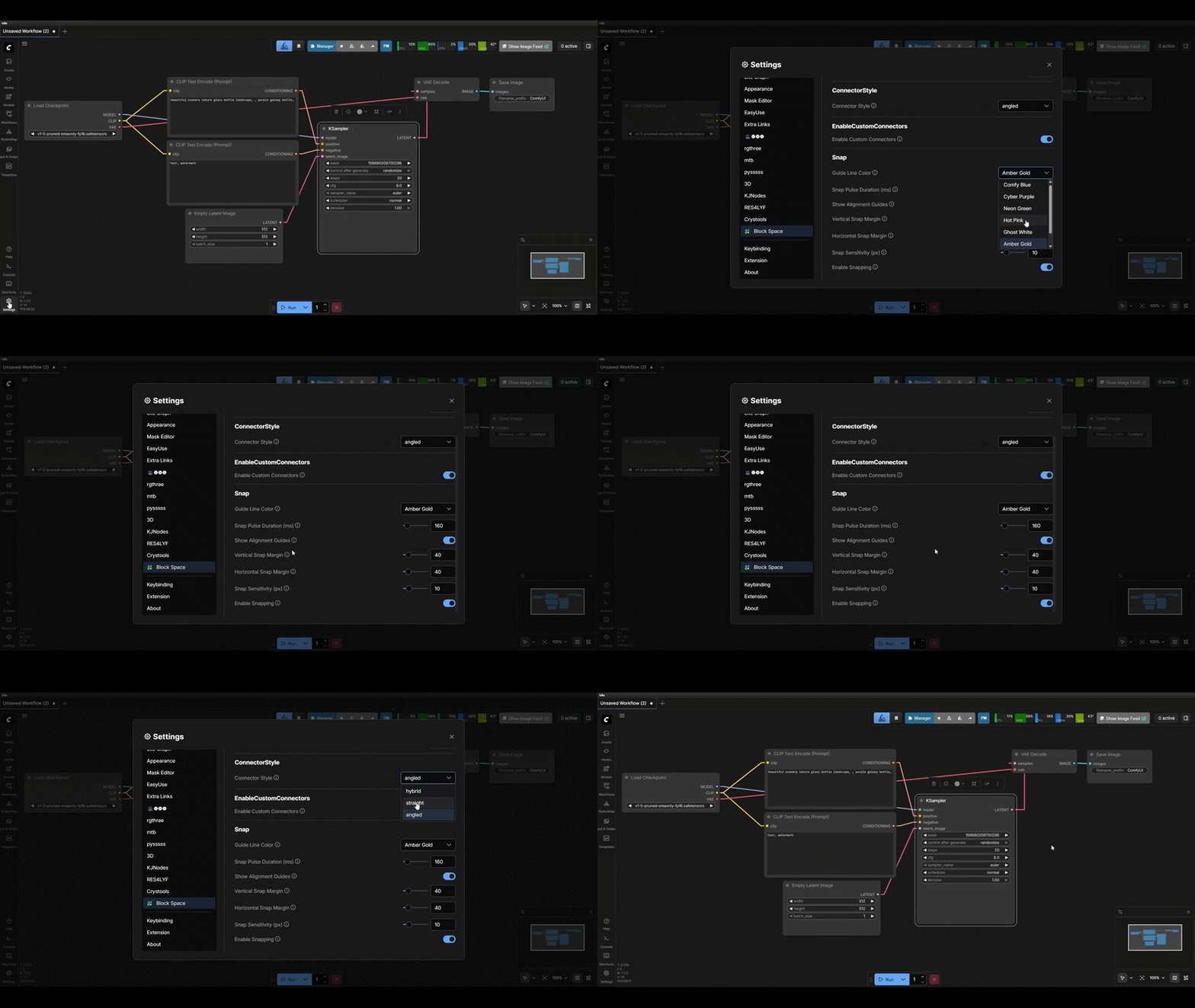
- Informative Tooltips: Hover over any setting name for a detailed explanation of its behavior.
- Real-Time Updates: All settings apply immediately, allowing you to fine-tune your margins, colors, and connector style without refreshing your browser.
🏗️ Architecture
Block Space uses a highly refined Adapter Pattern to dynamically support both the classic ComfyUI (V1/LiteGraph) and the modern Vue-based DOM interface (Nodes 2.0 / V2).
File Structure
web/
├── index.js              # Entry point - loads settings and bootstraps environment
├── adapter-detector.js   # Version detector: automatically polls and manages transitions
├── core-math.js          # Pure spatial logic, clustering, and bounding box conversions
├── adapter-v1.js         # V1 integration (LiteGraph canvas-rendered patches)
├── adapter-v2.js         # Nodes 2.0 (V2) integration (Vue DOM interceptors and outlines)
├── settings-events.js    # Pub/Sub event communication layer for real-time settings
├── better-nodes-settings.js  # Settings persistence utility
└── extensions/
    └── comfyui-block-space/
        └── index.js      # Main extension registration & Harmonize grid layout engine
Core Components
| Module | Purpose |
|--------|---------|
| core-math.js | Pure spatial calculations: bounds, clustering, raycasting. No UI dependencies. |
| adapter-detector.js | Version detector: polls async DOM nodes to trigger seamless adapter transitions. |
| adapter-v1.js | V1 integration: patches LGraphCanvas, handles canvas overlays, manages state. |
| adapter-v2.js | V2 integration: hooks event loops, intercepts pointer actions, projects DOM outlines. |
| extensions/ | Main extension bootstrap: implements unified Harmonize grid math and native tooltips. |
V1/V2 Compatibility
- V1 (LiteGraph): Full, high-fidelity support via
adapter-v1.js. - V2 (Nodes 2.0): Full production-ready support via
adapter-v2.js.
The extension automatically detects the ComfyUI version at runtime and handles the loading lifecycle seamlessly.
📋 Changelog
v1.0.6
Auto-Organize Graph Layout
- Implemented a complete topological flow-based auto-layout engine for the canvas.
- Dynamically resolves wireless node dependencies (
GetNode/SetNodepairs) so they align correctly. - Aligns all columns of connected nodes to a clean global top baseline (
Y = 100). - Isolates completely disconnected utility nodes (like notes and downloaders) and stacks them neatly at the top of the graph.
- Configured keyboard shortcuts Ctrl + Alt + L and Ctrl + Alt + Shift + Space to instantly trigger the organization routine.
- Resolved Vue 3 proxy reactivity issues to guarantee immediate visual updates of DOM elements in modern ComfyUI Nodes 2.0 (V2).
v2.0.0 (Nodes 2.0 Major Update)
Nodes 2.0 (V2) Production Integration
- Full support for the modern ComfyUI Nodes 2.0 Vue/DOM-rendered interface.
- Scaled move and resize snap aggressiveness thresholds by
1.5xin V2 for highly responsive alignment guides. - Overrode bounding calculations to eliminate outlines coordinate offsets, achieving flush, pixel-perfect top alignment.
Unified Layout Harmonization & Spacing
- Re-engineered the Harmonize Block grid layout engine to mathematically unify V1 and V2 calculations.
- Factored in the V2
40pxtitle bar height difference during bounds checking and model mutations to guarantee a perfect visual vertical spacing gap (matching the user'svMargin). - Columns stretch and resize proportionally, squaring the grid perfectly while maintaining complete height mutation stability across multiple successive Harmonize clicks.
Pointerdown Snapping Engagement
- Implemented a boundary-aware cursor coordinates check fallback that intercepts pointer clicks inside active overlays, enabling snapping immediately on drag without needing on/off clicks to dismiss selection boxes.
Selection Shift Focus Preservation
- Filtered blur events on page inputs to prevent internal focus shifts from clearing active snapping memory, keeping snapping active when switching between node drags.
Pixel-Identical Toolbox Tooltips
- Injected premium HTML custom tooltips on the selection toolbox styled identically to native ComfyUI menus, including downward center triangular indicators and fade-in slide transitions.
v1.0.5
New "Hidden" Connector Style
- Added a new minimalist connector style that hides all wires by default
- Wires and flow animations automatically reveal themselves when clicking and holding a node
- Revealed wires use the "Hybrid" (curved) routing for maximum clarity during interaction
- Reduces visual clutter in large graphs while maintaining full traceability
v1.0.1
Real-Time Settings Updates
- All Block Space settings now update immediately without requiring a page refresh
- Connector style, snap aggressiveness, margins, and guide colors apply instantly
- New event-driven architecture for settings propagation
Floating-Point Coordinate Fix
- All snapped coordinates are now rounded to integers
- Eliminates ugly decimals like
450.3333333333333in saved workflow JSON files - Cleaner, more portable workflow files
Bug Fixes
- Fixed "Show Alignment Guides" setting not properly hiding guides when disabled
- Improved settings change detection for V1 and V2 adapters
Architecture Improvements
- Added
settings-events.jsmodule for pub/sub settings communication - Simplified guide rendering logic based on spatial proximity
- X/Y axis parity: both axes now use the same snap strength multiplier
New Settings
- Enable Snapping - Master toggle for all snapping functionality
- Snap Aggressiveness - Choose how strongly nodes pull into alignment (Low/Medium/High)
- Snap Sensitivity - Control how close you need to be before snapping activates (in pixels)
- Horizontal Snap Margin - Preferred gap when stacking nodes side-by-side
- Vertical Snap Margin - Preferred gap when stacking nodes vertically
- Show Alignment Guides - Toggle the configurable color dotted alignment lines
- Snap Pulse Duration - How long the green border glow lasts after snapping
Harmonize Algorithm Rewrite
- Complete refactor to row-based flexbox-style layout
- Groups nodes by Y-coordinate into rows (100px threshold)
- Sorts rows top-to-bottom, nodes within each row left-to-right
- Critical fix: No longer mutates
node.size- only modifiesnode.pos - Preserves original node dimensions while harmonizing positions
- Eliminates visual distortion with wide "spanning" nodes
🛠️ Troubleshooting
If Block Space fails to load after an update:
- Hard Refresh: Press
Ctrl+F5(orCmd+Shift+Ron Mac) - Clear Cache: Open DevTools (F12) → Right-click refresh → "Empty Cache and Hard Reload"
License
MIT License - see LICENSE for details.