
ComfyUI_PromptStudio
A local, ChatGPT-like extension for iterative image creation and editing in ComfyUI with help from a local LLM
Nodes (24)
The one Prompt Studio node that's just a raw KoboldCpp call
The node that makes 'edit this image' work
A Second Image Slot That's Allowed to Be Empty
Rewrite Ideogram 4's JSON prompt, one region at a time
Rough idea in, model-ready prompt out
The do-nothing node that makes a workflow 'Prompt Studio-ready'
The LoRA node that only shows you the LoRAs you want
The loader that knows when your file is INT8
A KSampler Clone Whose Only Job Is Being Findable
The node that turns your upscale workflow into a Studio template
Qwen Image 2.1's Official Turbo Sampler
The Qwen Image 2.1 Turbo adapter that never touches your weights
No negative prompt, no CFG, six steps — and that's the point
The ControlNet guide builder for Qwen 2.1
Keep everything except the bit you changed
The ControlNet Step Your Qwen Graph Is Missing
Putting Back the Pixels Qwen Rewrote Without Asking
Two Skeletons In, One Rough Mask Out
The node behind LoRA Studio's 'Compare checkpoints'
Tell Prompt Studio How Many Images Your Model Actually Takes
Turning Studio's Reference List Into Ordinary IMAGE Sockets
Where <image2> Comes From Before Your Encoder Ever Sees It
One Node That Prepares Your Pose, Depth, Edge or Sketch Guide
The save node that knows when to shut up
Prompt Studio for ComfyUI
Repository folders and local data locations: repository layout.
Create by describing. Refine by talking.
Prompt Studio turns your ComfyUI image workflows into a conversation. Describe a scene, ask for changes, bring in reference images, and upscale the result—all in one workspace, powered by your own models.
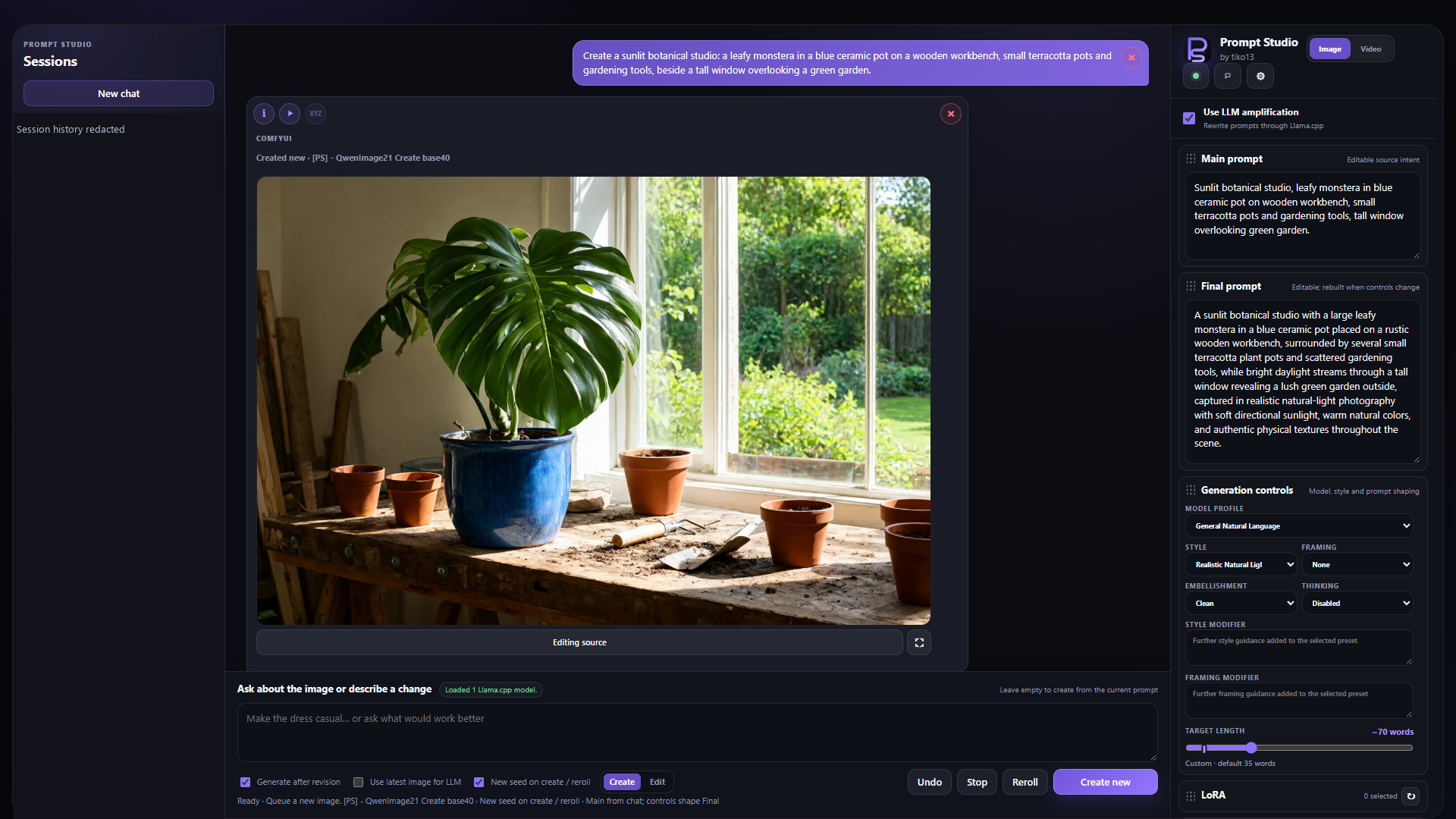
- Create and edit through chat. Start with an idea, then ask for focused changes while keeping the details you like.
- Shape the look. Combine styles, framing, image references, models, and LoRAs.
- Compare before you choose. Explore settings in a labeled XY(Z) image grid.
- Let Prompt Agent iterate. Give it a visual goal, let it generate and review candidates, then choose what to keep.
- Keep your ComfyUI workflows. Use the standalone studio or open Prompt Chat beside the node canvas.
- Pick up where you left off. Sessions retain prompts, results, and the workflow inputs behind each image.
Connect a local Ollama, KoboldCpp, or Llama.cpp model for conversation and prompt assistance, or turn off LLM amplification and write prompts directly. ComfyUI is required.
Get started · Image creation and editing · Comparison grids · Prompt Agent · Canvas and workflows · Setup and models
Quick start: generate images through chat
- Install this repository in
ComfyUI/custom_nodes/ComfyUI_PromptStudioand restart ComfyUI. - Click Prompt Studio at the lower-right of ComfyUI to open the studio, or Prompt chat to work beside the canvas.
- Use the setup wizard to choose image workflows and install their missing models and nodes. You can also bring your own saved workflow.
- In Settings → General, choose your LLM provider and connect your running local model through Backend settings. See local model backends for configuration.
- Choose a Create template under ComfyUI workflow templates, describe your image, and press Create new.
- Keep the conversation going: “Change the blue pot to terracotta,” “Use a wider composition,” or “Make the lighting softer.”
Prefer to write the exact image prompt yourself? Turn off Use LLM amplification and use direct prompt mode.
<details> <summary>See Prompt Chat beside the ComfyUI canvas</summary>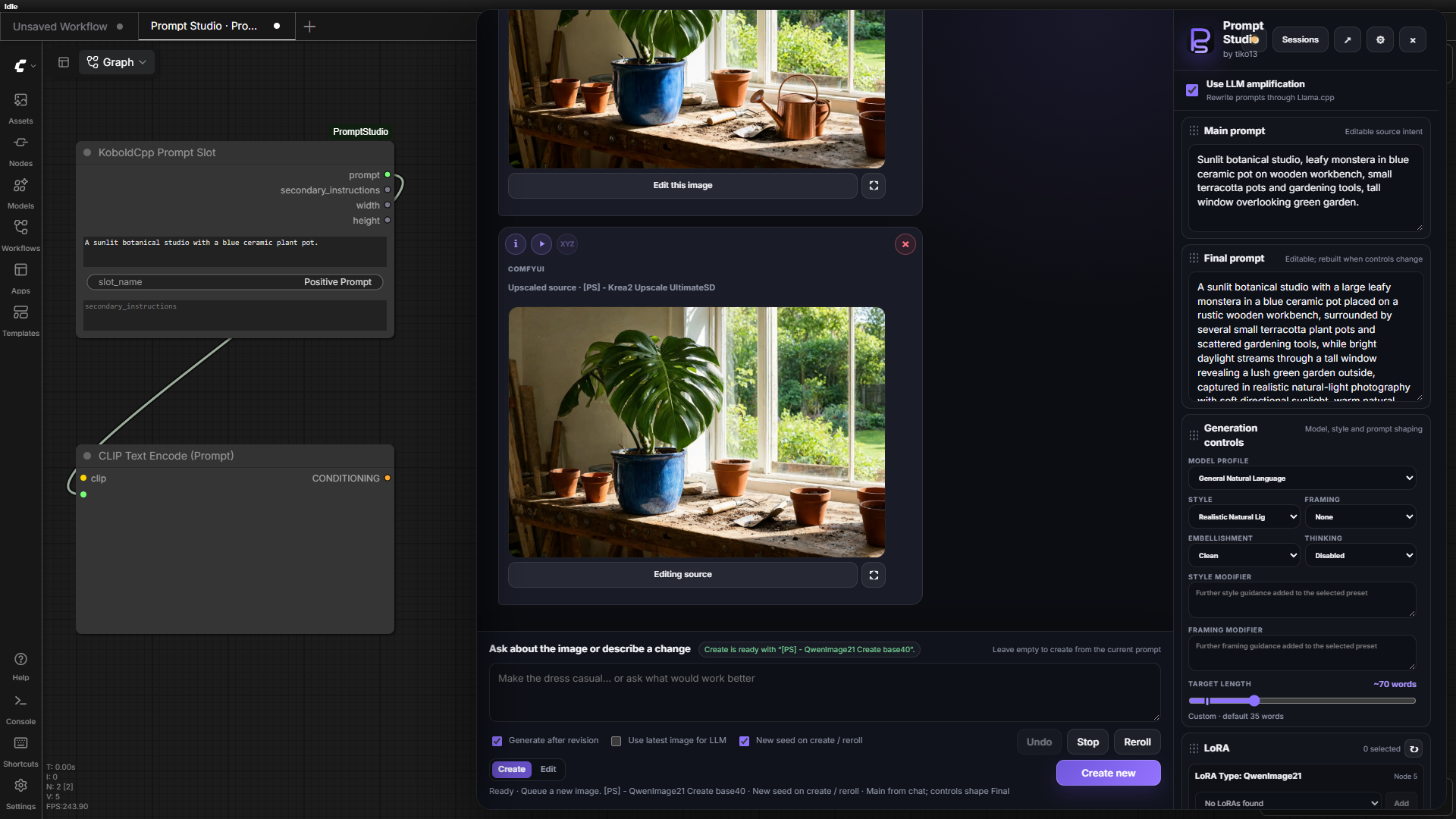
The canvas example shows a prompt handoff fragment; the full generation workflow is outside this view.
</details>The interactive workflow
Create, revise, and inspect
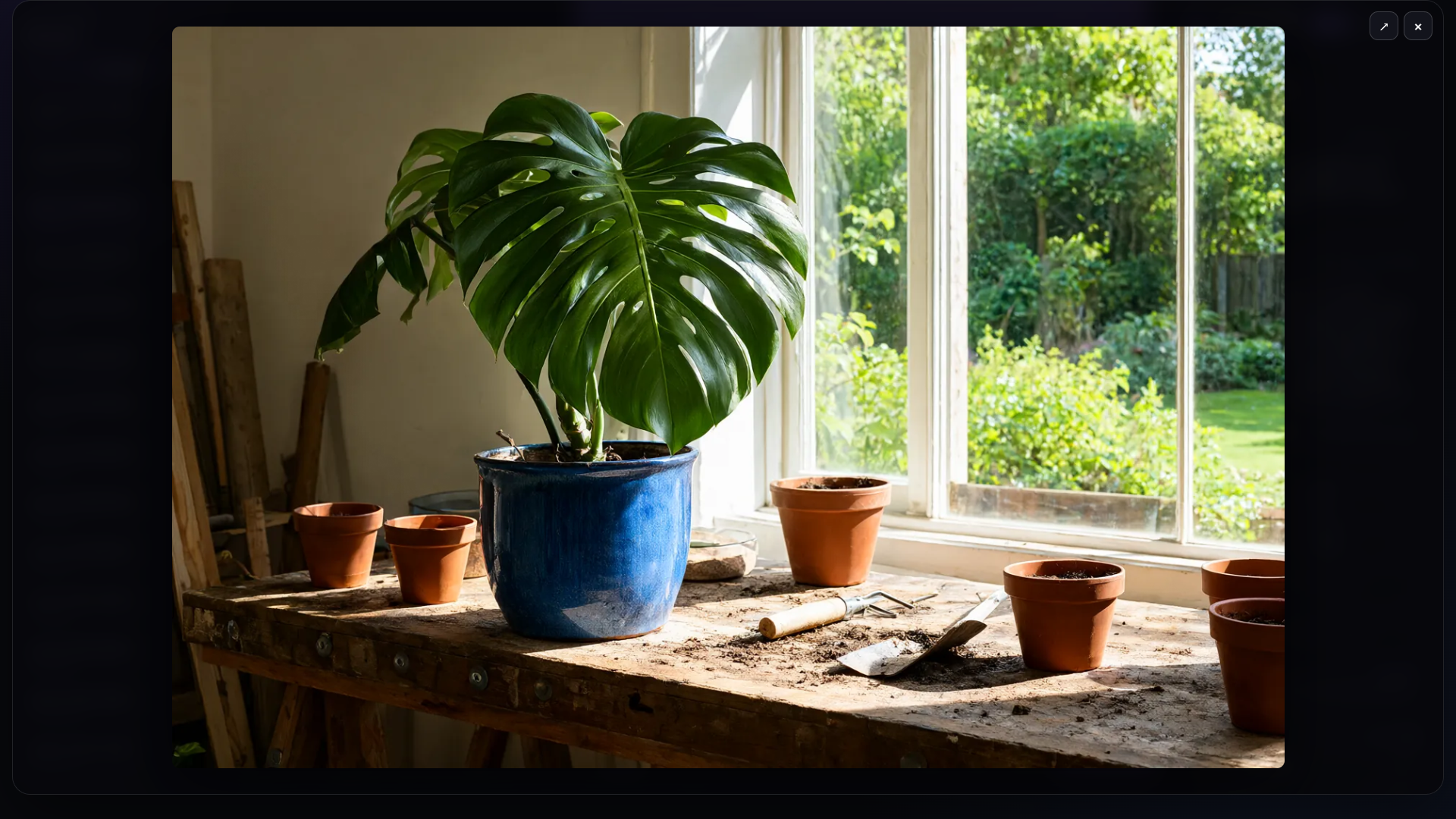
Describe what you want, then ask for the next change. Here, one short request changes the blue pot to terracotta.
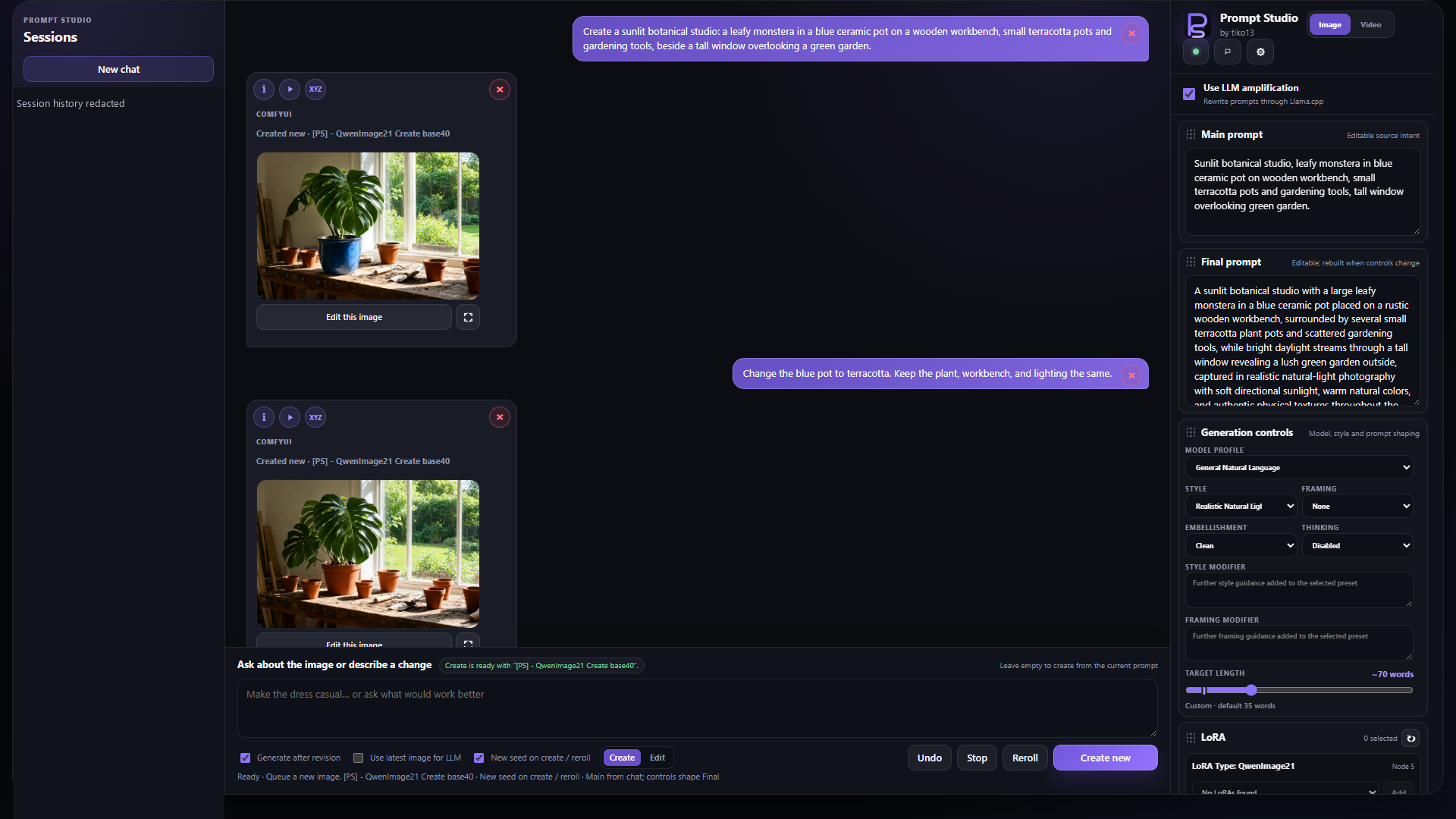
The first creation instruction becomes the main prompt and is rendered into a complete final prompt. Later change instructions are treated as revisions rather than as a transcript for the prompt editor. The main prompt is derived only from the initial chat request and later chat revisions; rendered Final-prompt text and prompt-shaping controls are never supplied to the Main-prompt writer. Prompt Studio precision-revises the model-neutral main prompt and the existing detailed final prompt separately, preserving unrelated established detail.
Revisions use the smallest edit scope implied by the request. References that conflict with the requested change are replaced, while unrelated clauses and tags are preserved where possible. Removing an automatic detail that is absent from the main prompt changes only the final prompt; Prompt Studio does not add negative wording to the main prompt.
<details> <summary>See the Main and Final prompt editors</summary>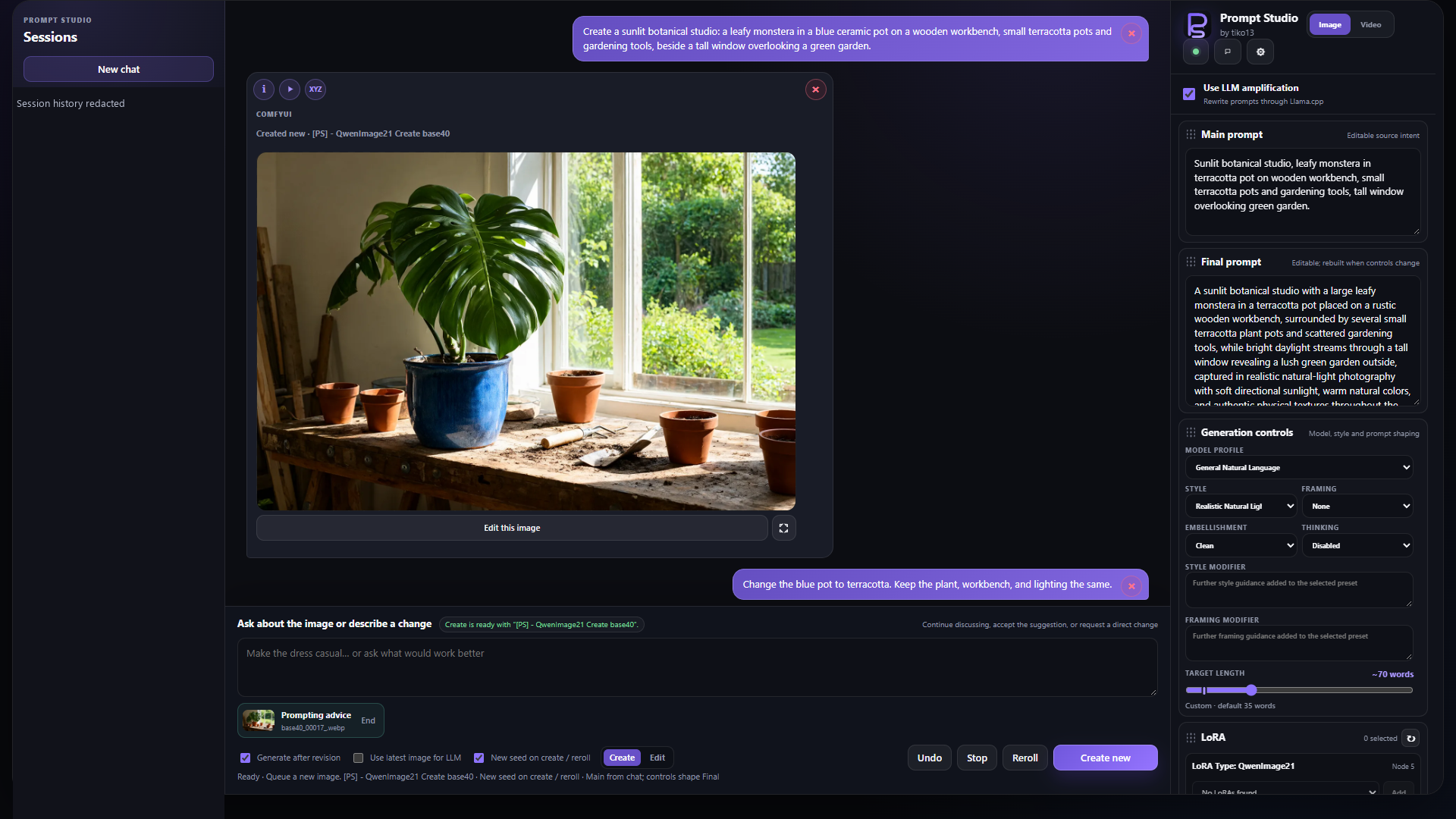
The main composer can also discuss the latest completed generated image. A short intent-routing pass distinguishes direct creation or revision requests from questions, exploration, confirmations, and cancellations. Questions open a session-persistent image discussion grounded in the generated pixels, the prompts and saved workflow inputs that produced them, and any pasted visual reference. The assistant may offer one structured Suggested prompt change; applying it, or replying with a clear confirmation such as “Okay, let’s do it,” sends that model-neutral change through the normal paired main/final precision-revision pipeline. Discussion alone never changes prompts or generation controls.
<details> <summary>See image discussion and a suggested prompt change</summary>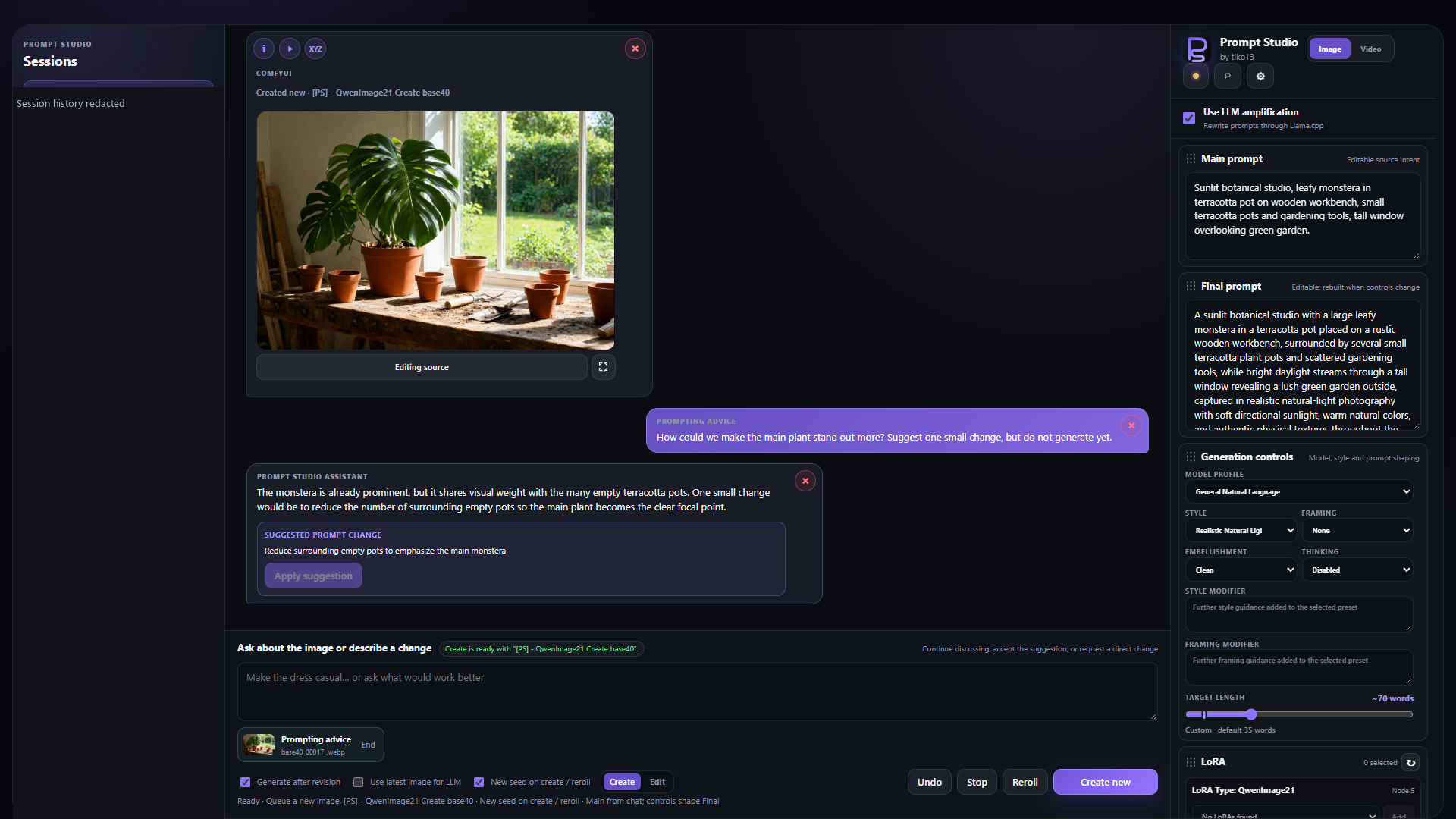
Pasted references remain pinned while that image discussion is active. Prompt Studio sends the generated result as the target and uploaded images as separately labelled visual references, so the model can compare relevant traits without guessing which image should be changed. If the target generation, prompts, or prompt-shaping controls change before a suggestion is applied, the suggestion is marked stale and must be discussed again against the current result. Suggested changes may update the prompt and allow-listed Studio controls such as Secondary instructions, style and framing controls, embellishment, target length, resolution, and seed behavior. The proposal card names every control that Apply will change. Workflows, diffusion models, LoRAs, samplers, schedulers, steps, CFG, and arbitrary workflow-node inputs are never changed automatically.
After a generation completes, the main composer offers an optional Use latest image for LLM toggle. It sends the newest completed generated image alongside prompt rendering and revision requests, giving a vision-capable local model direct visual context for instructions such as “correct the pose” or “keep everything else the same.” The option is off by default, is unavailable until the current session contains a completed generated image, and never selects an imported source, failed generation, or in-progress result.
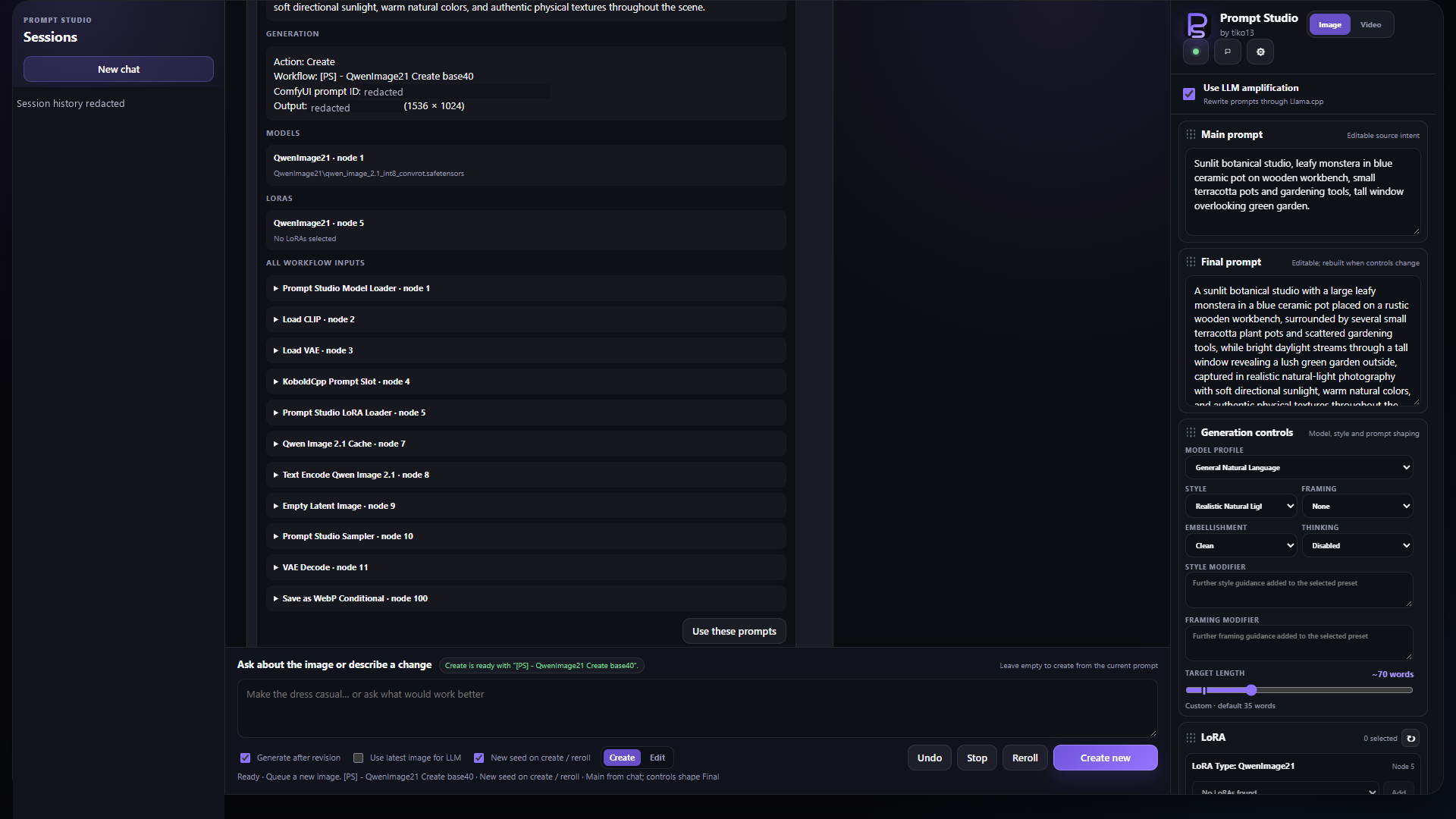
The inspector displays the stable Main prompt and editable Final prompt. Manual final-prompt edits are used for generation and preserved by later precision revisions. Undo restores the main and final prompt together, and every generated-image message records both plus the complete executable workflow inputs that were queued. Its i panel shows the workflow, LoRAs and strengths, and every saved node input. Use these prompts restores the prompt, routing, LoRAs, source image when applicable, and arms the saved executable snapshot; generating without making a change reuses every stored input, including seeds, to reproduce the original queue as closely as the installed nodes and runtime allow. In an editing workflow's Edit instruction mode, the workflow intentionally receives the latest edit instruction instead of the complete final prompt.
Style and framing
Change the visual treatment while keeping the scene intent. This example turns the botanical studio into a watercolor illustration with a centered composition.
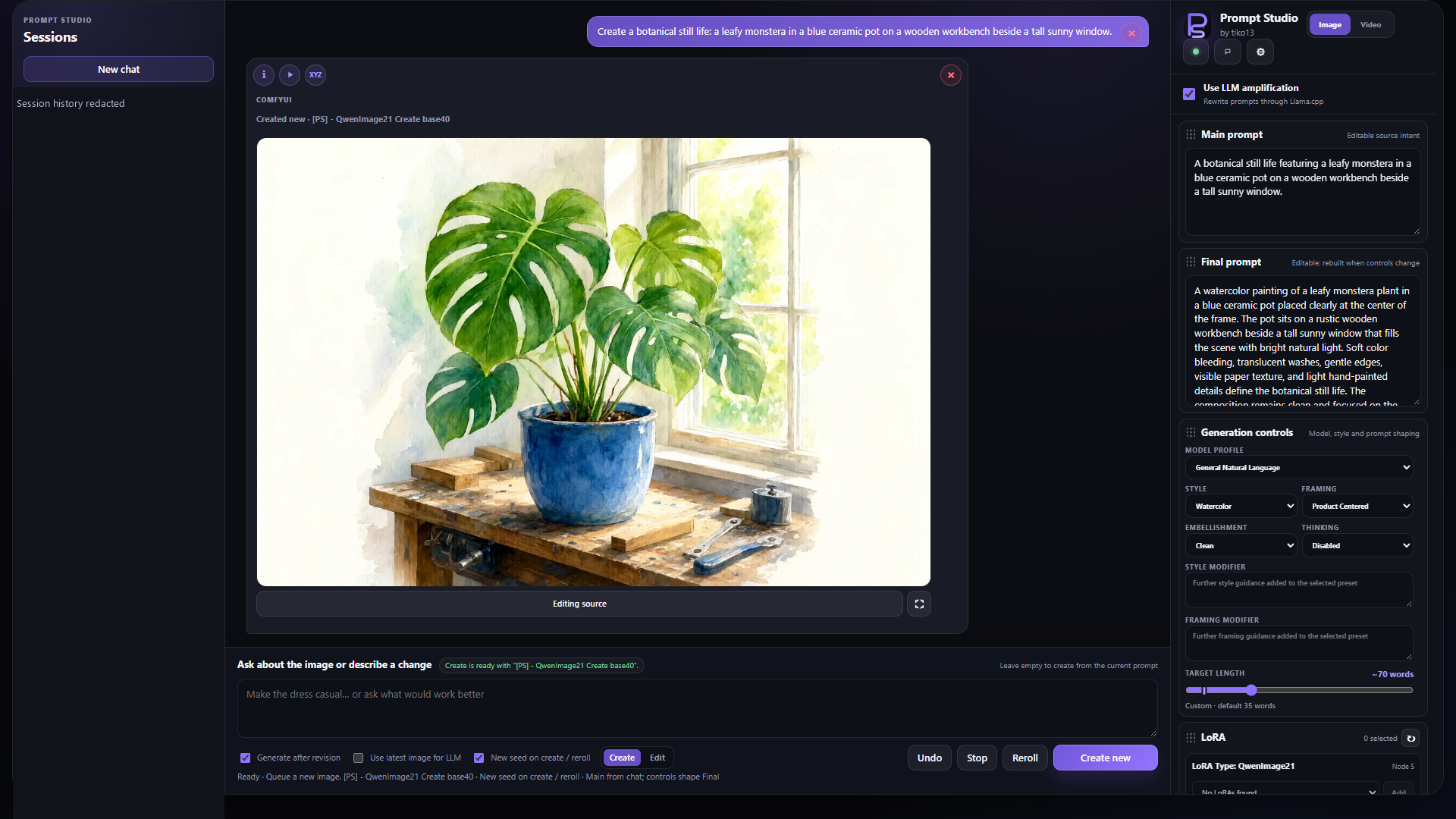
If you change the model profile, style, framing, modifiers, embellishment level, or target length, Reroll or an empty Revise & Generate rebuilds the final prompt from the main prompt. This clean render prevents details from an older control setting from leaking into the new result. Endpoint, thinking, and temperature changes do not mark the final prompt stale. A direct ComfyUI reroll is used when the prompt-shaping controls already match.
Target length is a user-facing approximate output goal. Natural-language profiles use a 20–200 word slider; tag-based profiles automatically switch to 5–40 tags. The highlighted mark shows the default for the current model profile and embellishment level. Dragging creates a custom value for that combination. Changing either the model profile or embellishment level clears the custom value and moves the slider to the new highlighted default. Fresh renders use the target, while precision revisions preserve the existing prompt outside the requested edit scope. Prompt Studio converts the target into a larger hidden final-answer token allowance so local-model output is not cut off.
Additional instructions supplies persistent general steering or explanatory context to the LLM without treating that text as a style or framing modifier. It participates in initial Final-prompt renders, control rebuilds, Final-prompt revisions, and expansion retries, but it is never sent to Main-prompt creation or revision. The latest explicit creation or revision request always remains authoritative. Persistent guidance may refine unspecified Final-prompt details and active controls; it cannot reverse the latest request or expand a precision edit's scope. Unmodified part is separate: it bypasses the LLM and passes phrases such as LoRA trigger words unchanged through the workflow's secondary_instructions output.
Generate and reroll
With Generate after revision enabled, creating or revising a prompt immediately queues an API-format snapshot of the selected saved [PS] workflow. Turn it off to update the main and final prompts without queueing an image; Generate can queue the final prompt later. Generated images appear in the chat, can be opened at full size, and can be scaled down in the conversation with the interface Image scale setting.
Prompt preparation and ComfyUI submission run without locking the main interface. This includes initial and revised prompts, control/style rebuilds, rerolls, direct generation, image imports, retries, edits, and upscales. Generate and Reroll become queue actions, each submission keeps the workflow and controls captured for that item, and chats can be switched while preparation and results continue in their originating conversation. Consultation experiments and Prompt Agent work also leave the main Studio controls available. Local-model requests use one lane per endpoint: Studio prompt work has priority, while consultation requests wait their turn and can run during ComfyUI image generation.
Prompt changes keep the current ComfyUI seed, making before-and-after comparisons easier. New seed on reroll randomizes widgets named seed or noise_seed only when Reroll, or an unchanged Generate, queues the same prompt and controls again. Turn it off to keep the current seed on rerolls too.
Direct prompts
Turn off Use LLM amplification to send your text straight to the selected ComfyUI workflow. The composer becomes a direct-prompt editor, and Main and Final stay identical.
<details> <summary>See generation without LLM amplification</summary>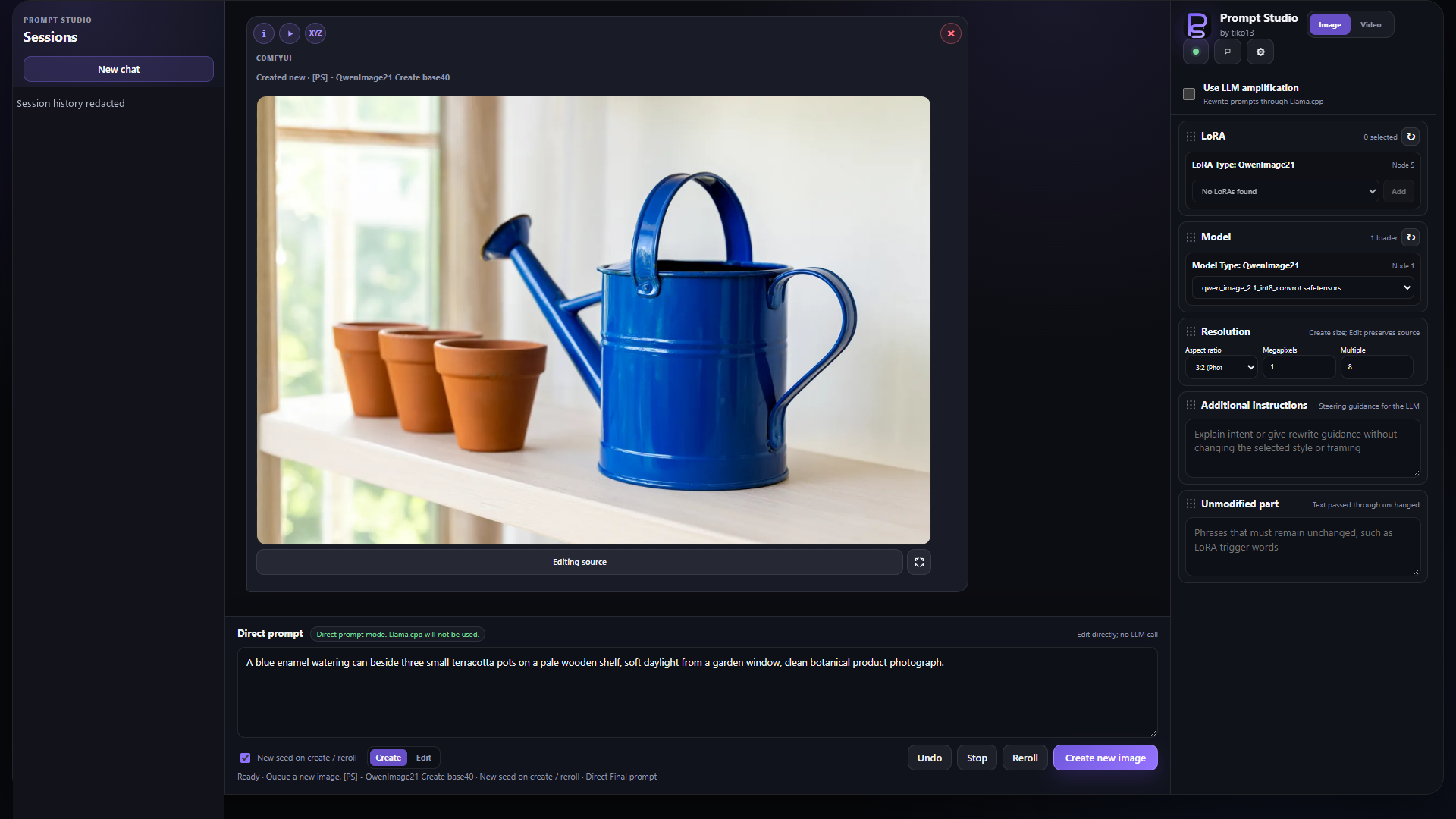
Edit and upscale
Choose Edit this image on a result, describe the change, and generate through your selected Edit workflow. Here, the edit adds a copper watering can while retaining the plant, blue pot, and window light.
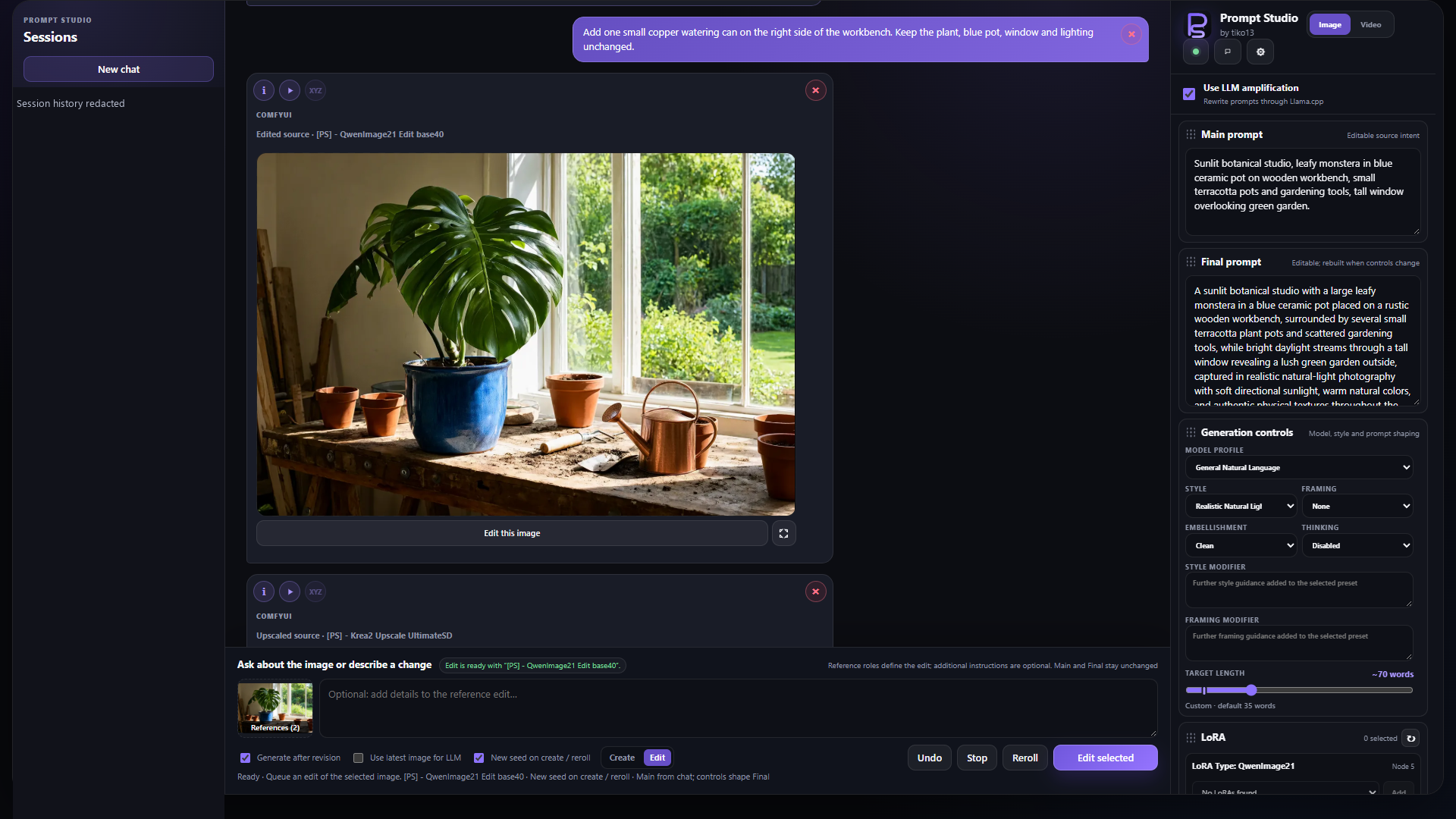
Use an image's Upscale action to choose a scale factor and run your selected upscale workflow.
<details> <summary>See the upscale controls</summary>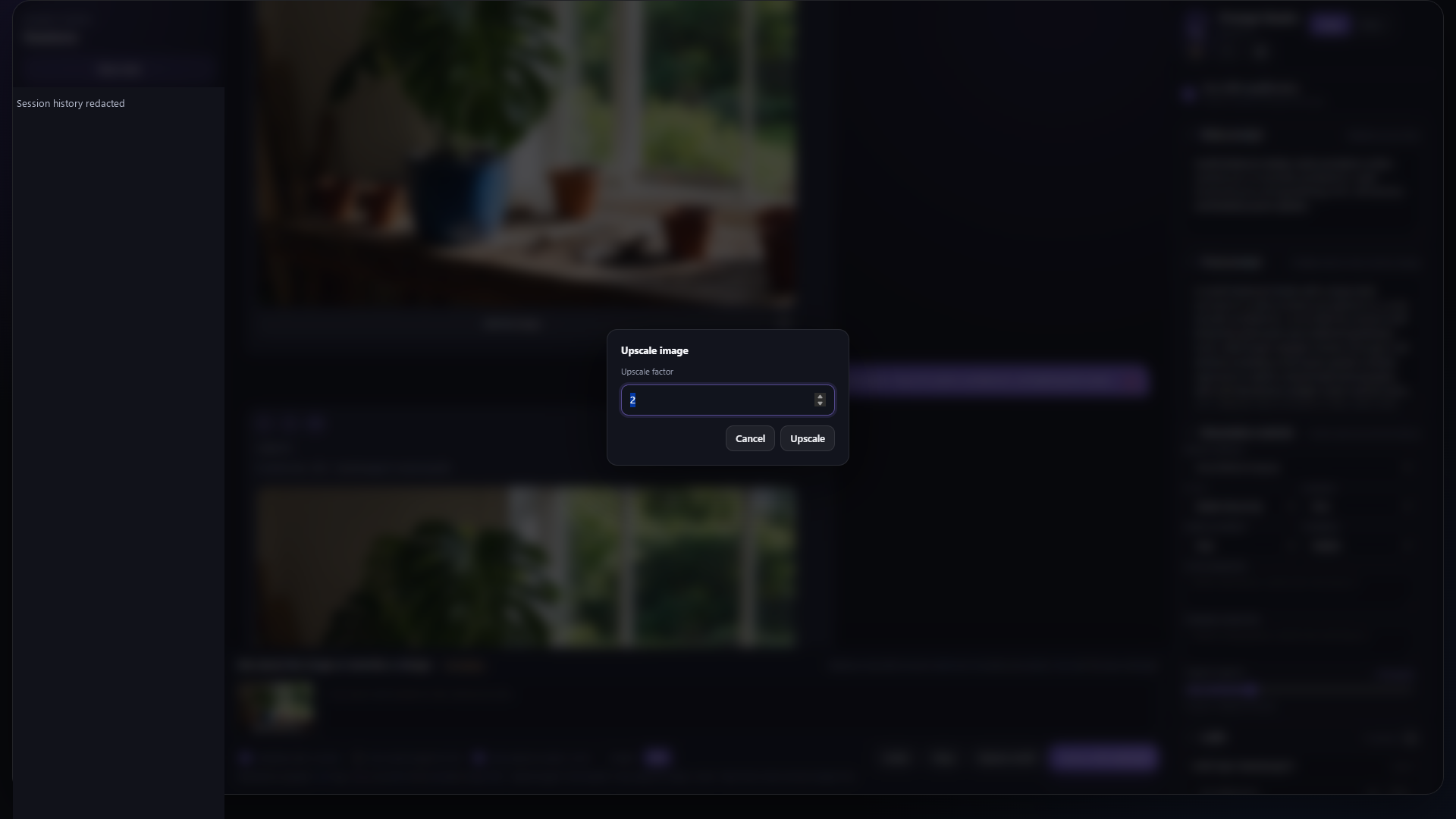
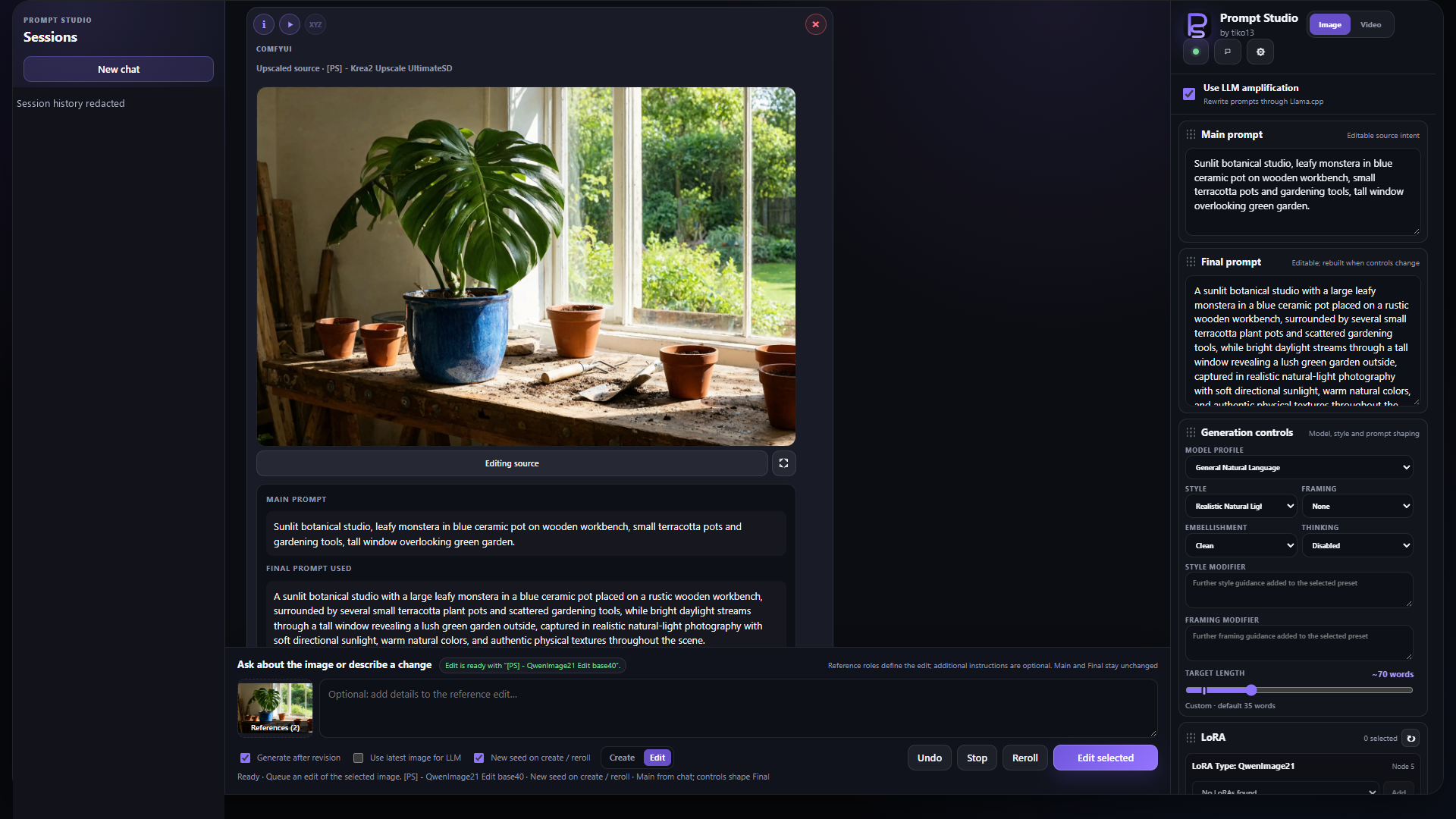
Single image references
When Edit is selected, compatible workflows show an optional Reference tile to the left of the message box. Drop an image there or click to upload; use × to clear it. The reference is saved per chat and included in generation history and exact replay. It goes directly to the edit model and works without LLM amplification. The selected editing source remains the base image.
<details> <summary>See a single edit reference and workflow controls</summary>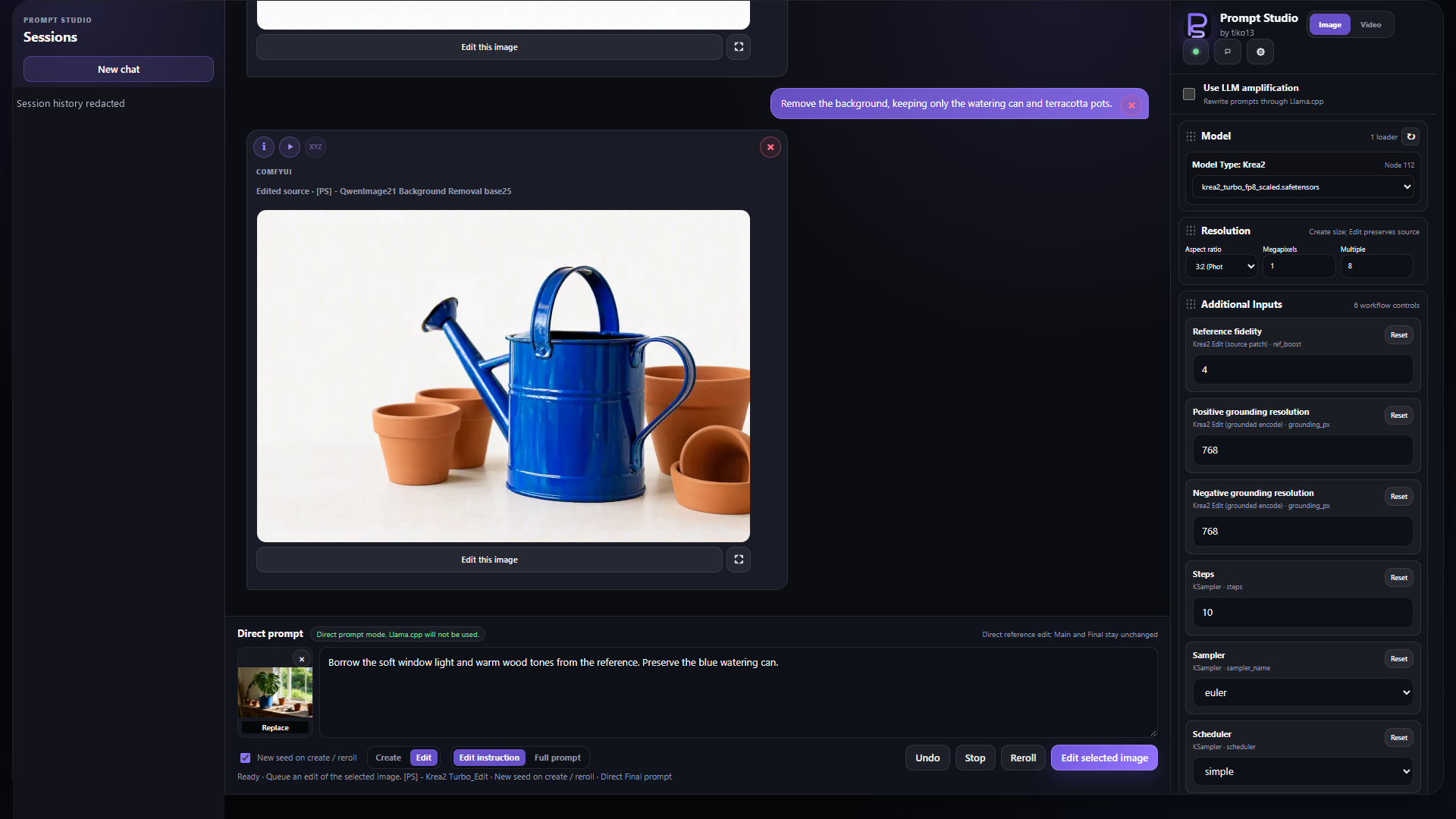
Reference attachment and controls shown before generation.
</details> <details> <summary>How reference edits preserve the requested change</summary>With LLM amplification enabled, a vision-capable LLM reads the base (image 1) and reference (image 2) once for each requested change. It identifies only the requested detail, updates Main and Final with a self-contained visual description, and prepares a separate instruction for the edit workflow. For example, using a referenced dress adopts its visible cut, colour and pattern without adopting the wearer or background. With a reference attached, ordinary shorthand such as "replace the mug" means using the matching mug from the reference; clarification is reserved for meaningful ambiguity after inspecting both images. Explicit removal, partial changes and attribute overrides keep their requested scope. This interpretation applies to any visible subject, object, attribute or spatial relationship. Adding, copying, moving, replacing and removing remain distinct: "add the reference mug next to the original" keeps the original and adds a second mug; a hairstyle, colour or background request changes only that requested part. The thumbnail beside the composer supplies ordinary references such as "this": "place this mug next to the blue one" adds the reference mug beside the existing blue mug. Semantic checks verify the requested action, count, attributes and placement before saving Main and Final; a failed revision is retried once. Switching to Create uses Final without needing the reference. Clearing the tile does not undo adopted details; Undo restores the previous prompt pair. Reference observations and the exact edit instruction are saved with the generation. If vision fails or the target needs clarification, the existing prompts are kept. Clarification retains the original request and image pair across reloads, so a short answer can complete it. A target that already matches is reported without automatically generating an unrelated change. Discussion uses the selected base and the same reference tile. Reroll retains the original base even after automatic source advancement, avoiding repeated additions. Selecting a different base or reference requires a fresh interpretation. Direct reference mode sends the instruction without analysis and keeps Main and Final unchanged; enable LLM amplification to adopt observed details into them.
</details>Qwen references
Assign a role to each reference so Qwen 2.1 Create or Edit can borrow the subject, background, style, object, or specific detail you want.
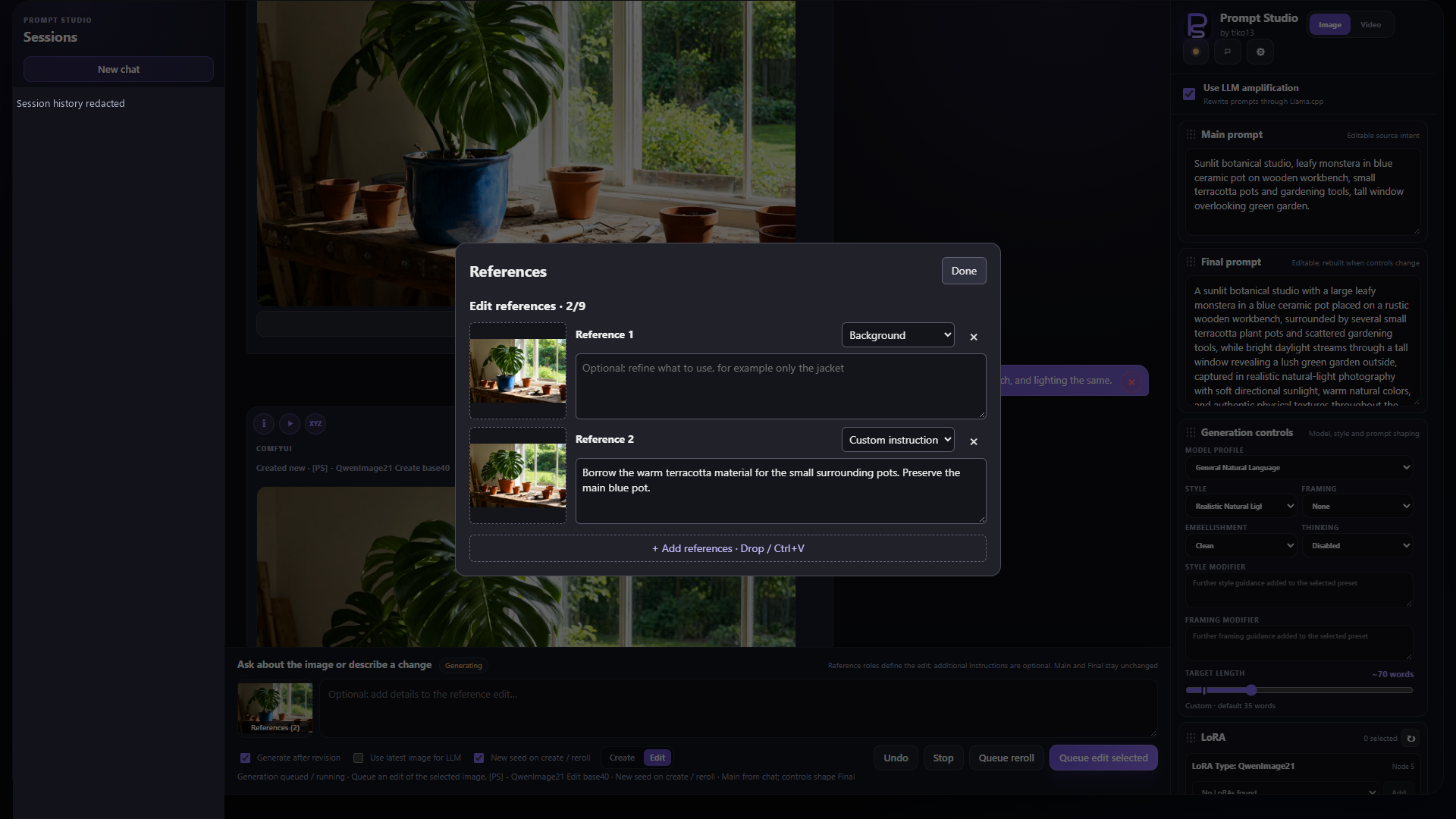
Reference roles configured before submitting an edit.
<details> <summary>Qwen reference roles and workflow requirements</summary>Qwen Image 2.1 Create supports up to ten reference images, including with Turbo v0.3. Reference roles and instructions are appended to the execution prompt; the normal Main/Final prompt flow and requested output size are preserved. Custom Create graphs need one native Text Encode Qwen Image 2.1 node connected to the Prompt Slot/Amplify, unassigned image inputs, an independent canvas latent, and one downstream VAE decoder. The decoder's VAE also encodes the references.
Qwen Image 2.1 Edit supports references alongside its source image.
Connect the Prompt Studio Image Source (optionally through preprocessing) to
images.image_1 on one native Text Encode Qwen Image 2.1 node, and connect the
Prompt Slot/Amplify prompt to that encoder. Leave the other encoder image inputs
empty. Prompt Studio exposes a dynamic list of up to nine additional images;
the base image occupies the first slot. No additional reference nodes are needed.
Prewired encoder references remain custom workflow wiring and disable this managed
list rather than being overwritten. Universal reference nodes elsewhere in the
workflow remain separate named inputs and do not consume these nine slots.
Each Qwen reference has a role and optional instructions; Custom instruction
requires text. Click, drop an image, or focus a tile and press Ctrl+V to fill or
replace it. Drop/paste into the Qwen pop-up outside a tile to add images. The image
tile spans the full height of its row, beside its controls. With LLM amplification
enabled, the vision model constructs an execution-only Qwen edit instruction with
ordered <image1> through <image10> tags. Main and Final remain unchanged.
With amplification off, explicit roles/instructions are assembled without an LLM.
Attachments pasted into the chat composer remain LLM context, not diffusion inputs.
XY(Z) image plots
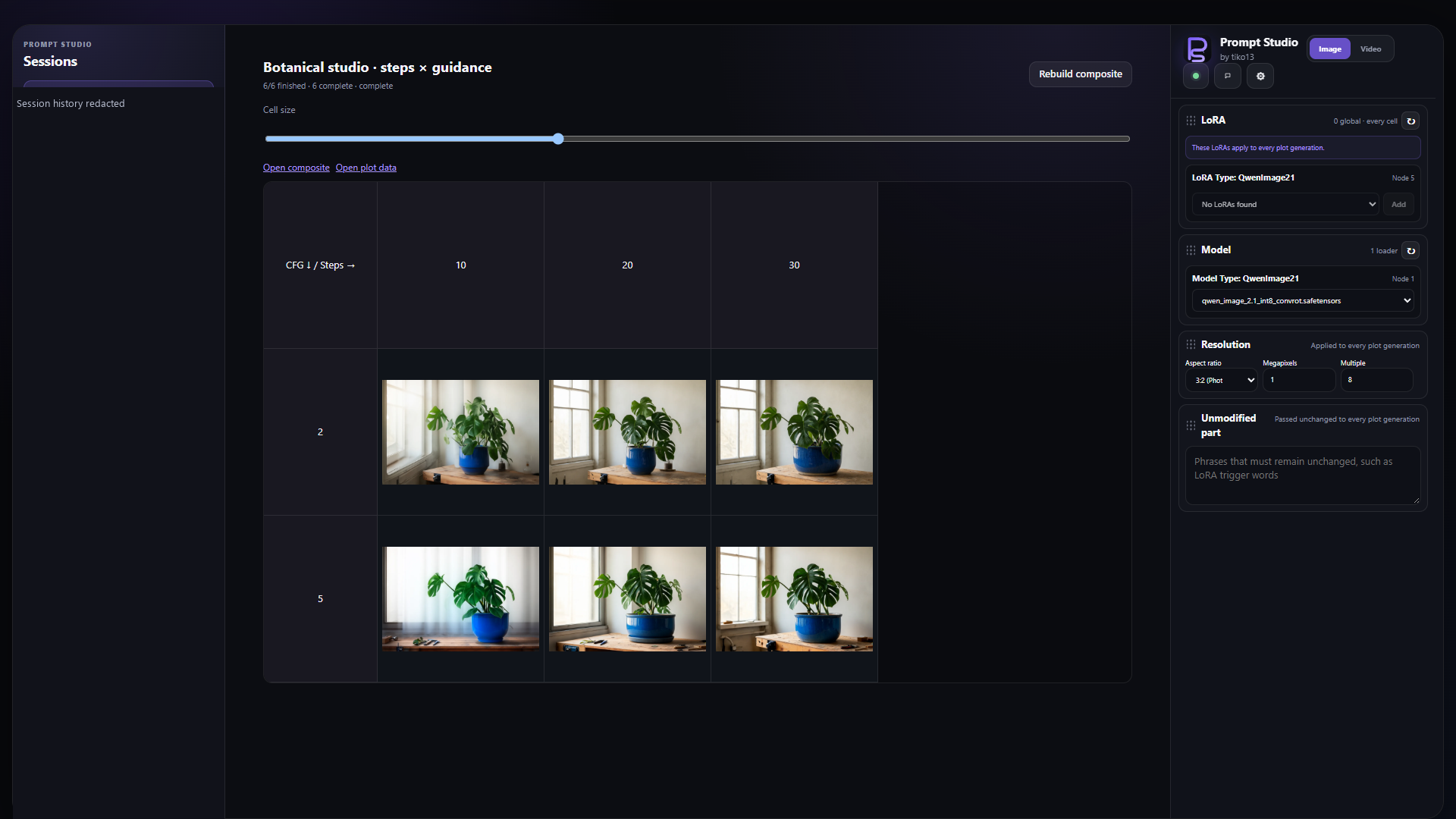
One prompt, six settings: Steps across columns and CFG down rows.
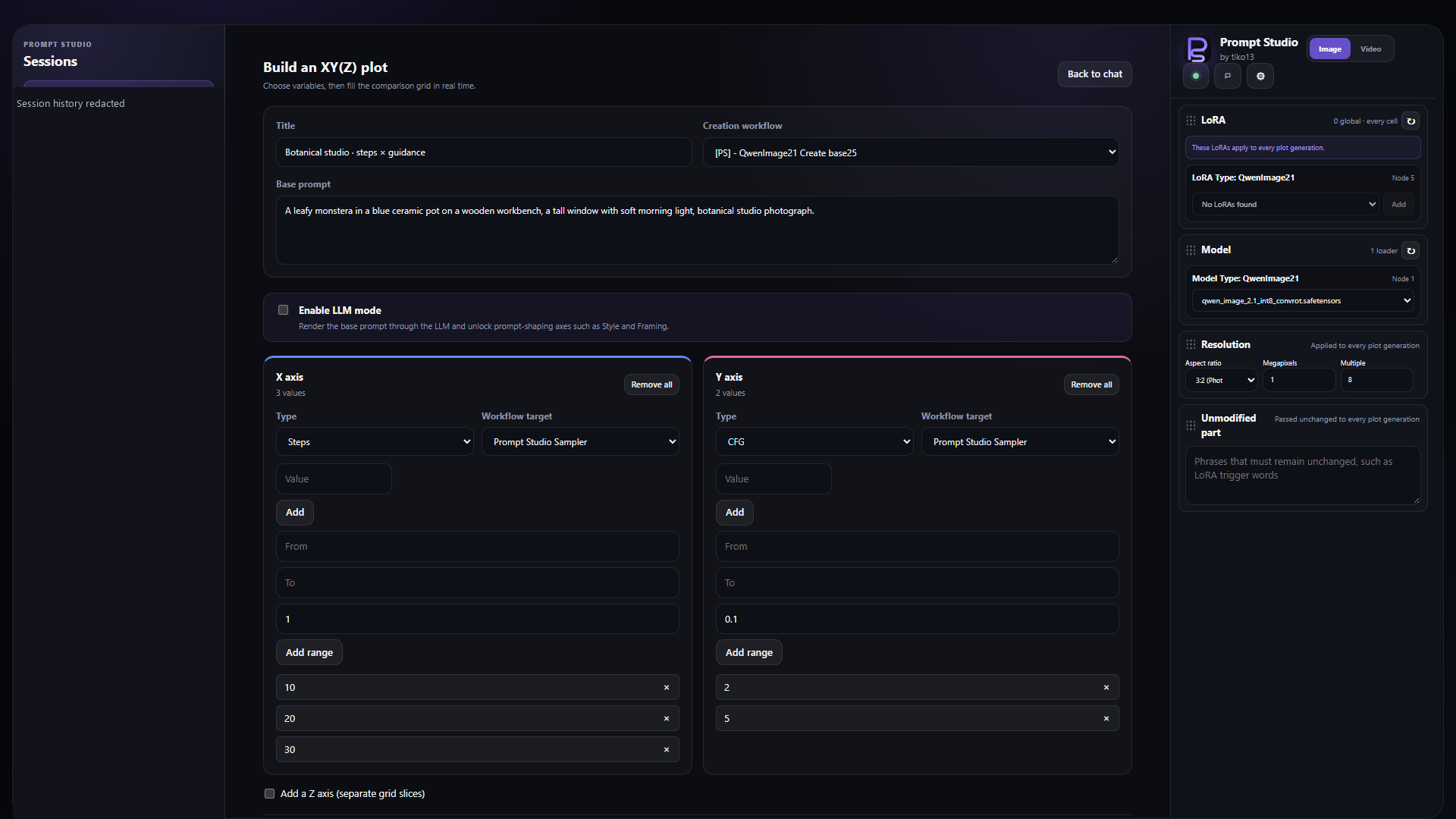
A new empty session offers Start XY(Z) plot alongside ordinary prompt and image-import actions. The plot builder uses the selected [PS] creation workflow and supports X and Y axes plus an optional Z axis. Each axis independently targets a workflow-owned model, LoRA, LoRA strength, seed, sampler, scheduler, step count, CFG, or denoise strength. Model and LoRA axes can add one item or every available item; numerical axes accept individual values, ranges, and random seed batches. Duplicate workflow targets and plots larger than 512 cells are rejected before submission.
Generated images also offer a small XYZ button immediately to the right of the Video Studio handoff button. Choose Main prompt (LLM mode) or Final prompt (normal mode) to open a new plot session with the selected prompt, session controls, and saved generation inputs, including model, LoRAs, resolution, and sampling parameters. The source session stays intact and no generation starts until you configure and start the plot. This action requires an available creation workflow; edit and upscale workflows are not supported by the plot builder.
Starting a plot immediately creates the complete labelled grid, then fills each cell as its ComfyUI result arrives. Z values are navigated as separate grid slices, the cell-size control supports both overview and detail inspection, and completed images open in the normal full-size viewer. The run can cancel remaining cells or retry one failed cell or all failures without rebuilding the plot inputs.
Plot state lives under the ignored user-data/prompt_studio_plots/ runtime directory. Its manifest contains one base executable workflow snapshot, axis overrides, prompt IDs, statuses, and references to the original ComfyUI output images; it does not copy each generated image. This lets a refreshed browser resume queued results. When all cells reach a terminal state, Prompt Studio writes a labelled PNG composite to output/PromptStudio/Plots/ (one PNG per Z slice plus an overview for multi-slice plots) and a portable JSON sidecar. Rebuild composite regenerates those artifacts after retries.
Sessions and persistence
The Sessions sidebar creates, switches, and deletes independent prompt conversations. Each session remembers its main and final prompts, paired prompt versions, messages, selected creation and editing workflows, and the prompt-shaping controls last applied by the selected LLM provider. A new session starts with clean prompt-shaping controls: style and framing return to None, free-text instructions and modifiers are cleared, and other prompt-shaping controls return to their defaults. Thinking and embellishment levels carry over, as do the selected LoRAs and models.
Chats are stored under user-data/prompt_studio_chats/, with an index.json for ordering and compressed, content-addressed JSON records. The directory is excluded from Git and is shared by browsers connected to the same ComfyUI installation. Saves use revision checks so an older browser cannot silently overwrite a newer save. A conflicting client merges with the latest store before retrying. At backend startup, both complete Image and Video libraries are automatically migrated and verified. Current sessions are preserved; recovery keeps three recent saves, daily checkpoints for seven days, and weekly checkpoints for four weeks. A 256 MiB compressed recovery budget retires oldest checkpoints first, while always preserving current data and the newest verified fallback. Cleanup runs separately from saving, at most every 30 minutes of access. Legacy migration backups are compressed and expire after seven days. Settings → General → History storage shows usage, dates, and individual-session recovery. Recovery does not recreate separately deleted media. See storage recovery for maintenance and CLI commands.
The standalone page is available at the short URL:
/PromptStudio
The original extension URL remains available for compatibility:
/extensions/ComfyUI_PromptStudio/prompt_studio.html
On direct navigation or refresh, it reconnects to an open ComfyUI tab when possible and otherwise starts a hidden same-origin workflow host.
Local model consultation chat
The standalone interface adds a chat-bubble button beside its header controls. It opens a normal, session-specific conversation with the local KoboldCpp, Ollama, or Llama.cpp model selected in Prompt Studio settings. This assistant chat is separate from prompt rewriting: responses are conversational and never modify the main prompt, final prompt, or generation controls automatically.
<details> <summary>See explicit prompt, settings and image-context attachments</summary>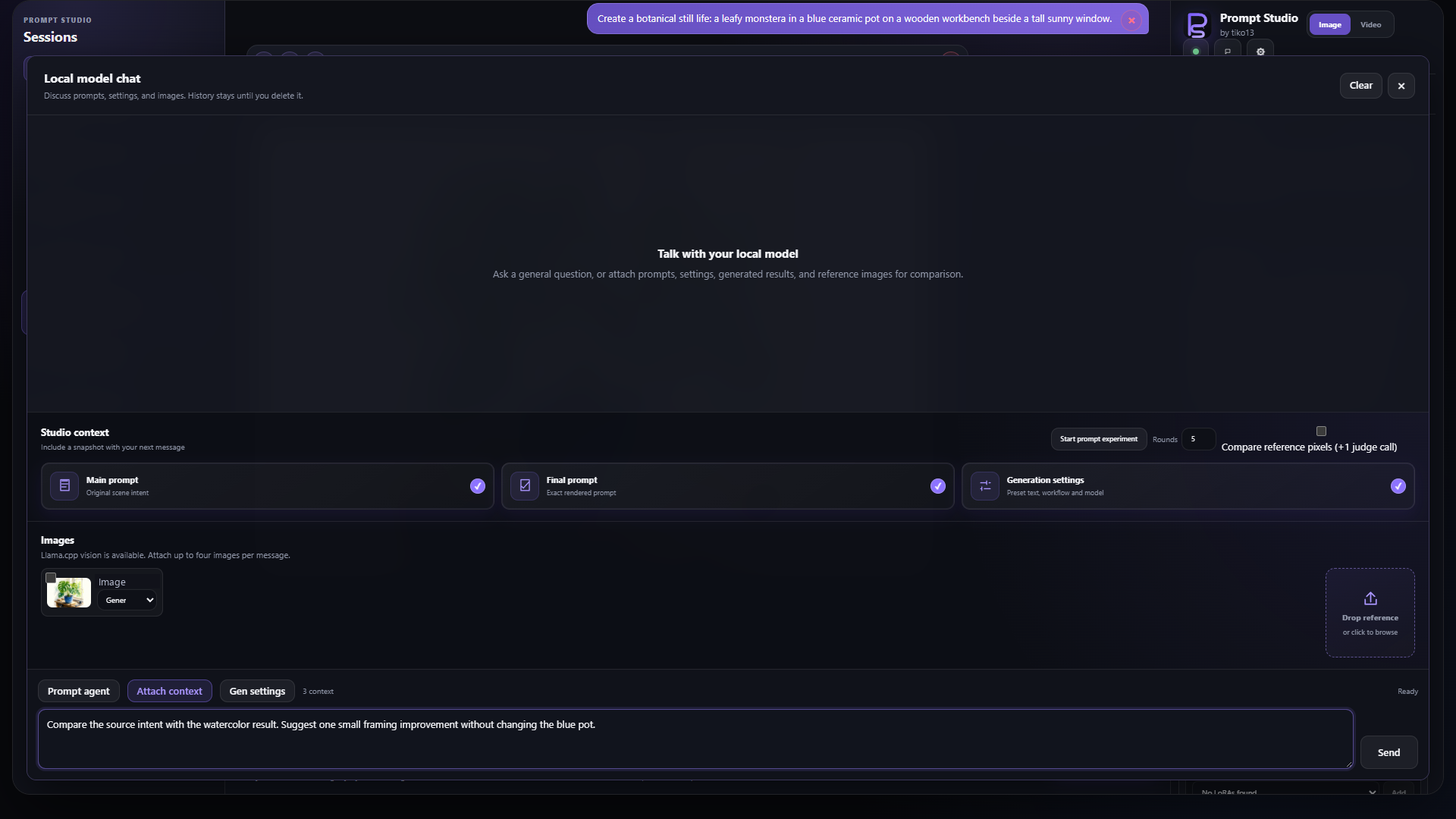
The question is prepared with explicit context; it has not been sent.
</details>Prompt experiments
Ordinary consultation starts without Prompt Studio context. Previous experiment messages are also excluded from ordinary chat requests, so using the assistant for an unrelated question does not silently attach prompts, presets, settings, or images. Open Attach context and choose Start prompt experiment to explicitly create an isolated experiment from the current main and final prompts plus read-only copies of the selected style and framing instructions.
Inside an active prompt experiment, the assistant may propose a complete candidate prompt and temporary style or framing guidance. Candidate cards can generate through the currently selected Studio workflow while keeping the result in consultation history. Promote to Studio explicitly copies the selected candidate into the Final Prompt and, when available, adds its chosen generated result to the main conversation. Promotion does not change preset selections or files, workflows, diffusion models, LoRAs, resolution, seeds, or provider settings. Ending an experiment returns the assistant to ordinary chat; completed candidates remain available in consultation history until normal consultation expiry.
Prompt Agent
Turn on Prompt agent directly above the chat composer, describe the desired image, and press
Start agent. The current draft becomes the image goal and selected consultation images become
labelled references. To give the prompt architect the current run-local style and framing preset
text, explicitly select Generation settings under Attach context before starting; otherwise
those settings are omitted. The agent card keeps its labelled reference thumbnails beside the goal
for visual context, and the open context panel collapses when the run starts. Prompt Agent
requires a vision-capable local model and a compatible [PS] creation workflow. It runs a
checkpointed loop with separate, fresh local-model contexts for brief compilation, prompt
architecture, and pixel-grounded visual judging:
- Compile the goal into weighted required and preferred visual criteria.
- Build a complete prompt with run-local style and framing guidance.
- Generate through the selected creation workflow.
- Judge only the generated candidate pixels against the locked goal and the rubric's compiled reference notes. Raw references stay out of defect judging so similar subjects cannot be confused as one merged image.
- Refine and repeat until the rubric passes, five iterations are exhausted, or progress plateaus.
Prompt comparisons preserve the workflow seed. A passing candidate is generated once more with a fresh seed and must pass again before autonomous completion. The run keeps its best-scoring result if a later iteration regresses. Pause checkpoints the loop, Stop interrupts an active ComfyUI generation, and Promote best to Studio explicitly copies the chosen prompt and image into the main session. The agent never changes global style or framing preset files, workflow selection, models, LoRAs, resolution, provider settings, or other Studio controls.
Visual defects are confidence-gated separately from ordinary rubric mismatches. Only a serious, precisely located candidate-local defect reported with high confidence can veto a pass or steer the next prompt; uncertain or unstructured defect claims are discarded.
Agent mode remains selected after a run finishes. Enter a correction in the same composer and press Continue agent to compile the updated goal and run more iterations. Earlier iterations remain visible for comparison, while the new cycle chooses a fresh best result against the corrected goal. Turn off Prompt agent to return the composer to ordinary consultation chat.
Agent state is stored with the session and can resume after a refresh. If Prompt Studio is closed, an already queued ComfyUI image may finish, but further local-model phases resume only after Prompt Studio is opened again.
Attach prompts and images
Each message can attach the current main prompt, final prompt, and generation settings. Attached generation settings include the selected style and framing preset names plus their full resolved instruction text, so the assistant can audit exactly how those presets shaped the prompt. Recent generated images can also be attached. An image attachment sends only the image and its explicitly selected role; prompts and generation settings are included only when their separate context checkboxes are selected. Images may be labelled as base/target images, generated results, general references, pose references, style references, or composition references so the model can compare them without guessing their intended roles. Additional reference images can be uploaded directly in the attachment tray. The upload control is also a drop target, so one image can be dragged directly beside the recent image thumbnails.
The chat composer's Gen settings panel shows the active shared LLM configuration and links to its editor. For Ollama and KoboldCpp, sampling behavior is managed in Settings → General → LLM Profiles. For Llama.cpp, it comes from the selected JSON config and Edit config opens the Llama.cpp config builder.
Consultation messages are temporary and automatically expire seven days after they are created. The Clear action removes the full consultation history, draft, and all pending context attachments for that session. Normal Prompt Studio session history is retained as before. When expired consultation messages contained uploaded Prompt Studio reference images, files that are no longer referenced anywhere else are removed from the managed image store as well.
Image attachment is available only when the connected model reports vision support. Text chat continues to work with non-vision models. Prompt Studio sanitizes uploaded images and sends stored image references to its Python backend; the browser does not send local filesystem paths to the model service.
In-app setup wizard
ComfyUI is required. Install Prompt Studio as a ComfyUI extension and restart ComfyUI. Setup opens automatically the first time you open image Prompt Studio. You can also open Settings → Setup wizard → Run setup at any time.
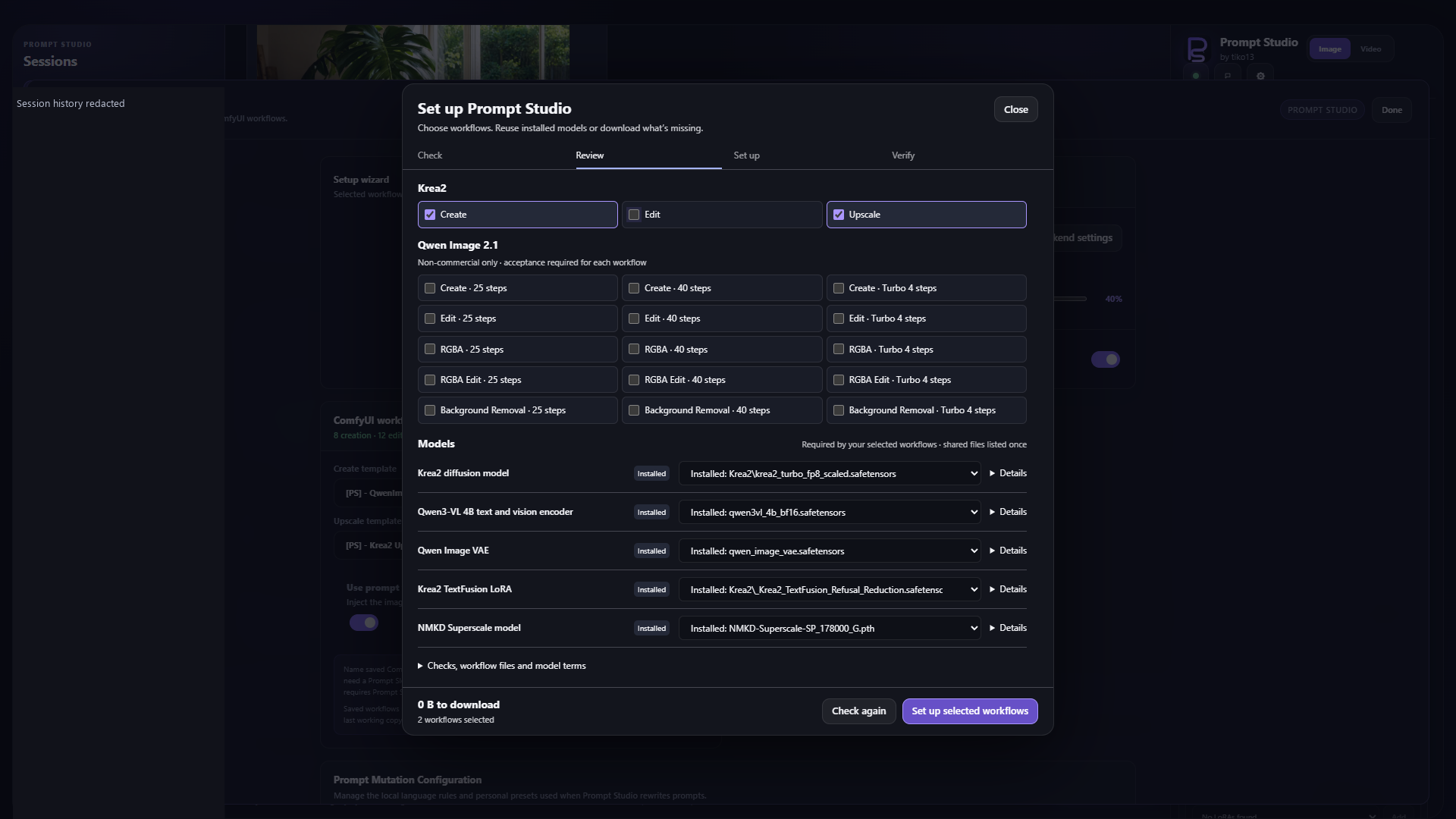
Select individual Krea2 or Qwen Image 2.1 workflows in the compact workflow grid. Model selectors show installed files and download choices; expand Details for usage, sources and compatibility. Setup lists which workflows need each model and node pack, checks ComfyUI's registered model folders (including extra paths), and reuses compatible installed files. A compatible Krea2 variant satisfies the diffusion-model requirement without downloading Turbo. Either the BF16 or FP8 Qwen3-VL 4B encoder works across all three workflows: reuse an installed encoder, or choose which format to download. Alternate diffusion models keep the supplied sampler settings and may need different steps or CFG for best results.
The bundled Krea2 workflows are [PS] - Krea2 Turbo, [PS] - Krea2 Turbo_Edit, and
[PS] - Krea2 Upscale UltimateSD. All bundled workflows start with empty prompt
and image-reference fields. Existing workflows are preserved; when content
differs, setup installs a separate numbered Setup copy and reuses that copy on
subsequent runs. ComfyUI Manager installs missing third-party node packs using
its existing security policy; these installs require a ComfyUI restart.
Qwen Image 2.1 includes Create, Edit, RGBA, RGBA Edit and Background Removal, each in 25-step, 40-step and Turbo v0.3 six-step variants. They share the diffusion model, Qwen3-VL 8B encoder and native Qwen 2.1 VAE; only Turbo variants need the Viggle v0.3 rank-128 LoRA. Setup offers INT8 and BF16 diffusion/encoder choices, reuses registered files, and verifies downloads against pinned checksums. Bundled examples contain no local reference-image paths. Edit workflows retain the saved 1056 encoder resolution and matching Turbo shift settings.
Turbo uses the bundled unmerged LoRA loader and a dedicated six-step Euler sampler with CFG 1 and a resolution-aware schedule. Seed and user LoRAs remain adjustable; sampling overrides are fixed to the trained recipe. The 25-step and 40-step base variants retain normal sampler controls.
Structure guide (ControlNet) is an optional Qwen 2.1 feature in References. Expand a reference card to select pose, depth, edges or sketch, adjust strength, and preview its guide. More options accepts prepared maps and controls fit/crop. One structural guide works in compatible Create and Edit workflows, including Turbo v0.3. Both modes can combine it with ordinary references; Edit can reuse its source. Other workflows keep the saved guide inactive. Setup offers the Qwen union weights and separate optional pose, depth and sketch extractors; native edges need no extra extractor. Extractors use the optional ControlNet Auxiliary Preprocessors pack installed through Manager. Qwen ControlNet follows the same research-license acceptance flow as Qwen workflows.
Qwen workflows start unchecked. Selecting each one opens a strict non-commercial warning linked to the Qwen Research License. Only Accept selects it; Cancel, Escape or dismissal leaves it unchecked. The setup service also requires acceptance for each selected Qwen workflow and preserves that acceptance when a setup job is paused or resumed after restart.
Edit includes Identity Edit v1.2 at strength 1 alongside TextFusion. Its defaults
are 10 steps, CFG 1, Euler/simple, reference fidelity 4 and grounding 768 for both
encoders. The original reference image is fitted without a preliminary crop.
Fidelity, grounding, steps, sampler and scheduler are exposed in Studio. Setup
verifies the Identity Edit download and checks that the Krea2 Edit nodes support
target_latent (node pack v1.2.5 or newer); older nodes must be updated and
ComfyUI restarted before setup can complete.
Downloads show byte progress, transfer speed and remaining time, followed by
separate checksum verification. Pause/resume retains partial downloads. Closing
the wizard does not stop setup; use the header activity button to reconnect.
Interrupted jobs can be resumed after ComfyUI restarts. Onboarding and job state
live under the current ComfyUI user's .promptstudio-setup directory. Completion
means the installed workflows passed Studio conversion, not that a generation
test was run. The wizard does not install ComfyUI, Python, drivers or LLM runtimes.
Local model backends
Prompt Studio uses Ollama at http://localhost:11434 by default. Open Prompt Studio settings to select Ollama, KoboldCpp, or Llama.cpp as the LLM provider, then use the adjacent Backend settings button for endpoints, models, memory behavior, request profiles, and managed-server controls. The latter two providers are advanced options that require a separately configured local server. The first time either advanced option is selected, Prompt Studio displays a confirmation that is remembered after acceptance. KoboldCpp defaults to http://localhost:5001; Llama.cpp defaults to http://127.0.0.1:8080. Select a model discovered from the provider's model-list endpoint. For safety, all providers accept loopback hosts only by default.
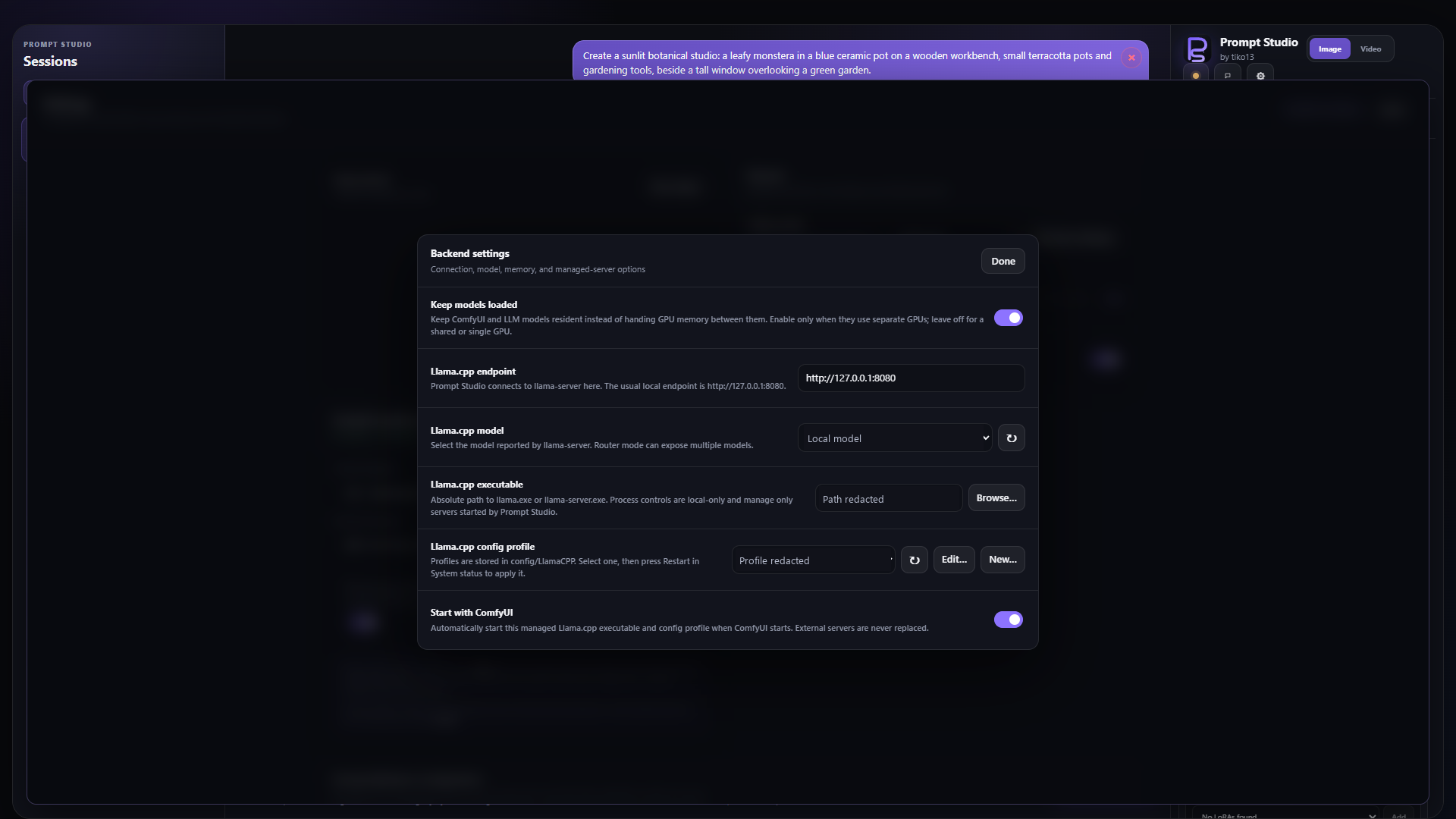
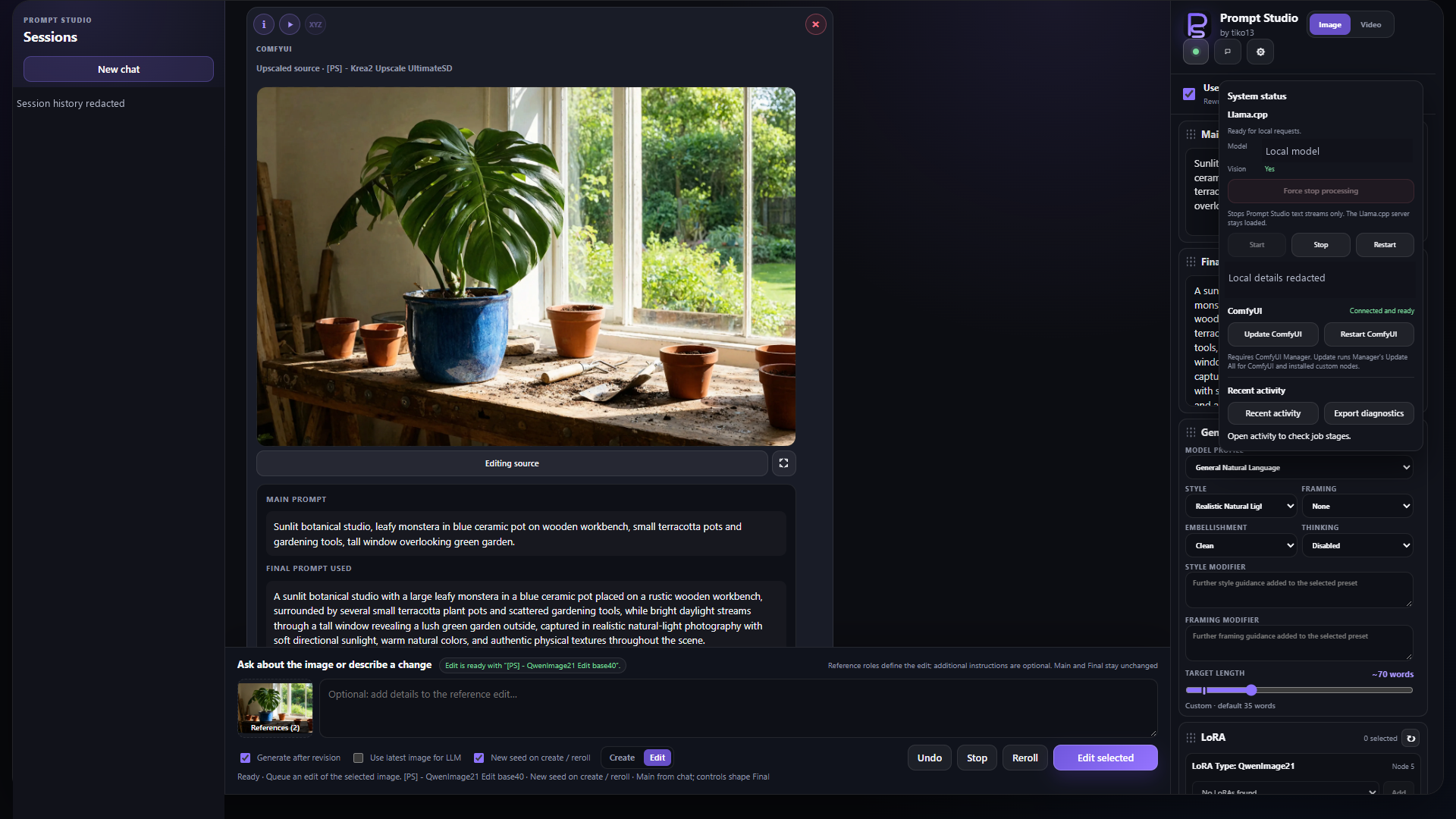
Separate-GPU configuration shown. Leave Keep models loaded off when the LLM and ComfyUI share a GPU.
Settings → Backend settings → Keep models loaded is off by default. In this shared-GPU mode, Prompt Studio keeps ComfyUI's models resident after image generation so reruns and already-queued work remain fast. Only when the next LLM operation begins does it wait for the ComfyUI queue to become idle, unload ComfyUI's models, and free its allocator cache. The LLM remains available across routing, rewriting, discussion, and consultation stages; immediately before Prompt Studio queues another ComfyUI workflow, it unloads the active LLM and hands the GPU back to ComfyUI. This transition is serialized so background LLM work cannot overlap ComfyUI inference on the shared device.
Enable Keep models loaded only when ComfyUI and the LLM use separate GPUs. It disables both sides of the handoff, asks Ollama to keep its selected model resident indefinitely, and leaves KoboldCpp or Llama.cpp loaded. Enabling it while both services use the same full GPU can cause an out-of-memory failure.
Shared-GPU KoboldCpp operation requires KoboldCpp Admin Mode and an Admin Directory. Prompt Studio uses the admin API to switch to unload_model, then restores initial_model before the next LLM request. If KoboldCpp has an Admin Password, set it in ComfyUI's environment before startup:
When a shared-GPU handoff fails, the system-status dot turns red and the provider detail shows the handoff error. The warning remains visible across status polling until that provider completes a handoff successfully; enabling Keep models loaded hides handoff-only warnings because no model switch is required.
$env:PROMPT_STUDIO_KOBOLD_ADMIN_PASSWORD = "your-admin-password"
Settings → General → LLM Profiles stores model-specific thinking, response-token, sampler,
stop-sequence, and request-timeout values. The shipped editable profiles are Default and
Qwen 3.8 (27B); the latter stores Unsloth's separate recommended sampler values for thinking
and non-thinking operation and switches between them from the Generation controls' Thinking selector. Profiles can
be added, renamed, edited, restored to their shipped parameter defaults, or deleted. When no user
profiles remain, Prompt Studio exposes an immutable Default profile with the shipped values so
local-LLM features remain usable. The selected profile is shared by prompt rewriting, local model
chat, image discussion, and Prompt Agent when Ollama or KoboldCpp is selected. Llama.cpp does not
display or consume these browser profiles; its selected config/LlamaCPP/*.json file owns the same
thinking, response-token, reasoning-cap, sampler, stop-sequence, and timeout settings under
llm_profile.
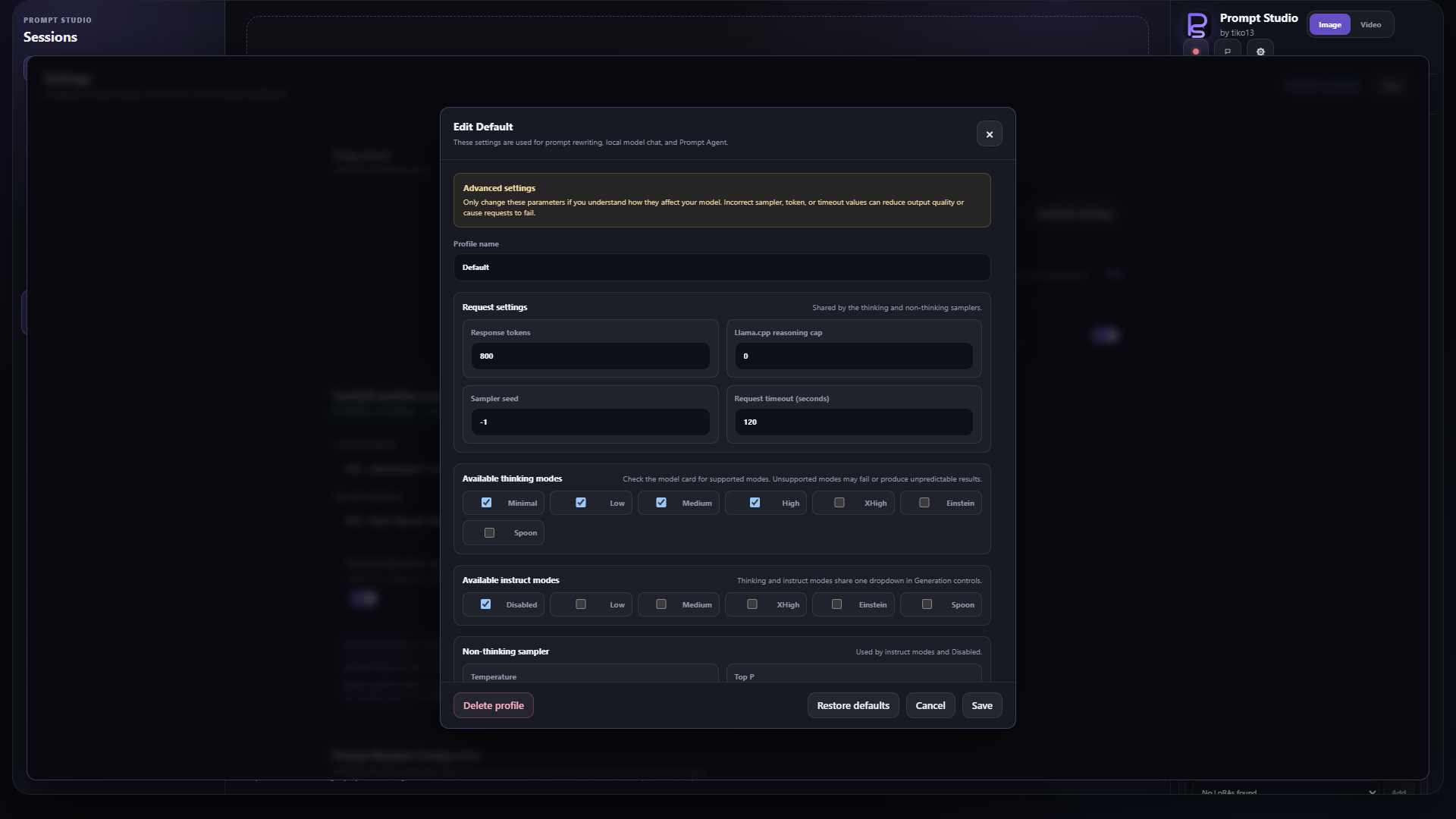
Profiles can also limit the choices shown by the Generation controls' Thinking selector. Existing
and newly added profiles default to Disabled, Minimal, Low, Medium, and High.
Qwen 3.8 (27B) has exactly three native reasoning-effort levels: XHigh (its default),
Medium, and Low. Prompt Studio also shows Disabled for this config as a separate
thinking on/off choice; it is not a fourth Qwen 3.8 effort level. Enabled requests pass the exact
lowercase effort both as top-level reasoning_effort and in chat_template_kwargs, while Disabled
sends reasoning_effort: none with enable_thinking: false.
For Qwen 3.8 (27B), Disabled thinking uses temperature 0.7, top_p 0.8, top_k 20,
min_p 0, presence penalty 1.5, and repetition penalty 1.0. Any enabled thinking level uses
temperature 1.0, top_p 0.95, top_k 20, min_p 0, presence penalty 0, and repetition
penalty 1.0. Both sampler groups remain editable in the profile dialog.
Prompt rewriting uses KoboldCpp's OpenAI-compatible Chat Completions endpoint and the model's native GGUF chat template. Enable Use Jinja in KoboldCpp and restart its server after changing that setting. The backend checks this capability and stops with a clear error instead of silently using generic chat formatting. KoboldCpp 1.117.1 or newer is recommended and is the version used for integration testing.
With Ollama selected, Prompt Studio uses Ollama's native, non-streaming /api/chat endpoint. Sampling controls are translated to Ollama options, and the Thinking control uses Ollama's separate think response channel. Minimal and Low both request Ollama's low thinking level. Prompt Studio sizes Ollama's num_ctx from the complete system, history, text, image, and response allowance so a small server default cannot silently discard the beginning of the request. If a constrained model spends the initial routing budget on reasoning, Prompt Studio retries that decision once with Thinking disabled and displays a warning instead of failing the Studio turn. A non-structured conversational response that reaches its limit but contains usable text may be retained with an incomplete-result warning; prompt creation, precision revision, routing, proposals, and other machine-applied responses must finish completely. In shared-GPU mode Ollama stays loaded briefly across related LLM stages and is explicitly unloaded at the LLM-to-ComfyUI transition. The ComfyUI canvas nodes remain named KoboldCpp Prompt Slot/Amplify for workflow compatibility; in interactive Prompt Studio, they act as prompt handoff nodes and the provider selected in settings performs the rewrite.
With Llama.cpp selected, Prompt Studio uses llama-server's streaming OpenAI-compatible /v1/chat/completions endpoint. It explicitly requests reasoning_format: auto, so native thinking is returned separately in reasoning_content and only final content reaches the image workflow. The system-status popover reads /health, /models, /props, and /slots, including model, vision, active-slot, and token progress. Force stop processing closes Prompt Studio's live llama-server streams; chat and Prompt Agent cancellation use the same mechanism. Start llama-server with its default --slots support (Prompt Studio adds --slots when it launches the server).
Llama.cpp treats model-native reasoning_effort and its server-side token cutoff as separate controls. With the selected config's Reasoning token cap set to 0, Prompt Studio passes the selected qualitative effort to the model's Jinja template and allows thinking to use the available server context window. This matters for Qwen 3.8: Low, Medium, and XHigh change the template's reasoning instructions rather than imposing three arbitrary token budgets. A positive cap opts into llama-server's thinking_budget_tokens cutoff; Prompt Studio then requests the cap plus the final-answer allowance, bounded by the available context. Reaching that cap forcibly ends thinking, which can reduce answer quality, so the shipped config example leaves it at 0. Prompt Studio does not retain or resend private reasoning from earlier turns.
Prompt Studio can also start, stop, and restart Llama.cpp itself. In Settings → Backend settings, use Browse… to select llama.exe or llama-server.exe. Launcher profiles always live in config/LlamaCPP; Prompt Studio creates that folder automatically. Pick any discovered profile and press Restart in System status to apply its model and server settings immediately. Enable Start with ComfyUI to launch that validated executable and profile automatically during future ComfyUI startups. Edit… opens the selected profile in the native in-app config window; New… opens a new profile in the same window. Save config validates and writes the named JSON profile in the fixed folder, refreshes the shared Image/Video settings, and queues managed-server changes until LLM work is idle. Cancel or Escape discards unsaved edits. The editor detects conflicting saves from another window. bundled server example includes every setting shown by the builder: model GGUF, MMProj GGUF, context size, GPU layers, parallel slots, CUDA devices (--device), CUDA-visible devices, split mode, main GPU, tensor split, auto-fit, flash attention, K/V cache types, MTP speculative decoding, host, port, optional extra arguments, and the complete thinking/non-thinking LLM sampler configuration. MTP controls its draft-token range and probability cutoff plus the draft context's GPU layers, device, and K/V cache types; it requires an MTP-capable GGUF and a recent llama.cpp build. llama.exe is started with the serve subcommand; llama-server.exe is started directly. The executable picker, profile discovery, config builder, autostart preference, and process actions are accepted only from a loopback browser connection. Prompt Studio records the exact managed process identity and recovers control after a ComfyUI restart; PID, executable path, and OS creation marker must all still match before it will stop that process. A detached watchdog stops that exact managed process 120 seconds after ComfyUI exits, including an abrupt termination. Restarting ComfyUI during the grace period renews ownership and cancels the pending shutdown. An already-running server at the configured endpoint remains externally managed and is never replaced by autostart, while processing monitoring and stream cancellation still work.
Shared-GPU Llama.cpp handoff requires llama-server router mode (--models-dir) because only router mode exposes /models/unload; normal chat requests autoload the selected model again. For a single-model llama-server process, use separate GPUs and enable Keep models loaded, or let the external launcher own the GPU transition.
Profiles define reasoning modes in llm_profile.thinking_modes and non-thinking modes in llm_profile.instruct_modes. Each list uses native names, for example "thinking_modes": ["Spoon", "Einstein", "XHigh", "Medium", "Low"] and "instruct_modes": ["Spoon", "Einstein", "XHigh", "Medium", "Low", "Disabled"] for the updated Twin Turbo model. The single dropdown adds the Instruct prefix to distinguish entries. The thinking_mode field remains the selected default and can be "Instruct Spoon". Either list may be empty, but at least one mode must be available. Older profiles with a combined thinking_modes list remain supported; editors save separate lists. Check the model card for supported modes: unsupported modes may fail or produce unpredictable results. Instruct variants retain the native effort while turning thinking off, use the non-thinking samplers, and do not reserve reasoning tokens. Disabled retains the model's default non-thinking behavior (Medium for Twin Turbo). The selected mode is shared with Video Studio.
The launcher example is a template: replace models/REPLACE_WITH_YOUR_MODEL.gguf
with your actual model path using the config builder. Relative model paths resolve
from the ComfyUI process working directory, not from the profile's directory.
Leave mmproj_gguf empty for text-only use, or select the projector matching your
vision model. The example leaves device filters and tensor split empty and uses
main_gpu: 0; it does not assume a second physical GPU exists.
GPU ordinals are zero-based. cuda_visible_devices sets CUDA_VISIBLE_DEVICES,
which can renumber the GPUs visible to llama.cpp. For example, exposing only
physical GPU 2 makes that one device visible as ordinal 0. cuda_devices is the
separate comma-separated llama.cpp --device list (such as CUDA0), while
main_gpu selects the main device; the launcher maps an explicitly selected
CUDA<N> to its position in that filtered list. Check the server's device listing
after applying visibility filters before setting main_gpu or tensor_split.
Bring your own ComfyUI workflows
Your graph defines how images are made. Prompt Studio exposes its models, LoRAs, resolution, image inputs, and selected controls in the studio, while the canvas remains available for the full workflow.
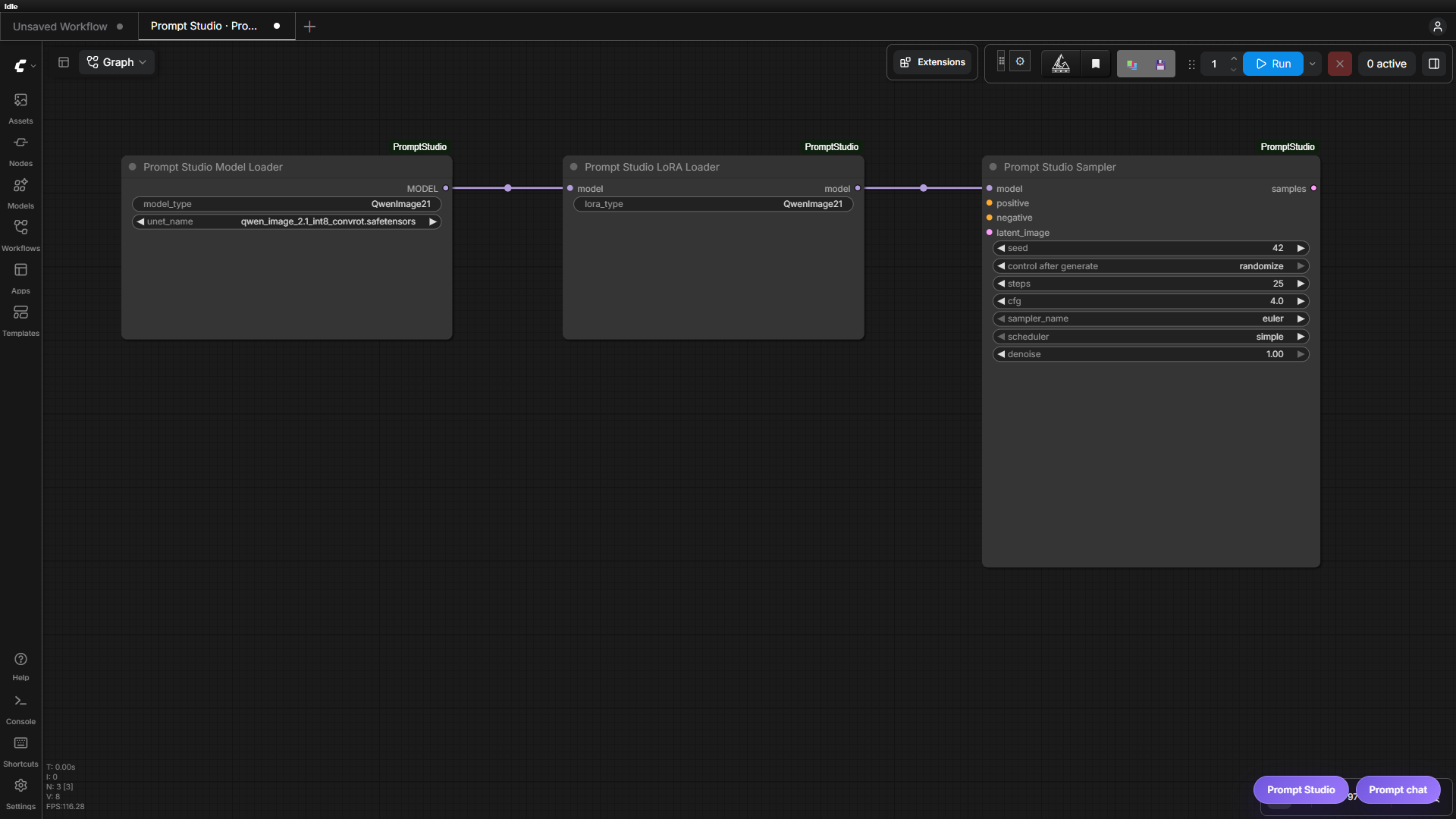
Canvas examples below show focused node wiring. Complete workflows also need conditioning, image or latent inputs, and an output.
<details> <summary>See model, LoRA and resolution controls in Studio</summary>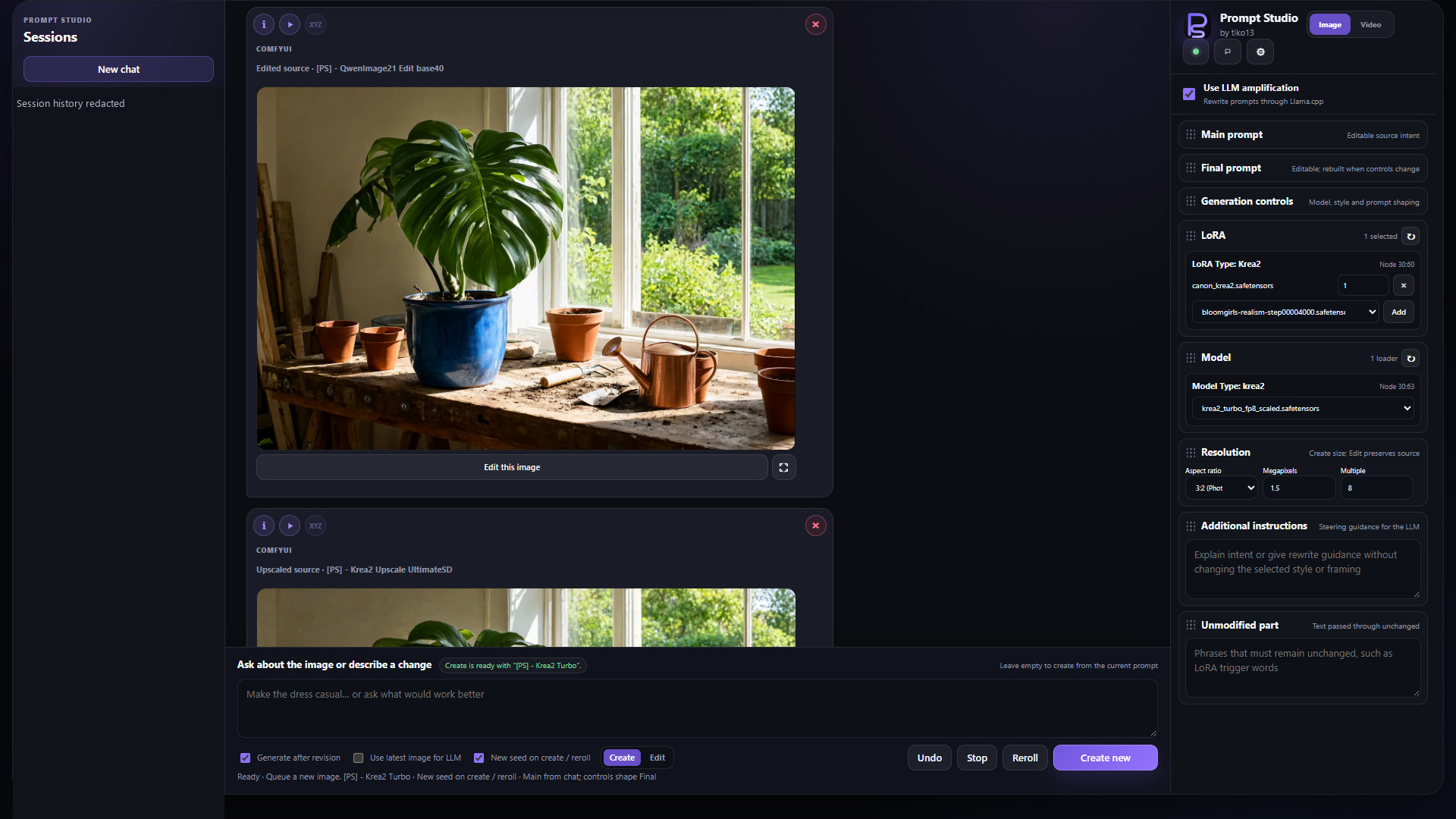
Configuration example; these selections are not the settings that produced the displayed earlier image.
</details> <details> <summary>See Create, Edit and Upscale template selection</summary>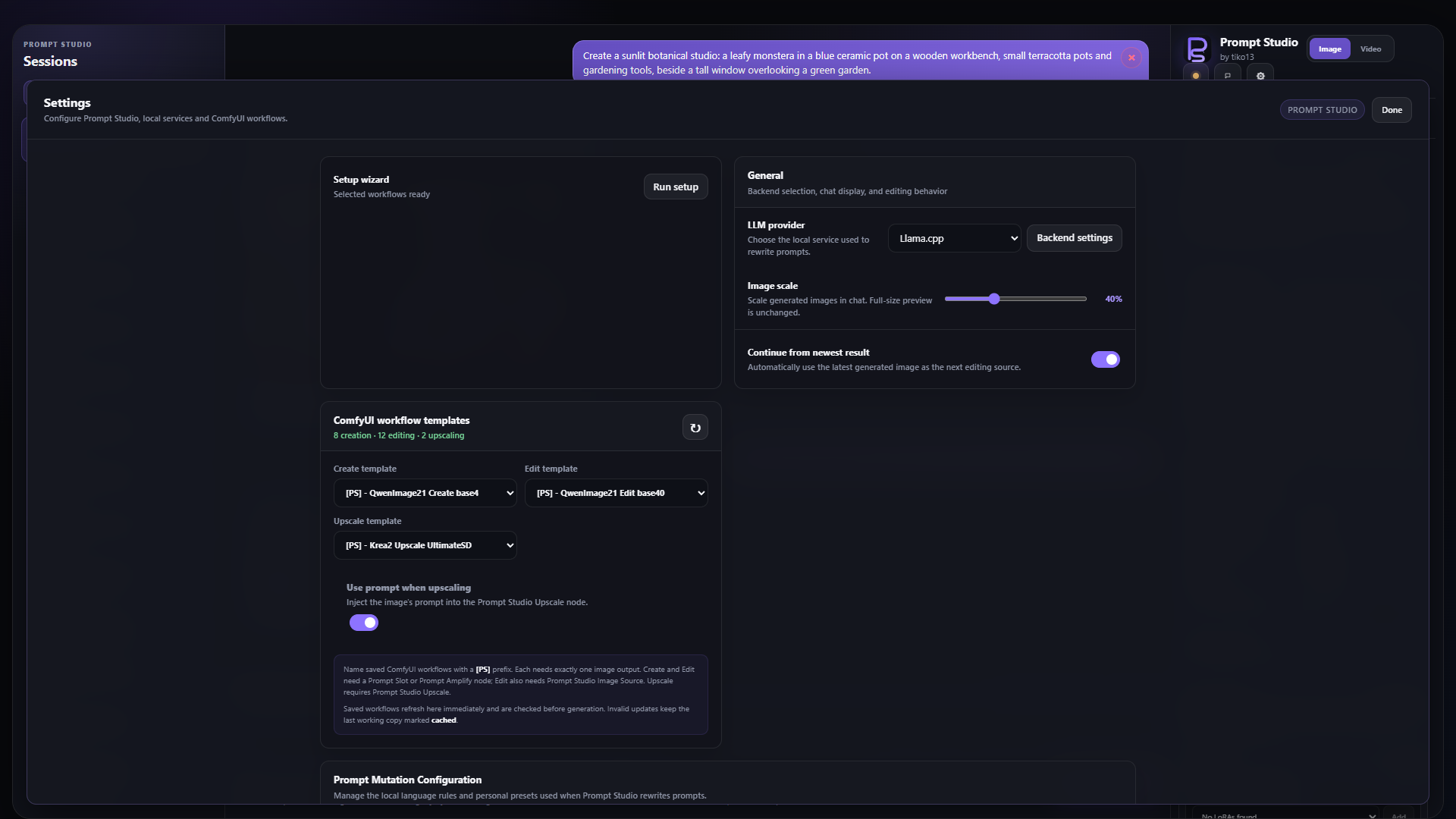
Creation, image-editing, and upscaling workflows
Prompt Studio uses normal workflows saved in ComfyUI's workflow library. Prefix a workflow's filename with [PS] to make it visible to Prompt Studio; other saved workflows remain available for manual use without cluttering Studio's selectors.
A [PS] workflow is accepted only when:
- its filename starts with
[PS]and ends in.json; - creation and editing workflows contain an executable KoboldCpp Prompt Slot or KoboldCpp Prompt Amplify node;
- it contains exactly one executable image-output node;
- editing workflows contain an executable Prompt Studio Image Source node;
- upscaling workflows contain an executable Prompt Studio Upscale node.
Workflows with Prompt Studio Upscale are listed as upscaling templates. Otherwise, workflows with Prompt Studio Image Source are listed as editing templates and workflows without an image input are listed as creation templates. Saving, renaming, or deleting a [PS] workflow through ComfyUI refreshes Prompt Studio immediately after the operation succeeds. The refresh button remains available, and the selected workflow is checked again immediately before it is queued. Widget values and other workflow settings therefore stay owned by ComfyUI and automatically flow into Prompt Studio.
Prepare a creation workflow
- Add KoboldCpp Prompt Slot or KoboldCpp Prompt Amplify to an image-generation workflow.
- Connect its
promptoutput to the positive text encoder or prompt input used by the workflow. - Check that the complete workflow queues normally and has exactly one active image output.
- Save it with a name such as
[PS] My Image Workflow, then select it as Studio's Create template.
Prepare an editing workflow
- Replace the workflow's normal Load Image node with Prompt Studio Image Source and connect its
imageoutput to the editing pipeline. - Keep the workflow's prompt input connected through a Prompt Slot or Prompt Amplify node.
- Ensure only the intended final image-output node is active.
- Save it in ComfyUI with a name such as
[PS] Kontext Edit.
Generated images have an Edit this image action. The selected chat image is injected into the saved editing workflow as a small JSON reference containing filename, subfolder, and type. If no image was explicitly selected, Edit automatically uses the last image in the active conversation. The image-source node loads that existing file directly from ComfyUI's output, temp, or input storage; it never copies a generated image into input.
Prompt Studio records each result's actual pixel dimensions. Editing an image injects those exact dimensions into the Prompt Slot or bypassed Prompt Amplify outputs, preserving the source size even when it does not match a Resolution Selector preset. Switching back to Create for a revised new image uses the aspect ratio, megapixels, and multiple currently selected in Prompt Studio again.
Image source and named reference nodes
Workflow authors can add Prompt Studio Reference Image (the existing
KCPP_ChatImageReference node) in Create, Edit, Upscale, or Video workflows.
One connected node shows a compact image input; several open a named input list.
Each node receives its own image. Custom node titles label the inputs, with
source_name as the fallback. Assignments are saved per session, workflow, and
node ID, and queued generations retain their exact inputs. These universal inputs
do not imply model-specific prompting support. The Krea2 Edit recipe connects it
to source_image_b on the model patch and image_b on both grounded encoders.
An empty reference returns no image, so those nodes keep their single-image
behavior. Connect this node only where an absent image is supported.
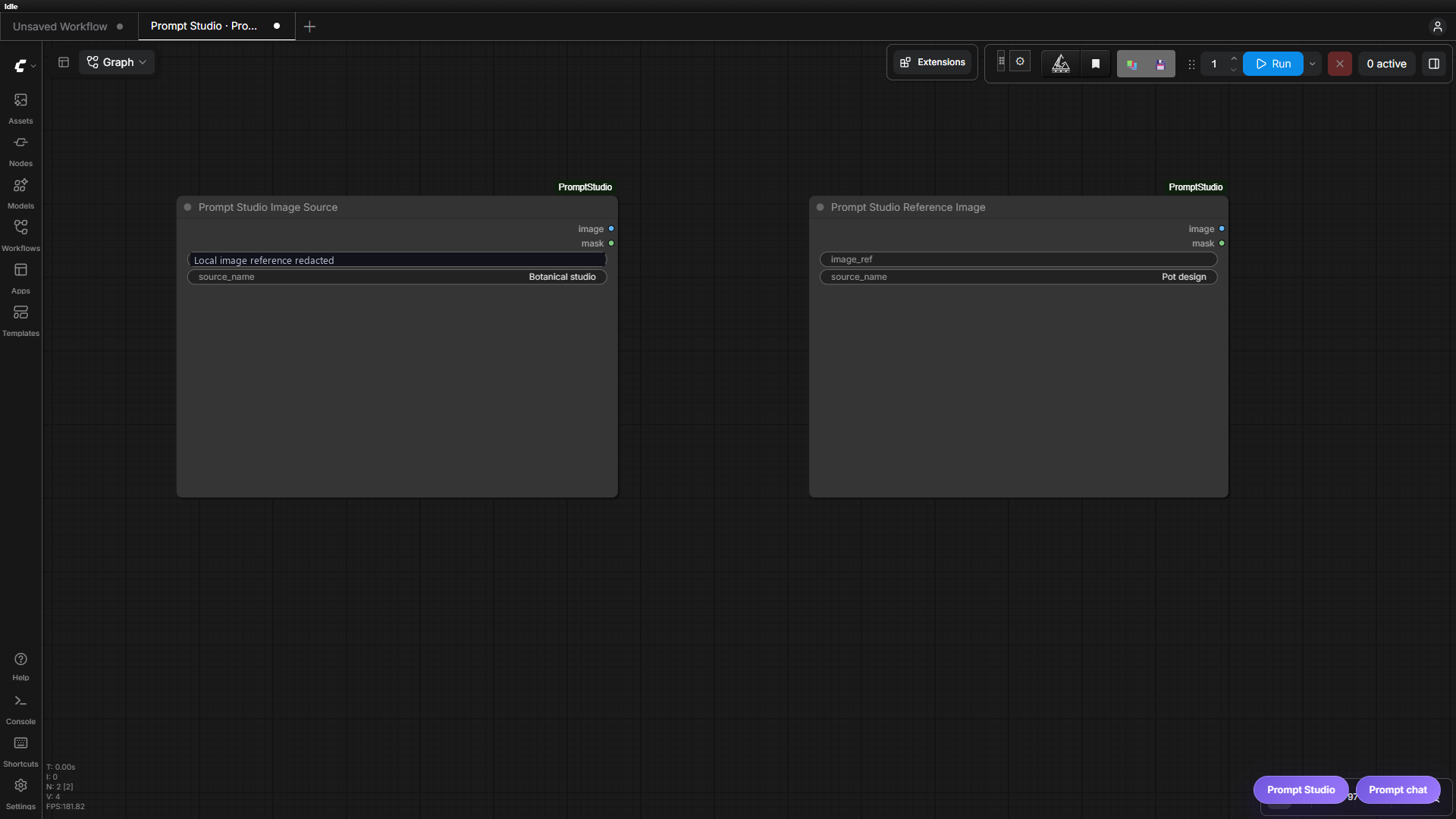
Upscaling workflow wiring
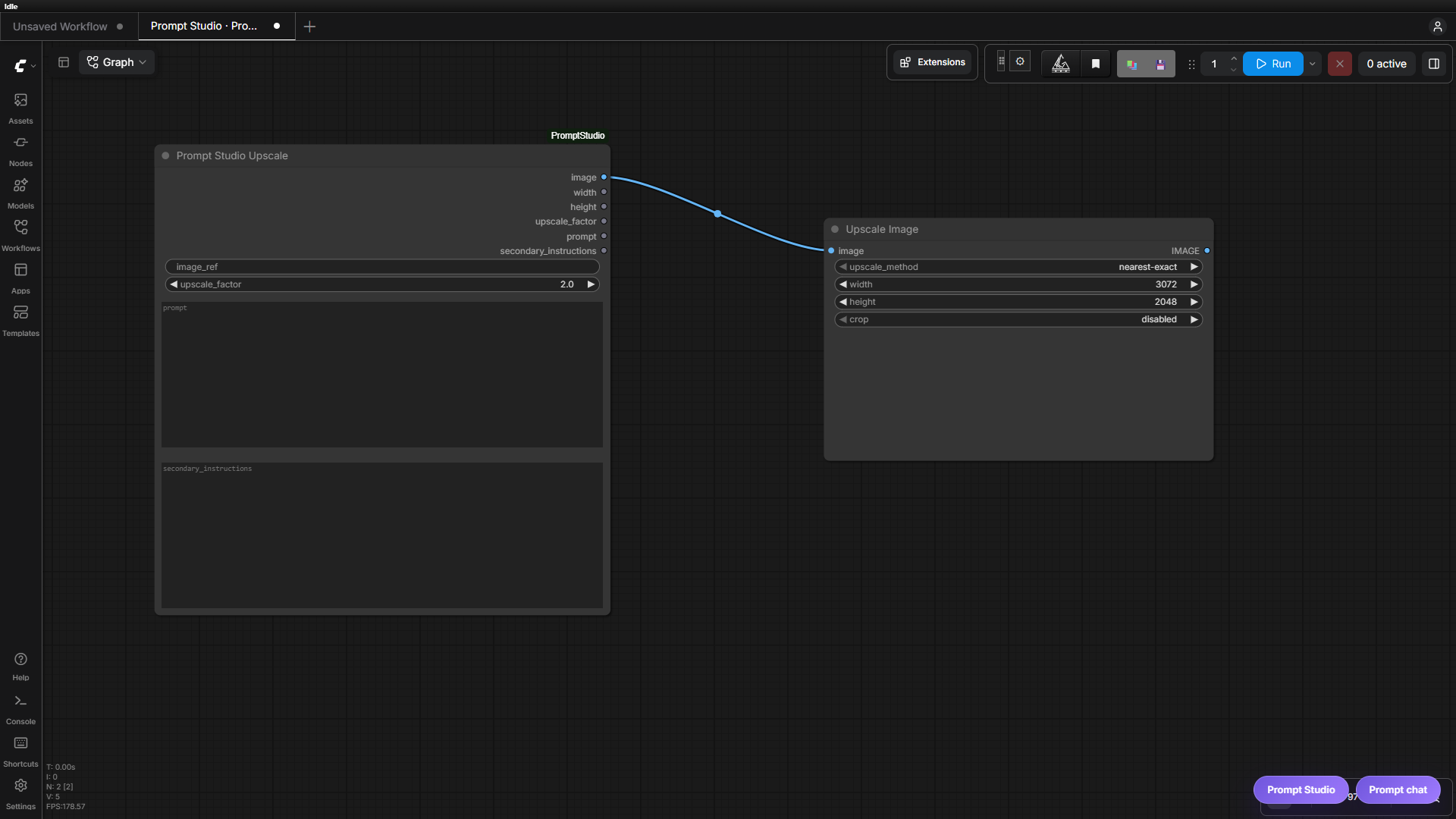
To prepare an upscaling workflow, add Prompt Studio Upscale, connect its image output to the upscaling pipeline, and use its width, height, or upscale_factor outputs wherever the model requires target sizing. Its prompt and secondary_instructions outputs can be connected to conditioning nodes when needed. Keep exactly one final image output active and save the workflow with a [PS] prefix.
Every generated image has a compact Upscale action beside Edit this image. Prompt Studio asks for an upscale factor (default 2) and injects the selected image reference, factor, optional final prompt, and secondary instructions into the dedicated node. The node loads the image and outputs target width and height calculated from the source dimensions. Use prompt when upscaling controls whether the final prompt output is populated.
When Edit is selected, a second switch controls the workflow prompt payload. Edit instruction sends the current revision text as the editing instruction, while Full prompt sends the complete revised target prompt. The switch is remembered per chat. With an optional reference and LLM amplification enabled, the switch is hidden: the grounded edit instruction is used automatically, while Main and Final remain standalone scene descriptions.
The interface can automatically advance the editing source to the newest result, while still allowing any earlier image to be selected at any time. Reroll repeats the previous execution prompt and source image while both the Create/Edit action and selected workflow are unchanged. Switching either control before rerolling routes through the newly selected workflow instead. Workflow seeds change only when seed randomization is enabled.
The ignored runtime file user-data/prompt_studio_workflows.json is now only a last-known-good cache. If a changed [PS] workflow becomes invalid or cannot be converted, Prompt Studio marks it as cached, reports why the live update was rejected, and continues using the previous working snapshot. Correct and save the ComfyUI workflow, then refresh or generate again to replace the cache. Cache writes keep the existing revision checks and .bak recovery copy.
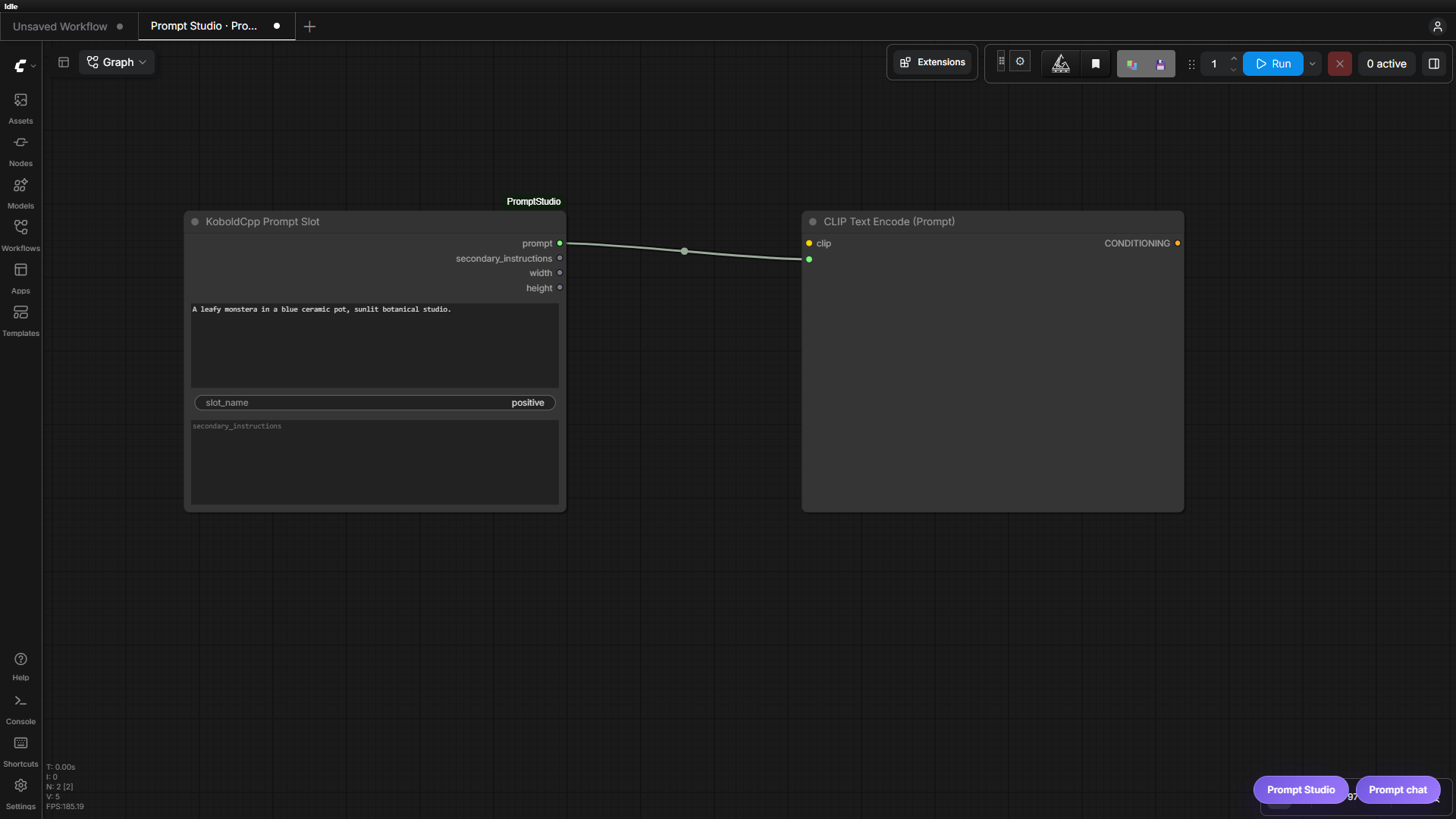
Choosing a workflow prompt node
Prompt Studio can use either of these nodes in a saved [PS] workflow:
| Node | Interactive Prompt Studio generation | Normal ComfyUI queue |
| --- | --- | --- |
| KoboldCpp Prompt Slot | Passes the final prompt into the workflow | Passes its prompt input through unchanged |
| KoboldCpp Prompt Amplify | Temporarily behaves like Prompt Slot in the queued Studio snapshot | Rewrites its text input through KoboldCpp before passing it on |
Using Prompt Amplify as the prompt input does not cause double amplification. Prompt Studio converts it to a Prompt Slot only in the temporary workflow snapshot it submits. The saved workflow and ordinary ComfyUI runs retain the node's normal amplification behavior.
Both nodes return the image prompt and unchanged secondary_instructions as their first two outputs, followed by optional integer width and height outputs. Prompt Studio supplies the resolution from its Resolution controls whenever it queues either node. Prompt Amplify also exposes the same controls on the ComfyUI canvas for normal workflow runs; Prompt Slot keeps them Studio-only. The aspect-ratio presets, megapixel range, multiple range, defaults, and rounding match ComfyUI's built-in Resolution Selector.
If a [PS] workflow contains more than one compatible prompt node, Prompt Studio uses the first executable one in graph order.
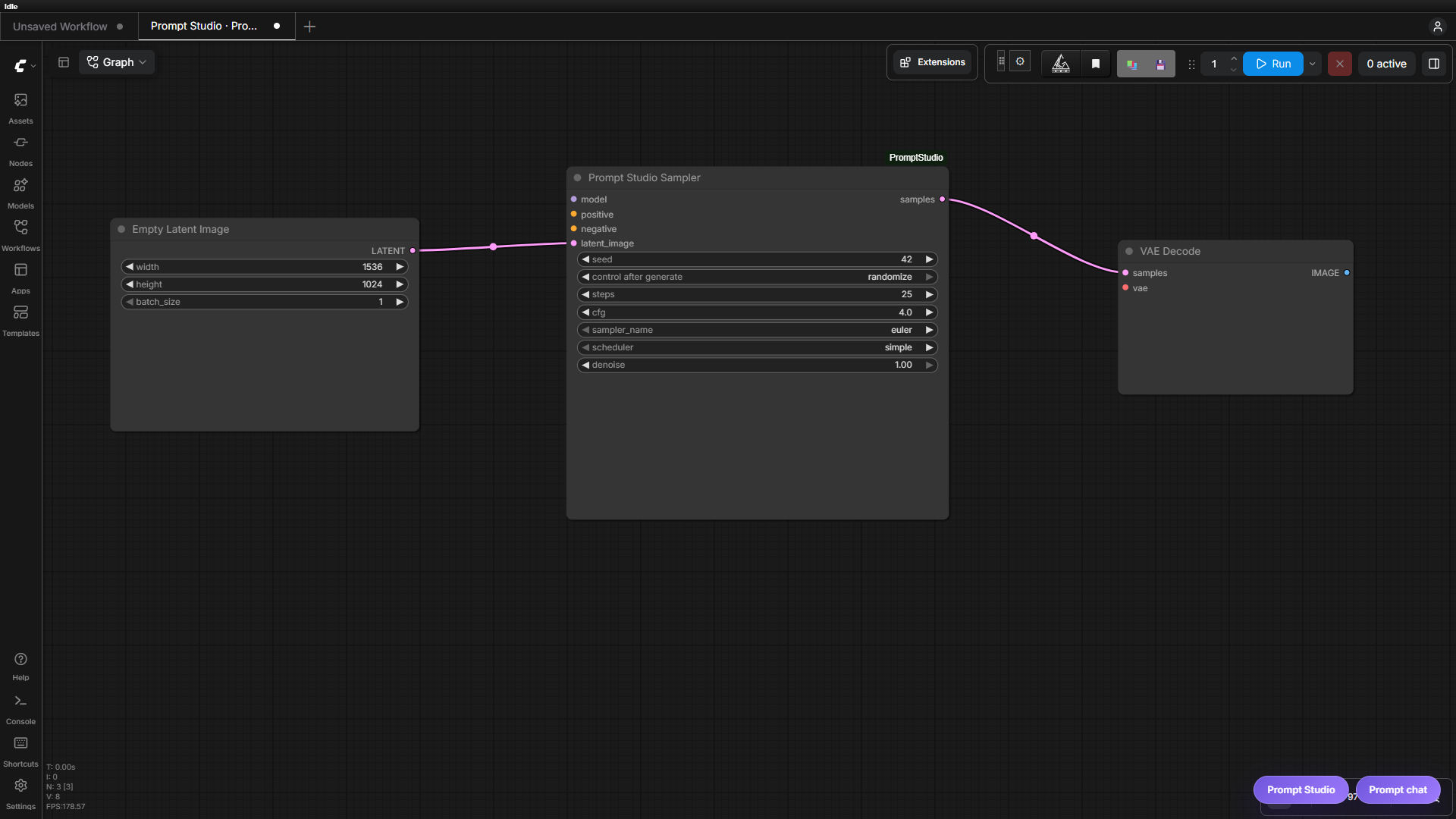
Prompt Studio Sampler
Use Prompt Studio Sampler in place of the standard KSampler when a saved [PS] workflow should expose deterministic sampling controls to XY(Z) plots. It is a drop-in sampler with the same model, conditioning, latent, seed, steps, CFG, sampler, scheduler, and denoise inputs and the same latent output. Normal ComfyUI execution still calls the standard common_ksampler implementation.
Prompt Studio discovers only this explicit node contract for seed and sampling axes. It never searches arbitrary workflow inputs named seed, cfg, or scheduler, which prevents a plot from silently changing an unrelated node. Multiple Prompt Studio Samplers are supported; the axis builder names the exact target node.
Prompt Studio LoRA Loader
Add Prompt Studio LoRA Loader anywhere in the model path of a saved [PS] workflow. It accepts and returns MODEL, so it can replace a model-only LoRA loader or sit between the checkpoint loader and the rest of the model pipeline.
Set its LoRA Type to the name of a top-level folder under any ComfyUI LoRA directory. For example, flux exposes files under <LoRA directory>/flux, including nested folders, and matches the folder name case-insensitively (flux, Flux, and FLUX are equivalent). LoRAs outside that top-level folder are not exposed.
LoRA filenames beginning with _ are reserved for internal use and are never shown in Prompt Studio. For example, flux/_internal.safetensors is hidden while flux/styles/_internal.safetensors is also hidden.
When the active workflow contains this loader, the inspector shows a LoRA section. Add any number of the available LoRAs, set an independent model strength for each one, and remove them without editing the saved workflow. Prompt Studio injects the ordered selection only into the temporary queued snapshot. Each generated-image message records the ordered LoRA selections and strengths used by its workflow; the image's i panel displays them, and selecting that image or choosing Use these prompts restores them. Older history entries without a LoRA snapshot leave the current selection unchanged. Normal ComfyUI queues of the saved workflow remain pass-through unless a stack was explicitly supplied through the API.
<details> <summary>See LoRA Loader wiring</summary>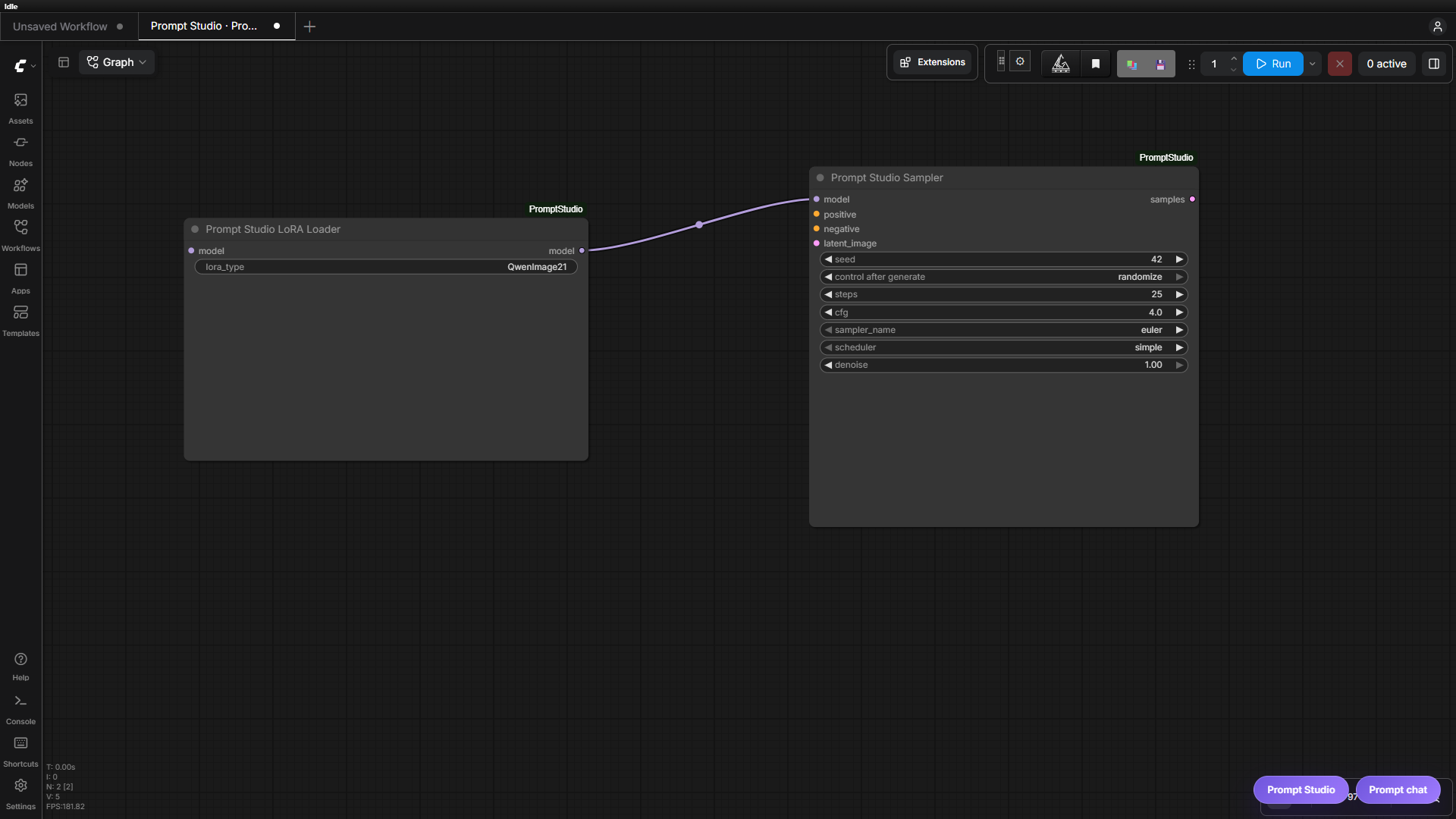
Prompt Studio Model Loader
Use Prompt Studio Model Loader in place of ComfyUI's standard diffusion-model loader in a saved [PS] workflow. Set Model Type to the name of a top-level folder under any configured ComfyUI diffusion-model directory. The match is case-insensitive and includes models in nested folders below that top-level folder.
When the active workflow contains this loader, Prompt Studio shows a Model selector directly below LoRA in the sidebar. Only models from the configured Model Type folder are offered, and the selection is injected into the temporary queued workflow. INT8 weights are detected from the safetensors header and use Load Diffusion Model INT8 (W8A8) with the fixed Krea 2 defaults; other weights use ComfyUI's standard loader. Model selections are recorded with generated images and restored with their saved generation state.
<details> <summary>See Model Loader wiring</summary>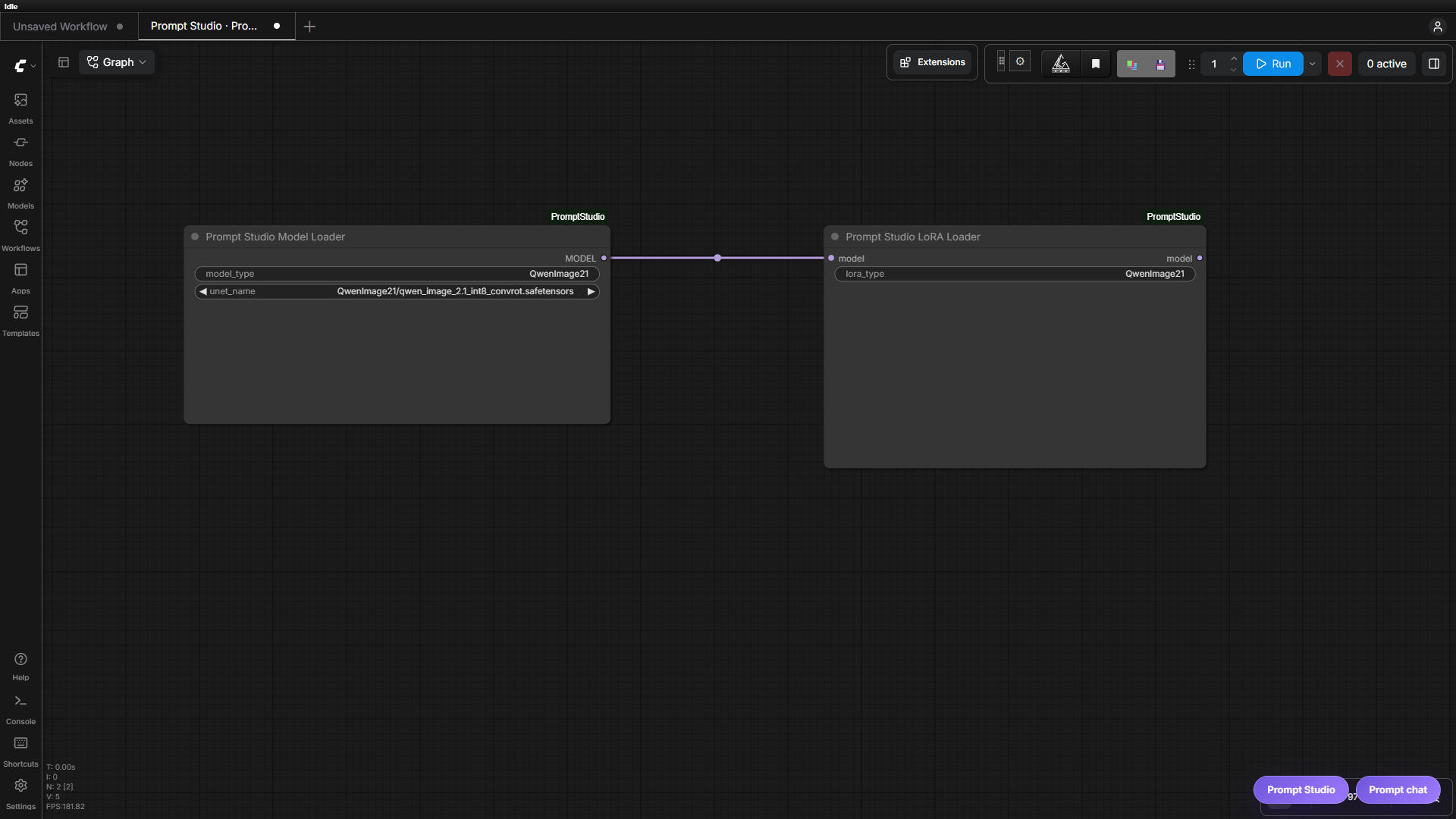
Prompt Studio Input
Connect Prompt Studio Input to exactly one supported widget input to expose that value under Additional Inputs in Studio. Give the node a descriptive title, such as Image steps, so the control has a useful label. The connected input supplies its type, bounds, and available choices.
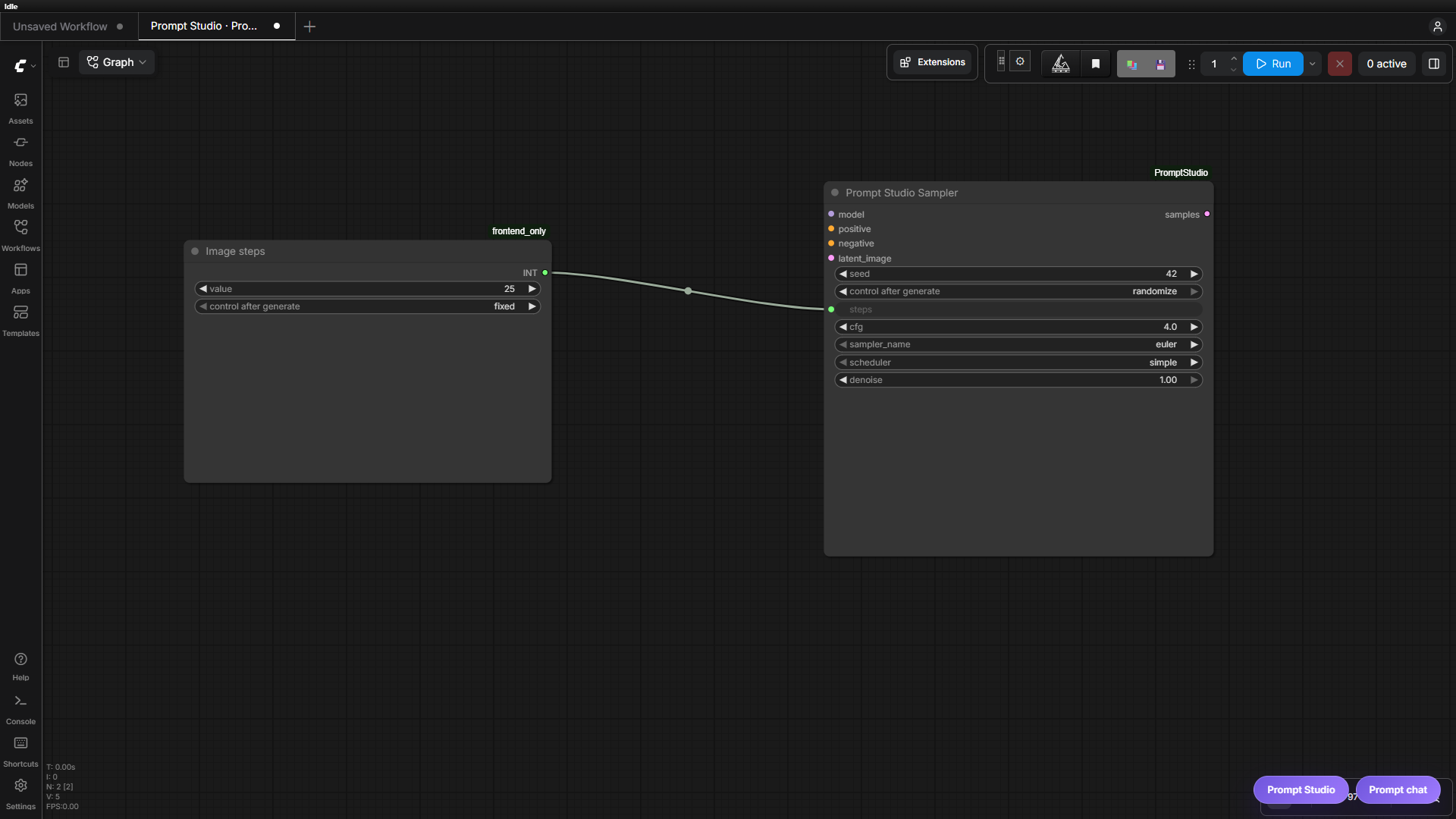
Amplification nodes
The node suite also supports prompt rewriting directly inside a ComfyUI graph, without using Prompt Studio.
KoboldCpp Prompt Amplify
KoboldCpp Prompt Amplify turns a short or rough text input into a model-ready image prompt and returns it as amplified_text.
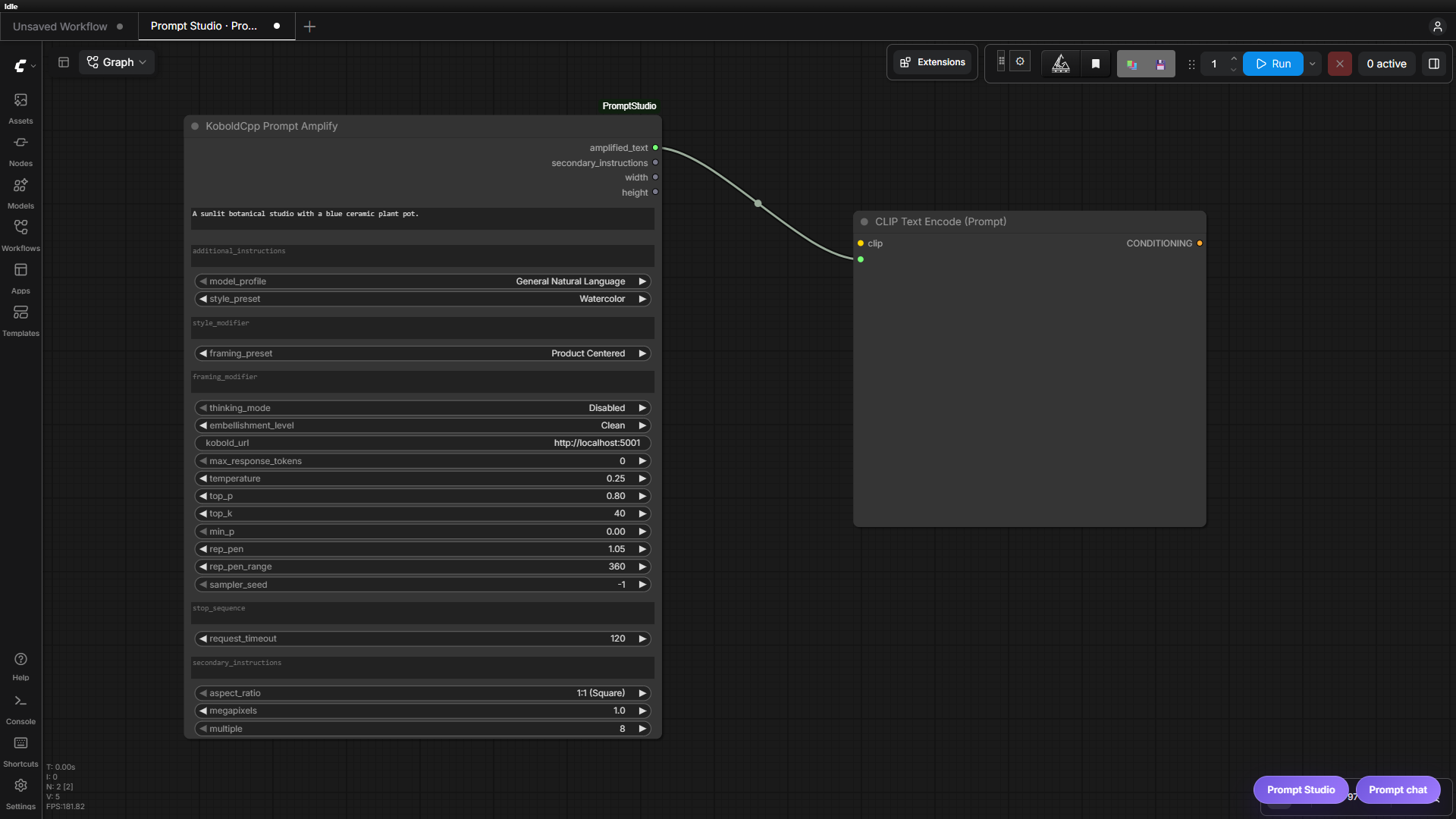
Typical graph:
primitive text → KoboldCpp Prompt Amplify → positive text encoder → sampler
Its prompt controls are:
model_profile: selects the target prompt grammar, examples, token default, and optional exact prefix or suffix from bundled and additional model profiles.style_preset: selects reusable aesthetic guidance from the built-in and additional style presets.style_modifier: supplements the selected style preset with freeform guidance. Select None to use the modifier by itself.framing_preset: selects composition, viewpoint, shot type, angle, and placement guidance from the built-in and additional framing presets.framing_modifier: supplements the selected framing preset with freeform guidance. Select None to use the modifier by itself.embellishment_level: controls expansion after style conversion. None adds no new visible detail; Minimal stays short; Clean lightly polishes; Detailed produces two descriptive sentences; Rich produces denser prose; Maximum targets about 50–90 words; and Ultra Maximum targets about 120–160 words with no sentence-count requirement and prioritizes prompt adherence over padding. Tag-based profiles keep their existing tag-density targets instead of using prose length.additional_instructions: adds general LLM steering or explanatory context without replacing the active style or framing guidance.thinking_mode: selects KoboldCpp native reasoning effort from Disabled through High. Native thinking is kept in Chat Completions' separatereasoning_contentfield; only the finalcontentis used as the image prompt.secondary_instructions: the inspector's Unmodified part; passes phrases such as LoRA trigger words unchanged to the second output and does not include them in the LLM request.aspect_ratio,megapixels, andmultiple: calculate the optionalwidthandheightoutputs using the same settings and rounding as ComfyUI's Resolution Selector.
The remaining controls configure the KoboldCpp request: URL, final-answer token allowance, temperature, top_p, top_k, min_p, presence penalty, repetition penalty and range, sampler seed, stop sequences, and request timeout. Set max_response_tokens to 0 to use the selected profile's default. The backend adds a reasoning allowance, measures the fully Jinja-formatted prompt with /api/extra/tokencount, and caps the combined completion against /api/extra/true_max_context_length without treating KoboldCpp's unrelated Horde config/max_length value as a server limit. Use one custom stop sequence per line; when native thinking is enabled, the backend does not add legacy textual continuation stops because labels such as Response: may occur during the analysis-to-final transition. sampler_seed: -1 lets KoboldCpp choose the seed.
KoboldCpp counts reasoning and final text inside one completion. To preserve approximately the configured final-answer allowance, the backend requests a larger combined completion for reasoning modes:
| Thinking mode | Native reasoning budget | Combined completion request | | --- | --- | --- | | Disabled | 0 | final-answer allowance | | Minimal | up to 200 tokens | allowance plus 200 reasoning tokens | | Low | up to 500 tokens | allowance plus 500 reasoning tokens | | Medium | up to 1,000 tokens | allowance plus 1,000 reasoning tokens | | High | unrestricted | available context window |
The server context window remains the hard upper bound. Prompt Studio supplies Minimal, Low, and Medium to the Jinja template separately and uses KoboldCpp's explicit thinking_budget_tokens field, avoiding KoboldCpp's percentage-based caps. High uses KoboldCpp's unrestricted native effort and the remaining context window. A completion that ends with finish_reason: length, or returns reasoning without final content, is rejected rather than passing a truncated prompt into the image workflow or silently retrying with thinking disabled.
The node preserves the input subject, action, setting, and concrete visible details while applying the selected prompt grammar, style, framing, and detail level. If an expansive setting produces an output that is still too sparse, it may make a second KoboldCpp request and keep the denser result.
Ideogram4-KoboldCPP
Ideogram4-KoboldCPP is a structure-preserving amplifier for an Ideogram v4-style JSON object. It extracts selected prompt strings, rewrites each one in a separate KoboldCpp request, and returns updated JSON.
Processed fields, controlled by the corresponding process_* switches:
high_level_description
compositional_deconstruction.background
compositional_deconstruction.elements[*].desc  (except elements with type "text")
It preserves bounding boxes, element types, literal text elements, unknown keys, and unselected fields. The model sees only one prompt fragment at a time—not the JSON structure, field name, other regions, or bounding boxes—so details do not bleed between regions.
seed_mode either offsets a fixed seed for each processed field or reuses the same seed. on_error can stop the workflow or retain the original field, and pretty_json controls formatted versus compact output. Model profile, style, framing, embellishment, thinking, additional instructions, and KoboldCpp request controls behave like Prompt Amplify.
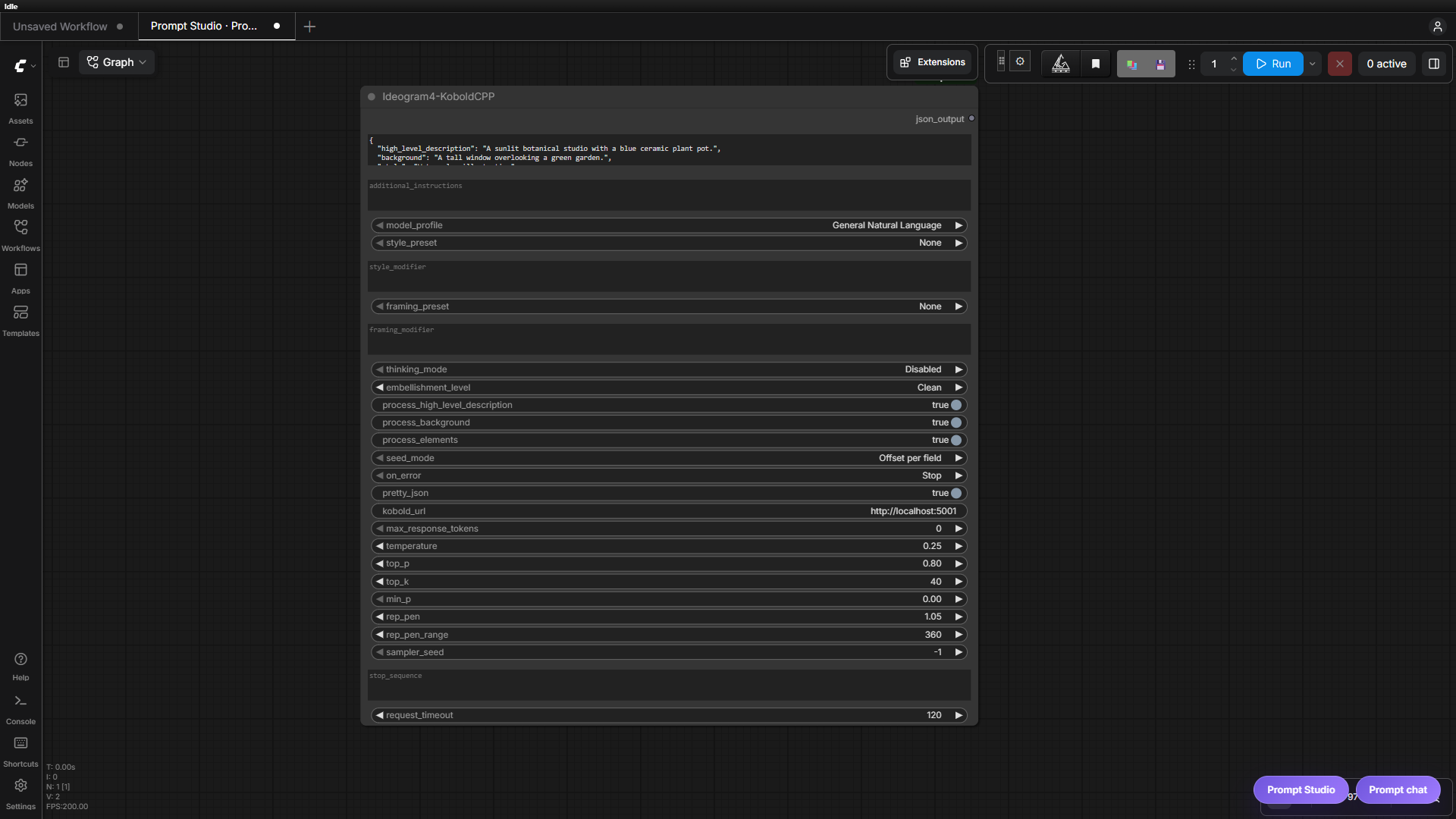
General local-LLM node
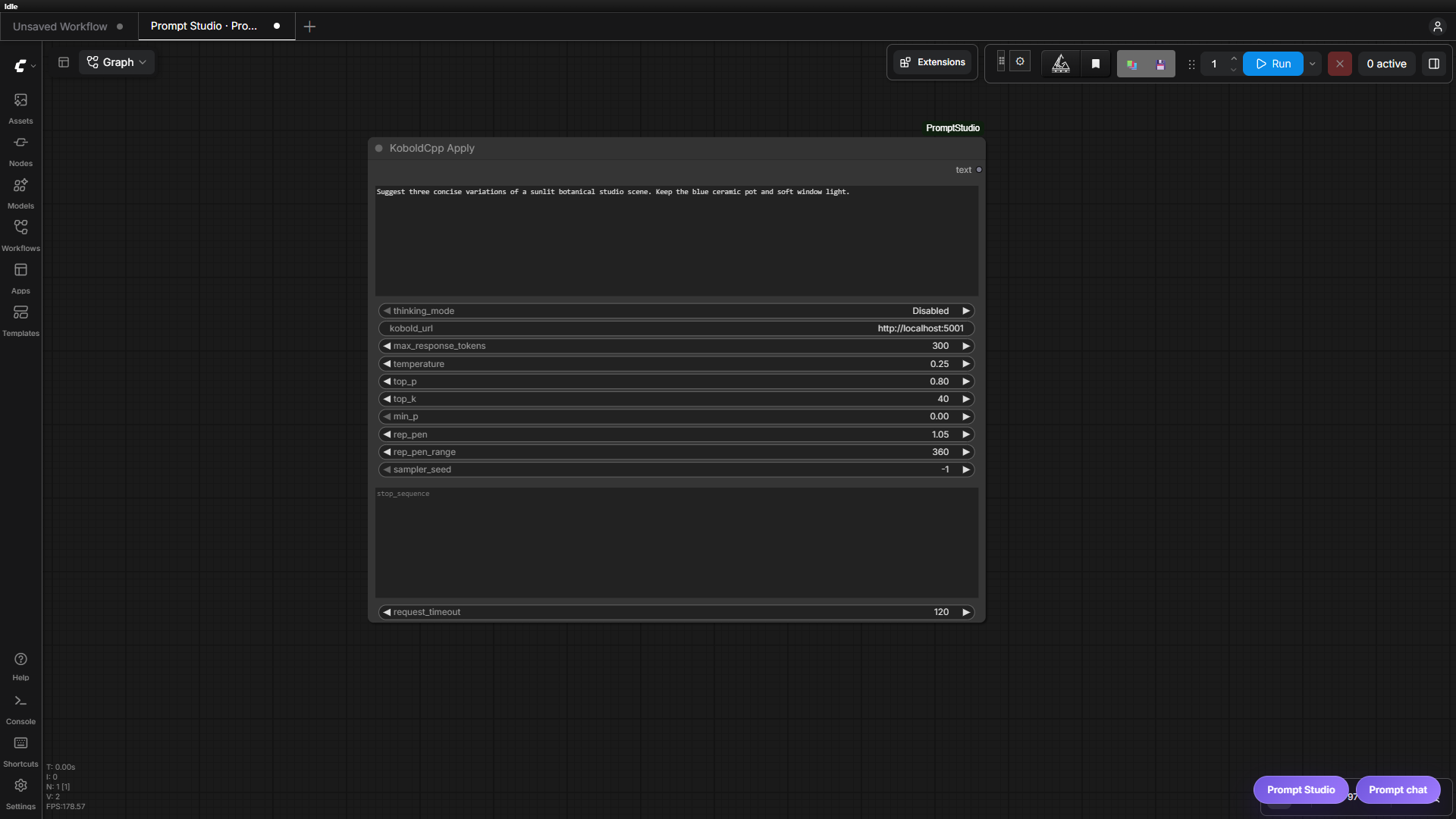
KoboldCpp Apply
KoboldCpp Apply sends its text input directly to KoboldCpp as the complete prompt/context and returns the generated text. It does not add image-prompt profiles, style guidance, framing guidance, embellishment rules, or amplification instructions.
Use it when you want a raw local-LLM call inside a workflow rather than an image-prompt rewrite. This node intentionally remains on KoboldCpp's native /api/v1/generate endpoint so its text input continues to mean the complete raw prompt/context. Its token setting is therefore a total raw-generation limit, not the final-answer allowance used by the Chat Completions-based rewriting nodes. Native reasoning separation is most reliable in Prompt Amplify, Ideogram4-KoboldCPP, and Prompt Studio.
Remote Ollama hosts
Ollama URLs use the same loopback-only protection as KoboldCpp. To permit a known remote Ollama server, set PROMPT_STUDIO_OLLAMA_ALLOWED_HOSTS before starting ComfyUI. It accepts a comma-separated list of exact hostnames or IP addresses:
$env:PROMPT_STUDIO_OLLAMA_ALLOWED_HOSTS = "192.168.1.30,ollama.example.internal"
Do not include URL schemes or ports in the allowlist. * permits every host and should be used only in a trusted environment. Prompt Studio currently targets the local Ollama API and does not send Ollama cloud credentials.
Remote Llama.cpp hosts
Llama.cpp URLs are loopback-only by default. To permit a known remote llama-server, set PROMPT_STUDIO_LLAMACPP_ALLOWED_HOSTS to a comma-separated list of exact hostnames or IP addresses before starting ComfyUI. The start/stop/restart process controls remain loopback-client-only even when a remote inference host is allowed.
Remote KoboldCpp hosts
The backend rejects non-loopback KoboldCpp URLs by default to prevent a saved workflow or browser request from making arbitrary outbound HTTP calls. To permit a known remote server, set PROMPT_STUDIO_KOBOLD_ALLOWED_HOSTS before starting ComfyUI. It accepts a comma-separated list of exact hostnames or IP addresses:
PROMPT_STUDIO_KOBOLD_ALLOWED_HOSTS=192.168.1.25,kobold.example.internal
Use * only in a trusted environment when arbitrary remote hosts are intentionally allowed. URLs containing embedded credentials are rejected; configure authentication at a trusted proxy instead.
Profiles and presets
All editable prompt configuration lives in the Git-ignored config/user/ folder.
Every file uses UTF-8 JSON: {"version": 1, "items": [...]}. This includes model
profiles, styles, framing, instruction presets, known references, protected words,
and forbidden words. See configuration layout for filenames.
Bundled defaults and starter examples are application-owned .psc resources in
config/defaults/; edit the user files or use Settings instead.
Existing root-level user files migrate automatically on first use. Their original
bytes are backed up in ignored config/migration-backups/ before removal. Existing
new files take precedence; older copies are archived without overwriting them.
Model profiles
Open Settings → Model profiles to add, duplicate, or edit image prompt profiles.
Save writes to config/user/model_profiles.json; the tracked
config/defaults/model_profiles.psc remains the bundled catalog. Editing a bundled profile creates
a local override. Restore bundled default removes that override; Delete profile
removes a local addition. Duplicate a bundled profile to give it another name.
You can also edit config/user/model_profiles.json directly, using the versioned
items array. Names are unique ignoring case; a name matching a bundled profile
overrides it while preserving its original name and position. For example, add this
object to that array:
{
  "name": "Tag-Based Anime Model",
  "style": "comma_tags",
  "default_max_response_tokens": 300,
  "example_prompts": [
    "person, umbrella, small_building, trees, outdoors, standing, full_body",
    "robot, workbench, bicycle_wheel, garage, repairing, tools, sitting"
  ],
  "instruction": "Rewrite the user's prompt as concise comma-separated tags.",
  "notes": "Optional model-specific syntax, ordering, weighting, or trigger guidance.",
  "final_prompt_prefix": "",
  "final_prompt_suffix": ""
}
default_max_response_tokens is the final-answer allowance used when the node or Prompt Studio sends 0; reasoning allowance is added automatically. example_prompts teach format only; their subjects should not be copied into the result. Older profiles containing one example_prompt string remain supported. notes may be an empty string, a string, or a list of strings. Exact final_prompt_prefix and final_prompt_suffix values are applied after rewriting.
Saved changes are read on subsequent requests without restarting ComfyUI. The Settings editor refreshes Generation controls immediately; use Reload profiles after external edits. Refresh the ComfyUI canvas to refresh node dropdowns. Concurrent edits are rejected until reloaded. If you previously edited bundled data, copy your custom entries into the user file before restoring the tracked resource. These image prompt profiles do not configure the shared assistant LLM or Video Studio's structured Director prompts.
Protected words
Manage protected literals under Settings → Prompt Mutation Configuration → Protected words or
edit config/user/protected_words.json directly. Put strings in its items array,
for example {"version": 1, "items": ["C++", "New York"]}. Matching ignores case and
uses token boundaries for word-like entries. Prompt Studio preserves
matching source literals exactly during rewrites unless the requested edit explicitly removes their
content.
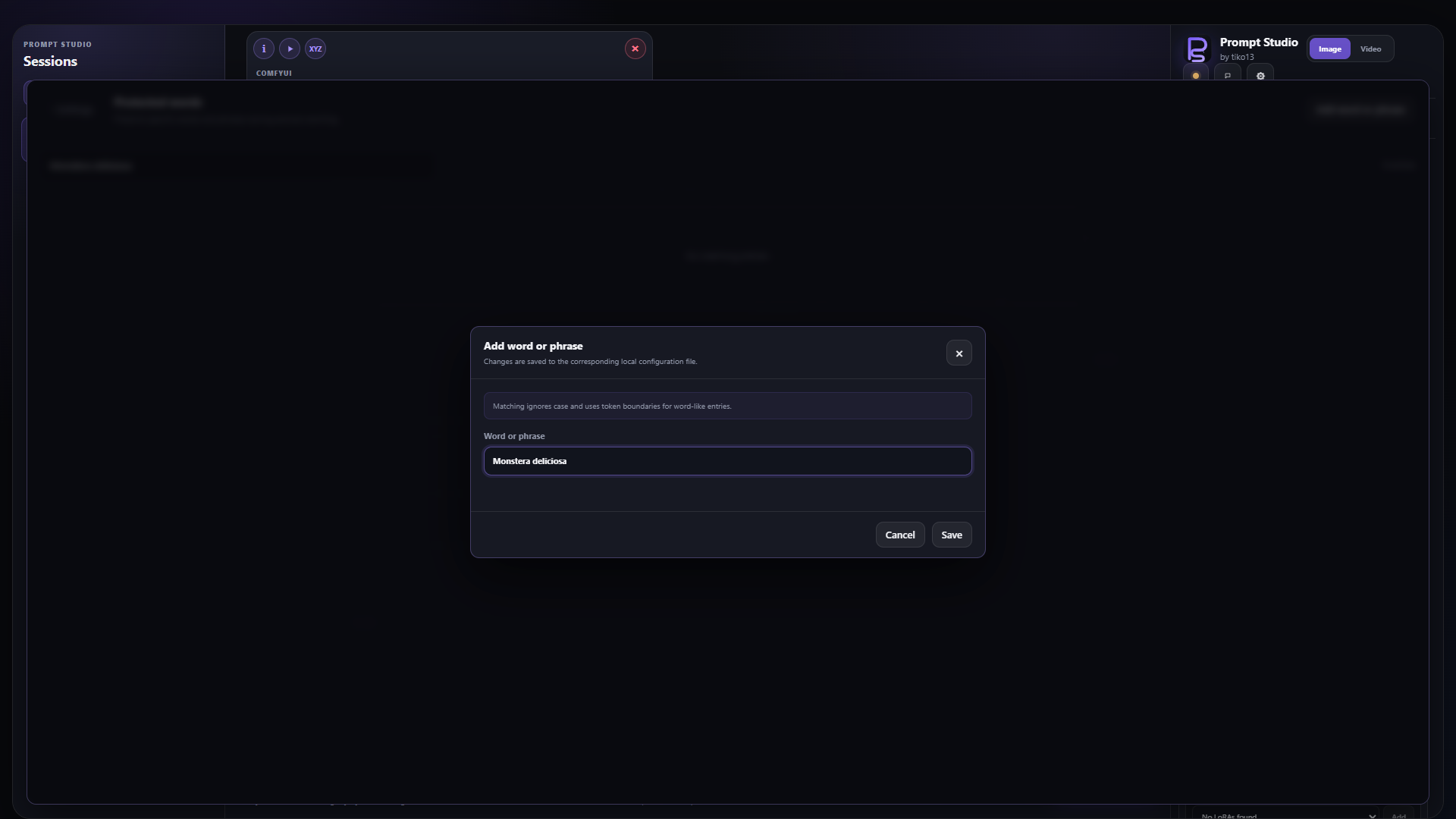
Example shown before saving.
</details>Style presets
Built-in styles live in config/defaults/styles.psc. That file is maintained by the
repository and should not be edited for personal presets.
Manage personal or private styles under Settings → Prompt Mutation Configuration → Additional
style presets. The same entries remain directly editable in config/user/styles.json:
{
  "version": 1,
  "items": [
    {
      "name": "My custom style",
      "instruction": "Describe the reusable aesthetic guidance for this custom style.",
      "enabled": true
    }
  ]
}
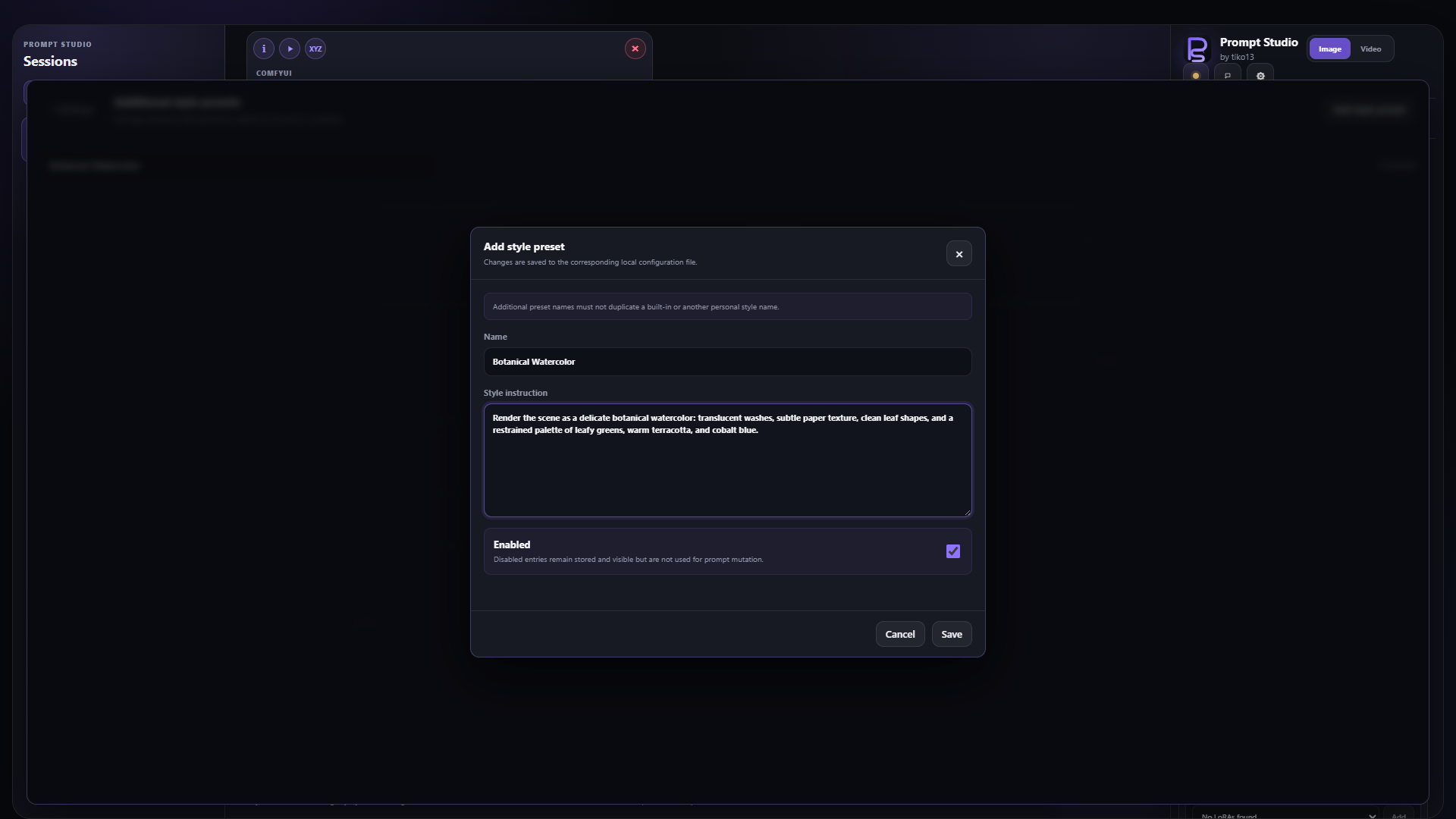
Example shown before saving.
</details>Framing presets
Built-in framings live in config/defaults/framing.psc. Manage personal framings under
Settings → Prompt Mutation Configuration → Additional framing presets or edit
config/user/framing.json directly:
{
  "version": 1,
  "items": [
    {
      "name": "My custom framing",
      "instruction": "Describe the reusable composition and viewpoint guidance.",
      "enabled": true
    }
  ]
}
All user files use the versioned items format. Entries with "enabled": false
are ignored, which keeps the included example out
of Prompt Studio. Additional presets are appended to the built-ins, and names must remain unique
without regard to letter case.
The entire config/user/ folder is ignored by Git. Bundled .psc starter resources
seed missing files on first use, after checking for legacy files to migrate. Do not
manually add user files to Git: once tracked, .gitignore cannot protect them.
Manager changes take effect
immediately. While Settings is open, valid direct file changes refresh the manager and active
controls automatically within a few seconds.
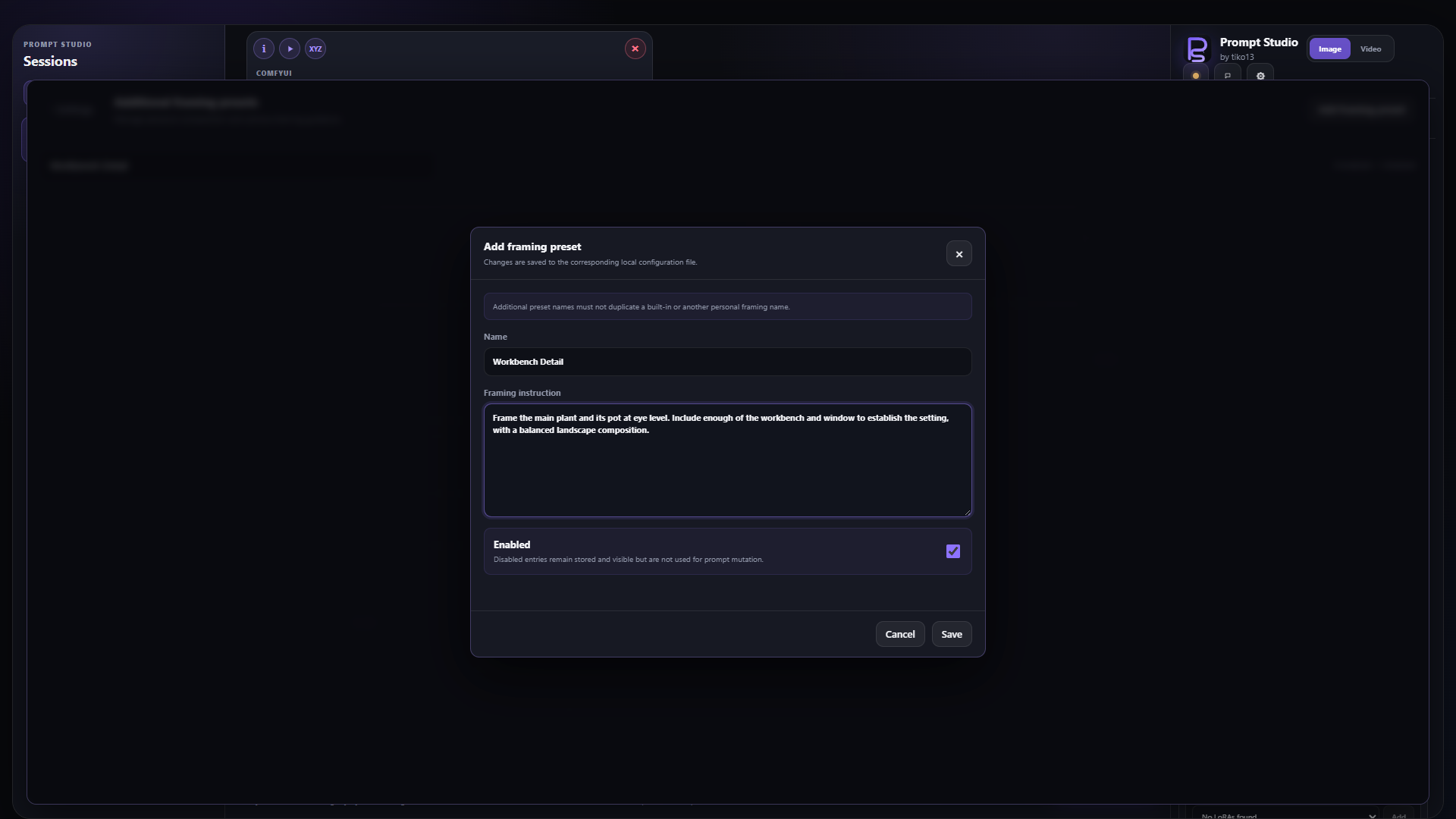
Example shown before saving.
</details>Additional instruction templates
The bundled config/defaults/instructions.user.psc resource seeds the ignored
config/user/instructions.json file. Each enabled entry maps an exact,
case-insensitive name entered as the complete Additional instructions value to the reusable
instruction sent to the LLM:
Entries can be managed under Settings → Prompt Mutation Configuration → Additional instruction templates or edited directly in the JSON file.
{
  "version": 1,
  "items": [
    {
      "name": "My instruction phrase",
      "instruction": "Reusable highest-priority guidance for the LLM.",
      "enabled": true
    }
  ]
}
Leading and trailing whitespace around the entered phrase is ignored. Any value that does not exactly match an enabled template name is sent unchanged. Additional instructions take priority over conflicting main-prompt, style, style-modifier, framing, and framing-modifier guidance. Manager changes take effect immediately, and direct file changes are detected while Settings is open.
<details> <summary>See the instruction-template editor</summary>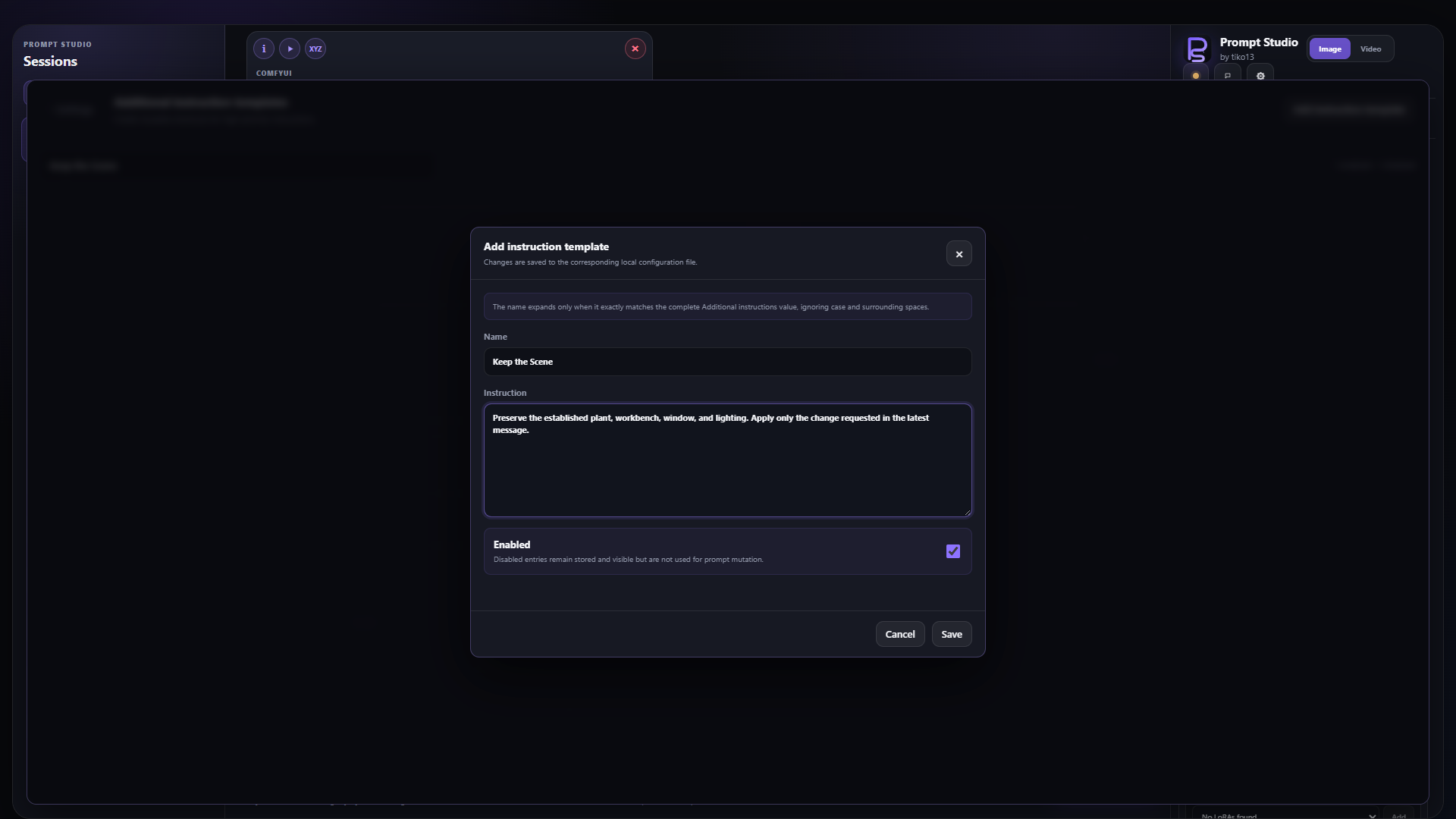
Example shown before saving.
</details>Known references
The bundled config/defaults/references.user.psc resource seeds the ignored
config/user/references.json file. Known references are case-insensitive reusable names for any concept,
including people, characters, items, clothing, poses, expressions, locations, backgrounds,
lighting, composition, or visual treatments:
Entries can be managed under Settings → Prompt Mutation Configuration → Known references or edited directly in the JSON file.
{
  "version": 1,
  "items": [
    {
      "name": "Jane",
      "definition": "A blonde 25-year-old woman wearing a black shirt, white sneakers, and denim pants.",
      "enabled": true
    },
    {
      "name": "Victory Pose",
      "definition": "The appropriate subject stands upright with both arms raised in a confident celebratory gesture.",
      "enabled": true
    }
  ]
}
Matched names remain verbatim while Prompt Studio stores and revises the Main Prompt, including when a name is typed directly into the Main Prompt editor. When it creates or revises a Final Prompt, the backend sends only the matched definitions to the LLM. The LLM interprets each definition semantically, replaces the reference with described prompt content, and omits the reference name or alias from the Final Prompt, even if the definition repeats it. Definitions may contain descriptions, instructions for the LLM, or both. Descriptive qualities, qualifiers, and their strength should be retained in the same or closely equivalent wording; guidance should shape the result without appearing as meta-instructions in the prompt. Reference details count as supplied intent even at low embellishment levels, not as optional additions. This uses LLM instructions rather than scripted substitutions. Multiple definitions are applied independently in the grammatical roles where their names occur. Explicit local modifiers attached to a reference may refine its baseline definition; otherwise the definition takes priority over conflicting generic prompt, style, framing, or embellishment guidance. Names must be unique without regard to case, incomplete or disabled entries are ignored, and longer names win when configured names overlap at the same position. Manager changes take effect immediately, and direct file changes are detected while Settings is open.
Reference names are lookup keys, even when they are ordinary nouns; their dictionary meaning does not add content to the definition. Final output is checked for matched names. If one leaks through, the LLM gets up to two correction attempts that preserve the expanded description; no automatic deletion or text substitution is used. Unresolved leaks report an error instead of replacing the existing prompt. Local edits retain their authorized scope; rebuild Final from Main when a leaked name is outside that scope. Reference identity locks are preserved in Main but do not force names back into Final; explicit verbatim-content locks remain protected.
<details> <summary>See the known-reference editor</summary>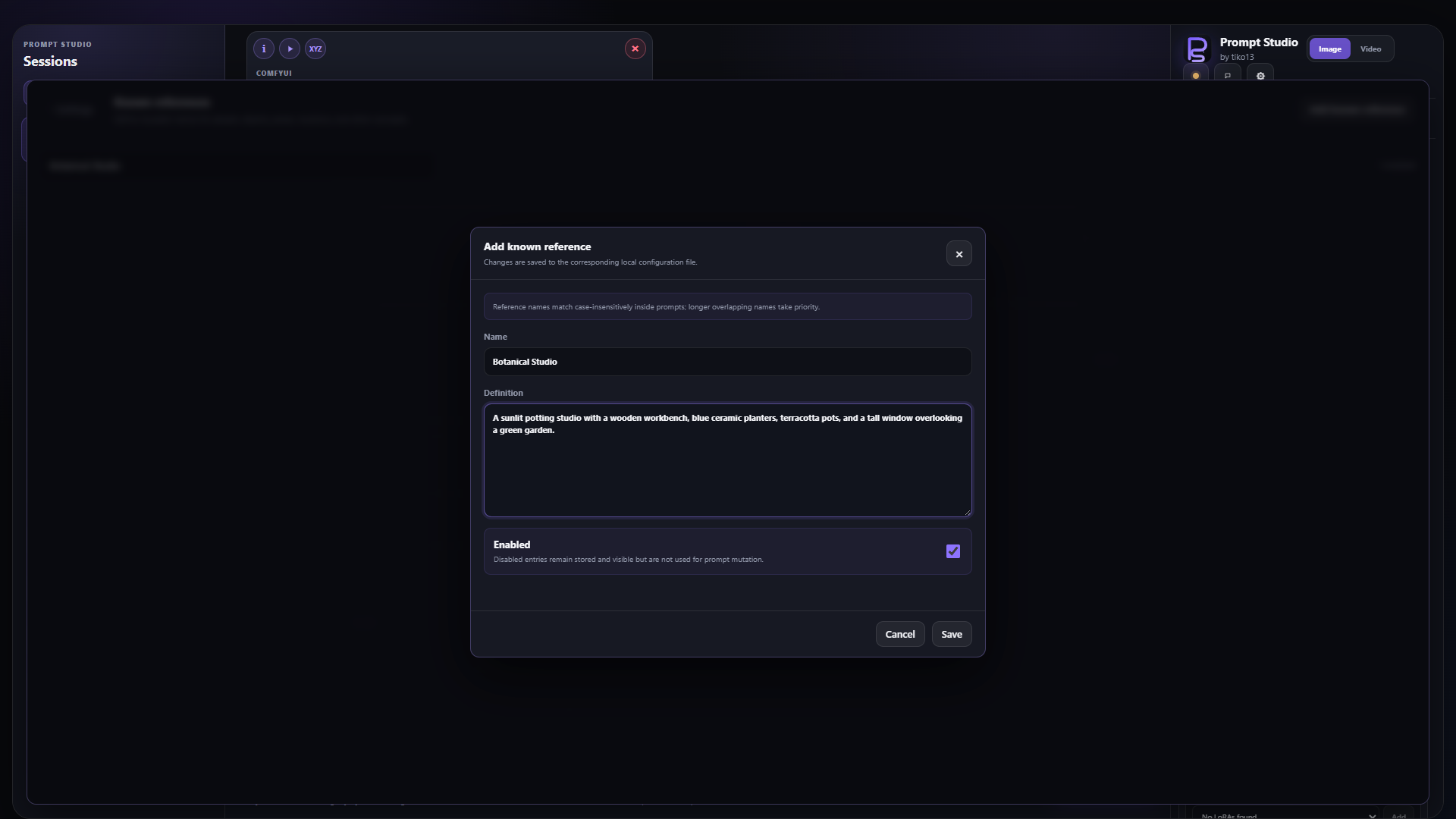
Example shown before saving.
</details>Continue in Video Studio
When the optional PromptStudio_Video companion is installed, send a generated image into an open video project as a MiniMax reference or frame. Prompt Studio also works on its own.
Password-protected LAN access
Prompt Studio can be opened from another device on the same private network. Because the standalone interface uses ComfyUI's workflow, queue, history, image, and WebSocket APIs, LAN mode protects the complete remotely reachable ComfyUI server rather than only the Prompt Studio HTML page. Requests from the machine running ComfyUI continue to work without a password.
Set a password of at least 12 characters before starting ComfyUI, then listen on all local interfaces:
$env:PROMPT_STUDIO_LAN_PASSWORD = "replace-with-a-long-unique-password"
C:\EasyDiffusion\ComfyUI\venv\Scripts\python.exe C:\EasyDiffusion\ComfyUI\main.py --listen 0.0.0.0 --port 8188
Open Prompt Studio from a LAN device by replacing the example address with the ComfyUI machine's private IPv4 or IPv6 address:
http://192.168.1.25:8188/PromptStudio
Private IPv4 ranges (10/8, 172.16/12, and 192.168/16), IPv4 link-local addresses, and IPv6 unique-local/link-local addresses are accepted. Public, carrier-grade NAT, invalid, and missing client addresses are rejected. Authentication uses an HTTP-only, same-site signed cookie that expires after 12 hours or whenever ComfyUI restarts. Five failed sign-in attempts from one address trigger a five-minute throttle.
Keep this deployment LAN-only:
- Use the operating system firewall's private-network profile to allow TCP port
8188; do not create a public-network rule. - Do not forward port
8188on the router, expose it through a tunnel, or put it behind a public reverse proxy. A reverse proxy on the LAN appears to the server as a private client and defeats source-address enforcement. - Prefer a trusted home network. The password is submitted over ordinary HTTP, so it is not encrypted on the wire; use a local TLS reverse proxy only if you understand and preserve the LAN boundary.
- Remove
PROMPT_STUDIO_LAN_PASSWORDand return ComfyUI to its default loopback listen address to disable LAN mode.
Backend API
Prompt Studio revisions are served by ComfyUI at:
POST /promptstudio/prompt-studio/revise
Standalone consultation messages are served separately at:
POST /promptstudio/prompt-studio/chat
Prompt Agent's isolated compile, architect, and evaluate phases use:
POST /promptstudio/prompt-studio/agent
Durable XY(Z) manifests and composite rendering use:
GET|PUT /promptstudio/prompt-studio/plots/{plot_id}
POST    /promptstudio/prompt-studio/plots/{plot_id}/composite
The browser uses create_main to semantically convert the first creation request into direct model-neutral visual intent, revise_main to precision-edit that intent, revise to precision-edit the existing final prompt, and render to build a fresh final prompt. Ordinary revisions run the two precision edits independently; a control change renders only from the updated main prompt. Revision requests may include one stored context_image reference when the user enables latest-image context.
KoboldCpp, Ollama, and Llama.cpp requests remain on the Python side, so the browser does not need direct access to the local model server.
Updating and troubleshooting
- Restart ComfyUI after changing Python files or updating this extension.
- Refresh the browser after frontend-only changes.
- If Prompt Studio does not list a workflow, make sure its saved ComfyUI filename starts with
[PS]and that it meets all four validation rules above. - If a workflow is marked cached, hover the workflow status for the validation error, correct the saved workflow in ComfyUI, and refresh it.
- If prompt creation fails, confirm that the selected LLM provider is running, its endpoint is correct, and a discovered model is selected for Ollama or Llama.cpp. The defaults are
http://localhost:5001for KoboldCpp,http://localhost:11434for Ollama, andhttp://127.0.0.1:8080for Llama.cpp. - If shared-GPU generation reaches the KoboldCpp admin error, enable Admin Mode, configure a valid Admin Directory, and restart KoboldCpp. Set
PROMPT_STUDIO_KOBOLD_ADMIN_PASSWORDbefore ComfyUI starts when the admin API is password-protected. - If prompt creation succeeds but no image appears, queue the workflow normally in ComfyUI and fix any disconnected or invalid generation nodes first.
- If Prompt Studio reports a save conflict, reload it to obtain the newest chat or workflow-cache revision before making further changes.
Runtime requirements
The package installation range remains Python >=3.9; it is not a tested-version
matrix. The current local regression run uses ComfyUI's Python 3.14 VENV.
Python 3.9–3.13 have not been verified in this audit. The automated quality workflow
also targets 3.14; a configured CI job is not evidence that a remote run passed.
Before a release, verify the minimum supported Python version and the paired
Image/Video checks.
ComfyUI supplies server, folder_paths, aiohttp, its frontend app/API modules,
and the model/media runtime dependencies. Prompt Studio adds no runtime pip
requirements and does not install packages on every startup. Workflow conversion
requires the host's graphToPrompt, native node metadata, and serialized-subgraph
support; a version number alone does not establish these capabilities. The
setup wizard checks the bundled workflows' required node capabilities directly.
Development checks
Run these checks from the repository root after making changes:
python -c "from pathlib import Path; [compile(Path(p).read_text(encoding='utf-8'), p, 'exec') for p in ('backend/nodes.py', 'backend/routes.py')]"
node --check web/js/prompt_studio.js
node --check web/js/prompt_studio_shell.js
python -m unittest discover -s tests -v
git diff --check