
Visual Filename Manager (Studio Leiel)
Compose ComfyUI output filenames and folder paths by dragging chips, with a live preview.
Nodes (4)
Hate drag-and-drop? This filename node speaks fluent template instead
Stop wiring 40 string nodes together — drag your filename into shape instead
Guessing widget names for your filename template? Print the whole graph instead
Render time in your filename, but only for the part you care about
Visual Filename Manager (Studio Leiel)
This node has moved. It is now part of Visual Suite, which includes this node and five others.
Build ComfyUI output filenames and folder paths by dragging chips, not by wiring twenty string nodes together.
Every option in your workflow — samplers, steps, shift, LoRA names and strengths, checkpoint, render time — appears as a chip. Drag it into the FOLDER box or the FILE box. A live preview shows the exact path before you queue anything.
- Stays in sync with bypass, live. Bypass a node and its chips vanish from the name as you watch — no re-queue, no rewiring. The filename records what actually ran.
- Every chip is editable. Prefix, suffix, and format per chip, so
0.5becomesEnhancer(0.5)andretrovintage.safetensorsbecomesretrovintage(1.0)— exactly the way you want to read it back six months later.
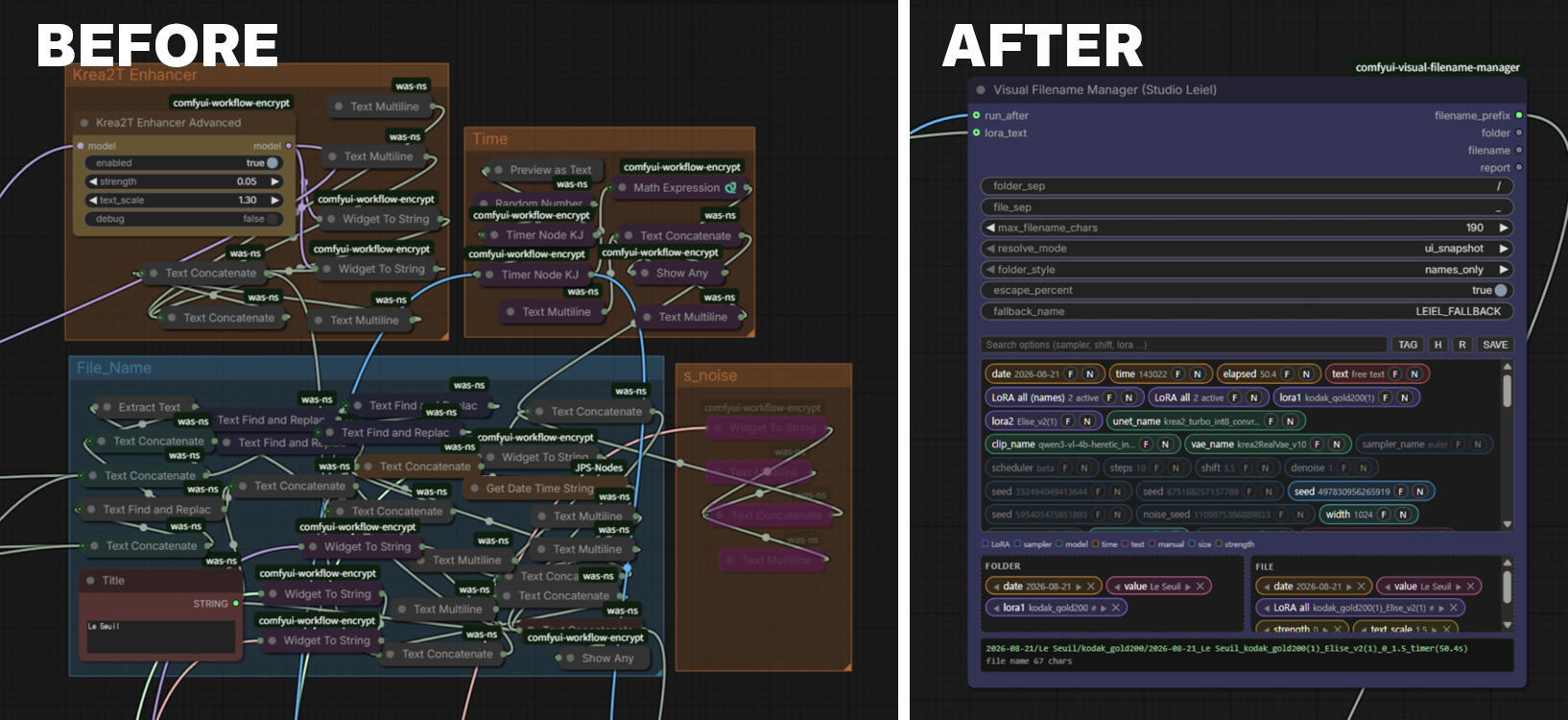
Left: the string-node graph this replaces. Right: one node.
Why
If you care about filenames, ComfyUI makes you pay for it. A name like
2026-08-21_Le Seuil_retrovintage(1.0)_Elise_v2(0.95)_Enhancer[A(0.5)_B(1.8)]_euler_beta_steps(10)_shift(3.5)_time(57.4s)_00001_.png
typically costs 40–60 nodes of Widget To String, Text Concatenate, and Text Find and Replace. Adding one field means re-threading half the graph. Worse, those nodes run after rendering — so a single mistake means a finished render that never gets saved.
This node solves all three problems:
- One node instead of dozens
- Live preview — you see the filename before you queue
- Live bypass sync — the name tracks which nodes are actually active, in real time
- Per-chip formatting — decorate any value without touching another node
- Never fails — every failure path falls back to a valid name instead of raising
Install
ComfyUI Manager (easiest)
Open Manager → Custom Nodes Manager, search for Visual Filename Manager, and press Install. Restart ComfyUI when it finishes.
Via git
cd ComfyUI/custom_nodes
git clone https://github.com/studioleiel/comfyui-visual-filename-manager
Manual — download and extract into ComfyUI/custom_nodes/, so you have:
ComfyUI/custom_nodes/comfyui-visual-filename-manager/
├── __init__.py
├── leiel_filename.py
└── web/leiel_filename.js
Restart ComfyUI, then hard-refresh the browser (Ctrl+Shift+R) — the UI is served as a frontend extension and browsers cache it aggressively.
No dependencies. Python standard library only.
Quick start
- Add Visual Filename Manager (Studio Leiel) (category:
Studio Leiel) - Connect its
filename_prefixoutput to Save Image'sfilename_prefix(convert that widget to an input) - Drag chips from the palette into FOLDER and FILE
- Check the preview at the bottom, then queue
That is the whole setup. The node's two inputs are optional and labelled with
what they are for — run_after (for elapsed) and lora_text (for LoraManager).
Leave them unconnected unless you need render times or
LoraManager support.
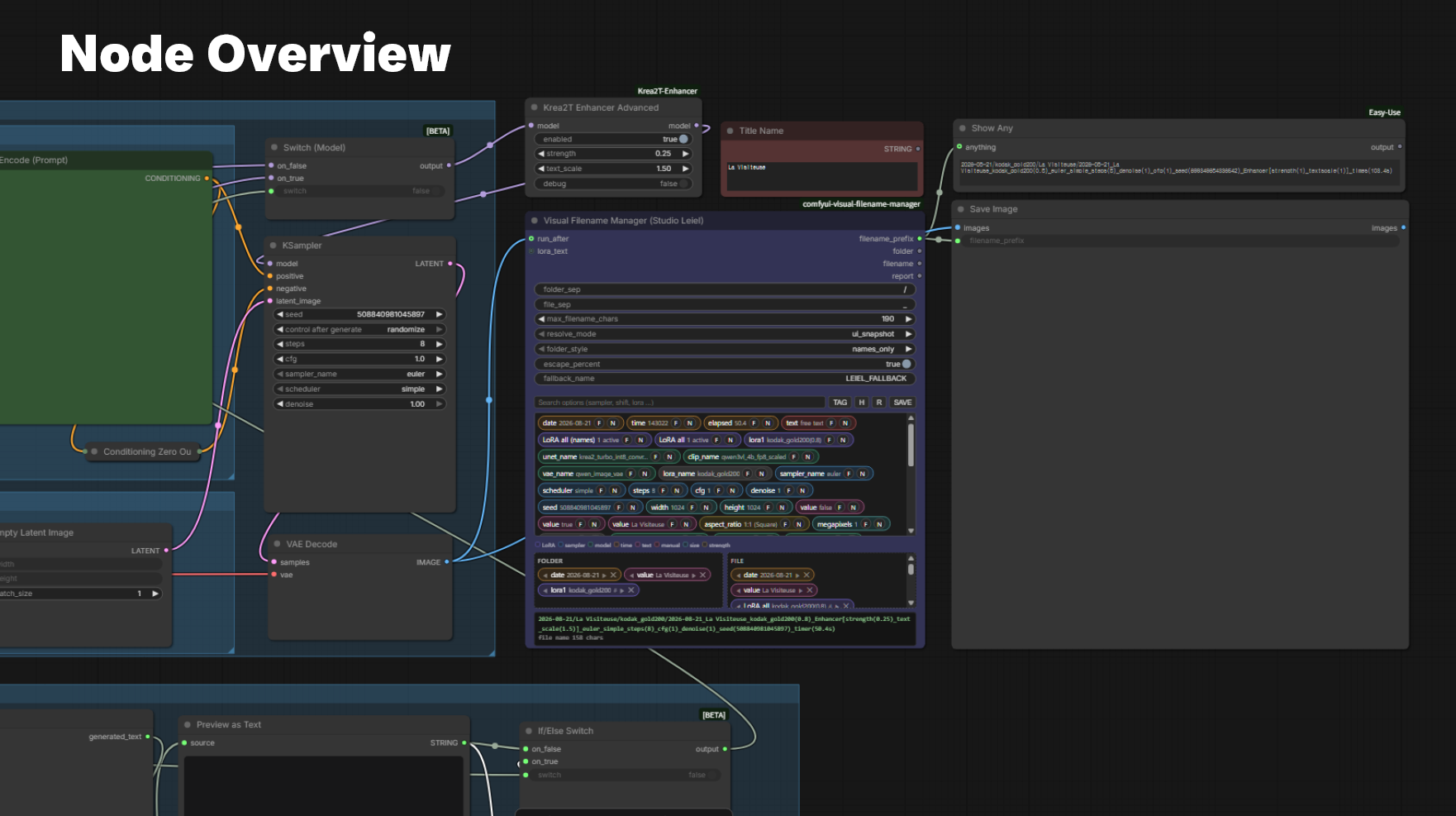
The filename_prefix string carries the folder path too — ComfyUI treats / in a prefix as a subdirectory, so one output handles both boxes.
The three boxes
Palette (top). Every widget in your workflow, shown as name value. Search to filter. Each chip has an F button (send to folder) and an N button (send to file), or you can drag it.
Chips are colour-coded by kind so a crowded palette stays scannable — the legend sits right below it:
| Colour | Covers | |---|---| | purple | LoRA names and strengths | | blue | sampler, scheduler, steps, cfg, shift, denoise, seed | | green | checkpoint, unet, clip, vae, dtype | | amber | date, time, elapsed | | pink | text and string widgets | | red | your own manual text chips | | teal | width, height, batch size | | yellow | strength, scale, weight | | grey | everything else |
The same colours carry into the FOLDER and FILE boxes, so you can see the shape of a filename without reading it.
FOLDER (bottom left) and FILE (bottom right). Drop targets. Inside each chip:
| Control | Action | |---|---| | ◀ ▶ | reorder | | ✕ | remove | | # | LoRA chips: toggle name-only ↔ name+strength | | double-click the label | edit prefix / format / suffix |
Preview (bottom). The resolved path, updated live, with a character count. Turns orange past 190 characters.
Toolbar
| Button | Action |
|---|---|
| TAG | toggle name labels on all numeric chips — 12 ↔ steps(12) |
| H | cycle palette height (120 → 200 → 300 → 420 → 560 px) |
| R | rescan the workflow |
| SAVE | layout snapshots — save, restore, export as text |
| CLEAN | appears only when chips can't resolve; removes them in one click. Press twice to also remove chips whose node is merely bypassed |
Chip types
| Chip | Produces | Notes |
|---|---|---|
| date / time | 2026-08-21 / 143022 | format field takes strftime, e.g. %Y%m%d |
| elapsed | 57.4 | render time in seconds — see Render time |
| text | anything you type | free text |
| LoRA all | retrovintage(1.0)_Elise_v2(0.95) | every active LoRA |
| LoRA all (names) | retrovintage_Elise_v2 | names only |
| lora1, lora2, … | one LoRA by position | follows whatever is active |
| any widget | that widget's value | checkpoint, sampler, steps, shift, seed, … |
Editing a chip
A raw value is rarely what you want in a filename. 0.5 tells you nothing in six months; Enhancer(0.5) tells you everything.
Double-click a chip's label to get three fields:
- prefix — text before the value
- format — how the value is rendered
- suffix — text after the value
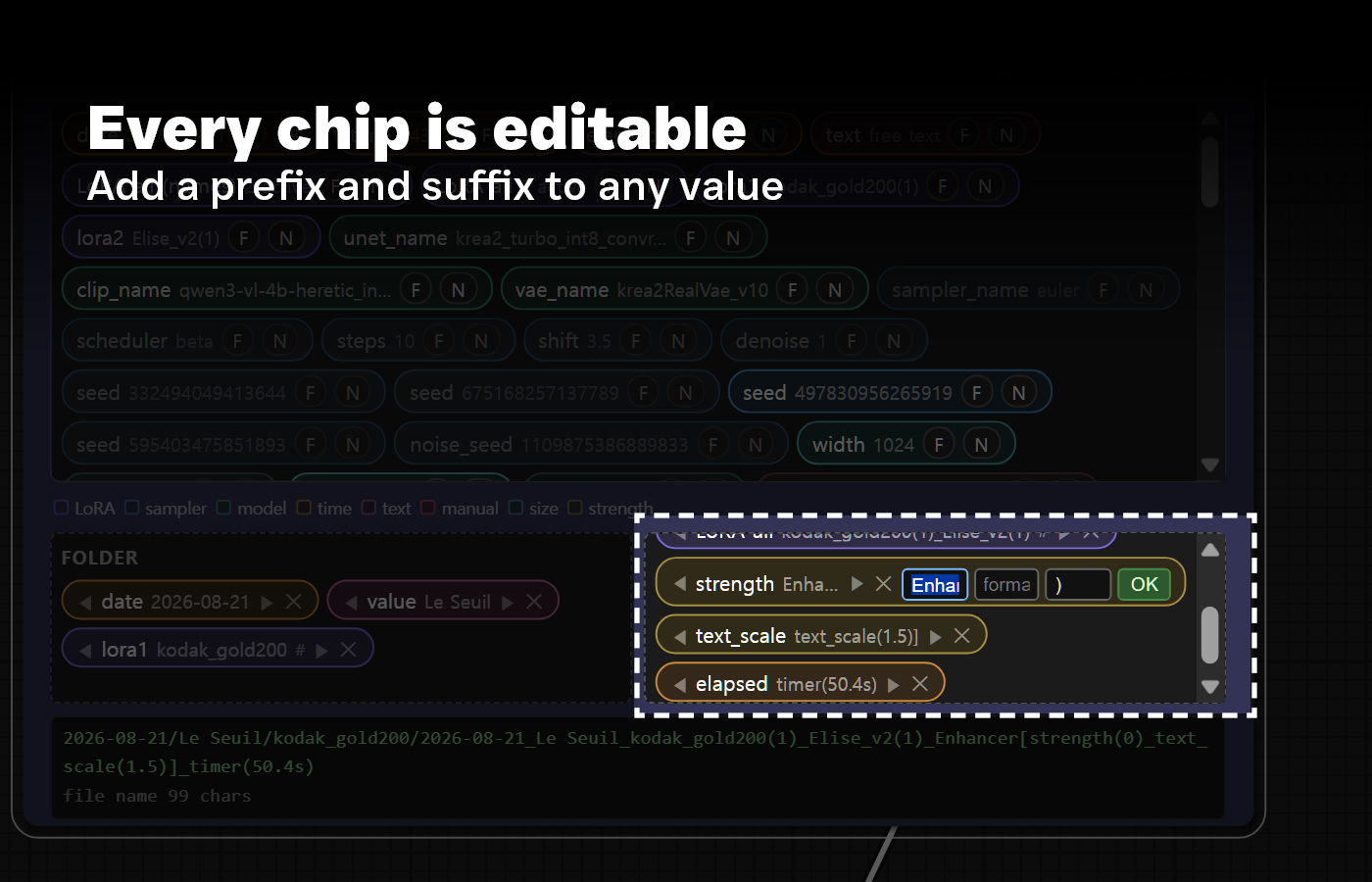
Editing the strength chip so it reads Enhancer[strength(0) instead of 0.
Enter applies, Escape cancels. Moving between fields does not close the editor.
Format values
| Value | Effect | Example |
|---|---|---|
| (blank) | sensible default — strips paths and file extensions | loras/retro.safetensors → retro |
| raw | the value exactly as stored | loras/retro.safetensors |
| name | LoRA chips: name without strength | retrovintage |
| int | round to a whole number | 3.5 → 4 |
| cut12 | first 12 characters | |
| .2f, 05d, … | any Python format spec | 3.5 → 3.50 |
What you can build
| Goal | prefix / format / suffix | Result |
|---|---|---|
| Label a number | steps( / / ) | steps(12) |
| Two values from one node | Enhancer[A( / / ) and _B( / / ) | Enhancer[A(0.5)_B(1.8)] |
| LoRA name only | / name / | retrovintage |
| Time with a unit | time( / .1f / s) | time(57.4s) |
Prefix and suffix belong to the chip, not to the string. If the chip drops out — bypassed node, missing LoRA — its decoration leaves with it. You never get a stray _Enhancer()_ in the middle of a name.
Numeric chips get name( and ) applied automatically when you add them, so 12 arrives as steps(12) without any editing. The TAG button toggles this for every numeric chip at once.
Copying the node between workflows
Copy the node into another workflow and its chips re-point themselves at the new graph. A chip built against KSampler in one workflow finds SamplerCustomAdvanced in another and reads sampler_name, steps, cfg from it.
Matching runs in order: same node class, then same node title, then any node carrying that widget name — the last step only when exactly one node qualifies, so a generic name like value or text never guesses wrong.
Chips with no counterpart show a dashed red border and unresolved. The CLEAN button appears with a count and removes them all at once. It backs up first, so the SAVE panel can undo it.
The first press spares chips whose node exists but is bypassed — those are usually switched off deliberately. If only those remain, the button turns red and reads CLEAN 2 !; press it again to remove them too.
Drag a chip out of the node and release to delete it — useful when a chip's value is too long to reach its ✕.
Your layout is never lost
The layout lives in the node, so it travels with the workflow file. On top of that, every change is snapshotted to browser storage automatically.
Press SAVE to open the panel:
- Save now — name a snapshot and keep it permanently
- Snapshot list — every automatic and named save, newest first, one click to restore. Restoring backs up the current layout first, so it is itself undoable.
- Copy current / Load from text — the layout as plain JSON. Paste it into a note, a chat, another workflow, another machine.
Snapshots are shared across workflows, so a layout you like can be rebuilt anywhere in two clicks.
Folder vs file
folder_style = names_only (the default) applies these rules to the FOLDER box only:
- LoRA chips lose their strength:
lenovo_k(1.00)→lenovo_k - Numeric chips (steps, shift, cfg, seed, denoise) are dropped entirely — they show as
skipped in folder - Any other
(number)group is stripped
The FILE box is untouched. The same chip in both boxes gives you lenovo_k in the path and lenovo_k(1.00) in the name. No need to maintain two sets of chips.
Set folder_style = as_is to disable this.
LoRA, and the LoraManager case
With standard LoraLoader nodes, everything works out of the box. Bypass a loader and its chip disappears from the name.
With ComfyUI-Lora-Manager, there's a catch. Its Lora Loader node holds every LoRA you've registered — often 20+ — while only a few are switched on. The browser can only see the full list, so the palette would show all of them.
Fix: connect the LoraManager node's trigger_words output (the <lora:name:strength> string) to this node's lora_text input.
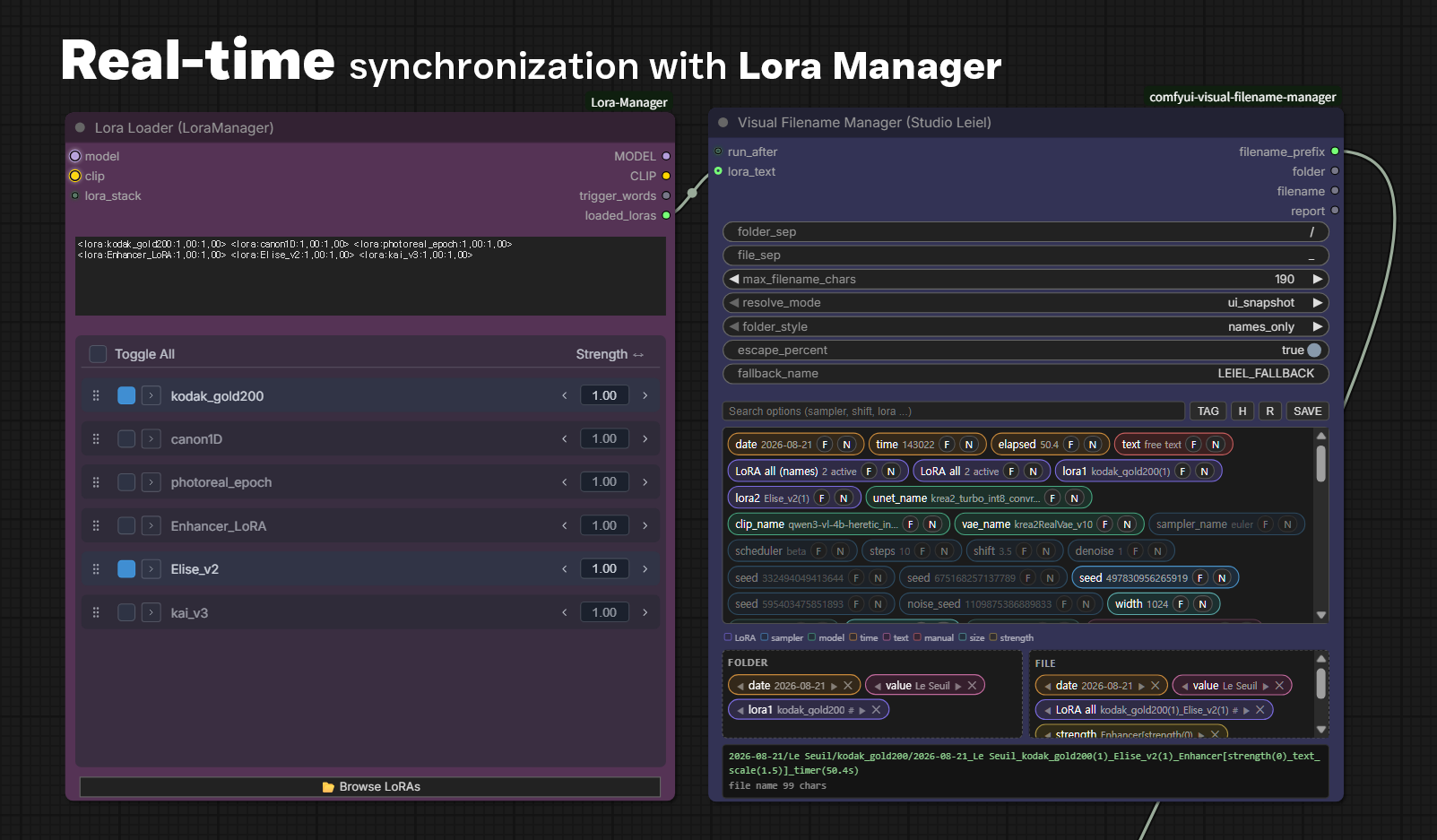
Six LoRAs registered, two switched on — and only those two reach the palette.
Lora Loader (LoraManager) ──trigger_words──> Visual Filename Manager.lora_text
Then:
- Queue once. The backend reads the string and pushes the active list back to the browser.
- The palette rebuilds with only the active LoRAs —
LoRA all 2 active. - Toggle LoRAs in LoraManager afterwards and
lora1,lora2follow automatically. You never touch this node again.
When lora_text is connected it overrides everything else, including the UI snapshot, so a stale cache can't put last session's LoRA in your filename.
The cache is stored in the workflow, so names still show after a reload — before the first queue of a new session, the palette may briefly show the previous list. The saved file is always correct regardless.
Live bypass sync
Bypass or mute any node (Ctrl+B) and every chip pointing at it drops out of the name immediately — the preview updates while you watch, no re-queue needed. Re-enable it and the chip comes back.
The chip is not deleted. It stays in the box marked bypassed - omitted, so your layout survives toggling nodes on and off all day.
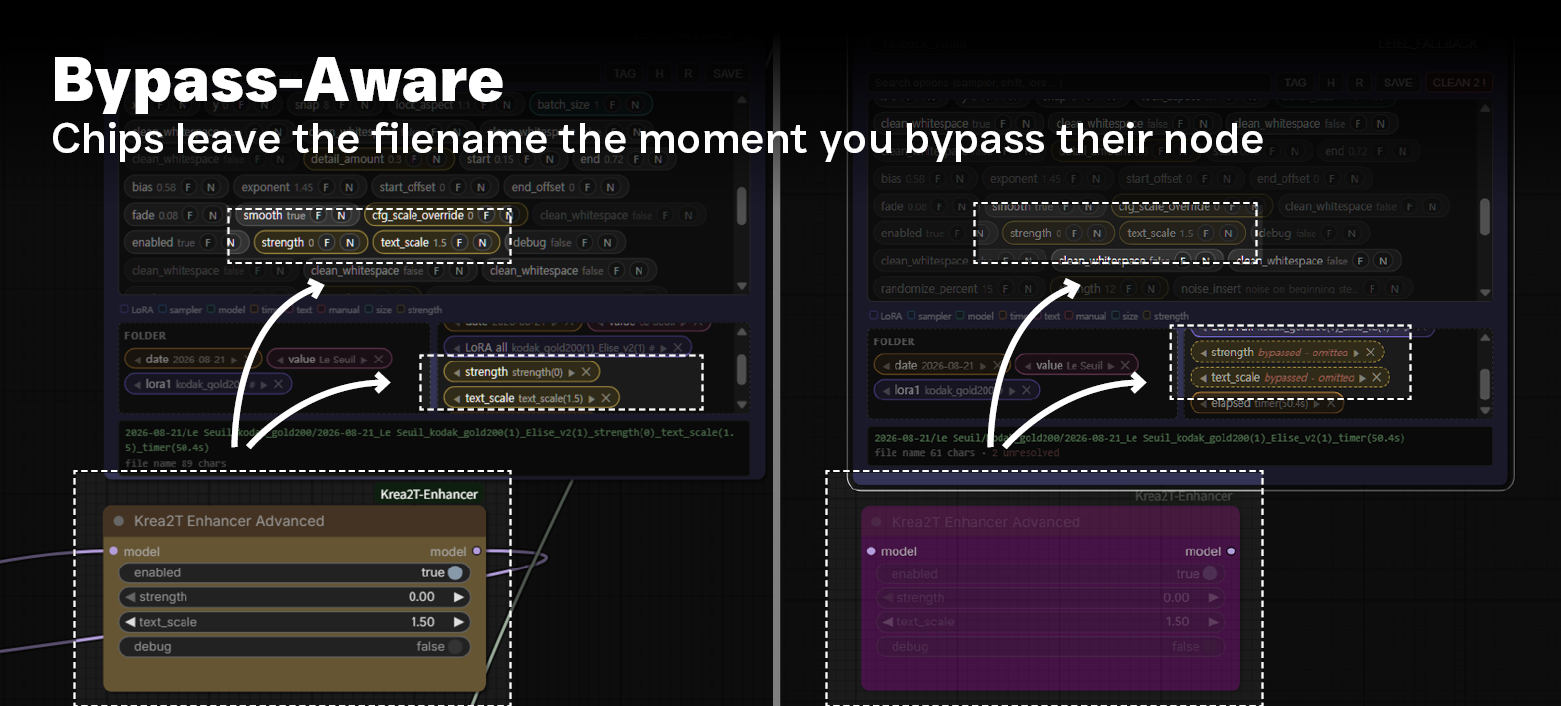
Left: the enhancer is active and its two values are in the name. Right: bypassed, and both chips have stepped aside.
This is what makes the filename record what actually ran. Bypass your enhancer and the name says so — six months later you can tell at a glance which renders used it.
Two things worth knowing:
- It applies to every widget chip. There is no per-node special-casing.
- Several chips can share one node, so bypassing KSampler removes
sampler_name,scheduler, andstepstogether.
The check runs in two places. The browser skips bypassed nodes when building the preview, and the backend independently verifies node modes before writing the file — so even a stale saved workflow can't resurrect a bypassed value.
Render time
elapsed measures from the start of workflow execution to the moment this node runs. It works with no extra nodes — the module hooks ComfyUI's executor on load.
Two things to know:
Connect run_after — but only if you use the elapsed chip. This node doesn't depend on images, so ComfyUI may run it before sampling, giving a near-zero time. Feeding the image line that goes to Save Image into run_after forces the ordering.
run_after never reads the value you connect; it exists purely to say "run after this". Nothing else in the filename cares about execution order, so if you aren't timing renders, leave it empty.
The preview always shows 50.4. That's a placeholder — the real duration can't be known until the render finishes. It's the one chip where preview and output differ by design.
To measure a narrower window, add Timer Anchor (Studio Leiel) on any line. It's a pass-through; wherever it sits becomes the new start point. Put it right before your sampler to time sampling alone.
Nodes
Visual Filename Manager (Studio Leiel)
The main node.
Inputs — both optional. The node labels them with what they are for, so you can ignore both unless you need that feature:
| Slot | Connect it when | What it does |
|---|---|---|
| run_after (for elapsed) | using the elapsed chip | Forces this node to run after sampling. The value itself is discarded. |
| lora_text (for LoraManager) | using LoraManager | Supplies the list of LoRAs that are actually switched on. |
Outputs — filename_prefix (folder + name, for Save Image), folder, filename, report
Widgets
| Widget | Default | Meaning |
|---|---|---|
| folder_sep | / | joins folder chips |
| file_sep | _ | joins file chips |
| max_filename_chars | 190 | truncates the tail past this; guards the Windows 260-char path limit |
| resolve_mode | ui_snapshot | see below |
| folder_style | names_only | folder simplification |
| escape_percent | true | rewrites % so downstream nodes don't re-substitute it |
| fallback_name | LEIEL_FALLBACK | used only if everything fails |
resolve_mode — values come from two places: the snapshot the browser computed (what you saw in the preview) and the live prompt the server is executing.
ui_snapshot(recommended) — snapshot wins. Preview equals output.live_prompt— server wins, snapshot as fallback. Only useful when you want a value that changes at runtime, such as a randomized seed. The tradeoff: ComfyUI prunes nodes that don't feed an output, so chips can silently disappear or mismatch.
LoRA and elapsed always use live values in both modes.
Timer Anchor (Studio Leiel)
Pass-through. Marks a custom start point for elapsed. Optional.
Graph Dump (Studio Leiel)
Prints every node's id, class, title, and widget names/values. Useful when writing templates by hand or debugging a chip that won't resolve.
Filename Template (Studio Leiel)
Text-template alternative to the drag UI, for people who prefer typing:
{date:%Y-%m-%d}_{Title|string}[[_{loras}]][[_Step({@KSampler|steps})]]
{node title|widget}, {@ClassName|widget}, {#id|widget}, plus {date} {elapsed} {loras}. [[ ... ]] marks an optional group — if anything inside fails to resolve, the whole group vanishes. Same safety guarantees.
The report output
Connect report to any text preview node. After each run:
[Leiel Filename Studio]
  mode     : ui_snapshot / folder=names_only
  folder   : 2026-08-21/Le Seuil/retrovintage
  filename : 2026-08-21_Le Seuil_retrovintage(1.0)_Elise_v2(0.95)_steps(10)_time(57.4s)
  chars    : 113
  prefix   : 2026-08-21/Le Seuil/retrovintage/2026-08-21_Le Seuil_...
  timer    : ok - 57.4s since start (source: prompt start (auto))
  lora_text: retrovintage(1.0), Elise_v2(0.95)
  all chips resolved
Anything dropped is listed with a reason. This is the first place to look when a name isn't what you expected.
Troubleshooting
| Symptom | Cause |
|---|---|
| Node appears but no UI inside | JS cached — hard-refresh (Ctrl+Shift+R) |
| Palette empty | press R to rescan |
| Palette shows every registered LoRA | connect lora_text (see above) |
| Timer Anchor has never run | restart ComfyUI fully; Python changes need a restart, not a refresh |
| Time is near zero | run_after not connected (only needed for the elapsed chip) |
| A chip resolves to the wrong value | switch resolve_mode back to ui_snapshot |
| Chip shows skipped in folder | expected — numeric chips are dropped from folders under names_only |
Safety
The node never raises. Every path is wrapped, and total failure produces LEIEL_FALLBACK/2026-08-21_143022 rather than an exception. A finished render always gets saved.
Filenames are sanitized for Windows: illegal characters <>:"/\|?*, control characters, reserved names (CON, AUX, COM1…), and trailing dots or spaces are all handled.
Example
examples/basic_workflow.json — a minimal SD1.5 graph with the node wired to Save Image. It also has run_after connected and a Timer Anchor in place so the elapsed chip works out of the box; delete both if you don't need render times. Drag the file onto the ComfyUI canvas and swap the checkpoint for your own.
License
MIT