
ComfyUI Reference Loader
Interactive visual crop, timeline, audio, and reference loading nodes for ComfyUI
Nodes (4)
The downscaler that only ever shrinks (and why that's the point)
Trim your reference audio by ear instead of guessing seconds
Frame the Crop With Your Mouse, Not a Calculator
A WYSIWYG crop box on the actual video, before you ever queue
comfyui-reference-loader
Interactive media loading and cropping nodes for ComfyUI. Visually scrub, preview, crop, and trim videos, audio, and images directly on the node graph.
Features
- Load Image & Crop: Visual crop box drawn right on the image preview, with aspect ratio locking, megapixel downscaling, and VAE dimension alignment.
- Load Audio & Crop: Interactive audio waveform player with draggable trim handles to set start and end times visually.
- Load Video & Crop / Timeline: Full video player with visual filmstrip, audio waveform, interactive spatial crop box, In/Out trimming, freeze markers, and diffusion model frame quantization presets (Wan, Hunyuan, LTX, Cosmos, Mochi, MiniMax).
- Downscale Image to Megapixels: Lightweight utility node to downscale images to a target megapixel budget while preserving aspect ratio.
Installation
Clone or copy this repository into your ComfyUI/custom_nodes directory:
cd ComfyUI/custom_nodes
git clone https://github.com/sthao42/Comfyui-reference-loader.git
Restart ComfyUI. No extra Python dependencies required (uses PyAV / standard ComfyUI libraries).
Security Notes
This package reads files supplied by the user, so its security properties are:
- No custom routes: file access in the browser goes through ComfyUI core's
/viewendpoint (restricted to the configuredinput/output/tempfolders). The widgets additionally validate thetypeand reject.., absolute, and Windows drive-letter path segments before building a URL. - No DOM injection: all previews render to
<canvas>; noinnerHTML,eval, ornew Functionis used. All event listeners are removed when a node is deleted. - Bounded decoding: video loads stop after 1,000,000 decoded frames (set
frame_countto bound shorter loads), and audio loads decode only the requested crop window — memory use is bounded by the crop, not the whole file. - Waveform size cap: video audio-waveform fetches abort when the file exceeds 250 MB.
- Symlinks: as with ComfyUI core, a symlink/junction inside
input/pointing elsewhere can escape the folder restriction. Keep your input folder under your control if the ComfyUI server is reachable by untrusted users. - CORS: only enabled when ComfyUI is started with
--enable-cors-header(off by default).
Nodes
1. Load Image & Crop (reference_loader/image)
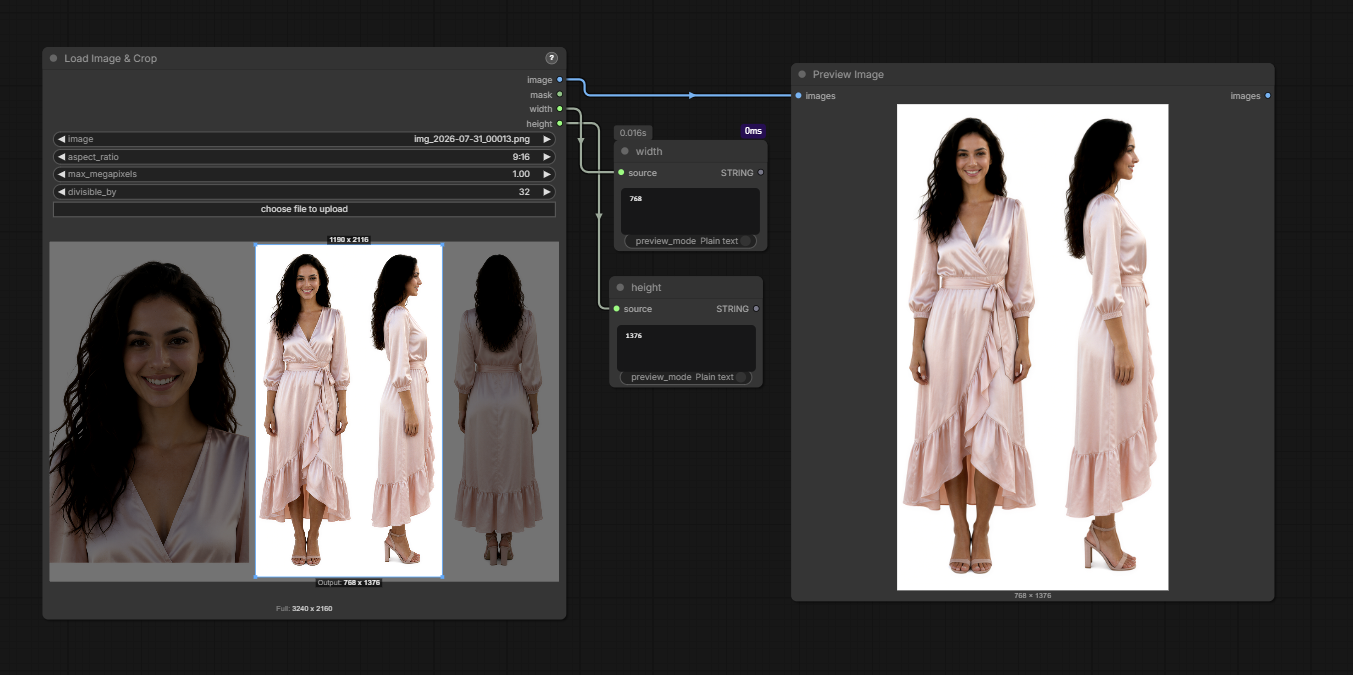
Loads an image with visual crop controls right on the preview:
- Interactive Cropping: Click & drag on the preview to draw a crop box; drag inside to move; drag corners to resize; click outside to reset.
- Aspect Ratio Locking: Lock crop proportions with descriptive presets (
1:1 (Square),16:9 (Widescreen),9:16 (Widescreen Portrait),3:2 (35mm Standard),4:3 (Standard),21:9 (Ultrawide), etc.) orNonefor freeform. - Megapixel Budget & Alignment:
max_megapixels: Scales the cropped or full image down if it exceeds the pixel budget.divisible_by: Snaps output width and height to multiples of 8, 16, 32, or 64 for VAE compatibility.
- Works in both classic canvas and Nodes 2.0 (Vue).
Outputs: image (IMAGE), mask (MASK from alpha channel), width (INT), height (INT).
2. Load Audio & Crop (reference_loader/audio)
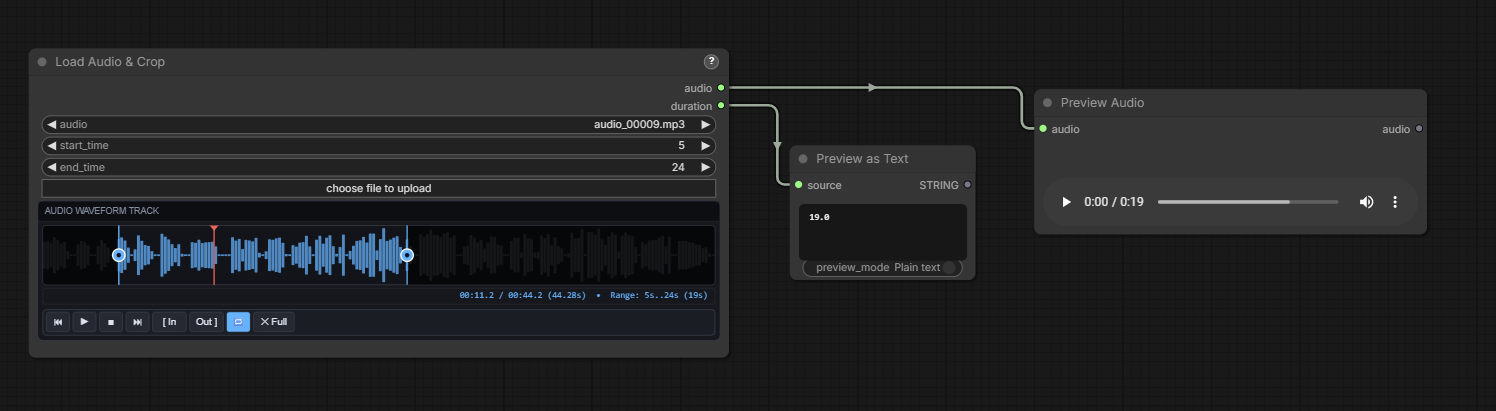
Loads an audio file with an interactive waveform player:
- Visual Waveform: High-resolution audio peak visualizer with playback cursor.
- Playback Controls: Play / Pause (<kbd>Space</kbd>), Stop, Step (<kbd>←</kbd> / <kbd>→</kbd>), and Loop toggle.
- Draggable Trim Handles:
- Drag cyan pins to adjust Start and End crop points.
- Drag between handles to slide the crop window across the timeline.
- Click outside or click
✕ Fullto reset to the full track. - Two-way binding with
start_timeandend_timeinputs (snaps to seconds).
Outputs: audio (AUDIO dictionary {"waveform": tensor, "sample_rate": int}), duration (FLOAT in seconds).
3. Load Video & Crop / Timeline (reference_loader/video)
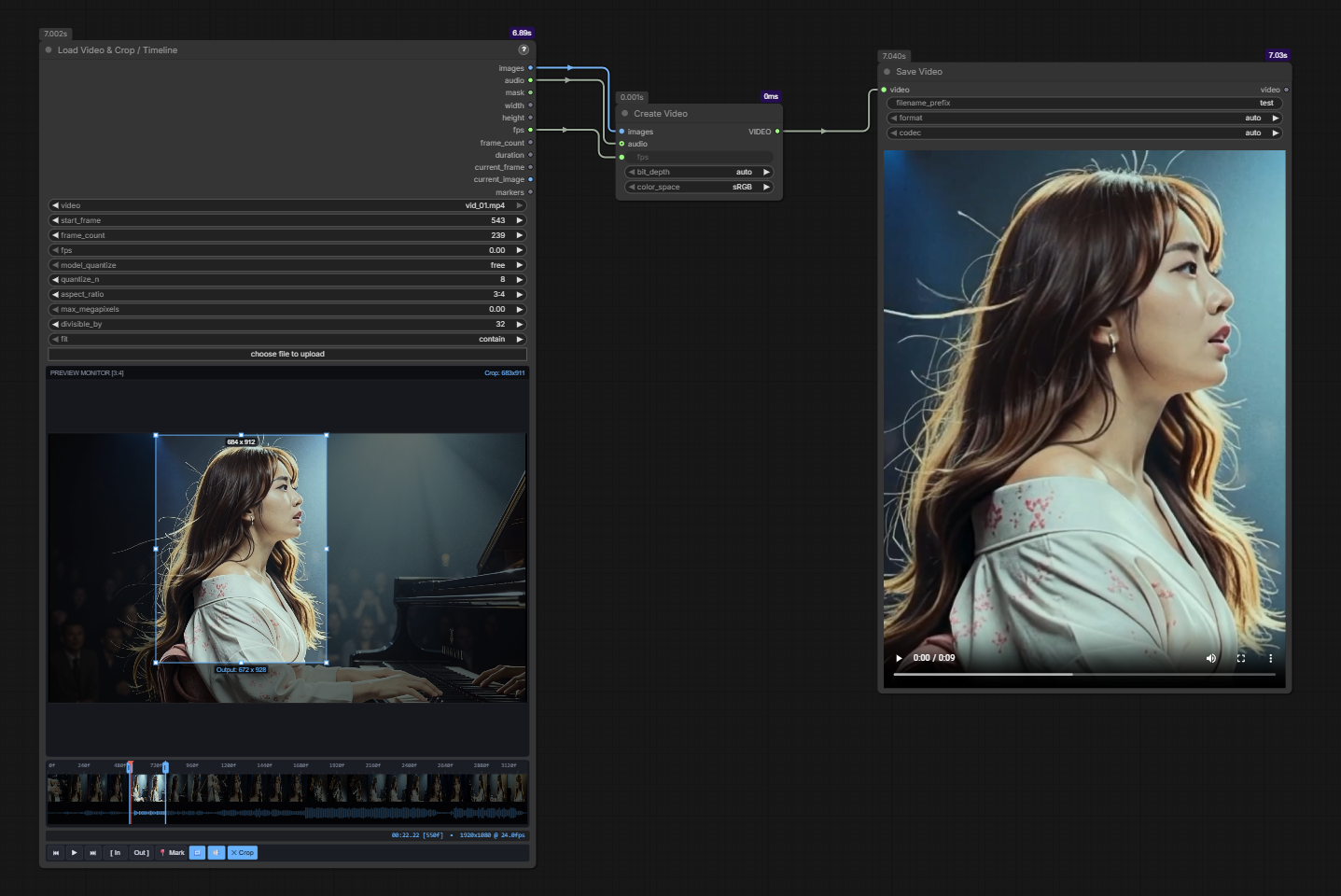
Loads a video file with an interactive editor directly on the canvas:
- Live Video Monitor & Spatial Cropper:
- Drag on the video preview to draw an exact crop region.
- Drag inside the selection to move it, or drag any corner / edge handle to resize.
- Click outside or press <kbd>C</kbd> to reset back to full frame.
- Live dimension badges show both source crop size and final scaled output dimensions.
- Filmstrip Timeline & Waveform:
- Visual image thumbnail filmstrip across the duration of the video.
- Synchronized audio waveform track underneath the filmstrip.
- Playback & Trimming:
- Play / Pause (<kbd>Space</kbd>) with real-time playhead scrubbing and audio playback.
- Frame stepping (<kbd>←</kbd> / <kbd>→</kbd> or <kbd>[</kbd> / <kbd>]</kbd>).
- Set In / Out trim points (<kbd>I</kbd> and <kbd>O</kbd>) or drag the trim handles on the ruler.
- Freeze markers (<kbd>M</kbd>) to mark key frames along the timeline.
- Diffusion Model Quantization Presets:
- Automatically snaps frame counts to required diffusion model grids:
Wan (4n+1),Hunyuan (4n+1),LTX (8n+1),Cosmos (8n+1),Mochi (6n+1),MiniMax H3 (17n+5), or custom multiples ofN.
- Automatically snaps frame counts to required diffusion model grids:
- Aspect Ratio & Sizing:
- Lock crops to descriptive aspect ratio presets (
1:1 (Square),16:9 (Widescreen),9:16 (Widescreen Portrait),3:2 (35mm Standard),4:3 (Standard),21:9 (Ultrawide), etc.) orNonefor freeform. - Fit modes:
contain(letterbox pad),cover(center crop),stretch. - Megapixel capping (
max_megapixels) and dimension alignment (divisible_by: 8, 16, 32, 64).
- Lock crops to descriptive aspect ratio presets (
Outputs: images (IMAGE batch), audio (AUDIO), mask (MASK), width, height, fps, frame_count, duration, current_frame, current_image, markers.
4. Downscale Image to Megapixels (reference_loader/image)
Helper utility that scales an image down so its total pixel count fits within megapixels while preserving aspect ratio. Images already within budget pass through untouched.
Keyboard Shortcuts
| Key | Action | | --- | --- | | <kbd>Space</kbd> | Play / Pause playback | | <kbd>←</kbd> / <kbd>→</kbd> or <kbd>[</kbd> / <kbd>]</kbd> | Step backward / forward (1 frame for video, 1s for audio) | | <kbd>I</kbd> | Set In-point / Start trim | | <kbd>O</kbd> | Set Out-point / End trim | | <kbd>M</kbd> | Toggle freeze marker on current frame (Video) | | <kbd>Shift</kbd> + <kbd>M</kbd> | Clear all markers (Video) | | <kbd>U</kbd> | Toggle Mute / Unmute audio (Video) | | <kbd>C</kbd> | Clear spatial crop back to full frame (Video) |