
Kotodama Prompt Enhancer
Text-to-image prompt enhancer for ComfyUI using an OpenAI-compatible chat endpoint
Kotodama for ComfyUI
Kotodama takes a rough text idea, asks an OpenAI-compatible chat model to rewrite it as an image prompt, and returns a STRING for CLIPTextEncode. It accepts text only. It does not inspect reference images.
What it does
One real run: the same image model and the same seed, rendered from each prompt.
| Your rough idea | Kotodama's prompt |
|---|---|
|  |
|  |
| a lighthouse keeper's cat watching a storm from the window | A lighthouse keeper's cat sits in profile on a wide bay window ledge, gazing out at a raging storm through the rain-streaked glass. The cat is a fluffy tabby with striking green eyes … occasional forks of lightning illuminating the churning sea far below. Inside, warm lamplight glows against the cool blue-gray tones of the tempest … |
|
| a lighthouse keeper's cat watching a storm from the window | A lighthouse keeper's cat sits in profile on a wide bay window ledge, gazing out at a raging storm through the rain-streaked glass. The cat is a fluffy tabby with striking green eyes … occasional forks of lightning illuminating the churning sea far below. Inside, warm lamplight glows against the cool blue-gray tones of the tempest … |
Two more runs (same preset, seed 11 for the image), rough idea on the left, Kotodama's prompt on the right:
| an old robot tending a rooftop garden at dawn | Kotodama |
|---|---|
|  |
|  |
|
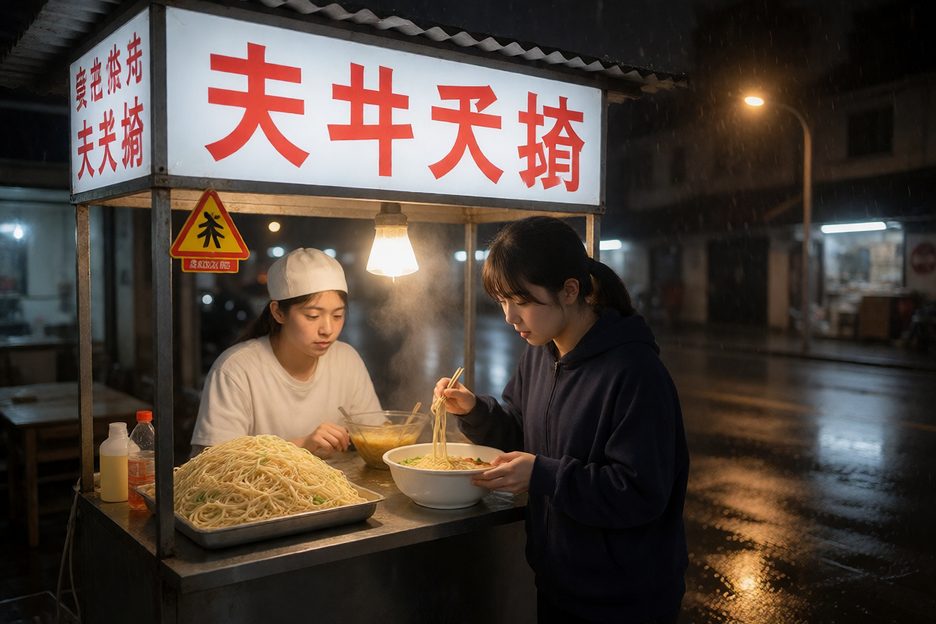
| a noodle stall on a rainy night street | Kotodama |
|---|---|
|  |
|  |
|
The enhancer adds specific, steerable detail (the tabby's green eyes, the lightning, the lamplight on the glass), and the render follows it. These are illustrative runs with the text-to-image preset on a local OpenAI-compatible model, each prompt generated in 3–5 s. Your model and seed will produce different text. These examples are illustrations, not evidence. The evidence is below.
Evaluation
In a 12-case authored paired-image pilot, two blinded AI-agent raters each chose the Kotodama-enhanced image for idea match on 8 of 12 cases and each counted five more visible details out of 48.
Scope: one image seed per case; the raters are AI agents, not people; prompt and image model weights were not immutably pinned, and the endpoint/host hardware and runtime details were not recorded. So this makes no population or human-preference claim. One case (spatial-04) was a shared win for the rough prompt. Every pair, rating, disagreement and raw receipt is in evals/results/pilot-2026-09-25.
Install
From ComfyUI-Manager (recommended): open Custom Nodes Manager, search for Kotodama Prompt Enhancer, install, and restart ComfyUI. It is published on the Comfy Registry as comfyui-kotodama.
With comfy-cli: comfy node install comfyui-kotodama
Manually: clone or copy this repository into ComfyUI/custom_nodes/comfyui-kotodama, then restart ComfyUI. The node uses Python's standard library and needs no extra package install.
Configure
In ComfyUI (recommended). Open Settings (the gear, bottom left) → Kotodama, then fill in:
- Endpoint URL: the root of any OpenAI-compatible server, without
/v1(for examplehttp://127.0.0.1:4000). Kotodama calls/v1/modelsfor the model menu and/v1/chat/completionsto run. - API key (optional for a trusted local server): write-only. It is saved on the server and never shown again; type a new one to replace it, or Clear key.
- Fallback models: exact model IDs to offer if the server cannot list its models.
- Timeout (seconds): defaults to 300.
Click Save (it asks you to confirm an endpoint change), then Test connection, which checks only the saved settings. They're stored in <ComfyUI user directory>/kotodama/.env, so they survive node updates.
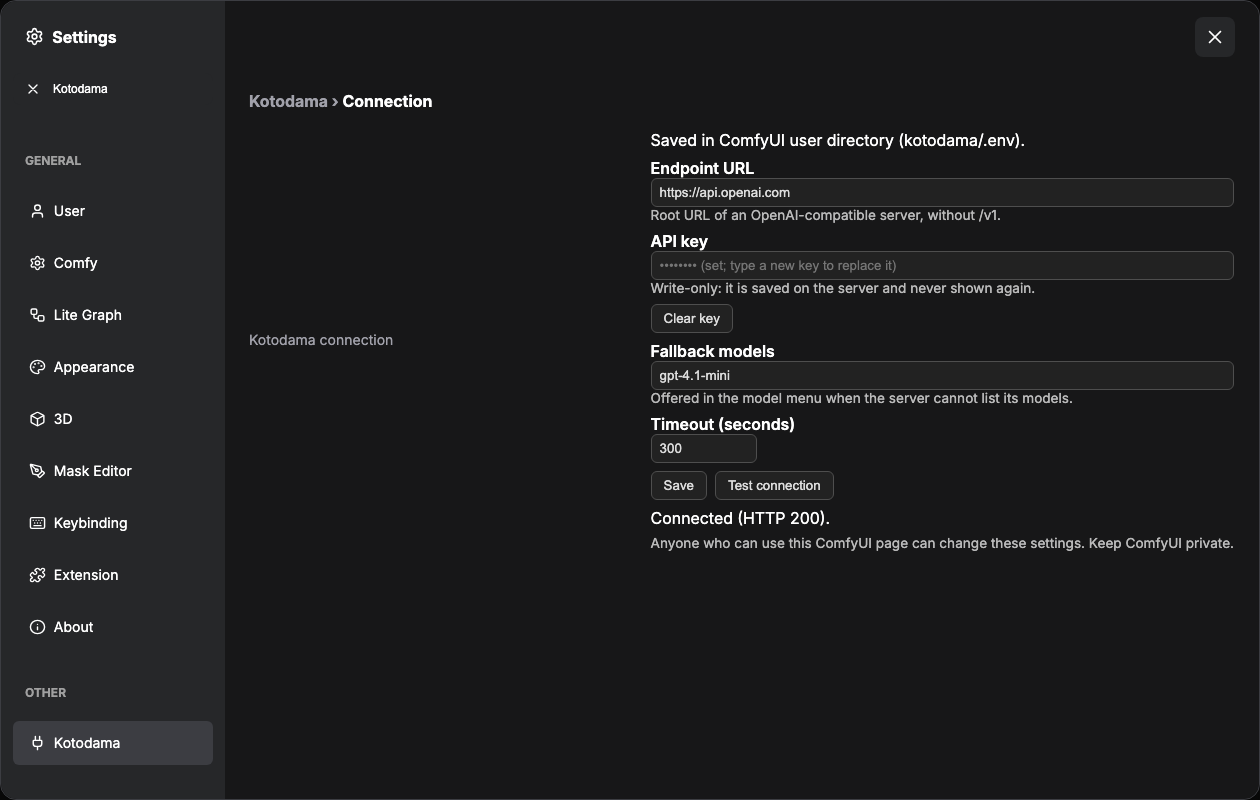
Anyone who can use your ComfyUI page can change these settings. ComfyUI has no login by default, so keep it private. The key is never sent back to the browser.
- Behind an HTTPS reverse proxy? The panel only accepts saves from ComfyUI's own origin. Add a line to
<ComfyUI user directory>/kotodama/.envby hand, for exampleKOTODAMA_ALLOWED_ORIGINS=https://comfy.example.com(comma-separated, exact origins). Otherwise saving is refused withcross_origin. The panel never writes this setting. - Upgrading from a node-folder
.env? An older.envin this node's folder is still read as a deprecated fallback, and the panel tells you when a value comes from it. Save the values in the panel to move them over. While the key still lives in that file, the panel won't change the endpoint or clear the key (key_outside_panel), so a key can never be sent to a new server behind your back. Remove the key from the old file first.
Environment variables are not read (since 0.3.0). KOTODAMA_* and LITELLM_* variables in ComfyUI's environment are ignored, and the panel is the one place Kotodama is configured. Precedence: <ComfyUI user directory>/kotodama/.env (what the panel writes), then the node folder's legacy .env, then built-in defaults.
Use HTTPS for a remote service. The timeout has a one-second minimum.
Keep the API key out of node widgets. ComfyUI saves widget values in workflow JSON and may embed them in generated PNG metadata. Settings files are ignored by Git; keep them private and restrict access to your ComfyUI host. Anyone who can administer an exposed ComfyUI instance may be able to run nodes or inspect its files, so protect ComfyUI itself.
Try the example
Open examples/kotodama-preview-api.json in ComfyUI (Workflow → Open, or drag the file onto the canvas). It is two nodes: Kotodama feeding a Preview Any node that shows the generated prompt. Pick a model from the node's model menu (the file ships with a placeholder), then Queue.
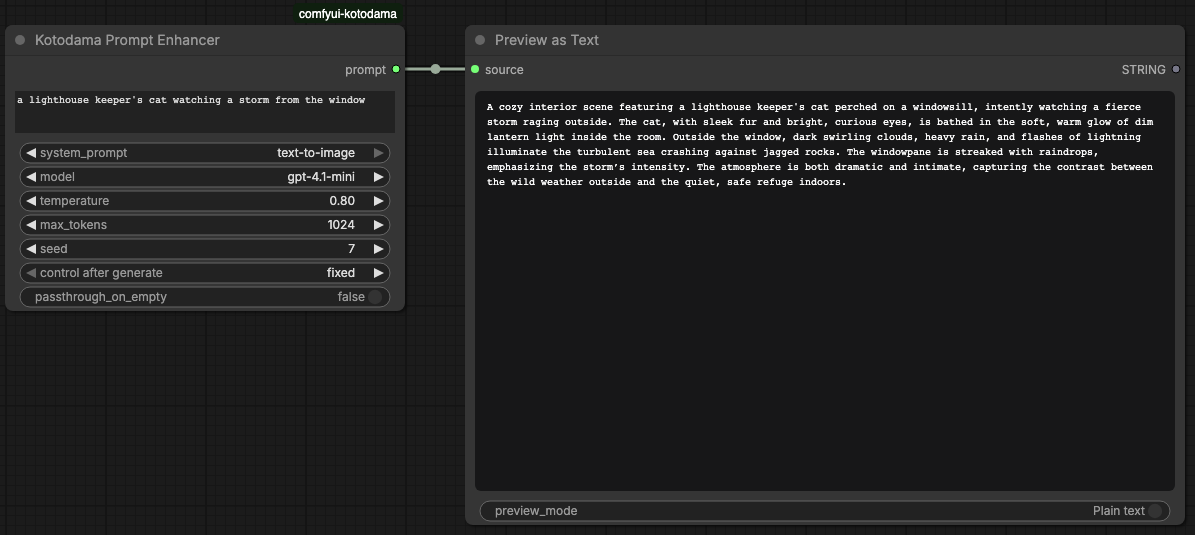 No image model is needed to see what Kotodama writes. To render it, connect
 prompt to CLIPTextEncode.text in your own workflow.
Use
Add Kotodama Prompt Enhancer, enter or connect rough text, select a system prompt and model, then connect its prompt output to CLIPTextEncode.text. To expose that input on CLIPTextEncode, right-click the node and choose Convert widget to input → text.
The default text-to-image system prompt works from text alone. The krea2 preset is retained for existing workflows and has been adjusted to work from text only. You can add your own .md or .txt file to system_prompts/ and refresh the browser; its stem appears in the menu. Editing the selected file changes the node's cache identity on the next run. The node strips ### START ### and ### END ### banner lines from prompt files.
Changing a widget or the selected prompt file reruns the node. To request another response with otherwise identical inputs, change seed. The seed is sent to the chat endpoint, but a provider may ignore it. An empty input is an error by default; enable passthrough_on_empty only if an empty downstream conditioning string is intentional.
The node fails visibly on connection, authentication, malformed response, truncated output, and empty output. It will not silently replace a failed request with a blank prompt.
Privacy and troubleshooting
Your input text and selected system prompt are sent to the configured chat endpoint. Choose an endpoint whose data handling fits your workflow. The generated prompt can also be saved with the workflow or image by ComfyUI.
- Configure endpoint or fallback model shows in the model menu: set the Endpoint URL in Settings → Kotodama and, if
/v1/modelsis unavailable, Fallback models; then refresh ComfyUI's node menu. - 401/403: re-enter the API key in Settings and check your provider's permissions.
- Connection or timeout: check the endpoint from the ComfyUI host; raise Timeout in Settings, lower
max_tokens, or use a faster model if generation is slow. - Redirect response: set the Endpoint URL to the final endpoint. Kotodama refuses redirects so the bearer key cannot be forwarded to another URL.
- Wrong model list: set Fallback models to the provider's exact IDs and refresh. A fallback menu does not confirm the endpoint is reachable.
Tests
The offline suite runs without ComfyUI or a live provider. With uv:
uv run --group dev pytest
Or with plain pip: pip install pytest aiohttp and then python -m pytest.
The settings-route tests are included; they need aiohttp (part of the dev group, and already provided by ComfyUI).
To test a configured provider from its ComfyUI host, run python3 tests/smoke.py your-model-id with the same Python interpreter as ComfyUI. This sends one short test prompt to your endpoint.
License
MIT. See LICENSE.
Credits
Maintained by Eric Mey. This public release was prepared with AI collaborators.