Comfyui-ImageAB-Compare
image split comparison horizontally/vertically, real-time mouse interaction to adjust split ratios, bidirectional linkage between slider and mouse, and the ability to export comparison images with precise split lines.
<font face="微软雅黑" size="4" color="#f0f000">Comfyui-ImageAB-Compare - the comfyui plugin of comparing two images</font>
image split comparison horizontally/vertically, real-time mouse interaction to adjust split ratios, bidirectional linkage between slider and mouse, and the ability to export comparison images with precise split lines.
<div style="font-size: 20px;"><b>I. Functional Features</b></div>✅ Dual-mode segmentation comparison: Supports both vertical (left-right) and horizontal (top-bottom) segmentation directions
✅ Real-time interactive adjustment: Precise control of segmentation line position with mouse movement
✅ Exportable segmentation image: This is an optional parameter, allowing for output preview or saving of the image. The segmentation ratio is set through "split_ratio_when_output"
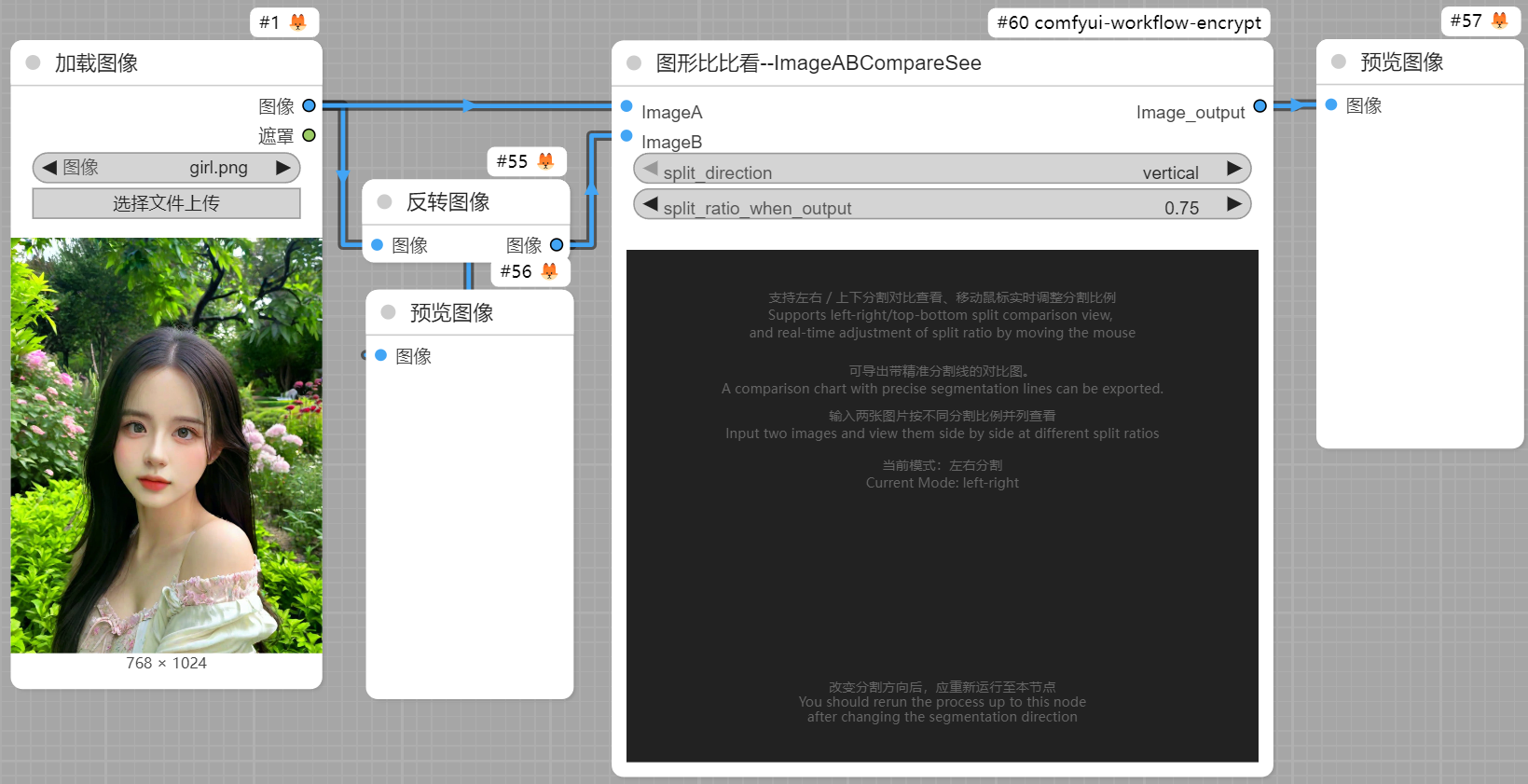
Method 1: Manual Installation (Recommended)
(1) cd Comfy\custom_nodes;
(2) git clone https://github.com/shmbatom/Comfyui-ImageAB-Compare.git ;
(3) Restart the ComfyUI Service.
Method 2: Installation via Manager
(1) Search for Comfyui-ImageAB-Compare in the ComfyUI Manager and install
<div style="font-size: 20px;"><b>III. How to Use</b></div>✅1. Basic usage
(1) In the ComfyUI editor, double-click to search for "abc", locate the "ImageABCompareSee" node, and click it to insert it into the ComfyUI editor, or drag the following image into the page;
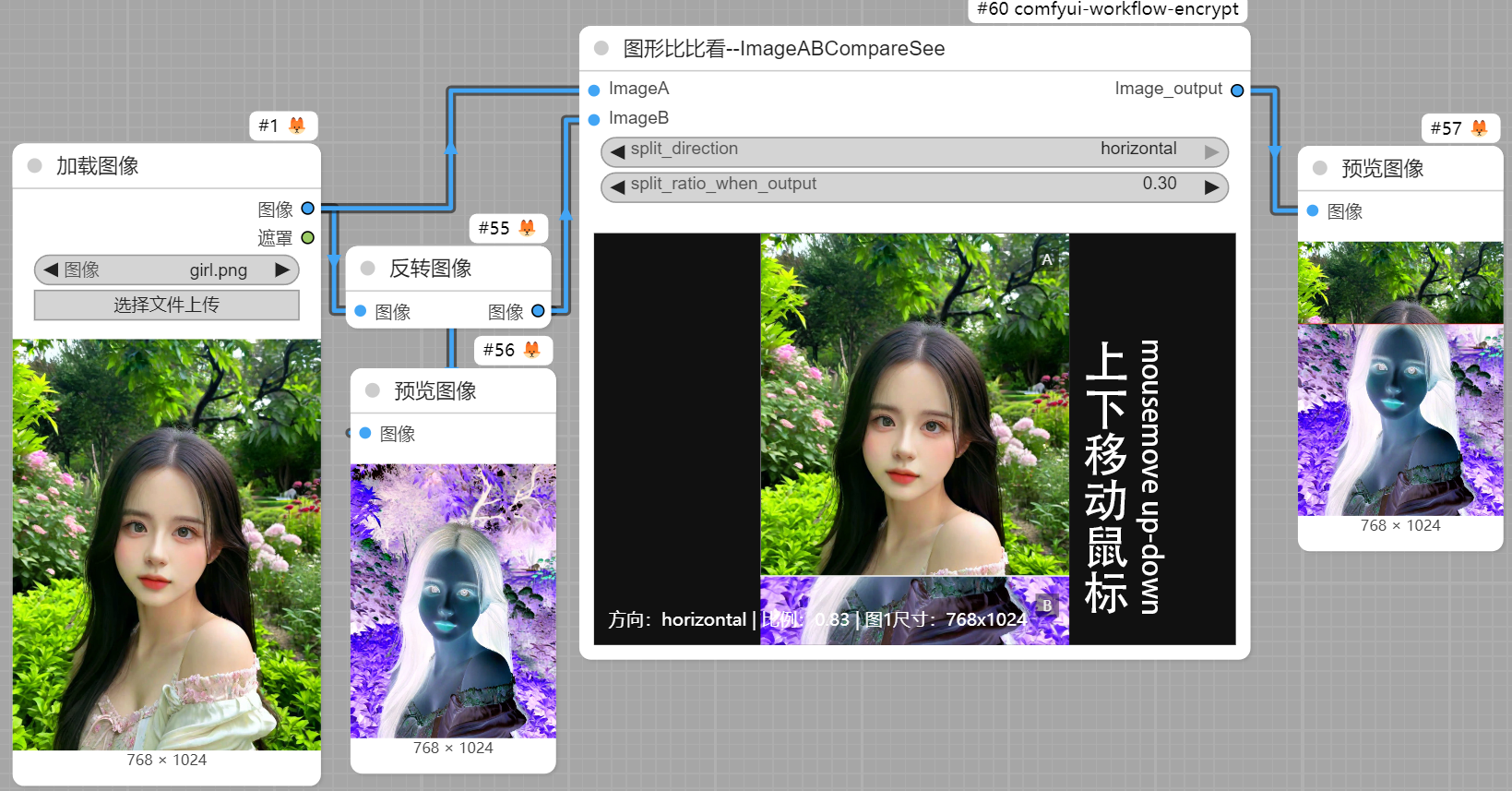
(2) Connect the two images that need to be compared to the ImageA and ImageB input ports;
Note: ImageA can be downloaded the file named "custom_nodes\Comfyui-ImageAB-Compare\images\girl.png".
(3) Run to the "ImageABCompareSee" node to see the real-time comparison preview within the node;
(4) Mouse movement on the preview area of the node, and the dividing line will be adjusted in real-time according to the mouse position, facilitating real-time comparison and viewing of the differences between the two images;
(5) Switch direction: Select "vertical" (left-right) / "horizontal" (top-bottom) from the dropdown box.
✅2. Export a comparison image with a specified split ratio
(1) Precise adjustment: Precisely control the split position through the "split_ratio_when_output" slider (0.0-1.0) ;
(2) Connect the "Image_output" port of the node to the "Save Image" node and save it in "Comfy\output" (with the same size as ImageA);
(3) Connect the "Image_output" port of the node to the "Preview Image" node to view without saving.
<div style="font-size: 20px;"><b>IV. Directory Structure</b></div>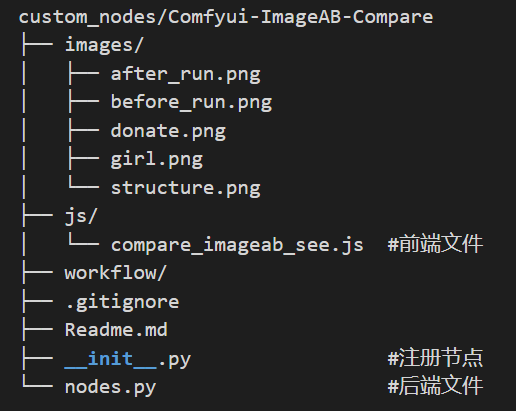
To be adapted: ComfyUI-nodes2.0
<div style="font-size: 20px;"><b>VI. Update Log</b></div>v1.0.0 2026/1/5 Initial version, supporting basic image AB comparison function
<div style="font-size: 20px;"><b>VII. License</b></div>This plugin is open-sourced under the MIT License, allowing free modification, distribution, and commercial use, as long as the original author's information is retained.
<div style="font-size: 20px;"><b>VIII. Feedback and Suggestions</b></div>If you encounter any issues or have suggestions for features, please contact QQ2540968810 or
GitHub Issues (recommended) https://github.com/shmbatom/Comfyui-ImageAB-Compare/issues
<div style="font-size: 20px;"><b>IX. Donation</b></div> If you think this tool is decent, you can donate a cup of coffee to me.