
Prompt Preset Selector
Flexible preset selector with YAML support, advanced keyword filtering, hierarchical key search, multi-file/folder search, and subfolder organization
Nodes (5)
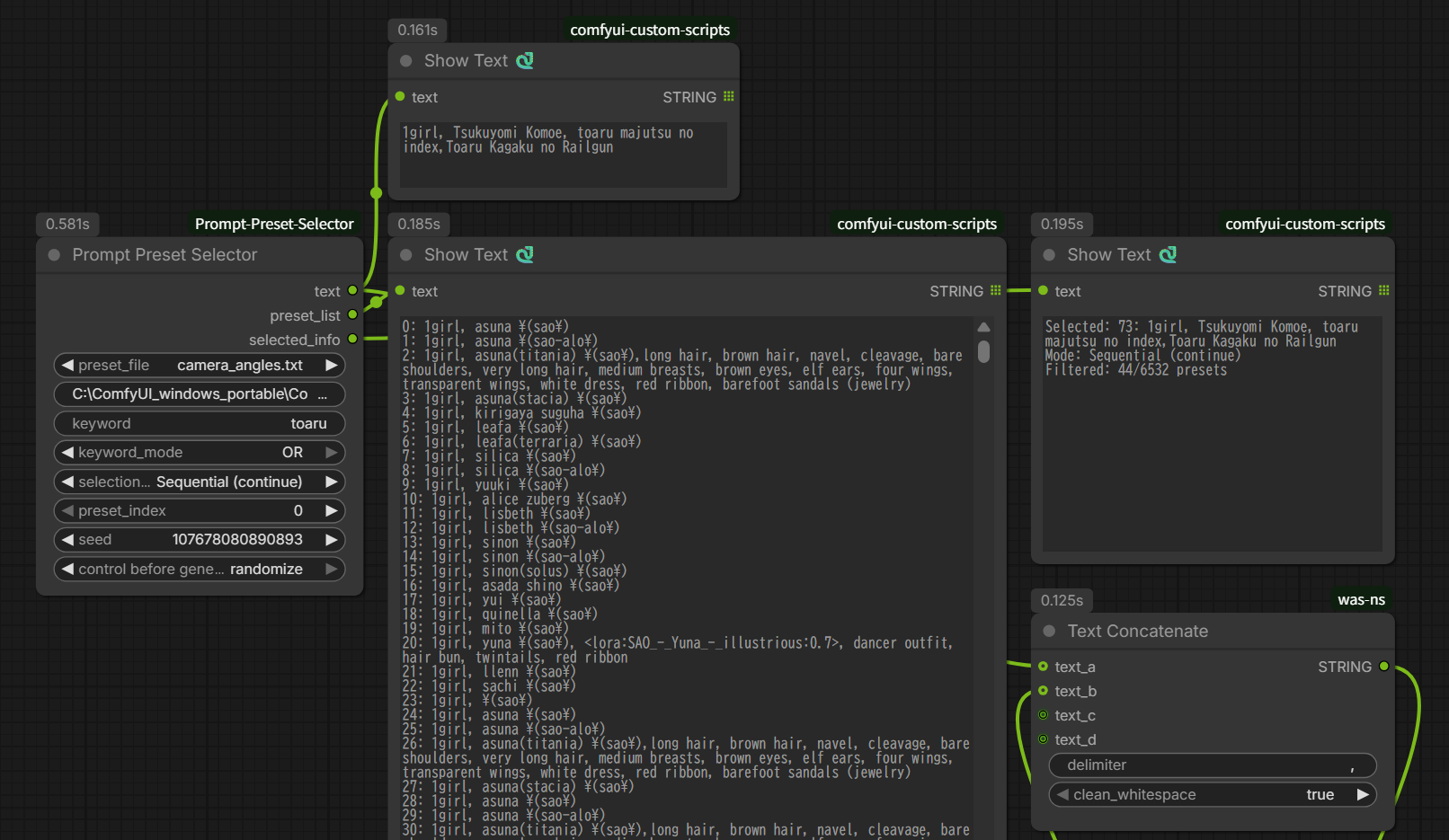
Point this at a folder of prompt files and stop merging by hand
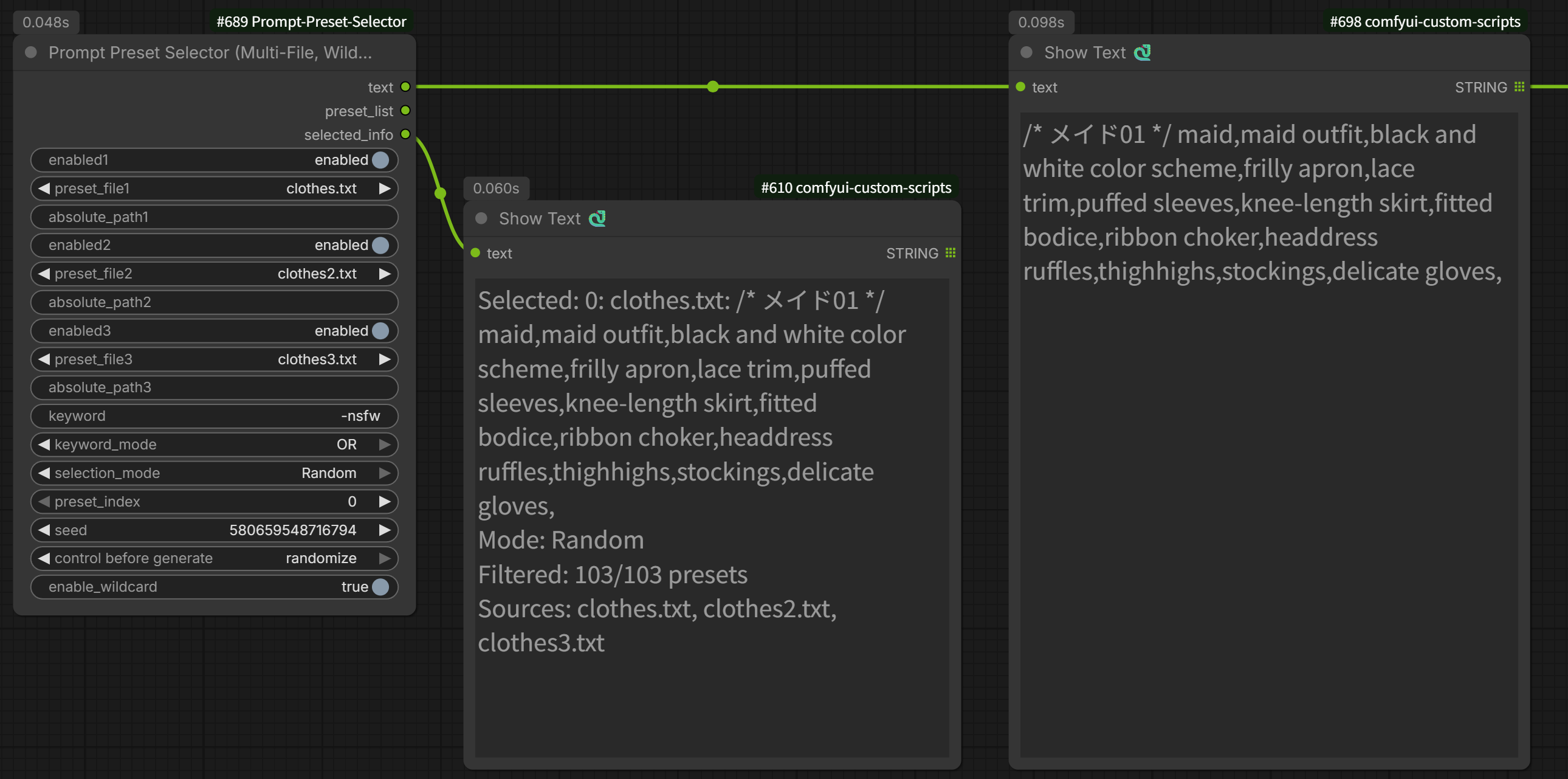
Three preset files at once, without a merge step
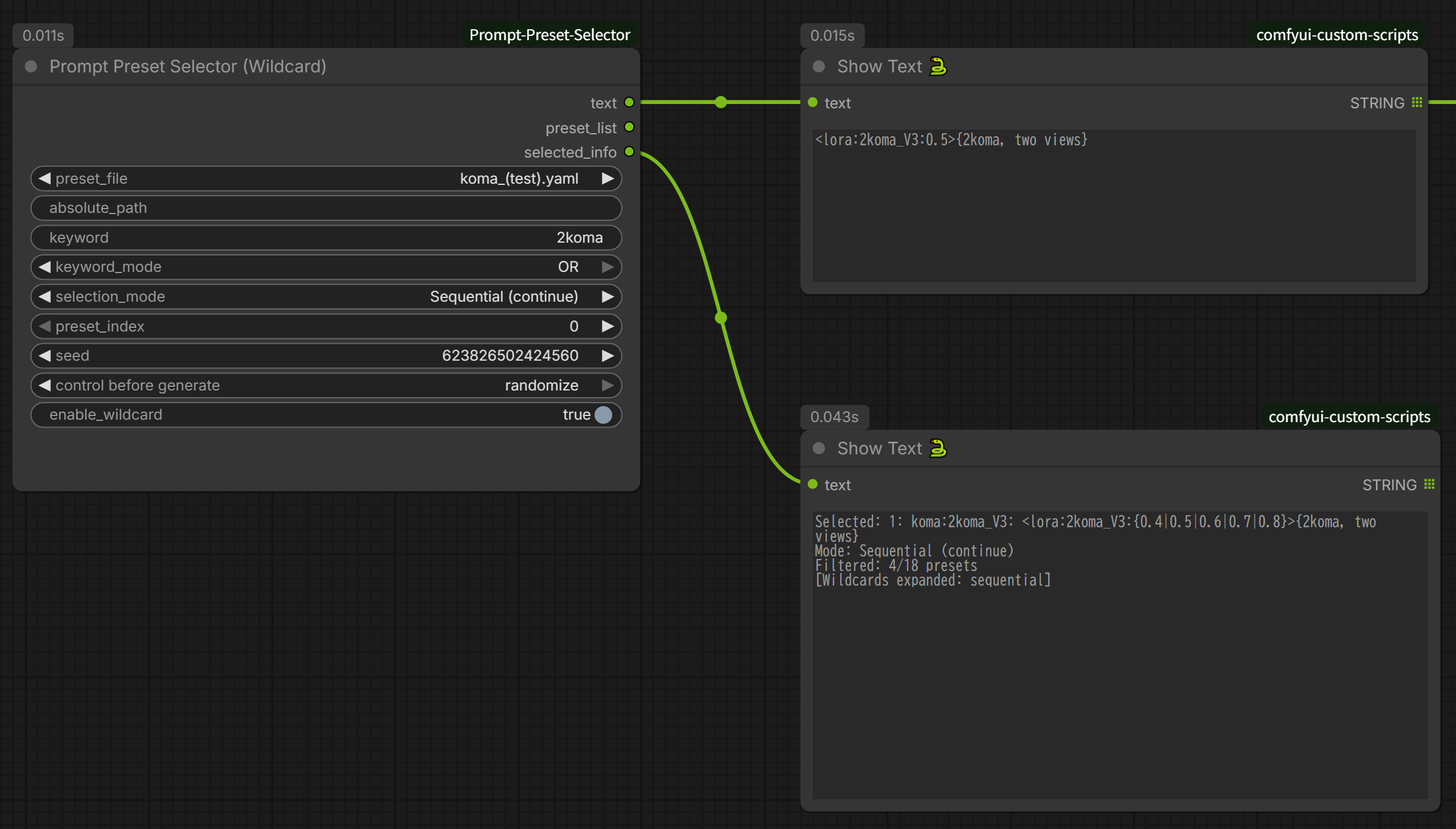
Wildcard blocks without the wildcard syntax — one spinner, every prompt variant
A prompt and its reference image, bundled in one YAML entry
Wildcard presets from plain text files, with a keyword filter bolted on
ComfyUI Prompt Preset Selector
A flexible ComfyUI node for selecting text presets from external files with advanced filtering capabilities. Perfect for managing camera angles, clothing descriptions, lighting setups, character databases, or any text-based presets.
🆕 New in v1.3.0 — Subfolder Support
The preset dropdown now reads subfolders. Until v1.2.0 only files sitting directly inside the presets and wildcards folders appeared in the list. You can now organise presets into folders and pick them from the same dropdown:
presets/
├── camera_angles.txt          → "camera_angles.txt"
├── portrait/
│   ├── lighting.txt           → "portrait/lighting.txt"
│   └── expressions.yaml       → "portrait/expressions.yaml"
└── landscape/
    └── weather.txt            → "landscape/weather.txt"
The dropdown is also sorted case-insensitively now, with top-level files first and each subfolder grouped together. Previously the list was ordered by character code, which scattered uppercase, underscore and non-ASCII names in places that made them easy to miss.
Existing workflows are unaffected. Files directly inside presets are still listed and saved under their bare file name, exactly as before. Subfolders are opt-in — nothing changes until you create one.
If your presets or wildcards folder already contained subfolders, those files will now appear in the dropdown for the first time, so the list may be longer than you remember.
Features
- 📁 External File Management: Store presets in
.txt,.yaml, or.ymlfiles - 🌐 Absolute Path Support: Use files from anywhere on your system
- 📝 Multiple YAML Formats: Supports list, nested dict, and flat formats
- 🔍 Advanced Keyword Filtering: Include/exclude keywords with phrase support
- 🎲 Multiple Selection Modes: Manual, Sequential, Sequential (continue), Random
- 🎰 Wildcard Expansion: Supports
{A|B|C},__filename__, and{__key__|__key__}syntax - 🔄 ComfyUI-Impact-Pack Integration: Compatible with wildcards folder
- 📝 Easy Editing: Edit presets with any text editor - no need to touch Python code
- 🗂️ Multiple Preset Files: Organize presets by category
- 🗃️ Subfolder Support: Group presets into folders and select them from the dropdown
- 🔀 Multi-File Search: Search across up to 3 files at once, each with its own on/off toggle
- 📂 Folder Search: Recursively search every preset file under a folder, with exclude patterns
- 💬 Comment Support: Add comments and empty lines in preset files for organization
- 🔄 Dynamic Loading: No ComfyUI restart needed when editing preset files
Node Types
This extension provides four nodes:
Prompt Preset Selector
Basic preset selection functionality. Use when wildcard expansion is not needed.
Prompt Preset Selector (Wildcard)
Enhanced version with wildcard expansion support:
{A|B|C}- Select one option from choices__filename__- Load a line from a file in the wildcards folder{__key__|__key__}- Select content from YAML keys (Impact Pack format)
Prompt Preset Selector (Multi-File, Wildcard)
Searches up to 3 preset files at the same time, so you don't have to merge files with different formats by hand. Each file slot has its own on/off toggle, dropdown, and absolute path field. Full wildcard support.
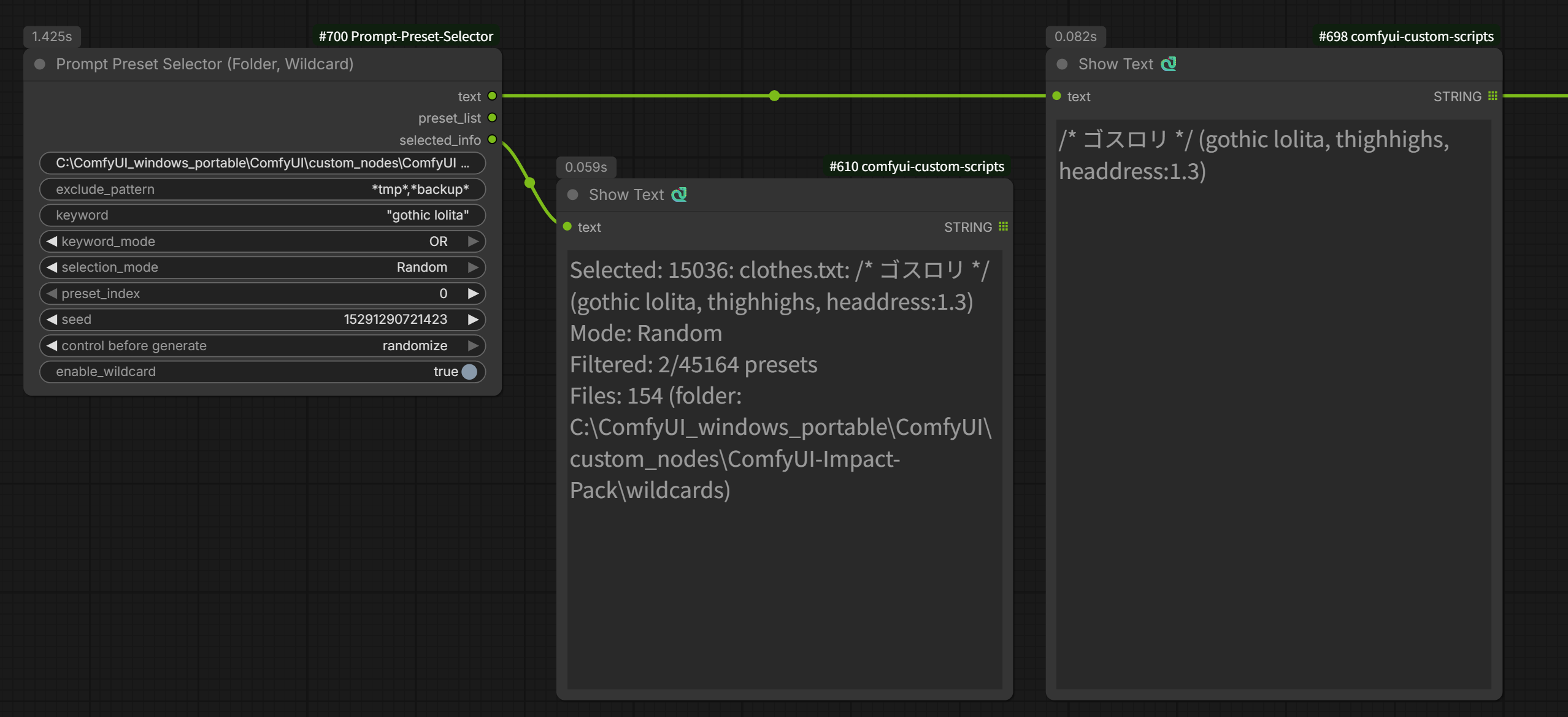
Prompt Preset Selector (Folder, Wildcard)
Recursively searches every .txt / .yaml / .yml file under a given folder, with optional exclude patterns. Full wildcard support.
Installation
- Navigate to your ComfyUI custom nodes directory:
cd ComfyUI/custom_nodes
- Clone this repository:
git clone https://github.com/shin131002/ComfyUI-Prompt-Preset-Selector.git
- (Optional) Install PyYAML if not already installed (for YAML support):
pip install pyyaml
Note: PyYAML is usually already installed in most environments. The node will display a warning if YAML files cannot be loaded.
- Restart ComfyUI
Usage
Basic Usage
- Add "Prompt Preset Selector" or "Prompt Preset Selector (Wildcard)" node to your workflow
- Option A: Select a preset file from the dropdown (e.g.,
camera_angles.txt) Option B: Enter an absolute path in theabsolute_pathfield (e.g.,/home/user/my_presets/styles.yaml) - Choose an execution mode
- Connect the
textoutput to your prompt node
Note: If absolute_path is provided, it takes priority over the preset_file dropdown.
File Locations
Preset files are loaded from the following locations (in priority order):
- Absolute path - When specified in the
absolute_pathfield - presets folder -
ComfyUI/custom_nodes/ComfyUI-Prompt-Preset-Selector/presets/ - wildcards folder -
ComfyUI/custom_nodes/ComfyUI-Impact-Pack/wildcards/(when Impact Pack is installed)
The dropdown displays files from both the presets and wildcards folders (duplicates are excluded).
Subfolders
Both folders are scanned recursively. Files inside a subfolder appear in the dropdown as a path relative to that folder:
presets/portrait/lighting.txt   → shown as "portrait/lighting.txt"
presets/camera_angles.txt       → shown as "camera_angles.txt"
Entries are listed with top-level files first, then each subfolder's files grouped together, sorted without regard to case.
To reference a file inside a subfolder with __filename__ wildcard syntax, include the folder in the name:
__portrait/lighting__
Adding a file does not require restarting ComfyUI — use Refresh Node Definitions (or press R) and the dropdown will be rebuilt.
Using Absolute Paths
You can use preset files from anywhere on your system:
/home/user/presets/camera_angles.txt
/mnt/shared/prompts/styles.yaml
C:\Users\YourName\Documents\presets\lighting.yml  (Windows)
Supported file types: .txt, .yaml, .yml
Multi-File and Folder Search
When presets are spread across several files with different formats, merging them into one file by hand is tedious. The Multi-File and Folder nodes search across multiple files at once instead.
Both nodes prefix every line with the file it came from, so the normal keyword search can narrow results down to a single file.
Prompt Preset Selector (Multi-File, Wildcard)
Three independent file slots. Each slot has:
| Field | Description |
|-------|-------------|
| enabled{n} | Turn the slot on/off without clearing its settings |
| preset_file{n} | Dropdown, same as the basic node |
| absolute_path{n} | Absolute path (takes priority over that slot's dropdown) |
Lines are prefixed with the file name:
colors.txt: red
colors.txt: blue
camera_angles.yaml: camera_angles:close_up: front view, low-angle shot
Narrow to one file by searching its prefix:
Keyword: colors.txt:
Presets are numbered in slot order (slot 1, then 2, then 3), and within each file in its original order. Disabling a slot removes its lines from the list entirely, which shifts the indices of later slots.
Prompt Preset Selector (Folder, Wildcard)
Loads every .txt / .yaml / .yml file under folder_path, including subfolders.
| Field | Description |
|-------|-------------|
| folder_path | Absolute path to the folder to search |
| exclude_pattern | Optional glob patterns, comma-separated |
Lines are prefixed with the path relative to folder_path, so identically named files in different subfolders don't collide:
colors.txt: red
sub/colors.txt: crimson
Files are loaded in alphabetical order of their relative path, so preset_index stays stable between runs.
exclude_pattern Syntax
Basic rules
- Separate multiple patterns with a comma or a newline. Surrounding whitespace is trimmed.
- Each pattern is matched using Python's
fnmatch. - Every pattern is tested against both the path relative to
folder_pathand the bare file name. A match on either one excludes the file. - Matching is a full match, not a substring match.
backupon its own matches nothing — write*backup*. - Leaving the field empty excludes nothing.
Supported wildcards
| Symbol | Meaning |
|--------|---------|
| * | Zero or more characters (including /) |
| ? | Exactly one character |
| [abc] | Any one character inside the brackets |
| [!abc] | Any one character not inside the brackets |
Examples
Given this folder:
a.txt
b_backup.txt
notes.yaml
tmp_draft.txt
sub/a.txt
sub/deep/c.txt
Backup/old.txt
| Pattern | Files excluded |
|---------|----------------|
| sub/* | sub/a.txt, sub/deep/c.txt (the whole subtree) |
| sub | Nothing — a bare folder name never matches |
| *_backup* | b_backup.txt |
| tmp_*, *_backup* | tmp_draft.txt, b_backup.txt |
| *.yaml | notes.yaml |
| sub/a.txt | sub/a.txt only |
| */deep/* | sub/deep/c.txt |
| ?.txt | a.txt, sub/a.txt, sub/deep/c.txt |
⚠️ Three things to watch for
1. * crosses /.
*.txt excludes sub/deep/c.txt as well as the top-level files — unlike a normal shell glob, where * stops at a directory separator. There is currently no way to exclude only the .txt files sitting directly inside folder_path.
2. File names are matched too, so same-named files are caught together.
a.txt also excludes sub/a.txt. Excluding only the top-level a.txt is not possible, because its relative path and its file name are the same string. To target just the one in the subfolder, write the full relative path: sub/a.txt.
3. Case sensitivity follows the operating system.
fnmatch respects platform conventions, so backup/* does not match Backup/old.txt on Linux/macOS, but does on Windows. Worth remembering if you share a workflow across a dual-boot setup.
Common patterns
*_backup*, *_bak*   → Backup files
tmp_*, *_wip*       → Drafts and work in progress
_archive/*          → An entire archive folder
*.yml               → A single extension, at every level
Cross-File YAML Key References
In both nodes, {__key__|__key__} searches keys across all loaded files, so keys defined in separate YAML files can reference each other:
# heroes.yaml
heroes:
  - superman, red cape, blue suit

# sidekicks.yaml
sidekicks:
  - robin, red vest, yellow cape

# characters.yaml
characters:
  all:
    - {__heroes__|__sidekicks__}
Selecting all picks from either file. If the same top-level key exists in more than one file, the file loaded later wins.
When Nothing is Selected
If no source is active (all slots disabled, folder empty or missing, or no preset matches the keyword), the node outputs an empty string and the workflow continues normally. It does not raise an error or halt the queue. The reason is shown in selected_info.
Wildcard Features (Wildcard Node Only)
enable_wildcard Parameter
true(default): Expand wildcard syntaxfalse: Output wildcard syntax as plain text
Generally, keeping it at true is recommended. If there's no wildcard syntax, it will output text normally.
Supported Wildcard Syntax
1. Choice Expansion: {A|B|C}
{red|blue|green} dress
→ "red dress", "blue dress", or "green dress"
Supports nesting:
{red|{dark|light} blue} dress
→ "red dress", "dark blue dress", or "light blue dress"
2. File Reference: __filename__
References content from presets/colors.txt or wildcards/colors.txt:
__colors__ dress
→ Expands to a random line from colors.txt
File search order:
presets/colors.txtwildcards/colors.txt(if not found in presets)
3. YAML Key Selection: {__key1__|__key2__}
Select content from keys within a YAML file (Impact Pack format):
characters:
  heroes:
    - superman, cape, blue suit
    - batman, dark costume, mask
  villains:
    - joker, purple suit, green hair
    - riddler, question mark, green suit
Usage example:
{__heroes__|__villains__}
→ Selects one item from either heroes or villains keys
Important: This syntax references keys within the selected preset file.
Selection Mode and Wildcard Expansion
| selection_mode | Preset Selection | Wildcard Expansion | |---|---|---| | Manual | Uses preset_index | Random (seed-based) | | Random | Random (seed-based) | Random (seed-based) | | Sequential | Sequential from preset_index | Sequential | | Sequential (continue) | Continues from last position | Sequential |
Sequential expansion: Uses wildcard options in order (next option on next execution) Random expansion: Selects based on seed each time
YAML File Formats
This node supports three YAML formats:
Format A: Presets List
presets:
  - front view, low-angle shot, close-up
  - back view, low-angle shot, close-up
  - side view, eye-level shot, medium shot
Format B: Flat List
- front view, low-angle shot, close-up
- back view, low-angle shot, close-up
- side view, eye-level shot, medium shot
Format C: Nested Dictionary
camera_angles:
  close_up:
    - front view, low-angle shot, close-up
    - back view, low-angle shot, close-up
  wide_shot:
    - front view, high-angle shot, wide shot
    - back view, high-angle shot, wide shot

lighting:
  natural:
    - golden hour lighting, warm tones
    - overcast daylight, diffused light
  studio:
    - three-point lighting, neutral balance
Important: In Format C, key hierarchy is prepended to each preset:
- Becomes:
camera_angles:close_up: front view, low-angle shot, close-up - This allows searching by keys:
camera_angles:orclose_up:or"camera angles":"close up" - Keys with spaces must use quotes in YAML:
"camera angles":
All formats are automatically flattened into a single list of presets.
Execution Modes
Manual
- Uses
preset_indexdirectly - Good for testing specific presets
Sequential
- Starts from
preset_index, increments each execution - Resets to
preset_indexwhen workflow is reloaded
Sequential (continue)
- Continues from last position across executions
- Persists state until workflow is reloaded
- Useful for generating batches
Random
- Selects random preset based on
seed - Same seed = same result (reproducible)
Keyword Filtering
Filter presets using powerful keyword search:
Basic Modes
- OFF: No filtering (use all presets)
- AND: Match ALL keywords
- OR: Match ANY keyword
Syntax
Simple Keywords:
front                → Lines containing "front"
front close-up       → AND: both "front" AND "close-up"
front, back          → OR: "front" OR "back"
Phrase Search (use double quotes):
"low-angle shot"     → Match exact phrase
front "eye-level"    → Combine phrase and word
YAML Key Hierarchy Search:
When using nested YAML dictionaries, keys are prepended to preset text:
camera_angles:
  close_up:
    - front view, low-angle shot, close-up
Becomes: camera_angles:close_up: front view, low-angle shot, close-up
Search by keys:
camera_angles:              → All presets under camera_angles
close_up:                   → All presets with close_up key (any level)
camera_angles:close_up:     → Exact path (requires space as separator in AND mode)
"camera angles":            → Keys with spaces (use quotes)
"camera angles" "close up"  → Both keys present (AND mode)
⚠️ Excluding Wildcard Choice Lines:
When using nested YAML structures, wildcard choice lines ({__key1__|__key2__}) may match keyword searches:
characters:
  all:
    - {__heroes__|__villains__}
  heroes:
    - superman, cape, blue suit
  villains:
    - joker, purple suit
Searching for "heroes" will also include the all line (because "heroes" appears in the wildcard).
Solution: Include the colon : in your search
Keyword: heroes:
This searches as a key hierarchy, excluding wildcard choice lines:
- ❌
all: {...}→ No match (not in "heroes:" format) - ✅
heroes: superman, cape...→ Match
Alternative:
Keyword: heroes -all
Use exclusion keywords to explicitly exclude all.
Exclusion (use minus prefix):
front -wide          → Include "front", exclude "wide"
front -wide -medium  → Multiple exclusions
-wide -back          → Only exclusions (remove from all)
"front view" -"wide shot" → Phrase with exclusion
camera_angles: -wide_shot:  → Key filter + key exclusion
Filtering Rules
- Keywords are case-insensitive
- Exclusions use OR logic (exclude if ANY match)
- Exclusions apply AFTER inclusion filtering
- Order doesn't matter:
front -wide=-wide front - Delimiters: comma
,or space - YAML dict keys are searchable: Use
:suffix for key matching (e.g.,close_up:) - Spaces in keys: Use double quotes (e.g.,
"camera angles":)
Examples
| Keyword | Mode | Result |
|---------|------|--------|
| front close-up -wide | AND | Has both "front" AND "close-up", but NOT "wide" |
| front back -medium | OR | Has "front" OR "back", but NOT "medium" |
| "front view" -"wide shot" | AND | Has phrase "front view", but NOT phrase "wide shot" |
| -wide | OFF | All lines except those with "wide" |
| camera_angles: | AND | All presets under camera_angles key (YAML) |
| "close up": | AND | All presets with "close up" key (YAML, spaces in key) |
| lighting: -dramatic: | AND | lighting key presets, excluding dramatic key |
| heroes: | AND | Only heroes key (excludes wildcard choice {__heroes__|...}) |
Creating Custom Presets
Text Files (.txt)
- Navigate to the
presetsfolder in this node's directory - Create a new
.txtfile (e.g.,my_presets.txt) - Add your presets, one per line:
# This is a comment - it will be ignored

front view, low-angle shot, close-up
side view, eye-level shot, medium shot
back view, high-angle shot, wide shot

# Another section
overhead view, bird's-eye view, establishing shot
YAML Files (.yaml / .yml)
Create structured preset files with YAML:
# Nested dictionary format
camera_angles:
  close_up:
    - front view, low-angle shot, close-up
    - side view, low-angle shot, close-up

  medium_shot:
    - front view, eye-level shot, medium shot
    - side view, eye-level shot, medium shot
Or use simple list format:
presets:
  - front view, low-angle shot, close-up
  - side view, eye-level shot, medium shot
- Refresh ComfyUI or restart
- Your new preset file will appear in the dropdown
Preset File Formats
Text Files (.txt)
- One preset per line
- Lines starting with
#are comments (ignored) - Empty lines are ignored
- UTF-8 encoding supported (for international characters)
YAML Files (.yaml, .yml)
- Three supported formats: presets list, flat list, nested dictionary
- All formats are flattened into a single preset list
- Comments supported using
# - UTF-8 encoding supported
Node Parameters
Prompt Preset Selector (Basic)
| Parameter | Type | Description |
|-----------|------|-------------|
| preset_file | Dropdown | Select which file to use from presets or wildcards directory |
| absolute_path | String | Optional: Absolute path to preset file (overrides preset_file) |
| keyword | String | Keywords for filtering (supports phrases and exclusions) |
| keyword_mode | Dropdown | Filter mode: OFF, AND, OR |
| selection_mode | Dropdown | How to select presets: Manual, Sequential, Sequential (continue), Random |
| preset_index | Integer | Starting index (0-based) for Manual/Sequential modes |
| seed | Integer | Random seed for reproducible random selection |
Prompt Preset Selector (Wildcard)
All parameters from the basic version, plus:
| Parameter | Type | Description |
|-----------|------|-------------|
| enable_wildcard | Boolean | Enable/disable wildcard expansion (default: true) |
Prompt Preset Selector (Multi-File, Wildcard)
| Parameter | Type | Description |
|-----------|------|-------------|
| enabled1 / enabled2 / enabled3 | Boolean | Turn each file slot on/off (default: true) |
| preset_file1 / preset_file2 / preset_file3 | Dropdown | Select a file for each slot |
| absolute_path1 / absolute_path2 / absolute_path3 | String | Optional: absolute path for each slot (overrides that slot's dropdown) |
| keyword | String | Keywords for filtering (applied to the combined list) |
| keyword_mode | Dropdown | Filter mode: OFF, AND, OR |
| selection_mode | Dropdown | Manual, Sequential, Sequential (continue), Random |
| preset_index | Integer | Starting index (0-based) in the combined list |
| seed | Integer | Random seed for reproducible random selection |
| enable_wildcard | Boolean | Enable/disable wildcard expansion (default: true) |
Prompt Preset Selector (Folder, Wildcard)
| Parameter | Type | Description |
|-----------|------|-------------|
| folder_path | String | Absolute path to the folder to search (subfolders included) |
| exclude_pattern | String | Optional: comma-separated glob patterns to skip (e.g. *_backup*, tmp_*) |
| keyword | String | Keywords for filtering (applied to the combined list) |
| keyword_mode | Dropdown | Filter mode: OFF, AND, OR |
| selection_mode | Dropdown | Manual, Sequential, Sequential (continue), Random |
| preset_index | Integer | Starting index (0-based) in the combined list |
| seed | Integer | Random seed for reproducible random selection |
| enable_wildcard | Boolean | Enable/disable wildcard expansion (default: true) |
Node Outputs
| Output | Type | Description |
|--------|------|-------------|
| text | STRING | The selected preset text (with wildcards expanded) |
| preset_list | STRING | Numbered list of all available presets (for reference) |
| selected_info | STRING | Details about selection (index, mode, filter stats, wildcard expansion info) |
Example Use Cases
Wildcard Usage Examples
Dynamic Character Selection
characters:
  all_characters:
    - {__heroes__|__villains__|__sidekicks__}
  heroes:
    - superman, red cape, blue suit
    - batman, dark costume, utility belt
  villains:
    - joker, purple suit, green hair
  sidekicks:
    - robin, red vest, yellow cape
Selecting all_characters will randomly choose from 3 categories, then select a character from that category.
Color and Style Combinations
Create colors.txt in the presets folder:
red
blue
green
yellow
Preset:
__colors__ {dress|suit|jacket}
→ "red dress", "blue suit", "green jacket", etc.
Prompt Library Management
Save and reuse prompts from your successful generations with date-tagged keys:
portraits:
  "girl_soft_lighting_20250115": masterpiece, best quality, 1girl, soft lighting, gentle smile, pastel colors, bokeh background, natural pose, detailed eyes, flowing hair
  "boy_dramatic_20250116": high contrast, 1boy, dramatic lighting, intense gaze, dark background, cinematic composition, sharp focus
  "fantasy_elf_20250117": fantasy art, elf girl, pointed ears, ethereal beauty, magic glow, forest background, detailed costume

landscapes:
  "sunset_beach_20250114": beautiful sunset, golden hour, ocean waves, dramatic sky, vibrant colors, peaceful atmosphere, photorealistic
  "cyberpunk_city_20250115": cyberpunk cityscape, neon lights, rain reflections, futuristic architecture, night scene, highly detailed

experimental:
  "abstract_colors_20250113": abstract art, vibrant colors, flowing shapes, dreamlike, artistic composition
Usage examples:
"girl_soft_lighting_20250115":→ Recall specific prompt in fullportraits:+ Sequential → Try portrait prompts one by oneportraits:+ Random → Randomly select from past portrait workslighting -dramatic→ Prompts containing "lighting" but not "dramatic"
Benefits:
- ✅ Record successful prompts with dates
- ✅ Easily generate variations with the same settings
- ✅ Review what worked well later
- ✅ Share good prompts with your team
Systematically manage your past successes and streamline your creative workflow!
Camera Angle Variations
Generate systematic camera angle variations with filtering:
Keyword: "close-up" -back
Mode: Sequential
→ Cycles through all close-up shots except back views
Anime Character Database
Organize character prompts by series:
anime:
  shonen:
    - luffy, straw hat, scar under eye, determined expression
    - naruto, blonde hair, whisker marks, orange jacket
    - goku, spiky black hair, orange gi, martial arts pose
  seinen:
    - spike spiegel, green hair, brown suit, cigarette
    - guts, black armor, huge sword, intense gaze
  slice_of_life:
    - yui hirasawa, brown hair, school uniform, guitar
Search examples:
anime:→ All anime charactersshonen:→ Only shonen charactersshonen: -naruto→ Shonen characters except Narutoblonde -naruto→ Blonde characters excluding Naruto"slice_of_life":→ Slice of life characters only
This is perfect for managing large character databases where you want to randomly select from specific categories!
YAML-based Style Library
Organize complex style hierarchies:
styles:
  anime:
    - vibrant colors, bold outlines, expressive eyes
    - pastel tones, soft shading, cute aesthetic

  realistic:
    - photographic quality, detailed textures
    - high dynamic range, natural lighting

  artistic:
    - watercolor effect, soft edges, dreamy atmosphere
    - oil painting style, thick brushstrokes, rich colors
Absolute Path for Shared Presets
Use team-shared preset files:
absolute_path: /mnt/shared/company_presets/brand_styles.yaml
keyword: professional
→ Access centralized preset library
LoRA Combinations
<lora:style1:0.8>, anime style, vibrant colors
<lora:style2:1.0>, realistic, detailed
<lora:style3:0.9>, watercolor, soft edges
Note: This node outputs LoRA syntax as plain text. To actually load and apply LoRAs, connect the output to a LoRA-compatible node that can parse the <lora:name:weight> syntax. The node itself does not process LoRA syntax—it simply provides the text for downstream nodes to handle.
Tips
Using preset_list Output
Connect preset_list to a display node to see all available presets with their indices. Useful for:
- Checking which presets match your keywords
- Finding the right
preset_indexvalue - Verifying filter results
Using selected_info Output
Shows execution details like:
Selected: 5: front view, eye-level shot, close-up
Mode: Sequential (continue)
Filtered: 24/96 presets
[Wildcards expanded: sequential]
Batch Generation
Use Sequential (continue) mode with keyword filtering:
- Set keyword filter (e.g.,
"close-up" -back) - Choose Sequential (continue) mode
- Queue multiple generations → Each generation uses the next matching preset
Reproducible Results
For random selection:
- Use Random mode
- Note the seed value when you get good results
- Use the same seed to reproduce exactly
Wildcard Tips
- Keep
enable_wildcard=truerecommended (no effect if no wildcard syntax exists) - Sequential mode expands wildcards sequentially too
{__key__|__key__}references keys within the same YAML file (in the Multi-File and Folder nodes, it searches across all loaded files)__filename__searches both presets and wildcards folders
Multi-File and Folder Tips
- Use the
enabled{n}toggles to A/B test file combinations without retyping paths - Search a prefix (
colors.txt:,sub/) to scope results to one file or subfolder - Keep
exclude_patternin mind when a folder holds backups, drafts, or notes you don't want in the pool - Because indices are assigned after filtering, changing which files are active shifts
preset_indexresults — use keyword scoping if you need stable indices
Troubleshooting
Q: Empty dropdown for presets?
A: This node uses an integer preset_index instead of a text dropdown. Use the preset_list output to see available presets.
Q: Keywords not working?
A: Make sure keyword_mode is set to AND or OR, not OFF. Check that keywords match actual text in your preset file.
Q: Sequential (continue) mode not continuing? A: This mode resets when you reload the workflow. State persists only during active workflow execution.
Q: Exclusions not working?
A: Make sure you're using the minus prefix: -wide not - wide. No space after the minus.
Q: YAML file not loading?
A: Ensure PyYAML is installed: pip install pyyaml. Check that your YAML syntax is valid. The node supports three formats (see YAML File Formats section).
Q: Absolute path not working? A:
- Check the file exists at the specified path
- Use forward slashes
/even on Windows (or escaped backslashes\\) - Ensure file has supported extension:
.txt,.yaml, or.yml - Verify you have read permissions for the file
Q: Wildcards not expanding? A:
- Check that
enable_wildcardis set totrue - Make sure you're using the Wildcard version node ("Prompt Preset Selector (Wildcard)")
- For
__filename__, verify the file exists in presets or wildcards folder - For
{__key__|__key__}, verify the keys exist in the selected YAML file
Q: Wildcard choice lines included in filter results?
A: Include the colon : in your keyword search. For example, searching for heroes will also match {__heroes__|...}, but searching for heroes: will only match actual key hierarchies and exclude wildcard choice lines.
Q: A newly added preset file isn't in the dropdown?
A: The list is rebuilt whenever ComfyUI fetches node definitions, so a restart isn't needed — use Refresh Node Definitions (or press R). If it still doesn't appear, check that the extension is .txt, .yaml or .yml, and remember the list is sorted with top-level files first and subfolders grouped after them, so a file in a subfolder won't sit next to the others.
Q: Nothing generated / empty prompt from the Multi-File or Folder node?
A: Check selected_info. These nodes intentionally output an empty string (rather than erroring) when no source is active, so the workflow keeps running. Common causes: all enabled{n} toggles are off, folder_path doesn't exist, exclude_pattern matched everything, or the keyword filtered out all presets.
Q: Folder node not finding files in subfolders?
A: Subfolders are searched recursively by default. Verify the files use a supported extension (.txt, .yaml, .yml) and that exclude_pattern isn't matching them — patterns are tested against both the relative path and the file name.
Q: preset_index points to a different preset than before?
A: Indices are assigned to the combined, filtered list. Enabling/disabling a slot, adding a file to the folder, or changing the keyword all shift the numbering. Scope with a keyword prefix (e.g. colors.txt:) for more stable results.
Q: Two files have the same name in the Folder node?
A: Prefixes use the path relative to folder_path, so colors.txt and sub/colors.txt stay distinct. In the Multi-File node prefixes are file names only, so same-named files in different folders will share a prefix.
Q: YAML nested dict returns wrong order? A: Python dictionaries maintain insertion order (Python 3.7+), but the flattening process extracts all values. The order depends on YAML structure traversal.
Disclaimer and Support Policy
Disclaimer
- This node is provided without technical support
- No warranty for functionality
- No guarantee of compatibility with future ComfyUI updates
- Bug reports and feature requests may not be addressed
- Use at your own risk
Support Status
- ❌ No individual support via issues or email
- ❌ No guarantee of bug fixes or feature additions
- ✅ Code is open source - feel free to fork and modify
- ✅ Community discussions welcome (no promise of response)
Reporting Issues
While support is not guaranteed, you may:
- Check existing issues in the repository
- Review this README and troubleshooting section
- Open an issue (may not be addressed)
- Fork and fix it yourself
License
MIT License - feel free to use, modify, and distribute as needed.