
MOSS漫画コマ割りデータセット
ComfyUI内で見本から漫画のコマ割りを選び、人物・場面・セリフをMOSSへ渡すカスタムノード
MOSS漫画コマ割りデータセット
日本語 | English
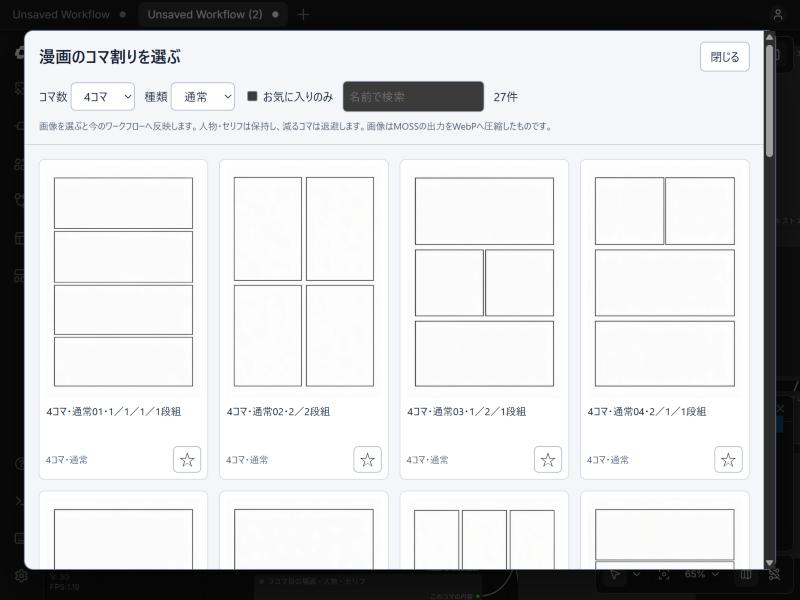
ComfyUIの中で漫画のコマ割りを画像から選び、人物・場面・セリフを専用欄に入力してMOSSへ渡すカスタムノードです。配置ごとのワークフローのダウンロードや、JSON・座標の手書きは不要です。
https://github.com/user-attachments/assets/05a9d952-7a60-448c-94f5-e35ae3029449
デモ動画(mp4・30秒):ComfyUIで四コマを選び、人物とセリフを入力して生成するまでの実際の操作を録画したものです。操作待ち・生成待ちを短縮し、上端に操作案内の字幕を入れています。漫画の画像には手を加えていません。
できること
- 見本の画像からコマ割りを選択。2〜6コマに対応します。
- コマ数・種類・名前で絞り込み、お気に入りを登録できます。
- 配置を選ぶと、コマ入力ノードと接続が自動で増減します。
- 減らしたコマの入力を退避し、コマ数を戻すと復元します。人物・セリフ・モデル・サンプラー・シード設定を維持します。
- 人物の外見と場面は英語で入力し、セリフは描かせたい言語のまま渡します。翻訳や追加のLLMは使いません。
- 見本・配置情報を同梱しているため、導入後のカタログ閲覧に外部サービスへの接続は不要です。
導入
- このリポジトリを
ComfyUI/custom_nodes/ComfyUI-MossPanelDatasetに配置してください。ZIPの場合は、展開したフォルダの直下に__init__.pyがある形にします。webだけ、またはノードのPythonファイルだけをコピーせず、dataとimagesも一緒に置いてください。 - 下記のMOSS対応ComfyUIとモデルを用意してください。このノード専用の追加パッケージやインストールスクリプトはありません。
- ComfyUIを再起動し、ブラウザーを再読み込みしてください。
- 最初の一度だけ make_manga.json をComfyUIへドラッグ&ドロップして開き、ComfyUI側へ保存してください。ComfyUIの「テンプレート」画面にも
ComfyUI-MossPanelDatasetのmake_mangaとして表示されるので、そこから開くこともできます。以後はそのワークフローを開いて配置を選び直せます。
旧試作版を導入済みの場合は、同じノードのフォルダやジャンクションを重複して置かないでください。配布版のDBは同梱196種類だけを収録しており、除外した配置や旧試作専用の配置を使うワークフローは選択し直す必要があります。
Gitを使う場合は、ComfyUI/custom_nodes で次を実行します。現段階ではComfy Registryへの登録は行っていません。
git clone https://github.com/sepiablue-ai/ComfyUI-MossPanelDataset.git
必要な環境とモデル
Python 3.10以降と、MOSS-Imageのネイティブ対応を含むComfyUIが必要です。動作確認はComfyUI v0.42.0(Python 3.13)で行いました。CLIPLoader の種類に moss_image がなく、EmptyFlux2LatentImage ノードもない古いComfyUIでは動きません。その場合はComfyUIを更新してください。モデル重みは同梱していません。MOSS公式のComfyUI案内とComfy-Orgのモデル配布ページを参照してください。
同梱ワークフローで指定しているファイルは次の3つです。
| 配置先 | ファイル名 |
| --- | --- |
| ComfyUI/models/diffusion_models/ | moss_image_sft_int8_convrot.safetensors |
| ComfyUI/models/text_encoders/ | qwen3.5_9b_int8_convrot.safetensors |
| ComfyUI/models/vae/ | flux2-vae.safetensors |
モデル選択欄で各ファイルを確認してください。別名やサブフォルダへ置いた場合は、ローダーの選択を変更します。CLIPLoader の種類は moss_image です。重みを自動でダウンロードする機能はありません。
元のデータセット生成はWindows・RTX 3060 12GBで実施しました。同梱ワークフローは1024×1536、25ステップ、CFG 2.5、er_sde / simple、DMD LoRAなしです。配布版の独立配置での検査は VALIDATION.md を参照してください。他のGPU・OSでの実生成は未確認です。
使い方
- 「画像からコマ割りを選ぶ」を押し、見本画像を選びます。初期表示は通常の直線配置です。「斜め」「特殊」へ切り替えることもできます。
- 「共通の人物設定」で、人物1・人物2の名前と外見を入力します。外見は英語で記述します。名前は管理用で、日本語でも構いません。
- 各コマの「場面」を英語で入力し、「登場人物」を選びます。
- 「話者1」と「セリフ1」を入力します。本文だけ入力し、外側のかぎ括弧やJSONは不要です。日本語なら日本語、英語なら英語のまま使います。2発言目は話者2・セリフ2を使います。
- 無言なら話者を「セリフなし」にし、本文を空欄にしてください。「人物なし」なら背景だけを指定できます。
- ComfyUIの「実行する」を押します。
空枠だけを生成する場合は、選択ノードの「生成内容」を「空のコマ枠」に変えます。人物・場面・セリフをプロンプトから除き、枠だけをMOSSに描かせます。
プロンプトを確認・編集する(任意)
実際にMOSSへ渡すプロンプトを見たいときは、「MOSSプロンプトを確認・編集」ノードを「コマ割りを選ぶ」の MOSS用プロンプト 出力と CLIPTextEncode の間に挟みます。標準の make_manga.json には入れていません。最初から挟んだ make_manga_edit_prompt.json(テンプレート画面では make_manga_edit_prompt)も同梱しているので、プロンプトを触りたいときはこちらを開いてください。
- 「使うプロンプト」を「受け取ったまま」にして実行すると、下の「受け取ったプロンプト」欄に実際のプロンプトを表示します。編集欄が空なら、同じ内容が編集欄にも入ります。
- 編集欄で文を直し、「使うプロンプト」を「編集した文」に変えて実行すると、直した内容をMOSSへ渡します。
- 人物やセリフを変えて作り直したいときは、「受け取ったまま」に戻すか、「受け取ったプロンプトを編集欄へコピー」で編集欄を最新の内容に置き換えます。手で直した編集欄は自動では上書きしません。
編集欄はJSONとして読める形にしてください。括弧やカンマが壊れている場合は、実行時に行と文字の位置を示して止まります。
人物やセリフなどの作業内容と、退避したコマの入力は、通常のComfyUIワークフローとして保存してください。お気に入りはブラウザーの保存領域に記録します。別のブラウザーには自動で移らず、サイトデータを削除すると消えます。同梱DBへの書き込みは行いません。
同梱するコマ割り
通常の追加100種類と、先行100種類から近似重複候補4種類を除いた96種類の、計196種類です。見本画像は合計約2.8MBです。
| コマ数 | 通常の追加分 | 先行分 | 合計 | | --- | ---: | ---: | ---: | | 2 | 20 | 18 | 38 | | 3 | 20 | 19 | 39 | | 4 | 20 | 20 | 40 | | 5 | 20 | 20 | 40 | | 6 | 20 | 19 | 39 | | 合計 | 100 | 96 | 196 |
すべての見本はMOSSが生成した画像です。配布容量を抑えるため、元のPNG(1024×1536)を非可逆WebP(品質90)へ変換しました。変換による圧縮で、細部や白地のノイズは元のPNGと完全には一致しません。変換以外の処理(文字入れ、合成、枠線の描き直し、縮小、切り抜き)は行っていません。ファイル名は配置IDへそろえています。元PNGに含まれていた生成時のプロンプト情報は、WebPには引き継いでいません。不要な生成履歴・失敗画像・個別プロンプトファイルは同梱していません。
コマ数は閉じた白い領域の数で自動検査しました。近似重複は閉領域の矩形座標差(最大2%・平均0.8%以内)と、許容幅付き枠線一致率95%以上から検出しています。「似ていない」「構図が正確」と人間が全件確認したものではありません。
制限
今後追加する予定の機能は ROADMAP.md にまとめています。
- 共通人物は2人、1コマにつき最大2人・2発言です。人物数を自動で増やす機能はありません。
- コマ入力の自動増減は、このノードと
MossMangaPanelの組み合わせで動きます。別ノードへも接続されているコマ入力は削除しません。 - 座標と説明でモデルに指示する方式です。見本画像を直接コピーする方式ではなく、生成のたびにコマの形・比率・数が変わることがあります。
- 斜め線や特殊形状は説明文でも指示します。モデルに渡す領域情報は矩形であり、多角形の輪郭を強制するマスクではありません。
- 人物と吹き出しはコマ内の簡単な固定配置です。場面に応じた最適な配置や吹き出しの尻尾を推論する機能はありません。
- 文字の誤字・崩れ、人物の混線、コマ数の増減を保証して防ぐものではありません。生成画像に文字や枠を重ねて補修する処理はありません。
- 導入時のモデルダウンロードとComfyUI本体の環境設定は利用者側で行います。
更新と検査
フォルダを更新後、ComfyUIを再起動してブラウザーを再読み込みしてください。人物・セリフを同梱DBに保存しないため、ノードの更新と利用者のワークフロー保存は別です。お気に入りは配置IDを使い、ワークフローの選択値は配置名を使います。今後の更新では既存IDと配置名を維持します。
開発時は、このフォルダで次を実行できます。既存のComfyUI用Pythonなど、aiohttp を利用できる環境を使ってください。Node.jsは画面の増減処理の検査にだけ使用し、通常の利用には不要です。
python -m unittest discover -s tests
node tests/test_picker_state.mjs
ライセンスと出典
本プロジェクト独自のコード・配置データ・同梱見本画像は、MITライセンスで配布します。全文は LICENSE を参照してください。
見本画像はMOSS-Imageによる生成物です。MOSS-Imageのモデル重み(Comfy-Org配布版)とMOSS-Image公式リポジトリのコードは Apache License 2.0 で公開されています(2026年11月2日に各配布ページで確認)。モデルの重み・ComfyUI・その他の第三者の実装は本リポジトリに含まず、本リポジトリのライセンスの対象でもありません。利用時はそれぞれの配布元のライセンスを確認してください。
<a id="english"></a>
MOSS Manga Panel Layout Dataset
日本語 | English
A ComfyUI custom node for MOSS-Image. Pick a manga panel layout from preview images inside ComfyUI, then enter characters, scenes, and dialogue in dedicated fields. The node builds the MOSS prompt for you, so you do not need to download a workflow per layout or write JSON and coordinates by hand.
https://github.com/user-attachments/assets/05a9d952-7a60-448c-94f5-e35ae3029449
Demo video (mp4, 30 s): a real screen recording of choosing a four-panel layout, entering characters and dialogue, and generating the page in ComfyUI. Waiting time is shortened and Japanese operation captions are shown at the top. The manga image itself is not edited.
The node UI and its labels are in Japanese. The table in Node labels lists English translations of the main labels.
Features
- Choose a panel layout from preview images. Layouts with 2 to 6 panels are supported.
- Filter by panel count, type, and name, and mark favorites.
- When you pick a layout, the panel input nodes and their connections are added or removed automatically.
- Inputs of removed panels are stashed and restored when you increase the panel count again. Characters, dialogue, model, sampler, and seed settings are kept.
- Write character appearance and scenes in English. Dialogue is passed through in whatever language you want rendered. No translation or extra LLM is used.
- Previews and layout data are bundled, so browsing the catalog needs no external service.
Installation
- Place this repository at
ComfyUI/custom_nodes/ComfyUI-MossPanelDataset. If you use a ZIP, make sure__init__.pyis directly inside the extracted folder. Copy the whole folder, includingdataandimages, not justwebor the Python files. - Prepare a MOSS-capable ComfyUI and the models listed below. This node needs no extra Python packages or install scripts.
- Restart ComfyUI and reload the browser page.
- Open make_manga.json once by dragging it into ComfyUI, then save it in ComfyUI. It also appears as
make_mangaunderComfyUI-MossPanelDatasetin ComfyUI's Templates browser. After that, open the saved workflow and pick layouts from it.
If you installed an earlier prototype, do not keep a second copy or junction of the same node. The bundled database contains only the 196 layouts listed below; workflows that used excluded or prototype-only layouts need a new selection.
To install with Git, run the following in ComfyUI/custom_nodes. It is not registered on the Comfy Registry yet.
git clone https://github.com/sepiablue-ai/ComfyUI-MossPanelDataset.git
Requirements and models
Python 3.10 or later and a ComfyUI build with native MOSS-Image support are required. Tested with ComfyUI v0.42.0 (Python 3.13). Older ComfyUI versions without the moss_image type in CLIPLoader or without the EmptyFlux2LatentImage node will not work; update ComfyUI in that case. Model weights are not included. See the official MOSS ComfyUI guide and the Comfy-Org model page.
The bundled workflow uses these three files:
| Folder | File name |
| --- | --- |
| ComfyUI/models/diffusion_models/ | moss_image_sft_int8_convrot.safetensors |
| ComfyUI/models/text_encoders/ | qwen3.5_9b_int8_convrot.safetensors |
| ComfyUI/models/vae/ | flux2-vae.safetensors |
Check each file in the loader dropdowns. If you saved them under another name or subfolder, change the loader selection. The CLIPLoader type is moss_image. Weights are not downloaded automatically.
The original dataset was generated on Windows with an RTX 3060 12GB. The bundled workflow uses 1024×1536, 25 steps, CFG 2.5, er_sde / simple, and no DMD LoRA. See VALIDATION.md (Japanese) for the checks run on this distribution. Generation on other GPUs and operating systems has not been tested.
Usage
- Press 「画像からコマ割りを選ぶ」 (Choose a layout from images) and click a preview. The default view shows standard straight layouts; you can switch the type to 「斜め」 (diagonal) or 「特殊」 (special).
- In 「共通の人物設定」 (Shared characters), enter the name and appearance of character 1 and character 2. Write appearance in English. Names are for your own reference and can be in any language.
- In each panel node, write the 「場面」 (scene) in English and choose the 「登場人物」 (characters in the panel).
- Choose 「話者1」 (speaker 1) and type 「セリフ1」 (line 1). Enter only the text, without surrounding quotation brackets or JSON. Japanese stays Japanese and English stays English. Use speaker 2 / line 2 for a second line.
- For a silent panel, set the speaker to 「セリフなし」 (no dialogue) and leave the text empty. Choose 「人物なし」 (no characters) to describe a background only.
- Press the Run button in ComfyUI.
To generate empty panel frames only, set 「生成内容」 (output) on the layout node to 「空のコマ枠」 (empty panel frames). Characters, scenes, and dialogue are then left out of the prompt, and MOSS draws only the frames.
Viewing and editing the prompt (optional)
To see the exact prompt sent to MOSS, insert the 「MOSSプロンプトを確認・編集」 (View and edit MOSS prompt) node between the layout node's MOSS用プロンプト output and CLIPTextEncode. It is not part of make_manga.json. make_manga_edit_prompt.json (make_manga_edit_prompt in the Templates browser) already includes it, so open that one when you want to work with the prompt.
- With 「使うプロンプト」 (Prompt to use) set to 「受け取ったまま」 (as received), run the workflow. The 「受け取ったプロンプト」 (Received prompt) box shows the actual prompt. If the edit box is empty, the same text is copied into it.
- Edit the text in the edit box, switch to 「編集した文」 (edited text), and run again to send your edited prompt to MOSS.
- After changing characters or dialogue, switch back to 「受け取ったまま」, or press 「受け取ったプロンプトを編集欄へコピー」 (Copy received prompt to the edit box) to refresh it. A hand-edited box is never overwritten automatically.
The edit box must stay valid JSON. Broken brackets or commas stop the run with the line and column of the error.
Save your characters, dialogue, and stashed panel inputs as a normal ComfyUI workflow. Favorites are stored in the browser's local storage; they do not move to other browsers and are lost if you clear site data. The node never writes to the bundled database.
Node labels
| Japanese label | English meaning | | --- | --- | | コマ割りを選ぶ(2〜6コマ) | Choose a panel layout (2–6 panels) | | 共通の人物設定(普通の文章で入力) | Shared characters (plain text) | | コマの内容(場面・登場人物・セリフ) | Panel content (scene, characters, dialogue) | | MOSSプロンプトを確認・編集 | View and edit MOSS prompt | | コマ割り | Layout | | 生成内容: 漫画 / 空のコマ枠 | Output: manga / empty panel frames | | 人物1_名前 / 人物1_外見 | Character 1 name / appearance | | 場面 | Scene | | 登場人物: 人物1のみ / 人物2のみ / 人物1と人物2 / 人物なし | Characters: 1 only / 2 only / 1 and 2 / none | | 話者1・セリフ1 / 話者2・セリフ2 | Speaker 1, line 1 / speaker 2, line 2 | | セリフなし | No dialogue |
Bundled layouts
196 layouts in total: 100 standard layouts added later, plus 96 from the earlier set of 100 after removing 4 near-duplicate candidates. The preview images total about 2.8 MB.
| Panels | Standard (added) | Earlier set | Total | | --- | ---: | ---: | ---: | | 2 | 20 | 18 | 38 | | 3 | 20 | 19 | 39 | | 4 | 20 | 20 | 40 | | 5 | 20 | 20 | 40 | | 6 | 20 | 19 | 39 | | Total | 100 | 96 | 196 |
Every preview was generated by MOSS. To reduce the download size, the original PNGs (1024×1536) were converted to lossy WebP (quality 90). Because of the compression, fine details and noise in white areas do not exactly match the original PNGs. No other processing was applied (no added text, compositing, redrawn borders, downscaling, or cropping). Files were renamed to their layout IDs. The generation prompt metadata stored in the original PNGs is not carried over to the WebP files. Generation history, failed images, and per-image prompt files are not included.
Panel counts were checked automatically by counting closed white regions. Near-duplicates were detected from the rectangle coordinates of closed regions (max 2%, mean 0.8% difference) and a border match rate of 95% or more with tolerance. A human has not reviewed every layout for distinctness or accuracy.
Limitations
Planned features are listed in ROADMAP.md.
- Two shared characters; up to two characters and two lines per panel. The number of characters cannot be increased.
- Automatic panel adding and removing works with this node and
MossMangaPanel. Panel inputs that are also connected to other nodes are not deleted. - The model is guided by coordinates and descriptions; previews are not copied into the image. Panel shapes, proportions, and count can change from run to run.
- Diagonal and special shapes are also described in text. The regions passed to the model are rectangles, not masks that force a polygon outline.
- Characters and speech balloons use simple fixed positions inside each panel. The node does not infer the best placement for a scene or the balloon tail direction.
- Typos or broken text, mixed-up characters, and changes in panel count are not prevented. Nothing is overlaid on the generated image to fix text or borders.
- Downloading models and setting up ComfyUI itself are up to you.
Updating and tests
After updating the folder, restart ComfyUI and reload the browser page. Characters and dialogue are not stored in the bundled database, so updating the node is separate from your saved workflows. Favorites use layout IDs, and workflow selections use layout names; future updates will keep existing IDs and names.
For development, you can run the following in this folder. Use an environment that has aiohttp, such as your ComfyUI Python. Node.js is used only to test the panel add/remove logic and is not needed for normal use.
python -m unittest discover -s tests
node tests/test_picker_state.mjs
License and credits
The original code, layout data, and bundled preview images of this project are distributed under the MIT License. See LICENSE for the full text.
The preview images were generated with MOSS-Image. The MOSS-Image model weights (Comfy-Org distribution) and the official MOSS-Image repository code are published under the Apache License 2.0 (checked on each distribution page on November 2, 2026). Model weights, ComfyUI, and other third-party implementations are not included in this repository and are not covered by its license. Check each project's license before use.