
Zip Ties
Bundle ComfyUI wires into ribbons with colour-coded zip ties. Hold Z and drag across wires to tie them.
Zip Ties for ComfyUI
A frontend extension that bundles wires into a ribbon with small zip ties. The idea comes from a prototype by @cmzw_.
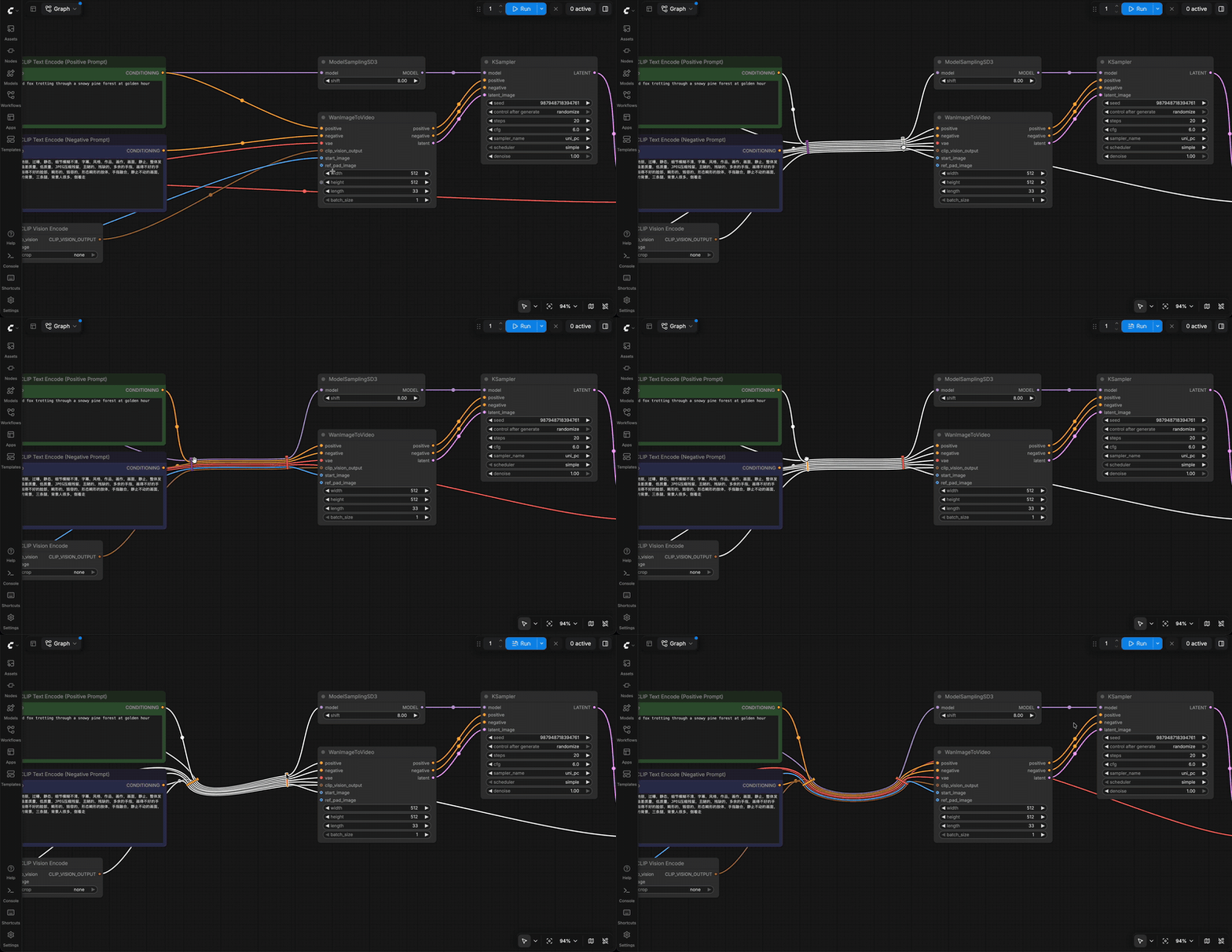
The full recording is zip-ties-demo.mp4.
Use
| Action | Gesture |
|---|---|
| Tie wires together | Hold Z and drag a line across the wires |
| Tie wires without a keyboard | Right-click the empty canvas, choose Tie wires, then drag a line across the wires |
| Move a tie | Drag the tie |
| Select several ties | Ctrl/Cmd-click each tie, Shift-click to add one, or drag a selection box across them together with nodes |
| Move selected ties | Drag one of them, or drag a selected node and they come along |
| Delete selected ties | Press Delete or Backspace |
| Rotate a tie | Shift-drag the tie. It snaps to 15° steps; hold Alt as well to rotate freely |
| Change colour, rotate 90° or 45°, remove | Right-click the tie |
| Remove a tie | Hold Z and drag a line across the tie, or double-click it |
While you drag, the wires the line crosses turn white. If the line crosses a tie, the line and the tie turn red, and letting go removes that tie. The setting Zip Ties → Key to hold while dragging across wires changes the key from Z to X, C, G, T or Y. It only offers letters that ComfyUI does not already use on their own. With Alt, Ctrl, Cmd or Shift held, a drag does what it normally does, so Alt-drag still clones a node while the key is down.
Each new tie gets a random cable-tie colour. The setting Zip Ties → Colour of new ties changes that to "Match wires", which takes the most common colour among the wires in the tie, or to plain grey. Right-clicking a tie changes the colour of that one tie.
The wires keep their colours and run side by side between ties. Hovering or dragging a tie highlights every wire in it. A wire can pass through several ties. Rotating a tie turns the direction the wires take through it, so two ties at 0° and 90° make a right-angle bend.
Wires that pass through reroutes can be tied too. A tie holds the piece of wire it was drawn across: the piece between two reroutes, between an output and a reroute, or between the last reroute and the input. A piece that ends at a reroute is shared by every wire through that reroute.
A tie moves along when you move every node and reroute its wires connect, for example a whole selection. Moving only some of them leaves the tie where it is, the same as a reroute. A tie inside a group moves with the group when you drag the group; Ctrl/Cmd-dragging a group moves only its frame, and the ties stay put like the nodes do. Selected ties move with the selected nodes, and Delete removes selected nodes and ties in one step that one undo brings back. A wire that is disconnected and connected again between the same two slots stays in its ties. A deleted wire, or one connected to a different slot, leaves its ties, and a tie with no wires left disappears.
Copying and pasting nodes brings their ties along when every wire in a tie is part of the copy. One undo removes the pasted nodes and their ties together.
Ties are stored in the workflow's extra.zipTies, so they save, load and undo with the rest of the graph. Workflows opened without the extension still load; the wires draw normally. A malformed zipTies entry is dropped when the workflow loads. A tie is hidden, and cannot be clicked, while none of its wires are drawn: when links are hidden for the whole canvas, or when every wire in the tie was hidden with Hide Link. It comes back when one of its wires is shown again.
Install
Search for "Zip Ties" in ComfyUI-Manager, or install it with the Comfy CLI:
comfy node install comfyui-zip-ties
To install by hand, clone into ComfyUI/custom_nodes and restart ComfyUI:
cd ComfyUI/custom_nodes
git clone https://github.com/safzanpirani/comfyui-zip-ties
The extension adds no nodes and has no Python dependencies.
How it works
The extension is one file, web/zip_ties.js. It wraps these litegraph methods on the canvas:
renderLink: records where each wire piece starts and ends, and when a piece belongs to a tie it redraws it as several segments that pass through the tie, each strand offset sideways from the tie centre. Segment drawing is delegated to ComfyUI's own link renderer, so colours, borders and highlight behaviour come along for free._renderAllLinkSegments: litegraph skips a wire when both its ends are off screen, so the extension draws a tied wire anyway when one of its ties is on screen.drawConnections: prunes ties whose wires are gone and moves ties that should follow a moved group, the dragged selection, or nodes and reroutes that all moved together, then draws the ties on top of the wires.deselectAll,handleLiveSelect,_handleMultiSelectanddeleteSelected: ties take part in clearing, box-selecting and deleting the canvas selection._serializeItemsand_deserializeItems: copy adds the ties to the clipboard data, and paste maps them onto the new wires inside the same undo step.
The drag gesture runs in capture-phase listeners on window, so it sees pointer events before litegraph and can claim them when the key is held or a tie is hit. The line is tested against each wire's bezier curve. When a new tie's wires all already belong to another tie, it copies that tie's strand order so wires never cross inside the bundle.
Limits
- A reroute piece that is drawn from a link badge (the hidden-link shortcut) cannot be tied.
- The ribbon shape is tuned for spline links. Straight and linear link modes still route through the ties, but the cut test treats each segment as a straight line.
- Tested on ComfyUI 0.42.0 with frontend 1.57.1, in both the classic canvas and Vue nodes mode.
License
MIT