
ComfyUI-Bundle-Library
Bundle Library custom node for ComfyUI
Bundle Library for ComfyUI
Keep inputs that belong together (prompts, images, video, audio and settings) as named bundles, and load any of them with one node.
English | 한국어
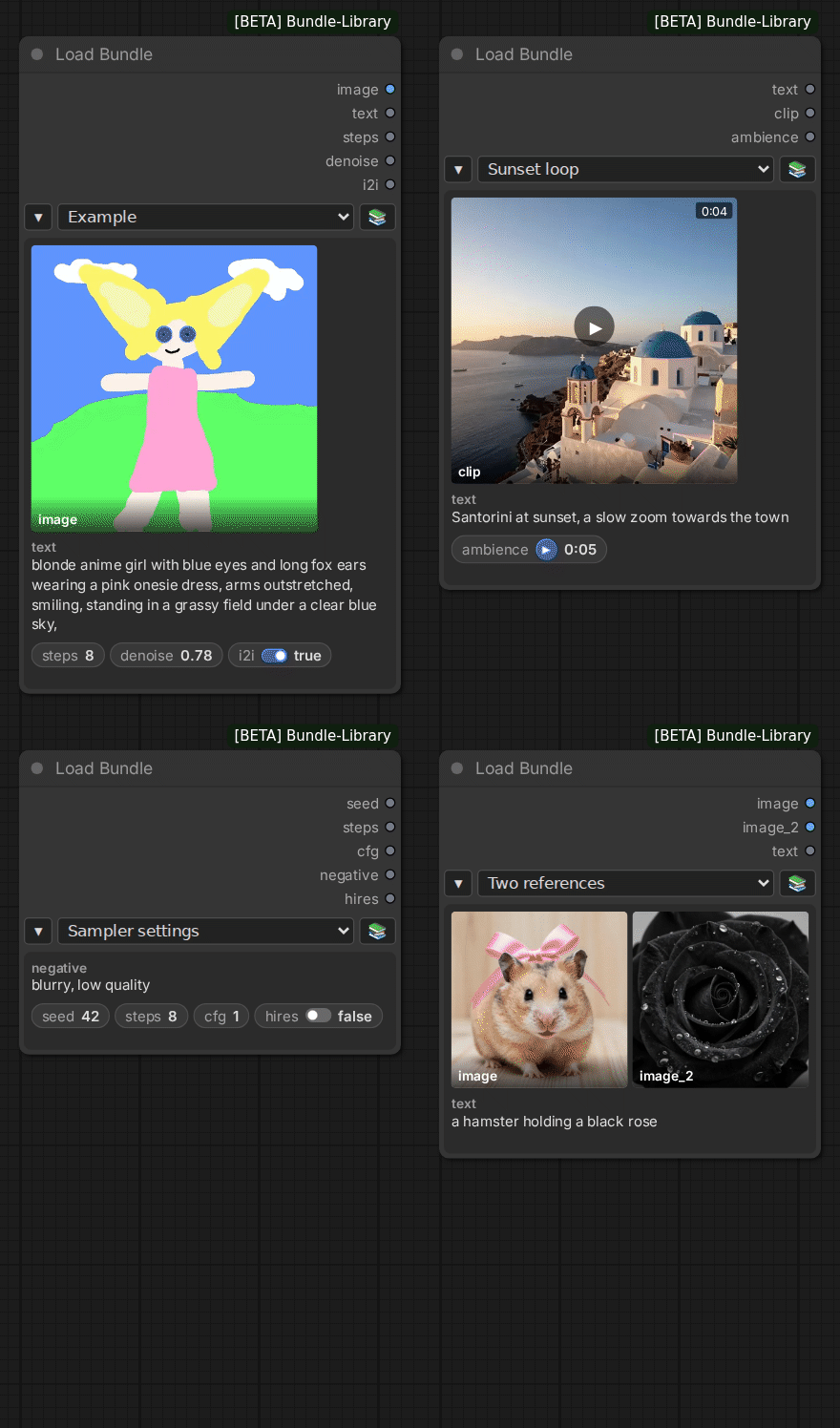
Overview
You often run the same workflow with different sets of inputs. Bundle Library keeps each set as a bundle, and the Load Bundle node brings the chosen bundle into the workflow. Bundles with the same inputs but different values can be swapped without rewiring.
Bundles live in their own library where your ComfyUI is running, so every workflow can use them.
Features
- One node, any inputs. The output slots of the Load Bundle node follow the chosen bundle, one for each of its inputs.
- Mixed input types. A bundle can hold text, numbers, switches, images, video and audio together.
- Choices for dropdowns. A bundle can also hold what another node's dropdown takes, such as a LoRA, a model file or a sampler, checked against that dropdown's options.
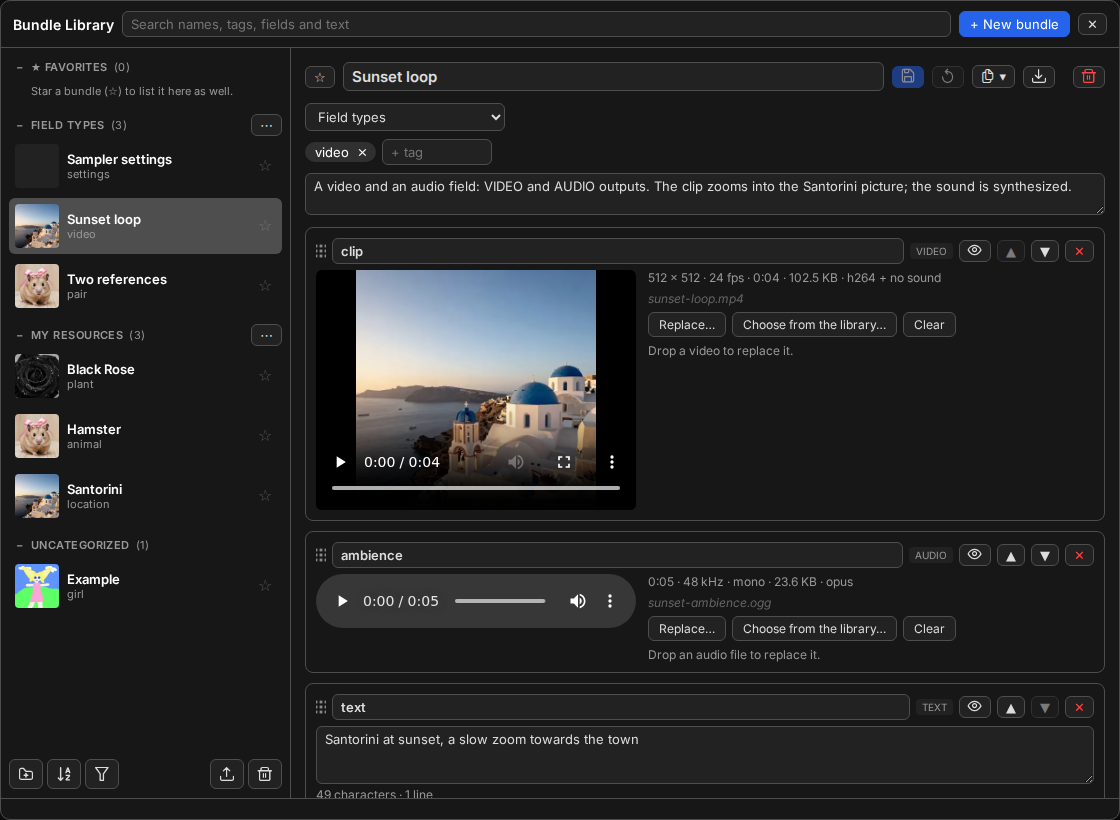
- A library window. Create, edit, search and organize bundles.
- Files stored once. A file used by several bundles is stored once, and stored files can be reused in new bundles.
- Import and export. Bundles can be exported with their files as a ZIP file, and imported later into this library or another.
- An HTTP API. Scripts and AI agents can make, change and use bundles too.
Installation
Requires ComfyUI 0.38.0 or later.
-
ComfyUI-Manager: search for Bundle Library and install it.
-
comfy-cli:
comfy node install bundle-library -
Manual installation:
cd ComfyUI/custom_nodes
git clone https://github.com/romanyogurt/ComfyUI-Bundle-Library
Restart ComfyUI after installing.
Example workflow
The pack comes with an example workflow, four bundles made for it, and three more with other kinds of inputs.
- Open the example. In Workflow → Browse Templates, search for z-image-turbo. It makes an image with Z-Image Turbo from a bundle's prompt, or from the bundle's image (image to image). Its note lists the models it needs and where they go.
- Import the example bundles. Open the library from the box icon in the sidebar (Open library). An empty library offers Import the examples: click it, then Import 7 bundles.
- Run it. Choose a bundle on the workflow's Load Bundle node and run. Choose another one and run again.
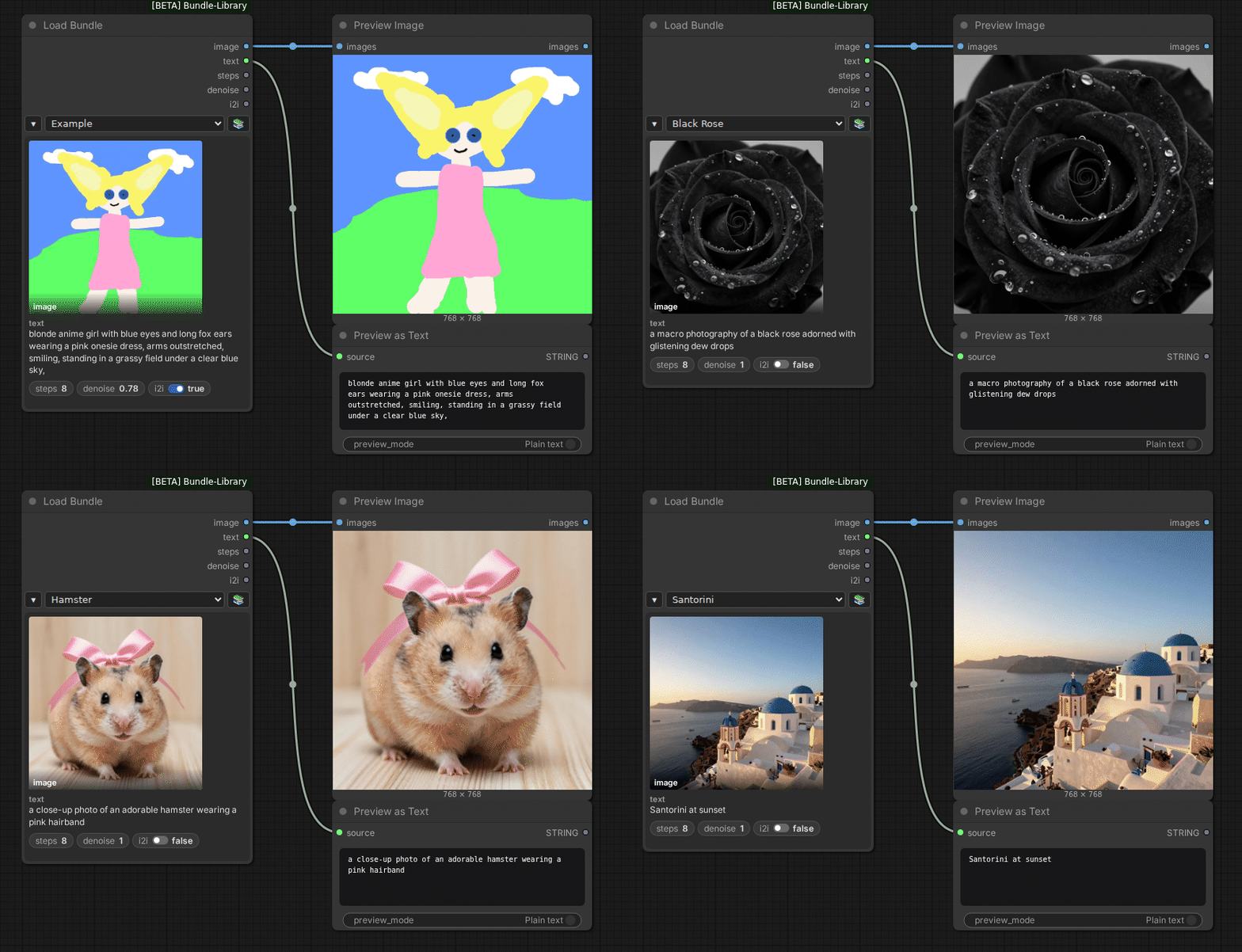
The three bundles in Field types hold other kinds of inputs (a video and audio, numbers, choices and a switch, two images). Choose one on a Load Bundle node to see its output slots change.
To make your own, select an example, Duplicate → Duplicate with values, change its prompt and image, and save. It works in the same workflow. See Getting started for more.
Documentation
Everything else is in the wiki:
- Using it: Getting started, Bundles and fields, The Load Bundle node, The library window, Import and export, Images, video and audio, Data and backups, FAQ and troubleshooting.
- Reference: HTTP API, File formats, Compatibility and versions, Automating with the API.
- Contributing: Translations, Reporting problems, Working on the code.
For AI agents, llms.txt points to the plain-text versions of these pages.
Updates
See the changelog and the
releases page. Your bundles are in
ComfyUI/user/bundle_library/; back up this folder before updating.
Good to know
- Anyone who can connect to your ComfyUI can also use the library.
- With
--multi-user, all users share one library.
More in Data and backups.
License
Bundle Library is under the MIT License. Some example files come from other projects and keep their own licenses; see THIRD-PARTY-NOTICES.md.