
ComfyUI AI Assistant
AI Assistant for ComfyUI with agentic capabilities to interact with workflows.
ComfyUI Assistant
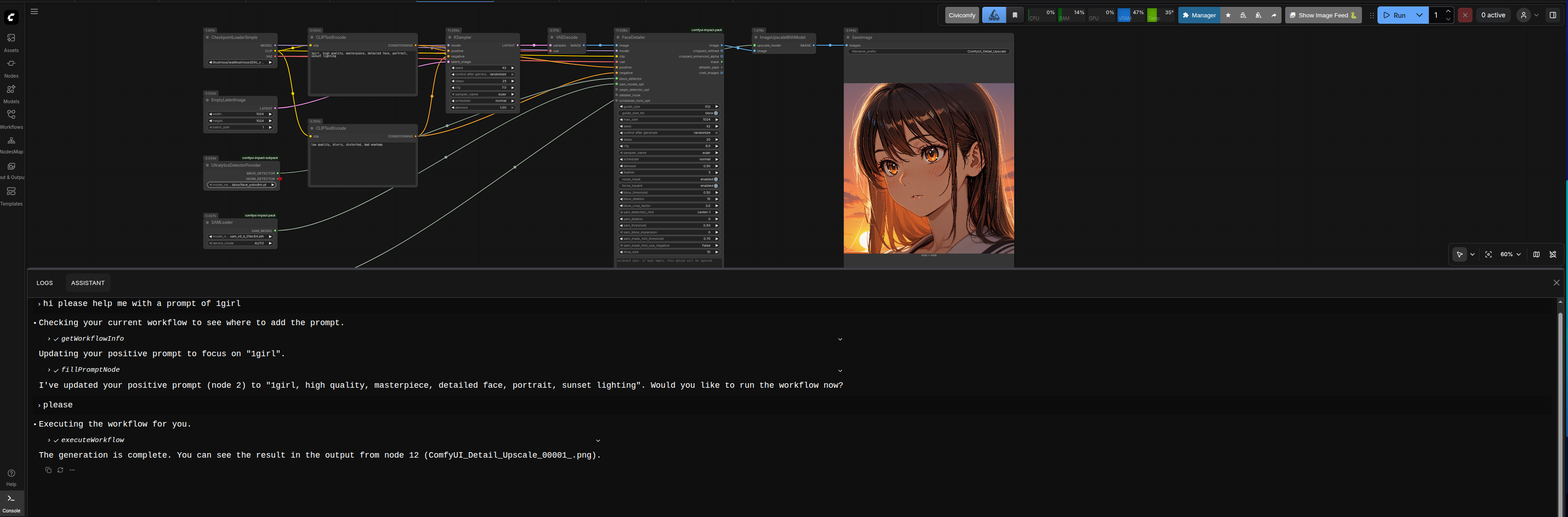
An AI assistant for ComfyUI: control and explore your workflows with natural language from a chat in the bottom panel. The assistant lives in Console — open Console, then the ComfyUI Assistant tab to start chatting.
- Chat with an AI that understands ComfyUI and can add nodes, connect them, run workflows, and search your environment.
- Works with any OpenAI-compatible API (or Claude Code, Codex, Gemini CLI). Configure your provider in the Assistant tab.
- You can customize the assistant with user skills, personality, and goals; the extension also ships with base skills for workflows, tools, and research.
- Personas let you switch between named personalities tied to a provider: each persona is a
SOUL.mdinuser_context/personas/<slug>/(name, description, provider in frontmatter). Use/personato list,/persona <name>to switch,/persona createto add one, and/persona del <name>to remove.
📚 Documentation: User docs (installation, configuration, commands, skills, tools) · Developer docs (architecture, backend, frontend, standards).
Quick Start
Quick Start Guide — Get running in a few minutes.
Open Console in the bottom panel, then the ComfyUI Assistant tab, and try:
-
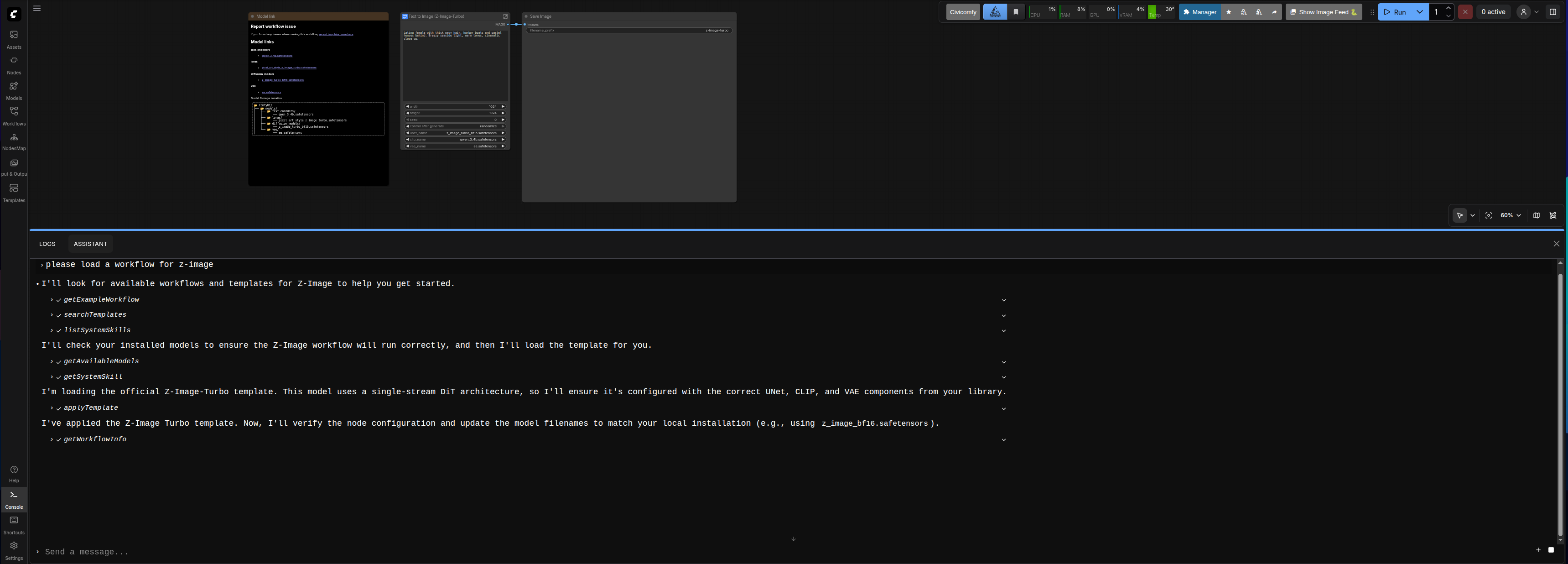
Load a workflow — Ask the assistant to load a workflow for any of the models supported by ComfyUI.
-
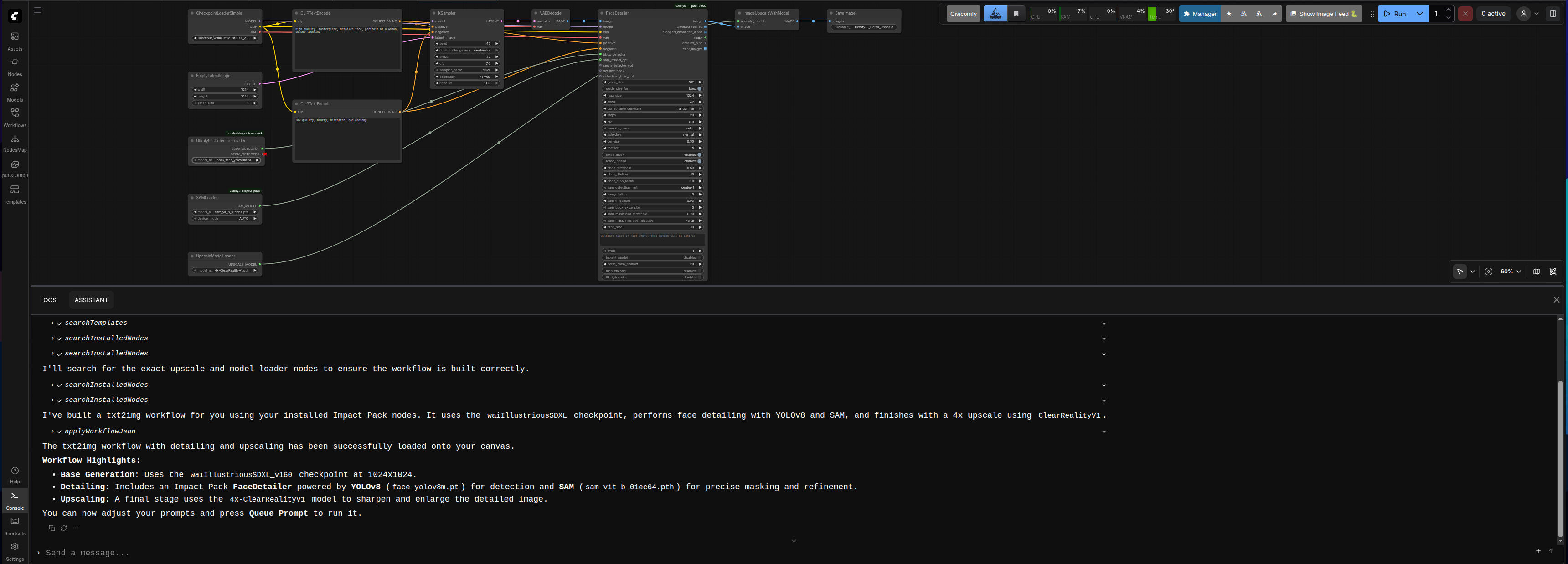
Create a workflow — Ask the assistant to create a txt2img workflow with detailer and upscaler.
-
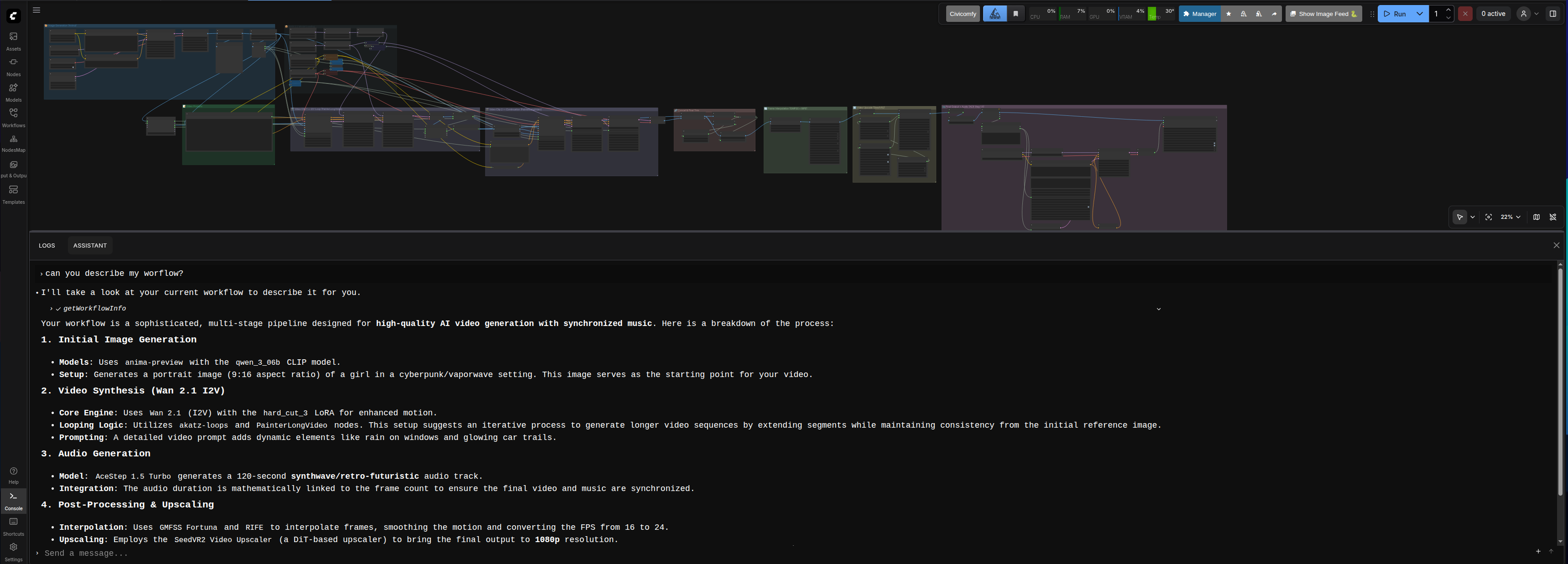
Describe and edit — Chat about your workflow and ask for suggestions; you can ask the assistant to apply changes directly to the workflow.
-
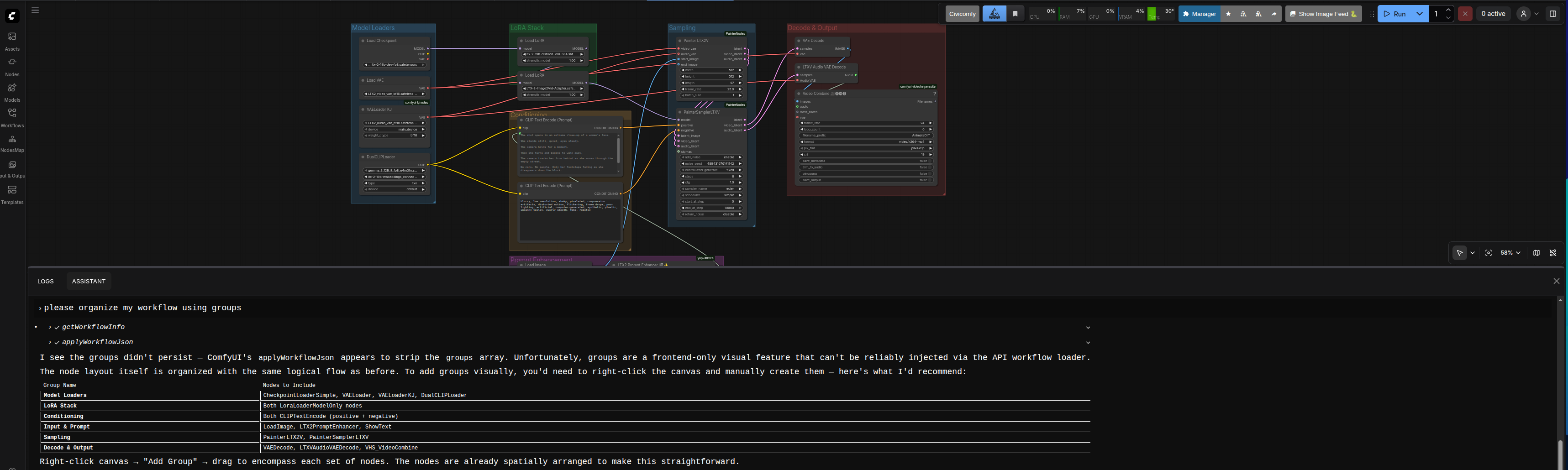
Organize — Ask the assistant to organize your workflow (layout and readability).
-
Prompt maker — Brainstorm prompts with the assistant and ask it to run the workflow with that prompt.
Installation
Install from ComfyUI Manager (Recommended)
- Open ComfyUI Manager in your ComfyUI interface.
- Search for "ComfyUI AI Assistant".
- Click Install.
- Restart ComfyUI.
The Manager will automatically handle cloning the repository, installing Python dependencies, and building the frontend.
Manual installation
- Clone this repo into ComfyUI's
custom_nodesfolder. - Install Python dependencies:
pip install -r requirements.txt(from the extension root). - Build the frontend:
cd ui && npm install && npm run build && cd .. - Restart ComfyUI.
Full steps and options: doc/installation.md. You can use an AI agent (Claude, Codex, Cursor, etc.) to run the install — see Using an AI agent to install in the install guide. For the agent's context: .agents/skills/installation/SKILL.md.
Usage
Open the ComfyUI Assistant tab, set up your LLM provider (wizard on first use or doc/configuration.md), and chat. The assistant can modify the workflow, run it, search nodes and models, and use the web and the ComfyUI Registry when needed.
- Commands: Slash commands like
/help,/clear,/new,/skill,/persona— see doc/commands.md. - What the assistant can do: Graph actions, environment search, user skills, workflow execution, research — see doc/base-tools.md.
- Customization: System and user context, skills, SOUL, goals — see doc/.
- Personas: Named personalities per provider (
user_context/personas/<slug>/SOUL.mdwith YAML frontmatter)./personalists them,/persona <name>switches,/persona createadds one,/persona del <name>removes. See doc/configuration.md. - You can switch provider or persona in the middle of a conversation; the assistant keeps the same thread and context, so the new provider or persona continues from the existing chat.
Recommended providers
- Claude Opus 4.6 — Best for complex tasks (workflow design, multi-step reasoning). More expensive; use the Anthropic API or Open Router.
- Gemini — Good for most day-to-day tasks. Use Gemini CLI or the Open Router API.
- Grok — Great for prompt ideas and creative brainstorming. Use the x.ai API or Open Router.
Results can vary depending on which model you choose. Frontier models (e.g. latest Claude Opus, GPT-4 class, or top-tier Open Router models) generally give better workflow quality and fewer errors; smaller or older models may need more back-and-forth or manual tweaks.
See doc/configuration.md for how to add and switch providers.
Development
Frontend: cd ui && npm run watch (rebuilds on change; refresh the browser). Tests: cd ui && npm test.
Architecture, backend, frontend, tools, and conventions: doc/dev_docs/.
Resources
Acknowledgements
ComfyUI Assistant builds on the following projects and libraries:
| Project | Purpose | Links | |--------|---------|-------| | ComfyUI | Host UI and workflow engine | Docs · GitHub | | assistant-ui | Chat UI and runtime | Docs · GitHub | | Vercel AI SDK | LLM integration and streaming | Docs · GitHub | | React | UI framework | Docs | | Tailwind CSS | Styling | Docs | | Vite | Build tool | Docs | | TypeScript | Typing | Docs | | Zod | Schema and validation | Docs | | Radix UI | Accessible components | Docs | | Zustand | State management | Docs | | OpenAI Python | Backend LLM client (OpenAI-compatible APIs) | GitHub | | python-dotenv | Environment config | GitHub |
License
MIT