
ComfyUI-PhotoDeblur
Photo deblurring for ComfyUI with HI-Diff and MISCFilter. comfy ui节点以及工作流支持手抖与运动模糊修复、原尺寸分块处理及模型下载。
Nodes (5)
ComfyUI-PhotoDeblur
English | 简体中文
Native HI-Diff and MISCFilter photo deblurring nodes for ComfyUI. Supports original-resolution tiled processing, overlap blending, optional TTA, and official model downloads.
Before / after
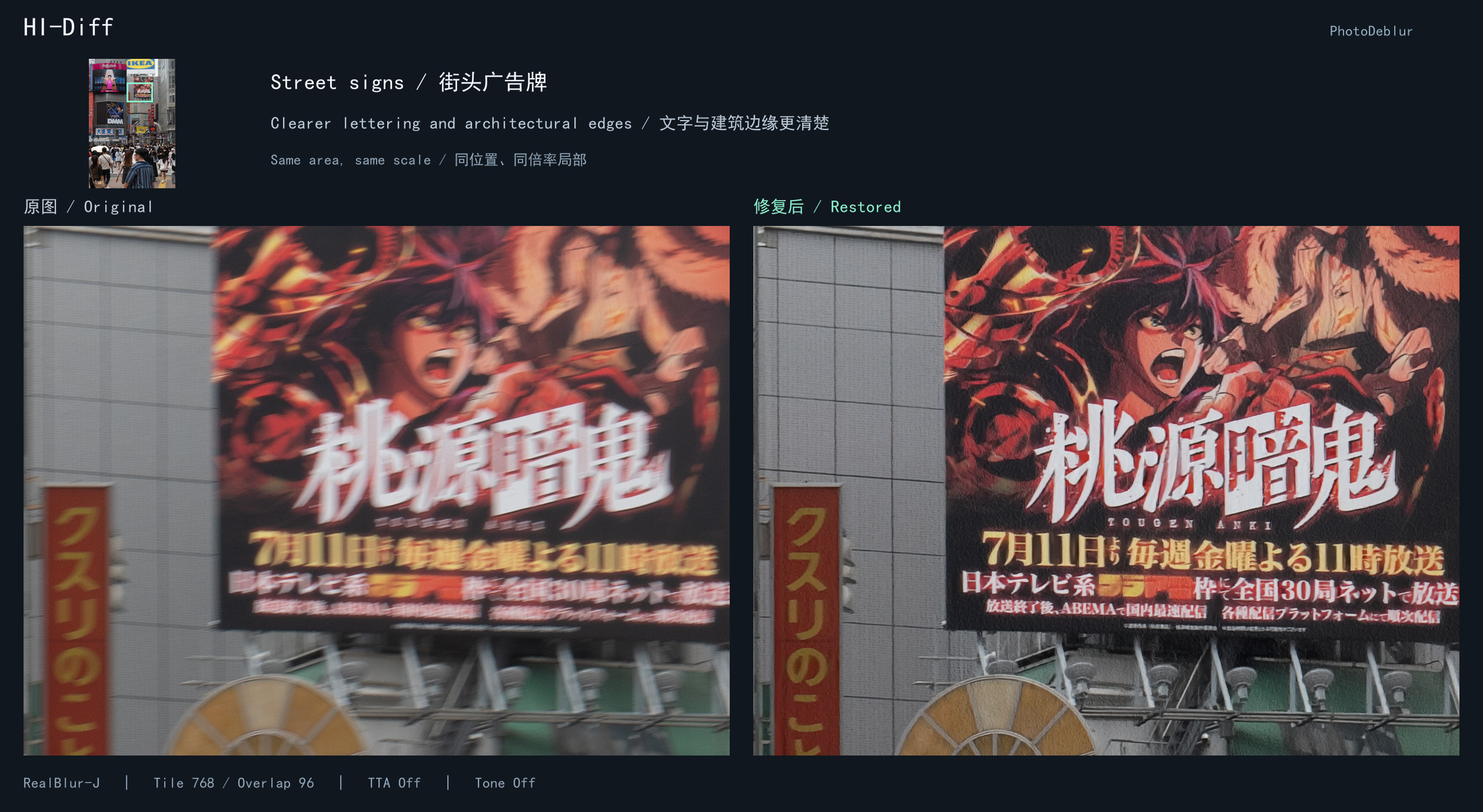
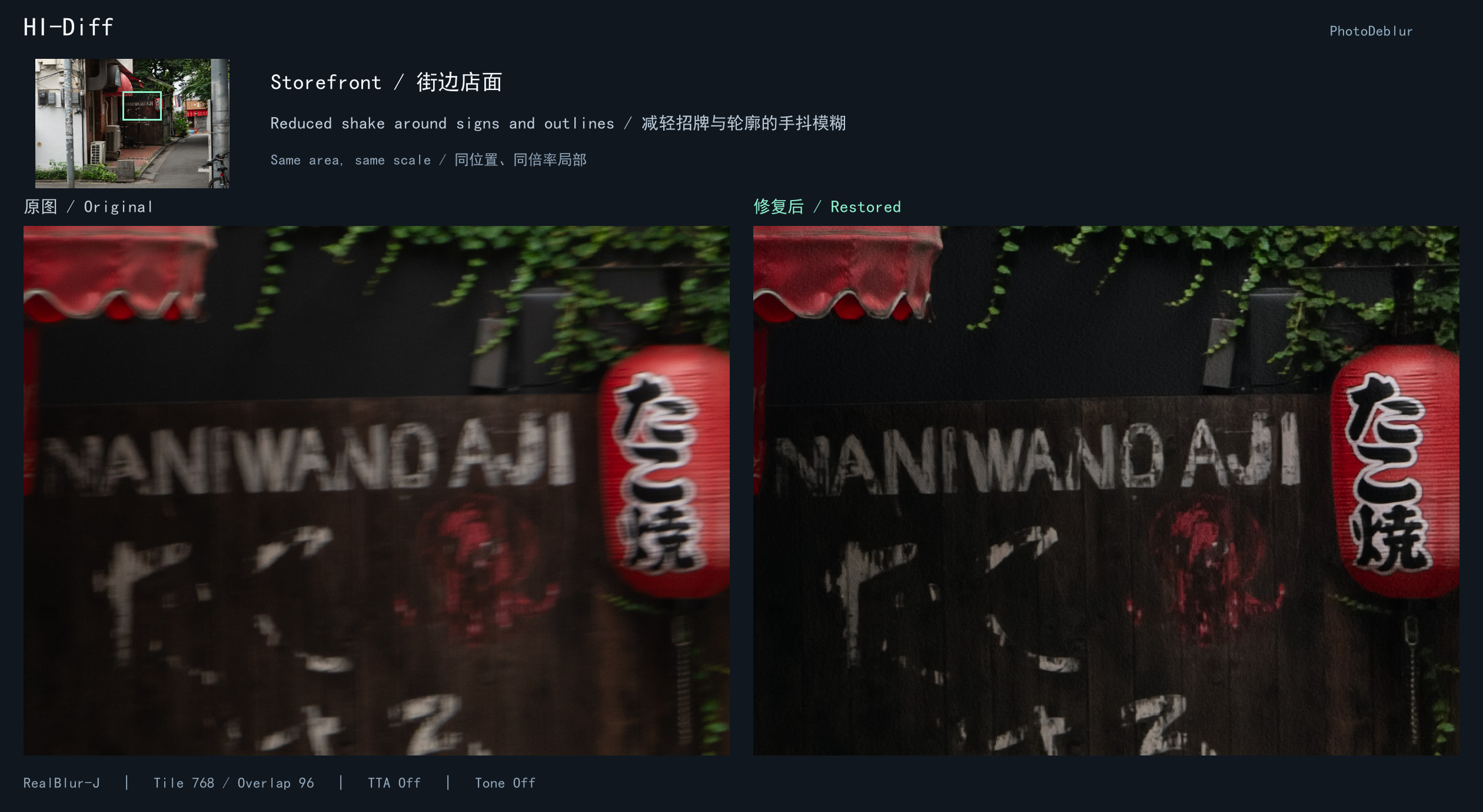
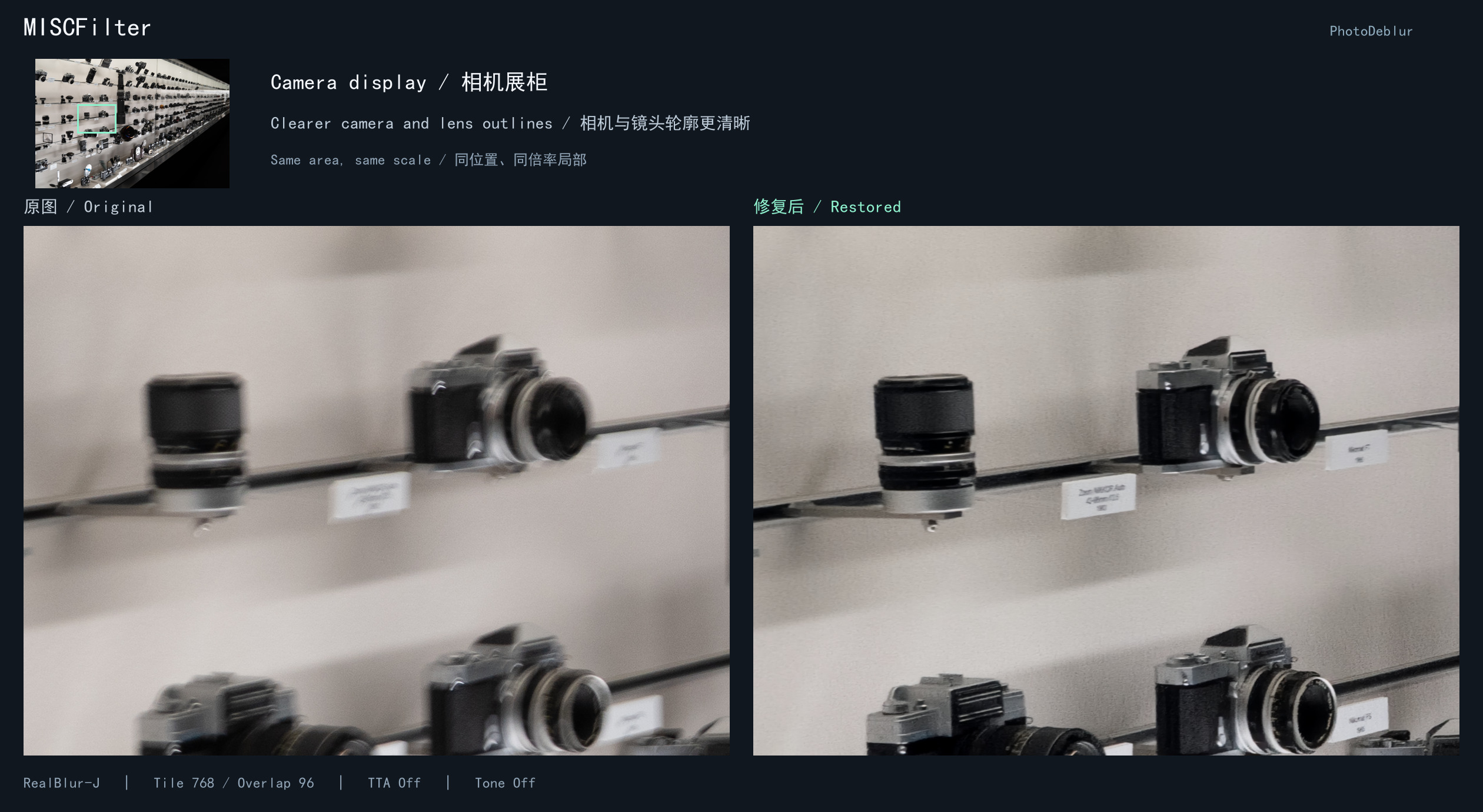
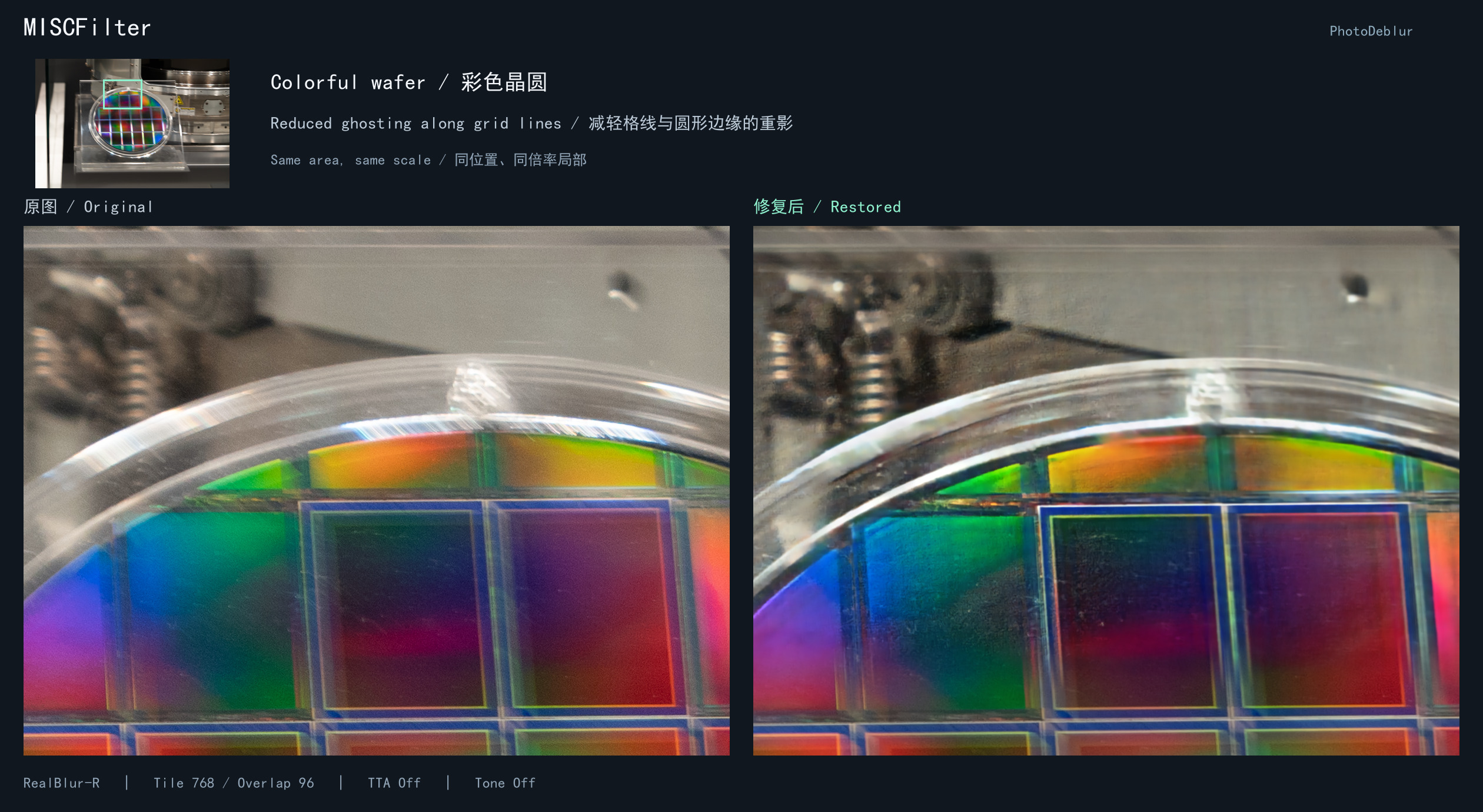
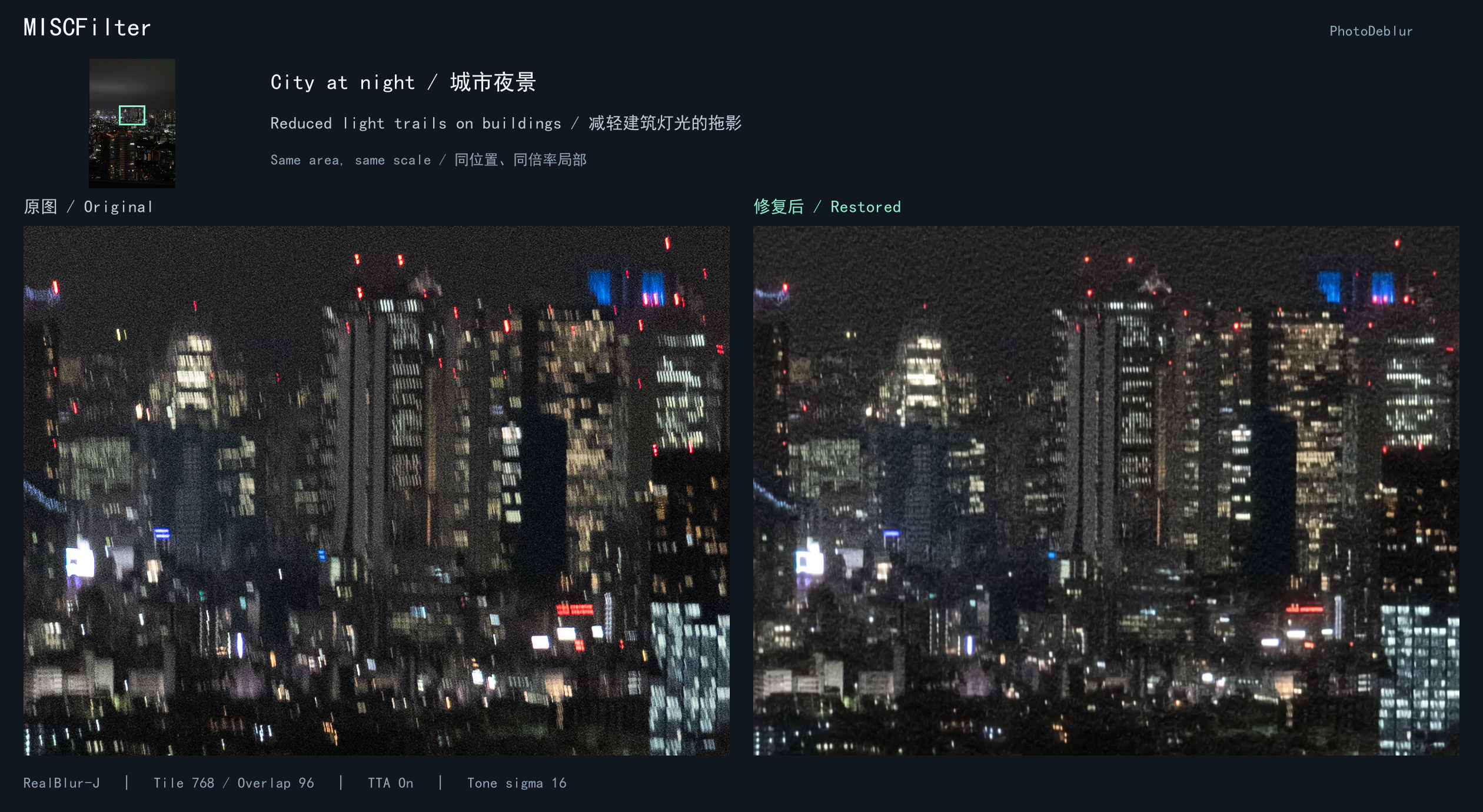
Real photo examples, cropped from the same area at the same scale. Left: original. Right: restored. Click an image to view the full-size comparison; settings are shown beneath each pair.
HI-Diff
Street signs: clearer lettering and architectural edges.
Storefront: reduced camera shake around signs and outlines.
MISCFilter
Camera display: clearer camera and lens outlines.
Colorful wafer: reduced ghosting along grid lines and circular edges.
City at night: reduced light trails on buildings. This example uses TTA and tone matching (sigma 16).
Which photos should I try?
Use these nodes to reduce camera-shake and motion blur before further color grading or cropping.
| Scene | What to inspect | | --- | --- | | Handheld night and indoor photos | Trails around signs, window frames and furniture | | Architecture, storefronts and street scenes | Lines, text outlines and repeated textures | | Portraits and event photos | Mild to moderate shake around facial features, hair and clothing | | Animals and moving subjects | Motion trails on the subject, alongside areas that were already sharp | | High-resolution photos | Keep the original dimensions through tiling, then crop or downsize afterward |
Our experience: the bookstore night photo showed noticeable improvements in the sign and some structural edges. Results on night portraits varied. A small, heavily blurred stage face and a cat's face showed limited improvement in some tests. These are subjective observations from a small photo set, offered as a starting point.
Practical tips
- Start with RealBlur_J, tile 768, overlap 96 and TTA off, comparing both models on the same original image.
- MISCFilter has no sampling steps; leave HI-Diff steps at
0initially. Choose between them by local detail and the overall appearance. - Inspect text, faces and high-contrast edges at matching zoom levels. Save TTA and larger-tile results separately for comparison.
- Defocus, detail lost in clipped highlights and very small faces are usually harder to restore than ordinary camera shake. With noisy inputs, also check whether shadow texture is smoothed away or amplified.
- Background blur in panning or shallow-depth-of-field photos may be intentional. To restore only the subject, blend the result with the original using a mask in your photo editor.
- Develop RAW files first and use sRGB TIFF/PNG inputs. Save a 16-bit PNG if you plan to continue color grading.
Installation
Clone this repository into ComfyUI/custom_nodes:
git clone https://github.com/porfeng/ComfyUI-PhotoDeblur.git
Run these commands with ComfyUI's Python, from the node folder:
python -m pip install -r requirements.txt
python -m pip install -r requirements-download.txt
For MISCFilter on NVIDIA / CUDA 12, also install:
python -m pip install -r requirements-misc-cu12.txt
Optional tone matching needs OpenCV. If cv2 is missing:
python -m pip install -r requirements-tone.txt
For the Windows portable edition, replace python with its python_embeded/python.exe. For Desktop, use its environment's Python. Restart ComfyUI after installing.
Quick start
- Drag a workflow from example_workflows onto the canvas. ComfyUI-PhotoDeblur.json includes Chinese and English notes.
- Select your own image in Load Image.
- Match the downloader's model and variant to the loader, then run.
Download Deblur Models.ready → Model Loader.download_ready
Load Image → Deblur Image (Tiled).image
Model Loader → Deblur Image (Tiled).deblur_model
Deblur Image (Tiled) IMAGE → Save Image
The restored IMAGE output connects to Save Image. If weights are already installed, the download connection is optional. To use HI-Diff, connect its loader instead of MISCFilter and select HI-Diff in the downloader.
Nodes
| Node | Purpose | | --- | --- | | Download Deblur Models | Download and verify official weights | | HI-Diff Model Loader | Select HI-Diff weights and sampling steps | | MISCFilter Model Loader | Select MISCFilter weights | | Deblur Image (Tiled) | Restore the image with tiling, blending and optional TTA | | Match Input Tone (Optional) | Reduce broad color shifts using the original image |
Search for Photo Deblur on the canvas to find these nodes.
Parameters
| Parameter | Suggested starting value / meaning |
| --- | --- |
| variant | RealBlur_J; also compare RealBlur_R and GoPro |
| tile_size | 768; try 512 when VRAM is limited |
| overlap | 96 at tile 768, or 64 at tile 512; must be smaller than the tile |
| blend | comfy_linear; alternatives: cosine, gaussian, average |
| tta | Off initially; averages eight flipped/rotated predictions, roughly 8× model computation |
| seed | 100; controls HI-Diff's random prior |
| steps | HI-Diff only: 0 selects 16 for J/R and 8 for GoPro |
| repair_invalid | Off normally; on backs up mismatched files before replacing them |
| sigma | Tone matching only: 16; 0 bypasses correction |
MISCFilter uses a direct network forward pass and has no sampling steps. Larger tiles, more steps and TTA are comparison options; choose by the result on your photo.
Model weights
Both models offer RealBlur_J, RealBlur_R and GoPro, corresponding to different training datasets/variants. R is a checkpoint variant, not a camera RAW input mode.
The download node uses the authors' Google Drive archives with SHA256 verification. Verified local files are reused. Weights are stored in ComfyUI's configured model directory:
models/
├── HI-Diff/
│   ├── HI_Diff_RealBlur_J/  # net_g.pth, net_le_dm.pth, net_d.pth
│   ├── HI_Diff_RealBlur_R/  # same three filenames
│   └── HI_Diff_GoPro/       # same three filenames
└── MISCFilter/
    ├── RealBlur_J.pth
    ├── RealBlur_R.pth
    └── GoPro.pth
Manual download and installation
To install weights without the download node, use these official downloads:
| Model | Variant | Download | | --- | --- | --- | | HI-Diff | RealBlur-J | HI_Diff_RealBlur_J.zip | | HI-Diff | RealBlur-R | HI_Diff_RealBlur_R.zip | | HI-Diff | GoPro | HI_Diff_GoPro.zip | | MISCFilter | J / R / GoPro | checkpoints.zip (all three variants) |
- Download and extract the archive you need.
- HI-Diff: locate the matching
net_g.pth,net_le_dm.pthandnet_d.pth, and place all three in the corresponding variant directory shown above. For example:ComfyUI/models/HI-Diff/HI_Diff_RealBlur_J/net_g.pth. Keep the three variants in separate directories. - MISCFilter: locate
RealBlur_J.pth,RealBlur_R.pthandGoPro.pth, and copy the variants you need intoComfyUI/models/MISCFilter/, keeping the filenames unchanged. - Select the installed variant in the matching model loader and connect it to the tiled deblurring node. Disconnect or remove the download node when loading manually installed weights.
Here, ComfyUI/models means the model directory configured for your installation; Desktop may use your chosen data directory. The final .pth paths should match the tree above, without an extra archive directory level.
Manual downloading does not require gdown. MISCFilter still requires the CuPy setup described under Installation. Sources: official HI-Diff repository, official MISCFilter repository.
Precision and color
Inference and blending use FP32 RGB/RGBA tensors at the original image size. Use display-referred sRGB images; develop RAW files before loading. The nodes output values in 0–1.
16-bit TIFF/PNG precision depends on the image loader. Standard Save Image writes 8-bit PNG; for 16-bit output, use Save Image (Advanced) → PNG → 16-bit → sRGB when available. A blank TIFF thumbnail can be checked with Preview Image.
Tone matching is optional post-processing added by this project. It subtracts the Gaussian-blurred difference between the restored and original images to constrain broad color changes.
Setup help
- Missing CuPy: install
requirements-misc-cu12.txtin ComfyUI's Python. - CUDA / NVRTC error: check the matching CuPy package and local CUDA Toolkit /
CUDA_PATH. - Missing weights: use the download node or the directory structure above.
- Out of memory: try tile 512, overlap 64 and TTA off.
Credits and license
- HI-Diff, NeurIPS 2023 — Apache-2.0.
- MISCFilter, CVPR 2024 — MIT.
Node integration code: MIT. Upstream notices and port changes: THIRD_PARTY.md. Model weights are downloaded separately from upstream sources.