
Phota API Nodes
Phota API nodes for ComfyUI — identity-preserving image generation, editing, enhancement, and profile training (photalabs.com).
Nodes (9)
Permanently removing a Phota profile (and the latch that stops you by accident)
Prompt-editing a photo without losing the face
The zero-prompt photo facelift
Putting a real person (or pet) in a generated image, properly
Every Phota profile you own, with faces, on one screen
Who does this Phota profile ID belong to?
Pick a trained Phota profile from a dropdown, not from memory
Is my Phota profile done training yet? Ask, don't block
Training your own Phota identity profile from a pile of photos
ComfyUI Phota Nodes
Official Phota API nodes for ComfyUI: identity-preserving image generation, editing, enhancement, and profile training.
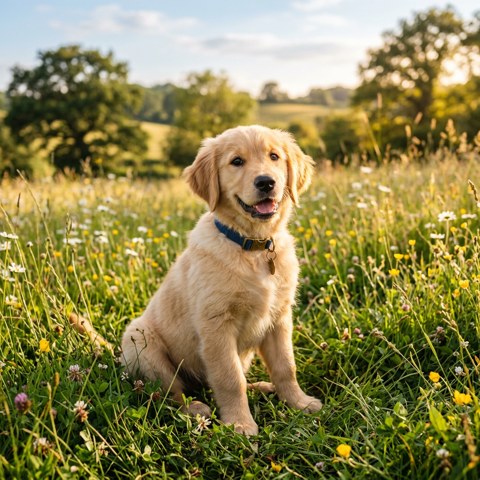
Phota profiles are trained on 5–50 photos of a person or pet and capture their true likeness — not the approximate resemblance you get from single-reference tools. Train once (minutes on the fast tier, no GPU needed), then generate or edit with that identity forever after by profile ID.
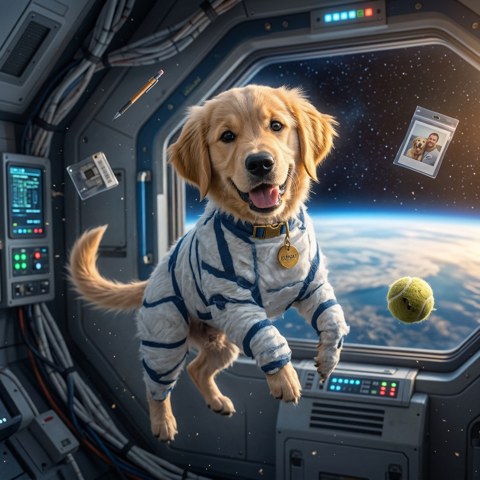
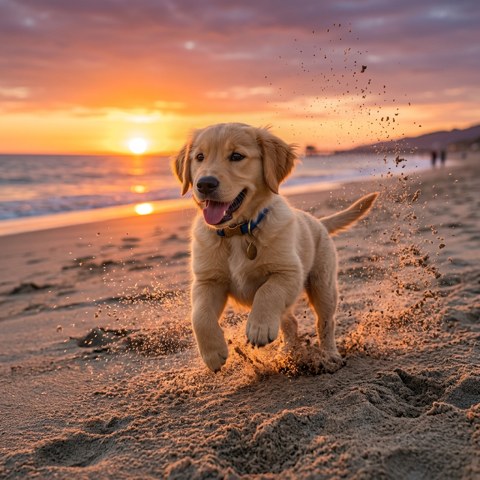
| Trained from 6 photos of this (synthetic) dog… | …then generated | …and edited |
|---|---|---|
|  |
|  |
|  |
|
"A portrait of [[profile]] as an astronaut" and "this dog running on a beach at sunset" — same recognizable dog, no LoRA training, no insightface, no model downloads.
Nodes
| Node | What it does |
|---|---|
| Phota Generate | Text → image(s). Reference a trained profile to feature a real person/pet. |
| Phota Edit | Image + prompt → edited image(s), preserving subject identity. |
| Phota Enhance | One-click photo enhancement, no prompt needed. |
| Phota Train Profile | Train a new identity profile from 5–50 photo URLs. Shows live progress (~25 min standard, faster on the fast tier). |
| Phota Profile Selector | Dropdown of your trained profiles → outputs a profile ID. |
| Phota Profile Gallery | All profiles (optionally tag-filtered) with cover photos as an IMAGE batch — a visual index. |
| Phota Profile Picture | Fetch a profile's cover photo — see who an ID belongs to. |
| Phota Profile Status | Check training status without blocking. |
| Phota Delete Profile | Permanently delete a profile (guarded by a confirm toggle). |
All inference runs on Phota's hosted infrastructure — these nodes work on any machine that runs ComfyUI, no GPU or model downloads required. All API calls execute asynchronously, so a long profile training (or a slow generation) never blocks the rest of your ComfyUI queue.
Installation
Via ComfyUI Manager: search for Phota API Nodes and install.
Manually:
cd ComfyUI/custom_nodes
git clone https://github.com/photalabs/comfyui-phota
The only dependency is requests, which ComfyUI already ships.
API key setup
- Create a key (
phota_sk_...) in the Phota developer portal. - Provide it via one of (checked in this order):
-
The
api_keyfield on a node (see warning below) -
The
PHOTA_API_KEYenvironment variable (recommended) -
A
phota.inifile next to this README:[phota] api_key = phota_sk_...
-
[!WARNING] Do not type your API key into node fields if you share your workflows. ComfyUI embeds widget values — including the
api_keyfield — in the workflow JSON/PNG you export. Use the environment variable orphota.iniinstead; both stay out of your workflows.
Usage is billed per image / per training run from your prepaid Phota credits. Pricing: docs.photalabs.com/pricing.
Quick start
Example workflows are in example_workflows/ — drag any JSON onto the ComfyUI canvas:
generate.json/edit.json— the two hello-worlds: text-to-image, and prompt-based editing.train_then_generate.json— the full loop: train a profile from photo URLs, then generate that subject as an astronaut, in one run.profile_gallery.json— profile management: every profile with its cover photo, plus per-profile inspection. Free to run.two_subjects.json— two profiles in distinct roles via the typedsubject_1/subject_2sockets.character_sheet.json— one profile rendered in four styles, stitched into a 2×2 card.ugc_product_shot.json— UGC ad still: your product photo + your profile → an identity-correct creator holding the exact product.video_keyframes.json— a cinematic wide/medium/close-up shot progression (16:9), batched for image-to-video models (Wan, Kling) plus an animatic WEBP preview.
These files are generated by scripts/build_example_workflows.py — edit that script, not the JSON.
Referencing profiles in prompts
Profiles are referenced inline with [[profile_id]] syntax. The Phota Generate node handles this for you: connect a profile ID and write [[profile]] in your prompt where the subject should appear:
A portrait of [[profile]] on a mountain summit at golden hour.
The profile_id field accepts multiple IDs, comma-separated. [[profile]] expands to all of them together, and positional placeholders [[profile1]], [[profile2]], … map to the list order — so "[[profile1]] teaching [[profile2]] to shake paws" puts each subject in a distinct role.
For fully explicit role binding, use the typed subject sockets: the Selector and Train nodes output a PHOTA_PROFILE reference, and Generate/Edit/Enhance accept subject_1 / subject_2 connections — subject_1 always fills [[profile1]], subject_2 always fills [[profile2]], regardless of any IDs typed in the field.
For Phota Edit and Phota Enhance, connect the profile ID(s) and the API preserves those subjects' identity in the result. In Edit prompts, [[profile]] introduces the subjects when they are not in the input image (e.g. "a selfie of [[profile]] holding this product").
Picking a base model
Generate and Edit expose a base_model dropdown (populated live from the API; auto uses the server default). Note that some models reject the quality field — leave quality on auto unless you're on gpt-image-2.
Training a profile
The Phota Train Profile node takes publicly accessible image URLs (one per line):
standardtier: 10–50 images, highest qualityfasttier: 5–10 images, quicker and cheaper
Training runs on Phota's GPUs and bills once per run. With wait_for_ready enabled the node blocks with live progress and outputs the profile_id when done — wire it straight into Phota Generate. With it disabled, the node returns immediately; check progress later with Phota Profile Status.
Environment variables
| Variable | Purpose |
|---|---|
| PHOTA_API_KEY | API key (recommended way to provide it) |
| PHOTA_API_BASE | Override the API base URL (default https://api.photalabs.com/v1/phota) |
| PHOTA_PROFILE_TAG | Filter the Profile Selector dropdown to one tag (dropdowns are built at page load and can't react to widgets — use the Gallery node's tag field for runtime filtering) |
Development
pip install pytest
pytest          # unit tests; no API key or network needed
Support
- API docs: docs.photalabs.com
- Issues: GitHub issues