
ComfyUI-ImmichManager
Upload ComfyUI-generated images/videos directly to Immich (PNG/MP4 with embedded workflow metadata), with a built-in asset timeline & management panel (thumbnails, favorites, trash, batch ops). SSRF-checked; config and token routes are local-only unless a panel token is presented.
ComfyUI-ImmichManager 🐾
Use Immich as ComfyUI's asset library — save generated images and videos into it with their workflow embedded, and pull any Immich asset back into a graph as an IMAGE.




English | 简体中文
Table of Contents
- Features
- Screenshots
- Installation
- Quick Start
- Usage
- Configuration
- Security
- FAQ
- Development
- Contributing
- License
- Acknowledgements
Features
- 🖼️
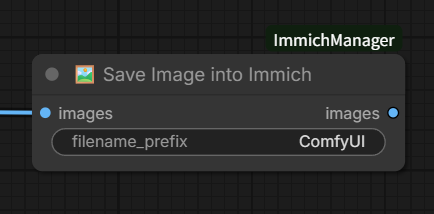
Save Image into Immichnode — uploads generated images (PNG) with the current workflow embedded; drag the file back from Immich to restore the workflow. - 🎬
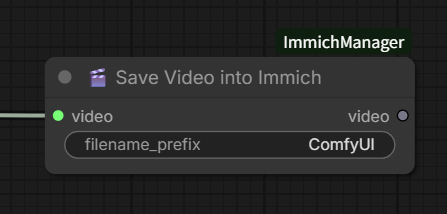
Save Video into Immichnode — takes the official ComfyUIVIDEOtype, encodes MP4 (H.264) with workflow metadata, and previews it in the node. - 📥
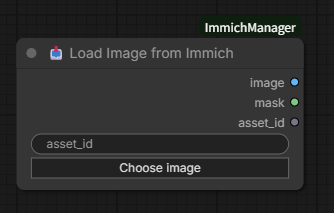
Load Image from Immichnode — browse your whole Immich library from inside a workflow and turn a picked asset intoIMAGE+MASK, or just itsasset_id. - 🗂️ Asset panel — one panel with a toolbar button and a node button; thumbnail grid, detail pane, selection mode, filtering, sorting, grouping and pinning.
- 🔎 Filter builder — combine album / person / tag / type / favourite / date-range conditions; the funnel icon lights up while any are active.
- 📐 Grouping — month, day or year sections that fold, unfold and remember their state, plus an optional pinned section for today or the last seven days; no grouping renders one flat grid.
- ⬇️ Detail actions — favourite, describe, import the embedded workflow straight into the canvas, open the asset in Immich, download the original, or send it to the Immich trash.
- ⚙️ Settings live in ComfyUI's own Settings dialog under an
Immichgroup, and the panel's gear button jumps there directly. - 🌐 i18n — English and Simplified Chinese. A fresh install starts in English; "follow system" is opt-in. Switching applies immediately, no reload.
- 🎨 Theme-aware — follows ComfyUI's light and dark themes.
Screenshots
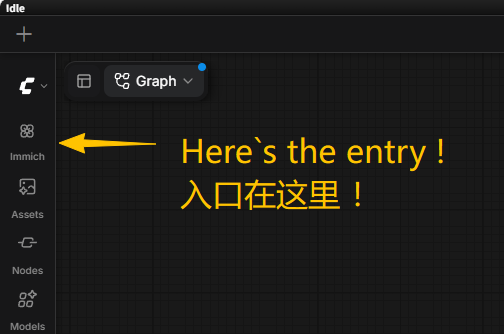
Entry point — the flower button sits in ComfyUI's sidebar.
The panel — thumbnail grid on the left, detail pane on the right. The header is all icons: filter, sort, zoom, grouping, pinning, selection mode, then settings, open-in-Immich and close.
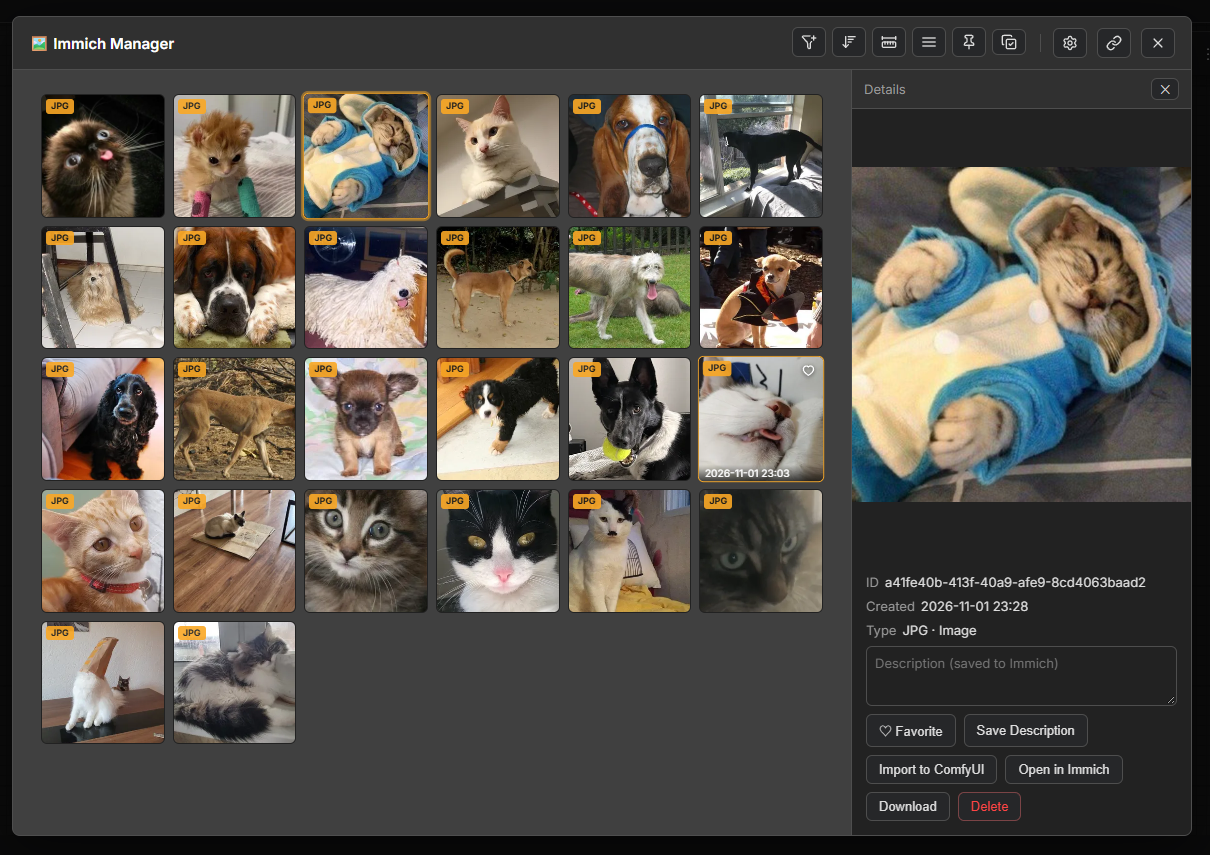
Detail pane — large preview, asset facts, description editing, and the actions: favourite, import the embedded workflow, open in Immich, download the original, delete.
Filtering, grouping, pinning and selection are described under Usage rather than shown: the toolbar carries a funnel that lights up while conditions are active, a grouping menu for month, day, year or none, a pin menu for today or the last seven days, and a copy-check button that enters selection mode.
Sorting and zoom — newest or oldest first, and three thumbnail sizes. The icon lights up while its menu is down.
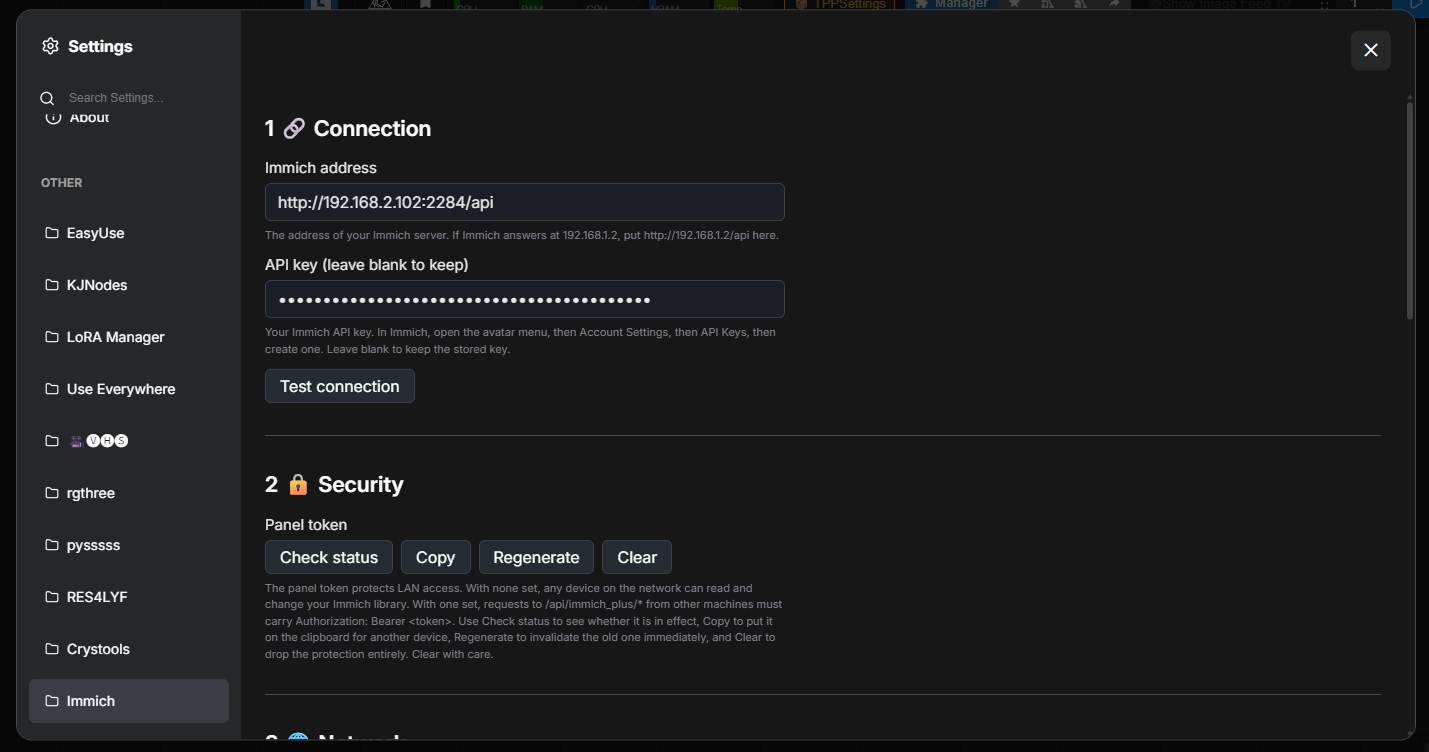
Settings — the Immich group inside ComfyUI's own Settings dialog: connection, the panel token, the network proxy, the default album, page size, language and where the entry lives.
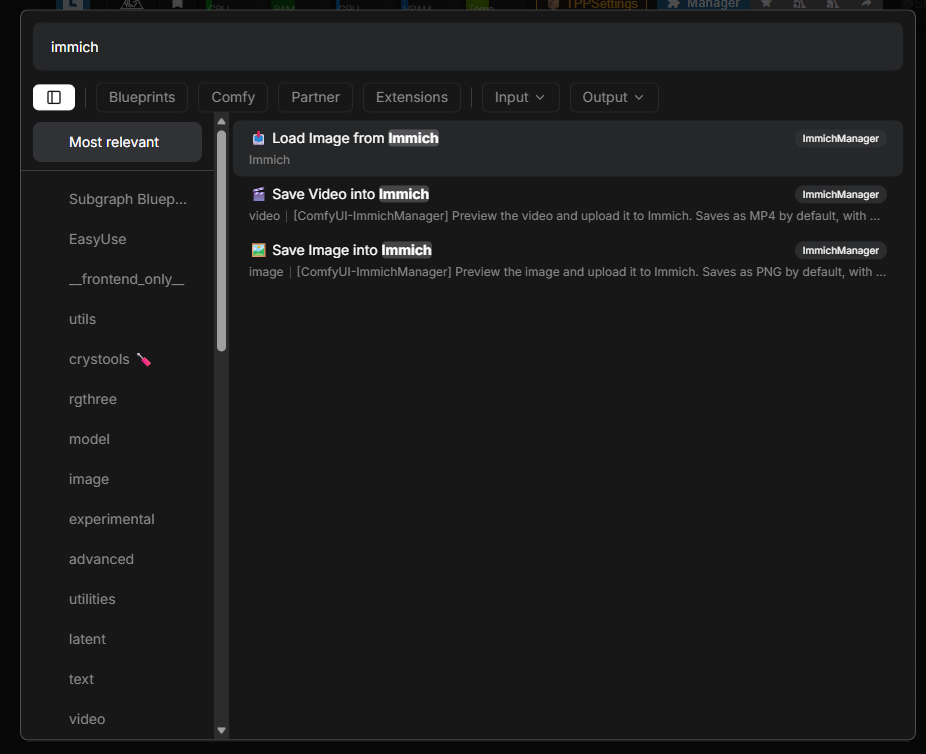
Finding the nodes — search "immich" in the Add Node menu to get all three: pick an asset out of the library, or save an image or a video into it.
Installation
1. Option A: ComfyUI-Manager
Search for ComfyUI-ImmichManager in ComfyUI-Manager and install it, then restart ComfyUI.
2. Option B: Manual (git clone)
cd ComfyUI/custom_nodes
git clone https://github.com/oitsukiii/ComfyUI-ImmichManager.git ComfyUI-ImmichManager
Restart ComfyUI. The entry appears in the left sidebar as a flower icon labelled Immich — or in the top toolbar, if you switched Where to show the plugin in the settings.
3. Dependencies
| Package | Needed for | Note |
|---|---|---|
| requests | Immich REST client | Bundled with ComfyUI ≥ 0.30 |
| pillow | PNG encoding / metadata | Bundled with ComfyUI ≥ 0.30 |
| aiohttp | Panel backend (aiohttp routes) | Bundled with ComfyUI ≥ 0.30 |
| PyAV (av) | Video encoding via official save_to | Bundled with ComfyUI ≥ 0.30 |
All dependencies ship with ComfyUI ≥ 0.30 — no extra install needed. If your ComfyUI is older and the startup log shows [ComfyUI-ImmichManager] dependencies missing ..., run:
python -m pip install requests pillow aiohttp
and restart ComfyUI. The [ComfyUI-ImmichManager] log prefix always reports the dependency check result.
Quick Start
- Create an Immich API Key (Immich web → Administration → Settings → API Keys).
- Restart ComfyUI, click 🖼️ Immich in the toolbar → ⚙️ Configure.
- Fill in the Immich server URL (default
http://127.0.0.1:2283/api; usehttp://192.168.x.x:2283/apifor LAN) and the API key, then Save. - Click Test Connection to verify (shows the Immich version).
- Open the panel from the sidebar's flower button to browse; add
🖼️ Save Image into Immich/🎬 Save Video into Immichto your workflow to upload, or drag📥 Load Image from Immichin to pull assets back out.
Usage
All three nodes take their connection settings (base URL / API key / default album) from the Immich group in ComfyUI's Settings dialog — there are no connection inputs on the nodes themselves.
1. 🖼️ Save Image into Immich
| Input | Type | Description |
|---|---|---|
| images | IMAGE (required) | ComfyUI image tensor; each image is uploaded individually |
| filename_prefix | STRING | Filename prefix for uploads (default ComfyUI) |
- Fixed PNG output: the current
prompt/workflowJSON is written into the PNG metadata, so the file carries its own recipe. - Restoring it takes one click: open the asset in the panel and press Import to ComfyUI. Dragging the downloaded file back onto the canvas works too.
- Returns the image (
IMAGE), so you can keep chaining after it; the upload happens on execution. - A copy is kept in the ComfyUI temp folder for the node preview (ComfyUI clears the
temp/folder on every startup; files stay during runtime for the frontend preview). - Upload filenames carry a millisecond timestamp (
ComfyUI_1755300000000_0.png), so they never collide with existing library names. - Content-level dedup is done by the Immich server: each upload carries
x-immich-checksum(SHA-1); if an asset with identical content already exists, the server returnsduplicateand does not create a duplicate file. - Retry: 3× exponential backoff (1s/2s) on network errors / 5xx / 429 / 408 only.
- Global concurrency cap of 3 (semaphore); album lookup / create / batch-add with a lock against concurrent duplicate creation.
- Upload failure raises and interrupts execution — images already uploaded to Immich are neither rolled back nor re-uploaded; the error lists each failed file and its reason.
The node itself — filename_prefix plus the images input:
2. 🎬 Save Video into Immich
| Input | Type | Description |
|---|---|---|
| video | VIDEO (required) | Official ComfyUI VIDEO type — from Create Video / Load Video / Video Slice, … |
| filename_prefix | STRING | Filename prefix (default ComfyUI) |
- No image-sequence input: for old workflows, insert the official
Create Videonode between your frames and this node. - Uses the official
VideoInput.save_to()(PyAV) to write MP4 (H.264) with container metadata:- From
Create Video→ PyAV H.264 encode (preserves bit depth, 8/10-bit). - From
Load Video(source mp4 + H.264) → pure copy, no re-encode (fast, lossless, keeps the source audio track & tags). - Other sources → auto-transcoded to MP4 (H.264).
- From
- Workflow metadata:
prompt/workflowJSON written into the MP4 container (officialuse_metadata_tagsmechanism) — download from Immich and drag back to restore the workflow (tested with PyAV read-back). - Audio support: audio tracks from
Create Videoare preserved. - In-node video preview: same mechanism as the official
Save Videonode (ui.images+animated). - Streaming upload: files are uploaded in chunks (SHA-1 + multipart streaming) — large videos are never fully read into memory.
- A local
.mp4is kept in the ComfyUI temp folder for the preview (it is also the upload source; ComfyUI clears thetemp/folder on every startup).
The node itself — filename_prefix plus the video input:
3. 📥 Load Image from Immich
| Output | Type | Description |
|---|---|---|
| image | IMAGE | The picked asset, EXIF orientation applied |
| mask | MASK | Alpha channel when the asset has one, otherwise empty |
| asset_id | STRING | Immich asset id, so later nodes can refer to the original |
- The node's Choose image button opens the asset panel in pick mode: one click selects and the thumbnail is drawn on the node itself. Whether the panel closes after picking is a setting (Close the picker after choosing); with it off the panel stays put so you can compare several before deciding.
- Grouping, filtering, sorting and zoom work exactly as in the main panel, but the pick panel keeps its own state inside the node, so it travels with the workflow JSON. The main panel keeps its state on the server.
- Reopening the picker restores the last selection, the scroll position and the preview pane.
4. Asset panel
Open it from the toolbar's 🖼️ button, or from the node's picker.
- Header — icons rather than text: filter (lit amber while conditions are active), sort, zoom, grouping, pinning, selection mode, plus settings, open-in-Immich and close.
- Filtering — build conditions from album, person, tag, type, favourite and date range. With no conditions the window says so and waits for Add filter.
- Sorting — newest or oldest first, applied inside every section.
- Grouping — month, day, year, or none. No grouping plus no pinning means one flat grid. Sections fold and remember it.
- Pinning — lifts today or the last seven days into a section at the top.
- Selection mode — shift-click for a range, batch favourite and move-to-trash, with a second confirmation when everything visible is selected.
- Detail pane — large preview (images and videos), favourite, description, workflow import, open in Immich, download, delete.
- Thumbnails — 64 / 112 / 200 px, lazy-loaded; the first page is 100 assets and Load more appends the rest instead of blocking on a long fetch.
- State — filters, sorting, grouping and pinning survive a reload.
Configuration
Everything is configured in ComfyUI's own Settings dialog, under the Immich group — the panel's gear button takes you straight there. The values are stored in <plugin>/config.json, auto-generated on first save, git-ignored and written 0o600, so your API key is never committed. The main panel's own state lives beside it in panel_state.json, which is git-ignored too.
The old standalone config page is gone; its reset button went with it. Settings live in the dialog, and the panel remembers its own filters, sorting, grouping and pinning on the server.
| Field | Description |
|---|---|
| base_url | Immich API URL. http/https only (SSRF checks: rejects IP-obfuscation / link-local / reserved ranges / redirects — see Security). |
| api_key | Immich API key. Stored only in the backend config.json; never sent to the browser — the frontend only sees api_key_configured: true/false. |
| panel_token | Panel access token. When set, every /api/immich_plus/* request must send Authorization: Bearer <token>. Auto-generated when you save the connection config; the 🔒 Security group in the Settings dialog lets you check / copy / regenerate / clear it. |
| default_album | Default album for upload nodes (nodes have no album input; configured here). |
| page_size | Pagination size (min 1, max 1000). |
| proxy_mode | Network proxy mode: off (default) / custom / env. See below. |
| proxy_url | Proxy address for proxy_mode=custom, e.g. http://127.0.0.1:7897 (Clash / mihomo Mixed Port). http/https only; username/password not supported. Outside custom mode it is kept as a standby value; saving an empty field clears it. |
🌐 Network proxy (proxy_mode / proxy_url)
The 🌐 Network proxy group in the Settings dialog controls how this plugin reaches Immich over the network:
| Mode | Meaning | When to use |
| --- | --- | --- |
| off No proxy (default) | Ignores HTTP_PROXY / HTTPS_PROXY / ALL_PROXY in the process environment; LAN connections stay direct | Almost always, especially when Immich runs on a NAS / LAN |
| custom Custom proxy | All Immich requests explicitly go through the proxy address you fill in (environment variables are still ignored, so nothing can hijack it twice) | Immich is remote and must be reached through a proxy |
| env Follow environment variables | Keeps using the proxy env vars of the ComfyUI process (legacy behaviour) | You always relied on HTTP_PROXY to reach Immich |
💡 Why is "No proxy" the default? Many ComfyUI launch scripts set
HTTP_PROXY=http://127.0.0.1:7897(Clash's default port) for ComfyUI-Manager. Python'srequestshonours those variables unconditionally, so even requests to a LAN Immich were pushed through the proxy — and if Clash is not running, uploads fail withProxyError ... [WinError 10061] No connection could be made because the target machine actively refused it. Withoff, Immich is reached directly, so a stopped proxy client can never break the LAN path, while ComfyUI-Manager and other plugins still use the env vars.Upgrading from an older version: if you could only reach Immich through a proxy, switch to "Follow environment variables" or "Custom proxy" and fill in the address.
Proxy address validation follows the same discipline as base_url: http/https only, host required, no username/password (credentials are never written to config.json), no path/query, and link-local / reserved addresses plus IP-obfuscation literals are rejected.
When a proxy variable is detected in the process environment, the settings group shows a hint (proxy_env, always credential-masked) so you can tell why an env var seems to have no effect.
Security
The threat model — trust boundaries, a per-route table of who can call what with which secret, and the accepted risks — is in THREAT_MODEL.md.
This section starts from the panel access token you actually see in the 🔒 Security group of the Settings dialog, and explains it step by step.
1. What is the panel access token?
Open ComfyUI's Settings dialog, pick the Immich group, and find 🔒 Security with the panel access token:
- It is auto-generated when you save the connection config; normally you don't have to think about it;
- The Security group has Show / Regenerate / Clear buttons so you can view or rotate it anytime.
It is the key to the panel: once set, other devices on your LAN must enter this key before they can open the panel; otherwise requests are rejected (401).
2. Why is it needed?
ComfyUI itself has no server-level access key (verified on 0.30.0) — anyone who can reach your ComfyUI page can operate the panel. Your Immich API key is hidden in the backend config.json, but if the panel itself is open, anyone who can reach your machine or LAN can control your Immich.
So this plugin ships minimal built-in auth: once the panel access token is set, every panel request must carry it, or it gets a 401.
⚠️ No token = trust mode: in that state, anyone who can reach your ComfyUI port can read/write your Immich library. For local-only use, run ComfyUI with
--listen 127.0.0.1; if you need LAN access, make sure a token is set.
3. Your machine (the one running ComfyUI) never enters the token
The panel is always trusted on localhost / 127.0.0.1 — even if you regenerate or clear the token, the machine running ComfyUI can always get back in, so you can never lock yourself out. Other devices still need the token.
The check uses the real network source of the connection and does not trust the spoofable
X-Forwarded-Forheader.
4. How do other (LAN) devices access the panel?
A LAN device opens the panel → is asked for the token → after entering it:
- Default: the token is kept only in the current browser tab (sessionStorage) and is cleared when the tab or browser closes — enter it again next time;
- Optional: check "☑ Remember token on this device" to store it in the browser's localStorage, which survives browser restarts — no re-entry next time.
⚠️ Before checking "Remember", read the UI warning: any same-origin script (including other custom nodes' JS) can read localStorage. Only check it in a browser you trust.
5. Where is the token stored?
- Backend: the plaintext lives only in the plugin's
config.json(file permission0o600, owner read/write only) and is never sent back to the browser — the frontend only sees "configured / not configured", never the token itself; - Browser: only a copy of what you entered (or revealed in the Security group) is kept — sessionStorage by default, localStorage when "Remember" is checked (step 4).
6. Important: this is a "full-access key"
Whoever holds the token can: view/delete your Immich assets, change the plugin config, and even regenerate or clear the token itself.
- It is designed for one person across their own devices — do not share it;
- Any same-origin script that can run JS can read the token in the browser — keep the ComfyUI page free of XSS (don't install unknown custom nodes).
7. Technical details (read when troubleshooting)
- Connection URL validation:
base_urlaccepts http/https only; rejects userinfo, IP-obfuscated literals, link-local/reserved addresses, and never follows redirects (anti-SSRF). Private ranges (e.g. 192.168.x.x) are allowed by design for LAN usage — whoever can configure the URL is trusted, so set a token and bind ComfyUI to a trusted network. - Image/video loading: fetch + blob (Authorization header); the token never appears in URL query parameters or access logs.
- Delete safety: deletes always go to the Immich trash and can be restored from the Immich web UI.
- Logging: never enable DEBUG logging for
requestswhile debugging (it logs request headers including the API key). Use INFO or read the[ComfyUI-ImmichManager]prefixed lines.
FAQ
Q: The panel is slow / takes long on first open? A: The panel asks for one page of a hundred assets and draws it straight away; Load more at the bottom fetches the next page, so the first paint no longer waits on a long walk through the library. Thumbnails are lazy-loaded as you scroll.
Q: Video preview stutters / very large videos won't play? A: The panel downloads the video into browser memory (fetch + blob) before playing — the security cost of keeping the token out of URLs. For very large videos, use the 🌐 Open Immich button and play in the Immich web UI.
Q: Can uploaded images/videos be brought back to restore the workflow?
A: Yes, and not by dragging. Images (PNG) and videos (MP4) both carry the current prompt / workflow metadata; open the asset's detail pane and press Import to ComfyUI. Dragging the downloaded file onto the canvas works as well.
Q: Can deleted assets be recovered? A: Deletes always go to the Immich trash; restore from the Immich web UI. The plugin does not offer "empty trash".
Q: Upload fails with ProxyError ... [WinError 10061] No connection could be made... or cannot reach a LAN Immich?
A: Your ComfyUI process environment carries proxy variables (typically HTTP_PROXY=http://127.0.0.1:7897, set by your launch script for ComfyUI-Manager) while that proxy client is not running — so requests to a LAN Immich get pushed through it too. Set 🌐 Network proxy → No proxy in the Settings dialog (the default; takes effect right after saving) to go direct. If you really reach Immich through a proxy, pick "Custom proxy" and fill in the address, or "Follow environment variables". The settings group shows the detected env var as a hint.
Development
immich_client.py     Immich REST client (assets, albums, search, trash)
upload_node.py       🖼️ Save Image into Immich / 🎬 Save Video into Immich
picker_node.py       📥 Load Image from Immich
server_routes.py     /api/immich_plus/* — auth, search, proxy, panel state
config.py            config.json read/write, URL and key validation
web/                 immich_panel.js (panel + settings), immich_picker.js (node
                     wiring), i18n.js, immich_panel.css
tests/               offline tests + CDP-based UI checks
docs/                design notes for the settings dialog and the refactor
Run the same tests the CI runs:
for f in test_client_bulk_offline test_config test_extract test_proxy_offline test_routes; do
  python3 tests/$f.py || break
done
The rest need more than a checkout — test_client.py wants a live Immich and
IMMICH_TEST_KEY, test_upload_node.py and test_video_integration.py want
ComfyUI's runtime, and tests/cdp/ drives a headless browser.
UI check against a running ComfyUI (Chromium on :9222):
python3 tests/cdp/verify.py
Design notes: docs/SETTINGS-DIALOG-NOTES.md (how settings get into ComfyUI's
dialog) and docs/REFACTOR.md. THREAT_MODEL.md covers what the plugin does
and does not defend against.
Contributing
Issues and pull requests are welcome. For feature requests or bug reports, please open a GitHub issue with:
- ComfyUI version & platform
- Immich version
- Steps to reproduce + the
[ComfyUI-ImmichManager]log lines
Please follow the existing code style (Chinese comments in code, module docstrings) and run the offline tests before submitting.
License
MIT © 2026 ComfyUI-ImmichManager Contributors
Acknowledgements
- Developed with a vibe coding workflow — designed, implemented and reviewed with DeepSeek V4.1 Flash 1017 and dsh.
- Thanks to @ltdrdata for the review that shaped the security model, and for listing this project in ComfyUI-Manager.
- Thanks to ComfyUI for its rich node ecosystem and stable extension mechanism, which make custom node development a pleasure.
- Thanks to Immich for its comprehensive REST API — the album, timeline, trash and other capabilities of this plugin are built on its excellent design.