
ComfyUI-Olm-Liquify
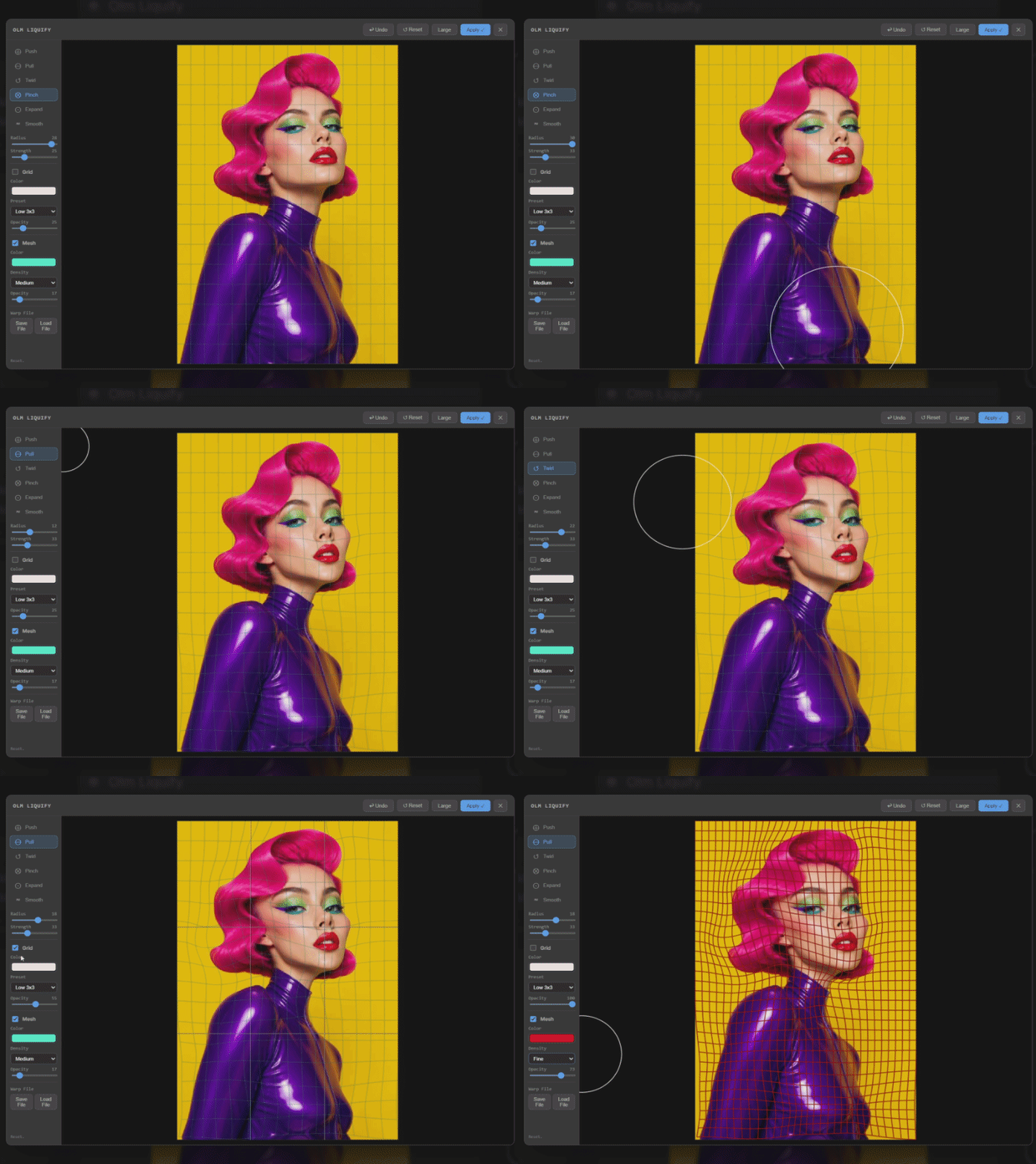
Olm Liquify is a ComfyUI custom node for interactive image warping, inspired by Photoshop's Liquify tool.
Olm Liquify for ComfyUI
- Author: Olli Sorjonen
- GitHub: https://github.com/o-l-l-i
- Version: 1.0.1
What is this?
Olm Liquify is a ComfyUI custom node for interactive image warping, inspired by Photoshop's Liquify tool. It opens a dedicated editor where you can push, pull, twirl, pinch, expand, and smooth image areas, then apply the resulting warp back into the ComfyUI graph.
The node is intended for still images. Batch/video-frame editing is intentionally not supported.
Features
-
Interactive Liquify Editor
- Paint warps directly over the image preview.
- Apply or cancel edits explicitly.
- Undo field-based edits inside the editor.
-
Liquify Tools
- Push
- Pull
- Twirl
- Pinch
- Expand
- Smooth
-
Brush Controls
- Adjustable radius and strength.
- Mouse wheel changes brush radius.
- Shift + mouse wheel changes brush strength.
-
Zoom and Pan
- Ctrl/Cmd + mouse wheel zooms the editor view.
- Reset Zoom returns the image to the fitted view.
- Space + drag or middle mouse drag pans the zoomed view.
- Panning is clamped near the image edges with a small margin so the editable image stays in view.
-
Grid and Mesh Overlays
- Optional grid overlay for visual reference.
- Optional warped mesh overlay to inspect deformation.
- Adjustable color, opacity, and density/preset settings.
-
Warp File Support
- Save the current warp field to a
.npzfile. - Load a saved warp file back into the editor.
- Save the current warp field to a
-
ComfyUI Theme Awareness
- The editor follows ComfyUI/PrimeVue theme variables where possible.
- The image workspace remains neutral and dark for easier image inspection.
How to Use
- Drop the Olm Liquify node into your ComfyUI graph.
- Connect an
IMAGEinput. - Run the graph once to load the image into the node.
- Click Open Liquify Editor.
- Select a tool and paint over the image.
- Use Apply to save the warp into the node.
- Run the graph again when you want the downstream graph to use the applied result.
If you close the editor with X or Escape, unapplied changes are discarded after confirmation.
Shortcuts
Shortcut | Action
--- | ---
Mouse wheel | Adjust brush radius
Shift + Mouse wheel | Adjust brush strength
Ctrl/Cmd + Mouse wheel | Zoom editor view
Space + drag | Pan editor view
Middle mouse drag | Pan editor view
Hold S | Temporarily switch to Smooth
Ctrl/Cmd + Z | Undo
1-6 | Select liquify tools
Escape | Close/cancel editor
Editor Controls
Control | Description
--- | ---
Radius | Brush radius used for new strokes.
Strength | Brush strength used for new strokes.
Grid | Shows a static reference grid over the image.
Grid Preset | Selects grid density.
Grid Color | Sets grid foreground color.
Grid Opacity | Sets grid visibility.
Mesh | Shows the current deformation mesh.
Mesh Density | Selects mesh sampling density.
Mesh Color | Sets mesh foreground color.
Mesh Opacity | Sets mesh visibility.
Save File | Exports the current warp as a .npz file.
Load File | Imports a saved warp .npz file.
Notes
- The preview/editor becomes available only after one graph execution, because the backend needs to cache the source image for interactive editing.
- Browser refresh can recover the preview while the ComfyUI backend still has the image cached.
- If ComfyUI is restarted or the cache is pruned, run the graph once to reload the image.
- UI settings such as brush size, grid color, and mesh opacity are runtime editor settings. They are not currently saved into the workflow.
- The saved warp is tied to the source image content. If the input image changes, old warp fields are ignored unless they match the source hash.
- The editor uses a preview-resolution warp for interactivity, then scales the displacement field back to the source resolution when applying.
Gotchas & Tips
- For face/profile edits, use lower strength and multiple strokes rather than one heavy stroke.
- Use the mesh overlay when you want to see how much the image has been deformed.
- Use the grid overlay when matching vertical/horizontal structure matters.
- Pinch and Expand are sensitive to brush size; a larger brush usually gives smoother results.
- Edge artifacts can happen when warping strong edges or image borders. Smaller strokes and lower strength usually help.
- Warp files are useful for reusing a deformation on the same or very similar image dimensions/content.
Installation
Clone into your custom_nodes directory:
git clone https://github.com/o-l-l-i/ComfyUI-Olm-Liquify.git
Directory structure:
ComfyUI/
└── custom_nodes/
    └── ComfyUI-Olm-Liquify/
        ├── __init__.py
        ├── olm_liquify.py
        ├── requirements.txt
        ├── web/
            ├── olm_liquify.js
            ├── liquify_editor.js
            ├── ...
Requirements
Install requirements if needed (see details below this):
pip install -r requirements.txt
Restart ComfyUI.
The node uses:
- PyTorch
- NumPy
- OpenCV
- Pillow
- Vanilla JavaScript / DOM / Canvas/SVG APIs
The current requirements.txt lists:
torch>=2.1.0
numpy>=1.26.4
opencv-python>=4.12.0.88
You will most likely have these already installed in your ComfyUI.
Current Limitations
- Still images only. Batch/video-frame editing is not supported.
- UI preferences are not persisted across frontend reloads.
- The editor preview is optimized for interactivity and may not exactly represent every final full-resolution sampling detail.
Version History
- 1.0.1 Zoom feature added
- 1.0.0 Initial release
License & Usage Terms
Copyright (c) 2026 Olli Sorjonen
This project is source-available, but not open-source under a standard open-source license, and not freeware. You may use and experiment with it freely, and any results you create with it are yours to use however you like.
However:
Redistribution, resale, rebranding, or claiming authorship of this code or extension is strictly prohibited without explicit written permission.
Use at your own risk. No warranties or guarantees are provided.
The only official repository for this project is:
https://github.com/o-l-l-i/ComfyUI-Olm-Liquify
Author
Created by @o-l-l-i