
Prompt Folder
Load prompts from a folder of .txt files in ComfyUI, at random or in sequence, and see which one was picked.
Nodes (2)
Prompt Folder
ComfyUI nodes for folders of .txt prompts. Prompt From Folder loads one prompt,
at random or in sequence, and shows you which prompt it picked. Prompt To Folder
saves prompts into those folders.
Who this is for
- You keep prompts as text files, one per file, and want to work through a folder of them: every prompt once, in order, or a random one each run.
- You want to keep the prompts that worked, for example the output of a prompt enhancer, and bring them back later as a folder you can loop over.
It works with any model: the output is plain text for a CLIP Text Encode node.
How it differs from other prompt-from-folder packs:
- The node shows how many prompts a folder holds before you run, and which one it picked after the run.
- Sequence mode restarts at the first file when you change folder.
- There is a matching node that saves prompts.
- Everything stays inside
ComfyUI/input/prompts/, with the protections listed under Safety.
Read before you run
- Prompt To Folder writes files. It creates folders and numbered
.txtfiles underComfyUI/input/prompts/, on every run. It never overwrites an existing file, and nothing is written outside that folder. - Your ComfyUI may be reachable from other machines. If you start ComfyUI
with
--listen, anyone who can reach it can use these nodes, like any other node. Two small routes, used by the Browse dialog and the file count, also let them list the folder names underinput/prompts/. They can't read or write anything outside that folder.
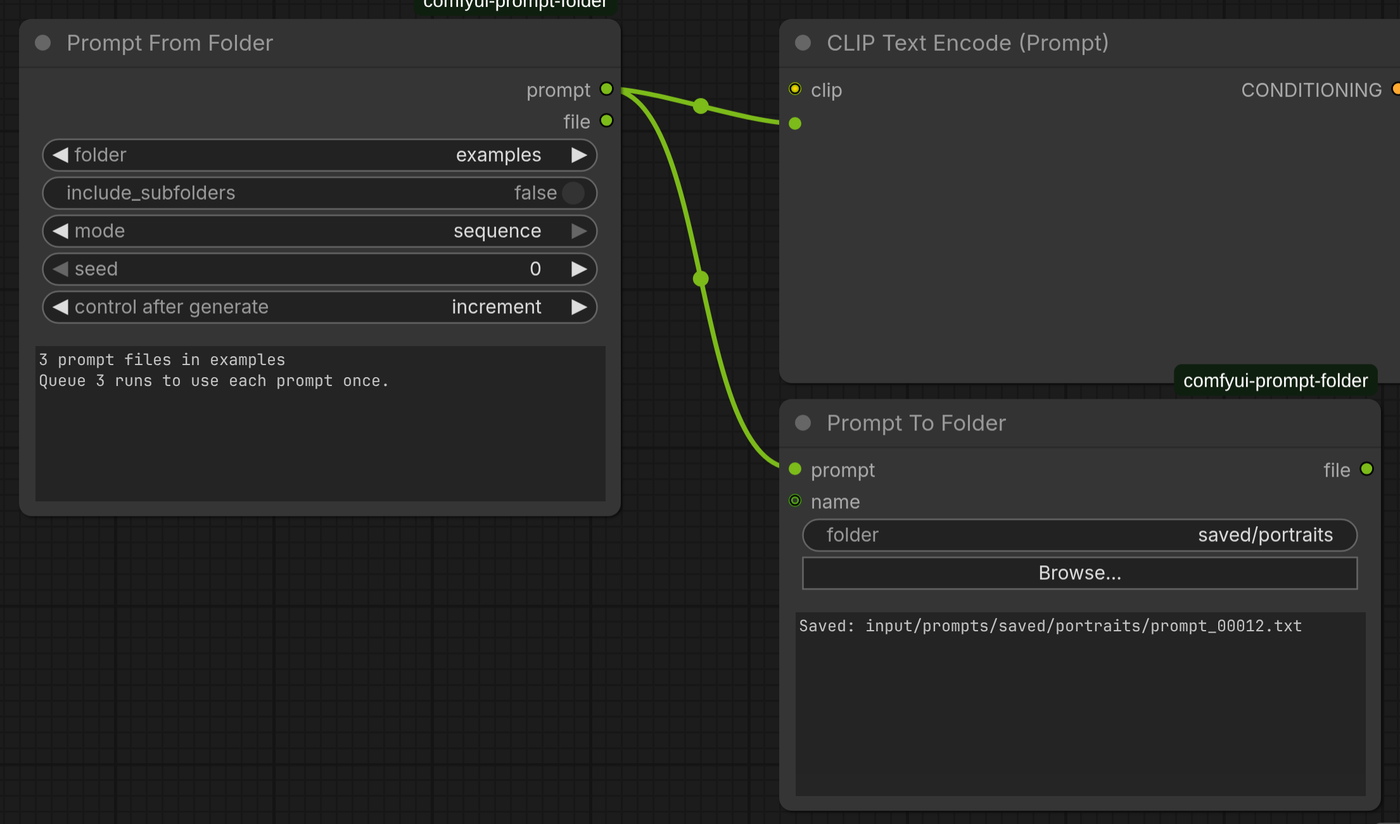
Prompt From Folder
| Input | What it does |
| --- | --- |
| folder | A folder under ComfyUI/input/prompts/. Press R in ComfyUI to refresh the list after adding folders. |
| include_subfolders | Also pick from the folder's subfolders. |
| mode | sequence takes each file in name order, one per run. random is a seeded random pick. |
| seed | Sequence: the position in the list (it wraps). Random: the same seed always picks the same file. |
The seed's control after generate follows the mode by itself: sequence
sets it to increment (the next file every run) and random to randomize.
In sequence mode the seed is the position in the list, starting at 0. It goes
back to 0, the first file, whenever you switch the mode to sequence, pick
another folder, or toggle include_subfolders, so a sequence never starts part
way through a folder. A seed you type in yourself, or one saved in a workflow,
is kept, so you can resume a sequence where you left off. The restart is done
by the ComfyUI frontend. If you drive the node through the API without it, set
seed to 0 yourself to start at the first file.
| Output | |
| --- | --- |
| prompt | The file's text, ready for a CLIP Text Encode node's text input. |
| file | The file's path within input/prompts/. |
As soon as you pick a folder, before any run, the box on the node shows how
many prompt files it holds, for example "8 prompt files in agerange/african:
queue 8 runs to use each prompt once". The count includes subfolders when
include_subfolders is on.
After each run, a box on the node shows the file that was picked, its position
(for example 2 of 12), and the prompt. The box is display only: it is not sent
with the prompt and is not saved with the workflow.
Prompt files
- Each
.txtfile holds one prompt. - Files are read as UTF-8, and leading and trailing whitespace is stripped.
- Names sort naturally, so
2.txtcomes before10.txt. Number your files to set the order. - Hidden files and non-
.txtfiles are ignored. - To use a collection stored elsewhere, symlink its folder into
input/prompts/. Symlinked folders are followed, and link loops are skipped.
If you edit a prompt file, the node notices and runs again, even with a fixed seed.
Prompt To Folder
Saves a prompt as a numbered .txt file, ready for Prompt From Folder to load
later.
| Input | What it does |
| --- | --- |
| prompt | The text to save. Connect the same string you send to CLIP Text Encode. |
| folder | A folder under ComfyUI/input/prompts/. Type a name (a new one is created), or use Browse… to pick an existing one. |
| name (optional) | The file name prefix, numbered like Save Image: name_00001.txt, name_00002.txt, and so on. A / in the name makes subfolders. Defaults to prompt. |
It never overwrites a file; it takes the next free number instead. It saves on
every run, even when the prompt has not changed. A box on the node shows where
the last prompt was saved, and the file output gives the same path.
Everything is written inside input/prompts/:
..is refused.- Absolute paths such as
/etcbecome ordinary subfolders underinput/prompts/. - Characters that are unsafe in file names, including
:, become_. - Files are created exclusively and without following symlinks, so a symlink planted at the target is never written through.
- The Browse dialog lists only folders under
input/prompts/.
Example workflow
example_workflows/Prompt From Folder - Z-Image Turbo.json is ComfyUI's standard
Z-Image Turbo template, unchanged, with its prompt coming from Prompt From Folder.
- Copy
example_prompts/toComfyUI/input/prompts/examples/. - Load the workflow and press R so the folder list includes
examples. - Run it. In
sequencemode each run takes the next prompt.
It uses the template's own model files (z_image_turbo_bf16, qwen_3_4b, ae).
Download links are in the workflow's model note.
Safety
ComfyUI is often reachable from other machines on the network, so the node
only ever lists and reads inside input/prompts/:
- A folder value that is not in the current list is rejected, so
../or/etcnever reach the filesystem. - Each file is opened without following a symlink at the file itself, without blocking (a FIFO cannot hang ComfyUI), and only up to 256 KB.
Install
From the Comfy Registry (once the listing is approved): search for Prompt Folder in ComfyUI-Manager, or run
comfy node install comfyui-prompt-folder
Or clone it into custom_nodes (ComfyUI-Manager's Install via Git URL works too):
cd ComfyUI/custom_nodes
git clone https://github.com/nzkritik/comfyui-prompt-folder
Then restart ComfyUI. There are no Python dependencies. The nodes use ComfyUI's V3 node API, so they need ComfyUI v0.3.48 or later. They were developed on v0.37.0.
Prompt folders live in ComfyUI/input/prompts/, which is created on first load.
Put .txt files in folders there, or symlink existing folders in.
Tests
uvx pytest -q tests                          # the folder/pick/read logic, no ComfyUI needed
python tests/ui_check.py examples sequence 1 # against a running, idle ComfyUI; needs aiohttp
ui_check.py drives the real frontend in headless Chromium, and blocks writes
to ComfyUI settings.
Licence
MIT