
ComfyUI-Minimax-H3-Reference-Library
Reusable tagged image and audio reference library for MiniMax H3 workflows in ComfyUI
Nodes (14)
Wiring H3's Built-In Cast
H3 Tagged Reference Prompt
Load a whole folder of images into ComfyUI in one node
A bypass node that tells you — and the workflow — whether it's actually bypassed
Stitch chained H3 clips back into one video, and let it complain if they don't match
Kill the brightness jump at a chained-clip join without touching the look
Grab one image out of a batch by index — even when the index is 'wrong'
Chain MiniMax H3 clips so the motion — and the sound — actually continues
Load the previous clip's latent — carefully — and feed it to Motion Context
Save H3's video-and-audio latent so the next clip can continue from it
Cut the pinned frames off the front of a chained clip — picture and sound together
Pick one prompt out of the batch when you don't want all of them
Batch a whole list of prompts through your workflow in one queue
The A/B switch that doesn't even run the branch you don't pick
Skeba AI Nodes for ComfyUI
Consolidated tagged references, workflow utilities, batching tools, and MiniMax H3 Motion Context nodes for ComfyUI.
H3 Reference Library replaces a large set of manually connected reference widgets with a local media library. Add images, videos, voice clips, descriptions, and categories once, then use semantic tags such as {news_anchor} or {newsroom} directly in a prompt.
Features
- Local manager at
/h3-referenceswith Reference Library, Built In Characters, RefMods, and Reference Creator tabs, a toolbar launcher, and an Open Reference Library button on the node - Legacy standalone known-character catalog retained at
/h3-built-in-references - Image, audio, and video records; embedded video soundtracks are detected automatically
- Drag-and-drop bulk import with automatic image/audio/video pairing by filename stem
- Reusable tags, descriptions, searchable categories, previews, and audio playback
- Category and reference-type organization for characters, locations, objects, music, and video
- Reference-type-aware media fields for characters, locations, objects, music, and video
- Category-first, reference-type-second selection guide for prompt building
- Bundled MiniMax H3 character catalog sourced from an editable Markdown file
- Searchable built-in character browser with individual and multi-tag copy
- Automatic MiniMax H3 image, video, video-audio, and standalone-audio reference ordering
- Persistent MiniMax H3 image, video, soundtrack, audio, and Qwen visual caching with automatic invalidation
- Nine image outputs, three standalone audio outputs, three video frame outputs, and three matching video-audio outputs
- Direct in-place replacement of tags with their saved descriptions
- Local-only storage with no downloads, telemetry, or external requests
- Prompt and image batching, indexed selection, and video clip combining utilities
- Workflow IO tagging and named passthrough/bypass controls
- Universal lazy bypass utility with up to sixteen type-synchronized lanes
Installation
Clone the repository into ComfyUI/custom_nodes:
cd ComfyUI/custom_nodes
git clone https://github.com/nikaskeba/ComfyUI-Minimax-H3-Reference-Library.git
Restart ComfyUI after installation. No additional Python packages are required beyond the dependencies included with ComfyUI.
Usage
- Add H3 Tagged Reference Prompt from
Skeba AI Nodes - Reference. - Click Open Reference Library on the node or use the library button in the ComfyUI toolbar.
- Add a tag such as
creature, choose its reference type and category, then attach the media allowed by that type. - Enter the tag in braces in the node prompt:
[Shot 1] {creature} stands at the bottom of {creepy_stairs}.
Tags entered with spaces or punctuation are normalized automatically. For
example, Simpsons chalkboard is saved as Simpsons_chalkboard.
- Set
video_fpsif the scene's video references should use a rate other than the 24 FPS default. This one value applies to every video loaded by that node execution. - Set
video_max_sideto limit oversized reference videos during decoding. The default is1536; smaller videos retain their original dimensions, and0disables the limit. - Connect
promptand the reference outputs to the MiniMax H3 node as described below.
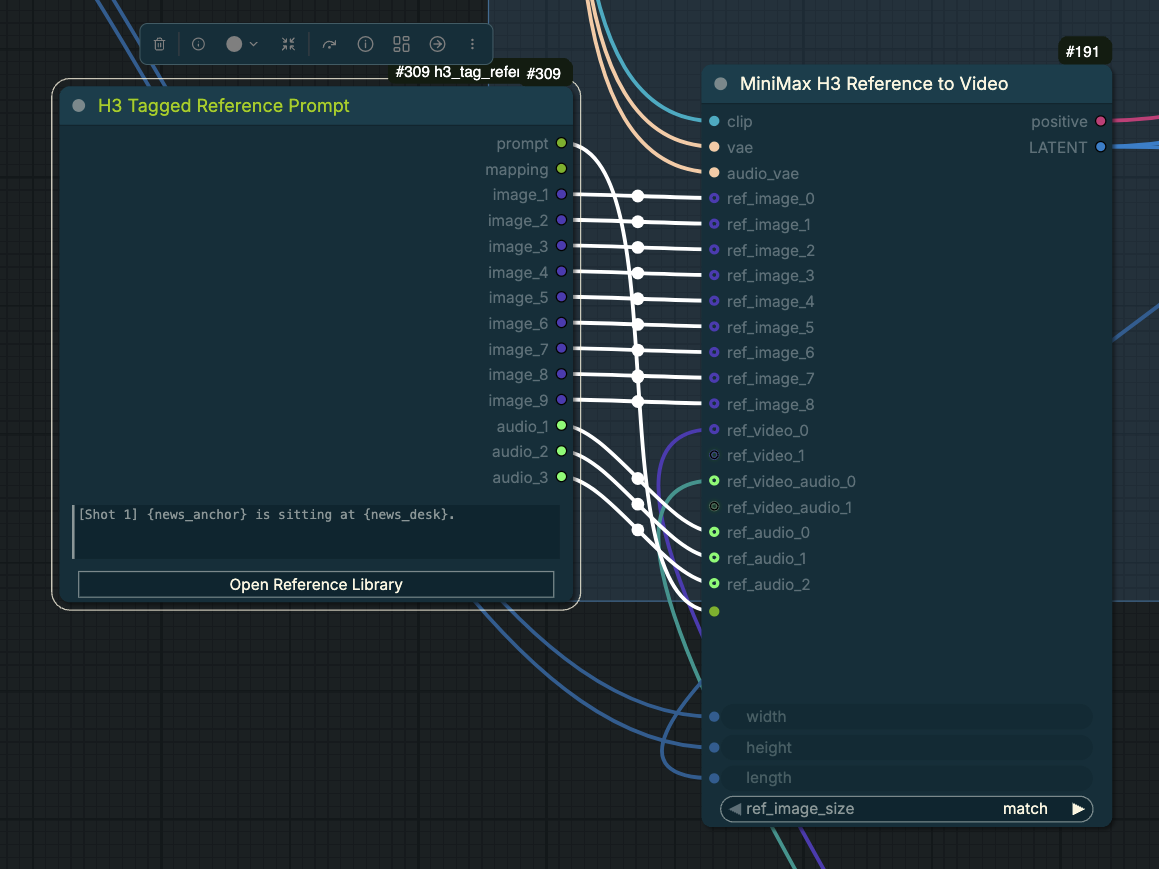
The node replaces each tag in place with its assigned media slot and saved
description. Image records use <Picture N>, video records use <Video N>, and
audio-only records use <Audio N>. Videos are decoded into IMAGE frame batches.
The node's single video_fps setting resamples every video used in that execution
to one common rate; it defaults to 24 FPS and accepts values from 1 through 240.
The node-level video_max_side setting proportionally shrinks only videos whose
longest side exceeds the selected limit. This happens frame-by-frame before the
decoded frames are stacked, reducing peak memory and downstream resize work.
Embedded video soundtracks are returned independently as AUDIO, while silent
videos leave their matching audio output empty.
Explicit voice tags receive standalone audio slots first. Remaining paired image-and-audio records are prioritized afterward. Paired records receive picture slots before image-only records, and every generated marker uses the resulting output socket number.
H3 Tagged Reference Prompt inputs and outputs
| Socket/widget | Type | Behavior |
| --- | --- | --- |
| prompt_template | STRING | Prompt containing library reference and voice tags. |
| video_fps | FLOAT | One forced frame rate for all videos loaded by this node; default 24, range 1–240. |
| video_max_side | INT | Maximum decoded video width or height; default 1536. Smaller videos remain unchanged, while 0 retains original dimensions. |
| prompt | STRING | Rewritten prompt containing the assigned H3 slot markers. |
| mapping | STRING | Human-readable tag-to-slot mapping for the current prompt. |
| image_1 … image_9 | IMAGE | Ordered still-image references. |
| audio_1 … audio_3 | AUDIO | Ordered standalone or paired audio references. |
| video_1 … video_3 | IMAGE | Ordered video references decoded as frame batches. |
| video_audio_1 … video_audio_3 | AUDIO | Soundtrack aligned to the corresponding video output, or empty for a silent video. |
The video sockets were appended after the original image and audio sockets so saved workflows retain the existing output indices.
The appended reference_bundle output carries ordered library identity and
source information to the cached H3 node without changing existing socket
indices.
Cached MiniMax H3 references
Use SKEBA MiniMax H3 Cached Reference to Video in place of the native
MiniMax H3 Reference to Video node to avoid repeatedly encoding unchanged
library images, videos, embedded video soundtracks, and standalone audio.
Music references use the standalone-audio cache automatically. Connect the
same prompt, image, audio, video, and video-audio outputs, then connect
reference_bundle to the cached node's matching input.
For the fastest repeated execution, enable defer_media_loading / BUNDLE
ONLY on H3 Tagged Reference Prompt. The tagged node then resolves the
prompt and source paths without decoding media. On the first cache miss, the
cached node loads the source itself and creates a packed per-reference
Safetensors artifact containing its H3 VAE and Qwen visual payloads. Later
cache hits load that artifact directly, so image loading, video decoding,
frame-rate conversion, resizing, and audio decoding are skipped. Keep this
option off when the Tagged Reference media outputs feed nodes other than the
SKEBA cached-reference node.
cache_mode controls the behavior:
| Mode | Behavior |
| --- | --- |
| auto | Load a matching cache or create one when missing. |
| disabled | Process normally without reading or writing caches. |
| rebuild | Replace every cache used by this execution. Switch back to auto afterward. |
The cache_status output reports image, video, soundtrack, audio, and Qwen
HIT/MISS results per tag.
Image and audio fingerprints are independent, so replacing a voice does not
rebuild its unchanged picture. Image fingerprints include source contents,
generation geometry, reference sizing mode, preprocessing version, and video
VAE identity. Audio fingerprints include source contents, sample rates,
preprocessing version, and audio VAE identity. Replacing a file without
changing its name still invalidates the affected cache.
Qwen visual fingerprints include the image contents, actual resized reference geometry, preprocessing version, and complete CLIP/Qwen model identity. The cache stores the merged visual tokens, grid, and DeepStack features separately for each library reference. The scene prompt still passes through the Qwen text transformer every time, so changing the prompt or reference order does not use stale scene conditioning. CLIP models with active patches or hooks fall back to native visual processing because a portable persistent identity cannot be guaranteed for those modifications.
Reference-video fingerprints additionally include the forced frame rate, trimmed input frame count, adapted canvas geometry, and video VAE identity. Embedded soundtracks use their own audio-VAE cache entry. Qwen's sampled video frame pairs are cached as independent visual blocks, so their expensive vision encoding is also reused.
Caches use CPU safetensors plus JSON manifests under:
ComfyUI/user/h3_reference_library/cache/v1/
They do not remain in VRAM. Invalid or corrupt entries are ignored and rebuilt. Still images, reference videos, embedded soundtracks, standalone voice/music audio, and stable Qwen image/video visual features are cached. Final Qwen text conditioning remains prompt-dependent and is always processed normally.
Cached references with first/last frames
Use SKEBA MiniMax H3 Cached Reference + First/Last Frame when a generation
needs both the reference library and native first-frame/last-frame control.
Replace the normal cached-reference node with this combined node, keep the same
prompt, reference media, and reference_bundle connections, then connect either
or both first_frame and last_frame. Its positive and latent outputs feed
the normal H3 sampling chain.
Library visuals are presented to Qwen first, so existing <Picture N>,
<Video N>, and <Audio N> prompt ordinals remain stable. Endpoint images are
then added to Qwen's visual context and encoded as native minimax_keyframes at
frame 0 and the final output frame. They are not added to minimax_refs and
do not consume H3 reference-library slots. The node supports the Tagged
Reference node's BUNDLE ONLY mode and all persistent reference caches.
Do not add another first/end guide or AV Connector at the same endpoint, since
that would create competing keyframes.
For an upscale or other second sampling pass, connect the exact latent going
into that sampler to target_latent, then use this node's latent output for
the sampler. The node derives the guide canvas and duration from that latent
instead of its base width, height, and length widgets. This prevents
keyframe token-shape mismatches when the second pass uses another resolution.
H3 guides in multi-stage workflows
Experimental multi-frame guide
SKEBA MiniMax H3 Multi-Frame Guide is a standalone experimental node
under Skeba AI Nodes - Reference/Experimental. It adds as many as eight hard,
single-frame native H3 guides without changing the existing single-frame guide
nodes. Connect an IMAGE/video batch and enter comma-separated, zero-based target
frames such as 0, 22, 60, -1; the node samples the source batch evenly from
its first through last frame. -1 addresses the final output frame. You can
also connect up to eight individual single images and position each separately.
The eight-guide limit applies to batch and individual guides combined. Target
indices must be unique and cannot collide with native H3 keyframes already in
the conditioning. Images use H3's native center-crop resize and video VAE
encoding, and the resulting minimax_keyframes are sorted chronologically.
BYPASS is lazy and returns the original conditioning without loading or
encoding any guide image. The status output reports source-to-target mappings
and estimated visual-token overhead. Dense hard guides may slow sampling or
restrict motion; guide audio is intentionally unsupported in this test node.
Experimental AV connector
The experimental AV connector is a three-node path for generating a clip that continues from an existing source, arrives at an existing destination, or bridges both. Inputs are decoded 24 FPS IMAGE batches with optional AUDIO:
For connector workflows that do not need separate first/last still images, use
SKEBA MiniMax H3 Cached Reference to Video before the connector. Connect its
positive and latent outputs to the connector's matching inputs. This is the
core cache implementation used by the first/last-frame wrapper and includes the
same persistent image, video, soundtrack, standalone-audio, Qwen visual, and
BUNDLE ONLY lazy-loading enhancements.
SKEBA MiniMax H3 Cached Reference to Video
                | positive + latent                       source/destination IMAGE/AUDIO
                +--------------------------+--------------------------+
                                           v
                         SKEBA MiniMax H3 AV Connector Guide
                | positive + Pinned Generation Latent      connector_bundle
                v                                          |
SamplerCustomAdvanced -> H3 decode ------------------------+
                | generated IMAGE/AUDIO            |
                +-> SKEBA H3 AV Connector Finalize
                              | bridge IMAGE/AUDIO + seam_bundle
                              v
                 optional SKEBA H3 AV Connector Assemble
The guide takes 5, 22, 39, or 56 final frames from the Starting Video and places them at the generated clip's start. It takes the same selected count from the Ending Video's beginning and places it at the generated clip's end. These represent about 0.21, 0.92, 1.63, or 2.33 seconds at H3's native 24 FPS. Matching audio windows are taken from the source tail and destination head, normalized to stereo/audio-VAE rate, and placed at the same H3 timeline positions. The source and destination lanes are independently optional. Both overlaps must fit without touching, and they cannot overlap pre-existing H3 keyframes.
The guide also VAE-encodes those endpoint windows directly into a cloned H3 AV
latent. Its nested noise mask marks the inserted video and audio latent steps as
preserved (0) and only the bridge middle as generated (1). Connect Pinned
Generation Latent to SamplerCustomAdvanced.latent_image; continuing to use
the original empty latent falls back to conditioning-only behavior and permits
the face/audio drift this mode is designed to avoid. The native keyframes remain
attached as reinforcement, while the zero-denoise mask keeps the endpoint AV
latents in the sampled stream itself.
Longer context gives H3 more motion and sound to continue from, but every guided frame consumes generated duration and adds conditioning cost. With both ends enabled, the output must be longer than their combined context—for example, two 56-frame ends need more than 112 generated frames. Finalize removes these duplicate context regions, so they are not repeated in the usable bridge.
The guided endpoint frames are sacrificial duplicates. Finalize removes them from the decoded bridge and trims the exact corresponding audio durations, including H3's rounded audio-grid overhang. If the audio VAE decoder ends less than one 40 Hz audio-latent step before the exact 24 FPS picture boundary, Finalize edge-pads that small rounding gap; larger shortages remain errors. Its bridge outputs can be used directly. The seam bundle additionally lets Assemble concatenate the complete source, trimmed bridge, and destination. Assemble keeps endpoint media intact, normalizes formats only when required, maintains exact 24 FPS audio duration, and smooths only the generated bridge's first/last 40 ms by default.
BYPASS on the guide passes the original latent through and evaluates no guide
media or VAE branches. Connector
strength remains H3-native; use H3 Condition Strength separately when a
global strength change is wanted. That global control also affects character
and reference-library conditioning in the same prompt.
MiniMax H3 Add Guide encodes its guide for the spatial dimensions of the
latent connected to that node. Never reuse conditioning guided at the
first-stage resolution after a latent upscale; doing so causes a patch-grid
shape mismatch (for example, 299 guide rows cannot be inserted into a 680-row
video grid).
For a full-denoise base pass followed by a low-denoise upscale/refinement pass,
do not crop the original guide independently at two different spatial sizes.
That can create a one-frame composition snap. Use H3 Guide Resize to Latent
to center-crop the original once to the base latent, then resize that normalized
image in edge pad mode to the upscaled latent. The very small grid-alignment
change is filled from the image edges without selecting a different crop or
distorting the picture, so both guide nodes see the same composition. The resize
node derives its canvas from the connected H3 latent and therefore remains
dynamic across landscape and portrait workflows.
The included example/frame_guider_example.json demonstrates this normalized-
guide handoff at frame 22. It avoids the additional full-video VAE decode that
would otherwise be needed to recover a generated frame for the second guide.
For prompt loops, the example also stores each decoded clip's final frame as a
lossless tensor under ComfyUI/output/h3_context_frame/. The first loop item
bypasses both guide branches lazily and therefore loads no guide image. Later
items load the preceding clip's stored final frame, normalize it to both
sampling canvases, and guide internal frame 22—the first new frame after Motion
Context's internal frames 0–21. This reinforces small persistent details such as
wall decorations without replacing the initial generation's composition. The
frame save is included in the loop-completion dependency, so the next iteration
cannot start before its predecessor's guide frame exists.
The example uses SKEBA MiniMax H3 Add Guide with Bypass for both sampling
stages. Its Boolean is lazy: BYPASS returns the incoming conditioning without
requesting the latent, image, audio, or VAE guide inputs. Connect the same reset
condition used by Motion Context—for example loop_item == 1 or new_location—
so first clips and location changes skip both the previous latent and frame-22
guide, while ordinary continuations enable both together.
Wire the video outputs as follows:
| Reference node output | MiniMax H3 input |
| --- | --- |
| video_1 | ref_video_0 |
| video_2 | ref_video_1 |
| video_3 | ref_video_2 |
| video_audio_1 | ref_video_audio_0 |
| video_audio_2 | ref_video_audio_1 |
| video_audio_3 | ref_video_audio_2 |
Example generated prompt:
[Shot 1] <Picture 1> (a bald creature with prominent claws) stands at the bottom of <Picture 2> (a staircase with spider webs and eerie lighting).
The node does not prepend subject legends. Slot markers appear only where their tags occur in the original prompt.
Use section-sign tags when a prompt needs to identify a library voice and its audio slot:
<d>[English §news_anchor§] Good evening.</d>
If the record supplies the first loaded audio file and has the description
a calm broadcast voice, the node produces:
<d>[English <Audio 1> (a calm broadcast voice)] Good evening.</d>
A voice tag with only a description expands to that description. A voice tag
with only an audio file expands to its <Audio N> slot. Audio files beyond the
three H3 audio outputs do not claim a slot and fall back to their description or
plain tag name.
For paired records, picture and audio assignments remain on their respective tag lines:
{performer} -> <Picture 1> (the performer on stage)
§performer§ -> <Audio 1> (an energetic speaking voice)
Built-In Characters
Add Built-In Reference from Skeba AI Nodes - Reference for characters already known by
MiniMax H3. Copy a caret tag from the separate character database, then use it
in the node prompt. The node's Open Built-In Characters button opens that
standalone page, which has no image or audio management controls:
[Shot 1] ^Abby Sciuto^ works at her desk.
The node expands it to:
[Shot 1] Abby Sciuto played by Pauley Perrette featured on NCIS works at her desk.
Built-in characters are prompt-only and do not consume image or audio reference
sockets. The catalog lives in built_in_references.md. Add or update Markdown
table rows there, then refresh the character catalog. Node execution tracks the
file revision automatically.
For dialogue, use a tilde voice tag:
<d>[English ~George Costanza~] Damn, Jerry.</d>
The node expands it without the show or franchise name:
<d>[English in George Costanza's voice as played by Jason Alexander] Damn, Jerry.</d>
When a character has multiple portrayals, the catalog supplies an actor-specific
tag such as ^Bruce Wayne / Batman | Christian Bale | The Dark Knight^.
The character page can search and sort by character, actor, or show in either
alphabetical direction. Selected characters appear together in a visible guide;
Copy selected guide copies each character and voice tag as one line, for
example:
^Abby Sciuto^ Voice: ~Abby Sciuto~ Played by Pauley Perrette | NCIS
Clear selection removes every selected character. Each catalog row also has a combined Copy character + voice action. Clip filenames remain in the Markdown source but are not displayed or returned by the character browser API.
The main H3 Reference Library manager includes the same catalog in a
separate Built In Characters tab. The dedicated Reference Creator tab
combines selections from the managed library, built-in catalog, and RefMods
into one grouped guide without taking space above the browsing lists. Search text
is shared across the three library tabs and retained on reload, so switching tabs
filters the same query by reference source. Tags copied from this merged view use the same
delimiters as H3 Tagged Reference Prompt and add _BC to prevent a built-in
character from colliding with a user-created record:
{Abby Sciuto_BC} Voice: §Abby Sciuto_BC§ Played by Pauley Perrette | NCIS
The regular tag expands to the existing portrayal description, such as Abby Sciuto played by Pauley Perrette featured on NCIS. Each built-in character can
also have one optional image attached from the merged tab. When present, the
same {Name_BC} tag claims a normal <Picture N> slot, feeds that image through
the reference bundle, and remains compatible with persistent reference caching.
Replacing or removing the image automatically invalidates the affected cache.
The section-sign tag expands to the existing voice wording and consumes no audio
slot because built-in voices remain semantic descriptions. The standalone page
and original Built-In Reference node retain ^Name^ and ~Name~ for
workflow compatibility.
Reference Library
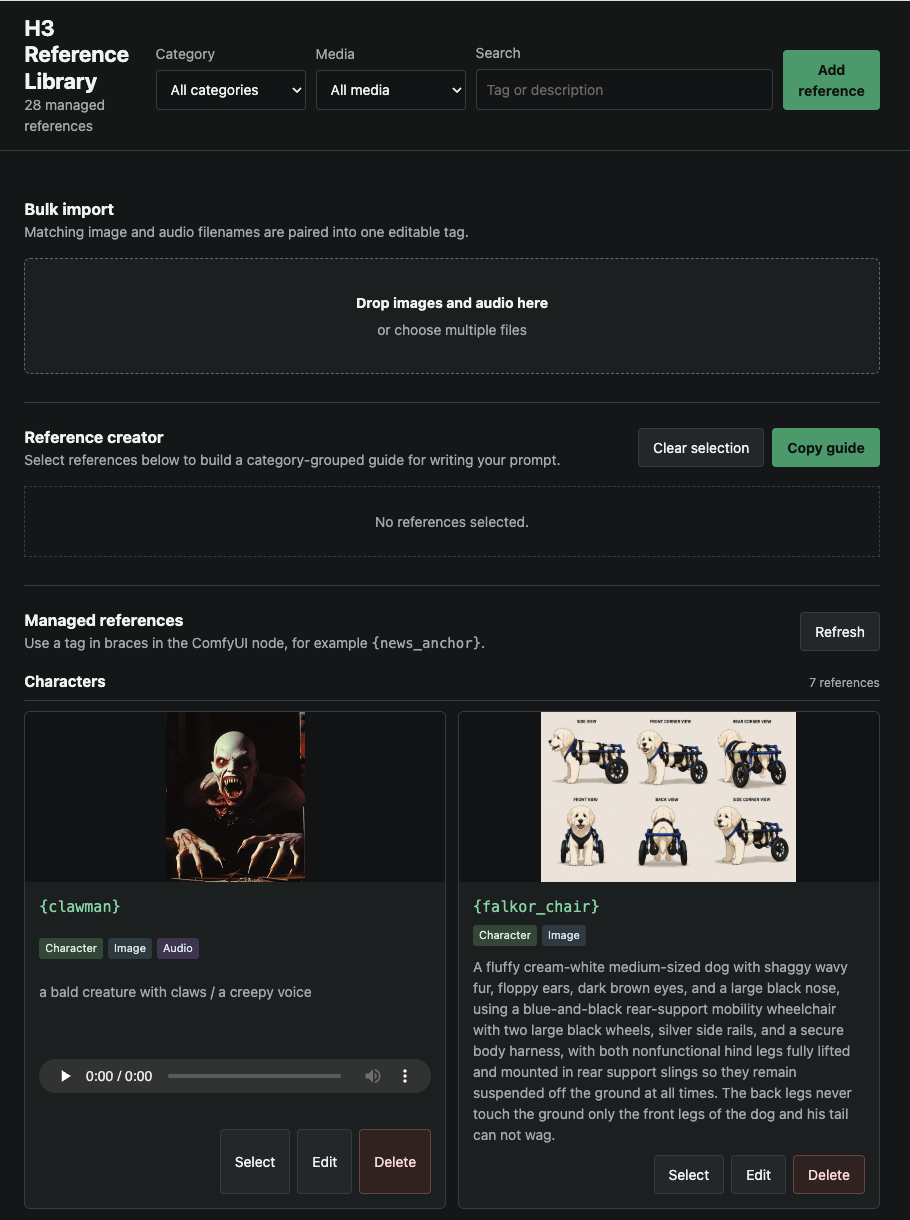
The manager uses a sticky top bar for tab selection, per-tab search, filters, and the primary Add/Bulk Import actions. Bulk Import opens as a modal and keeps its progress indicator or actionable server error visible while files are processed.
The manager supports:
- Single and bulk image, audio, and video uploads
- Matching image/audio/video pairing by filename stem
- Bulk-import image thumbnails, first-frame video previews, and playable audio previews
- Existing-category dropdowns, custom category creation, and per-media descriptions
- Media-aware reference-type choices that hide unsupported types and media fields
- A prominent Add Audio Track / Replace Audio Track control for bulk character and object setup
- Text-only Character voice descriptions; an uploaded voice clip is optional
- Optional Built In Character image context, shown only for attached images and added only to the visual reference expansion (voice descriptions are unchanged)
- Automatic Video type selection for video-only bulk drafts
- Automatic normalization of readable tags such as
Simpsons chalkboardtoSimpsons_chalkboard - Persistent single-record, bulk-banner, and per-draft upload errors with backend or proxy response details
- Safe partial bulk imports: successfully imported drafts are removed so retrying a failed batch does not duplicate them
- Image and video preview plus audio playback
- Search and category/media filters
- Edit, replace, and delete operations
- Category-first, reference-type-second library and prompt-guide grouping
- A grouped reference guide that can be copied while writing prompts
Reference type controls which media can be attached:
| Reference type | Allowed library media | Bulk-import behavior | | --- | --- | --- | | Character | Image and optional audio | Image and voice descriptions are shown; an audio track can be attached directly to an image draft. | | Location | Image only | Only the image and its description are shown. | | Object | Image and optional audio | Image and audio descriptions are shown; an audio track can be attached directly to an image draft. | | Music | Audio only | Only the audio file and audio description are shown. | | Video | Video only | Selected automatically for a video-only draft; the first frame is previewed. Embedded audio is detected automatically. |
Bulk reference-type choices are filtered by the files already attached. For
example, an image draft offers Character, Location, and Object; after audio is
attached it offers only Character and Object. Unsupported empty rows such as
Video: None are hidden.
Older records without a reference type remain uncategorized for backward
compatibility. Uncategorized stays selected while editing such a record but is
hidden from new reference-type choices. Existing categories, tags, and media
remain unchanged until the record is deliberately reclassified.
Library data is stored outside the custom-node repository:
ComfyUI/user/h3_reference_library/
  library.json
  images/
  audio/
  videos/
Updating or reinstalling the custom node does not remove this library.
Batch Text Prompt Loop
Add Skeba Batch Text (Prompt Loop) from Skeba AI Nodes - Utilities to
split a multiline prompt or another delimited string into a ComfyUI list. Its
outputs provide the prompt list, total count, one-based prompt numbers, and an
atomic SKEBA_PROMPT_LIST batch value.
Connect prompt_batch to Skeba Select Prompt From Batch when a workflow
needs one entry selected by index. Selection wraps around when the index is
larger than the batch, and current_prompt reports the selected entry's
one-based number. Existing workflows keep working because the original
SkebaPromptLoopNode and SkebaPromptFromListNode identifiers are preserved.
Additional Skeba Utilities
The consolidated project also provides these nodes under
Skeba AI Nodes - Utilities while preserving their original workflow IDs:
- Skeba Batch Images (Folder Loader) loads a sorted folder of images as a ComfyUI list, with optional starting index and image limit.
- Skeba Get Image From Batch selects one image by a wrapping index.
- Skeba Combine Video Clips joins accumulated
VIDEOvalues after checking their frame rate, dimensions, bit depth, audio sample rate, and channel layout. - Skeba Bypass passes through an optional value and reports a named enabled state for workflows using the bundled Skeba IO-tagging frontend controls.
The IO-tagging context-menu extensions are included in this project as well, so
node input/output metadata remains available without the separate
skeba_io_tags custom-node package.
H3 Motion Context
The five Motion Context nodes are available under
Skeba AI Nodes - Motion Context with their original workflow identifiers:
- SKEBA H3 Motion Context pins picture and audio context from the previous
clip so the next MiniMax H3 generation can continue it. It now exposes video
versus per-frame encoding, head versus before-frame anchoring, decoded-frame
crop behavior, timeline versus reference audio placement, and independent
video/audio continuation switches. Optional pre-cut reinforcement repeats
the final temporal context block inside the disposable head to strengthen an
upscale pass's background adherence without adding a delivered frame.
Audio-only continuation can carry sound
across a new visual location without adding picture keyframes or trim. Existing
workflows retain the recommended
video/head/disabled/timelinedefaults. - SKEBA H3 Motion Context Trim removes the leading pinned context frames
from the decoded continuation. Its primary IMAGE/AUDIO outputs remain fully
trimmed; optional
crossfade_imagesandcrossfade_framesoutputs retain a configurable part of the duplicated video window for an external overlap combiner. An optional boundary luminance matcher can correct a short exposure pulse before the pinned head is removed.match_tailkeeps decoded audio duration aligned to picture. - SKEBA H3 Motion Context Save Latent saves the sampler's combined video and audio latent for a later workflow run.
- SKEBA H3 Motion Context Load Latent loads that saved latent, including indexed loop slots.
- SKEBA H3 Seam Exposure Match fades an exposure correction across the beginning of a continuation to reduce visible brightness jumps.
The Motion Context patches install lazily on the first execution of its main
node and are gated by that node's own markers. Merely installing this package
does not patch unrelated H3 workflows. Full wiring, settings, and limitations
are documented in motion_context/README.md.
Universal Node Bypass
Add Universal Node Bypass from Skeba AI Nodes - Utilities to switch one or
more processing branches together. For each lane, connect the unchanged source
to original_N, connect the processor result to processed_N, and connect
output_N to the downstream node:
source -----------------------> original_1
   +----> processor ----------> processed_1

Universal Node Bypass output_1 ----> downstream node
The Boolean defaults to PROCESS (false), which requests and returns only
the processed_N inputs. BYPASS (true) requests and returns only the
original_N inputs. The unselected branch is lazy and may remain disconnected.
If a selected input is missing for a connected output, execution reports the
lane and socket that must be connected.
One empty lane is shown initially. Connecting its last visible lane reveals the next lane, up to sixteen. The paired inputs and output adopt the type of their first connection. Unused trailing lanes are hidden, while gaps between connected lanes retain their indices when a workflow is saved and reloaded.
The utility skips a processor only when that processor's result is consumed
exclusively through this lazy switch. Any other live downstream connection can
still cause the processor to execute. All three sockets in a lane must carry a
compatible type. A type-changing processor therefore needs an original_N
value matching its output type; for example, an IMAGE cannot bypass directly
into a LATENT lane.
Limits and Behavior
- One node execution supports up to nine image references.
- The first three eligible audio references are loaded; paired image/audio records receive priority.
- One node execution supports up to three reference videos and their three slot-aligned soundtracks. Videos without audio remain valid.
- The node-level
video_fpsvalue applies to every referenced video in that execution; frame rate is not stored per library clip. - The node-level
video_max_sidevalue only downsizes oversized videos and is included in persistent cache fingerprints. - Reference videos are returned as IMAGE frame batches, and their embedded soundtracks are returned separately as AUDIO.
- Every tag is replaced once in place with its saved description.
- A prompt with no tags passes through unchanged and loads no media.
- Missing tags, files, excessive reference counts, and invalid selected media produce actionable errors.
- Upload failures remain visible in the editor or affected bulk draft instead of appearing only in the browser console.
- Stored tags contain letters, numbers, underscores, and hyphens; spaces and punctuation entered in the manager are normalized automatically.
- Library reference tags use
{tag}; library voice tags use§tag§. - Built-in tags copied from the Reference Library tab use
{Character Name_BC}and§Character Name_BC§. The legacy standalone page and node retain^Character Name^and~Character Name~.
Updating
cd ComfyUI/custom_nodes/ComfyUI-Minimax-H3-Reference-Library
git pull
Restart ComfyUI after updating backend files.
Registry Publishing
The repository includes Comfy Registry metadata and a manual GitHub Actions publishing workflow. A maintainer must:
- Use the
nicholasskebapublisher at Comfy Registry. - Create a Registry publishing API key for that publisher.
- Add the key to this GitHub repository as an Actions secret named
REGISTRY_ACCESS_TOKEN. - Run Publish to Comfy Registry from the repository Actions page.
The Registry powers discovery and installation through ComfyUI-Manager. Increment the version in pyproject.toml before publishing each subsequent release.
License
This combined project is licensed under GNU GPL version 3. Original MIT notices
for components that predate the Motion Context consolidation are retained under
LICENSES/; see THIRD_PARTY_NOTICES.md for provenance and modifications.
Optional video bookends
Skeba Combine Video Clips accepts starting_video and ending_video: the
output order is starting video, accumulated clips, ending video. Either input
can be omitted. clip_count includes connected bookends. Starting and ending videos automatically fit the first accumulated clip�s
dimensions, preserving aspect ratio with black bars. Without accumulated clips,
the first connected video sets the size. Accumulated clips must match dimensions.
All videos must match frame rate and bit depth; audio sample rates are automatically converted to the first accumulated audio
track�s rate (or the first available track when the accumulation is silent).
Audio channel layouts must still match. Silent clips receive silence when other clips have
audio, and short audio tracks are padded to preserve timing.
Built In Characters supports optional voice clips independently of reference images. In the Reference Library's Built In Characters view, use Add voice clip, Replace voice clip, or Remove voice clip; the audio player previews the attachment. Use the character's section-sign voice tag to reference the clip in a prompt. Characters without uploaded media keep their existing text references. Image and voice attachments can be used separately or together.
Fixed Palette Quantize
Install this repository in ComfyUI/custom_nodes (or update your existing copy), restart ComfyUI, and refresh the browser. No extra dependencies for this node. Search Fixed Palette Quantize under Skeba AI Nodes - Utilities.
Connect IMAGE/video-frame batches and select 2-16 colors using the pickers or hex fields. Defaults: #00FF00, #000000, #FFFFFF. Outputs: IMAGE and palette STRING. Unused colors remain saved when reducing the count. Without the frontend, all 16 standard hex inputs remain available. RGB nearest-color matching has no dithering and uses 65,536-pixel chunks on the input device (CPU or GPU). RGBA alpha is preserved. Quantize after resizing; later interpolation or lossy video encoding can introduce colors. Use lossless RGB output for exact saved colors.
Palette eyedropper and video frame selection
Restart ComfyUI and refresh after updating. In Fixed Palette Quantize, choose
preview_frame (zero-based) and click Preview / Pick Colors. This queues
only the image-input branch with a preview helper, not downstream quantization
or export. Upstream image generation may still run if it is not cached. Frame
indices beyond the batch use the final frame.
Click Pick next to a color, then click the displayed frame. Choose Exact Pixel, 3x3 Average (default), or 5x5 Average. Sampling uses original float frame pixels with boundary-clamped regions, not the resized preview. The resulting uppercase hex value updates the ordinary saved palette widget and its swatch. Run the normal workflow afterward to quantize all frames with those colors.
Changing the preview frame requires another preview request. Reopening a saved workflow retains colors but requires refreshing the temporary preview. Only the selected frame is stored in ComfyUI's temp/skeba_palette directory as a float array and display PNG; the video batch is not retained by the picker. Auto Extract and Snap are deferred; the quantization algorithm is unchanged.
Deterministic reference compiler
H3 Tagged Reference Prompt now offers compiler_mode = deterministic for six-section semantic prompts, independent Subject/Speaker/media numbering, and JSON mapping diagnostics. Existing workflows default to legacy mode. See the compiler guide and example prompt.
Tagged RefMods
Appearance and voice RefMods, library creation, protected Apply controls and a two-pass example are documented in Tagged RefMods.
Playlist edit batches
In H3 Live Playlist > Edit Clip, separate prompts with | to generate multiple
clips in sequence. Each prompt uses its [s=x] duration, or Default seconds per
clip (15 by default). The editor shows individual and total durations.
The selected Before reference guides only the first clip, and After guides only
the last. Separate batch continuation controls use 22 frames with audio by
default; [new_location] resets internal continuation. A first-prompt scene
marker does not disable an explicitly selected Before reference. All clips use
the chosen seed, recorded with each result.
Batches run on the server even if the playlist page closes. Completed clips stay in the media library, followed by one assembled alternate. Section edits retain the original prefix/suffix once around the complete batch. The active timeline stays unchanged until you use the alternate. Failed or interrupted batches offer Resume from failed clip, including after a ComfyUI restart. Cancel keeps completed clips. Changes to the saved timeline position require manual placement of the alternate. Workflow settings are captured at submission, so later template changes do not change a running/resumed batch.
In deterministic compiler mode, a directly attributed dialogue turn such as
{Cosmo Kramer_BC} says, <d>[English]Oh, buddy!</d> automatically selects that
character's attached voice. The language header stays unchanged. Explicit voice
tags still take precedence; silent characters do not contribute voice references.
Use library character tags in source prompts; Subject/Speaker numbers are assigned
by the compiler. The three-voice limit and shared cropping budget still apply.
Prompt section names: use summary: for the scene setup and visual description,
and detailed_description: for chronological shots and dialogue. New Prompt List
Text scenes use these headings. Older detailed_description: + timeline: prompts
are converted by the deterministic compiler; the formatted editor converts the
selected prompt on edit, while viewing alone preserves the original raw text.
For voice diagnostics, connect H3 Tagged Reference Prompt's existing mapping
STRING output to Display Any. In deterministic mode, voice_assignments lists
each speaker's character tag, Subject/Speaker/Audio IDs, bundle position, source
file or RefMod attachment, and voice crop cap. Connect prompt to a second display
to inspect the compiled dialogue. This reports compiler selection, not verification
of the recording's identity, downstream socket overrides, or generated voices.
Live Playlist Create Video exports at 24 FPS. Mixed clips use the selected source with the largest pixel area as the output resolution (ties use timeline order; odd dimensions round up to even). Smaller or differently shaped clips are scaled to fit with padding, without cropping or stretching. Timeline trims and audio seam settings still apply, and source files remain unchanged. Already matching, untrimmed 24 FPS clips retain the video-copy export path.
Under Redo jobs, use Edit prompt / Retry on a failed or canceled job to correct its prompt and submit a new attempt with the saved seed, reference boundaries, and edit position. Completed jobs offer Run again. Batch retries lock and reuse completed prompts; edit the unfinished prompts without changing their count. Existing clips, the original job history, and the active timeline stay unchanged.
SKEBA Custom Choice
Use SKEBA Custom Choice to expose a shared dropdown anywhere in a workflow. Click Edit choices, enter one value per line (or comma-separated), then Apply choices. The list and selected value are saved with the workflow.
Connect value -> Setter, then matching Getters to the target nodes. Convert the target widget to an input when needed. Use text output for combo inputs, even for numeric-looking options such as 5, 22, 39, 56. Other targets can use integer, decimal, or boolean output; booleans use true and false.
For Motion Context continuation mode, enter the exact values standard, pre-cut reinforcement, and scene reference. Choices are literal values, not display aliases. Rename the node title to identify each shared control.
Continuation from the last rendered clip
SKEBA H3 Last Rendered Context reads the final clip in an incoming ACCUMULATION (or an explicitly connected VIDEO). It outputs tail frames, synchronized audio, a bypass flag, and the effective frame count. Choose 5/22/39/56 frames; audio is optional. Empty or shorter-than-five-frame input bypasses context. Other frame rates are sampled at H3's 24 fps without cropping the image. Only the last clip is decoded.
Connect the loop-open accumulation from before the current clip is appended; connecting the current clip save back to its own generation would create a cycle. Use the bypass output for the first iteration, or drive the loader's bypass from your first-clip/new-scene control.
For SKEBA H3 Motion Context, connect context_frames and context_audio, select context_source = rendered frames/audio, and supply the video/audio VAEs. This explicitly ignores context_latent; the required latent input remains the current generation's target latent. Auto retains the existing latent-first behavior.
For Base-Pass AV Connector, connect the same outputs to Starting Video Frames (start_frames) and Starting Video Audio (start_audio), and connect the bypass output. Match the starting overlap length to the loader. The same media can feed an upscale connector with its own target latent/VAEs. Use the AV Connector's existing overlap-finalization path when it handles continuation; avoid also pinning/trimming the same overlap through Motion Context. This change does not automatically rewire saved workflows.