ComfyUI-RT-LTX2-RareTools
Experimental ComfyUI custom nodes for LTXV2 model with support for Gemma models. Tutorial available at https://www.youtube.com/@raretutor
Nodes (26)
ComfyUI-RT-RareTools
Advanced custom nodes suite for ComfyUI featuring LTX-Video 2 / LTX-2.5, Qwen Image 2.1, MiniMax H3, and real-time Interactive Visual A/B Image and Video Comparison.
Tutorials and walkthroughs: YouTube @raretutor
Key Features
- RT Image Compare: Real-time canvas-based A/B image comparison with zero-drift slide wipe, smooth mouse wheel zoom (1x to 30x centered on cursor), pan support, click toggle, GPU difference blend, and fullscreen lightbox inspection.
- RT Video Compare: Synchronized dual-video comparator with wipe slider, interactive timeline scrubber, frame-by-frame stepping, and playback speed controls.
- Prompt Enhancers (Qwen Image 2.1 & LTX-2.5): High-performance local vision/LLM prompt enhancement powered by
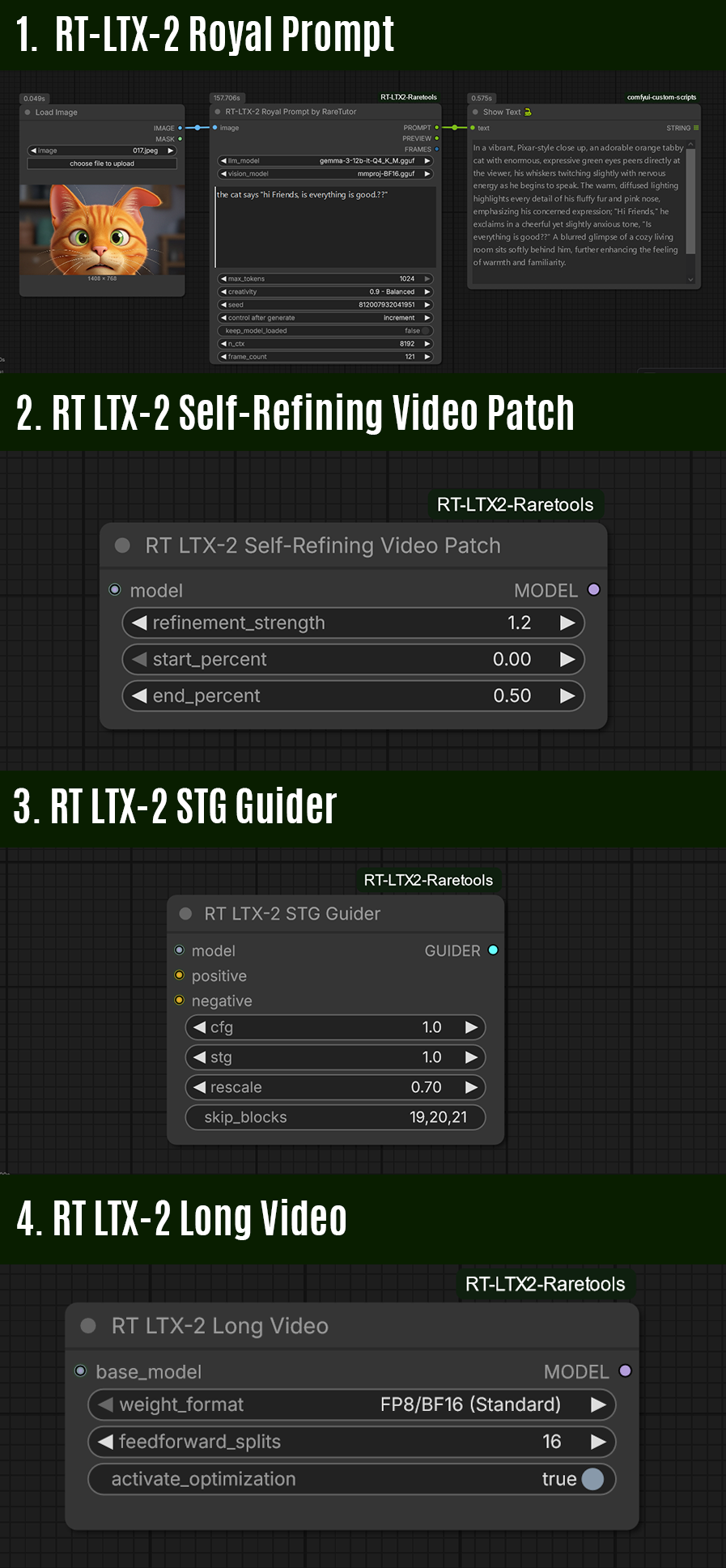
llama-cpp-python(v0.4.1) with hardware CUDA / Metal acceleration. - LTX2 Video Optimization: Tiled VAE encoder/decoder, streaming decoder, STG guidance, self-refining patch, long video scheduler, and video-only LoRA loader.
- MiniMax H3 Suite: Advanced sigma scheduling, AutoSigma, split sigmas, and universal LoRA tooling.
Installation Guide
Step 1: Clone the Repository
Open your terminal or command prompt inside your ComfyUI custom_nodes directory:
cd ComfyUI/custom_nodes
git clone https://github.com/monnky/ComfyUI-RT-RareTools.git
cd ComfyUI-RT-RareTools
Step 2: Install Dependencies by Operating System
This node suite utilizes pre-compiled llama-cpp-python (v0.4.1) wheels with CUDA / Metal acceleration for fast local GGUF model execution, alongside standard media processing libraries (imageio, imageio-ffmpeg, json-repair).
Windows
Method A: One-Click Installer (Recommended for ComfyUI Portable)
If you are using the official ComfyUI Windows Portable package:
- Navigate to the
ComfyUI/custom_nodes/ComfyUI-RT-RareToolsfolder. - Double-click
Llama-CPP-Python_Windows(No_Deps).bat.- It automatically locates your
python_embededexecutable. - It installs required packages from
requirements.txt. - It detects your GPU CUDA version and downloads the matching pre-compiled
v0.4.1wheel without modifying your existing PyTorch installation (--no-deps).
- It automatically locates your
Method B: Manual Installation (Command Prompt / PowerShell)
Open a terminal in the repository directory:
:: For ComfyUI Portable:
..\..\..\python_embeded\python.exe install.py

:: For standard Python / venv:
python install.py
To force-reinstall or upgrade llama-cpp-python to v0.4.1:
..\..\..\python_embeded\python.exe install.py --force
Pre-compiled Windows CUDA wheels are hosted on GitHub by JamePeng:
- CUDA 13.1:
v0.4.1-cu131-win-20260926 - CUDA 13.0:
v0.4.1-cu130-win-20260926 - CUDA 12.8:
v0.4.1-cu128-win-20260926 - CUDA 12.6:
v0.4.1-cu126-win-20260926 - CUDA 12.4:
v0.4.1-cu124-win-20260926
Linux
Method A: Auto-Installer Script
Open a terminal in the repository directory:
chmod +x install.sh
./install.sh
Method B: Manual Virtual Environment Setup
Activate your ComfyUI virtual environment or Conda environment, then run:
# Activate your environment
source /path/to/comfyui_env/bin/activate
# Or: conda activate comfyui

# Install dependencies and resolve matching CUDA wheel
python install.py
To force-reinstall or upgrade:
python install.py --force
Supported Linux CUDA builds:
- CUDA 13.1:
v0.4.1-cu131-linux-20260926 - CUDA 12.8:
v0.4.1-cu128-linux-20260926 - CUDA 12.6:
v0.4.1-cu126-linux-20260926 - CUDA 12.4:
v0.4.1-cu124-linux-20260926
macOS (Apple Silicon M-Series & Intel)
Method A: Auto-Installer Script
Open Terminal in the repository directory:
chmod +x install.sh
./install.sh
Method B: Manual Setup
# Activate your ComfyUI virtualenv
source /path/to/comfyui_env/bin/activate

# Run installer
python install.py
On Apple Silicon (M1, M2, M3, M4), the installer automatically downloads the pre-compiled Metal-accelerated build (v0.4.1-Metal-macos-20260926), allowing GGUF models to run on Apple GPU / Unified Memory.
Dependencies Summary
All base dependencies are listed in requirements.txt:
imageio
imageio-ffmpeg
json-repair
llama-cpp-python (v0.4.1) is installed with --no-deps to preserve your environment's PyTorch, TorchVision, and NumPy versions.
Recommended GGUF Models for Prompt Enhancers
Place your downloaded .gguf model files into:
- LLM Models:
ComfyUI/models/LLM/(orComfyUI/models/prompt_generator/) - Vision Projector Models:
ComfyUI/models/mmproj/
Suggested Models:
- Gemma 4 / Gemma 3:
- Gemma-4-E4B-it-GGUF (Unsloth)
- Vision projector:
mmproj-BF16.gguf - Gemma-3-12B-it-GGUF (Unsloth)
- Qwen 2.5 / Qwen 2.5-VL:
- Qwen2.5-VL-7B-Instruct-GGUF / Qwen2.5-VL-3B-Instruct-GGUF
- Matching vision projector:
mmproj-*.gguf
Troubleshooting & FAQ
- RuntimeError: CUDA version mismatch:
Run
python install.py --force(orLlama-CPP-Python_Windows(No_Deps).bat) to let the installer re-query your active PyTorch CUDA version and download the corresponding pre-compiled wheel. - Why is
--no-depsused for llama-cpp-python?:llama-cpp-pythonwheels from PyPI can pull in conflicting NumPy or standard packages. Using--no-depsguarantees that your ComfyUI environment remains intact and stable. - Node visual widgets not showing up:
Ensure you refresh your browser (Ctrl+F5) after restarting ComfyUI so the new frontend extensions in
web/are loaded by LiteGraph.