
ComfyUI Fast-RH
Simpler ComfyUI nodes for controlling RunningHub workflows locally.
Nodes (5)
The size dial for a workflow you don't own
Fast KSampler doesn't sample anything — that's the point
Swap the LoRA without editing the remote workflow
Reroll a hosted workflow in one field
Keep your RunningHub API key out of the PNG you're about to post
Fast-RH
Simpler ComfyUI nodes for controlling remote RunningHub workflows.
Fast-RH makes remote RunningHub workflows feel more like local ComfyUI workflows. It provides convenient controls for LoRA models, KSampler parameters, image size, random seeds, and RunningHub configuration.
Built as a companion to the official ComfyUI_RH_APICall nodes — you can keep using the official workflow execution nodes.
简体中文 | English
Installation
- Place this repository in
ComfyUI/custom_nodes/ComfyUI-Fast-RH, or install it through ComfyUI Manager using its Git URL.
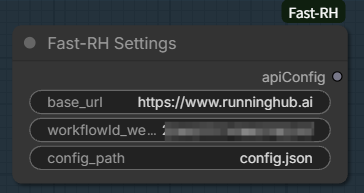
Fast-RH Settings
The official RH Settings node saves api_key as a node parameter. When you share an image containing workflow metadata, that key may be included in the image.
Replace RH Settings with Fast-RH Settings. The node has base_url, workflowId_webappId, and config_path inputs. Its apiConfig (STRUCT) output connects to the official RunningHub execution and upload nodes without changing the rest of the workflow.
Setup
-
Copy
config.example.jsontoconfig.jsonin the ComfyUI-Fast-RH plugin directory, then enter your RunningHub API key:{ "api_key": "enter_your_api_key_here" } -
In Fast-RH Settings, set
base_urlto the RunningHub site associated with that API key. Enter the remote workflow or Web App ID inworkflowId_webappId. -
config_pathdefaults toconfig.jsonin the plugin directory. For a file elsewhere, enter an absolute path or a path relative to the directory containingnode.py. ConnectapiConfigto the execution or upload node that previously received the official RH Settings output.
ComfyUI reads the API key from the file when it runs the workflow; the key is not saved in the workflow. After editing config.json, queue the workflow again to use the new key.
Note: Replace old RH Settings nodes before sharing workflows. Images and workflow files created earlier may still contain the original API key; replacing the node does not remove it from those files.
Fast-RH LoRA Stack
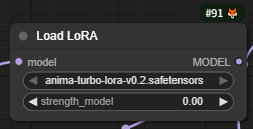
Create a Load LoRA placeholder in the remote RunningHub workflow first. You can select any model and set strength_model to 0. Then you can switch the remote model from ComfyUI.
How to use
Add Fast-RH LoRA Stack in ComfyUI.
-
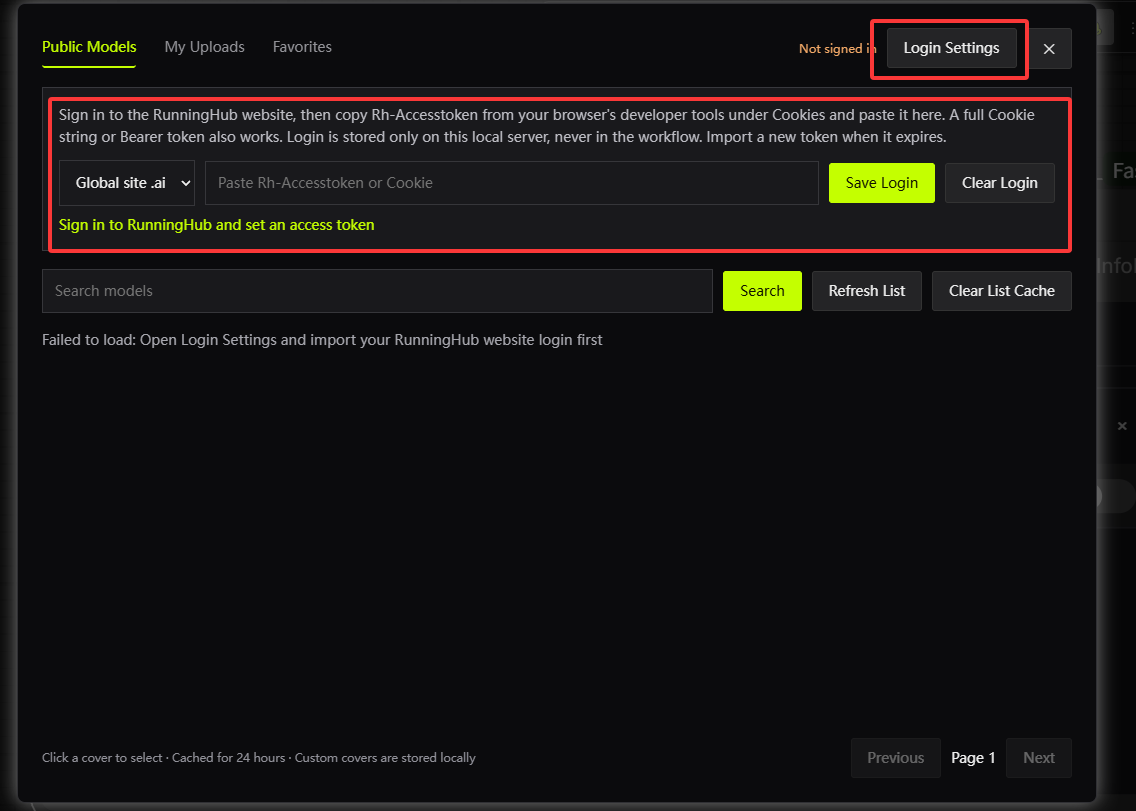
Click Click to choose a LoRA model… in the node to open the model picker. Under Login Settings, choose the RunningHub site where you signed in, paste
Rh-Accesstokenfrom your browser's developer tools under Cookies, and click Save Login. A full Cookie string or Bearer token also works.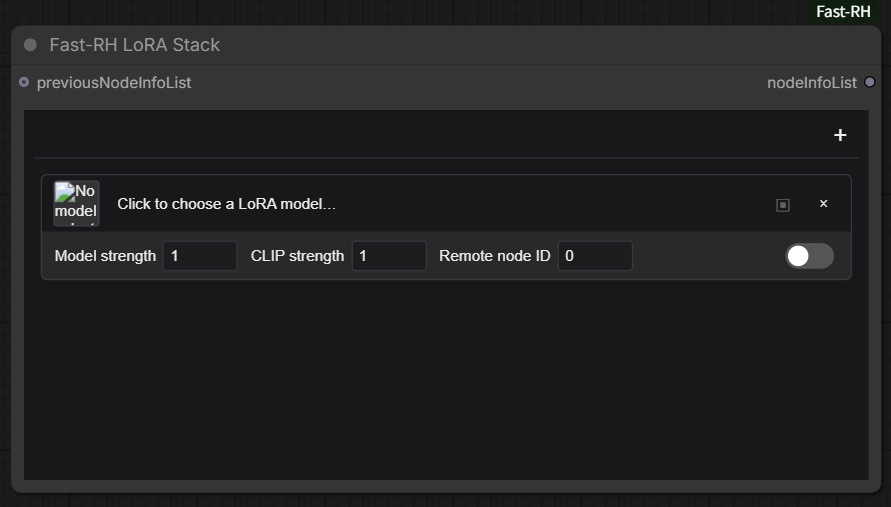

-
Choose a model category, search for a model, and select its version. Click the version's cover to fill its model filename into the current LoRA entry.
-
In that entry, enter the ID of the corresponding LoRA loader node in the remote workflow. Set model strength and enable the entry. If the remote loader has a
strength_clipinput, turn on Send CLIP strength and set its value. Leave that switch off for loaders without this input. You can add up to 16 entries; each enabled entry needs a corresponding remote node ID.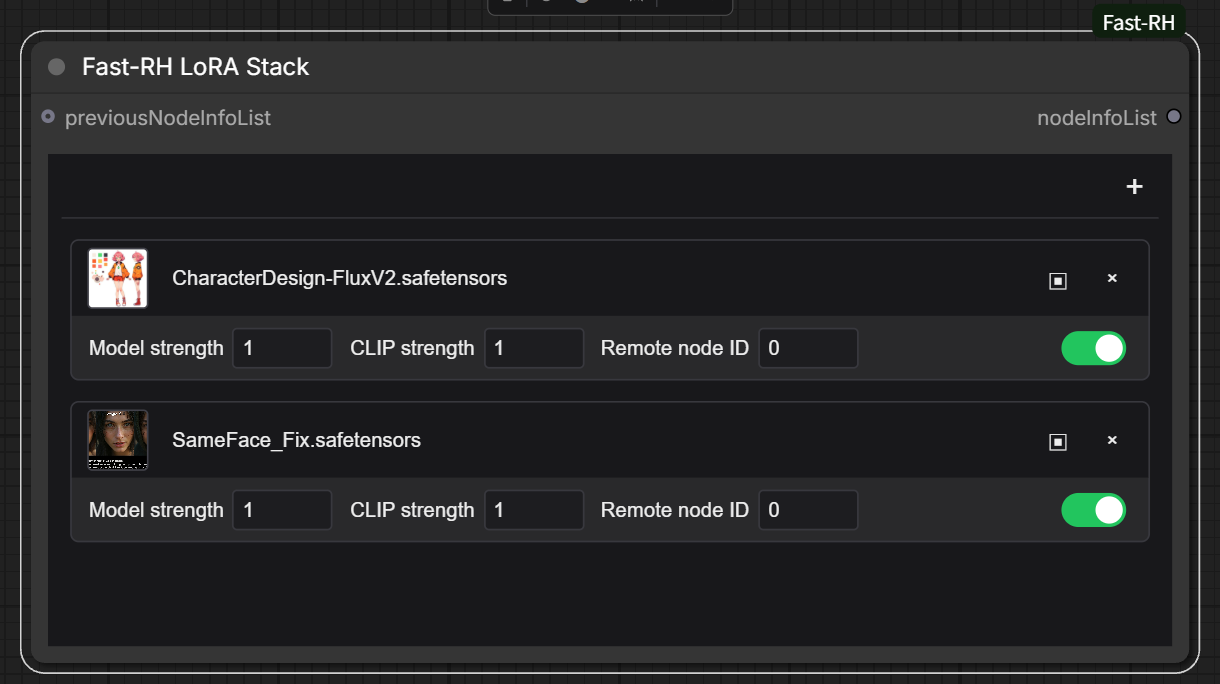
-
Connect the node's
nodeInfoList(ARRAY) output to the official RunningHub RH Execute Workflow node'snodeInfoListinput. To combine other parameters, connect the preceding parameter node'sARRAYoutput topreviousNodeInfoListfirst.
If the model list is stale, click Refresh List to update the current page or Clear List Cache to clear cached lists. Use Set Cover to choose a local cover image and Restore Remote Cover to undo it. If your login expires, sign in to RunningHub again and save a new token under Login Settings; Clear Login removes the locally saved token.
Fast-RH Random Seed
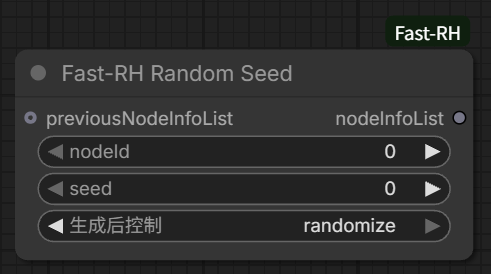
How to use
- Find the node ID whose seed you want to change in the remote workflow. Enter it in
nodeId, then setseed. - In ComfyUI's control after generate for seed, choose
randomizeto use a new seed on each queued run, orfixedto keep the entered seed. - Connect
nodeInfoListto the official RH Execute Workflow node'snodeInfoListinput. To include other parameters, connect the preceding parameter node's output topreviousNodeInfoListfirst.
Fast KSampler
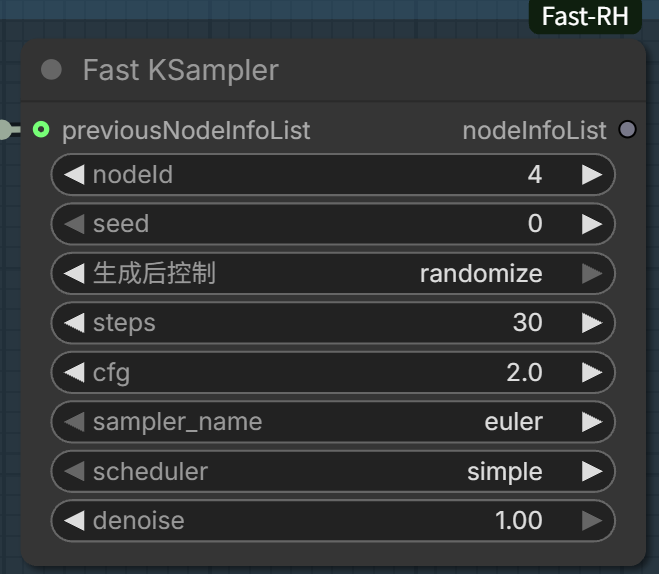
How to use
- Find the KSampler node ID in the remote workflow and enter it in
nodeId. Setseed,steps,cfg,sampler_name,scheduler, anddenoise. To use a new seed on each run, set seed's control after generate torandomize. - Connect this node's
nodeInfoListoutput to the official RH Execute Workflow node'snodeInfoListinput. If you already use RH Node Info List or another parameter node, connect itsARRAYoutput topreviousNodeInfoListfirst.
These settings override the remote KSampler parameters. This node does not run sampling locally.
Fast Empty Latent Image
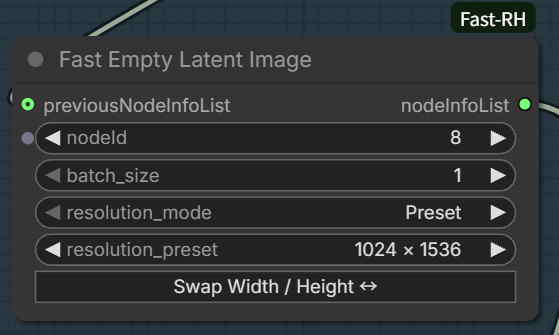
How to use
- Find the Empty Latent Image node ID in the remote workflow and enter it in
nodeId. - Choose
Presetto select a width and height pair, orCustomto enterwidthandheightseparately. UseSwap Width / Height ↔to exchange the current dimensions, then setbatch_size. Width and height must be multiples of 8 from 16 to 16384;batch_sizeranges from 1 to 4096. - Connect
nodeInfoListto the official RH Execute Workflow node'snodeInfoListinput. If you have other parameter nodes, connect theirARRAYoutput topreviousNodeInfoListfirst.
Preset and Custom retain their own dimensions when you switch between them. This node only changes remote workflow parameters; it does not create a local LATENT.