
Autocomplete++
Tag autocomplete, prompt formatting, and dynamic prompt expansion extension for ComfyUI.
Nodes (4)
Pin your prompt randomness to the workflow
Make the right tag dictionary travel with the workflow
Stop your prompt editor from fighting your prompt style
LoRA filenames vs LoRA paths, decided per workflow
Autocomplete++
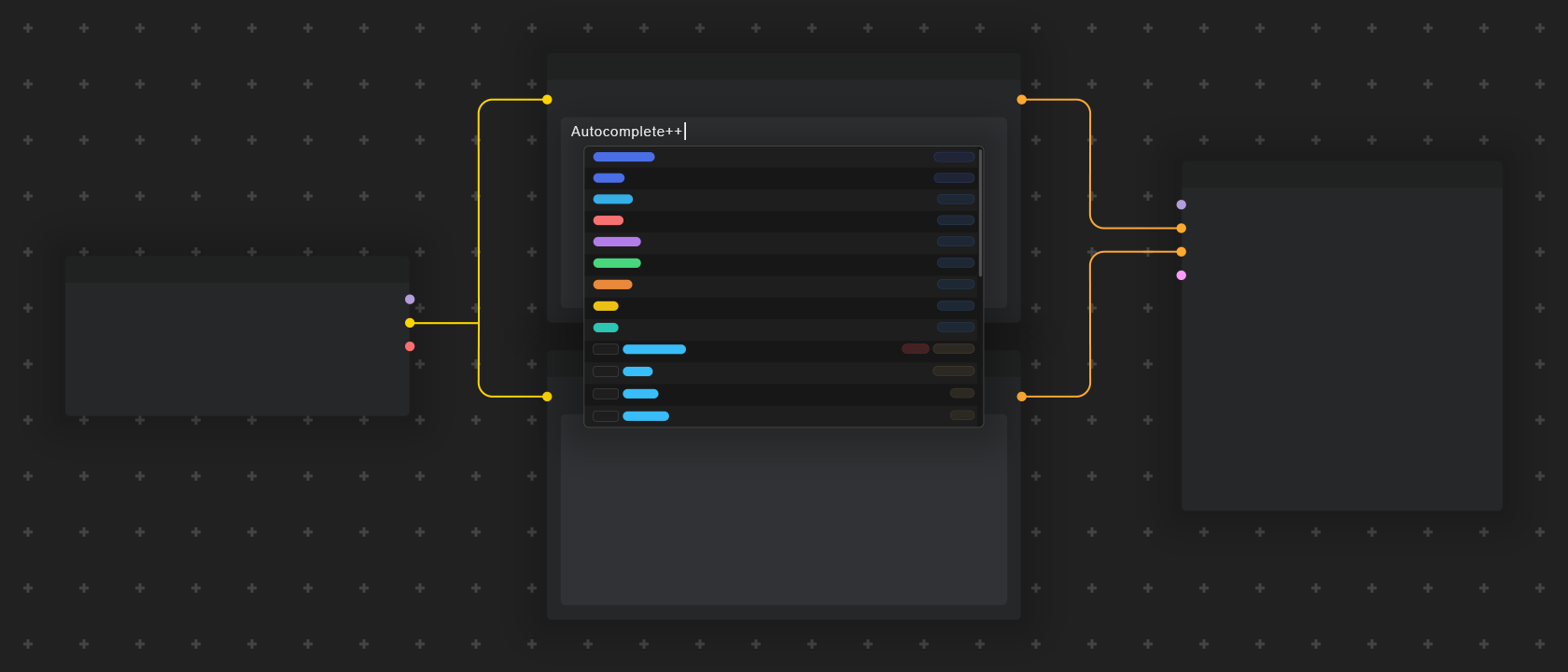
English · 日本語
Tag autocomplete, prompt formatting, and dynamic prompt expansion extension for ComfyUI.
Features · Installation · Shortcuts · Syntax Examples · Custom Dictionaries and Wildcards · Settings Reference · About the Project · Acknowledgments · License
Overview
Autocomplete++ provides tag autocomplete, LoRA/embedding suggestions, dynamic prompt and wildcard expansion, auto-formatting, and editing shortcuts for text inputs in ComfyUI. It supports both ComfyUI Node 2.0 and the classic LiteGraph UI.
This project is built upon and refactored from ComfyUI-Autocomplete-Plus by newtextdoc1111.
Installation
ComfyUI-Manager
Search for Autocomplete++ in ComfyUI-Manager, install the custom node that appears, and restart.
Manual
Clone or copy this repository into the custom_nodes folder of ComfyUI.
git clone https://github.com/michikora/ComfyUI-Autocomplete-Plus-Plus.git
Features
1. Tag Autocomplete
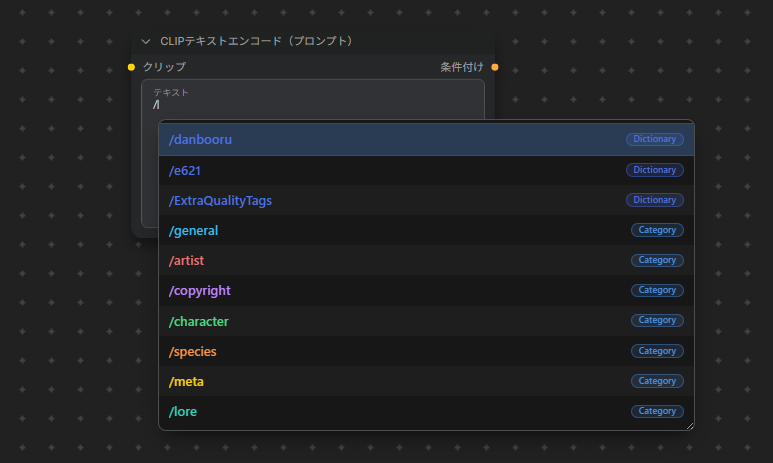
- Tag, Alias & Translation Search: Search across Danbooru and e621 tags, aliases, and translations in real time.
- Category Colors: Follows Danbooru color conventions (General, Artist, Copyright, Character, Meta).
- Special Prefix Completions:
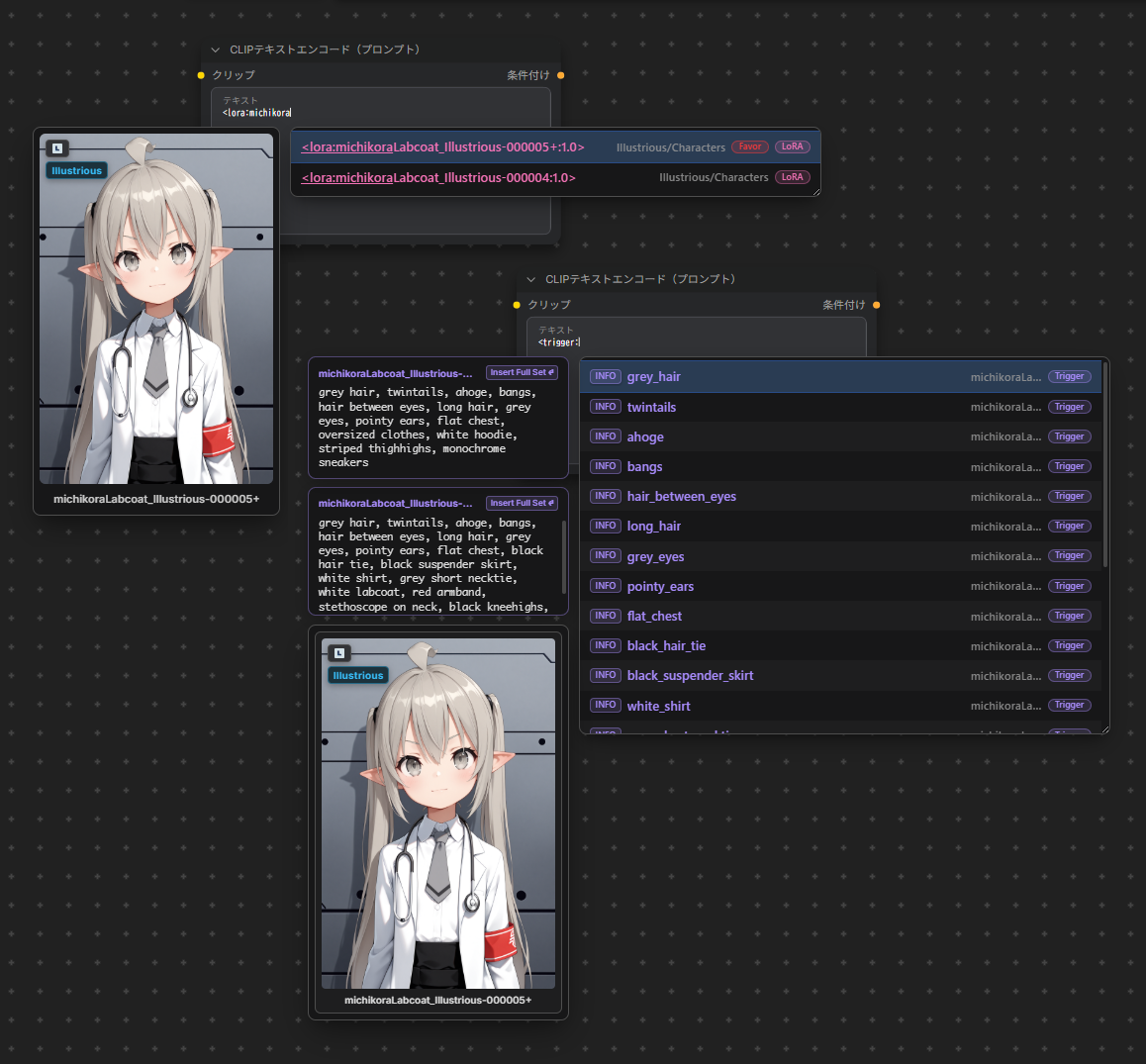
<lora:→ Lists imported LoRAs with subfolder navigation and preview thumbnails.embedding:/emb:→ Lists imported Textual Inversion embeddings.__→ Navigates wildcard files and folders. Entering a path with a trailing slash (e.g.__folder/file/) lists the file's individual lines for direct selection.@→ Supports searching and inserting dedicated artist syntax when using Anima models. (When Anima Mode is active, selecting artist tags from regular searches will also automatically prepend@.)/artist,/character,/copyright,/general,/meta,/danbooru,/e621→ Filters search results by category or dictionary. Supports multi-tier slash chaining (e.g./danbooru /artist queryor/danbooru artist query).
- Wiki Links: Press
F1or click theWIKIbutton next to Danbooru/e621 tags to open their wiki page. - LoRA Manager Integration (Trigger Words & LoRA Details View):
When ComfyUI-Lora-Manager is available, Autocomplete++ links with it to provide:
<trigger:→ Lists trigger words for all LoRAs currently loaded in the active workflow. Hovering/selecting shows preview cards and compound prompt preset cards. Clicking "Insert Full Set ↵" on a preset card inserts the complete prompt preset directly.- LoRA Details View: Press
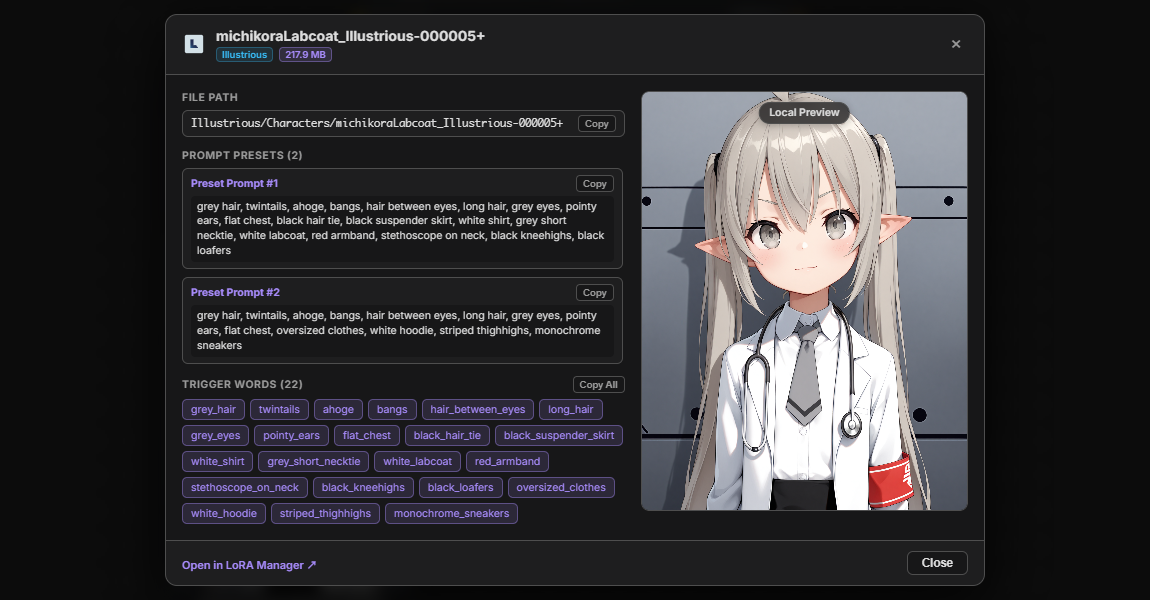
F1or click theINFObutton on a trigger word suggestion to open the dedicated LoRA details view (if multiple active LoRAs share a trigger word, a LoRA selector menu appears first; press number keys1–9to open local details, orCtrl + 1–9to open external pages):- Basic Information: Displays filename, file path (with copy button), base model, version, file size, and external links (Civitai / Hugging Face).
- Usage Parameters & Notes: Shows user notes, as well as recommended strength, clip settings, and model descriptions if configured or cached in LoRA Manager.
- Trigger Words & Presets: Displays trigger word chips (click to copy individual tags, or click "Copy All") and compound prompt presets with one-click copy buttons.
- Showcase Gallery & Metadata: Browse local preview and remote showcase images (using
Left/Rightarrow keys or thumbnail strip). Click any image to display the Generation Metadata overlay (prompt, negative prompt, sampler, seed, steps, CFG, etc.) with copy buttons. - Open in LoRA Manager: Direct footer link to locate the LoRA in LoRA Manager.
2. Dynamic Prompts & Wildcards
- Seed-Linked, Sequential & Fixed Last Choice Modes:
- Follow Seed: Dynamic prompt choices and wildcard sampling can follow the generation seed to maintain reproducible generation results.
- Keep Last Choice: Reuses the exact choices sampled from the previous generation as long as the KSampler master seed remains unchanged. This allows you to lock in a desired random combination while fine-tuning prompts or running multi-pass workflows (e.g. Hires.fix, ADetailer).
- Sequential: Cycles through wildcard lines in sequential order across successive generation runs.
- Restore Choices on PNG Import (Experimental): When importing or dropping a generated PNG into ComfyUI while Keep Last Choice and this feature are active, Autocomplete++ automatically recovers the exact dynamic prompt choices and wildcard selections from that image. As long as the master seed remains unchanged, subsequent generations will reuse the restored choices instead of re-rolling.
- Operation Modes: To capture third-party image and workflow imports, this feature observes browser network responses (
fetch). During observation, unrelated requests in browser DevTools may attribute their call stack origin to this extension's wrapper, which can complicate network debugging (standard request behavior and payloads are not modified, and disabling the feature completely restores original behavior). You can choose betweenLite(default; observes requests temporarily only during import sessions to minimize DevTools overhead) andFull(continuous observation for broader third-party compatibility). If you frequently debug frontend network traffic, keeping this feature disabled is recommended. - Note: Only dynamic prompt choices and locally installed wildcard items can be restored. Workflows loaded from
.jsonfiles or PNGs without embedded prompt metadata are not supported. Additionally, due to differences in hardware and runtime environments, full reproducibility of generated images cannot be guaranteed across different systems.
- Operation Modes: To capture third-party image and workflow imports, this feature observes browser network responses (
- Multi-Pass Consistency: Ensures Pass 1, Hires.fix, and ADetailer/FaceDetailer passes receive identical sampled choices within the same generation run.
- Supported Syntax:
- Choices:
{red hair | blue hair | green hair}→ Randomly picks 1 option (e.g.red hair) - Weighted Choices:
{3::sunny, outdoors | 1::rainy, indoors}→ Picks with 3:1 probability ratio (75% chance forsunny, outdoors) - Combinations:
{2$$red | blue | green}→ Picks 2 distinct items joined by comma (e.g.red, green) - Custom Separators:
{1-3$$ and $$apples | bananas | oranges}→ Picks 1 to 3 items joined by custom separator (e.g.apples and oranges) - Wildcards:
__clothing/dresses__→ Expands a line from the wildcard file (can also be nested inside dynamic prompt choices; supports.txt) - Literal Escaping:
\{,\}, and\__→ Escapes braces and double underscores to output literal characters without triggering expansion. - Safe Preservation: Non-choice braces (such as JSON structures
{"key": "value"}or single tokens without|or$$) are preserved as literals.
- Choices:
3. Keyboard Shortcuts & Prompt Editing
- Tag & LoRA Weight Adjustment (
Ctrl + Up / Down):- Multi-Word & Unweighted Tags: Automatically detects the full tag boundaries under the cursor (e.g.
long hair→(long hair:1.05)) instead of splitting words intolong (hair:1.05). If text is selected, the adjustment applies directly to the entire selection. - Parenthesized & Embedding Weights: Increments (
Ctrl + Up) or decrements (Ctrl + Down) existing weights by the configured step. Fully supports tags withembedding:oremb:prefixes (e.g.(embedding:easynegative:1.05)). Automatically removes outer parentheses when the weight returns to1.0(e.g.(1girl:1.05)→1girl). - LoRA Weights: Supports
<lora:name>,<lora:name:1.0>,<lyco:name:1.0>, and<name:1.0>formats. Automatically appends a weight if not present (e.g.<lora:my_model>→<lora:my_model:1.05>) and increments/decrements values by the configured LoRA step. - Configurable Steps: Separate step sliders (0.05–0.50) are available in Settings → Autocomplete for tags and embeddings (
Tag / Embedding Weight Step) and LoRAs (LoRA Weight Step).
- Multi-Word & Unweighted Tags: Automatically detects the full tag boundaries under the cursor (e.g.
- Tag-by-Tag Cursor Navigation (
Ctrl + Left / Right):- Jumps the cursor across tag ends (landing right before commas, pipes, or brackets).
- Navigates through individual options inside
{a|b|c}choices.
- Tag Swapping / Reordering (
Alt + Left / Right):- Swaps the current tag with its left or right neighbor while keeping cursor focus on the moved tag.
- Confines reordering inside
{a|b|c}options without leaking outside. - Jumps over
{a|b|c},<lora:...>, and__wildcard__blocks as single units.
- Auto-Close Curly Braces:
- Typing
{automatically inserts the closing brace}and places the cursor inside. - Typing
{with text selected wraps the selection in braces. - Typing
}right before an existing}moves the cursor past it instead of inserting a duplicate. - Pressing
Backspacebetween empty braces{}deletes both braces at once.
- Typing
4. Prompt Auto-Formatter
- Trigger: Automatically formats prompt text when the textarea loses focus.
- Formatting Rules:
- Normalizes spacing after commas (
1girl,solo→1girl, solo). - Collapses duplicate commas (
1girl,, solo→1girl, solo). - Trims trailing comma at prompt end, with an optional toggle to also trim trailing commas at line ends.
- Converts underscores to spaces for regular tags (
blue_hair→blue hair).
- Normalizes spacing after commas (
- Exclusions & Protection:
- Preserves emoticons and kaomojis (e.g.
^_^,>_<,-_-,|_|,o_o;,ಠ_ಠ,ಥ_ಥ,<|>_<|>). - Preserves
<lora:...>,embedding:...,__wildcard__syntax. - Keep Underscores Configuration: Specify tags in Settings → Formatting → Keep Underscores for Tags (e.g.
custom_tag,special_style) to exempt them from space replacement and preserve literal underscores. - Formats sub-tags inside
{a|b|c}options without breaking choice syntax.
- Preserves emoticons and kaomojis (e.g.
5. Tag Usage History & Favorites
- Favorite Tags: Tracks tag usage frequency to prioritize frequently used tags in suggestions (displayed with a
Favorbadge). - Settings Controls: Max stored favorites can be adjusted, auto-aged, or cleared directly from settings.
6. Node Compatibility & Integrations
- Canvas Right-Click Context Menu: Right-clicking any text-capable node on the canvas opens the
Autocomplete++submenu:- Instance-Level Toggles:
Disable for this node/Enable for this nodetoggles autocomplete on that specific node instance without modifying global settings.Reset to default for this noderestores the node to follow global settings. - Node Type Global Toggles:
Ignore this node type/Unignore this node type(disables Autocomplete++ globally for that node class) andForce override this node type/Remove override for this node type(prioritizes Autocomplete++ over conflicting built-in popups). - Native Note Node Handling: Native ComfyUI
Notenodes are excluded by default to keep canvas notes unaffected, but can be enabled for individual notes via the context menu.
- Instance-Level Toggles:
- LoRA Path Completion Mode: Configure whether LoRA completions insert clean filenames or full relative paths via Settings → Models & Integrations → LoRA Path Completion Mode (
Auto,Filename Only,Full Path). InAutomode, clean filenames are used by default, with automatic fallback to relative paths if duplicate LoRA names exist across subfolders, aligning with LoRA Manager path settings if active. - LoRA / Embedding & External Integrations: Supports LoRA/Embedding completions and thumbnail previews. Integrates with LoRA Manager for automatic trigger word sniffing, fallback previews, and the LoRA details view.
- Anima Model Compatibility: Automatically detects Anima models by default to prepend artist tags with
@, with manual override options (Auto,Enabled,Disabled) under Settings → Formatting → Anima Artist '@' Prefix Mode.
7. Standalone Canvas Controller Nodes
Autocomplete++ provides 4 optional standalone controller nodes located under the Autocomplete++ node category.
No wiring required: Place them anywhere on your canvas to override global settings for the current workflow without modifying your global preferences. Options left on Default (From Settings) automatically inherit global settings.
Optional Passthrough Slot: All controller nodes include an optional passthrough input/output slot. While no wiring is required for settings to take effect, you can optionally insert the controller inline into any existing connection (MODEL, CLIP, IMAGE, PIPE, etc.) to pass data straight through unmodified for workflow organization.
Autocomplete++ Wildcard & Dynamic Controller:- Overrides Prompt Expansion Engine (
Enabled/Disabled), Wildcard Mode (Random/Follow Seed/Keep Last Choice/Sequential), and Dynamic Prompt Mode (Random/Follow Seed/Keep Last Choice).
- Overrides Prompt Expansion Engine (
Autocomplete++ Formatting Controller:- Overrides Anima artist mode (
@), auto-insert comma, underscore-to-space replacement, parenthesis escaping, auto-closing curly braces, auto-format on blur, comma spacing, trailing comma trimming, underscore replacement, and provides custom Keep Underscores tag entries (Append to Global ListorOverride Global List).
- Overrides Anima artist mode (
Autocomplete++ Integrations Controller:- Overrides LoRA & Embedding suggestion availability, LoRA path completion mode, and LoRA Manager trigger word / preview integration behavior.
Autocomplete++ Dictionaries Controller:- Overrides the primary tag dictionary, translation dictionary, and extra tag dictionaries. Features a dedicated standalone CSV dictionary picker with autocompletion.
Multi-Node Arbitration & Priority Logic
- Mute / Bypass Awareness: Nodes that are muted (
Ctrl + M) or bypassed (Ctrl + B) automatically yield control, allowing multiple preset controllers to be toggled via Mute or Bypass without removing nodes. - Last-Interacted Priority: When multiple active controllers of the same type coexist on canvas, modifying any setting on a controller gives it precedence.
- Newest Node ID Fallback: If no interaction history exists, the node with the highest ID (newest created) automatically takes precedence.
Visual Status Badges
- Single Controller Behavior: When only one controller of a given type exists on the canvas, no badge is displayed to keep the interface clean.
- Multiple Controllers Display: When multiple controllers of the same type exist on canvas:
- The currently active controller displays an
Activepill badge in its bottom bar. - Overridden duplicate controllers display an
Inactivepill badge with a tooltip showing which node is in control. Clicking theInactivebadge switches control to that node.
- The currently active controller displays an
- UI Compatibility Note: The visual status badge is currently supported on Node 2.0. The priority arbitration and Mute/Bypass logic itself functions identically on legacy frontends, though the visual badge is not rendered in the legacy UI.
Keyboard Shortcuts Reference
| Shortcut | Context | Action |
| :----------------------------------- | :----------------------------------------- | :------------------------------------------------------ |
| Tab / Enter | Autocomplete popup open | Insert selected suggestion |
| Up / Down | Autocomplete popup open | Navigate suggestions |
| PageUp / PageDown | Autocomplete popup open | Jump up / down by 5 suggestions |
| Esc / Left / Right | Autocomplete popup open | Close active suggestion popup |
| F1 | Danbooru/e621 tag or trigger word selected | Open Danbooru/e621 Wiki, or open LoRA details / Civitai |
| 1 – 9 | Trigger word LoRA selector menu open | Open local LoRA details for corresponding LoRA |
| Ctrl + 1 – 9 | Trigger word LoRA selector menu open | Open Civitai / HF page for corresponding LoRA |
| Left / Right | LoRA details view open | Navigate showcase images in gallery |
| Esc | LoRA details view open | Close metadata overlay or LoRA details view |
| Ctrl + Up / Down | Textarea | Adjust weight of tag, embedding, or LoRA at cursor |
| Ctrl + Left / Right | Textarea | Jump cursor across tag ends |
| Alt + Left / Right | Textarea | Swap tag with neighbor |
Syntax Examples
Standard Tags & Weights
masterpiece, 1girl, solo, long hair, (blue eyes:1.2), (smile:0.9)
Anima Artist Tags
masterpiece, 1girl, @artist_name1, @artist_name2
LoRAs & Embeddings
<lora:anime_style_v2:0.8>, (embedding:easynegative:1.1)
Wildcards
__backgrounds/scenery__, __clothing/dresses__
Dynamic Prompts
{day | sunset | night}
{3::outdoors, sunny | 1::indoors, room}
{2$$red ribbons | blue ribbons | green hairband | flower hairclip}
{1-3$$ and $$masterpiece | best quality | highres}
Custom Dictionaries and Wildcards
This extension only includes basic dictionaries csv files. To use features like tag translations or wildcards, please prepare the corresponding
.csvor.txtfiles and place them into the respective directories described below.
Custom Tag CSV Files
Place custom CSV files in the tags/ directory:
tag,category,count,aliases
masterpiece,5,9999999,"master piece,best"
Select extra tag files in ComfyUI Settings → Autocomplete++ → Tags & Dictionaries → Extra Tag Files.
Translation CSV Files
To enable translated tag searching and display, place 2-column or 3-column CSV files into tags/translations/:
tag,translation
1girl,女の子
long_hair,ロングヘア
Then select your translation file in ComfyUI Settings → Autocomplete++ → Translation → Translation File.
Wildcard Files
Place .txt files in any of these locations:
ComfyUI-Autocomplete-Plus-Plus/wildcards/ComfyUI/wildcards/- Any custom node wildcards folder (e.g.
ComfyUI/custom_nodes/*/wildcards/)
Settings Reference
Access settings via the ComfyUI Settings Dialog under Autocomplete++:
- Autocomplete:
Enable Autocomplete: Toggle tag completion on/off.LoRA Weight Step: Configures the weight adjustment step for LoRAs when pressingCtrl + Up / Down(slider from 0.05 to 0.50, default: 0.05).Tag / Embedding Weight Step: Configures the weight adjustment step for standard tags and embeddings when pressingCtrl + Up / Down(slider from 0.05 to 0.50, default: 0.05).Insert Suggestion with: SelectTaband/orEnterto insert suggestions.Ignore Nodes: Specify node types or keywords (comma-separated) where Autocomplete++ is disabled.Override Nodes: Specify node types or keywords (comma-separated) to prioritize Autocomplete++ on.Enable Console Debug Logs: Outputs debug logs to the browser console.
- Display:
Floating Preview Card Position: Position of LoRA/Embedding thumbnails (Left,Right,Disabled).Max Suggestions Count: Number of suggestions shown in the dropdown list (default: 15).Show Wiki Badge: Displays the clickableWIKIbutton next to tags with wiki entries (currently supports Danbooru and e621 dictionaries; CSV filename must contain "danbooru" or "e621").Prioritize Frequently Used Tags (Favor): Boosts frequently used tags in suggestions with aFavorbadge.Favor Threshold / Validity / Capacity: Configure min usage count, validity days, and storage capacity for favorites.Clear Favor History: Clears stored tag usage history.
- Formatting:
Anima Artist '@' Prefix Mode: Controls@artist prefix handling (Auto,Enabled,Disabled).Auto-Insert Comma: Automatically appends a comma and space after inserting a tag.Replace Underscore with Space: Replaces underscores with spaces on tag insertion.Escape Parentheses: Automatically escapes literal parentheses (e.g.tag (qualifier)→tag \(qualifier\)).Auto-Close Curly Braces: Automatically inserts the closing brace}when typing{.Auto Format on Blur: Formats prompt text when textarea loses focus.Auto Format Rules: Individual toggles for space after comma, trim prompt end comma, trim line end comma, and replace underscores with spaces.Keep Underscores for Tags: Specify tags (comma-separated) to exempt from underscore replacement and preserve literal underscores.
- Models & Integrations:
Enable LoRAs and Embeddings: Toggle<lora:andembedding:completions on/off.LoRA Path Completion Mode: Controls whether LoRA suggestions insert clean filenames or full relative paths (Auto,Filename Only,Full Path).LoRA Manager Integration: Controls LoRA Manager API trigger words sniffing, fallback previews, and LoRA details view integration (Auto,Enabled,Disabled).
- Shortcuts & Interaction:
Enable Hotkey Enhance: Master switch for prompt editing shortcuts.Hotkey Rules: Individual toggles for Full-Tag Weight Adjustment (Ctrl+Up/Down), Tag Navigation (Ctrl+Left/Right), and Tag Swapping (Alt+Left/Right).
- Tags & Dictionaries:
Main Tag File: Primary tag CSV file loaded fromtags/.Extra Tag Files: Multi-select dropdown for loading additional tag CSV dictionaries.Translation File: Selects translation CSV file loaded fromtags/translations/.
- Translation:
Search by Translation: Allows searching tags by their translated names.Show Translations in Suggestions: Displays translated names next to English tags in suggestions.Old 3-column format: Compatibility toggle for legacy 3-column translation CSVs.
- Wildcards & Dynamic Prompts:
Enable Prompt Expansion Engine: Toggle prompt expansion engine on/off.Wildcards Mode: Controls wildcard sampling behavior (Random,Follow Seed,Keep Last Choice,Sequential).Dynamic Prompts Mode: Controls dynamic prompt choices behavior (Random,Follow Seed,Keep Last Choice).Restore Choices on PNG Import: Toggle restoring choices from imported PNG metadata (experimental, default: disabled).PNG Import Interception Mode: Controls network observation behavior for imports (Lite: temporary session observation /Full: continuous observation).
About the Project
This is a personal hobby project developed in my spare time. Because of limited time and maintenance capacity:
- Issues: Responses and bug fix updates might be slow. Thank you in advance for your patience and understanding!
- Pull Requests: I currently do not have enough time or capacity to properly review and test external code, so Pull Requests are not accepted at this time. My sincere apologies for the inconvenience.
- Forks & Custom Versions: You are warmly welcome to fork the repository and create your own customized versions under the MIT License.
- Documentation: This README was compiled with AI assistance based on the codebase and manually reviewed, but may still contain inadvertent omissions or errors.
Acknowledgments
- ComfyUI-Autocomplete-Plus by newtextdoc1111 – The original extension from which Autocomplete++ was derived and refactored.
- a1111-sd-webui-tagcomplete by DominikDoom – Inspiration and reference for various features and concepts.
License
This project is licensed under the MIT License.