
Run on RunPod
Run ComfyUI workflows on RunPod Serverless
ComfyUI-RunOnRunpod
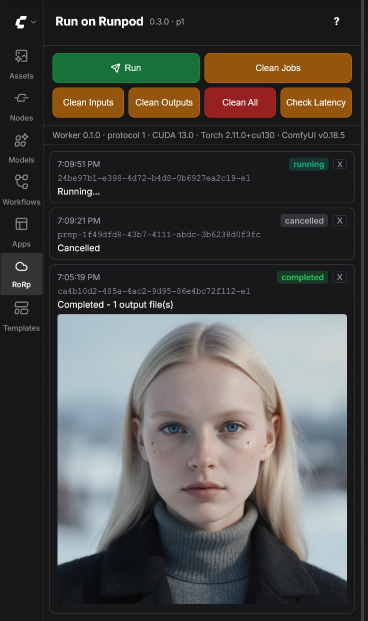
A ComfyUI plugin that lets you run workflows on RunPod Serverless. Adds a sidebar panel to the UI that submits workflows to your RunPod endpoint and tracks job progress.
Components
Plugin (ComfyUI custom node)
Installed in your local ComfyUI's custom_nodes/ directory. Provides:
- Sidebar panel (cloud icon) with Run button and job history
- Multi-job support — submit multiple workflows and track each independently
- Persistent job history — finished jobs survive page reloads and ComfyUI restarts; configurable cap and a per-job remove button (with optional output-file deletion)
- Real-time status via WebSocket — preparing, queued, running, completed, failed
- Per-model progress list — every model needed for the job is shown up front on the card and ticked off as the worker fetches or the plugin uploads it
- Upload progress bar for model uploads with MB/percentage display
- Cancel support — cancel during upload (waits for current file to finish) or while queued/running on RunPod
- Settings panel for RunPod and storage configuration
- Uploads input files (images, video, audio) to the network volume before submitting
- Automatically uploads missing models (checkpoints, LoRAs, VAEs, text encoders, etc.) to the network volume
- Downloads output files back to your local ComfyUI output directory after job completion
- Optional cleanup of remote inputs/outputs after each job, plus manual clean buttons
- Node compatibility check — before each job, queries the worker for its available nodes and blocks submission if the workflow uses custom nodes not installed on the worker
- Worker availability check — waits for a worker to be ready before submitting, handling cold starts gracefully
- Settings warning — alerts when required settings are not configured
Worker (RunPod Serverless)
A Docker image that runs ComfyUI on RunPod. The worker:
- Receives workflow JSON via RunPod job input
- Reads input files and writes output files directly on the mounted network volume
- Requires zero configuration — no S3 credentials or environment variables needed
- Uses a RunPod network volume for models, inputs, and outputs
Quickstart
From zero to a first successful run:
- Create a network volume on RunPod. Pick a region that has the GPU availability you want to use — the endpoint in the next step must live in the same region. Note the volume ID. The region and S3 endpoint URL are shown under Storage → S3 API Access on the RunPod dashboard.
- Create a Serverless endpoint — type Queue-based, image
docker.io/metebalci/comfyui-runonrunpod:latest, attach the network volume from step 1, set idle timeout to 30–60s. Note the endpoint ID. - Get credentials from the RunPod dashboard:
- API key (Settings → API Keys)
- S3 access key + secret (Storage → S3 API Keys)
- Region and S3 endpoint URL (Storage → S3 API Access)
- Install the plugin in your local ComfyUI:
comfy node install comfyui-runonrunpod, then restart ComfyUI. - Configure in ComfyUI Settings → Run on Runpod: paste the API key, S3 keys, endpoint ID, bucket name (= volume ID), region, and endpoint URL.
- Open a workflow — the Z-Image workflow from the ComfyUI tutorials is a good starting point, but any workflow will do.
- Download the required models locally into your local ComfyUI
models/directory. The plugin uploads models to the network volume on demand by reading them from your local ComfyUI install — if a model isn't present locally, the plugin can't upload it and the job will fail. - Run — open the Run on Runpod sidebar (cloud icon) and click Run. The plugin uploads any missing models/inputs, submits to RunPod, and downloads outputs back to your local
output/when the job finishes.
See Setup below for more detail on each step, including building a custom worker image.
Setup
1. Prepare the network volume
Create a RunPod network volume. No directory structure needs to be set up in advance — the plugin and worker create what they need on first use:
inputs/— managed entirely by the plugin. Input files referenced by the workflow (images, video, audio) are uploaded here automatically on each submit. You cannot bypass this by uploading inputs manually, since the plugin only recognizes files it has uploaded itself (content-hashed keys).outputs/— created by the worker when it writes results.models/— only needed if you want to upload models manually (with AWS CLI or any S3-compatible client against RunPod's S3 API). In that case, create the subdirectories matching ComfyUI's model layout (models/checkpoints/,models/loras/,models/vae/, etc.). If you rely on the plugin's automatic model upload (default) or the "Download from the source" feature, you don't need to create anything — the worker writes to the right subdirectories on demand.
2. Prepare the worker
ComfyUI and custom nodes are bundled into the Docker image to minimize cold start times on RunPod Serverless. Without bundling, each cold start would need to install dependencies, adding minutes of delay.
A pre-built image is available at docker.io/metebalci/comfyui-runonrunpod:latest with the custom nodes listed in worker/custom_nodes.txt.
To build your own image with extra custom nodes:
- Edit
worker/custom_nodes.txtto list the custom nodes you need (one git URL per line) cd worker && docker build -t your-dockerhub-user/comfyui-runonrunpod:latest .docker push your-dockerhub-user/comfyui-runonrunpod:latest
By default the build clones the master branch of ComfyUI. To pin to a specific release, override the build arg: docker build --build-arg COMFYUI_TAG=v0.18.6 -t your-dockerhub-user/comfyui-runonrunpod:latest .. The worker version and protocol version are baked into worker/Dockerfile and don't need to be supplied.
For quick testing, you can install extra custom nodes at startup without rebuilding the image by setting the EXTRA_CUSTOM_NODES_URL environment variable to a URL pointing to a text file with git URLs (same format as custom_nodes.txt). Nodes already baked into the image are skipped. This adds to cold start time, so for production use, rebuild the image instead.
The Docker image uses prebuilt flash-attn wheels from mjun0812/flash-attention-prebuild-wheels.
Create a RunPod Serverless endpoint using the image, with the network volume attached. The endpoint must be a Queue-based endpoint — the plugin submits jobs via RunPod's /run async API and polls /status/{job_id}, which is only supported on queue-based endpoints (not load-balanced ones).
3. Install the plugin
From the ComfyUI Registry:
comfy node install comfyui-runonrunpod
Or install via ComfyUI Manager by searching for "Run on RunPod".
Manual install:
cd ComfyUI/custom_nodes
git clone https://github.com/metebalci/ComfyUI-RunOnRunpod.git
pip install -r ComfyUI-RunOnRunpod/requirements.txt
Restart ComfyUI.
4. Configure
Open ComfyUI Settings and find the Run on Runpod section:
Job:
- Upload missing models automatically — default on
- Download models from the source when possible — default off (see Storage Architecture)
- Number of jobs kept in history — default 20 (set to 0 to disable persistence)
- When removing a job — default Delete output files; alternatives are Keep output files and Ask each time
Keys:
- API Key — RunPod API key
- S3 Access Key — from RunPod S3 API keys
- S3 Secret Key — from RunPod S3 API keys
- CivitAI API Key — optional, used only with "Download from the source" for authenticated CivitAI downloads
- HuggingFace Token — optional, used only with "Download from the source" for gated/private HuggingFace repos
Serverless:
- Endpoint ID — your RunPod Serverless endpoint ID
Storage:
- Bucket Name — your network volume ID
- Region — S3 region (shown on RunPod dashboard, e.g.
eur-is-1) - Endpoint URL — RunPod S3 endpoint (region-specific, shown on RunPod dashboard)
- Delete input files from network volume after job finishes — default off
- Delete output files from network volume after job finishes — default on (outputs are downloaded locally first)
Usage
- Build your workflow in ComfyUI as usual
- Open the Run on Runpod sidebar panel (cloud icon on the left)
- Click Run to submit the workflow
- Track progress in the job list:
- preparing — validating credentials, waiting for worker, checking custom nodes, uploading models/inputs
- queued — waiting for a RunPod worker
- running — workflow is executing
- completed — outputs downloaded to your local ComfyUI output directory
- failed — the workflow ran on the worker and failed; check the worker logs on the RunPod dashboard
- cancelled — job was cancelled from the UI, dashboard, or API
- timed out — the endpoint's execution timeout was exceeded (no worker available in time, or the worker stopped reporting)
- error — something failed before the job reached the worker (bad credentials, S3 error, upload failure, network issue) — fix it locally and retry
- Click X on an active job card to cancel it; click X on a finished job card to remove it from the list (and optionally delete its local output files — see the When removing a job setting)
- Use Clean Inputs / Clean Outputs to remove files from the network volume
- Use Clean Jobs to clear all jobs from the list
Storage Architecture
Everything lives on the RunPod network volume:
- Models —
/models/(symlinked to ComfyUI's model path) - Inputs —
/inputs/(plugin uploads via RunPod S3 API, worker reads as local files) - Outputs —
/outputs/(worker writes as local files, accessible via RunPod S3 API)
When you submit a job, the plugin scans the workflow for model loader nodes (CheckpointLoader, LoraLoader, VAELoader, CLIPLoader, UNETLoader, ControlNetLoader, etc.) and checks if each model exists on the network volume. Missing models are automatically uploaded from your local ComfyUI models directory. This can be disabled in settings.
Workflow models metadata — when a workflow template (most ComfyUI tutorial workflows do this) ships a models array on each loader node's properties.models field naming each model and its canonical download URL, the plugin walks the workflow JSON (including subgraph definitions), collects every entry, and uses the matching URL directly to ask the worker to fetch the file. This step runs unconditionally because the metadata is authoritative — it's shipped by the workflow author, not a third-party query — and it doesn't require the model to exist locally first. It's the fastest way to get a fresh tutorial workflow running on a new endpoint.
Download models from the source (optional, opt-in). For very large models that the workflow doesn't declare a URL for, uploading from a home connection is the slow part of the first run. With the Download models from the source when possible setting enabled, the plugin tries to find a remote source for each remaining missing model and has the worker fetch it directly onto the network volume over the datacenter's much faster connection. Lookup order:
- Workflow metadata — described above. Always tried first, even when this setting is off.
- ComfyUI-Manager model database — filename match against Manager's curated
model-list.json. No external calls per model; the database itself is fetched once per 24h from GitHub. - HuggingFace cache reverse-lookup — if a model resolves to a file inside your local
~/.cache/huggingface/hub/, the plugin recovers the repo ID and asks the worker to re-download from HuggingFace. Local filesystem only, no network calls for the lookup. - CivitAI by hash — the plugin hashes the local file and queries CivitAI's
by-hashAPI. This is the only step that sends data externally: the SHA-256 of the file is sent to CivitAI to identify the model. - Fallback — any model the lookup chain can't resolve is uploaded from your local file the normal way.
If the worker fails to download a file (404, network error, hash mismatch), it reports the failure back and the plugin falls back to uploading that specific file locally — the feature is purely a performance improvement, never a single point of failure. Gated HuggingFace repos or authenticated CivitAI downloads can be unlocked by configuring HuggingFace Token and CivitAI API Key in the Keys section.
Input files are deduplicated using content hashing (SHA-256). Each file is stored as inputs/{hash}{ext}, so uploading the same image across multiple jobs skips the upload entirely.
After a job ends (whether it succeeds or fails), the plugin downloads output files to your local ComfyUI output directory. Two cleanup settings control whether remote files are removed from the network volume afterward:
- Delete input files from network volume after job finishes (default: off) — keeps deduplicated inputs for reuse across jobs
- Delete output files from network volume after job finishes (default: on) — removes remote outputs since they've been downloaded locally
The worker has zero storage configuration — the network volume is mounted locally and it just reads/writes files.
Troubleshooting
-
Job fails with "400 Bad Request" — The workflow was rejected by ComfyUI on the worker. The error details (missing nodes, invalid connections, missing models) are shown in the ComfyUI console log. Check which node or model is missing and either add it to the Docker image or upload the model to the network volume.
-
Job stays queued for a long time — No worker is available. Check the RunPod dashboard for throttled workers. If a worker is stuck in "throttled" state, terminate it manually. Consider increasing the idle timeout (30-60s recommended) to avoid throttle/shutdown cycles.
-
Job completes but no output appears locally — Check the ComfyUI console log for download errors. Common causes: S3 credentials don't have read access, or the output path on the network volume doesn't match what the worker wrote.
-
Missing custom nodes — The plugin checks node compatibility before each submission. If your workflow uses nodes not available on the worker, the job card will show a failed status listing the missing nodes. Add the missing nodes to
worker/custom_nodes.txtand rebuild the image. -
Missing models — If a model file (checkpoint, LoRA, VAE, text encoder) isn't on the network volume, ComfyUI will reject the workflow with a
value_not_in_listerror. Upload the model to the correct subdirectory undermodels/on the network volume.
License
GNU General Public License v3.0. See LICENSE.