
ComfyUI-masslevel-TextProcessing
Text processing utilities for ComfyUI by masslevel.
ComfyUI-masslevel-TextProcessing
Text processing utilities for ComfyUI by masslevel.

Nodes
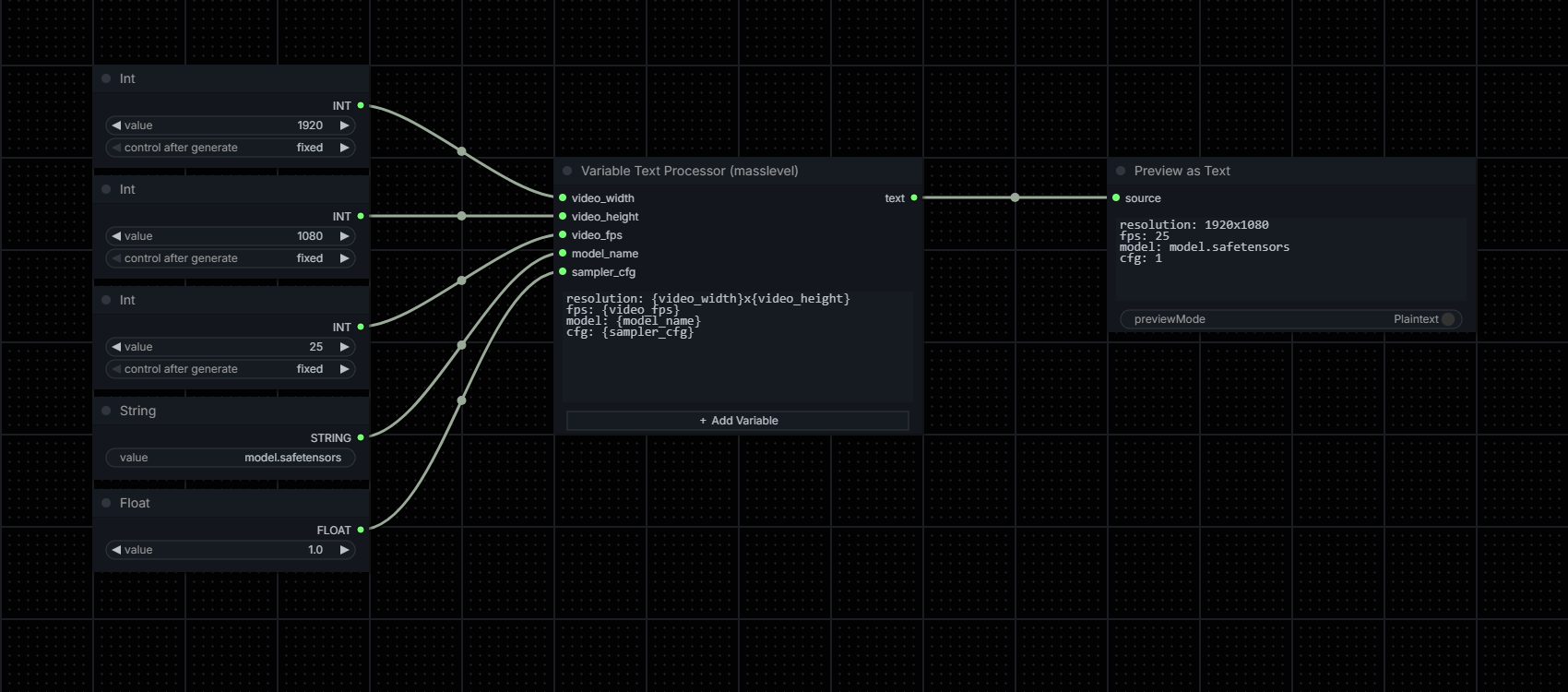
Variable Text Processor (masslevel)
Processes a multiline text template by replacing {variable_name} placeholders with dynamically wired input values. Pins can be added, removed, and renamed at any time. The pin name is the variable name.
Category: masslevel/Text
Installation
ComfyUI Manager / Comfy Registry:
Search for masslevel or ComfyUI-masslevel-TextProcessing in the Custom Node Manager and install from there.
Manual:
Clone or download this repository into your ComfyUI/custom_nodes/ directory:
cd ComfyUI/custom_nodes
git clone https://github.com/masslevel/ComfyUI-masslevel-TextProcessing
Restart ComfyUI.
Variable Text Processor: Usage
Basic concept
Write a template with {placeholder} tokens, wire any value into a named pin, and the node outputs the fully resolved string.
Template:
  resolution: {video_width}x{video_height}
  fps: {video_fps}
  model: {model_name}
  cfg: {sampler_cfg}

Wired:
  video_width  → 1920
  video_height → 1080
  video_fps    → 25
  model_name   → "model.safetensors"
  sampler_cfg  → 1.0

Output:
  resolution: 1920x1080
  fps: 25
  model: model.safetensors
  cfg: 1.0
Adding variables
Click the + Add Variable button on the node body. A prompt will ask for a name. Use letters, numbers, and underscores only (e.g. fps, model_name, subject). The name becomes the {placeholder} token in your template.
Removing variables
Right-click the node body, select Remove Variable Pin, and choose the variable to remove. Any connected wire is cleanly disconnected first.
Renaming variables
Two methods, both keep the connected wire in place:
- Context menu: Right-click the node body, select Rename Variable Pin, choose the variable and enter a new name.
- Native rename: Right-click the connection point on the pin, select Rename Slot, and enter a new name.
Inputs
| Input | Type | Description |
|---|---|---|
| template | STRING (multiline) | The template text containing {placeholder} tokens. Can be typed directly or wired from an external multiline string node. |
| (dynamic) | STRING / INT / FLOAT | One pin per variable. The pin name must match the {placeholder} in the template exactly. INT and FLOAT values are automatically converted to string. |
Output
| Output | Type | Description |
|---|---|---|
| text | STRING | The fully resolved template. Unmatched {placeholders} with no connected pin are passed through unchanged. |
Notes
- Variable names and their order persist across workflow save and reload.
- Unresolved placeholders are passed through unchanged and will not error.
- The template field itself can be wired from an external multiline text node.
Compatibility
- ComfyUI (latest)
- Python 3.10+
- No additional dependencies required
License
MIT