
Yumil MPM
ComfyUI custom nodes for integrating workflows with Yumil MPM prompt management.
Nodes (9)
The node that makes ComfyUI take its prompts from another app
A save node that writes a whole little project folder in one shot
Pick one parsed block out of a prompt and tear it open
Load a reference image from a path string, sized the way your model wants
Pull the LoRA tags out of your prompt without mangling the rest
> tags and it loads them all for you
The node that bundles images, settings, and text into one prompt string
Join up to seven text inputs with a delimiter — empty ones just vanish
Grab one setting out of a key=value string without parsing it yourself
comfyui-yumil-mpm
English | Japanese
Custom nodes for ComfyUI that integrate with Yumil MPM, a prompt management tool for AI image generation.
Requirements
Installation
ComfyUI Manager (recommended)
Search for comfyui-yumil-mpm in ComfyUI Manager and install. Restart ComfyUI after installation.
Manual
Alternatively, clone this repository into your ComfyUI custom_nodes folder:
cd ComfyUI/custom_nodes
git clone https://github.com/maigonia/comfyui-yumil-mpm.git
cd comfyui-yumil-mpm
pip install -r requirements.txt
Restart ComfyUI after installation.
Example Workflows
Example ComfyUI workflows are included in the workflow folder.
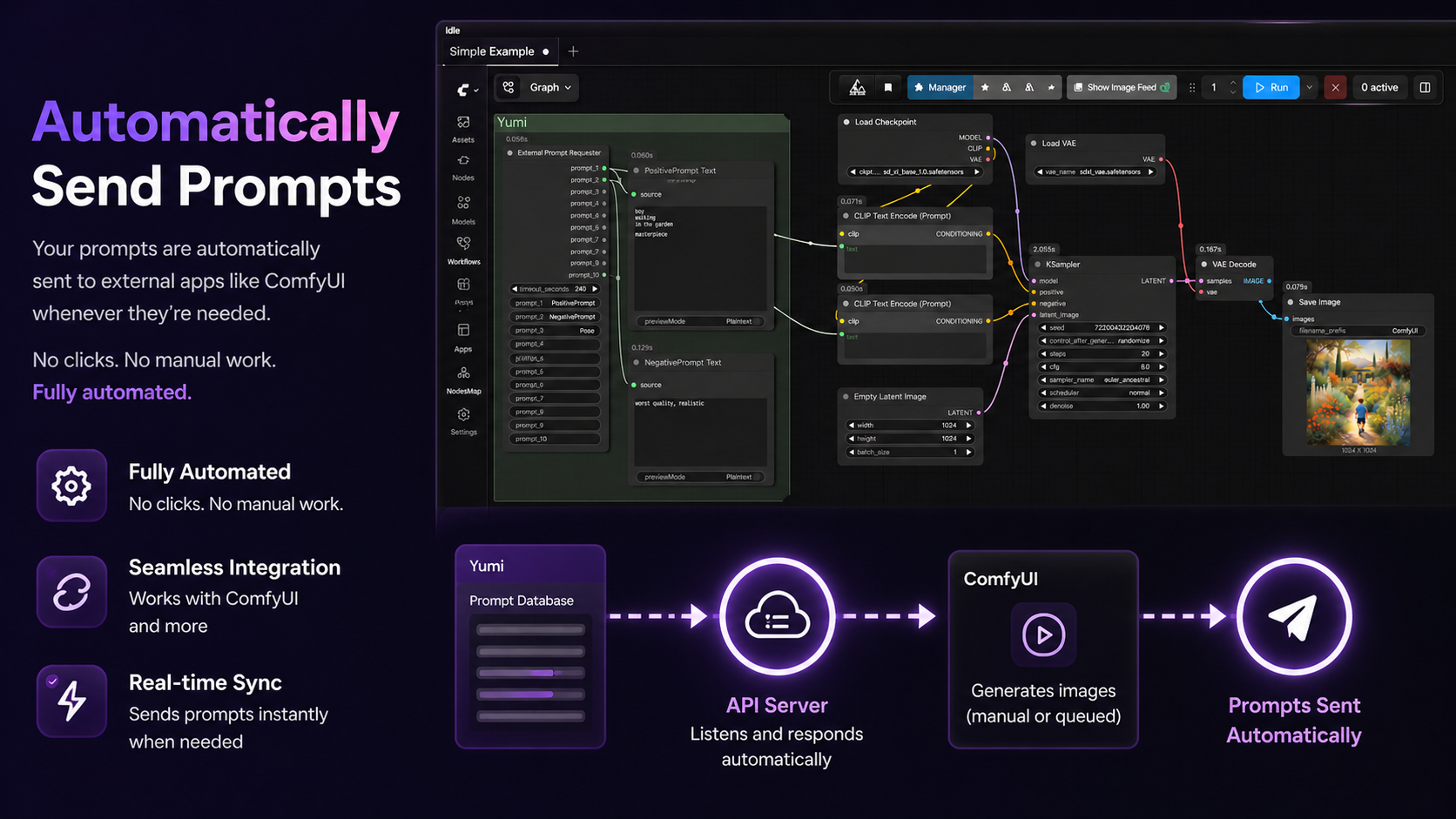
Simple Example.json: a minimal workflow that requests positive and negative prompts from Yumil MPM.Simple Text To Image With Yumil MPM.json: a text-to-image workflow using Yumil MPM prompt categories.Controlnet With Yumil MPM.json: a ControlNet example that uses parser-style prompt data.Regional Prompt With Yumil MPM.json: a regional prompting workflow that combines Attention Couple with per-region prompts from Yumil MPM categories. (detailed usage)Mask And Pose Tags Creator.json: a helper workflow for authoring the mask and pose tag data used by the regional prompting workflow.Generic Yumil Prompt And Image Loader.json: a general-purpose template that pulls Positive / Negative prompts (with<lora:...>tags) and embedded reference image paths from Yumil MPM, then feeds them to the model loader. Useful as a starting point for image-conditioned workflows.
Some workflows use additional ComfyUI custom nodes and model files. Open the notes inside each workflow to check the required extensions and models.
Nodes
External Prompt Requester
Category: Yumil/API
Requests prompt generation from Yumil MPM. While Yumil MPM's On-Demand Generation is active, each time the workflow passes through this node, a generation request is sent to Yumil MPM and the generated results are returned. You can connect up to 10 category names and receive generated prompt text for each category.
When MPM reports that a finite generation queue has completed, the final prompts are still used by the current workflow. The browser extension then changes ComfyUI's Queue mode to manual, preventing another automatic MPM request without interrupting the current image or clearing pending jobs. An informational toast confirms the change; manual Run remains available.
Older MPM versions that do not return completion metadata keep the previous behavior. API failures and malformed responses never disable automatic queueing. If the installed ComfyUI frontend does not expose queue settings to extensions, a warning is written to the browser console and Queue mode is left unchanged.
When Sleep PC after completion is armed in MPM, the node also retains MPM's one-time completion ID for the current ComfyUI prompt_id. It does not acknowledge completion when this node runs. The browser waits for ComfyUI's whole-workflow execution_success event—after output nodes such as Save Image have finished—then calls a same-origin custom-node route. Python reads the existing MPM API key and sends the authenticated acknowledgement without exposing the key to browser JavaScript. Execution errors and interruptions report failure, so MPM does not sleep.
Setup:
- Launch Yumil MPM.
- Press the Demand button in the Generation panel to enable On-Demand Generation.
- Make sure the Yumil MPM API server is enabled and an API key has been generated.
Inputs:
timeout_seconds: request timeout in seconds, from 5 to 600. Default:240.prompt_1toprompt_10: category names to request prompts for.
Outputs:
prompt_1toprompt_10: generated prompt text for each category.
Yumil Prompt Parser
Category: Yumil/Prompt
Parses prompt text containing blocks in this format:
###_Path(...).Value(...).Text(...)_###
Each element is optional.
Path(...): one or more comma-separated file paths. These are not limited to images.Value(...): comma-separatedkey=valueparameters, such asstrength=0.8,mode=ipadapter.Text(...): prompt text. Blocks withText(...)are replaced by that text in the clean prompt output. Blocks withoutText(...)are removed from the clean prompt output.
Use cases:
- Extract reference image paths embedded in prompts.
- Pass metadata such as ControlNet or IPAdapter parameters through the workflow.
- Keep prompt text, file paths, and parameter values bundled together in a single prompt string.
Examples:
###_Path(img0.png,img1.png).Value(strength=0.8,mode=ipadapter).Text(hello)_###
###_Path(img.png).Text(hello)_###
###_Path(img.png)_###
###_Value(mode=test).Text(hello)_###
Inputs:
prompt: prompt text that may contain parser blocks.
Outputs:
clean_text: prompt text with blocks replaced or removed.block_count: number of detected blocks.PARSED_DATA: serialized structured data for downstream nodes.
Yumil Block Selector
Category: Yumil/Block
Selects one parsed block by index and extracts its components. Connect PARSED_DATA from Yumil Prompt Parser. Use multiple instances with different indices to extract multiple blocks.
Inputs:
parsed_data: output from Yumil Prompt Parser.index: zero-based block index.
Outputs:
path_0topath_3: individual paths fromPath(...).path_count: number of paths in the selected block.value: rawkey=valueparameter string.text: associated text content.
Yumil Image Loader
Category: Yumil/Image
Loads a single image from a file path and converts it to a ComfyUI IMAGE tensor. It can receive a path from Yumil Block Selector or any string path.
Inputs:
path: image file path.resize_mode:disabled,stretch,crop_center, orpad_white.target_total: target width plus height, such as2048for SDXL.0disables this resize target.width/heightoptional: explicit size override.
Outputs:
image: loaded image tensor.width/height: image dimensions.
Yumil Value Reader
Category: Yumil/Block
Reads a specific key from a comma-separated key=value string and returns the corresponding value. If the key is not found, it returns the configured default value.
Inputs:
value: key-value string from Yumil Block Selector.key: key to look up.default_value: returned when the key is not found.
Outputs:
result: value for the specified key.
Yumil Lora Stripper
Category: Yumil/Prompt
Extracts and removes all <lora:name:weight> tags from text.
Inputs:
text: text containing LoRA tags.
Outputs:
text: clean text with LoRA tags removed.loras: extracted LoRA tags concatenated together.
Yumil Prompt Lora Loader
Category: Yumil/Loaders
Parses <lora:name:strength> tags from a prompt, applies the matching LoRAs to a MODEL (and optionally a CLIP), and returns the prompt with the tags optionally stripped.
Lora file names are resolved against folder_paths.get_filename_list("loras") using a 7-step fuzzy match (exact path, with/without extension, basename, basename without extension, substring fallback), so partial names from prompts usually still resolve correctly. Negative strengths (e.g. <lora:name:-0.3>) are supported. Tags whose strength is 0 and tags whose name cannot be resolved are skipped with a log message instead of erroring.
clip is optional: when it is not connected, the LoRA is applied to the model only (CLIP strength forced to 0). This makes the node usable with pipelines that do not expose a CLIP, such as LTXV.
Inputs:
model(MODEL, required): model to apply LoRAs to.prompt(STRING, multiline, required): prompt text that may contain<lora:...>tags.strip_tags(BOOLEAN, required, defaulttrue): iftrue, the returnedTEXThas all<lora:...>tags removed.clip(CLIP, optional): when connected, LoRA strengths are applied to CLIP as well.
Outputs:
MODEL: model with all matched LoRAs applied.CLIP: CLIP with LoRAs applied (orNoneifclipwas not provided).TEXT: the prompt, with<lora:...>tags removed whenstrip_tagsistrue, otherwise unchanged.
Yumil Text Join
Category: Yumil/Prompt
Joins up to 7 text inputs with a configurable delimiter. Empty inputs are skipped.
Inputs:
delimiter: separator string. Default:,.text_0totext_6: text inputs.
Outputs:
text: joined result.
Yumil Batch Save
Category: Yumil/IO
Saves up to 6 images as JPEG files and an optional text file to a specified folder.
Inputs:
parent_folder: output directory path.folder_name: subfolder name, also used as the filename prefix.textoptional: saved as{folder_name}.txt.image_0toimage_5: saved as{folder_name}_0.jpg, etc.
Running Tests
python -m pytest tests -v --rootdir=tests --import-mode=importlib -p no:cacheprovider --ignore-glob="*pytest-cache-files-*"
Links
Credits
- Yumil Prompt Lora Loader reuses the LoRA tag regex and fuzzy filename matching logic from rgthree-comfy (MIT License, Copyright (c) 2023 Regis Gaughan, III). See
LICENSEfor the full third-party notice.