
FlowPath
Intelligent path organization for ComfyUI. Drag-drop segments, auto-detection (Model, LoRA, Resolution, Seed), template variables, global presets, dual outputs for Image Saver, and 7 beautiful themes. Say goodbye to messy output folders!
🌊 FlowPath
Intelligent Path Organization for ComfyUI



Features | Installation | Segments | Presets | Examples | Support
See It In Action
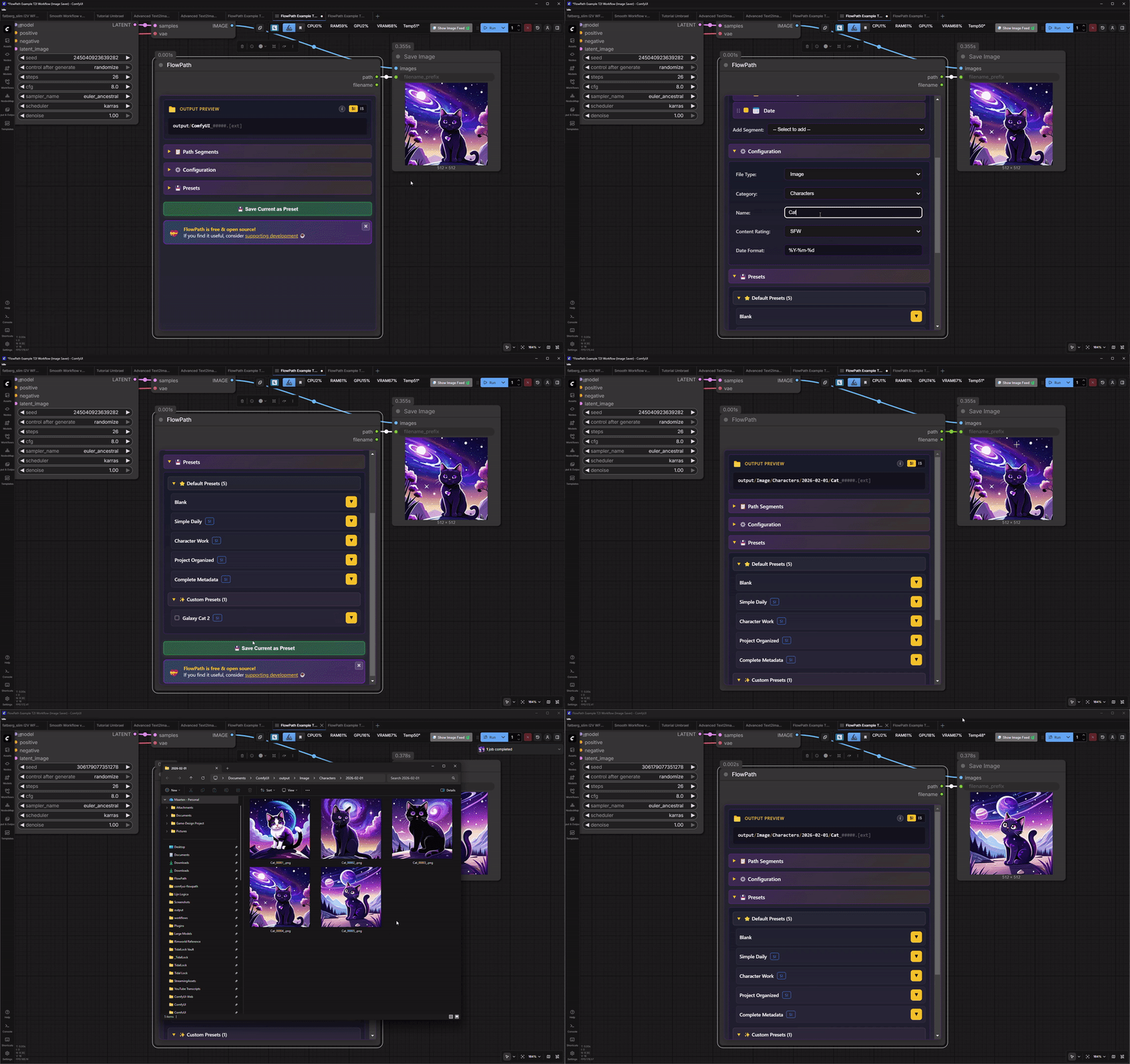
Full Demo - Segments, drag-and-drop, presets, click-to-copy, folder opening
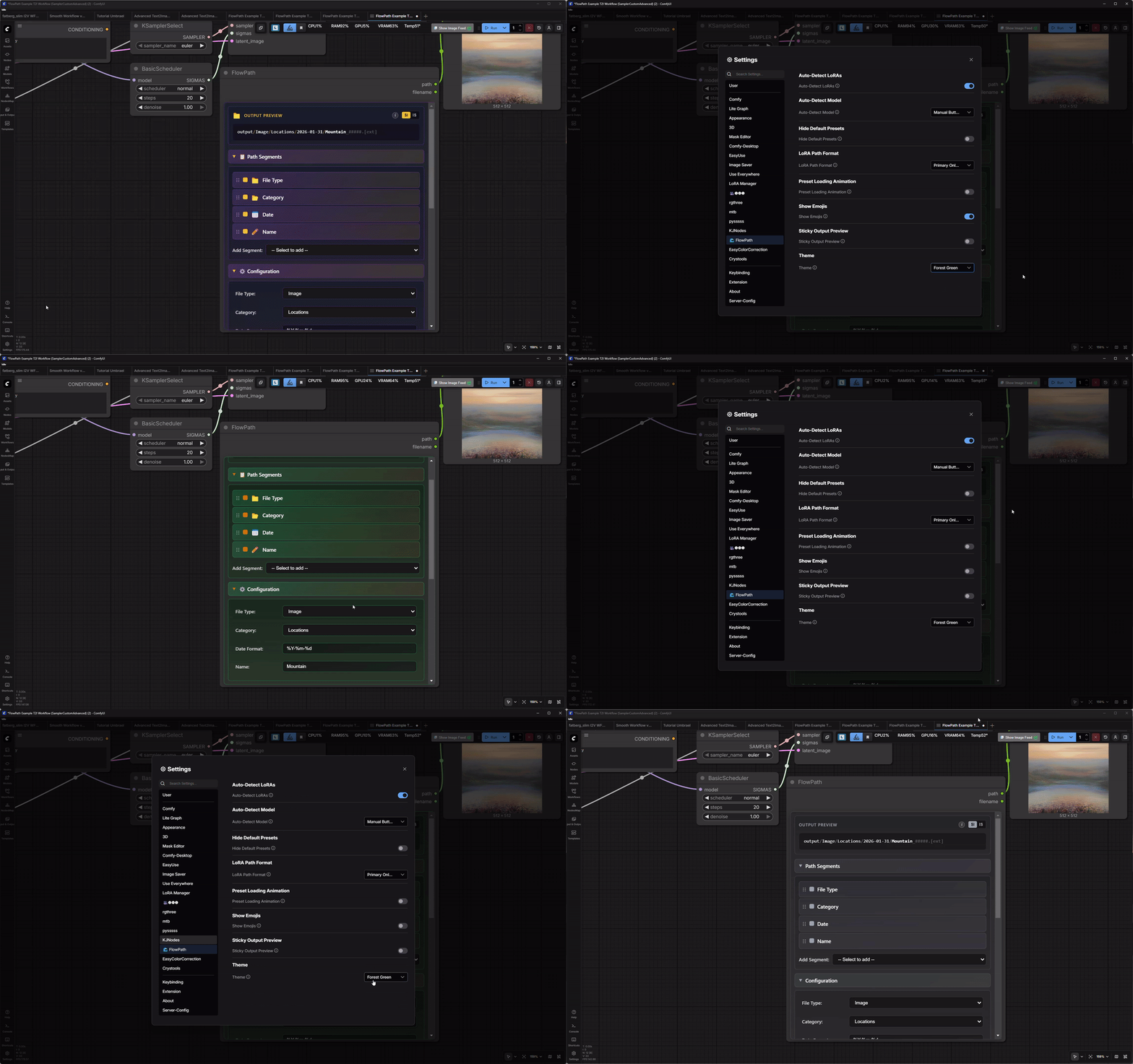
7 Beautiful Themes - Find your style (with emoji toggle!)
FlowPath is a free and open source ComfyUI custom node that intelligently organizes your AI-generated images. Say goodbye to messy output folders!
- 🔢 A1111-Style Counter -
{counter}scans folders and auto-increments (0001, 0002, 0003...) - 🎯 Template Variables -
{model},{lora},{seed},{date}and more - 🔍 Auto-Detection - Automatically detects Model, LoRA, Resolution, Seed
- 🎨 7 Beautiful Themes - Customize the look to match your style
- 💾 Global Presets - Save once, use everywhere across all workflows
- 📤 Multi-Output Support - Handle multiple outputs with Output Labels
- 📝 Dual Outputs - Separate
pathandfilenameoutputs for full Image Saver compatibility - 🔀 SI/IS Mode Toggle - Switch between Save Image and Image Saver output modes
- 📋 Click-to-Copy - Click the path preview to copy to clipboard
- 📂 Quick Folder Access - Shift+click to open output folder in file explorer
✨ Key Features
| Feature | Description |
|---------|-------------|
| 🔢 A1111-Style Counter | {counter} scans folders for existing files and auto-increments (persists across restarts!) |
| 🎯 Template Variables | Use {model}, {lora}, {resolution}, {date}, {label} in custom folders |
| 🔍 Auto-Detection | Automatically detects Model, LoRA, Resolution, and Seed from your workflow |
| ↕️ Drag & Drop | Reorder path segments with intuitive drag-and-drop |
| 🎨 7 Themes | Ocean Blue, Forest Green, Pink Pony Club, Odie, Umbrael's Umbrage, Plain Jane, The Dark Knight |
| 💾 Smart Presets | 5 defaults + unlimited custom presets with cross-workflow sync |
| 👁️ Live Preview | See your path and filename previews before generating |
| 📡 Wireless Support | Works with Anything Everywhere for clean workflows |
| 🔔 Toast Notifications | Visual feedback for all operations |
| 📤 Multi-Output | Output Labels for handling multiple save nodes |
| 📝 Dual Outputs | Separate path and filename outputs for Image Saver compatibility |
| 🔀 SI/IS Mode Toggle | Switch between Save Image and Image Saver output formats instantly |
| 📋 Click-to-Copy | Click the path preview to copy to clipboard (green flash feedback) |
| 📂 Quick Folder Access | Shift+click preview to open folder in file explorer (creates if needed) |
| 🎯 Preset Multi-Select | Shift+click for range selection and bulk delete of presets |
🚀 Quick Start
Installation
Method 1: ComfyUI Manager (Recommended)
- Open ComfyUI Manager
- Search for "FlowPath"
- Click Install
- Restart ComfyUI
Method 2: Git Clone
cd ComfyUI/custom_nodes
git clone https://github.com/maartenharms/comfyui-flowpath
Then restart ComfyUI.
Method 3: Manual Download
- Download the latest release ZIP
- Extract to
ComfyUI/custom_nodes/comfyui-flowpath - Restart ComfyUI
Basic Usage
- Add FlowPath node to your workflow (under "🌊 FlowPath" category)
- Configure segments - Enable/disable Category, Name, Date, etc.
- Set values - Or use auto-detect buttons (↻) for Model/LoRA/Resolution
- Connect to Save Image - See connection methods below
- Generate! - Your images will be organized automatically
🔌 Connection Methods
Method 1: Direct Connection (Recommended for Beginners)
The simplest way to use FlowPath:
- Add a FlowPath node and a Save Image node
- Connect FlowPath's
pathoutput to Save Image'sfilename_prefixinput - Done!
FlowPath Outputs:
- path - Folder structure (e.g.,
Characters/Umbrael/2026-01-30) - filename - Filename pattern (e.g.,
{name}_%seed) - optional, for Image Saver
See Example Workflow
Method 2: Wireless Connection (Advanced)
For cleaner workflows with no visible wires:
Requirements:
- cg-use-everywhere custom node (Anything Everywhere)
Setup:
- Right-click the Save Image node
- Select UE connectable inputs → Enable filename_prefix
- Add an Anything Everywhere node
- Connect FlowPath's
pathoutput to Anything Everywhere - The path wirelessly connects to Save Image!
Benefits:
- Cleaner canvas with no wire clutter
- Great for complex workflows with multiple save nodes
- Professional workflow organization
📁 Example Workflows
Check out the examples folder for ready-to-use workflows:
- FlowPath Example T2I Workflow.json - Basic direct connection
- FlowPath Example T2I Workflow (Wireless).json - Advanced wireless setup
- FlowPath Example T2I Workflow (Multi Output).json - Multiple outputs with Output Labels
- FlowPath Example T2I Workflow (Image Saver).json - Image Saver with dual outputs
- FlowPath Example T2I Workflow (SamplerCustomAdvanced).json - Advanced sampler with seed detection
All workflows include explanatory notes to help you get started!
📄 Path Preview
FlowPath shows you exactly what your output will look like:
SI/IS Output Mode Toggle
The Output Preview header includes a SI/IS toggle switch that instantly changes how FlowPath formats your output:
| Mode | Full Name | Use With | Path Output | Filename Output | |------|-----------|----------|-------------|-----------------| | SI | Save Image | ComfyUI Save Image node | Path becomes filename prefix | Not used | | IS | Image Saver | Image Saver custom node | Folder path only | Separate filename pattern |
SI Mode (Save Image):
📁 path: Objects / Bottle / 2026-01-30_#####.[ext]
The path becomes the filename prefix, and Save Image adds the counter.
IS Mode (Image Saver):
📁 path: Objects / Bottle / 2026-01-30 /
📝 filename: Bottle_%seed_##.[ext]
Image Saver result: Objects / Bottle / 2026-01-30 / Bottle_%seed_##.[ext]
The path is just the folder, filename is separate.
Understanding the preview:
_#####- Save Image counter (5 digits):_00001,_00002, etc._##- Image Saver counter (2 digits):_01,_02, etc..[ext]- Extension placeholder (.png,.jpg, etc.) determined by your output node- When in IS mode, the 📝 Filename section controls your filename pattern
Click-to-Copy & Quick Folder Access
The Output Preview is interactive:
- Click the path preview to copy the path to your clipboard (green flash animation confirms)
- Shift+click to open the output folder in your file explorer
- If the folder doesn't exist, FlowPath will ask if you want to create it
- In SI mode, FlowPath automatically determines the correct folder (strips filename prefix)
- If seed is the last segment, opens the parent folder (since seed changes each generation)
- The taskbar icon flashes if the folder window appears behind other apps (Windows limitation)
Pro Tip: Expand the 📝 Filename section to control filenames for Image Saver!
📚 Available Segments
<!-- Drag-drop shown in main demo video above -->| Segment | Description | Auto-Detect | |---------|-------------|-------------| | 🏷️ Output Label | Label for this output (Example: Main, Upscaled, Last Frame) | ❌ | | 📁 File Type | Image, Video, Audio, 3D Model | ❌ | | 📦 Project | Project name (e.g., Commission2024) | ❌ | | 📂 Category | Characters, Concepts, Locations, Objects, Other | ❌ | | ✏️ Name | Subject name (e.g., Umbrael, Whiterun) | ❌ | | 🔒 Content Rating | SFW or NSFW | ❌ | | 📅 Date | Timestamp with custom format | ❌ | | 📚 Series | Group related images | ❌ | | 🖼️ Resolution | Image dimensions (e.g., 1024x1024) | ✅ Auto | | 🤖 Model | Checkpoint model name | ✅ Auto | | 🎲 Seed | Seed value (always dynamic) | ✅ Auto | | 🎨 LoRA | LoRA name(s) | ✅ Auto | | ✨ Custom | Your own template-enabled folder | ❌ |
Drag segments to reorder - Customize your folder structure!
🎨 Template Variables
Use variables in Custom Segments to create dynamic paths:
Available Variables
{counter}          // A1111-style sequential number (0001, 0002, 0003...)
{filetype}         // Image, Video, etc.
{file_type}        // Alias for filetype
{category}         // Characters, Locations, etc.
{name}             // Umbrael, Whiterun, etc.
{content_rating}   // SFW or NSFW
{rating}           // Alias for content_rating
{sfw}              // "SFW" if SFW, empty if NSFW
{nsfw}             // "NSFW" if NSFW, empty if SFW
{project}          // Project name
{series}           // Series name
{label}            // Output label (Example: Main, Upscaled, Last Frame)
{output}           // Alias for label
{resolution}       // 1024x1024, etc.
{res}              // Alias for resolution
{model}            // waiIllustriousSDXL_v160, etc.
{lora}             // Umbrael_Prime_Illustrious_V1, etc.
{seed}             // Seed value (auto-detected)
{date}             // Formatted date
{year}             // 2026
{month}            // 01
{day}              // 30
Example Templates
{model}_{resolution}
→ waiIllustriousSDXL_v160_1024x1024

{category}/{name}/{date}
→ Characters/Umbrael/2026-01-30

{project}_{sfw}{nsfw}
→ Commission2024_SFW

{filetype}/{category}_{rating}
→ Image/Characters_SFW

{name}_{label}
→ Umbrael_Upscaled
📝 Filename Builder
FlowPath's Filename section lets you build custom filename patterns for full control over your output filenames.
How It Works
The filename output supports two types of variables:
FlowPath Variables (processed by FlowPath):
{counter}- A1111-style sequential numbering (scans folder, persists across restarts){name}- Subject name{label}- Output label{lora}- LoRA name{model}- Model name{category}- Category{date}- Date{resolution}- Resolution
Image Saver Variables (passed through to Image Saver):
%seed- Seed value%time- Timestamp%date- Date%counter- File counter%model- Model name%width- Image width%height- Image height
Example Filename Patterns
{counter}_{name}
→ 0001_Umbrael, 0002_Umbrael, 0003_Umbrael...

{counter}_{name}_%seed
→ 0001_Umbrael_12345678

{name}_%seed
→ Umbrael_12345678

{label}_%time_%seed
→ Upscaled_2026-01-30-143052_12345678

{category}_{name}_%seed
→ Characters_Umbrael_12345678
🔢 The {counter} Variable
The {counter} variable provides A1111-style sequential numbering:
- Scans the output folder for existing files matching your pattern
- Finds the next available number automatically
- Zero-padded to 4 digits: 0001, 0002, 0003...
- Persists across restarts - no session tracking needed!
- Works with Image Saver
%variablesin the same pattern
Example: If your folder has 0042_Umbrael.png, the next file will be 0043_Umbrael.png.
Pro Tip: Put {counter} first for proper file manager sorting: {counter}_{name}_%seed
Quick-Insert Buttons
The Filename section includes quick-insert buttons for all variables. Click a button to insert the variable at your cursor position.
🔄 Auto-Detection Features
<!-- Auto-detection shown in main demo video above -->Model Detection
- Detects from:
CheckpointLoaderSimple,CheckpointLoader,UNETLoader,CheckpointLoaderNF4 - Supports multiple checkpoints (uses first, warns you)
- Click ↻ button to auto-fill
- Automatically removes file extensions and paths
LoRA Detection
- Detects from: Standard
LoraLoadernodes - Full LoRA Manager support - respects active/inactive state
- 4 format modes:
- Primary Only - Uses first LoRA name
- Primary + Count - Shows count (e.g.,
LoraName_+2more) - All - Comma-separated list of all LoRAs
- Separate Folders - Creates individual folders per LoRA
- Click ↻ button to auto-fill
Resolution Detection
- Detects from:
EmptyLatentImage,LatentUpscale,LatentUpscaleBy - Supports multiple latent nodes (uses first, warns you)
- Click ↻ button to auto-fill
- Format:
widthxheight(e.g.,1024x1024)
Seed Detection
- Always dynamic - automatically captured at generation time
- Supports:
- Standard
KSamplernodes KSamplerAdvancedSamplerCustom- Seed Generator (Image Saver) nodes - highest priority!
- Standard
- No button needed - just works automatically!
- Shows
[seed-auto]in preview - Priority: Seed Generator nodes detected first, then KSampler nodes
💎 Preset System
<!-- Presets shown in main demo and connection-presets videos above -->Default Presets (Always Available)
- Blank - Clears all segments (starts fresh, preserves current SI/IS mode)
- Simple Daily - File Type + Category + Name + Date
- Character Work - File Type + Category + Name + Content Rating + Date
- Project Organized - File Type + Project + Category + Name + Date
- Complete Metadata - File Type + Category + Name + Date + Content Rating + Model + LoRA + Seed
Custom Presets
- Save your current configuration as a preset
- Load presets instantly
- Delete custom presets (default presets are permanent)
- Global Storage - Presets are saved globally and available across ALL workflows
- Auto-Sync - Save or delete a preset in one node, and it syncs to all other FlowPath nodes in the same workflow
- Cross-Workflow Sync - Open the Presets section to refresh and see presets from other workflows
- Multi-Select - Shift+click to select a range of presets for bulk deletion
- Hide Default Presets - Option in Settings to hide built-in presets if you only want your custom ones
🎨 Themes
Choose from 7 beautiful themes in Settings → FlowPath → Theme:
| Theme | Primary | Accent | Vibe | |-------|---------|--------|------| | 🌊 Ocean Blue | Blue | Teal | Cool ocean waves | | 🌲 Forest Green | Green | Amber | Lush nature | | 🎠 Pink Pony Club | Hot Pink | White | Fun and playful | | 🧡 Odie | Orange | Sandy Tan | Warm and friendly (named after my cat!) | | 💜 Umbrael's Umbrage | Purple | Gold | Regal and mysterious (DEFAULT) | | ⚪ Plain Jane | Gray | Gray | Simple and minimal | | 🦇 The Dark Knight | Black | Yellow | For when Gotham needs you |
⚙️ Settings
Access via ComfyUI Settings → 🌊 FlowPath:
- 🎨 Theme - Choose your color scheme
- 📐 Dynamic Height Adjustment - Node auto-resizes when adding/removing segments
- 🤖 Auto-Detect Model - Manual button only, or auto-detect on workflow load
- 🎨 Auto-Detect LoRA - Enable/disable automatic LoRA detection
- 📂 LoRA Path Format - Primary Only (Recommended), Primary + Count, All, Separate Folders
- 🎭 Hide Default Presets - Hide built-in presets, show only your custom presets
- ✨ Preset Loading Animation - Enable/disable the diagonal stripe animation when loading presets (shows toast notification when disabled)
🎯 Advanced Features
Multi-Output Workflows
When your workflow has multiple outputs (e.g., main image + upscaled version + depth map), use one FlowPath node per output for complete control:
Setup:
- Add a separate FlowPath node for each output
- Enable the Output Label segment on each node
- Set a unique label for each (Example: "Main", "Upscaled", "Last Frame")
- Set the appropriate File Type for each (Image vs Video)
- Connect each FlowPath to its corresponding Save node
Example: 3-Output Workflow
┌─────────────────┐     ┌─────────────────┐
│ FlowPath        │     │ Save Image      │
│ Label: "Main"   │────▶│ (main output)   │
│ Type: Image     │     └─────────────────┘
└─────────────────┘

┌─────────────────┐     ┌─────────────────┐
│ FlowPath        │     │ Save Image      │
│ Label: "Upscale"│────▶│ (upscaled)      │
│ Type: Image     │     └─────────────────┘
└─────────────────┘

┌─────────────────┐     ┌─────────────────┐
│ FlowPath        │     │ Video Combine   │
│ Label: "Anim"   │────▶│ (animation)     │
│ Type: Video     │     └─────────────────┘
└─────────────────┘
Result:
Image/Project/Character/Main/2026-01-30/2026-01-30_00001.pngImage/Project/Character/Upscale/2026-01-30/2026-01-30_00001.pngVideo/Project/Character/Anim/2026-01-30/2026-01-30_00001.mp4
Pro Tip: When loading presets, your Output Label is preserved since it identifies the node, not the preset configuration!
Preset Syncing: Save a preset in one FlowPath node and it automatically syncs to all other FlowPath nodes in the workflow! Presets are also stored globally, so they're available across all your workflows.
See Multi Output Example Workflow
Toast Notifications
- ✅ Success messages when auto-detection works
- ❌ Error messages when detection fails
- ⚠️ Warnings for multiple nodes detected
- Click to dismiss, or auto-dismiss after 3s
Loading Spinners
- ⏳ Shows when auto-detection is running
- ✅ Changes to checkmark on success
- ❌ Changes to X on failure
Smart Error Handling
- Clear error messages
- Helpful tooltips on all segments
- Fallback values when detection fails
Workflow Persistence
- All settings save with your workflow JSON
- Load a workflow = restore all FlowPath settings
- No manual setup needed when sharing workflows
Live Preview Updates
- Preview updates as you type
- Shows exactly what your file path will be
_#####placeholder shows Save Image counter_##placeholder shows Image Saver counter- Preview adapts based on whether filename is set
🛠️ Troubleshooting
FlowPath node not appearing
- Make sure you extracted to
ComfyUI/custom_nodes/comfyui-flowpath - Restart ComfyUI completely
- Check console for errors (search for "flowpath")
Auto-detection not working
- Make sure the nodes exist in your workflow (CheckpointLoader, LoraLoader, etc.)
- Click the ↻ button manually
- Check browser console (F12) for detection logs (search "[FlowPath]")
- Verify supported node types in your workflow
Preview not updating when dragging segments
- Refresh your browser (Ctrl+F5 / Cmd+Shift+R)
- Check browser console for JavaScript errors
- Make sure you're using the latest FlowPath version
Wireless connection not working
- Install cg-use-everywhere
- Right-click Save Image → UE connectable inputs → Enable
filename_prefix - Connect FlowPath to Anything Everywhere node
- See wireless example workflow
Theme not applying
- Go to Settings → 🌊 FlowPath → Theme
- Select your theme
- Node should update instantly
- If not, try reloading ComfyUI browser tab
Seed showing wrong value
- FlowPath prioritizes Seed Generator (Image Saver) nodes over KSampler
- Check browser console for
[FlowPath] All detected seeds:log - Verify which sampler/seed node should be used
- Seed detection happens at generation time, not when loading workflow
Using FlowPath with Image Saver nodes
FlowPath has dual outputs and a SI/IS mode toggle for full compatibility with all saver nodes:
SI/IS Mode Toggle:
- Look for the SI | IS toggle in the Output Preview header
- SI mode (Save Image): Path becomes filename prefix
- IS mode (Image Saver): Path is folder only, filename is separate
- The toggle remembers your preference per node
Outputs:
- path - All segments joined (e.g.,
Characters/Umbrael/2026-01-30) - filename - Filename pattern from Filename section (e.g.,
{name}_%seed)
For Standard Save Image (use SI mode):
- Click the SI button in the Output Preview header
- Connect
path→filename_prefix - Ignore the
filenameoutput - Result:
Characters/Umbrael/2026-01-30_00001.png
For Image Saver (use IS mode):
- Click the IS button in the Output Preview header
- Expand the 📝 Filename section in FlowPath
- Build your filename pattern using variables
- Connect
path→ Image Saver'spathinput - Connect
filename→ Image Saver'sfilenameinput - Result:
Characters/Umbrael/2026-01-30/Umbrael_12345678.png
Filename Variables:
- FlowPath:
{name},{label},{lora},{model},{category}, etc. - Image Saver pass-through:
%seed,%time,%counter,%model, etc. - Example:
{name}_%seedor{label}_%time_%seed
Empty path showing "ComfyUI"
If your path is empty (no segments enabled), FlowPath shows a default:
- SI mode: Defaults to
ComfyUI(so Save Image outputs tooutput/ComfyUI_00001.png) - IS mode: Defaults to empty (outputs to root
output/folder)
This prevents accidental saves to unexpected locations.
💝 Support Development
FlowPath is 100% free and open source
If you find it useful, consider supporting development:
☕ Ko-fi: https://ko-fi.com/maarten_harms
⭐ Star the repo: https://github.com/maartenharms/comfyui-flowpath
📣 Share with others: Help spread the word!
Every donation helps support continued development and new features
🤝 Contributing
FlowPath is open source and welcomes contributions; Whether you're fixing bugs, adding features, or improving documentation, we'd love your help.
How to Contribute
- Report Bugs - Open an issue describing the problem
- Request Features - Share your ideas for new features
- Submit Code - Fork, code, and submit a Pull Request
- Improve Docs - Fix typos, add examples, clarify instructions
- Create Themes - Design new color themes for the community
Contribution Ideas
- ✅ Add support for new checkpoint/LoRA node types
- ✅ Improve auto-detection logic
- ✅ Create new color themes
- ✅ Fix bugs and improve performance
- ✅ Enhance documentation
- ✅ Add new template variables
- ✅ Improve UX and accessibility
Adding Node Type Support
FlowPath aims to support all checkpoint and LoRA loaders. If your favorite custom node isn't detected:
- Open a Feature Request with the node name and type
- Or submit a PR adding it to the detection arrays in
flowpath_widget.js - Test with your workflow
- Submit!
It's usually just only take one line of code to add support for new node types.
📜 License
MIT License - Free to use, modify, and distribute
Copyright (c) 2026 Maarten Harms
See LICENSE file for full details.
🔗 Also By Me
| Extension | Description | |-----------|-------------| | PromptFlow | Modular prompt engineering for ComfyUI - wildcards, variations preview, auto-sort, presets, and 7 shared themes |
🙏 Credits
Created by Maarten Harms (Mern)
Special thanks to:
- The ComfyUI community for feedback and support
- Everyone who supported the original GenSort concept
- My wonderful girlfriend for helping me with the FlowPath name
- Contributors who help improve FlowPath
- Users who share their workflows and use cases
📞 Contact & Links
- 🐙 GitHub: https://github.com/maartenharms/comfyui-flowpath
- ☕ Ko-fi: https://ko-fi.com/maarten_harms
- 💬 Discord: @itsmern
- 📧 Issues: https://github.com/maartenharms/comfyui-flowpath/issues
- 💡 Discussions: https://github.com/maartenharms/comfyui-flowpath/discussions
Made for the ComfyUI community 🌊
Organize as you create - never sort again!