
ComfyUI-Qwen-Image-Integrated-KSampler
Qwen Image Integrated KSampler - Github: https://github.com/luguoli - intelligent multimodal sampler, support Z-Image, optimizes official offset issues, image scaling, multiple reference images, automatic VRAM/RAM management, batch generation, automatic saving, sound notification
Nodes (2)
🐋 Qwen Image Integrated KSampler


QwenImageIntegratedKSampler
This is an integrated ComfyUI Qwen-Image image generation sampler node,support Z-Image. Compared to using the official KSampler, it eliminates the messy wiring, supports both text-to-image and image-to-image generation, solves the offset issues of the official nodes, and integrates prompt input box, automatic image scaling, automatic memory/vRAM cleanup, batch generation, automatic saving and other comprehensive optimization features, so mom no longer has to worry about my messy wiring~~~~
If this project helps you, please give it a ⭐Star — it lets me know there are humans out there using it!
🏆 Features
🎨 Supported Generation Modes
- Z-Image: Support Z-Image Model
- Text-to-Image: Generate images from text prompts
- Image-to-Image: Generate based on reference images, image editing, supports up to 5 images
⚡ Advanced Optimizations
- Optimize Offset Issues: Solves the offset issues of official nodes, and better follows instructions
- Integrated Sampling Algorithm (AuraFlow): Integrates Sampling Algorithm (AuraFlow) node, no additional wiring needed
- CFGNorm Integration: Integrates CFGNorm node, no additional wiring needed
🖼️ Image Processing
-
Integrated Prompt Input Box: Integrates prompt input box, no additional wiring needed
-
Multiple Reference Images: Supports up to 5 reference images for conditional generation
-
Automatic Image Scaling: Maintains aspect ratio while resizing to target dimensions
-
Support ControlNet Control: Additional connection to [🐋 Qwen ControlNet Integrated Loader] for pose, depth and other controls
🔧 Productivity Enhancement
- Batch Generation: Generate multiple images in a single operation
- Automatic VRAM Cleanup: Automatic cleanup options for GPU/VRAM memory
- Automatic RAM Cleanup: Automatic cleanup options for RAM memory
- Automatic Save Results: Automatically save generated result images to specified folder
- Completion Sound Notification: Play audio reminder after generation completes
🍧 Comparison Display
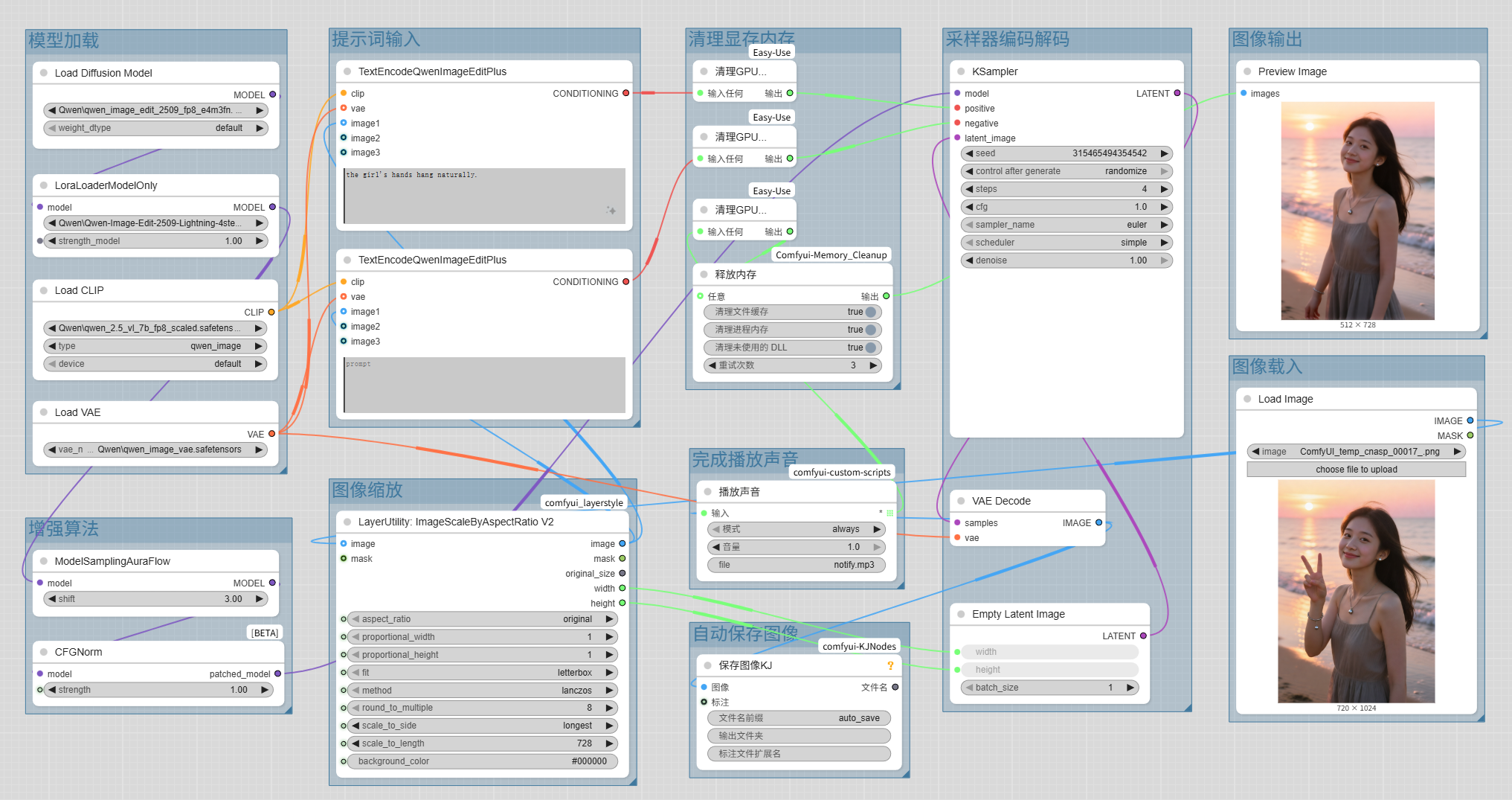
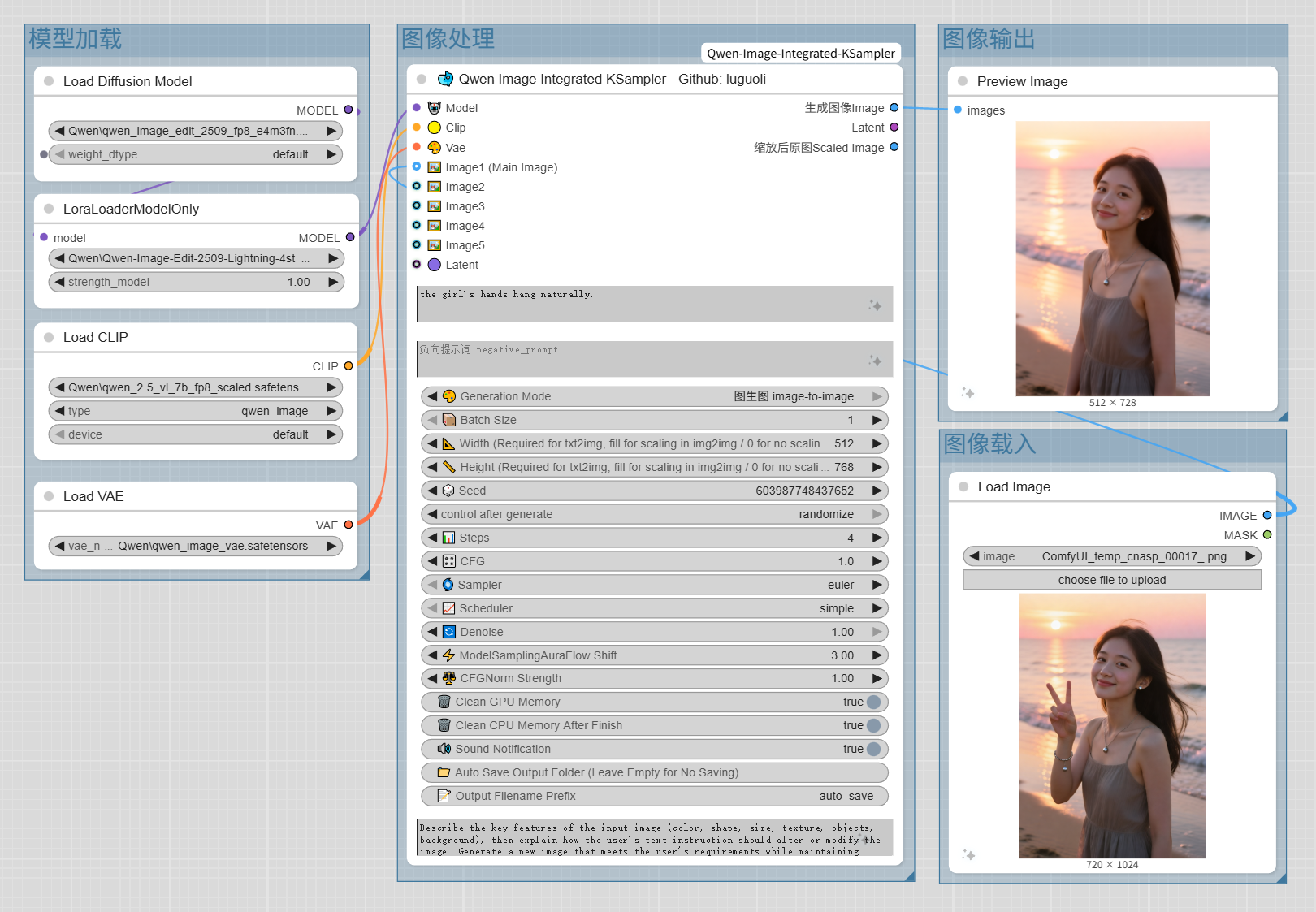
🔄 Workflow Complexity Comparison
- ❌ Workflow without using [Qwen Image Integrated KSampler] (complicated, too many nodes, too many wires)
- ✅ Workflow using [Qwen Image Integrated KSampler] (extremely simple, single node done, almost no wires)
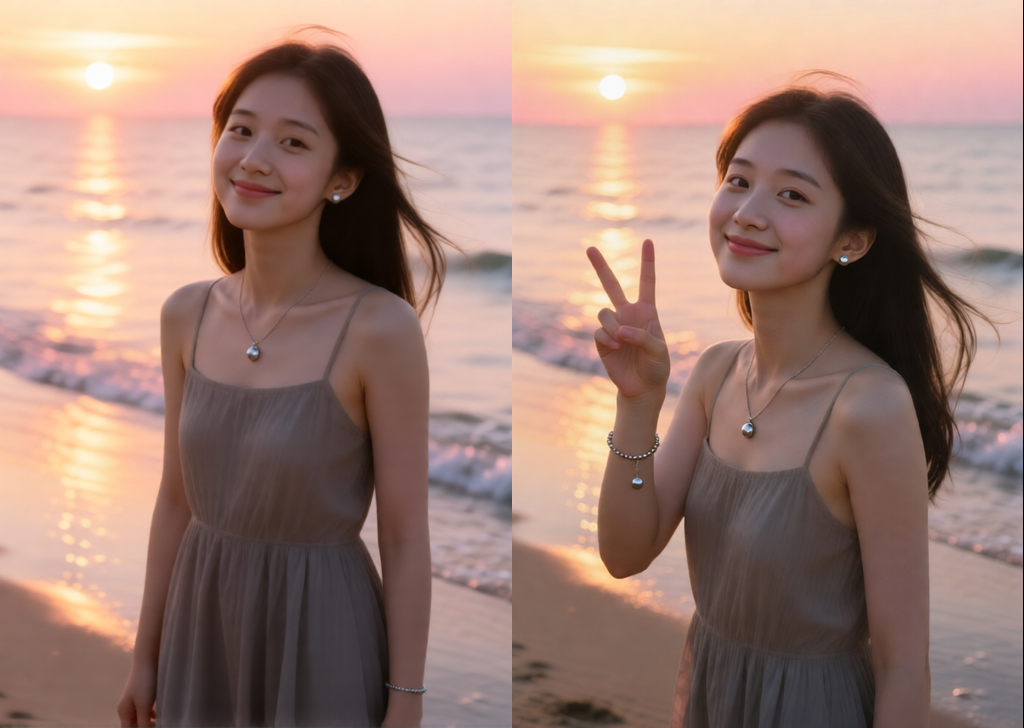
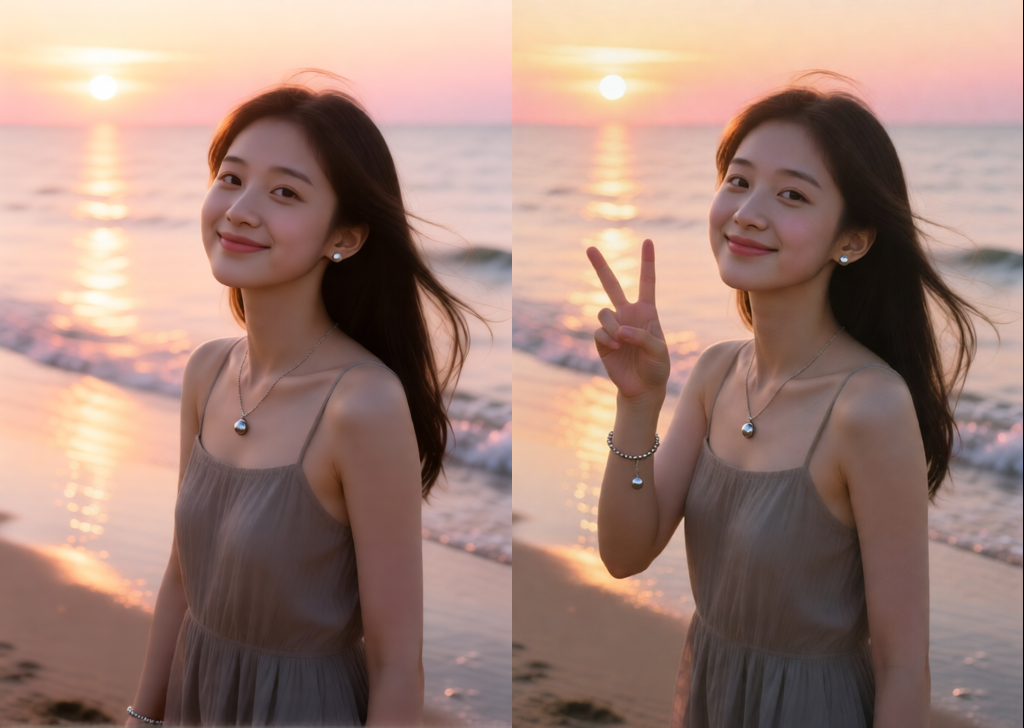
🖼️ Generated Image Effect Comparison
- ❌ Workflow without using [Qwen Image Integrated KSampler] (obvious offset, scaling)
- ✅ Workflow using [Qwen Image Integrated KSampler] (completely no offset, scaling)
📦 Installation Method
Method 1: Via ComfyUI Manager (Recommended)
- Open ComfyUI Manager in the ComfyUI interface
- Search for "ComfyUI-Qwen-Image-Integrated-KSampler"
- Click Install
Method 2: Manual Installation
-
Navigate to your ComfyUI custom nodes directory:
cd /path/to/ComfyUI/custom_nodes -
Clone the repository:
git clone https://github.com/luguoli/ComfyUI-Qwen-Image-Integrated-KSampler.git or gitee repository: git clone https://gitee.com/luguoli/ComfyUI-Qwen-Image-Integrated-KSampler.git -
Install dependencies:
pip install -r requirements.txt -
Restart ComfyUI
🚀 Usage Method
Workflow Example
Basic Text-to-Image Generation
- Add the "🐋 Qwen Image Integrated KSampler" node to the workflow
- Set
generation_modeto "text-to-image" - Connect required inputs:
- Model (🤖 Model)
- CLIP (🟡 Clip)
- VAE (🎨 Vae)
- Enter positive and negative prompts
- Set width and height (required for text-to-image)
- Configure sampling parameters (steps, CFG, sampler, scheduler)
- Execute the workflow
Image-to-Image Generation
- Add the node to the workflow
- Set
generation_modeto "image-to-image" - Connect at least one reference image (🖼️ Image1)
- Optionally add up to 4 other reference images
- Enter positive/negative prompts and instructions
- Set target width/height for scaling (optional)
- Configure other parameters as needed
- Execute the workflow
ControlNet Control
-
Add the [🐋 Qwen ControlNet Integrated Loader] node, connect to [📦 ControlNet Data]
-
Connect pose, depth control images
-
Select ControlNet model, set control type and strength
-
Execute the workflow
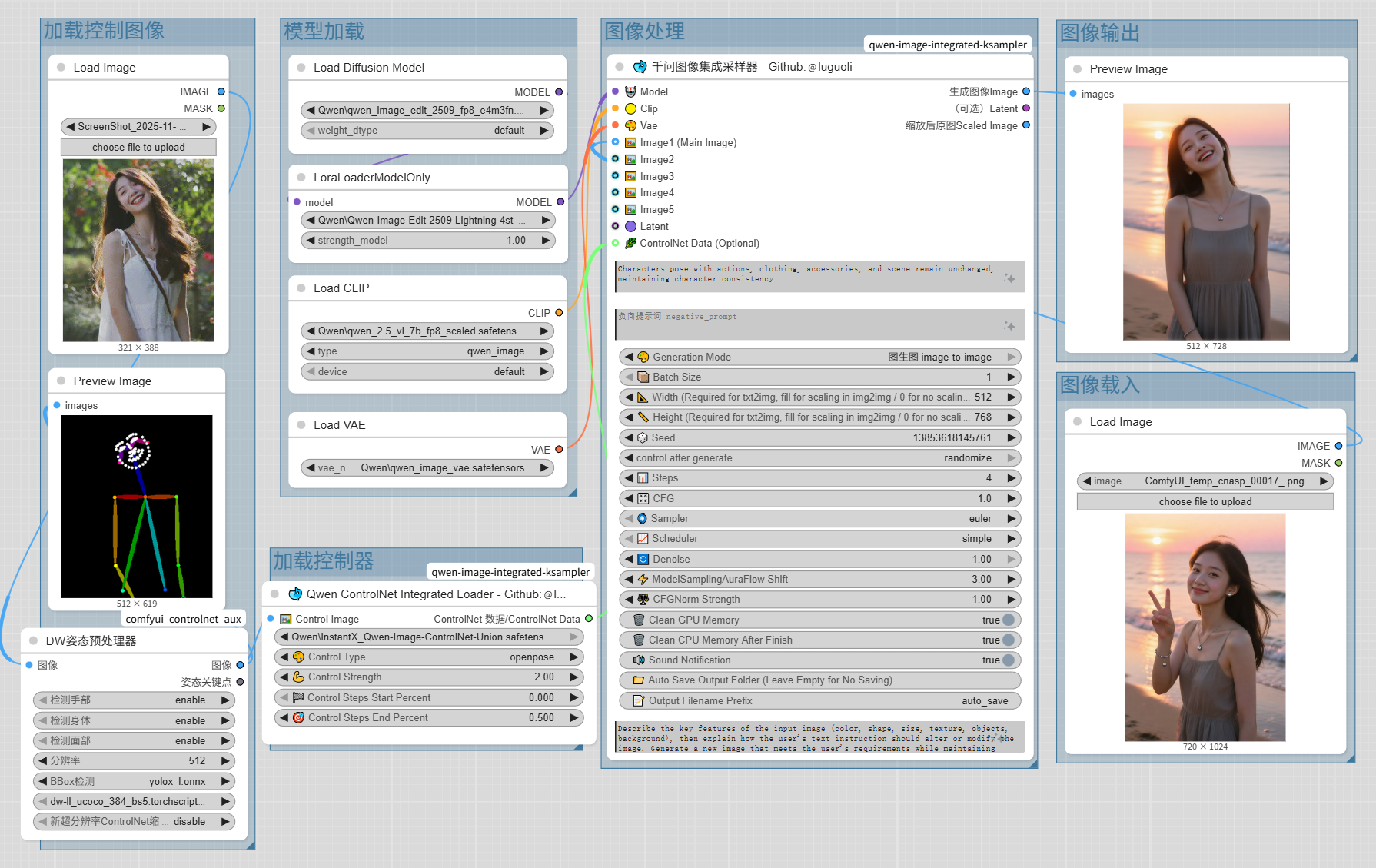
Advanced Features
- Memory Management: Enable GPU/CPU cleanup options to improve resource efficiency
- Batch Processing: Set batch_size > 1 for multiple image generation
- Auto-Save: Specify output folder for automatic saving
- AuraFlow Tuning: Adjust auraflow_shift to balance speed and quality
- CFG Enhancement: Stabilizer for CFG
⚠️ Notes
📝 Usage Requirements
- Text-to-Image Mode: Must set width (Width) and height (Height), these are required parameters
- Image-to-Image Mode: Must provide at least one reference image (Image1), supports up to 5 reference images (Image1-Image5)
🎛️ Parameter Setting Suggestions
- Batch Size: Choose between 1-10, adjust according to GPU memory, recommend starting testing from 1
- Resolution (Width/Height): Must be multiples of 8, range 0-16384, recommend starting testing from lower resolutions (like 512x512)
- Sampling Steps: Qwen models recommend 4-20 steps, too high may increase computation time but not necessarily improve quality
- CFG Value: Range 0-100, default 1.0, recommend 1.0-7.0 range
- Denoise Strength: Range 0-1, default 1.0, can lower appropriately in image-to-image mode
- AuraFlow Shift: Range 0-100, default 3.0, used to balance generation speed and quality
- CFG Normalization Strength: Range 0-100, default 1.0, stabilizer for CFG
🔧 Image Processing
- Automatic Scaling: Text-to-image must input width and height parameters, image-to-image fills in to auto-scale reference images while maintaining aspect ratio, setting either width or height to 0 disables scaling
- Reference Image Order: Supports up to 5 reference images, processed in order Image1-Image5, Image1 is the main image
- Image Format: Supports standard image input formats, automatically handles batch dimensions
💾 Memory Management
- GPU Memory Cleanup: Enable enable_clean_gpu_memory option, automatically clean VRAM before/after generation
- CPU Memory Cleanup: Enable enable_clean_cpu_memory_after_finish, clean RAM after generation completes (including file cache, processes, dynamic libraries)
- For continuous large-scale generation, it is recommended to always enable memory cleanup options to prevent memory overflow
💾 Auto-Save
- Output Folder: Set auto_save_output_folder to enable auto-save function, leave blank to disable, supports absolute and relative paths
- File Naming: output_filename_prefix custom prefix, default "auto_save"
- Save format is PNG, filename includes seed and batch number (e.g.: auto_save_123456_00000.png)
🔊 Notification Function
- Sound Notification: Only supported on Windows systems
📝 Update Records
v1.0.6:
- Added Localization Script: Starting from ComfyUI v0.3.68, Chinese language files became invalid. Added automatic localization script, double-click [自动汉化节点.bat] and restart ComfyUI, requires installing ComfyUI-DD-Translation plugin
📞 Contact for Special Customization 📞
- Author: @luguoli(墙上的向日葵)
- Author Email: [email protected]
Made with ❤️ for the ComfyUI community