
Image Browser
Full-canvas file explorer for browsing and managing images across ComfyUI's input, output, temp and arbitrary paths — thumbnails plus delete, rename and move.
comfyui-image-browser
Full-canvas file explorer for browsing and managing images across ComfyUI's input, output, temp and arbitrary paths — thumbnails plus delete, rename and move.
Part of a family of mobile-first ComfyUI usability packs (gallery-loader, sampler-info): touch-friendly HTML modals launched from the toolbar/command palette that replace clunky native LiteGraph dialogs, additive and self-contained.
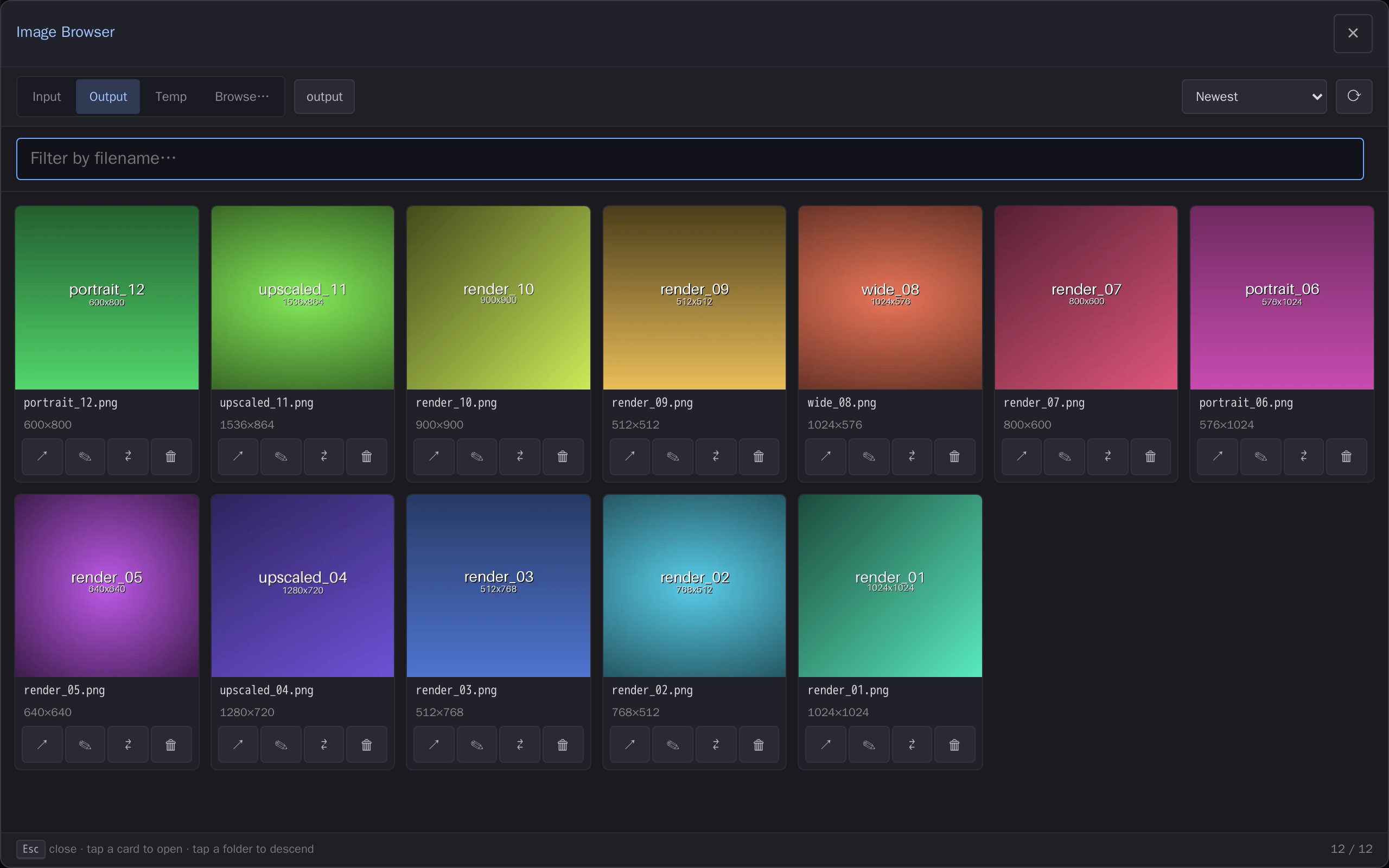
The full-canvas browser, opened from the top-bar button — thumbnails of the Output folder with per-card manage actions.
Install
cd <ComfyUI>/custom_nodes
git clone https://github.com/laurigates/comfyui-image-browser
cd comfyui-image-browser
bun install
bun run build      # emit web/dist/ (served by ComfyUI)
Restart ComfyUI; hard-refresh the browser tab (Ctrl+Shift+R / Cmd+Shift+R).
What it does
Opens from the shared Touch Tools button in the ComfyUI top bar — one button for the whole pack family, listing Image Browser first. It is also a command in the palette and an Extensions → Touch Tools → Image Browser menu entry, and with no other Touch Tools pack installed the button opens this one directly. You get a full-viewport file explorer that stands in for the canvas while open — a touch-first card grid of thumbnails you can browse and manage without leaving ComfyUI.
-
Browse the Input / Output / Temp folders as tabs, plus a browse… tab for absolute paths inside ComfyUI's directories (
models/,custom_nodes/, folders inextra_model_paths.yaml) — that tab is off until you switch it on, see Security posture. Breadcrumbs, folder descend, sort (newest / oldest / name / size / resolution), and fuzzy filename filter. -
Filter by media type — a segmented All / 🖼 Images / 🎬 Videos control narrows the grid to one kind. It filters on the server, so in a big output folder "Videos" shows the newest clips rather than only the clips that happen to fall inside the listing limit. The choice is remembered.
-
Resize the grid — a segmented ⊞ / ▦ / ☰ control next to the media filter. ⊞ puts four columns on a phone with the thumbnail alone, which is what makes selecting a lot of files at once practical; ▦ is the default card; ☰ is a one-per-row details list — thumbnail on the left, name, dimensions, rating and actions beside it. Remembered per device, because a phone and a desktop want different column counts from the same install.
-
Readable file names. Output names share a long prefix (
hhmmss_sampler_ scheduler_seed_…) and differ at the end, so an ordinary end-ellipsis hides the only part that identifies the file. The card holds the tail back from the ellipsis and truncates the middle instead, so you see the time and the descriptor rather than twenty identical prefixes. The whole name is on the ⋯ sheet, and searching shows names unshaped so you can see what matched. -
Thumbnails for images (WebP previews) and videos (poster frames), lazily loaded as you scroll.
-
Lightbox — tap a card (or
Enter/o) to view it full-size without leaving the browser. Swipe or ←/→ steps through the grid in its current sort and filter, and the bar at the bottom rates (★) and deletes (🗑) the file on screen. ↗ opens the original in a new tab instead. -
⤓ Load workflow (
w) — reopen the graph embedded in a file, on any tab (includingbrowse…, once absolute-path reads are switched on). ComfyUI writes the workflow into every image and video it saves, so this turns the browser into a durable way back into a past generation — unlike the stock sidebar, whose list is cleared on every ComfyUI restart. Files re-encoded elsewhere (a phone gallery, a chat app) lose that metadata, and the button says so rather than failing silently. -
ⓘ Metadata (
i) — the prompt, model, seed, steps, CFG, sampler and scheduler read back out of the file, each copyable, with the full raw metadata behind a disclosure.Both work on videos as well as images: MP4/MOV/M4V and WebM/MKV are read natively, including clips written by
WanVideoWrapperand other custom savers whose metadata layout ComfyUI's own loader does not understand. (.avi/.mpgcarry no ComfyUI metadata, so they show neither button rather than one that fails on tap.) -
Manage files in the sandboxed roots (Input / Output / Temp):
- 🗑 Delete — with a confirm step.
- ✎ Rename — in place (extension preserved).
- ⇄ Move — into another root or subfolder via a destination picker.
- ⬆︎ Upload — toolbar button; pick images or videos (on a phone, from the
camera roll) and they land in the folder you are looking at. An existing
name is refused, never overwritten; unsupported types (e.g.
.heic) are named in the error while the rest still land.
-
📌 Pin folders and individual files. A pinned folder becomes a one-tap chip in the toolbar and a shortcut row in the move picker; pinned files collect on their own 📌 pinned tab, where each card behaves exactly like any other (thumbnail, stars, ⓘ/⤓, rename/move/delete, multi-select) and is labelled with its full address, because pins span roots.
The pin list lives on the server, in
<user_dir>/comfy-pins.json— not in the browser. Two consequences worth knowing:- It follows you between devices and is shared with
comfyui-gallery-loader: pin six renders on your phone, they are there on the desktop, and in the other pack's picker. A phone and a desktop are two browsers against one ComfyUI, which browser-local storage cannot bridge — that is the whole reason the list moved. - It is therefore per-install, not per-user. Anyone else using that ComfyUI sees and can change the same list. There are no accounts here.
Nothing watches the disk, so a pinned file deleted from elsewhere shows as a dimmed card until you unpin it or hit 🧹 Prune missing. Up to 200 pins; past that an add is refused out loud rather than silently dropped. Any pins you had before this version are migrated automatically on first open.
- It follows you between devices and is shared with
Safe View — blur sensitive thumbnails
You are browsing generation output as a grid of thumbnails, on a phone, and
someone else is in the room. Safe View matches a keyword list against each
file's name, the folders above it, its dc:subject keywords and — optionally —
its embedded generation prompt, and blurs the matching thumbnails and
blocks out their names.
This is discretion, not access control. The blur is CSS — one devtools override away from gone — and the blurred bytes are still downloaded and still sit in the browser cache. It defeats a shoulder, not an adversary. Do not use it to keep anything from someone who has your keyboard, your browser, or your disk.
Turn it on and off with the 🙈 / 👁 button in the toolbar, the b key, or
the Safe View row in the Touch Tools chooser. Configure it under
Settings → Touch Tools → Safe View:
| Setting | Default | What it does |
|---|---|---|
| Safe View | on | The master switch. With no keywords it does nothing at all, which is why it ships enabled. |
| Keywords | nsfw | Comma- or space-separated. Case-insensitive. Empty means nothing is filtered. |
| Remove matches from the listing entirely | off | Drops matches server-side instead of blurring them, so they never reach the browser. |
| Block out names too | on | Also blanks the file name, its folder label and its tooltip. |
| Also match the generation prompt and model | off | Also matches the prompt and model name embedded in each file. Off by default because it is expensive — see below. |
Two behaviours worth knowing:
- Keywords match whole words, never fragments.
nsfwmatchesoutput/nsfw/pic.pngandmy_nsfw_pic.png, butassdoes not matchassets/andnsfwdoes not matchnsfwish.png. Substring matching would quietly blur unrelated work, and you would have no way to tell an accident from a deliberate match — both look identical. - Hiding is filtered above the listing limit. A folder of 6000 mostly sensitive files still returns a full page of the rest, rather than the handful that survived a filter applied to an already-truncated listing.
Marking a file yourself — 🙈
The name and folder matchers only see what your folders happen to be called. To
mark one file regardless of where it lives, tap 🙈 on its card. That
writes your first configured keyword into the file's dc:subject — the standard
XMP keyword list digiKam, Lightroom, Bridge, XnView and Windows all read and
write — so:
- the file is matched here and in
comfyui-gallery-loader, which reads the same files off the same disk; - a file you tagged in another photo manager is matched here without doing anything;
- the mark travels with the file when you copy or back it up. It is in the file, not in a database this pack owns.
Tap again to unmark. The button writes your first keyword, not a hidden constant — with an empty keyword list it is not offered at all, because any other choice would produce a file that says "marked" and is not blurred.
Like every other write in this pack, it is offered only on the Input / Output / Temp tabs — never on browse…, where writes are refused by design. And a keyword is still discretion: it changes what this grid blurs, not what any endpoint will serve.
A matched keyword is compared as whole words like every other haystack, so a
file tagged nsfw art is matched by the keyword nsfw, while one tagged
assets is not matched by ass.
Matching the generation prompt
The first three matchers are free: the file name, its folders and its XMP tags all come with the listing. Matching the prompt does not — every file's embedded metadata has to be parsed, which is why this one is opt-in.
Switching it on changes what you see, in a way worth knowing before you do it:
- The extracted prompt and model name are cached on the server, next to the shared thumbnail cache, keyed on the file's path, size and modification time. Editing a file re-scans it; nothing else does.
- A file whose prompt has not been scanned yet is blurred, not shown. An unknown reads as sensitive — the safe direction — so on a large library the first enable shows a mostly-blurred grid that clears as the scan progresses. A 🔍 scanning N button in the toolbar reports how many are left; tap it to pull progress.
- Two things fill the cache: a background scan of input/output/temp, started the first time the browser asks for this tier (never before — a user who leaves it off never pays for it), and a live hook on finished generations, so anything you render while a tab is open is scanned immediately.
- Only the verdict reaches the browser, never the prompt text.
- Folders and files in a container with no metadata reader (
.avi,.mpg) simply do not take part in this tier, and are never blurred by it.
Turning it back off stops the matching immediately; the cache is kept.
Tap the 👁 on a blurred card to reveal that one card. Reveals last for the session and are forgotten when you leave the folder or close the browser. Opening a file full-size counts as revealing it. A matching file you reach by swiping in the lightbox stays blurred until you tap its own 👁.
The same filter applies to ComfyUI's own Media Assets sidebar cards and its full-screen asset viewer, following the same setting. Nothing is injected into ComfyUI's own chrome to advertise it — the controls are all in this pack.
The settings are shared with
comfyui-gallery-loader:
both packs register the same preference, so configuring it once covers both,
and because ComfyUI stores settings on the server it follows you between
devices.
What it does NOT cover
Listed because you should know the shape of the gap before relying on it:
- Folders are matched by name only. A blandly-named folder full of sensitive files is not caught in folder view. It is caught in flat view (≣), which lists the files themselves and matches their full paths.
- Delete, rename and move confirmations name the file in plain text, as do the toasts that report them.
- The ⓘ metadata card shows the full prompt, unblurred — including for a file that was blurred because of its prompt.
- The move-destination picker lists folder names unblurred.
- A fresh render appears full-size on the canvas in a
PreviewImagenode, untouched — nothing in this pack can reach it.
Star ratings on ComfyUI's own Media Assets sidebar
Ratings are stored in each image's XMP (or a sidecar), so they are a property of the file rather than of this pack. That makes them worth showing where you actually look at a fresh generation — ComfyUI's stock Media Assets sidebar — and not only inside the browser.
Enabled by default; switch it off under Settings → Image Browser → Sidebar.
ComfyUI exposes no extension point for media-asset cards (ComfyExtension has
hooks for commands, menus, settings, sidebar tabs and canvas/node context
menus — nothing per card, and MediaAssetCard.vue has no slot), so this is a
deliberate, contained DOM injection. It is written to fail soft: if a frontend
update changes the card markup, the stars simply stop appearing — they never
throw, and never intercept the card's own clicks. The setting is the kill
switch if a future version misbehaves.
Note that the sidebar's own list is cleared whenever ComfyUI restarts. The ratings are not — they are on disk, so anything you star there is still starred in the Image Browser afterwards.
Rate and delete in the asset lightbox
A thumbnail is not enough to judge a fresh generation, so the same two verdict actions are available full-screen: open an asset with Inspect asset from the Media Assets sidebar and a bar appears at the bottom of the viewer with a 0–5 star row and a 🗑 delete button. With the lightbox's own ←/→ navigation, that is a complete cull pass over a batch — rate the keepers, bin the duds, arrow to the next — without going back to the grid.
- Delete asks first, then advances to the next item (it closes instead when there is nothing left to advance to). While the confirm is up, ← / → / Esc do nothing, so you cannot navigate to a different file between the question and the answer.
- Ratings are shared with everything else — the stars here, the sidebar card underneath, and the Image Browser all read and write the same XMP. The lightbox re-reads on every navigation, so it never shows you a stale one.
- The sidebar's list is not ours to refresh. A file you delete stays in the list until the sidebar reloads; arrow back onto it and the bar says Deleted rather than offering stars on a file that is gone.
- Images only, for now. VHS-format videos get no bar, because the URL the
stock viewer builds for them is wrong:
AssetsSidebarTab.vuehard-codessubfolder: ''when it maps an asset to a result item and overrides only the image URL, so a video in a subfolder is requested from the wrong path. (That is an upstream bug in its own right — the stock viewer shows a blank player for those files; measured HTTP 204.) Addressing off that URL would rate and delete the wrong file, so this pack declines to guess. Video ratings still work in the Image Browser itself.
Enabled by default; switch it off under Settings → Image Browser → Sidebar.
Like the card stars, this is a contained DOM injection (MediaLightbox.vue
takes props and emits an index — it has no slot and no extension hook) written
to fail soft: if a frontend update changes the viewer, the bar stops appearing
rather than breaking it. Navigation is driven through the viewer's own keyboard
contract rather than by clicking its buttons, whose labels and icons move
between versions.
Security
ComfyUI ships no authentication, so this pack is written against the attacker
that has not reached the port: a web page in your browser that has not. The
full threat model is at the top of image_browser.py; the four gates are:
Writes need a same-origin JSON request. Every POST endpoint requires
Content-Type: application/json and refuses a request the browser reports as
cross-site. Without the first, a page on any origin could reach these handlers
with a plain <form>: aiohttp's server-side request.json() never inspects
Content-Type, and a form post is a CORS-simple request that needs no
preflight. Requiring JSON is what takes that away. There is deliberately no CSRF
token — per Fetch, Origin is sent on every non-GET request, so a token buys no
additional browser defence while breaking any cached copy of the frontend
bundle.
Reading anything outside Input/Output/Temp is OFF by default. Four
endpoints can reach an absolute host path — GET /image_browser/file,
/thumb?path=, /metadata?path= and /list?type=path — and all four answer
403 before touching the disk, so none of them is even an existence oracle,
unless you switch on Settings → Touch Tools → Image Browser → "Allow
absolute-path file reads". The setting is read from your own ComfyUI settings
server-side and cannot be flipped by a request parameter or a header.
Even with it on, the reach stops at ComfyUI's own directories: base_path,
input/output/temp/user, and every folder ComfyUI registers, including the
entries of extra_model_paths.yaml. A path anywhere else answers 403 before
anything on disk is touched. The setting alone cannot be the boundary, because
ComfyUI's own POST /settings/{id} lets any caller who can reach the port
switch it on. To browse another folder, list it in extra_model_paths.yaml or
symlink it inside the ComfyUI tree, then restart. Both need access to the
server's filesystem.
With the setting off, the browse… tab does not work at all: it reports the
refusal, naming the setting, instead of half-listing. With it on, anyone
who can reach this port (ComfyUI has no login) can enumerate any directory
inside that reach with names, sizes, image dimensions and timestamps; fetch a
decoded 512px thumbnail of any image in it; read the embedded generation
metadata of any image or supported video; and stream any whitelisted media
file's raw bytes. A downscale is a read — a photo, a screenshot and a scanned document all
survive one legibly — so treat the switch as "let this server serve my media
library and model folders", not as a preview convenience.
Writes are sandboxed and doubly contained. Management actions are
intentionally disabled in the arbitrary-path (browse…) tab — that mode is
browse-only. The backend rejects writes outside the Input/Output/Temp roots, so
an arbitrary path can never be mutated by URL crafting, and each target is
checked both lexically (no ..) and after realpath. The realpath check is
anchored on the root, not on the folder you navigated into, so a symlink
anywhere in the path — the filename or any subfolder above it — cannot land a
write outside Input/Output/Temp. A symlinked root itself (output →
/mnt/otherdisk/output) stays fully writable.
The cost of that anchor is a symlinked subfolder (output/renders →
/mnt/nas/renders), which stops being writable. If you run that layout, a
second switch — Settings → Touch Tools → Image Browser → "Allow writes
through symlinked subfolders", off by default — hands it back. It widens the
subfolder only: a symlinked filename is still refused with it on. The refusal
names the setting rather than just saying no. See the security posture in
docs/blueprint/adrs/0002-*.
Destructive work is bounded. Batch delete/move are capped at 200 items, and
a recursive folder delete is refused above 10 000 entries — counted with an
early exit per directory, so a deep tree cannot stall the server before the cap
can refuse it. The bound is on depth only: os.walk builds one directory's
whole entry list before yielding it, so a single directory holding millions of
files is still read in full.
Compatibility
- ComfyUI: modern Vue frontend (
comfyui-frontend-package >= 1.40) for theregisterExtensionaction-bar/command launcher API. - Frontend changes take effect after
bun run build+ a browser hard-refresh — no ComfyUI restart.
License
MIT — see LICENSE.