
Model and Prompt from Metadata
Drop a ComfyUI PNG/WebP/JSON onto the node to instantly extract and apply checkpoint, VAE, and prompts from embedded metadata. Supports ComfyUI, SD WebUI, SD Forge neo, Fooocus, SDXLPromptStyler, and Lora Loader (LoraManager). Includes LoRA from Metadata and CLIP Text Encode edit+ nodes.
Nodes (4)
Model and Prompt from Metadata
A ComfyUI custom node designed to quickly reuse metadata from images generated with SD1.5 / SDXL / Illustrious models, accelerating your overall workflow.
Simply drop a PNG or WebP image, or a workflow JSON, onto the node to extract the checkpoint, VAE, and prompts from the embedded metadata and apply them automatically. Instantly reproduce past generation settings and shorten your trial-and-error cycle.
Also supports images generated with Stable Diffusion WebUI / SD Forge neo / Fooocus, and ComfyUI-Custom-Scripts Workflow Images.
Out-of-Scope Models
UNet-based models such as Flux, QWEN, and zImage use a different architecture from checkpoint-based models and are outside the scope of this node. Dropping a file that contains these models will display the detected model names.
For workflows using UNet-based models, Workflow Studio is recommended. Its Library → Information tab fully supports UNet-based architectures (Flux.2, Qwen-Image, Z-Image, WAN2.2, HiDream, and more), and lets you drag detected models and prompts directly onto the ComfyUI canvas. See Workflow Studio Integration below for details.
UI language: Automatically switches between English / Japanese / Chinese based on your browser's language settings.
Screenshot
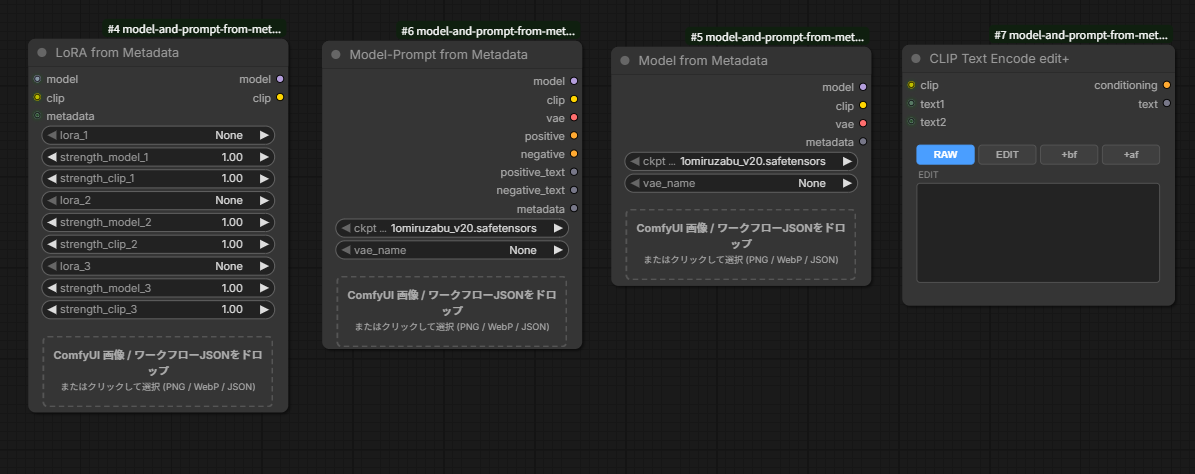
All four nodes: LoRA from Metadata, Model-Prompt from Metadata, Model from Metadata, and CLIP Text Encode edit+.
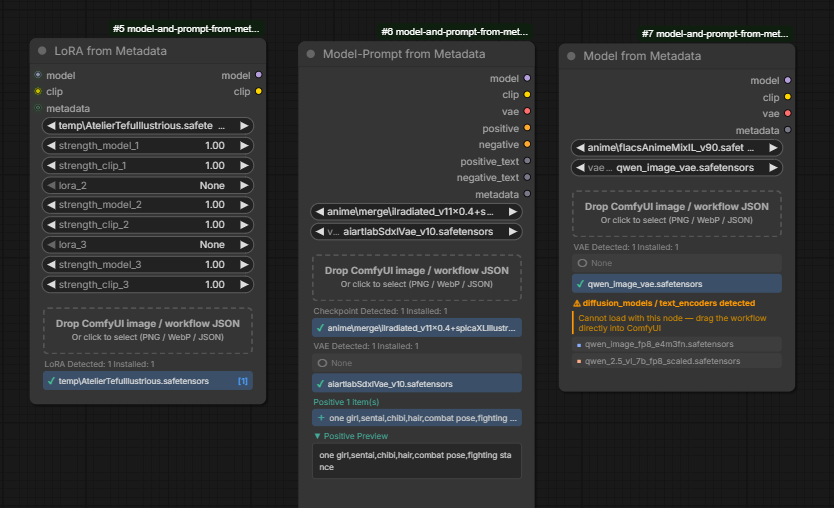
Left: LoRA from Metadata — LoRA detected and auto-assigned to slot 1. Center: Model-Prompt from Metadata — checkpoint, VAE, and prompt auto-selected. Right: Model from Metadata — UNet-based model (Flux) detected, prompting use of the workflow directly.
Nodes
Model from Metadata (ImageMetadataCheckpointLoader)
Category: loaders
Drop a PNG, WebP, or JSON to load the checkpoint and VAE.
Outputs
| Name | Type | Description | |---|---|---| | model | MODEL | Loaded model | | clip | CLIP | CLIP | | vae | VAE | VAE (uses checkpoint's built-in VAE when "None" is selected) | | image | IMAGE | The dropped image (a 64x64 black image when nothing is dropped) |
Model-Prompt from Metadata (ImageMetadataPromptLoader)
Category: loaders
In addition to the checkpoint and VAE, also extracts and encodes positive/negative prompts. Accepts PNG, WebP, and JSON.
Outputs
| Name | Type | Description | |---|---|---| | model | MODEL | Loaded model | | clip | CLIP | CLIP | | vae | VAE | VAE | | positive | CONDITIONING | Positive conditioning | | negative | CONDITIONING | Negative conditioning | | positive_text | STRING | Positive prompt (raw text) | | negative_text | STRING | Negative prompt (raw text) | | image | IMAGE | The dropped image (a 64x64 black image when nothing is dropped) |
LoRA from Metadata (ImageMetadataLoRALoader)
Category: loaders
Applies up to 3 LoRA models sequentially. Drop a PNG, WebP, or JSON to auto-detect and assign LoRAs from metadata.
Inputs
| Name | Type | Description | |---|---|---| | model | MODEL | Model | | clip | CLIP | CLIP | | metadata | METADATA | (Optional) Metadata from an upstream node |
Outputs
| Name | Type | Description | |---|---|---| | model | MODEL | Model with LoRAs applied | | clip | CLIP | CLIP with LoRAs applied |
CLIP Text Encode edit+ (CLIPTextEncodeEditPlus)
Category: conditioning
A CLIP encoder with four modes: use the raw received text (RAW), a manually edited version (EDIT), or insert a second text before (front) or after (back) the main prompt. Use two instances — one for positive, one for negative.
- EDIT textarea: Pre-filled with the received text on first connection; freely editable
- RAW / EDIT / front / back buttons: Selects which text is used for encoding
- front: Inserts
text2(or EDIT text iftext2is not connected) beforetext1, joined with a comma - back: Inserts
text2(or EDIT text iftext2is not connected) aftertext1, joined with a comma - When
text2is connected, the EDIT textarea is dimmed (EDIT content is not used in front/back mode) text1is optional — in EDIT mode it does not need to be connected
Inputs
| Name | Type | Description | |---|---|---| | clip | CLIP | CLIP | | text1 | STRING | (Optional) Main prompt to encode (connect a STRING output from another node) | | text2 | STRING | (Optional) Text to insert in front / back mode |
Outputs
| Name | Type | Description | |---|---|---| | conditioning | CONDITIONING | Encoded conditioning | | text | STRING | The final text string used for encoding |
Usage
Model-Prompt from Metadata / Model from Metadata
- Drag and drop a PNG or WebP image, or a workflow JSON, onto the drop zone on the node (or click to open a file dialog).
- The metadata is parsed and a list of detected checkpoints, VAEs, and prompts is displayed.
- Click an item in the list to select it. ✓ indicates an installed model; ✗ indicates one that is not installed.
- If exactly one checkpoint is detected and installed, it is auto-selected.
- If exactly one VAE is detected and installed, it is also auto-selected. If the workflow contains no VAELoader, "None" is auto-selected. You can change the selection manually from the list.
- If exactly one prompt is detected, it is auto-selected. If multiple prompts are found, click one to select it and preview the full text below.
- When an image is dropped, the drop zone switches to an image preview, and the image becomes available from the
imageoutput. Click the preview to dismiss it; the detected results and theimageoutput are cleared as well.
CLIP Text Encode edit+
- Connect
positive_text/negative_textoutputs from Model-Prompt from Metadata to thetext1input of each node. - On connection, the EDIT textarea is pre-filled with the same content.
- Edit the textarea as needed, then select a mode:
- RAW: Uses
text1as-is - EDIT: Uses the manually edited text (
text1does not need to be connected) - front: Prepends
text2(or EDIT text) beforetext1with a comma separator - back: Appends
text2(or EDIT text) aftertext1with a comma separator
- RAW: Uses
When a UNet-based model file is dropped
As described above, dropping a workflow or image that contains a UNETLoader + CLIPLoader configuration, or a SD Forge neo Flux / UNet image, will display the detected model names. For full support of these workflows, use Workflow Studio — see Workflow Studio Integration below.
Workflow Studio Integration
ComfyUI-Workflow-Studio — a comprehensive workflow, asset management, and generation UI extension for ComfyUI.
While this node specializes in quickly reusing checkpoint-based (SD1.5 / SDXL / Illustrious) metadata, Workflow Studio extends that capability to any model architecture — including Flux.2, Qwen-Image, Z-Image, WAN2.2, HiDream, and more. The two tools complement each other naturally.
Library → Information Tab
The Information tab (I) in Workflow Studio's side panel is the direct counterpart to this node for UNet-based workflows:
- Drop a ComfyUI-generated PNG, WebP, or workflow JSON into the side panel.
- Detected assets are listed across three sub-tabs:
- model — Checkpoint, VAE, Diffusion Model, Text Encoder; drag any item (or double-click) to place the corresponding loader node on the canvas (
CheckpointLoaderSimple,VAELoader,UNETLoader,CLIPLoader) - lora — detected LoRAs with
strength_model / strength_clipvalues; drag to place aLoraLoadernode; drag the Multiple LORA row to place a singleLora Loader (LoraManager)with all LoRAs pre-filled - prompts — POS / NEG prompt list; drag any prompt to place a
CLIPTextEncodenode with the text pre-filled
- model — Checkpoint, VAE, Diffusion Model, Text Encoder; drag any item (or double-click) to place the corresponding loader node on the canvas (
Supported node types include UNETLoader, UnetLoaderGGUF, UNETLoaderGGUF, CLIPLoader, DualCLIPLoader, TripleCLIPLoader, QuadrupleCLIPLoader, and more — covering the full range of modern model architectures.
Gallery ↔ Metadata ↔ GenerateUI Tab Synergy
Workflow Studio's tabs form a tightly integrated loop for maximum productivity:
| Flow | Description | |---|---| | Gallery → GenerateUI | Click Load GenUI on any image in the Gallery to load its embedded workflow directly into the GenerateUI tab — no manual JSON export needed | | Gallery → Metadata | The detail panel's Metadata tab extracts and displays models, LoRAs, and prompts from the selected image's embedded workflow | | Metadata → GenUI / Prompt | From the Metadata tab, use GenUI:P/N to push prompts into GenerateUI, or Prompt:P/N to set Prompt tab presets | | Library (I tab) → Canvas | Drag models and prompts from the Information tab directly onto the ComfyUI canvas to build or extend a workflow in seconds |
This tight integration means you can go from a reference image to a fully configured workflow — with models, LoRAs, and prompts in place — without leaving your browser.
Supported File Formats
| Source | Format | Notes |
|---|---|---|
| ComfyUI | PNG (prompt chunk) | Supports both API format and LiteGraph format |
| ComfyUI | WebP (EXIF workflow: / prompt: entry) | Extracts LiteGraph or API format from the EXIF chunk |
| ComfyUI | JSON workflow | Supports both API format and LiteGraph format |
| ComfyUI | Workflow JSON / PNG containing this node | Restores saved selections (ckpt, VAE, prompts) |
| ComfyUI-Custom-Scripts | Workflow Image PNG | Extracts LiteGraph format from workflow chunk after IEND |
| Workflow Studio | JSON workflow / PNG | Extracts prompts from WFS_PromptText prompt preset nodes |
| SD WebUI / SD Forge neo | PNG (parameters chunk) | Supports both Checkpoint and UNet configurations |
| Fooocus | PNG (parameters JSON chunk) | Extracts base_model / vae / prompts |
Supported Custom Nodes
| Node | Description |
|---|---|
| SDXLPromptStyler / SDXLPromptStylerAll | Prompts are automatically extracted |
| Lora Loader (LoraManager) | LoRAs are auto-detected and assigned (entries with active: false are skipped) |
Installation
ComfyUI/
└── custom_nodes/
    └── model-and-prompt-from-metadata/   ← Place this repository here
        ├── __init__.py
        ├── metadata_checkpoint_node.py
        └── js/
            ├── i18n.js
            ├── metadata_checkpoint.js
            ├── metadata_prompt.js
            ├── metadata_lora.js
            ├── clip_text_encode_edit_plus.js
            └── workflow_utils.js
Restart ComfyUI and the node will be loaded automatically.
File Structure
model-and-prompt-from-metadata/
├── __init__.py                        # Entry point / WEB_DIRECTORY setting
├── metadata_checkpoint_node.py        # Python node definitions (4 classes)
└── js/
    ├── i18n.js                        # Multilingual support (en / zh / ja auto-detect)
    ├── workflow_utils.js              # PNG parsing / metadata extraction utilities
    ├── metadata_checkpoint.js         # CheckpointLoader UI extension
    ├── metadata_prompt.js             # PromptLoader UI extension
    ├── metadata_lora.js               # LoRALoader UI extension
    └── clip_text_encode_edit_plus.js  # CLIP Text Encode edit+ UI