
PSD Figure Creator
Load PSD files, rig layers with interactive R / MR / SW control points, and composite as IMAGE + MASK. Supports setup/pose modes, model/pose library, background options, and i18n (ja/en/zh).
ComfyUI PSD Figure Creator
Language / 言語 / 语言: English | 日本語 | 中文
A ComfyUI custom node for loading PSD files, rigging layers with interactive control points,
and compositing the result as IMAGE + MASK outputs.
Features
- Interactive layer viewer — toggle visibility, rename layers and custom groups
- Custom groups — bundle layers into named groups; drag to reorder draw order
- Rigging system — place control points on layers directly on the canvas:
- R (blue) — rotation only
- MR (red/orange) — move + rotate
- LSW (green) — layer switch: rotate a handle to step through up to 12 slots; use +L to add an individual layer (1 slot), +P to add a group/folder expanded per-layer (Piece, N slots), or +C to add a group/folder composited as one (Composite, 1 slot)
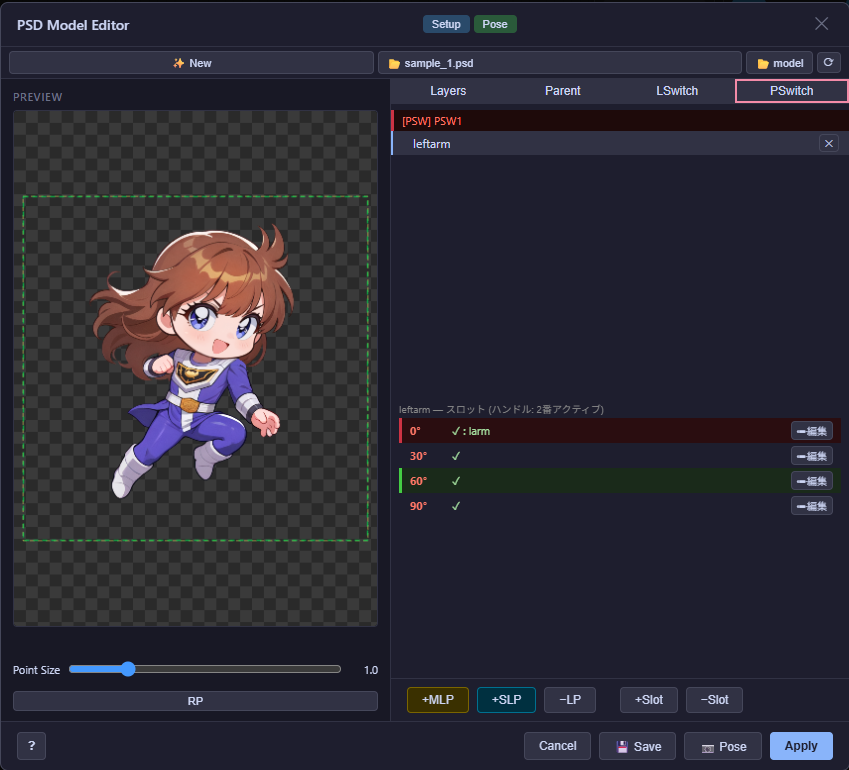
- PSW (white) — pose switch: rotate a handle to apply registered poses; register R/MR pose states to up to 12 slots in 30° increments
- Setup mode / Pose mode — configure rigs in setup mode, animate in pose mode
- Keyframe animation — record poses at specific frames, interpolate between keyframes (linear lerp for position, shortest-path for angles), preview playback at configurable FPS, and export as WebM video (Chrome/Edge) or transparent animated GIF. Save/load full animation projects to the library.
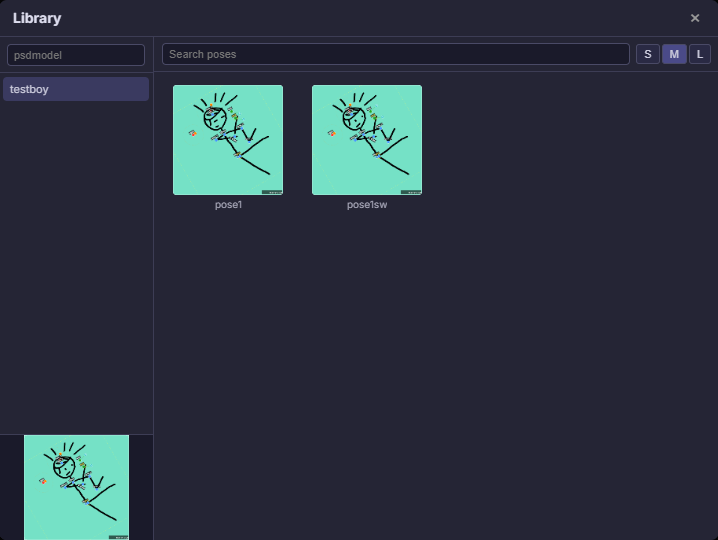
- Library — save/load named model files (
.psd-model.json), pose files, and keyframe animation projects - Background options — checker pattern / solid color / local image / upstream
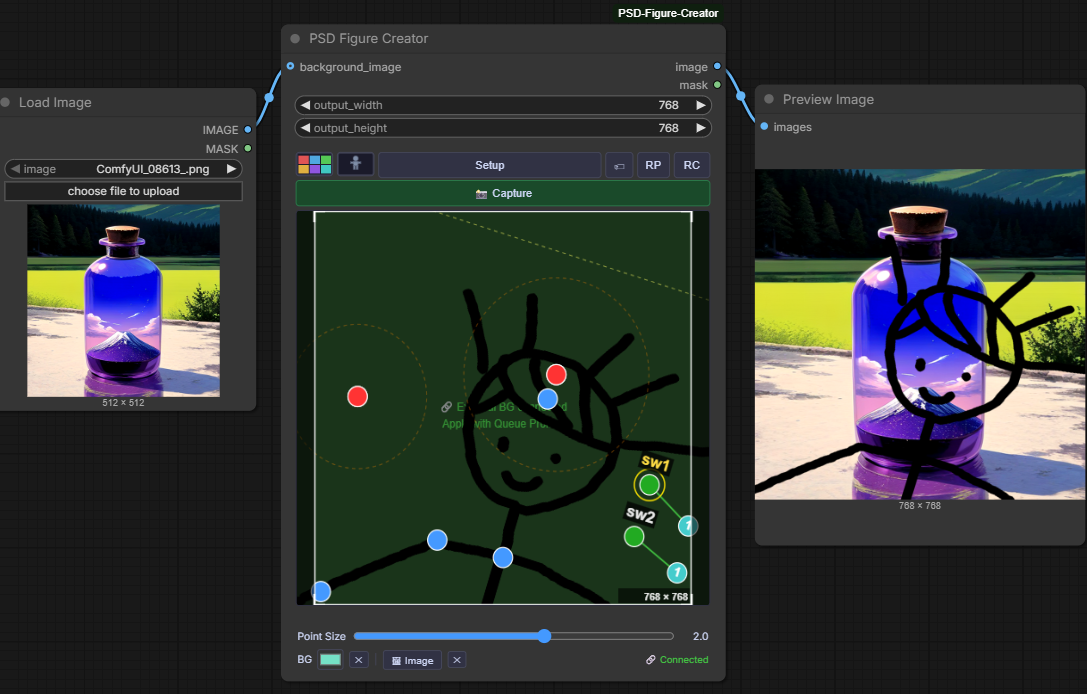
IMAGEnode - Capture → Queue Prompt — bake the current canvas state to an output image
- i18n — UI language auto-detected from
navigator.language(Japanese / English / Simplified Chinese)
Screenshots
Animation output

Node
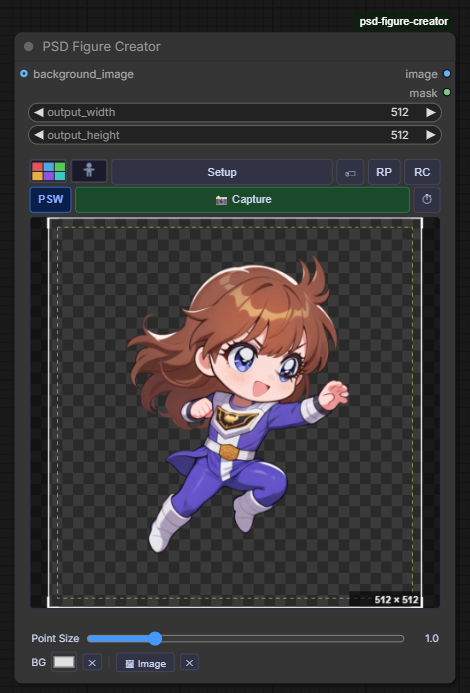
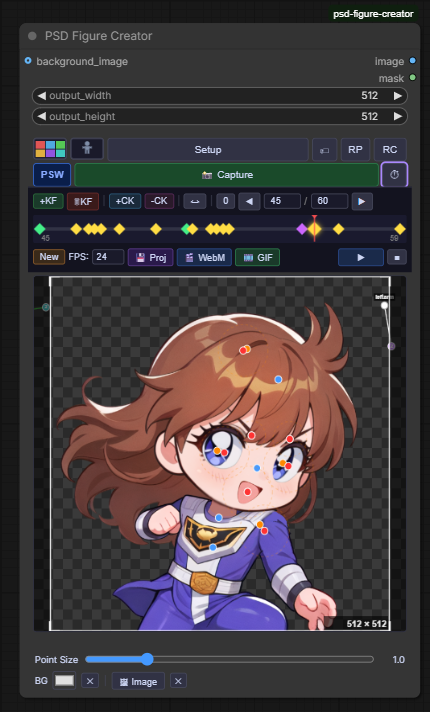
Node — with keyframe animation panel
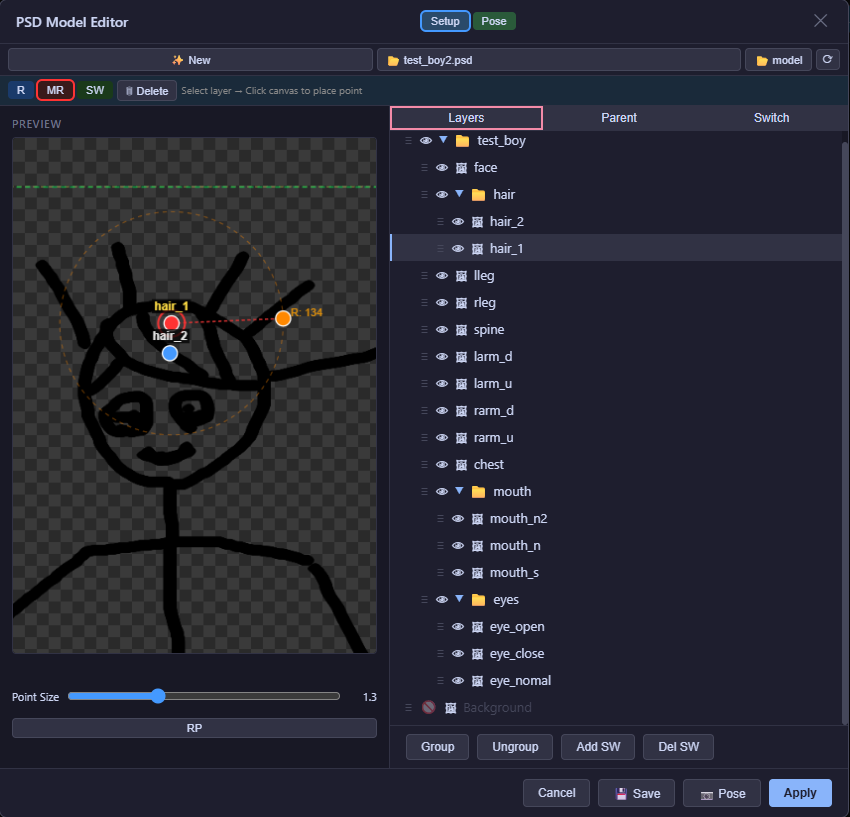
Editor — Layers tab (Setup mode)
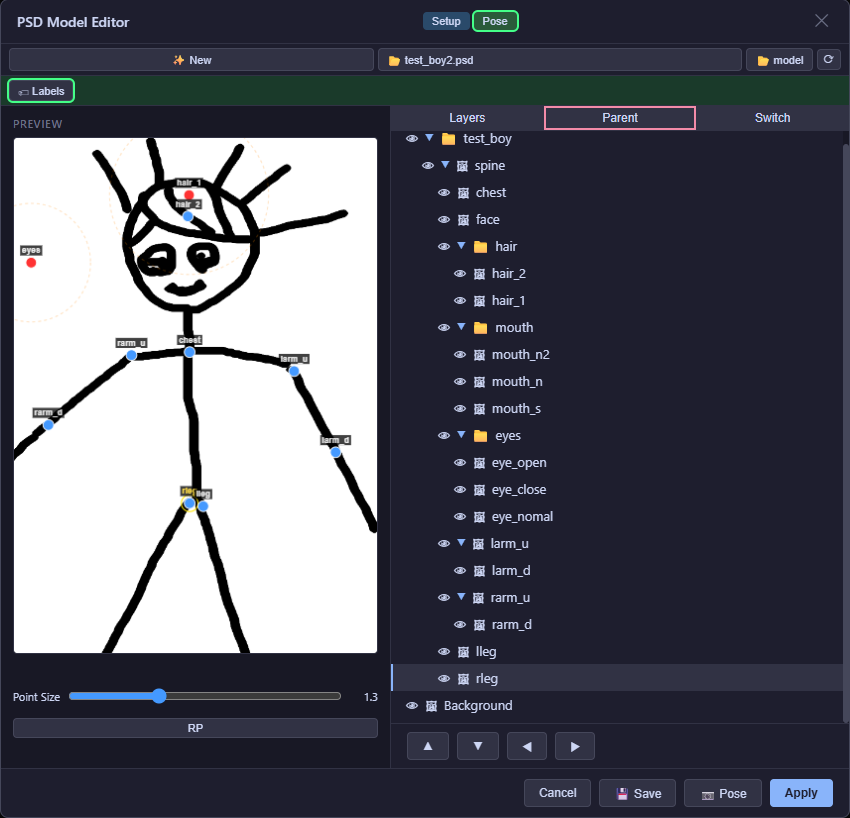
Editor — Parent tab
Editor — Switch tab
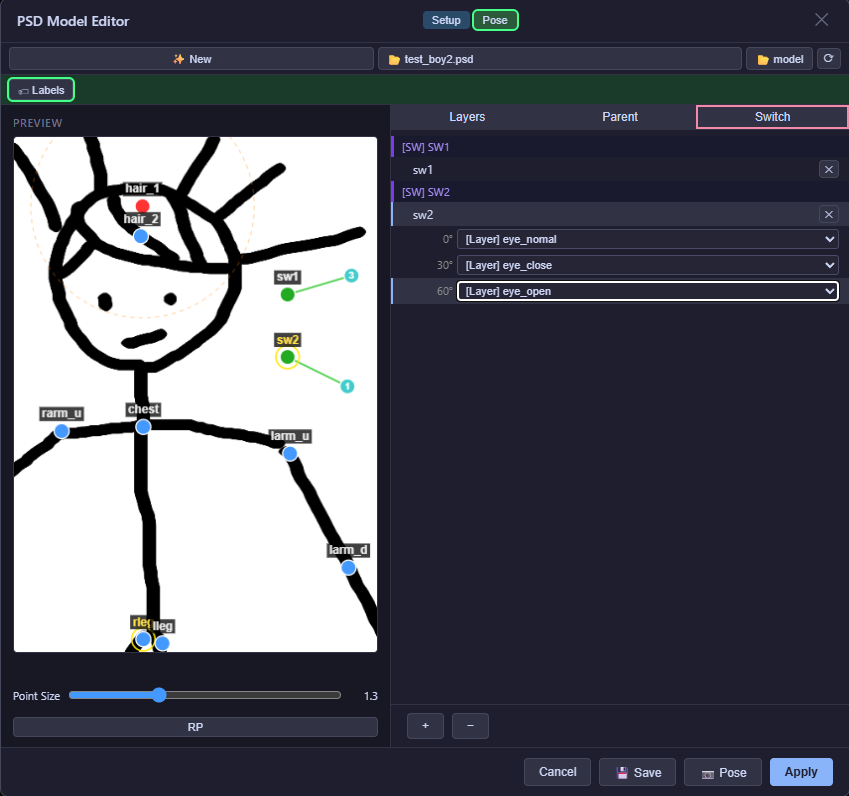
Node preview — rig complete
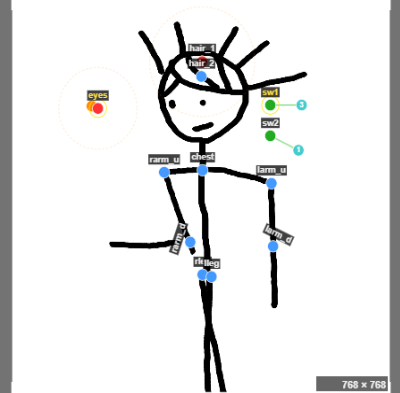
Library — model & pose browser
Capture in a ComfyUI workflow
Editor — PSwitch tab (Setup mode)
Installation
# 1. Copy or symlink this folder into ComfyUI's custom_nodes directory
#    e.g. ComfyUI/custom_nodes/psd-image-loader/

# 2. Install the Python dependency
pip install psd-tools
Restart ComfyUI. The node appears under image/psd → PSD Figure Creator.
Sample Data
A ready-to-use sample is bundled in the user_data/ directory:
| File | Description |
|---|---|
| user_data/sample_1.psd | Sample character PSD |
| user_data/models/sample.psd-model.json | Pre-configured rig (R/MR points, parent hierarchy, SW switch) |
| user_data/models/sample2_lswpswset-model.psd-model.json | Pre-configured rig with LSW and PSW points |
| user_data/poses/pose1.pose.json | Sample pose 1 |
| user_data/poses/pose2.pose.json | Sample pose 2 |
| user_data/poses/project-psw.pose.json | Sample keyframe animation project using PSW |
To use the sample:
- Copy
user_data/sample_1.psdtoComfyUI/input/psd/ - Open the Editor and click 📂 model —
samplewill appear in the library - Load the model; sample poses are available in the pose library
Upgrading from PSD Loader (≤ v2.16):
If your workflow JSON contains"PSDLoader", replace it with"PSDFigureCreator".
Moving to a New PC
Two things must be transferred separately when setting up on a new machine.
1. PSD files
PSD files live in ComfyUI's input/psd/ directory.
ComfyUI/input/psd/ → copy to the same path on the new PC
2. Library data (models & poses)
Library data is stored in user_data/ inside the custom node folder.
ComfyUI/custom_nodes/PSD-Figure-Creator/user_data/ → copy to the same path on the new PC
Bringing a workflow JSON: If a workflow has
psd_filenameset but the PSD file is missing on the new PC, you'll see a "Failed to fetch layer info" alert. Just press Setup again — the modal will open with empty layers (v0.5.2+), and you can use the Open PSD button to re-select the file.
Node Inputs & Outputs
| Parameter | Type | Description |
|---|---|---|
| psd_filename | STRING | PSD file path relative to the input/psd/ directory |
| layer_config | STRING | JSON string produced by the UI editor |
| output_width | INT | Output width in pixels, adjustable in 1 px steps (0 = native PSD size) |
| output_height | INT | Output height in pixels, adjustable in 1 px steps (0 = native PSD size) |
| image_data | STRING | Base64 PNG from Capture (bypasses server-side compositing) |
| background_image | IMAGE | Optional upstream image composited as the bottom layer |
| Output | Type | Description |
|---|---|---|
| image | IMAGE | Composited RGB image |
| mask | MASK | Alpha channel |
UI Overview
[✨ New] [📂 PSD file]  [⟳]
[Editor]          [⏱] [RC]
[📸 Capture]
 ┌──────────────────────────────────┐   ← keyframe panel (⏱ to toggle)
 │ [+KF][🗑KF]|[+CK][-CK]|[↔]|[0][◀][f]/[t][▶] │
 │ ◆────◆──────── timeline ────────── │
 │ [New] FPS[24] [💾Proj] [🎬WebM][🎞️GIF] [▶▶] [■] │
 └──────────────────────────────────┘
 ┌────────────────────────┐
 │  Preview canvas        │
 └────────────────────────┘
 Point Size: ─────────────
 BG: [■ color][✕] [🖼 Image][✕] [🔗 Connected?]
- Editor — opens the full-screen setup/pose modal
- ⏱ — toggle the keyframe animation panel
- RC — reset camera (pan + zoom)
- ✨ New — clears all rigging, SW layers, and poses (prompts for confirmation)
Setup modal tabs
| Tab | Contents | |---|---| | Layers | Layer tree, custom group management, rig mode buttons (R / MR / LSW / PSW) | | Parent | Parent–child hierarchy for propagated transforms | | LSwitch | LSW layer list and group-slot editor | | PSwitch | PSW point list, slot management, and pose registration |
Rig System
R — Rotation
Blue dot. Drag in pose mode to rotate the layer around the placed pivot.
MR — Move + Rotate
Red origin + orange handle. Drag the handle to move and rotate simultaneously.
LSW — Layer Switch
Green origin + cyan handle. Rotating the handle steps through registered slots in 30° increments (maximum 12 slots × 30° = 360°).
Drag the origin in setup mode to reposition; drag the handle to adjust radius and initial angle.
Slot entry types (configured in the LSwitch tab):
| Button | Entry | Badge | Slots |
|---|---|---|---|
| +L | Individual PSD layer | [L] | 1 slot |
| +P | Custom group or PSD folder (Piece) | [P] | 1 slot per member / leaf layer |
| +C | Custom group or PSD folder (Composite) | [C] | 1 slot (all members rendered together) |
A slot entry whose group or folder has been deleted shows a red row background and a ⚠ icon (orphaned). Delete it manually before adding new entries.
PSW — Pose Switch
White origin + purple handle. Rotating the handle applies the registered pose for the active slot.
Usage (configured in the PSwitch tab):
- In Setup mode, click the PSW button (a PSW layer is created automatically on first use), then click the canvas to place a point
- Use
+Slotto add slots in 30° increments (up to 12 slots);−Slotremoves the last slot - Select the slot 0 (0°) row, then in Pose mode use
+MLPto register all layer poses, or select a layer in the layer tree and use+SLPto register a single layer's pose;−LPclears the slot - For slots other than 0°: click the slot row → click
✏ Editto load the pose → adjust → click✓ Confirmto save - The handle angle determines the active slot: 0°–30° → slot 0, 30°–60° → slot 1, and so on; the movement range is locked to (slot count − 1) × 30°
Multiple PSW points operate independently and their poses are composited together.
The PSW toggle button (left of the Capture button on the node) enables or disables PSW globally:
| State | Color | Effect | |---|---|---| | ON (default) | Blue | PSW preset poses are applied based on handle angle | | OFF | Red | PSW disabled — all layers (including PSW-registered ones) are freely controlled by R/MR |
The PSW ON/OFF state is saved and restored across all operations:
- Keyframes — saved per frame; toggle switches automatically during playback
- Pose save (📷 Pose / right-click Pose+SW) — toggle state is restored on load
- Model save/load — toggle state is included in the model file
- Project save (ComfyUI workflow) — persisted in
layer_config
Keyframe Animation
Toggle the keyframe panel with the ⏱ button on the node.
Controls
Row A
| Button / Field | Action |
|---|---|
| +KF | Record the current pose (visibility, position, angles) at the current frame |
| 🗑KF | Delete the pose keyframe at the current frame (camera data preserved) |
| +CK | Record a camera keyframe (zoom / x / y / roll) at the current frame |
| -CK | Delete the camera keyframe at the current frame (pose data preserved) |
| ↔ | Toggle key-move mode: when ON, drag keyframe diamonds on the timeline to move them; playhead scrubbing is disabled |
| 0 | Jump to frame 0 |
| ◀ / ▶ | Step one frame back / forward |
| Frame input | Jump to a specific frame |
| Total input | Set total frame count |
Row B
| Button / Field | Action |
|---|---|
| New | Clear all keyframes and reset to frame 0 (confirm required) |
| FPS | Playback and export frame rate (default 24) |
| 💾 Proj | Save the animation project to the library (name: project-YYYYMMDDHHMMSS) |
| 🎬 WebM | Export as a WebM video file (Chrome/Edge recommended) |
| 🎞️ GIF | Export as a transparent animated GIF image |
| ▶ / ■ | Start / stop playback preview (▶ is double-width) |
Timeline
Click or drag the timeline canvas to scrub to any frame. Recorded keyframes appear as ◆ markers.
Interpolation
| Property | Method | |---|---| | Position (tx / ty) | Linear lerp | | Rotation angle | Shortest-path angle lerp (handles 0 ↔ 360° wrap) | | SW handle angle | Shortest-path angle lerp | | PSW handle angle | Shortest-path angle lerp | | Visibility | Step: value of the previous keyframe |
Project Save / Load
💾 Proj saves keyframe data (keyframes, kf_total_frames, kf_fps) to the library's Poses panel as _type: "kf_project". Loading it from the library restores the full timeline and applies frame 0's pose to the canvas.
Keyframes are also persisted in layer_config.keyframes, so they are saved and restored with the ComfyUI workflow JSON automatically.
Clipping Layers
Layers with the Photoshop "clip to layer below" flag appear with a ✂ badge in the layer panel and SW +L dropdown. The canvas compositor renders them using source-atop blending: each clipping layer is masked to the opaque area of its base layer (the layer directly below it). R/MR rigs placed on a clipping layer work normally within that masked region. Clipping applies everywhere: at the PSD document root, inside folders, and inside custom groups.
⚠ Parent setup note: If the base layer has a rig that moves it, the clipping layer must share the same parent (configured in the Parent tab) to follow along. Without a matching parent, the clipping layer stays at its original canvas position while the base moves, breaking the mask alignment.
Background Priority
Highest to lowest:
- ComfyUI
background_imageinput — server-side composite (letterbox, aspect-ratio preserved) - Local background image — loaded via the
🖼 Imagebutton, rendered client-side - Background color — solid fill selected with the color picker
- Checker pattern — default transparent background indicator
File Structure
psd-image-loader/
├── __init__.py              # Node registration
├── psd_loader_node.py       # PSDFigureCreatorNode
├── psd_utils.py             # psd-tools compositing helpers
├── server.py                # aiohttp API routes (upload / layers / preview / library)
├── requirements.txt
└── web/
    ├── js/
    │   ├── psd_loader.js    # Front-end (canvas, modal, rigging)
    │   └── i18n.js          # Translation dictionaries + t() helper
    └── css/
        └── psd_loader.css
layer_config Schema
{
  "visibility":    { "<layerId>": true | false },
  "renamed":       { "<layerId>": "display name" },
  "custom_groups": [{ "name": "...", "layer_ids": [...], "visible": true }],
  "layer_order":   [{ "id": "...", "children": [...] }],
  "rigging": {
    "<layerId>": {
      "r":         { "x": 0, "y": 0 },
      "mr":        { "x": 0, "y": 0 },
      "mr_radius": 40
    }
  },
  "pose": {
    "<layerId>": { "angle": 0, "tx": 0, "ty": 0 }
  },
  "sw_layers": [{
    "id": "...", "name": "sw1",
    "points": [{
      "id": "...", "name": "pt1",
      "x": 512, "y": 512,
      "radius": 60, "angle": 0,
      "groups": [
        "<layerId>",                                              // +L — individual layer, 1 slot
        { "type": "custom_group", "id": "...", "mode": "piece" },     // +P — 1 slot per member layer
        { "type": "psd_group",    "id": "...", "mode": "composite" }  // +C — 1 slot (composited)
        // mode defaults to "piece" when omitted (backward compatible)
      ]
    }]
  }],
  "psw_layers": [{
    "id": "...", "name": "PSW1",
    "points": [{
      "id": "...", "name": "PSW1",
      "x": 512, "y": 512,
      "radius": 80, "angle": 0,
      "slots": [
        { "degree": 0,  "pose": null },                          // empty slot
        { "degree": 30, "pose": { "<layerId>": { "angle": 0.5, "tx": 10, "ty": -5 } } }
      ]
    }]
  }],
  "keyframes": [
    {
      "frame": 0,
      "visibility": { "<layerId>": true },
      "pose":       { "<layerId>": { "angle": 0, "tx": 0, "ty": 0 } },
      "sw_angles":  { "<pointId>": 0 },
      "psw_angles": { "<pointId>": 0 }
    }
  ],
  "kf_total_frames": 60,
  "kf_fps": 24
}
Requirements
- ComfyUI (latest)
- Python 3.10+
- psd-tools ≥ 1.9.0
Troubleshooting
[INFO] Unknown image resource / Unknown tagged block in the console
[INFO] Unknown image resource 1092
[INFO] Unknown tagged block: <Tag.CAI: b'CAI '>, ...
These are informational messages from the psd-tools library (not errors). They appear when a PSD file contains metadata that psd-tools does not yet recognize — for example, resources added by recent versions of Photoshop such as Generative Fill (CAI tag). The file is still read and composited correctly; the unknown data is simply skipped. No action is required.
License
MIT