
ComfyUI-LiveChatStream
Nodes: Live Chat Stream. Chat with an LLM / VLM (Ollama) inside a node and turn the streaming reply into images - generation starts as soon as the prompt is written, while the rest of the reply is still streaming. Two prompt lanes (clean <prompt block and the model's own thinking / reply / inner monologue), character presets, image input/output for I2I, optional decision-model image judge, VRAM auto-unload, and multi-language UI (en/ja/zh).
ComfyUI-LiveChatStream
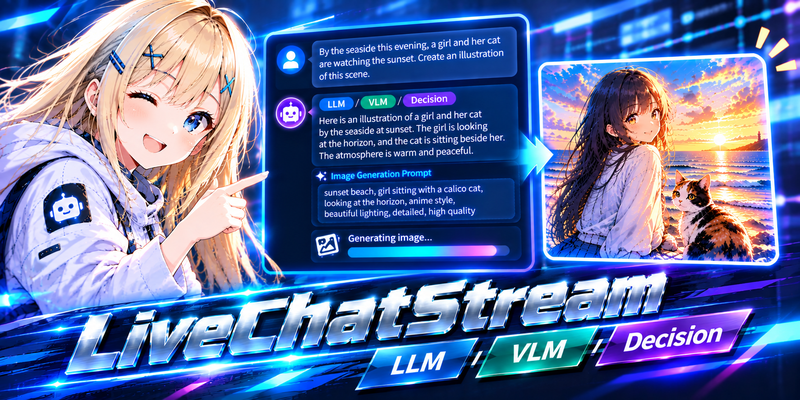
A ComfyUI custom node that lets you chat with an LLM / VLM and turns the streaming reply into images — the image is generated as soon as the model has written the prompt, while the rest of the reply is still streaming.
The backend is Ollama today (the node name is backend-neutral so other backends can be added later).
Prerequisites
- Ollama running locally (default
http://127.0.0.1:11434; for another host see Notes) - At least one chat model. A model with the
visioncapability is needed to attach images (VLM). - Optional: a decision model that accepts images (e.g.
clef, Ollama 0.35.1 or later) to judge the generated images. A decision model does not write text; it answers typed questions (yes/no, choice, score) with probabilities. - A text-to-image workflow in the same graph (the sample uses SDXL + an LCM LoRA).
Installation
Place this repository under ComfyUI/custom_nodes/ and restart ComfyUI. No additional Python dependencies are required.
Features
- Chat inside the node with token streaming (stop button included)
- Two prompt lanes
- A (
positive/negative): a clean image prompt taken from the<prompt>block of the reply - B (
chat_p/chat_n): the model's own thinking, reply or inner monologue (<mind>block) used as is as a second prompt, so you can see the character's feelings / thoughts as an image
- A (
- Generate while streaming: when
</prompt>closes (default), live while streaming, or manually - Presets / characters managed in a modal and stored on the server: plain system prompts, or structured characters (personality, fixed appearance tags, emotion rules) so the character stays consistent and the emotion shows in the picture
- Image input / output (I2I): connect an image to the
imageinput (it has priority over dropped images) or drop / paste / select one; theimageoutput feedsVAE Encodefor img2img - VLM: attach images to the chat (drop, click, paste)
- Decision-model judge (optional): scores each generated image for "does it match the request" and quality
- VRAM management: manual
Unloadbutton, and an option to unload Ollama models before image generation (auto-freeunloads only as many models as needed to reach the target free VRAM, measured from the driver) - Image ON/OFF checkbox: turn the whole thing into a plain chat
- Collapsible Settings / Prompt sections so the chat stays the main area
- UI available in English / Japanese / Simplified Chinese (follows ComfyUI's language setting; reload the page after changing it)
Nodes
Live Chat Stream (LiveChatStream)
| Output | Type | Description |
| --- | --- | --- |
| positive / negative | STRING | Lane A prompt (connect to CLIP Text Encode) |
| response | STRING | The full reply (updated while streaming) |
| chat_p / chat_n | STRING | Lane B prompt (thinking / reply / <mind>) and its negative |
| thinking | STRING | The model's thinking text |
| image | IMAGE | The input image (socket, or the dropped one) — blocks downstream nodes when there is none |
Input: image (optional). The prompt boxes are edited from the Prompt section of the node.
Usage
- Open
workflows/live_chat_stream.json(text-to-image) orworkflows/live_chat_stream_i2i.json(img2img). - Expand Settings, check the Ollama URL and pick the LLM / VLM (and a decision model — the
Decisionrow — if you want judging). - Type a message and press
Ctrl+Enter. The image is generated as soon as the<prompt>block is complete.
Tips
- For characters, create one in Presets… (
+ Character), thenSave & Use. chat_p = <mind> blockmakes the character write an inner monologue; tick mind EN to have it written in English (image models understand English best).- With a small GPU, set VRAM: auto-free with a target (e.g. 8 GB) so Ollama models are unloaded before the image is generated. The chat model that is streaming at that moment is never unloaded.
Notes
- Free VRAM is read with
nvidia-smi(NVIDIA GPUs). Other GPUs fall back to ComfyUI's own value. - Presets are saved to
<ComfyUI user dir>/live_chat_stream/presets.json. - Images dropped for I2I are uploaded to
input/live_chat_stream/. - The Ollama address is set on the server and is never taken from the browser or the request. The server reads it from the environment variable
LIVE_CHAT_STREAM_OLLAMA_URL, or from<ComfyUI user dir>/live_chat_stream/config.json({"ollama_url": "http://192.168.1.20:11434"}; edits apply without a restart), and defaults tohttp://127.0.0.1:11434. Redirects are not followed. If you start ComfyUI with--listen, anyone who can reach ComfyUI can still use the chat routes with your Ollama (but cannot point them anywhere else), so only do that on a trusted network.