
ComfyUI-Flow-Hub
Collaboration-first workflow management for ComfyUI with personal workspaces, publishing, and published libraries.
ComfyUI-Flow-Hub
A collaboration-first workflow management tool for ComfyUI. Manage personal workflows, publish to published libraries, and load workflows quickly with SQLite-backed metadata.



Features
- Personal Workspace (ComfyUI Workflows Replacement) — Designed to improve and replace inconvenient parts of ComfyUI's built-in Workflows management with practical file-based operations (folder creation, drag-and-drop move, quick load/save, and bookmarks)
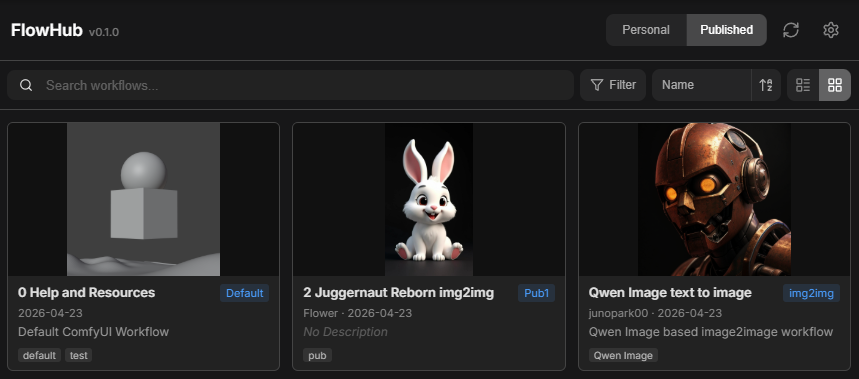
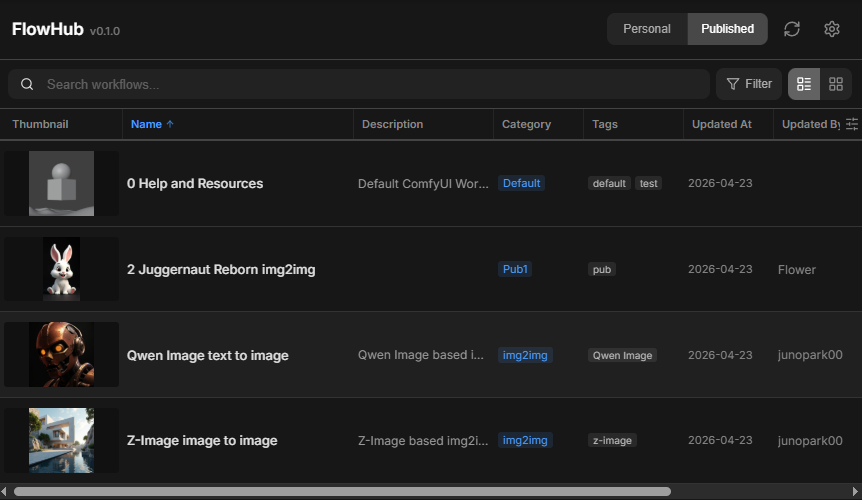
- Published Library & Search — Grid and list views with thumbnails, tag filtering, category filtering, full-text search, and sort options
- Publish Workflows for Collaboration — From the Personal tab, publish selected work into the shared Published workspace so teammates can browse, search, import, and reuse workflows consistently
- Import to Personal — Copy any published workflow back into your Personal workspace directly from the Detail view
- Missing Node Detection — Before loading a workflow onto the canvas, warns about any node types not currently installed
- Edit Metadata — Update workflow details, tags, category, and thumbnail in place
- SQLite Metadata — All metadata is stored in a local SQLite database co-located with your workflow folder
- Auto-refresh — Detects external changes to the workflow folder and refreshes the view
- Settings UI — Configure the workflow folder and default author from the in-app Settings tab
- Environment Overrides — Lock the publish/personal folders and author via Flow Hub environment variables for managed deployments
| Grid view | List view |
| --- | --- |
|  |
|  |
|
Release Notes
<details> <summary><b>v0.1.2</b> — Manager install fix (sidebar panel rendering)</summary>Bug fixes
- Fixed the sidebar panel showing only the loading state when installed via ComfyUI-Manager. The previously published
dist/was missing the lazily-importedApp-*.jschunk, which causedReact.lazy()to fail with a 404 on first open. - Restored the missing chunk and removed
dist/from.gitignoreso build artifacts are tracked deterministically instead of relying ongit add -fin CI.
CI / Publishing
- Expanded the
Build & Publish to Comfy Registryworkflow triggers to also run on changes underui/src/**,ui/package.json,ui/package-lock.json,ui/public/**,ui/vite.config.ts, andui/tsconfig*.json, so UI-only changes are no longer silently skipped.
Personal Workspace — Drag & Drop
- Fixed drops on the empty area below the tree being captured by the ComfyUI canvas (workflow no longer loads onto the canvas by accident).
- Drop highlight is now unified across the tree rows and the empty area within the panel.
- Dragging a workflow within the same folder is now a no-op instead of being moved to the root.
Personal Workspace — Context Menu
- Right-click context menu (Rename / Load / Publish / Duplicate) is now reliably visible and reacts to clicks instead of being intercepted by ComfyUI's own listeners.
- Added Duplicate action for personal files and folders.
Internal
- Sidebar panel now fills its container (
position: relative; height: 100%), so DnD hit-testing matches the visible area. - DnD and contextmenu use window-capture native listeners to bypass ComfyUI's capture-phase handlers.
- Repaired malformed CSS in
PersonalWorkspaceView.cssthat was silently dropping later rules (including the context menu styling).
- Initial release.
Installation
Via ComfyUI-Manager
Search for ComfyUI-Flow-Hub in ComfyUI-Manager and install.
Manual
cd ComfyUI/custom_nodes
git clone https://github.com/junopark00/ComfyUI-Flow-Hub.git
Restart ComfyUI. The ComfyUI-Flow-Hub tab appears in the sidebar.
Usage
Flow Hub is organized around two workspaces:
- Personal tab: Your day-to-day workspace, intended to improve and effectively replace the limited default ComfyUI Workflows experience. Manage folders/files directly and prepare workflows before sharing.
- Published tab: Team-facing workspace for collaboration. Workflows published from Personal are collected here with metadata for discovery and reuse.
Typical flow:
- Organize and iterate in Personal.
- Publish important workflows from Personal to Published.
- Team members browse/search in Published, then import or load as needed.
Walkthrough
1. First-time setup
Open ComfyUI in your browser and click the ComfyUI-Flow-Hub tab in the sidebar. On the first run, a setup prompt asks for the publish folder. Choose the directory where published .json workflow files should be stored. The folder is scanned recursively and a workflows.db SQLite file is created in the .flow_hub metadata directory.
2. Personal workspace
The Personal tab mirrors your local workflow folder as an interactive file tree. You can:
- Create subfolders and drag-and-drop workflows between them.
- Toggle the Bookmark star on any workflow for quick access.
- Save the current ComfyUI canvas directly into any folder, or Load a workflow from the tree onto the canvas.
3. Publish for collaboration
- Build or open a graph in ComfyUI.
- Open the Publish dialog from the Personal workspace.
- Fill in:
- Name (required) — used as the filename (
name.json). - Category (required) — folder-like grouping. Typing a new name prompts to create it.
- Author, Tags (comma-separated), Description, Thumbnail (drag & drop or click to upload).
- Name (required) — used as the filename (
- Click Publish Workflow. If a file with the same name exists in that category, you'll be asked to overwrite.
4. Published discovery and reuse
The Published tab lists every published workflow found in the folder.
- View toggle — Switch between Grid (thumbnails) and List (compact table).
- Search — Match against name, description, tags, and author.
- Filter — Narrow by category, tags, or author. Multiple tags act as OR.
- Sort — Sort by updated, created, or name (asc/desc).
- Refresh — Auto-detects file changes; click the icon to force a rescan.
Click a card (Grid) or row (List) to open the Detail view, then click Load Workflow to replace the current canvas. If the workflow uses node types not currently installed, a warning lists the missing nodes before loading. Use Import to Personal to copy the workflow file into your Personal workspace.
<p align="center"> <img src="docs/images/published-discovery-flow.gif" alt="Published browse and reuse flow"> </p>5. Edit metadata and thumbnails
In the Detail view, edit name, description, author, tags, category, and thumbnail. Save Changes activates as soon as anything is modified (including thumbnail upload/replace/remove). Renaming the category to a new name prompts for confirmation.
<p align="center"> <img src="docs/images/detail-edit-flow.gif" alt="Detail metadata and thumbnail edit"> </p>6. Delete
Click Delete in the Detail view to remove the workflow from the browser. Tick "Also delete the original .json file from disk" to remove the underlying file as well; otherwise only the metadata entry is dropped and the file remains on disk.
Configuration
Open the Settings tab inside ComfyUI-Flow-Hub to set:
- Personal workspace folder — Directory used for your personal workflow tree and file management
- Publish workspace folder — Directory scanned for published
.jsonworkflow files - Default author — Pre-filled in the Publish / Edit dialogs
Environment variables (optional)
| Variable | Effect |
| --- | --- |
| FLOW_HUB_PUBLISH_PATH | Locks the publish workflow folder. Accepts os.pathsep-separated list; the first valid path is used. |
| FLOW_HUB_PERSONAL_PATH | Locks the personal workspace folder. Accepts os.pathsep-separated list; the first valid path is used. |
| FLOW_HUB_AUTHOR | Locks the default author name. |
When set, the corresponding fields in the Settings UI are disabled and the server enforces the value on every write.
<p align="center"> <img src="docs/images/settings-locked.png" alt="Settings with env-locked fields"> </p>Project Structure
ComfyUI-Flow-Hub/
├── __init__.py            # ComfyUI entry point, registers routes & static assets
├── server.py              # aiohttp REST API
├── db.py                  # SQLite WorkflowDB
├── pyproject.toml         # Registry metadata
├── ui/                    # React 18 + Vite + TypeScript frontend
└── dist/flow_hub/         # Built assets (generated)
License
GPL-3.0 © junopark00