
ComfyUI Extension
Polotno Canvas Editor
Integrates Polotno Canvas Editor into ComfyUI for advanced image editing and design
jtydhr88/ComfyUI-PolotnoCanvasEditor
Nodes—
On cloudLocal install
Stars64
Updated10 months ago
Readme
ComfyUI-PolotnoCanvasEditor
中文 | English
A ComfyUI extension that integrates Polotno Canvas Editor for advanced image editing and design directly within ComfyUI.
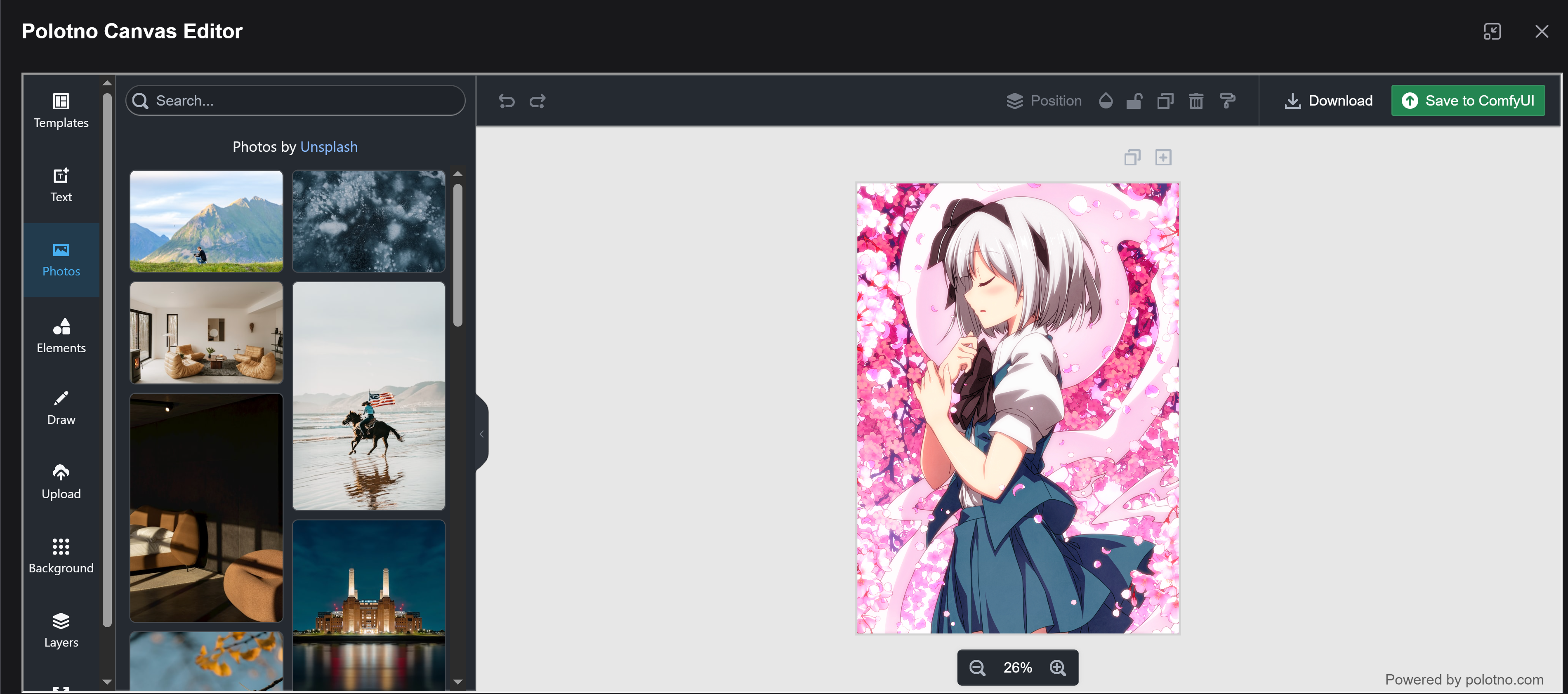
Features
- Full Polotno Editor: Access the complete Polotno canvas editor with all its features
- Image Editing: Load images from ComfyUI nodes and edit them with professional tools
- Text & Elements: Add text, shapes, and other design elements to your images
- Templates: Use Polotno's template system for quick designs
- Save Back to ComfyUI: Export edited images directly back to your ComfyUI workflow
- Context Menu Integration: Right-click on any image node to open in Polotno
- Top Menu Button: Quick access via the Polotno Canvas button in the top menu
Installation
From ComfyUI Manager
Search for "Polotno Canvas Editor" in the ComfyUI Manager and install.
Manual Installation
-
Clone this repository into your
ComfyUI/custom_nodesdirectory:cd ComfyUI/custom_nodes git clone https://github.com/jtydhr88/ComfyUI-PolotnoCanvasEditor.git -
Restart ComfyUI
Configuration
API Key (Optional)
Polotno requires an API key for commercial use. For open-source and non-profit projects, you can use it with a random key (type anything in the settings).
To set your API key:
- Go to Settings in ComfyUI
- Navigate to Polotno Canvas Editor
- Enter your API key in the Polotno API Key field
Get your API key from https://polotno.com
Usage
Opening the Editor
Method 1: Top Menu Button
- Click the "Polotno Canvas" button in the top menu to open a new canvas
Method 2: Context Menu
- Right-click on any image node (LoadImage, PreviewImage, SaveImage, etc.)
- Select "Open in Polotno Canvas Editor"
- The image will be loaded into the editor
Editing
Once in the editor, you can:
- Add text, shapes, and other elements from the side panel
- Resize and transform elements
- Apply filters and effects
- Use layers for complex compositions
Saving
Click the "Save to ComfyUI" button to:
- Export the current canvas as a PNG image
- Upload it to ComfyUI's input folder
- Update the source node with the new image (if opened from a node)
Development
Prerequisites
- Node.js 18+
- npm or pnpm
Building
npm run install:all
npm run build:all
Development Mode
npm run dev
This will watch for changes and rebuild automatically.
Dependencies
- Polotno - Canvas editor library
- Vue 3 - UI framework
- PrimeVue - UI components
- React - Required by Polotno
License
MIT
Credits
- Polotno for the amazing canvas editor
- ComfyUI for the workflow platform
- ComfyUI-AudioMass for the plugin structure reference