
JMovie Cloud for ComfyUI
Uncensored AI for permitted adult (NSFW) image, video, and audio in ComfyUI. Provider content rules apply. • ComfyUI models — Seedream 5.0 Pro, Dreamina Seedance 2.5, and Seed Audio 1.0. • JMovie API catalog — Seedance 2.0, 2.0 Fast, 2.0 Mini, and Seedance 2.5 Flash. • Install jmovie-cloud and connect your JMovie API wallet for usage-based billing. Optional BYOK for OpenAI GPT Image and MiniMax H3. • Report an issue on GitHub — https://github.com/jmovie-cloud/ComfyUI-JMovie/issues
JMovie Cloud for ComfyUI
Uncensored AI for permitted adult (NSFW) image, video, and audio workflows in ComfyUI. Model and provider content rules apply.
Connect a JMovie API wallet and pay by usage for Seedream 5.0 Pro images, Dreamina Seedance 2.5 video, and Seed Audio 1.0 voice and sound. Start with one of the three bundled workflows.
Install JMovie Cloud · Connect JMovie · JMovie API pricing · Comfy Registry listing · Report an issue on GitHub
Install
Requires ComfyUI 0.36.0 or later and Python 3.11 or later. Run ComfyUI as a local, single-user server on localhost.
Install jmovie-cloud from Comfy Registry with Comfy CLI, then restart ComfyUI.
comfy node registry-install jmovie-cloud
Download the ComfyUI-JMovie-v*.zip asset from GitHub Releases. Extract the ComfyUI-JMovie folder into ComfyUI/custom_nodes, then restart ComfyUI.
For a Git checkout, run these commands from your ComfyUI folder and restart:
cd custom_nodes
git clone https://github.com/jmovie-cloud/ComfyUI-JMovie.git
Keep one copy of the plugin in custom_nodes. ComfyUI custom node installation guide
Connect JMovie
-
In ComfyUI, open Templates → Extensions and select jmovie-image under jmovie-cloud for a Registry install or ComfyUI-JMovie for a GitHub install. You can also add a node from Node Library → JMovie Cloud or drag an example workflow JSON onto the canvas.
-
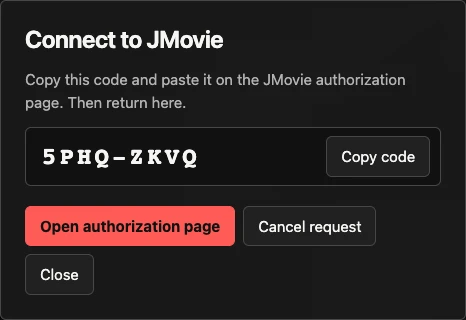
Select Connect JMovie on the node, then select Connect JMovie in the dialog. When the browser tab opens, return to ComfyUI and select Copy code. If you closed the tab, select Open authorization page.
-
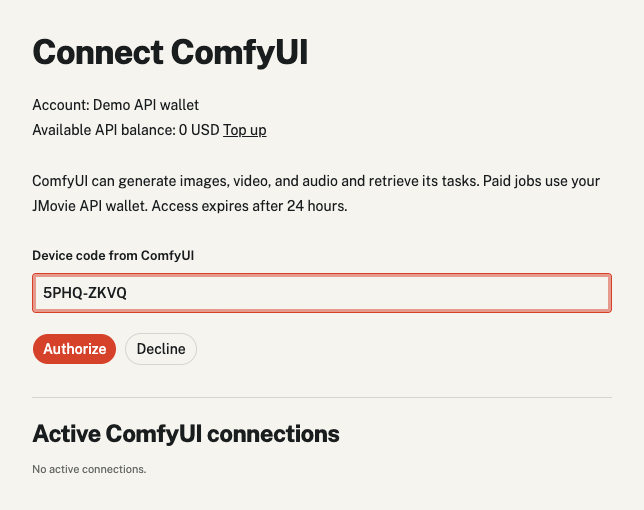
In the browser, sign in to JMovie API or choose Create an account. On Connect ComfyUI, check your account and available balance, paste your own device code, and select Authorize.
-
Once ComfyUI says Connected to JMovie API, close the dialog. If your balance is too low, use Top up on the authorization page or open Add funds & billing while signed in. Enter a prompt in the node and select Run.
Example workflows
Open a workflow below on GitHub, select Download raw file, and drag the downloaded JSON onto the ComfyUI canvas. The same workflows are available under your installed package in Templates → Extensions.
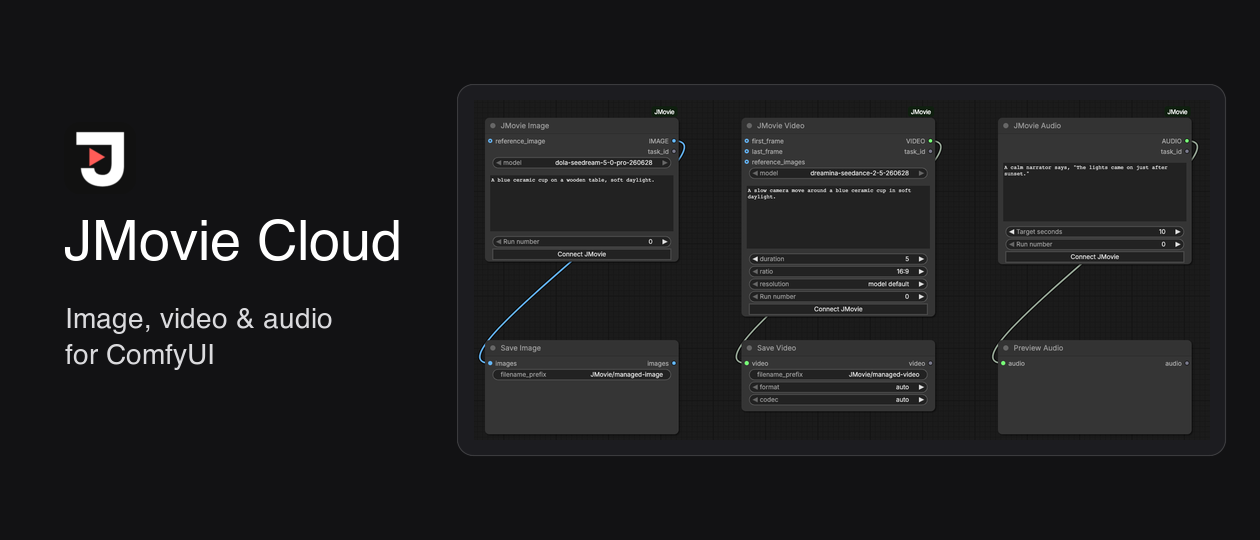
View the full ComfyUI workflow screenshot

| Node | Default model | Workflow | | --- | --- | --- | | JMovie Image | Seedream 5.0 Pro | Generate and save an image | | JMovie Video | Dreamina Seedance 2.5 | Generate and save a video | | JMovie Audio | Seed Audio 1.0 | Generate and preview audio |
JMovie Image accepts an optional reference image. JMovie Video accepts a text prompt, frame anchors, or visual references. JMovie Audio takes a dialogue, narration, or sound prompt. Target seconds guides the model, and billing uses the original generated duration reported by the provider. The audio example previews the result. Add Save Audio (Advanced) to write an audio file.
Optional provider API keys
Open JMovie Cloud → Advanced → BYOK and add the provider node. Click Set MiniMax API key or Set OpenAI API key, paste your key, and click Save API key. The key is saved on the local ComfyUI installation. New runs can use it immediately. Each provider bills your own account directly.
| Node | Key setup in the node | Workflow and setup | | --- | --- | --- | | MiniMax H3 (BYOK) | Set MiniMax API key, then select the issuing platform | MiniMax H3 workflow · International API keys · Mainland China API keys | | GPT Image (OpenAI BYOK) | Set OpenAI API key | GPT Image workflow · OpenAI API keys · OpenAI image generation guide |
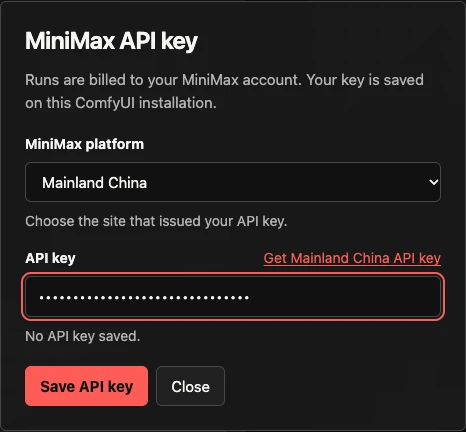
Open the same settings to replace or remove a saved key. The form shows the key source and keeps previously saved values hidden. Advanced setups can supply MINIMAX_API_KEY or OPENAI_API_KEY in the ComfyUI startup environment. A key saved in the form takes precedence.
MiniMax keys must match the issuing platform. For a Mainland China startup key, also set MINIMAX_API_REGION=cn. Startup keys use the International platform by default.
MiniMax H3 supports text prompts, first and last frames, or reference images. Choose 4–15 seconds at 768P or 2K. GPT Image supports text-to-image and reference-image edits, including GPT Image 2.6 Flare and Sunburst.
Manage a connection or recover a task
- Choose Disconnect in ComfyUI or open ComfyUI connections to revoke access. Access expires after 24 hours, and restarting ComfyUI requires reconnecting.
- Keep the same inputs and run number to recover a JMovie wallet or MiniMax H3 request. Change the run number to submit a new task. To look up a video by task ID, use Advanced → Resume Cloud Video for JMovie, or fill in resume_task_id on MiniMax H3 (BYOK).
- Results are delivered to ComfyUI as supplier downloads or inline media. Save outputs locally before they expire. An expired download never starts a new paid task.
Frequently asked questions
Which Seedance models can I use?
The ComfyUI video node uses Dreamina Seedance 2.5. The JMovie API also offers Seedance 2.0, 2.0 Fast, 2.0 Mini, and 2.5 Flash. Seedance 2.0 API models · Seedance 2.5 API models
Do I need a JMovie workbench subscription or a provider API key?
The JMovie API wallet covers the Seedream, Seedance, and Seed Audio nodes. Sign in at JMovie API and authorize ComfyUI. These nodes require neither a JMovie workbench seat nor your own provider key.
Can I use OpenAI GPT Image or MiniMax H3 in ComfyUI?
Yes. Use the optional BYOK nodes and enter an official OpenAI or MiniMax API key in the node’s settings. For MiniMax, choose the platform that issued the key, International or Mainland China. The provider bills your account directly.
Where do generated files go?
The nodes return results to the local ComfyUI workflow. Connect a Save node to write a file on the machine running ComfyUI, or pass the output to the next node.
Support and development
Use JMovie API for ComfyUI account access, wallet billing, and model pricing. The JMovie production workspace is available for browser-based production.
Include the node name, ComfyUI version, and error message with credentials removed. Report a problem on GitHub
The default account origin is https://api.j-movie.com. For local development, JMOVIE_CLOUD_BASE_URL can point to a compatible JMovie plugin backend. The local browser and generation checks use synthetic accounts and media. Run python tests/comfy_smoke.py /absolute/path/to/ComfyUI from this repository with Playwright, Chrome, and FFmpeg available.