
ComfyUI AssetSync
Send generated 3D assets from ComfyUI to Blender, Maya, and Unreal Engine
Nodes (2)
ComfyUI-AssetSync
ComfyUI-AssetSync bridges AI-generated 3D assets directly from ComfyUI into Blender, Maya, and Unreal Engine.
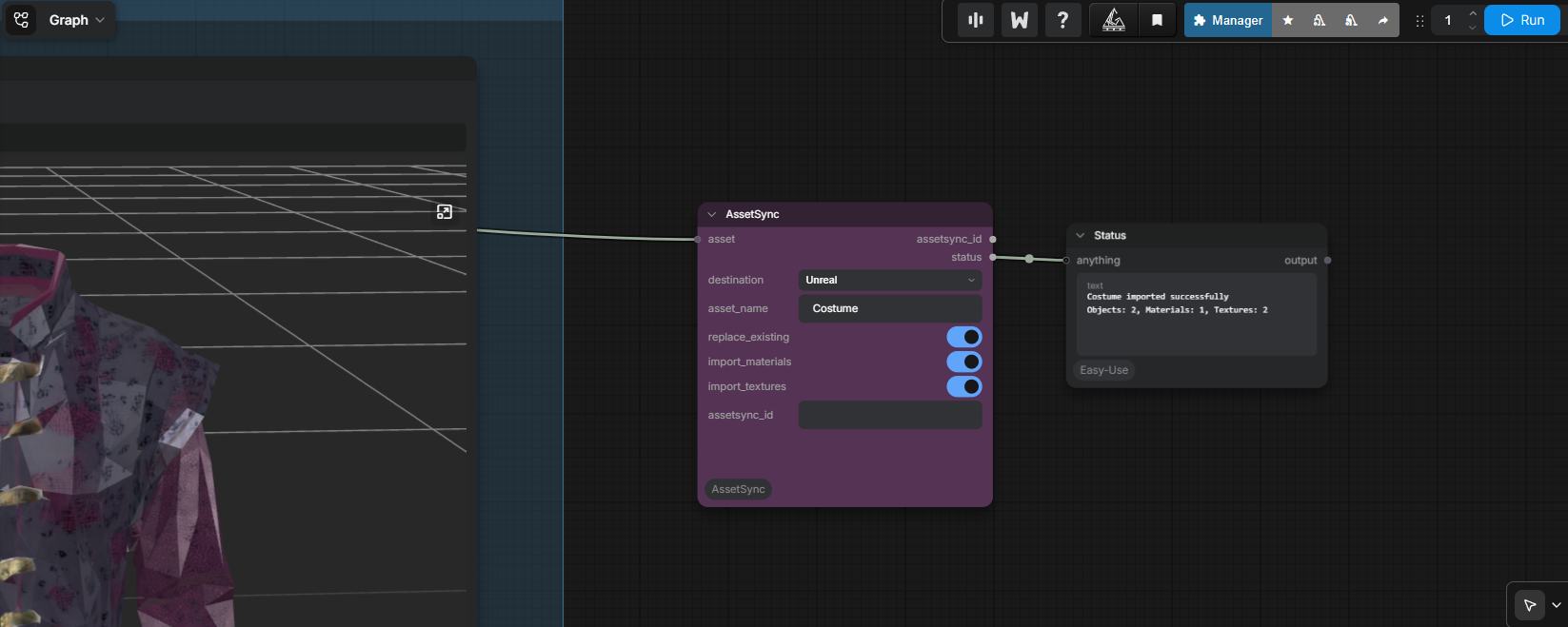
Traditional: Generate → Find → Copy → Convert → Browse → Import → Fix → Repeat
AssetSync:   Generate → AssetSync → DCC
What it includes
- One generator-agnostic ComfyUI
AssetSyncnode - A dedicated
MotionSync to Mayanode for skeletal motion transfer - Persistent identity derived from the ComfyUI node ID, or an explicit
assetsync_id - Direct Blender GLB/GLTF/FBX/OBJ import into tracked collections
- Transparent GLB/GLTF → FBX conversion for Maya using headless Blender
- Embedded/external texture extraction and portable Maya
standardSurfacereconstruction - Direct Unreal Editor GLB/GLTF/FBX import through automated Asset Tools
- Exact-ID replace/reimport in all three destinations
- SHA-256 conversion caching and structured localhost HTTP/JSON responses
- Standard-library-only core; no runtime pip dependencies
Compatibility
| Source | Blender | Maya | Unreal Editor | |---|---|---|---| | GLB | Direct | Automatic FBX conversion | Direct via Interchange | | GLTF | Direct | Automatic FBX conversion | Direct via Interchange | | FBX | Direct | Direct | Direct | | OBJ | Direct | Direct | Not advertised in v1 |
Unreal's GLB/GLTF path requires an Unreal version/project with the Interchange glTF importer enabled. Capability checks intentionally reject combinations not claimed here.
For Maya, glTF's meter units are converted to Maya centimeters and frozen on the imported AssetSync root. This avoids precision-related shading artifacts on thin triangles while leaving native FBX and OBJ scale untouched. FBX smoothing groups are explicitly enabled during the headless Blender export and Maya import.
MotionSync relies on the FBX file's unit metadata instead of freezing animated rig transforms, preserving root-motion distance and joint animation.
Install
ComfyUI
Clone or copy this repository to:
ComfyUI/custom_nodes/ComfyUI-AssetSync
Restart ComfyUI. Connect the final generator output to AssetSync. The input accepts a direct file path and common path-bearing dictionaries, lists, tuples, and objects. Select a destination and run the workflow.
replace_existing defaults on. The node derives a stable UUID from its ComfyUI workflow node ID, so executing the same node again replaces its synchronized asset. Connect or paste an explicit ID when identity must move between workflows.
Blender receiver
- Open Edit → Preferences → Add-ons.
- Choose Install from Disk and select
BlenderAssetSync.zipfrom this repository. - Enable ComfyUI AssetSync.
The receiver starts automatically on 127.0.0.1:18951 by default. Its add-on preferences show status, port, automatic-start, and Start/Stop controls.
Maya receiver
Blender is required for Maya GLB/GLTF imports. AssetSync runs Blender headlessly to convert these files to FBX before sending them to Maya. Native FBX and OBJ imports do not require Blender.
- Double-click
maya_assetsync_setup.batand enter the four-digit Maya version. - Restart Maya.
- Open Windows → Settings/Preferences → Plug-in Manager.
- Enable Loaded and Auto load for
MayaAssetSync_plugin.py.
The receiver then starts automatically on 127.0.0.1:18952. The FBX plug-in is loaded automatically when an FBX arrives. Optional controls are available from Maya Python with from MayaAssetSync.preferences import show_window; show_window().
Motion data transfer to Maya
Use MotionSync to Maya when an upstream motion-transfer or animation node outputs an animated GLB, GLTF, or FBX model.
- Connect the animated model output to
animated_model. - Leave
motion_clipempty to transfer the first embedded clip, or enter its exact name. - Leave
include_source_modeloff to send only the source skeleton, hierarchy, and animation curves. Enable it when the clip includes animated morph targets or when the carrier mesh is useful for retargeting. - Run the workflow with the Maya receiver active.
For GLB/GLTF input, Blender runs headlessly and bakes the selected clip into one FBX animation take without curve simplification. Maya explicitly imports that take, fills the playback range, converts quaternion motion to compatible Euler curves, and reports the imported clip, joint count, and animation-curve count.
The imported source skeleton is ready for an animator to inspect, bake, or retarget in Maya. Automatic retargeting onto an unrelated production rig is intentionally not performed: reliable retargeting requires a project-specific mapping between source joints and destination controls plus compatible rest poses.
Unreal receiver
- Copy the generated
UnrealAssetSyncdirectory into your Unreal project'sPlugins/directory. - Enable ComfyUI AssetSync, Python Editor Script Plugin, Editor Scripting Utilities, and the Interchange editor/import plugins.
- Restart Unreal Editor.
Content/Python/init_unreal.py starts the receiver automatically on 127.0.0.1:18953. Assets import under /Game/AssetSync/Generated/<AssetName>.
The ready-to-install Blender ZIP and Unreal plugin are rebuilt from shared source with powershell -ExecutionPolicy Bypass -File .\packaging\build_dcc_packages.ps1.
Maya conversion setup
Blender discovery order is:
blender_executablein configASSETSYNC_BLENDERorBLENDER_EXECUTABLEblenderonPATH- common Windows, macOS, and Linux locations
Copy config/assetsync.example.json to %USERPROFILE%\.assetsync\config.json on Windows. Set an explicit path if discovery does not find Blender. Converted packages live under %USERPROFILE%\.assetsync\cache\<asset_id>\maya by default. Override with cache_directory or ASSETSYNC_CACHE_DIR.
Protocol
Receivers expose GET /v1/status and POST /v1/assets, on localhost only. Import messages have this shape:
{
  "protocol": "assetsync",
  "version": 2,
  "action": "import_asset",
  "asset": {"id": "uuid", "name": "Robot", "mesh_path": "D:/output/robot.glb", "mesh_format": "glb"},
  "destination": {"dcc": "blender"},
  "options": {
    "replace_existing": true,
    "import_materials": true,
    "import_textures": true,
    "import_animation": true,
    "motion_only": false,
    "animation_clip": ""
  }
}
See the investigation and design record for API rationale and primary references.
Test
Core tests need no DCC installation:
python -m unittest discover -s tests -v
Manual DCC validation should cover: single mesh/base color, full PBR, multiple meshes/materials, embedded GLB images, nested hierarchy, spaces and Unicode paths, and repeat sync with the same ID. Maya acceptance additionally compares geometry/UVs, verifies reconstructed texture connections after GLB → FBX, and validates motion clip names, joint hierarchy, animation curves, frame range, and root-motion distance.
Security and scope
v1 is same-machine only. Receivers bind to loopback, messages are size-limited, and no remote file transfer is attempted. Do not expose these ports publicly. AssetSync modifies only imported packages carrying its exact ID during replacement.
License
MIT