
workflow property editor
A metadata editor that allows add download url and reset widget values
ComfyUI-Workflow-Property-Editor
日本語版はこちら / Japanese version below
ComfyUI-Workflow-Property-Editor is a lightweight, frontend-only utility extension for ComfyUI that adds a small toolkit of workflow-editing helpers accessible directly from the right-click menus.
Purpose — a toolkit for distributing workflows. When you hand a workflow to someone else, the things that break it are the models they don't have, the local asset filenames only you have, and stray leftover nodes. In the current version this extension lets you register download URLs for the required models, strip out references to your local asset files, and detect hidden, unnecessary isolated nodes.
It bundles four independent tools:
- Model Location Metadata Editor — attach provisioning metadata (download URLs and target directories) to model-loading nodes.
- Widget Value Editor — edit, reset, or clear any node's widget values from a single dialog.
- Isolated Node Finder — list every node that has ports but no connections, and jump straight to it.
- Input File Manager — find and delete files in
ComfyUI/inputthat the current workflow no longer uses.
There are no custom nodes, no Python dependencies, and no server-side logic — everything runs in the ComfyUI browser frontend.
Installation
- Navigate to your
ComfyUI/custom_nodesdirectory. - Clone the repository:
git clone https://github.com/id-fa/ComfyUI-Workflow-Property-Editor - Restart ComfyUI (or reload the browser tab).
This extension only serves JavaScript to the ComfyUI frontend, so a browser reload is enough to pick up updates after editing the
js/files.
Features
1. ⚙️ Model Location Metadata Editor
Attaches Download URLs and Target Directories directly to your model-loading nodes' properties, so the information travels with the workflow JSON. This makes workflows easy to share and compatible with automated model download tools.
- Node-specific metadata: Attach entries to Checkpoint, Lora, VAE, CLIP, UNet, and similar loaders.
- Intelligent auto-seeding: Detects the models currently selected in a node's widgets and pre-fills the editor with their filenames and an inferred target directory.
- Adaptive compatibility: Works with standard ComfyUI loaders, single-purpose loaders, and complex third-party widgets such as rgthree's Power Lora Loader.
- Smart deduplication: Skips a model that is already present in the list.
- Auto-cleanup: On save, entries with an empty Download URL are removed automatically.
How to use
- Right-click a node that loads a model (e.g.
Load Checkpoint,Lora Loader). - Choose "⚙️ Edit Model Location Metadata".
- Add / edit / remove entries, setting each model's
Download URLandTarget Directory(the ▼ button offers the standard ComfyUI model folders). - Click Save Changes. The metadata is stored in the node's
properties.models.
Tip: Saving an entry with an empty
Download URLis equivalent to deleting it.
Use case — automated provisioning: Pair this editor with a downloader such as ComfyUI-Workflow-Models-Downloader. Attach URLs, save the workflow as JSON, and the downloader can detect the embedded URLs and fetch/place the models on the recipient's machine.
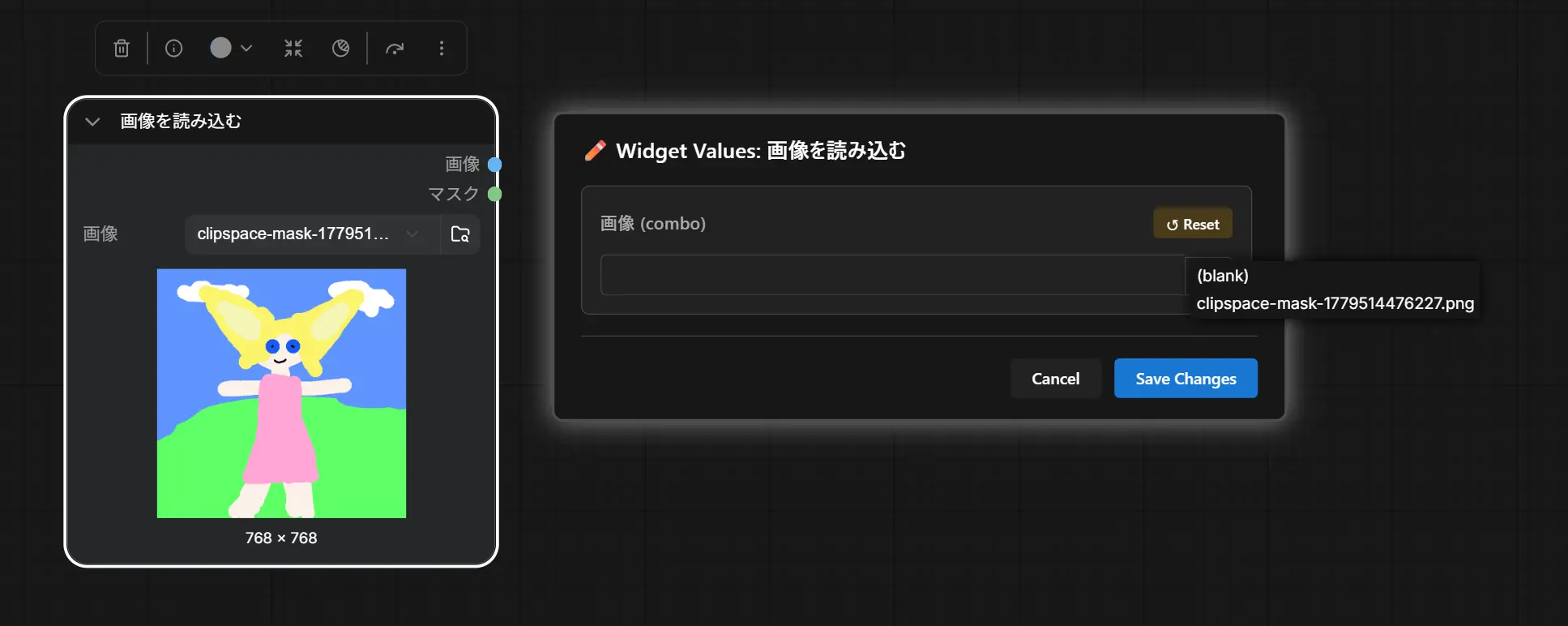
2. ✏️ Widget Value Editor
Edit a node's widget values from a single popup, with type-aware controls and one-click reset — handy for quickly fixing values, clearing a dropdown, or tweaking deeply nested widget data.
- Type-aware controls:
- Combo (dropdown): pick from the widget's own options via a ▼ menu, plus a forced "(blank)" entry so any combo can be cleared even when it has no empty/None option.
- Number: numeric input that honors the widget's min / max / step (and integer rounding).
- String: plain text input.
- Boolean / toggle: checkbox.
- Complex objects: rgthree-style objects with a simple string sub-field (
.lora/.field) get a text input; any other JSON-serializable object (e.g. VHSvideopreviewwith its nestedparams.filename) gets a raw JSON editor with live validation. - Reset: each widget has a ↺ Reset button that restores its default (or, for JSON, the value it had when the dialog was opened).
- Safe by default: edits are held in memory and only committed on Save Changes. Malformed JSON aborts the save so nothing is written in a broken state.
How to use
- Right-click any node that has editable widgets.
- Choose "✏️ Edit Widget Values".
- Adjust values, use Reset to restore defaults, or select (blank) on a combo to clear it.
- Click Save Changes.
3. 🔍 Isolated Node Finder
Finds isolated nodes — nodes that expose input and/or output ports but have no links on any of them — which are usually leftovers or mistakes in a workflow.
- Graph-wide scan: lists every isolated node with its title, id, and type.
- Focus & zoom: each entry has a 🎯 Focus button that centers the canvas on the node and zooms to fit it, then selects it so it stands out.
- Refresh: re-scan after fixing connections without reopening the dialog.
How to use
- Right-click on an empty area of the canvas.
- Choose "🔍 Find Isolated Nodes".
- Review the list and click 🎯 Focus to jump to any node.
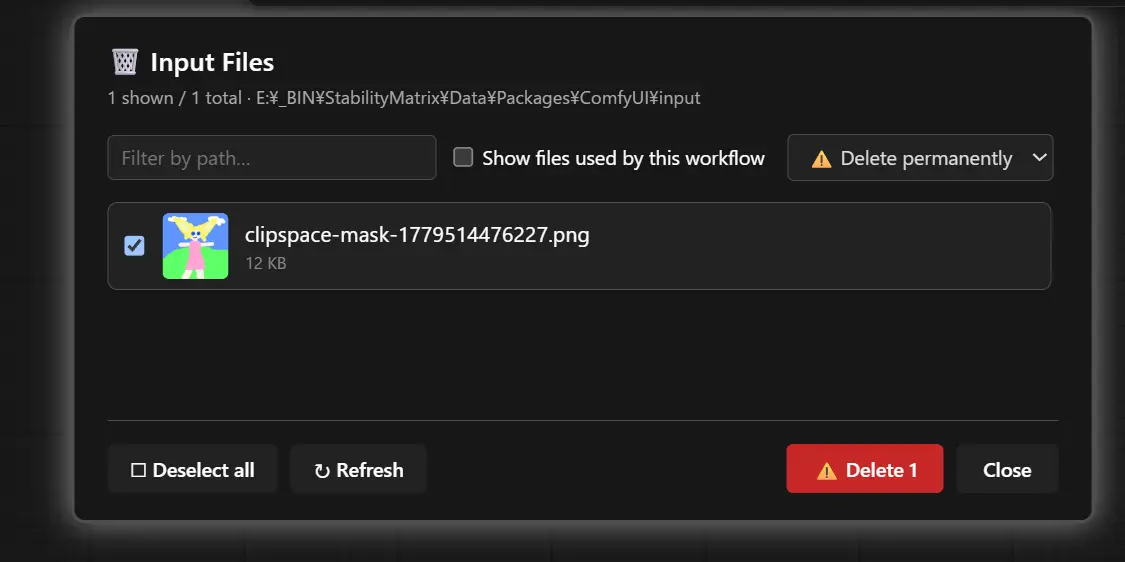
4. 🗑️ Input File Manager
Cleans up leftover files in your ComfyUI/input directory — uploaded images, clipspace scratch files, and other assets that pile up over time.
- Unused-first: by default it only lists files that no widget in the current workflow references, so you can clear out clutter without breaking anything. A checkbox reveals the files that are in use, and any such file is tagged
IN USE. - Thumbnails & filter: image files get a preview, and a text box filters by path.
- Two delete modes: 🗃️ Move to .trash relocates files to
input/.trash/(recoverable by hand), or ⚠️ Delete permanently removes them outright. Both ask for confirmation, with an extra warning if the selection includes in-use files.
This is the one feature with a server-side component: deleting files requires the Python routes in
input_files_api.py, so restart ComfyUI (a browser reload is not enough) after installing or updating. All paths are validated server-side to stay inside the input directory.
How to use
- Right-click on an empty area of the canvas.
- Choose "🗑️ Manage Input Files".
- Tick the files to remove, pick a delete mode, and click the delete button.
Compatibility
- Standard nodes: Works out-of-the-box with native ComfyUI nodes.
- Custom suites: Includes specialized handling for complex widget objects such as rgthree-comfy's Power Lora Loader and VHS-style preview widgets.
- Theme-aware UI: All dialogs use ComfyUI CSS variables for colors, fonts, and sizes, so they match your active theme.
License
See LICENSE.
Acknowledgements
The Model Location Metadata Editor originated as a fork of ComfyUI-Model-Location-Editor.
日本語
ComfyUI-Workflow-Property-Editor は、ComfyUI 用の軽量なフロントエンド専用ユーティリティ拡張です。右クリックメニューから直接使える、ワークフロー編集用の小さなツール集を追加します。
主旨 — ワークフローを配布する際に役立つツール集です。 ワークフローを他の人に渡したとき問題になるのは、相手が持っていないモデル、自分の環境にしかないローカルな素材ファイル名、そして残ったままの不要なノードです。現在のバージョンでは、必要モデルのダウンロードURL情報の登録、ローカルな素材ファイル名の除去、隠れた不要な孤立ノードの検出ができます。
同梱するのは、互いに独立した4つのツールです。
- モデル位置メタデータエディタ — モデル読み込みノードに、プロビジョニング用のメタデータ(ダウンロードURLと配置先ディレクトリ)を付与します。
- ウィジェット値エディタ — 任意のノードのウィジェット値を、1つのダイアログで編集・リセット・クリアします。
- 孤立ノード検出 — ポートを持つのにリンクが一切ないノードを一覧し、その場所へジャンプします。
- 入力ファイルマネージャー — 現在のワークフローが使っていない
ComfyUI/input内のファイルを探して削除します。
カスタムノードはなく、Python の依存パッケージもなく、サーバー側のロジックもほぼありません。基本的にすべてが ComfyUI のブラウザフロントエンドで動作します。
インストール
ComfyUI/custom_nodesディレクトリへ移動します。- リポジトリをクローンします。
git clone https://github.com/id-fa/ComfyUI-Workflow-Property-Editor - ComfyUI を再起動します(またはブラウザのタブをリロードします)。
この拡張は基本的に JavaScript を ComfyUI フロントエンドに配信するだけなので、
js/以下を編集した後の更新反映はブラウザのリロードだけで足ります。
機能
1. ⚙️ モデル位置メタデータエディタ
ダウンロードURLと配置先ディレクトリを、モデル読み込みノードの properties に直接付与します。情報がワークフロー JSON と一緒に持ち運ばれるため、ワークフローの共有が容易になり、モデル自動ダウンロードツールとも連携できます。
- ノード単位のメタデータ: Checkpoint、Lora、VAE、CLIP、UNet などのローダーにエントリを付与します。
- 賢い自動シード: ノードのウィジェットで現在選択されているモデルを検出し、ファイル名と推定した配置先ディレクトリをエディタに事前入力します。
- 幅広い互換性: 標準の ComfyUI ローダー、単機能ローダー、そして rgthree の Power Lora Loader のような複雑なサードパーティ製ウィジェットにも対応します。
- 重複の自動排除: すでにリストにあるモデルはスキップします。
- 自動クリーンアップ: 保存時、ダウンロードURLが空のエントリは自動的に削除されます。
使い方
- モデルを読み込むノード(例:
Load Checkpoint、Lora Loader)を右クリックします。 - 「⚙️ Edit Model Location Metadata」 を選びます。
- エントリを追加・編集・削除し、各モデルの
Download URLとTarget Directoryを設定します(▼ ボタンで ComfyUI 標準のモデルフォルダを選べます)。 - Save Changes をクリックします。メタデータはノードの
properties.modelsに保存されます。
ヒント:
Download URLを空にして保存することは、そのエントリを削除するのと同じ意味です。
活用例 — モデルの自動プロビジョニング: ComfyUI-Workflow-Models-Downloader のようなダウンローダーと組み合わせて使います。URL を付与してワークフローを JSON として保存すれば、受け取った側のマシンでダウンローダーが埋め込まれた URL を検出し、モデルを取得して所定の場所へ配置できます。
2. ✏️ ウィジェット値エディタ
ノードのウィジェット値を1つのポップアップから編集します。型に応じたコントロールとワンクリックのリセットを備えており、値の手早い修正、ドロップダウンのクリア、深くネストしたウィジェットデータの調整に便利です。
- 型に応じたコントロール:
- コンボ(ドロップダウン): ▼ メニューからウィジェット自身の選択肢を選べます。加えて 「(blank)」 の項目を常に用意しているため、空や None の選択肢を持たないコンボでもクリアできます。
- 数値: ウィジェットの min / max / step(および整数への丸め)に従う数値入力です。
- 文字列: 通常のテキスト入力です。
- 真偽値 / トグル: チェックボックスです。
- 複雑なオブジェクト: rgthree 系のように単純な文字列サブフィールド(
.lora/.field)を持つオブジェクトはテキスト入力になります。それ以外の JSON 化できるオブジェクト(例:params.filenameがネストした VHS のvideopreview)は、生の JSON エディタとしてライブ検証付きで編集できます。 - リセット: 各ウィジェットに ↺ Reset ボタンがあり、デフォルト値(JSON の場合はダイアログを開いた時点の値)へ戻します。
- 安全側の設計: 編集内容はメモリ上に保持され、Save Changes を押したときにだけ反映されます。JSON が不正な場合は保存全体が中止されるため、壊れた状態が書き込まれることはありません。
使い方
- 編集可能なウィジェットを持つ任意のノードを右クリックします。
- 「✏️ Edit Widget Values」 を選びます。
- 値を調整します。Reset でデフォルトに戻し、コンボでは (blank) を選ぶと値をクリアできます。
- Save Changes をクリックします。
配布時のポイント: ここで素材ファイル名を (blank) にしてクリアしておけば、自分の環境にしかないローカルファイル名をワークフローから取り除いた状態で配布できます。
3. 🔍 孤立ノード検出
孤立ノード — 入力・出力ポートを持っているのに、どのポートにもリンクがないノード — を検出します。多くの場合、ワークフローの作業中に残ってしまった残骸やミスです。
- グラフ全体のスキャン: 孤立ノードをタイトル・ID・タイプとともにすべて一覧します。
- フォーカスとズーム: 各項目の 🎯 Focus ボタンで、そのノードを中心にキャンバスを移動しつつ収まるようズームし、選択状態にして目立たせます。
- 再スキャン: 接続を直した後、ダイアログを開き直さずに再スキャンできます。
使い方
- キャンバスの空白部分を右クリックします。
- 「🔍 Find Isolated Nodes」 を選びます。
- 一覧を確認し、🎯 Focus をクリックして任意のノードへ移動します。
4. 🗑️ 入力ファイルマネージャー
ComfyUI/input ディレクトリに残ったファイル — アップロードした画像、clipspace の一時ファイル、その他たまっていく素材 — を整理します。
- 未使用ファイル優先: 既定では、現在のワークフローのどのウィジェットからも参照されていないファイルだけを一覧します。何かを壊す心配なく不要ファイルを片付けられます。チェックボックスで使用中のファイルも表示でき、そうしたファイルには
IN USEのタグが付きます。 - サムネイルとフィルター: 画像ファイルはプレビューが表示され、テキストボックスでパスを絞り込めます。
- 2つの削除モード: 🗃️ Move to .trash はファイルを
input/.trash/へ移動します(手作業で復元可能)。⚠️ Delete permanently は完全に削除します。どちらも確認を求め、選択に使用中のファイルが含まれる場合は追加の警告を出します。
この機能だけはサーバー側のコンポーネントを使います。ファイルの削除には
input_files_api.pyの Python ルートが必要なため、インストール/更新後は ComfyUI を再起動してください(ブラウザのリロードだけでは足りません)。すべてのパスはサーバー側で検証され、input ディレクトリの外へは出られないようになっています。
使い方
- キャンバスの空白部分を右クリックします。
- 「🗑️ Manage Input Files」 を選びます。
- 削除したいファイルにチェックを入れ、削除モードを選び、削除ボタンをクリックします。
互換性
- 標準ノード: ComfyUI 標準のノードでそのまま動作します。
- カスタムノード群: rgthree-comfy の Power Lora Loader や VHS 系のプレビューウィジェットのような、複雑なウィジェットオブジェクトに対する専用処理を含みます。
- テーマ対応の UI: すべてのダイアログは色・フォント・サイズに ComfyUI の CSS 変数を使うため、使用中のテーマに馴染みます。
ライセンス
LICENSE を参照してください。
謝辞
モデル位置メタデータエディタは ComfyUI-Model-Location-Editor のフォークとして始まりました。