
Prompt Palette-F
A ComfyUI custom node pack for interactive prompt building with checkbox toggling, weight control, and prompt utilities.
Nodes (9)
Show Gemma an image, get a prompt that recreates it — right down to an LTX video
Translate prompts with a real local LLM — no API, no key, no network
Grab the first word of a prompt — and turn it into a clean filename
The list version of Get First Word — for when you have a whole batch of prompts
Paste %KSampler.seed% into anything — this node steals Save Image's best trick
Toggle phrases, tweak weights, kill the A/B pain
Prompt tabs in a single node — stop deleting your good prompts to try new ones
Prompt tabs that translate themselves — English prompt, Japanese tab, no API key
Five text inputs, one clean join — the concat node that skips the empties
ComfyUI PromptPalette-F
(共通)インストール
- ComfyUIの
custom_nodesディレクトリにクローン
cd ComfyUI/custom_nodes
git clone https://github.com/id-fa/ComfyUI-PromptPalette-F prompt-palette-f
cd prompt-palette-f
pip install -r requirements.txt
- ComfyUIを再起動
もしくはComfyUI Managerからインストール(※少し古いバージョンになることがあります)
PromptPalette-F
トリガーワードやフレーズのメモを取りつつトグルでオン・オフを切り替えできるComfyUI用カスタムノード
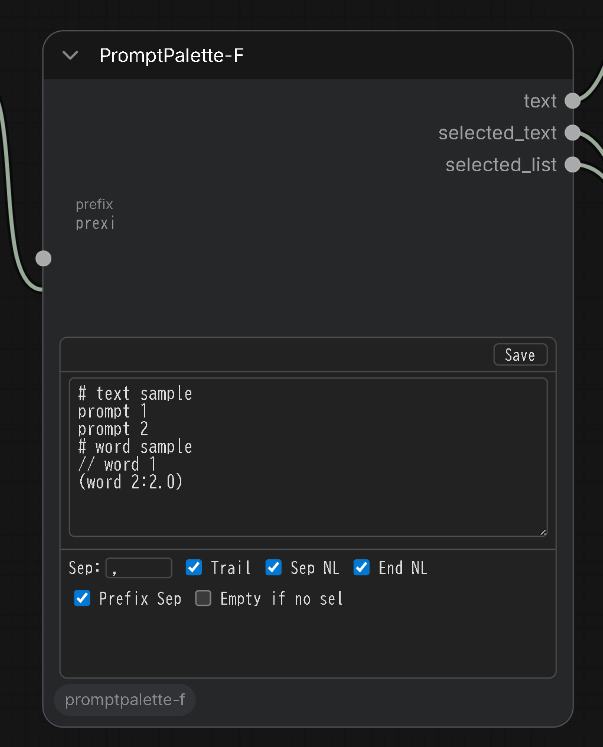
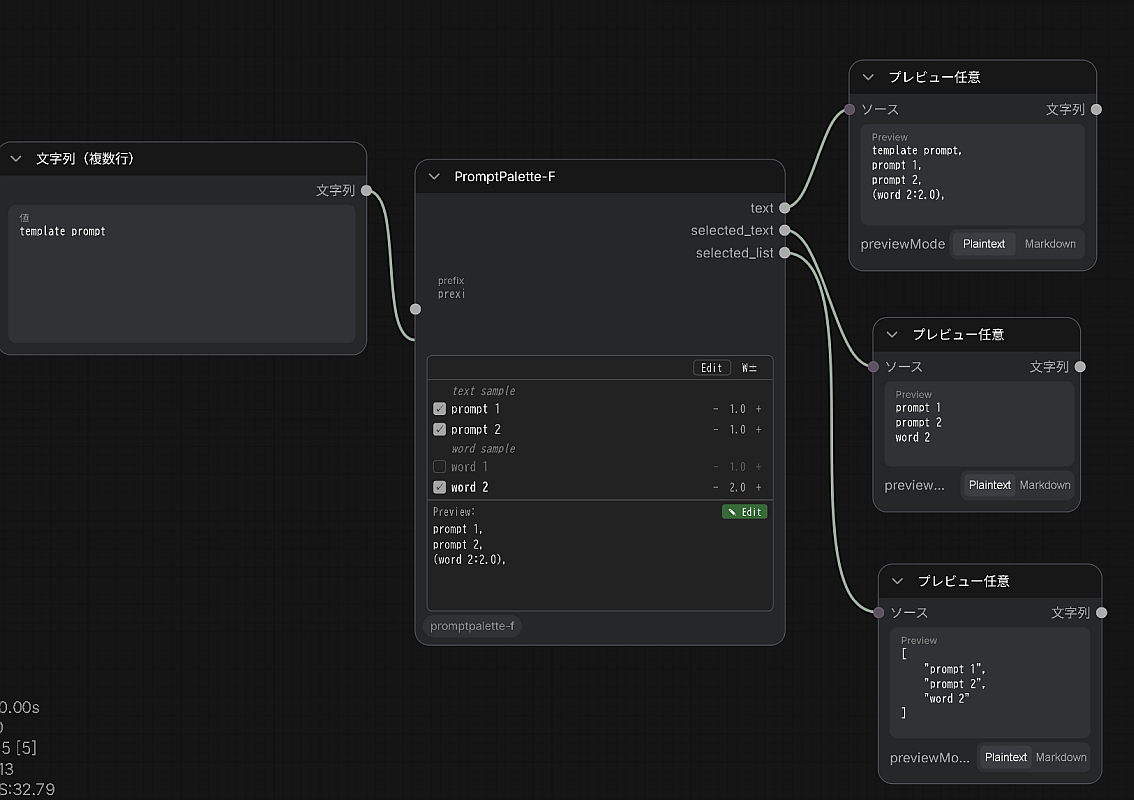
機能
- フレーズの切り替え - チェックボックスでのON/OFF切り替え
- フレーズの重み調整 - +/-ボタンでの重み調整 (※最初の単語のみ)
- グループ一括制御 -
[グループ名]タグでフレーズをグループ化して一括制御 - カスタム区切り文字 - 結合するための区切り文字設定(デフォルト:カンマ+スペース)
- 出力 - カスタム区切り文字で連結されたテキスト
使い方
- ノードを追加:
PromptPalette-Fノードをワークフローに追加 - テキスト編集:
- Editボタンをクリックして編集モードに切り替え
- 1行に1つのフレーズを入力
- Saveボタンをクリックして編集を完了
- フレーズ制御:
- 表示モードでチェックボックスを切り替えてフレーズを有効/無効化
- +/-ボタンでフレーズの重みを調整
- グループボタンでグループ全体を一括制御
- カスタム区切り文字の設定(オプション):
- separatorフィールドでフレーズを結合する区切り文字を設定(デフォルト:
,) - 区切り文字なし/間隔なしの場合は空文字列を使用
- separatorフィールドでフレーズを結合する区切り文字を設定(デフォルト:
- 説明コメントの追加(オプション):
#で始まる行を追加して説明コメントを記述- コメントは次のフレーズの上に説明テキストとして表示
- 出力:
- 選択されたフレーズが設定された区切り文字で出力される
高度な使い方
コメントの種類
- 切り替えコメント(
//)://で始まる行はチェックボックスがOFFの状態がデフォルトになる - 説明コメント(
#):#で始まる行は次のフレーズの上に説明テキストとして表示
グループ機能
- 基本的な使い方: 行の末尾に
[グループ名]を追加してグループを作成 - 複数グループ: 1つのフレーズに複数のグループタグを設定可能(例:
[nature][style1]) - グループ制御: ノード上部に表示されるグループボタンで一括制御
- エスケープ: 実際の角括弧を出力したい場合は
\[と\]でエスケープ
グループ使用例:
beautiful landscape [nature-warm1]
sunset colors [nature-warm2]
// character design [char1]
anime girl [char1][char2]
high quality
model \[v2.1\] settings [model21]
設定項目
Nodes 2.0モードでは編集モード時の設定行に省略表示されます。括弧内が省略名。
- text - メインの入力テキスト(1行に1フレーズ)
- prefix - テキストの前に置く文字列(複数ノード連結用)
- separator (
Sep) - フレーズを結合する際の区切り文字(デフォルト:,) - trailing_separator (
Trail) - 最後のフレーズの後にも区切り文字を追加 - separator_newline (
Sep NL) - 各区切り文字の後に改行を追加 - add_newline (
End NL) - 最終出力の末尾に改行を追加 - prefix_separator (
Prefix Sep) - prefix と本文の間に separator を挿入する(デフォルトOFF。OFFならprefix + 本文がそのまま連結される) - empty_when_no_selection (
Empty if no sel) - 選択されているフレーズが1つもない時に、出力(text / selected_text / selected_list)をすべて PythonNoneにする。prefix も改行も出力されない。下流で rgthree Any Switch などのvalue is Noneを判定するスイッチに繋いで、選択ゼロ時に別の入力へルーティングする用途を想定(デフォルトOFF)
Simple Multi Concat Text
- カテゴリ:
PromptPalette-F - 表示名:
Simple Multi Concat Text - クラス:
SimpleMultiConcatText
最大5つのテキスト入力を区切り文字で連結するUIなしのユーティリティノードです。
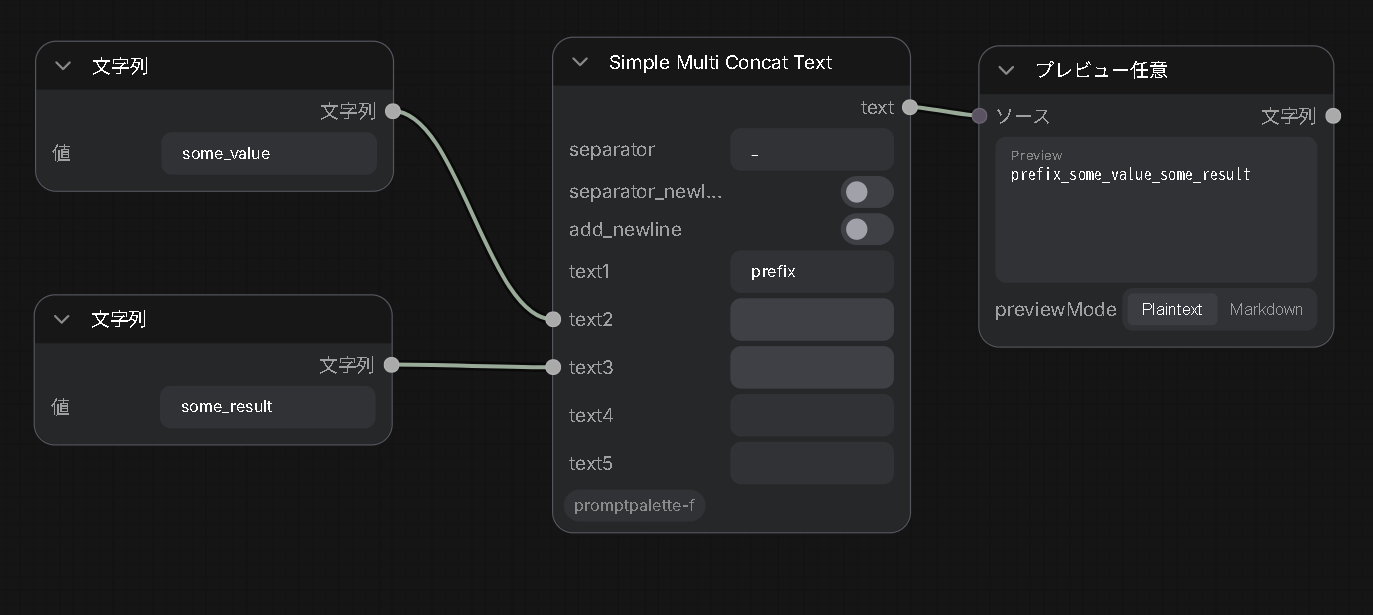
入力:
| 入力 | 型 | 説明 |
| --- | --- | --- |
| text1〜text5 | STRING | 連結するテキスト(すべて接続専用のスロット。未接続・空・None の入力は自動的に除外されるので a,,b のような区切り文字の連続が発生しません) |
| separator | STRING | 連結時の区切り文字(デフォルト:""=空文字) |
| separator_newline | BOOLEAN | ONで区切り文字の後に改行を追加。separator="" のときでも機能し、その場合は改行のみで行ごとに連結されます(デフォルトOFF) |
| add_newline | BOOLEAN | ONで出力末尾に改行を追加。有効な入力が1つもないときはスキップされます(デフォルトOFF) |
出力:
| 出力 | 型 | 意味 |
| --- | --- | --- |
| text | STRING | 有効な入力を区切り文字で連結したテキスト |
Get First Word
- カテゴリ:
PromptPalette-F - 表示名:
Get First Word - クラス:
GetFirstWord
入力テキストから、指定した区切り文字(ストップワード)が最初に現れる位置より前の部分を取り出すUIなしのユーティリティノードです。先頭の単語の抽出や、プロンプトからのファイル名・フォルダ名生成などに使えます。
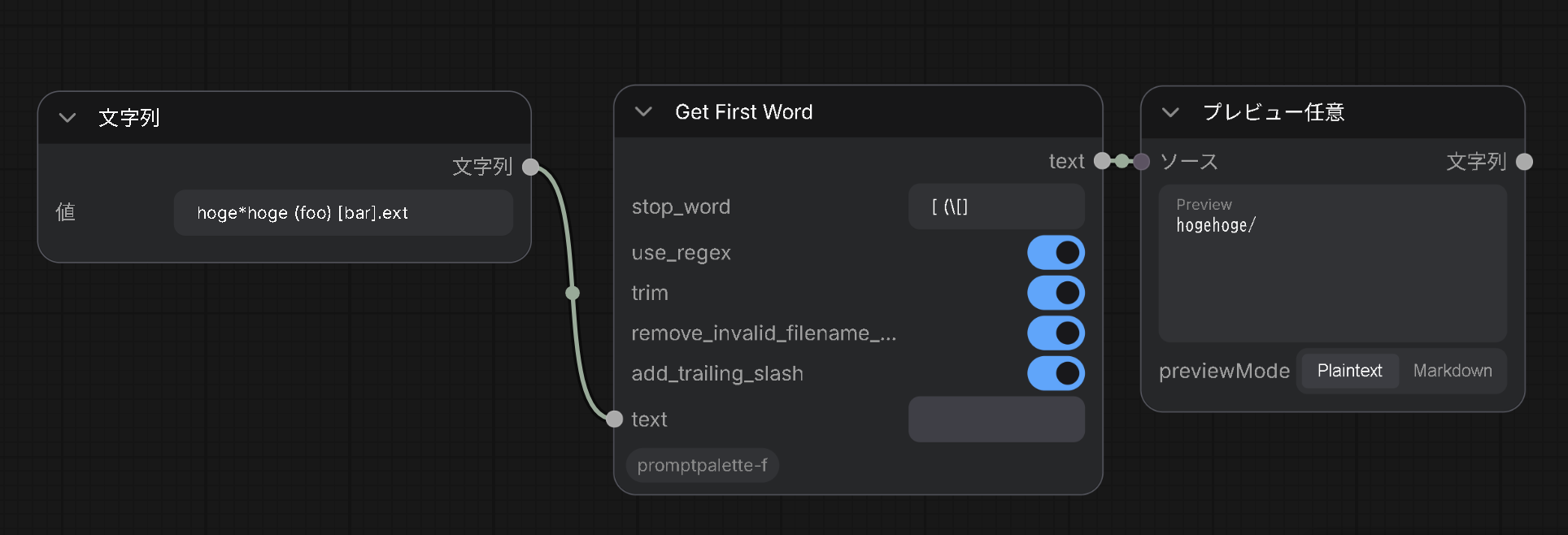
入力:
| 入力 | 型 | 説明 |
| --- | --- | --- |
| text | STRING | 入力テキスト(接続専用スロット) |
| stop_word | STRING | この文字列が最初に現れる位置より前を出力(デフォルト:,)。リテラルモードでは \n \r \t のエスケープシーケンスが展開されるので、1行ウィジェットで改行・タブを指定できます |
| use_regex | BOOLEAN | ONで stop_word を正規表現として解釈。無効なパターンの場合はテキスト全体を返します(例外を投げません)。ONのときはエスケープ展開はスキップ(デフォルトOFF) |
| trim | BOOLEAN | 結果の前後の空白・改行を除去(デフォルトON) |
| remove_invalid_filename_chars | BOOLEAN | Windowsのファイル名で禁止されている文字(<>:"/\|?* と制御文字)と末尾のドット・スペースを除去(デフォルトOFF) |
| add_trailing_slash | BOOLEAN | フォルダパスとして使えるよう末尾に / を追加。結果が空のときはスキップ(デフォルトOFF) |
stop_word が空文字の場合はテキスト全体を返します。
出力:
| 出力 | 型 | 意味 |
| --- | --- | --- |
| text | STRING | ストップワードより前の部分 |
Get First Word (List)
- カテゴリ:
PromptPalette-F - 表示名:
Get First Word (List) - クラス:
GetFirstWordList
Get First Word の処理を LIST 入力の各要素に適用するUIなしのユーティリティノードです。PromptPalette-F の selected_list 出力などと組み合わせて使えます。
入力:
| 入力 | 型 | 説明 |
| --- | --- | --- |
| items | LIST | 処理対象のリスト(接続専用スロット) |
| stop_word / use_regex / trim / remove_invalid_filename_chars / add_trailing_slash | — | Get First Word と同じ設定(各要素に適用) |
| text_separator | STRING | text 出力で結果を連結する際の区切り文字(デフォルト:, )。list 出力には影響しません |
出力:
| 出力 | 型 | 意味 |
| --- | --- | --- |
| text | STRING | 各要素の処理結果を text_separator で連結したテキスト |
| list | LIST | 各要素の処理結果のリスト(生の結果。区切り文字の影響を受けません) |
Prompt Tabs
- カテゴリ:
PromptPalette-F - 表示名:
Prompt Tabs - クラス:
PromptTabs
名前付きのプロンプトタブを好きなだけ1つのノードに保持できるメモ帳スタイルのテキストノードです。現在アクティブなタブのテキストを出力します。タブを切り替えることで、別のプロンプトを削除せずに残しておけるので、試行錯誤しながら以前のプロンプトに戻りたいときに便利です。
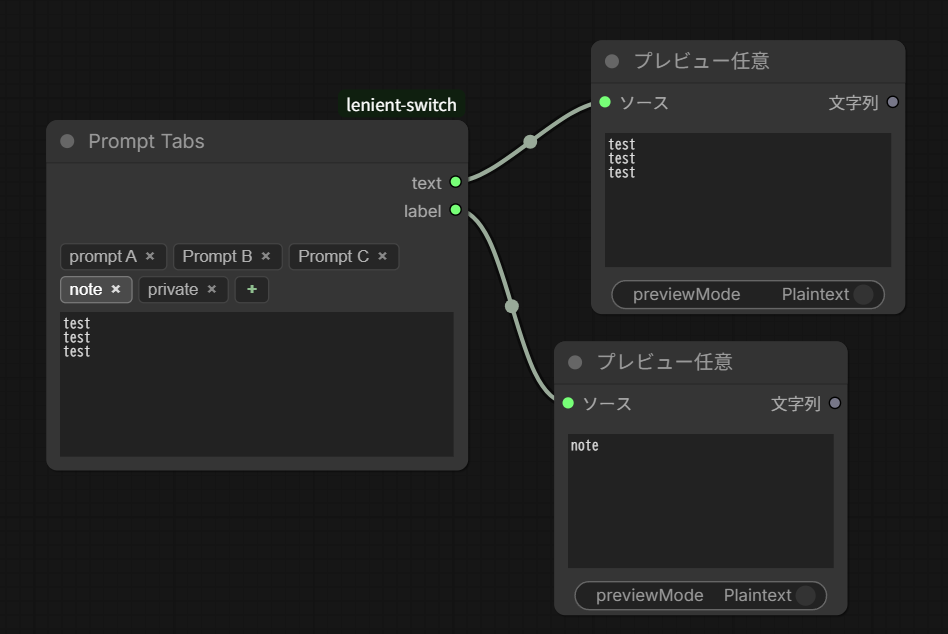
| 操作 | 方法 |
| --- | --- |
| タブ切り替え | タブをクリック |
| タブ追加 | + をクリック(タブ数は無制限。複数行に折り返して表示されます) |
| タブの改名 | タブをダブルクリック |
| タブ削除 | タブの × をクリック(確認ダイアログあり。最低1つのタブは必ず残ります) |
出力:
| 出力 | 型 | 意味 |
| --- | --- | --- |
| text | STRING | アクティブなタブの内容 |
| label | STRING | アクティブなタブの名前(Tab 1、Tab 2、または改名した名前) |
Prompt Tabs + Translate
- カテゴリ:
PromptPalette-F - 表示名:
Prompt Tabs + Translate - クラス:
PromptTabsTranslate
Prompt Tabs の翻訳対応版です。各タブが 原文 と 翻訳文 の2つのフィールドを独立して保持し、どちらも自由に編集できます。🇯🇵 日本語に翻訳 / 🇬🇧 英語に翻訳 / 🇨🇳 中国語に翻訳 の3ボタンで、原文をその言語へ翻訳して翻訳文フィールドに反映します。翻訳後の文章はそのまま手直しできます。
翻訳はボタンを押した時点でその場で実行されます(ワークフロー実行を待つ必要はありません)。翻訳には googletrans を利用するためAPIキーは不要です(requirements.txt に記載)。
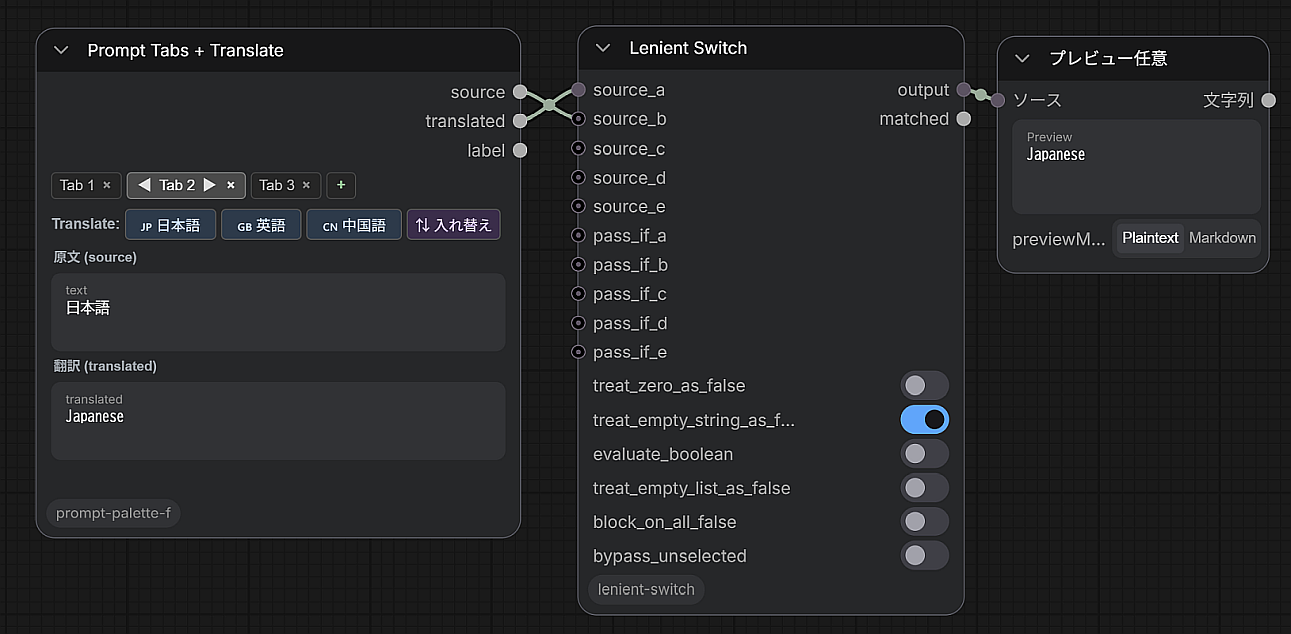
| 操作 | 方法 |
| --- | --- |
| タブ切り替え | タブをクリック |
| タブ追加 | + をクリック |
| タブの改名 | タブをダブルクリック |
| タブ削除 | タブの × をクリック(確認ダイアログあり。最低1つのタブは必ず残ります) |
| 翻訳 | 翻訳先の言語ボタンをクリック(原文を翻訳して翻訳文フィールドへ) |
出力:
| 出力 | 型 | 意味 |
| --- | --- | --- |
| source | STRING | アクティブなタブの原文 |
| translated | STRING | アクティブなタブの翻訳文 |
| label | STRING | アクティブなタブの名前 |
Gemma Translate(実験的ノード)
- カテゴリ:
PromptPalette-F - 表示名:
Gemma Translate - クラス:
GemmaTranslate
⚠️ 実験的ノードです。 ComfyUIに最近追加されたGemma4テキストエンコーダのテキスト生成(LLM)機能を利用するため、ComfyUI v0.21.0以降が必要です。それより古いバージョンではノードは表示・登録されますが、実行すると翻訳できずエラー文字列を返します(他のノードには影響しません)。
googletrans を使う Prompt Tabs + Translate とは違い、こちらはGemma4のローカルLLMによる翻訳を行います。CLIPLoader で読み込んだ Gemma4 モデルを clip 入力に接続し、ComfyUI標準の TextGenerate ノードと同じ生成処理(clip.tokenize → clip.generate → clip.decode)で翻訳します。外部サービスを使わずローカルで完結します。
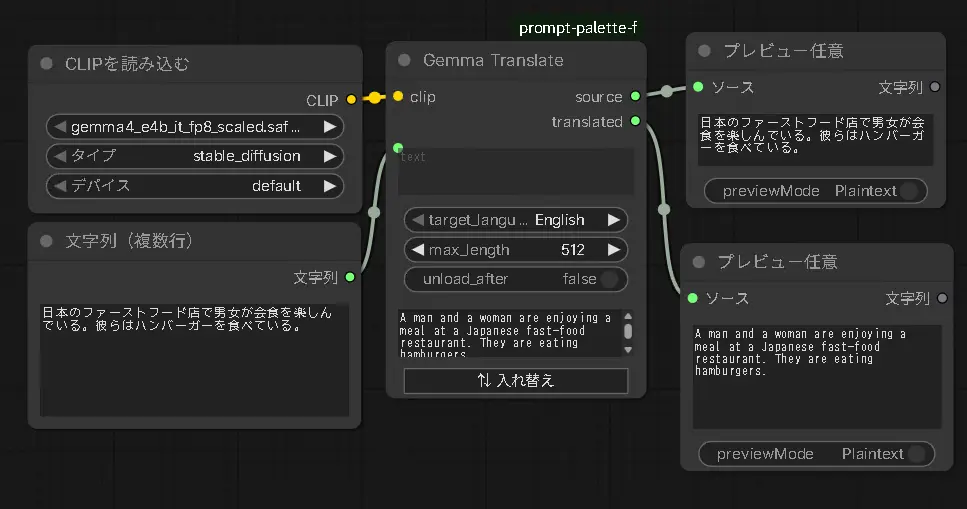
モデルは ComfyUI/models/text_encoders/ に配置します。
✅ 動作確認済みモデル:
gemma4_e4b_it_fp8_scaled.safetensors(現時点で動作確認が取れているモデルです)
🆕 Qwen3-VL対応(ComfyUI v0.26.0以降): ComfyUI v0.26.0でQwenのVLモデルがサポートされたため、Gemma4の代わりに Qwen3-VL も同じ要領で使えます(
CLIPLoaderで読み込み、clip入力に接続)。コードの変更は不要で、動作を確認済みです。Qwen3-VLを使う場合は ComfyUI v0.26.0以降が必要です。🆕 Qwen3.5 / 3.6 / 3.8 対応: ComfyUI本体がQwen3.5系として読み込むモデル(Qwen3.5・3.6・3.8)も同じ要領で使えます。Qwen3.8 27B(ComfyUI v0.38.0)で動作を確認済みです。これらのモデルが持つMTP(投機的デコード)は、テキストのみの入力で出力が崩れたりComfyUIごと落ちたりすることがあるため、このノードでは使いません(
mtp=False)。また、モデルが<think>…</think>の思考を出力した場合は自動で取り除きます。
📌 実行のしかた: このノードはモデルがワークフロー実行中にしか存在しないため、
Prompt Tabs + Translateのような「ボタンで即時翻訳」はできません。Queue Prompt(ワークフロー実行)時に翻訳が走り、結果がノードの翻訳欄に表示されます。CLIP接続が必須なので単独実行はできません(翻訳専用ワークフローでの利用を想定)。
| 操作 | 方法 |
| --- | --- |
| 翻訳 | target_language を選んで Queue Prompt(実行後、翻訳欄に結果が反映されます) |
| 入れ替え | ⇅ 入れ替え ボタンで元テキストと翻訳テキストを交換 |
入力:
| 入力 | 型 | 説明 |
| --- | --- | --- |
| clip | CLIP | CLIPLoader で読み込んだ Gemma4 エンコーダ(必須) |
| text | STRING | 翻訳する元テキスト |
| target_language | 選択 | 翻訳先の言語(English / Japanese / Chinese) |
| max_length | INT | 生成する最大トークン数(デフォルト:512) |
| unload_after | BOOLEAN | ONで翻訳後にモデルをVRAMからアンロード(unload_all_models)。翻訳専用ワークフロー向け。ComfyUIセッション全体のモデルキャッシュに影響します(デフォルトOFF) |
出力:
| 出力 | 型 | 意味 |
| --- | --- | --- |
| source | STRING | 入力した元テキスト |
| translated | STRING | 翻訳結果(コードフェンスや Translation: ラベル・引用符は除去されます) |
Gemma Image Prompt(実験的ノード)
- カテゴリ:
PromptPalette-F - 表示名:
Gemma Image Prompt - クラス:
GemmaImagePrompt
⚠️ 実験的ノードです。
Gemma Translateと同じく Gemma4 のテキスト生成機能を使うため ComfyUI v0.21.0 以降が必要です。さらに画像認識(vision)対応の Gemma4 モデルを使う必要があります。
🆕 Qwen3-VL対応(ComfyUI v0.26.0以降): ComfyUI v0.26.0でQwenのVLモデルがサポートされたため、vision対応のGemma4の代わりに Qwen3-VL(画像認識対応)も同じ要領で使えます(
CLIPLoaderで読み込み、clip入力に接続)。コードの変更は不要で、動作を確認済みです。Qwen3-VLを使う場合は ComfyUI v0.26.0以降が必要です。🆕 Qwen3.5 / 3.6 / 3.8 対応: ComfyUI本体がQwen3.5系として読み込むモデル(Qwen3.5・3.6・3.8)も同じ要領で使えます。Qwen3.8 27B(ComfyUI v0.38.0)で動作を確認済みです。これらのモデルが持つMTP(投機的デコード)は、テキストのみの入力で出力が崩れたりComfyUIごと落ちたりすることがあるため、このノードでは使いません(
mtp=False)。また、モデルが<think>…</think>の思考を出力した場合は自動で取り除きます。
入力画像をGemma4に「見せて」、それに似た画像を生成するための text-to-image プロンプトを出力するノードです。修正指示を受け付けて反映し、想定する生成モデルや出力形式に合わせてプロンプトを調整します。画像認識→生成は、Gemma Translate と同様にワークフロー実行(Queue Prompt)時に走ります。
🎬 動画→動画プロンプト(LTXV / LTX-2 用):
video入力に動画を接続し(ComfyUI標準のLoad Videoの VIDEO 出力、またはVHS系ローダーの IMAGE(フレームバッチ)出力のどちらでも可)、prompt_modeをVideo description (LTXV)にすると、動画内容を解析して LTX-2 / LTXV 向けの text-to-video プロンプトを生成します。Gemma4のトークナイザにはネイティブのvideo=経路があり、フレームを時系列として処理します(Qwen3-VLの場合はvideo=が無いため各フレームを個別の静止画として扱うフォールバックになります)。max_framesで送るフレーム数を制限できます。抜き出すフレームは均等割りではなく変化量ベース(最初と最後+変化の大きい瞬間)で選ばれ、選んだフレームの位置(秒数、VIDEO入力時のみ)はプロンプト内でモデルに伝えられます。
📌 画像入力なしでも動作します。その場合は「指示テキストのみ」から画像生成プロンプトを組み立てます(画像認識は行いません)。画像も指示も両方空の場合は空文字を出力します。
⚠️ 注意: Gemma-4-E4B は指示への追従能力が限られるため、Danbooruタグ形式や
POSITIVE:/NEGATIVE:形式を完全に守らないことがあります(テスト用ノードです。崩れた場合もパーサが可能な範囲で復元します)。⚠️ エラー時はジョブが停止します: 生成や動画デコードでエラーが起きた場合、エラー内容を出力テキストに流し込むのではなく、そのまま例外として送出されます(ComfyUI 上でジョブが失敗し、通常どおりエラーが表示されます)。
💡 エラーには原因の推定が付きます: エラーメッセージには「失敗した段階」「原因の可能性」「元のエラー」が日英併記で出力されます。よくある原因は自動的に判別されます — CLIPLoader の type が
gemma4以外(テキスト生成非対応)、vision非対応のテキスト専用モデルに画像・動画を接続、VRAM不足、モデルと入力の不一致、動画のデコード失敗など。CLIP がそもそもテキスト生成に対応していない場合や、画像を受け取れないモデルの場合は、実行前にその旨のエラーで停止します。
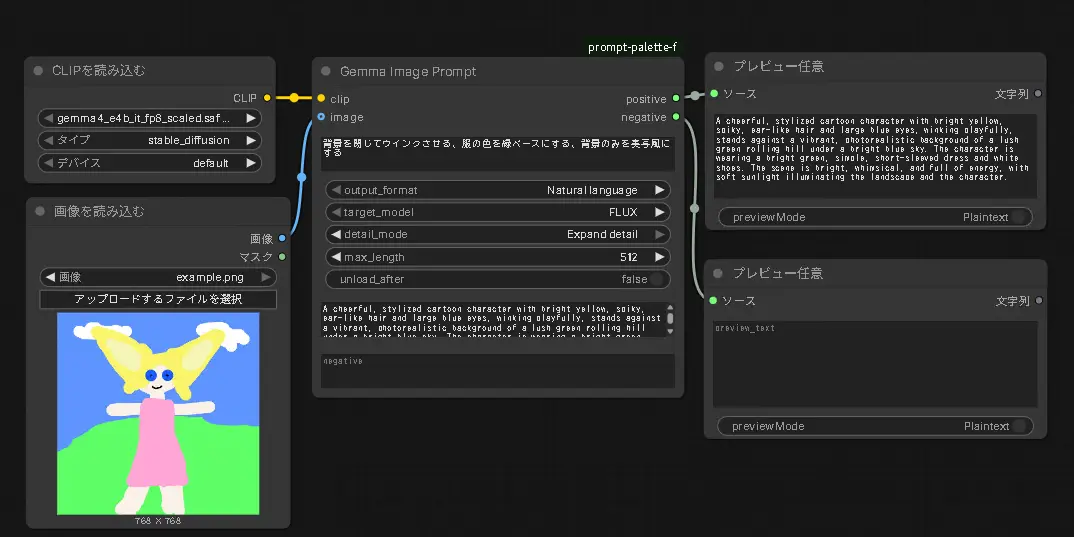
入力:
| 入力 | 型 | 説明 |
| --- | --- | --- |
| clip | CLIP | CLIPLoader で読み込んだ vision対応 Gemma4 エンコーダ(必須) |
| image | IMAGE | 認識させる画像(任意)。接続すると「似た画像」を生成するプロンプトを作ります。未接続なら指示テキストのみで生成します |
| video | VIDEO / IMAGE | 認識させる動画(任意)。ComfyUI標準 Load Video の VIDEO 出力と、VHS系ローダーの IMAGE(フレームバッチ)出力のどちらでも接続できます(VIDEOの場合はノード内部でフレームに展開します)。接続して prompt_mode を Video description (LTXV) にすると、LTX-2 / LTXV 向けの動画内容説明プロンプトを出力します |
| instruction | STRING | 内容修正指示(自由入力。例:夜にして、雨を降らせる)。画像認識の結果に上乗せして反映します |
設定:
| 設定 | 選択肢 | 説明 |
| --- | --- | --- |
| output_format | Natural language / Danbooru tags | 出力形式。自然言語の文章か、カンマ区切りのDanbooruタグ列挙か(Video description (LTXV) では常に自然言語) |
| target_model | FLUX / SDXL | 想定生成モデル。FLUX→自然言語寄りでネガティブは空。SDXL→ネガティブプロンプトも生成(Video description (LTXV) では無視され、ネガティブは常に空) |
| detail_mode | Keep as instructed / Expand detail | 指示以外は変更しない(オブジェクトを増やさない)か、情報量を拡張して要素を増やすか。LTXVモードでは後者で背景の動きや副次的なモーションを増やします |
| prompt_mode | Generate (recreate image) / Edit instruction (change description) / Video description (LTXV) | 出力の種類。①似た画像を生成するプロンプト。②画像編集モデル(Qwen Image Edit等)向けに「赤い車を青い車に変える」のように変更前→変更後を明示した編集指示を出力(変更後の描写だけにしない)。③LTX-2 / LTXV 向けの text-to-video プロンプト:1段落・現在形・カメラワーク用語(pans/tracks/pushes in 等)・時系列で literal なモーション記述。ネガティブは空。video 入力と併用します |
| max_length | INT | 生成する最大トークン数(デフォルト:512) |
| unload_after | BOOLEAN | ONで実行後にモデルをVRAMからアンロード(デフォルトOFF) |
| max_frames | INT | 動画から抜き出して送る最大フレーム数(デフォルト:8)。VRAM/コンテキストの上限対策で、特にQwen3-VLは各フレームを個別の静止画として扱うため重要です。均等割りではなく変化量ベースで選びます:最初と最後のフレームは必ず残し、残りの枠を「直前のフレームからの変化が大きい」箇所(カット・動き出し・カメラワーク)に割り当てるので、止まっている時間が長い動画でも動きのある瞬間を取りこぼしません |
出力:
| 出力 | 型 | 意味 |
| --- | --- | --- |
| positive | STRING | ポジティブプロンプト |
| negative | STRING | ネガティブプロンプト(FLUX選択時や不要時は空になることがあります) |
✅ 動作確認済みモデル:
gemma4_e4b_it_fp8_scaled.safetensors
Node Value Template
- カテゴリ:
PromptPalette-F - 表示名:
Node Value Template - クラス:
NodeValueTemplate
ComfyUI標準の Save Image ノードの filename_prefix(%KSampler.seed% のような書式)と同じ要領で、他のノードのウィジェット値を %ノード名.ウィジェット名% 形式で文字列に埋め込めるノードです。ノード名には各ノードの 「Node name for S&R」プロパティ(既定ではクラス名。例:LoadImage)またはタイトルが使えます。プロンプトやファイル名にseed・cfg・モデル名などを動的に差し込みたいときに使えます。
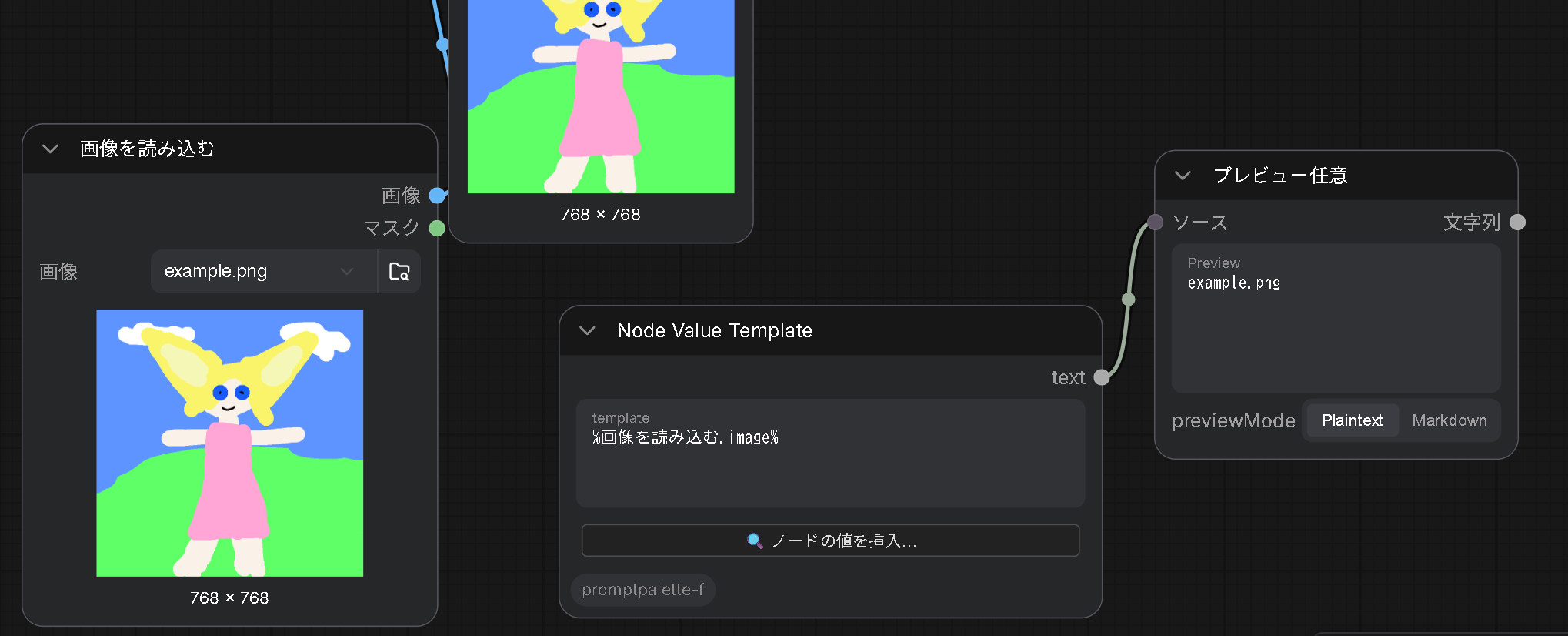
入力:
| 入力 | 型 | 説明 |
| --- | --- | --- |
| template | STRING | %ノード名.ウィジェット名% トークンを含むテキスト。各トークンは、「Node name for S&R」またはタイトルが一致するノードの該当ウィジェットの現在値に置き換えられます |
| on_missing | COMBO | 参照先のノードまたはウィジェットが存在しないトークンの扱い。Leave as-is(%...% のまま残す・デフォルト)/Empty string(空文字にする)/Error (stop the job)(エラーでジョブを停止) |
出力:
| 出力 | 型 | 意味 |
| --- | --- | --- |
| text | STRING | トークンを解決したテキスト |
書き方
seed=%KSampler.seed%, cfg=%KSampler.cfg%
「Node name for S&R」(またはタイトル)が KSampler のノードの seed / cfg ウィジェットの値に置き換わります。
🆕 ロケールに依存しない参照(2026-09): ComfyUI の表示言語を日本語などに変えるとノードのタイトルは翻訳されます(
Load Image→画像を読み込む)が、各ノードが持つ 「Node name for S&R」プロパティ(右クリック → プロパティパネルで確認・変更可能。既定値はクラス名LoadImageなど)は翻訳されません。トークンはまずこのプロパティで照合し、一致するノードが無いときだけタイトルで照合します(標準のSave Imageと同じ順序)。%LoadImage.image%のように書いておけば、言語設定を変えても解決できます。
日付トークン %date:format%
ComfyUI標準の Save Image と同様に、日付・時刻を埋め込めます。
output_%date:yyyy-MM-dd%/%KSampler.seed%
→ output_2026-06-03/12345
| トークン | 意味 | 例 |
| --- | --- | --- |
| yyyy / yy | 年(4桁/2桁) | 2026 / 26 |
| MM / M | 月(2桁/ゼロ埋めなし) | 06 / 6 |
| dd / d | 日(2桁/ゼロ埋めなし) | 03 / 3 |
| hh / h | 時(24時間制) | 09 / 9 |
| mm / m | 分 | 07 / 7 |
| ss / s | 秒 | 04 / 4 |
%date%だけ書くと%date:yyyy-MM-dd%(=yyyy-MM-dd)として展開されます。- トークン以外の文字(
-_/など)はそのまま残ります。 - 展開は Queue 実行時のブラウザのローカル時刻を使用します。
修飾子 |modifier
Smarty のように、トークンの値へ修飾子を適用できます。| で区切って記述し、複数連結すると左から順に適用されます。日付トークンにも使えます。
%LoadImage.image|basename%
→ Cat_photo_01          (値が sub/dir/Cat_photo_01.png の場合)

%LoadImage.image|basename|firstword:'_'%
→ Cat
| 修飾子 | 意味 |
| --- | --- |
| basename | ファイルパスからディレクトリ名と拡張子を除きます(/ \ の両方に対応) |
| firstword:'_' | _ を区切り文字として、最初の単語のみを抽出します |
| firstword:' ' | スペースを区切り文字として、最初の単語のみを抽出します |
| firstword | 区切り文字を省略すると、スペースまたは _(先に現れた方)で区切ります |
| trim | 前後の空白文字を除去します |
- 区切り文字は
'…'または"…"で囲みます。\n/\r/\tはエスケープ表記のまま書けます。 - 区切り文字が値の中に見つからない場合は、値全体をそのまま返します。
- 未知の修飾子を書いた場合は、タイプミスに気づけるようトークン全体を
%...%のまま残します。
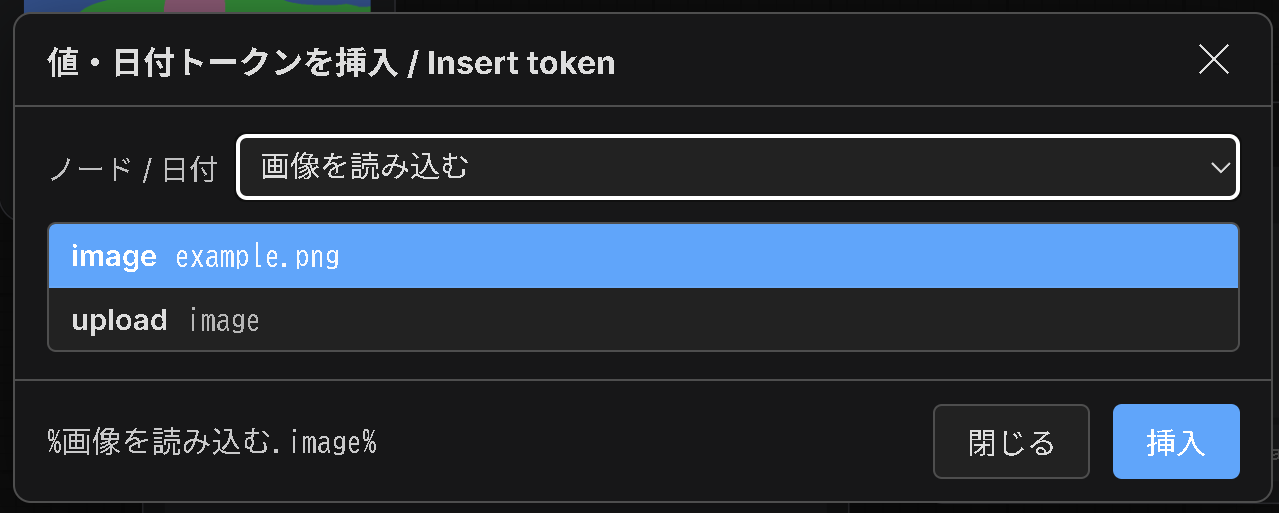
値の挿入ヘルパー(モーダル)
トークンを手打ちしなくても、ノード上の 「🔍 ノードの値を挿入…」 ボタンからモーダルを開いて挿入できます。
- プルダウンから対象を選択します。一覧には 「📅 日付フォーマット」 項目と、ウィジェットを持つ各ノード(自ノードは除外)が並びます。ノードは「Node name for S&R」の値で表示され、タイトルが異なる場合は
LoadImage (画像を読み込む)のように括弧内にタイトルを併記します - 選択に応じて下のリストが切り替わります:
- ノードを選択 → そのノードのウィジェット名と現在値の一覧
- 「📅 日付フォーマット」を選択 →
%date:…%のサンプル(yyyy-MM-dd、yyyy-MM-dd_hh-mm-ssなど)とライブプレビューの一覧
- 挿入したい行をクリックして選択(ダブルクリックで即挿入&モーダル維持)
- 必要なら 「修飾子」 のプルダウンから修飾子を選び、「+ 追加」 で連結します(
firstwordのときだけ区切り文字の入力欄が表示されます)。追加した修飾子はチップとして並び、✕で個別に削除できます。プレビュー欄には完成形のトークンが表示されます - 「挿入」ボタンで、
templateのカーソル位置にトークンを挿入
参照できるノードが無くても、プルダウンの「日付フォーマット」項目は常に利用できます。
仕組みと注意点
- トークンの解決はフロントエンド(
web/node_value_template.js)が Queue 実行直前に行い、解決済みの文字列をバックエンドへ送信します。templateウィジェット自体は元の%...%表記のまま残ります(標準のSave Imageと同じ仕組み)。 - 照合順序は「Node name for S&R」→ タイトルです(標準の
Save Imageと同じ)。まず「Node name for S&R」が一致するノードを探し、無ければタイトル(未設定なら表示名)で探します。どちらも複数一致した場合は最初に見つかったものを使用します。 - 同じ種類のノードが複数あると「Node name for S&R」も同じ値(例:
KSampler)になります。区別したいときは、プロパティパネルで各ノードの「Node name for S&R」をSampler_Bのように付け替えるか、タイトルで参照してください(ただしタイトルが他ノードの「Node name for S&R」と同じ文字列だとそちらが優先されます)。 - 挿入ヘルパーは、そのトークンが確実にそのノードへ解決される名前だけを候補に出します(同名の 2 つ目以降は S&R 名では出さず、タイトルで到達できる場合のみタイトルで出します)。
- 参照できるのはウィジェット値のみです(出力値やメタ情報は対象外)。
- 最初の
.でノード名とウィジェット名を分割するため、ノード名(S&R 名・タイトル)に.を含む場合は非対応です(Save Imageと同じ制約)。 - 解決できなかったトークン(ノードやウィジェットが見つからない場合)は、タイプミスに気づけるよう
%...%のまま残します。 on_missingで挙動を変更できます:Empty string— 参照先のノードまたはウィジェットが見つからないトークンは空文字になります(修飾子付きでも空文字)。外すことがあるノードを参照するテンプレート向けです。値は解決できたが修飾子が未知の場合は%...%のまま残ります。Error (stop the job)— 解決できないトークン(ノード・ウィジェットが見つからない、または未知の修飾子)が 1 つでもあると、このノードがエラーになりジョブが停止します。エラーメッセージに該当トークンが表示されます。停止するのはこのノードの実行時点なので、それより前に実行されるノードは動きます。
- フロントエンドJSが読み込まれない環境では、
templateをそのまま素通しします(トークン未解決)。
関連
Claude CodeでComfyUIのカスタムノードを改造してみた - ふぁメモ
実験ノード用モデル
gemma4_e4b_it_fp8_scaled.safetensors huggingface Comfy-Org/gemma-4
ComfyUI PromptPalette-F
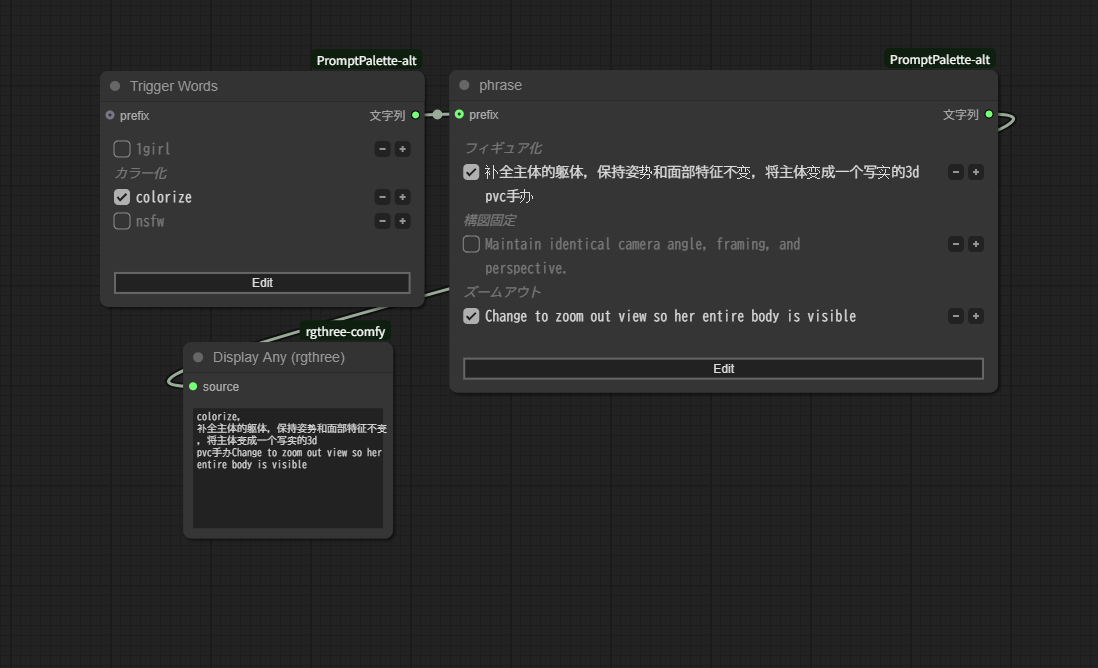
A custom node for ComfyUI that makes prompt editing easier by allowing phrase switching with just mouse operations
Features
- Toggle phrases with checkboxes
- Adjust phrase weights using +/- buttons
- Group batch control using
[groupname]tags to control multiple phrases at once - Prefix input to combine with generated text
- Custom separator for joining phrases (default: comma + space)
- Output as properly formatted text with custom separators
Installation
- Clone into the
custom_nodesdirectory of ComfyUI
cd ComfyUI/custom_nodes
git clone https://github.com/id-fa/ComfyUI-PromptPalette-F prompt-palette-f
cd prompt-palette-f
pip install -r requirements.txt
- Restart ComfyUI
Usage
- Add the node: Add the
PromptPalette-Fnode to your workflow - Edit text:
- Click the Edit button to switch to edit mode
- Enter one phrase per line
- Click the Save button to complete editing
- Control phrases:
- Toggle checkboxes in display mode to enable/disable phrases
- Adjust phrase weights using +/- buttons
- Use group buttons for batch control of entire groups
- Set custom separator (optional):
- Configure the separator field to join phrases (default:
,) - Use empty string for no separator/spacing
- Configure the separator field to join phrases (default:
- Add description comments (optional):
- Start lines with
#to add descriptive comments - Comments appear above the following phrase as explanatory text
- Start lines with
- Output:
- Selected phrases are output with the configured separator
Advanced Usage
Comment Types
- Toggle comments (
//): Lines starting with//are toggled off by default - Description comments (
#): Lines starting with#appear as explanatory text above the next phrase
Group Functionality
- Basic usage: Add
[groupname]at the end of lines to create groups - Multiple groups: One phrase can belong to multiple groups (e.g.,
[nature][style1]) - Group controls: Group buttons appear at the top of the node for batch control
- Escaping: Use
\[and\]to output literal brackets
Group Usage Example:
beautiful landscape [nature-warm1]
sunset colors [nature-warm2]
// character design [char1]
anime girl [char1][char2]
high quality
model \[v2.1\] settings [model21]
Output (when all groups are active):
beautiful landscape, sunset colors, anime girl, high quality, model [v2.1] settings
Settings
In Nodes 2.0 mode these appear as short labels in the edit-mode options row. The parenthesized name is what shows up in that UI.
- text — main input text (one phrase per line)
- prefix — text prepended before the body (for chaining multiple nodes)
- separator (
Sep) — separator used to join phrases (default:,) - trailing_separator (
Trail) — also append the separator after the last phrase - separator_newline (
Sep NL) — append a newline after each separator - add_newline (
End NL) — append a newline at the very end of the output - prefix_separator (
Prefix Sep) — insertseparatorbetweenprefixand the body (default OFF; when OFF,prefix + bodyis concatenated as-is) - empty_when_no_selection (
Empty if no sel) — when no phrase is selected, return PythonNonefor all three outputs (text / selected_text / selected_list).prefixand trailing newlines are NOT emitted. Intended for downstream switches that checkvalue is None(e.g. rgthree Any Switch) to route to a different input when nothing is selected (default OFF)
Simple Multi Concat Text Node
- Category:
PromptPalette-F - Display name:
Simple Multi Concat Text - Class:
SimpleMultiConcatText
A UI-less utility node that joins up to 5 text inputs with a separator. Useful for combining the outputs of multiple PromptPalette-F nodes, among other things.
Inputs:
| Input | Type | Description |
| --- | --- | --- |
| text1–text5 | STRING | Texts to join (all wire-only slots. Unconnected / empty / None inputs are automatically filtered out, so you never get runs of separators like a,,b) |
| separator | STRING | Separator used when joining (default: "", empty string) |
| separator_newline | BOOLEAN | When ON, append a newline after the separator. Works even when separator="", in which case inputs are joined line-by-line with just a newline (default OFF) |
| add_newline | BOOLEAN | When ON, append a newline at the end of the output. Skipped when there are no valid inputs (default OFF) |
Output:
| Output | Type | Meaning |
| --- | --- | --- |
| text | STRING | The valid inputs joined with the separator |
Get First Word Node
- Category:
PromptPalette-F - Display name:
Get First Word - Class:
GetFirstWord
A UI-less utility node that returns the portion of the input text before the first occurrence of a stop word. Useful for extracting the first word, or for generating filenames / folder names from a prompt.
Inputs:
| Input | Type | Description |
| --- | --- | --- |
| text | STRING | Input text (wire-only slot) |
| stop_word | STRING | Output everything before the first occurrence of this string (default: ,). In literal mode the escape sequences \n \r \t are expanded, so you can specify newlines/tabs from the single-line widget |
| use_regex | BOOLEAN | When ON, interpret stop_word as a regular expression. Invalid patterns return the whole text (never raises). Escape expansion is skipped when ON (default OFF) |
| trim | BOOLEAN | Strip leading/trailing whitespace and newlines from the result (default ON) |
| remove_invalid_filename_chars | BOOLEAN | Remove characters Windows forbids in filenames (<>:"/\|?* and control chars) plus trailing dots/spaces (default OFF) |
| add_trailing_slash | BOOLEAN | Append a / so the result can be used as a folder path. Skipped when the result is empty (default OFF) |
An empty stop_word returns the whole text.
Output:
| Output | Type | Meaning |
| --- | --- | --- |
| text | STRING | The portion before the stop word |
Get First Word (List) Node
- Category:
PromptPalette-F - Display name:
Get First Word (List) - Class:
GetFirstWordList
A UI-less utility node that applies the Get First Word transform to every element of a LIST input. Pairs well with the selected_list output of PromptPalette-F.
Inputs:
| Input | Type | Description |
| --- | --- | --- |
| items | LIST | The list to process (wire-only slot) |
| stop_word / use_regex / trim / remove_invalid_filename_chars / add_trailing_slash | — | Same settings as Get First Word (applied to each element) |
| text_separator | STRING | Separator used to join the results in the text output (default: , ). Does not affect the list output |
Outputs:
| Output | Type | Meaning |
| --- | --- | --- |
| text | STRING | The per-element results joined with text_separator |
| list | LIST | The list of per-element results (raw; unaffected by the separator) |
Prompt Tabs Node
- Category:
PromptPalette-F - Display name:
Prompt Tabs - Class:
PromptTabs
A notepad-style text node that keeps any number of named prompt tabs in a single box and outputs the text of the currently-active tab. Switch tabs to keep alternate prompts around without deleting them — handy when experimenting and you want to jump back to an earlier prompt.
| Action | How |
| --- | --- |
| Switch tab | Click the tab |
| Add tab | Click + (tabs can grow without limit; they wrap onto multiple rows) |
| Rename tab | Double-click the tab |
| Delete tab | Click the × on the tab — asks for confirmation first (at least one tab always remains) |
Outputs:
| Output | Type | Meaning |
| --- | --- | --- |
| text | STRING | The content of the active tab |
| label | STRING | The name of the active tab (Tab 1, Tab 2, or whatever you renamed it to) |
This node ships a small JavaScript widget (in web/), so it needs a ComfyUI version that loads custom-node frontends. If the frontend fails to load it degrades to a plain multiline text box.
Prompt Tabs + Translate Node
- Category:
PromptPalette-F - Display name:
Prompt Tabs + Translate - Class:
PromptTabsTranslate
A translation-enabled variant of Prompt Tabs. Each tab holds two independently-editable fields — a source prompt and its translation — and both can be edited freely. Three buttons (🇯🇵 日本語に翻訳 / 🇬🇧 英語に翻訳 / 🇨🇳 中国語に翻訳, i.e. translate to Japanese / English / Chinese) translate the source into that language and drop the result into the translated field, which you can then tweak by hand.
Translation runs immediately on button click (you don't have to queue the workflow). It uses googletrans (listed in requirements.txt), so no API key is needed.
| Action | How |
| --- | --- |
| Switch tab | Click the tab |
| Add tab | Click + |
| Rename tab | Double-click the tab |
| Delete tab | Click the × on the tab (asks for confirmation; at least one tab always remains) |
| Translate | Click a target-language button (translates the source into the translated field) |
Outputs:
| Output | Type | Meaning |
| --- | --- | --- |
| source | STRING | The active tab's source text |
| translated | STRING | The active tab's translated text |
| label | STRING | The name of the active tab |
Gemma Translate Node (experimental)
- Category:
PromptPalette-F - Display name:
Gemma Translate - Class:
GemmaTranslate
⚠️ This is an experimental node. It uses the text-generation (LLM) capability of the Gemma4 text encoder recently added to ComfyUI, so it requires ComfyUI v0.21.0 or later. On older versions the node still appears and registers, but running it returns an error string instead of a translation (it does not affect the other nodes).
Unlike Prompt Tabs + Translate (which uses googletrans), this node translates with a local Gemma4 LLM. Wire a Gemma4 model loaded by a CLIPLoader into the clip input; translation uses the same generation pipeline as ComfyUI's built-in TextGenerate node (clip.tokenize → clip.generate → clip.decode). Everything runs locally — no external service.
Place the model in ComfyUI/models/text_encoders/.
✅ Confirmed working model:
gemma4_e4b_it_fp8_scaled.safetensors(currently verified to work).
🆕 Qwen3-VL support (ComfyUI v0.26.0+): ComfyUI v0.26.0 added support for Qwen's VL models, so you can also use Qwen3-VL in place of Gemma4 in exactly the same way (load it with a
CLIPLoaderand wire it into theclipinput). No code changes are required — this is verified to work. Using Qwen3-VL requires ComfyUI v0.26.0 or later.🆕 Qwen3.5 / 3.6 / 3.8 support: models that ComfyUI loads through its Qwen3.5 family (Qwen3.5, 3.6, 3.8) work the same way; verified with Qwen3.8 27B on ComfyUI v0.38.0. Their MTP (speculative decoding) head can garble text-only output or abort ComfyUI, so this node does not use it (
mtp=False). A<think>…</think>reasoning block, if the model emits one, is stripped automatically.
📌 How it runs: because the model only exists during workflow execution, this node cannot translate instantly on a button click like
Prompt Tabs + Translate. Translation runs when you Queue Prompt, and the result appears in the node's translated field. It needs a connected CLIP, so it can't run on its own (intended for a dedicated translation workflow).
| Action | How |
| --- | --- |
| Translate | Pick a target_language and Queue Prompt (the result fills the translated field after execution) |
| Swap | The ⇅ 入れ替え button swaps the source and translated text |
Inputs:
| Input | Type | Description |
| --- | --- | --- |
| clip | CLIP | A Gemma4 encoder loaded by a CLIPLoader (required) |
| text | STRING | The source text to translate |
| target_language | choice | Language to translate into (English / Japanese / Chinese) |
| max_length | INT | Maximum number of tokens to generate (default: 512) |
| unload_after | BOOLEAN | When ON, unload models from VRAM after translating (unload_all_models). Useful for a dedicated translation workflow; affects the whole ComfyUI session's model cache (default OFF) |
Outputs:
| Output | Type | Meaning |
| --- | --- | --- |
| source | STRING | The source text you entered |
| translated | STRING | The translation (code fences, a leading Translation: label, and surrounding quotes are stripped) |
Gemma Image Prompt Node (experimental)
- Category:
PromptPalette-F - Display name:
Gemma Image Prompt - Class:
GemmaImagePrompt
⚠️ This is an experimental node. Like
Gemma Translateit uses Gemma4 text generation, so it requires ComfyUI v0.21.0 or later — and additionally a vision-capable Gemma4 model.
🆕 Qwen3-VL support (ComfyUI v0.26.0+): ComfyUI v0.26.0 added support for Qwen's VL models, so you can also use Qwen3-VL (which is vision-capable) in place of the vision Gemma4 model in exactly the same way (load it with a
CLIPLoaderand wire it into theclipinput). No code changes are required — this is verified to work. Using Qwen3-VL requires ComfyUI v0.26.0 or later.🆕 Qwen3.5 / 3.6 / 3.8 support: models that ComfyUI loads through its Qwen3.5 family (Qwen3.5, 3.6, 3.8) work the same way; verified with Qwen3.8 27B on ComfyUI v0.38.0. Their MTP (speculative decoding) head can garble text-only output or abort ComfyUI, so this node does not use it (
mtp=False). A<think>…</think>reasoning block, if the model emits one, is stripped automatically.
Shows an input image to Gemma4 and writes a text-to-image prompt that would generate a visually similar image. It applies your free-form modification instructions and adjusts the prompt for the intended generation model and output style. As with Gemma Translate, the analysis/generation runs when you Queue Prompt.
🎬 Video → video prompt (for LTXV / LTX-2): Wire a video into the
videoinput — either the VIDEO output of ComfyUI's coreLoad Video, or an IMAGE frame batch from a VHS-style loader — setprompt_modetoVideo description (LTXV), and the node analyzes the clip and writes a text-to-video prompt for LTX-2 / LTXV. Gemma4's tokenizer has a nativevideo=path that processes the frames as a temporal sequence (Qwen3-VL has novideo=kwarg, so it falls back to treating each frame as a separate still). Usemax_framesto cap how many frames are sent. The frames are chosen by change, not by even spacing (first + last + the biggest changes), and where they sit in the clip (in seconds, when the input is a VIDEO) is stated to the model in the request.
📌 Works without an image too — in that case the prompt is built from the instruction text alone (no image analysis). If both the image and the instruction are empty, it outputs empty strings.
⚠️ Note: Gemma-4-E4B has limited instruction-following, so it may not perfectly honor the Danbooru-tag format or the
POSITIVE:/NEGATIVE:output contract (this is a test node; the parser recovers what it can).⚠️ Errors stop the job: if generation or video decoding fails, the exception propagates instead of being written into the output text — the run fails and ComfyUI reports the error as usual.
💡 Errors come with a likely cause: the message states the stage that failed, the likely cause, and the original error (JA + EN). The common ones are detected automatically — a CLIPLoader type other than
gemma4(no text generation), an image/video wired into a text-only model, out of VRAM, a model/input mismatch, or a video that could not be decoded. If the CLIP cannot generate text at all, or cannot take an image, the node fails with that explanation before it even starts.
Inputs:
| Input | Type | Description |
| --- | --- | --- |
| clip | CLIP | A vision-capable Gemma4 encoder loaded by a CLIPLoader (required) |
| image | IMAGE | Image to analyze (optional). When connected, the prompt recreates a similar image; when not, it is built from the instruction text alone |
| video | VIDEO / IMAGE | Video to analyze (optional). Accepts both the VIDEO output of ComfyUI's core Load Video (expanded to frames inside the node) and an IMAGE frame batch from a VHS-style loader. Connect it and set prompt_mode to Video description (LTXV) to produce a text-to-video prompt for LTX-2 / LTXV describing the clip |
| instruction | STRING | Free-form modification instructions (e.g. make it night, add rain), applied on top of the image analysis |
Settings:
| Setting | Choices | Description |
| --- | --- | --- |
| output_format | Natural language / Danbooru tags | Output style: fluent sentences, or a comma-separated list of Danbooru tags (always natural language in Video description (LTXV)) |
| target_model | FLUX / SDXL | Intended model. FLUX → natural language, negative left empty. SDXL → also produces a negative prompt (ignored in Video description (LTXV), which always leaves the negative empty) |
| detail_mode | Keep as instructed / Expand detail | Change only what's requested (add no objects), or enrich the scene with extra detail. In LTXV mode, Expand detail adds background action and secondary motion |
| prompt_mode | Generate (recreate image) / Edit instruction (change description) / Video description (LTXV) | What to output. Generate → a prompt that recreates a similar image. Edit instruction → for image-editing models (e.g. Qwen Image Edit), a "change X into Y" instruction that states both the original element and what it becomes (not just the final result). Video description (LTXV) → a text-to-video prompt for LTX-2 / LTXV: one flowing paragraph, present tense, explicit camera moves (pans/tracks/pushes in), chronological literal motion; negative left empty. Pair it with the video input |
| max_length | INT | Maximum number of tokens to generate (default: 512) |
| unload_after | BOOLEAN | Unload models from VRAM after running (default OFF) |
| max_frames | INT | Max number of frames taken from the video before sending to the model (default: 8). Caps VRAM/context — especially important for Qwen3-VL, which treats every frame as a separate still. Frames are picked by how much changed, not evenly: the first and last frame are always kept and the remaining budget goes to the biggest changes (cuts, the start of a motion, camera moves), so a clip that holds still and then does one thing does not lose that one thing |
Outputs:
| Output | Type | Meaning |
| --- | --- | --- |
| positive | STRING | The positive prompt |
| negative | STRING | The negative prompt (may be empty for FLUX or when not needed) |
✅ Confirmed working model:
gemma4_e4b_it_fp8_scaled.safetensors
Node Value Template Node
- Category:
PromptPalette-F - Display name:
Node Value Template - Class:
NodeValueTemplate
A string node that lets you embed other nodes' widget values using %NodeName.widget% tokens, exactly like ComfyUI's built-in Save Image filename_prefix substitution (e.g. %KSampler.seed%). NodeName is the node's "Node name for S&R" property (defaults to the class name, e.g. LoadImage) or its title. Handy when you want to splice a seed, cfg, model name, etc. into a prompt or filename dynamically.
Inputs:
| Input | Type | Description |
| --- | --- | --- |
| template | STRING | Text containing %NodeName.widget% tokens. Each token is replaced with the current value of the named widget on the node whose "Node name for S&R" property (or, failing that, title) matches NodeName |
| on_missing | COMBO | What to do with a token whose node or widget does not exist: Leave as-is (keep %...%, default) / Empty string / Error (stop the job) |
Output:
| Output | Type | Meaning |
| --- | --- | --- |
| text | STRING | The text with all tokens resolved |
Syntax
seed=%KSampler.seed%, cfg=%KSampler.cfg%
is replaced with the seed / cfg widget values of the node whose "Node name for S&R" (or title) is KSampler.
🆕 Locale-independent references (2026-09): switching ComfyUI's display language translates node titles (
Load Image→画像を読み込む), but every node's "Node name for S&R" property (right-click → Properties Panel; defaults to the class name such asLoadImage) is never translated. Tokens are matched against that property first, and against the title only when no node's S&R name matches — the same order ComfyUI core uses forSave Image. Write%LoadImage.image%and the token keeps resolving after a language change.
Date token %date:format%
Just like ComfyUI's built-in Save Image, you can embed the current date/time.
output_%date:yyyy-MM-dd%/%KSampler.seed%
→ output_2026-06-03/12345
| Token | Meaning | Example |
| --- | --- | --- |
| yyyy / yy | Year (4-digit / 2-digit) | 2026 / 26 |
| MM / M | Month (zero-padded / plain) | 06 / 6 |
| dd / d | Day (zero-padded / plain) | 03 / 3 |
| hh / h | Hour (24-hour) | 09 / 9 |
| mm / m | Minute | 07 / 7 |
| ss / s | Second | 04 / 4 |
- A bare
%date%expands as%date:yyyy-MM-dd%. - Any non-token characters (
-,_,/, etc.) are kept verbatim. - The value uses the browser's local time at queue time.
Modifiers |modifier
Smarty-style modifiers post-process a token's value. Separate them with |; chained modifiers apply left to right. They work on date tokens too.
%LoadImage.image|basename%
→ Cat_photo_01          (when the value is sub/dir/Cat_photo_01.png)

%LoadImage.image|basename|firstword:'_'%
→ Cat
| Modifier | Meaning |
| --- | --- |
| basename | Strip directory components and the extension from a file path (both / and \ count as separators) |
| firstword:'_' | Keep only the first word, using _ as the separator |
| firstword:' ' | Keep only the first word, using a space as the separator |
| firstword | With no argument, a space or an underscore (whichever comes first) ends the word |
| trim | Strip leading/trailing whitespace |
- Quote the separator with
'…'or"…".\n/\r/\tmay be written as escape sequences. - If the separator isn't found in the value, the whole value is returned unchanged.
- An unknown modifier leaves the entire token as
%...%so you can spot the typo.
Insert helper (modal)
Instead of typing tokens by hand, click the "🔍 ノードの値を挿入… / Insert token" button on the node to open a modal.
- Pick a target from the dropdown. It lists a "📅 日付フォーマット" (date format) entry plus each node that has widgets (the node itself is excluded). Nodes are listed by their "Node name for S&R" value; when the title differs it is shown in parentheses, e.g.
LoadImage (画像を読み込む). - The list below switches based on your choice:
- A node → that node's widget names and current values.
- The date-format entry →
%date:…%samples (yyyy-MM-dd,yyyy-MM-dd_hh-mm-ss, etc.) with live previews.
- Click a row to select it (double-click inserts immediately and keeps the modal open).
- Optionally pick a modifier from the 修飾子 (modifier) dropdown and click + 追加 to chain it (the separator field only appears for
firstword). Added modifiers show up as chips you can remove individually with✕, and the preview shows the finished token. - Click Insert to drop the token at the caret position in
template.
The date-format entry is always available even when there are no other nodes to reference. The node widget list is only expanded for the one node you pick, so it stays fast even with many nodes in the graph. Works in both Classic and Nodes 2.0 modes.
How it works & caveats
- Tokens are resolved in the frontend (
web/node_value_template.js) right before the prompt is queued; the resolved string is what reaches the backend, while thetemplatewidget keeps the original%...%text. This is the same mechanism the built-inSave Imageuses. - Lookup order is "Node name for S&R" → title (same as the built-in
Save Image). A node whose S&R property equals the name wins; only when no node matches that way is the title (display name when unset) compared. Within each pass, the first node found is used. - Several nodes of the same class share the same S&R name (e.g.
KSampler). To tell them apart, rename the property per node in the Properties Panel (e.g.Sampler_B) or reference them by title (a title that equals some other node's S&R name loses to that node). - The insert helper only offers names that are guaranteed to resolve to that node: a second node with a duplicate S&R name is listed by its title only when the title actually reaches it.
- Only widget values can be referenced (not output values or metadata).
- The node name and widget name are split on the first
., so names (S&R or title) containing a.are not supported (same limitation asSave Image). - Unresolvable tokens (node or widget not found) are left as
%...%so you can spot typos. on_missingchanges that:Empty string— a token whose node or widget cannot be found becomes an empty string (modifiers included) — meant for templates that reference nodes you sometimes remove. An unknown modifier on a token that does resolve is still left as%...%.Error (stop the job)— if any token is unresolvable (node or widget not found, or an unknown modifier), this node raises an error and the job stops; the message lists the offending tokens. The stop happens when this node executes, so nodes that run before it still run.
- If the frontend JS doesn't load, the node passes the
templatethrough verbatim (tokens left unresolved).