
MossImage Tools
Layout editors and tools for MOSS-Image in ComfyUI
ComfyUI-MossImageTools
English | Japanese
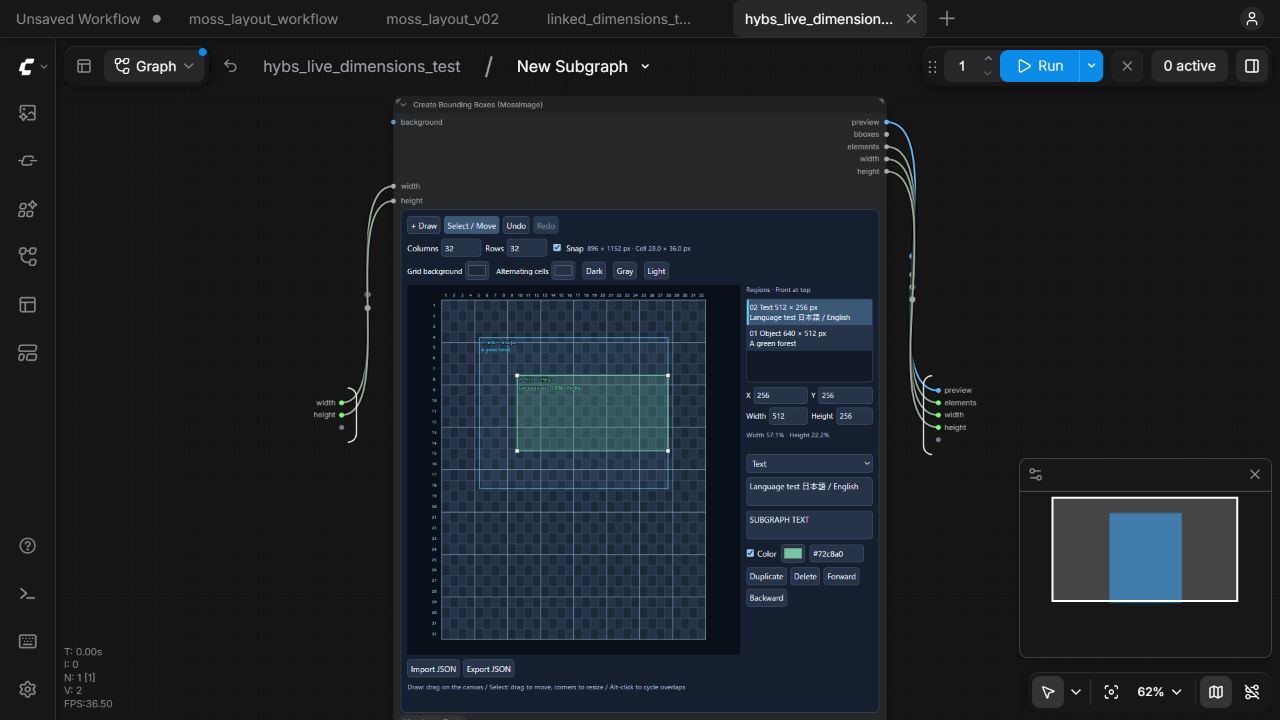
A general-purpose toolkit for MOSS-Image in ComfyUI. Its first node, Create Bounding Boxes (MossImage), provides a visual editor for spatial layouts.
For a standalone Windows editor that reads and writes the same layout JSON, see MossImage Layout Editor.
Features
- View and edit each region's X, Y, width, and height in pixels, with width and height percentages.
- A 32-column × 32-row grid by default, with checkerboard cells, row and column labels, and cell dimensions. Set each axis from 1 to 32 and toggle snapping.
- Change the grid background and alternating cell colors with visual color pickers or dark, gray, and light presets.
- Select overlapping regions directly from a list, or Alt-click to cycle through regions at the same position.
- Move, resize from four corner handles, duplicate, delete, and reorder regions. Undo/redo retains up to 100 states.
- Edit region type, description, image text, and color.
- Save layouts in workflows, or import and export them as JSON.
- Descriptions, image text, region colors, and grid colors are persisted as you edit, including before switching tabs or navigating subgraphs.
- Use Ctrl+C, Ctrl+X, and Ctrl+V for text editing inside the editor without triggering graph copy/paste.
- English and Japanese UI, following ComfyUI's language setting.
Installation
Use a recent ComfyUI and frontend version with the V3 API, io.Array, and io.BoundingBox. No additional pip/npm installation or build step is required. The node uses NumPy, PyTorch, and Pillow from your ComfyUI environment.
Option 1: Git
With Git installed, open a terminal in your ComfyUI installation directory and run:
cd custom_nodes
git clone https://github.com/hybskgks28275/ComfyUI-MossImageTools.git
Option 2: ZIP download
- Open the GitHub repository and choose Code → Download ZIP, or use the direct ZIP download.
- Extract the downloaded ZIP archive.
- Move the extracted
ComfyUI-MossImageTools-mainfolder intoComfyUI/custom_nodes/and rename it toComfyUI-MossImageTools.
The node entry point should be at ComfyUI/custom_nodes/ComfyUI-MossImageTools/__init__.py, without an extra nested folder.
Restart ComfyUI and reload your browser. Search for Create Bounding Boxes (MossImage) in the MossImage/layout category.
Usage
Language
Choose English or Japanese in Settings → Comfy → Locale → Language. The node title, input/output labels, editor controls, tooltips, and editor validation messages follow that setting. Existing editors switch when the setting changes. Other languages use the English editor UI. Descriptions, image text, palettes, coordinates, and undo history retain their contents.
- Set
widthandheightto the intended image dimensions. - Click + Draw and drag on the canvas to create a region. The editor returns to selection mode after each drawing operation.
- Select a region from the list to edit its coordinates, dimensions, type, description, image text, and color. Numeric fields are committed when confirmed or when focus leaves the field. Text and valid color edits are saved as you type.
- Drag a selected region to move it, or drag its white corner handles to resize it.
- Use the region list or Alt-click to select overlapping regions.
Set the generation resolution directly in this node's width and height fields, or connect integer (INT) outputs from other nodes to those inputs. A separate resolution-selector custom node is not required. Use the same dimensions for the layout and the image-generation latent.
Direct edits to width and height update the editor immediately. For connected inputs, the editor reflects the dimensions actually received after workflow execution. When the canvas shrinks, existing regions are clipped to its bounds. Regions completely outside the new bounds retain a minimum size of 1 pixel.
Region descriptions appear directly below the size label at the top left of each region. They update while typing, preserve line breaks, wrap to the region width, and are clipped to the region height.
Delete or Backspace removes the selected region. Inside a text, numeric, or HEX field, these keys retain their normal text-editing behavior. Use Undo to restore a deleted region. Duplicate offsets the copy's position and shifts its hue to distinguish it from the original.
Within the region editor, Ctrl+Z undoes region edits; Ctrl+Y or Ctrl+Shift+Z redoes them. Text fields retain native text undo. ComfyUI manages the canvas DOM so that it remains available when graph undo/redo restores a node.
Regions at the top of the list are in front. Forward and Backward move a region one step. Region numbers match the output element order and change when reordered. If you use these numbers in the standard MOSS node's character_boxes, check them after reordering.
One persistent color picker edits the selected region's color, with an optional HEX field. There are no swatches or color add/remove controls. Controls retain their positions when no region is selected or when changing region type. Existing palettes with multiple colors are preserved; only the first color is edited.
New regions start with no explicit color, matching the standard node. Color is unchecked, and the HEX field shows Unspecified. Choose a color or enable the checkbox to specify one. Disable the checkbox or clear the HEX field to remove it. An unspecified region still has an editor outline color, but its output elements does not include color_palette. Duplicating an unspecified region preserves that state and changes only its editor outline color.
Use Grid background and Alternating cells to change the grid colors independently. These affect only the editor, not the region palettes sent to MOSS. Grid colors are saved in workflows and JSON, and support undo/redo. Existing workflows retain their saved row and column counts.
Connections
| Output | Purpose / destination |
|---|---|
| preview / IMAGE | Connect to Preview Image or similar nodes. Shows the background and region outlines with numbers and dimensions. |
| bboxes / BOUNDING_BOX | Standard pixel coordinates: an array of boxes for one frame, including metadata. |
| elements / ARRAY | Connect to the element input of the standard MOSS-Image Layout Prompt node. |
| width / INT | Width for MOSS-Image Layout Prompt or image generation. |
| height / INT | Height for MOSS-Image Layout Prompt or image generation. |
Enter an overall scene description in the standard MOSS node's prompt field, then connect its output to MOSS-Image text encoding. To treat an object region as a character, specify its region number in that node's character_boxes field.
examples/moss_layout_workflow.json is a workflow you can load into ComfyUI. It can render a preview without a model. Connect the MOSS prompt output to your generation nodes to generate an image.
The optional background input accepts an image. After execution, that image also appears in the editor. It is stretched to the node's dimensions, so use dimensions with the same aspect ratio as your background. Execute again after reloading a workflow to restore the background display.
Coordinates and limits
- Editor coordinates and
bboxesuse pixels with the origin at the top left.elementsuses the standard 0–1000 coordinate range in[ymin, xmin, ymax, xmax]order. - Changing canvas dimensions preserves pixel coordinates and clips regions to the new bounds. Shrinking may change region shapes; export JSON first if you need a backup.
- A layout supports up to 512 regions. JSON import accepts this package's version 1 format, up to 2 MB. It does not directly import the standard node's state JSON.
- Preview images are limited to 1536 pixels on the longest side. This does not affect generation dimensions or coordinate resolution. Grid lines are not included in the output preview.
- This node is a layout editing tool with an IMAGE preview output. Use the standard generation nodes to generate images with a MOSS model.
For development guidelines and test instructions, see AGENTS.md.