
Comfyui-SceneDetect
Comfyui-SceneDetect is a ComfyUI custom node that uses PySceneDetect to locate scene boundaries in a video and emit one representative frame per scene as an IMAGE batch. It also returns per-scene metadata as JSON (STRING) and the total number of detected scenes (INT).
Nodes (2)
Comfyui-SceneDetect
Comfyui-SceneDetect adds PySceneDetect-based scene detection to ComfyUI. The recommended node accepts ComfyUI's built-in VIDEO type and processes the source without materializing every frame as an IMAGE batch. A Legacy VHS node is retained for existing workflows. Both nodes return one representative image per scene, scene metadata as JSON, and the detected scene count.
Features
- Direct support for ComfyUI's built-in
Load VideoandVIDEOtype - Choose OpenCV or PyAV for video decoding in the recommended node.
- Low-memory processing in the recommended node without materializing the complete video as a float32
IMAGEbatch - Backward-compatible Legacy VHS node for existing workflows
- Export one representative frame per scene as an
IMAGEbatch (choose start/middle/end) - Provide detailed scene metadata as JSON (frame numbers, timestamps, durations, etc.)
- Optionally store representative frames as JPEG thumbnails
- Return one scene and its representative frame when no cuts are detected (
scene_count = 1), for bothVIDEOand Legacy VHS. TrimmedVIDEOinputs cover only the selected trim window. - Choose from
content,adaptive,threshold,hash, andhistogramdetection methods. - Control the detection downscale factor while keeping representative images at their original resolution (unless
max_width/max_heightis set). - Keep PySceneDetect's default detector settings, or select
customto tune adaptive detection, content weights, and fade handling.
Requirements
- ComfyUI with built-in
VIDEOsupport for the recommended node - Python 3.10 or newer
- PySceneDetect 0.7.2 or newer, below 0.8 and OpenCV (installed through this package's dependency list)
- PyAV (
av) for thepyavbackend; it is already included in standard ComfyUI installations withVIDEOsupport - ComfyUI-VideoHelperSuite (VHS) only for workflows using its video loader; the built-in
Load Videopath does not require VHS
Installation
Installing from ComfyUI Manager also installs the Python dependencies listed below. For a manual clone:
-
Place this repository under the ComfyUI
custom_nodesdirectory.- Example:
ComfyUI/custom_nodes/Comfyui-SceneDetect
- Example:
-
Install the Python dependencies.
pip install -r requirements.txtThe
requirements.txtfile includes:scenedetect-headless>=0.7.2,<0.8opencv-python-headless>=4.9numpy
scenedetect-headlessprovides the samescenedetectPython module without GUI dependencies.PyTorch (
torch) ships with the standard ComfyUI installation, so it is intentionally not listed here.PyAV is optional for this extension. If your ComfyUI environment does not include it, install it with
pip install avin the same environment to use thepyavbackend. PySceneDetect 0.7.2 adds compatibility with PyAV 19. -
Restart ComfyUI.
Node Name and Category
- Node:
PySceneDetect: Video → Scenes(recommended, built-inVIDEOinput) - Legacy node:
PySceneDetect: Scenes → Images (Legacy VHS) - Category:
Video/PySceneDetect
Once installed, the node can be searched and placed directly inside ComfyUI.
Which node should I use?
| | Recommended | Legacy |
|---|---|---|
| SceneDetect node | PySceneDetect: Video → Scenes | PySceneDetect: Scenes → Images (Legacy VHS) |
| Loader | ComfyUI built-in Load Video | VHS Load Video (Upload) |
| Input | Lazy VIDEO | Full IMAGE batch + VHS_VIDEOINFO |
| Memory use | Only compressed video decoding and representative frames | Full float32 frame batch remains in memory |
| Use case | New workflows and long/high-resolution videos | Existing VHS workflows |
Inputs and Outputs
PySceneDetect: Video → Scenes
-
Required inputs
video(VIDEO): Connect the output from ComfyUI's built-inLoad Videonode. The video is streamed from the compressed source instead of being expanded into a full frame batch.method(content|adaptive|threshold|hash|histogram): Scene detection method.hashcompares perceptual hashes;histogramcompares brightness distributions.threshold(FLOAT): Detection threshold used by thecontent/thresholdmethods.min_scene_len_sec(FLOAT): Minimum scene length in seconds. Values greater than zero overridemin_scene_len_frames.min_scene_len_frames(INT): Minimum scene length in frames, used whenmin_scene_len_secis0.luma_only(BOOLEAN): Use luma-only detection (content/adaptive only; threshold uses color in PySceneDetect 0.7).
-
Optional inputs
representative(start|middle|end): Position of the representative frame.max_width(INT): Maximum width of the representative frame (0 disables resizing).max_height(INT): Maximum height of the representative frame (0 disables resizing).limit_scenes(INT): Limit the number of scenes processed from the start (0 disables the limit).write_thumbs(BOOLEAN): Save representative frames as JPEG thumbnails.thumbs_dir(STRING): Relative directory under ComfyUI's output directory. When empty, thumbnails are written tooutput/scene_thumbs.hash_threshold(FLOAT, default0.395): Used only byhash, independently ofthreshold. Lower values detect more cuts.hist_threshold(FLOAT, default0.05): Used only byhistogram, independently ofthreshold. Lower values detect more cuts.downscale(INT, default0):0uses PySceneDetect's automatic scaling;1detects at full resolution;2halves the width and height. This changes detection resolution, not representative image size. Larger factors reduce detection work but can miss fine changes.detector_settings(default|custom, defaultdefault):defaultuses PySceneDetect's defaults and ignores the detailed settings. Selectcustomto show and adjust them.hash_threshold,hist_threshold, anddownscalework in either mode.backend(opencv|pyav, defaultopencv): Video decoding backend for both scene detection and representative image extraction. Backend availability, decoding, seeking, and fallback to OpenCV follow PySceneDetect's behavior. PyAV can improve decoding speed depending on the video and environment.
Representative images use PySceneDetect's scene timecodes and video stream API. For variable-frame-rate videos, JSON frame numbers are PySceneDetect's approximations; timestamps retain the upstream timing information. The JSON backend field records the requested backend, which may fall back to OpenCV.
Detailed settings apply only to custom:
| Method | Settings (defaults) | What they control |
|---|---|---|
| adaptive | adaptive_threshold (3.0) | Change relative to surrounding frames needed for a cut; lower values detect more cuts. The shared threshold input does not control adaptive detection. |
| adaptive | window_width (2), min_content_val (15.0) | Frames on each side used for comparison, and the minimum absolute change needed for a cut. |
| content / adaptive | delta_hue / delta_sat / delta_lum (1.0), delta_edges (0.0) | Weights for hue, saturation, brightness, and edge changes. At least one weight must be non-zero. luma_only=true overrides these weights and uses brightness alone, allowing all weights to be zero. |
| content / adaptive | kernel_size (0) | Edge expansion size. 0–2 use automatic sizing; larger even values round up to the next odd size. |
| threshold | fade_bias (0.0) | Boundary within a fade: -1 at fade-out, 0 midway, +1 at fade-in. |
| threshold | add_final_scene (false), threshold_method (floor) | Add a boundary at the final fade-out; detect fades to black (floor) or white (ceiling). |
- Outputs
images(IMAGE): Representative frame batch ((B,H,W,C)).scenes_json(STRING): JSON string with scene metadata (includesvideo_info).scene_count(INT): Number of detected scenes.
PySceneDetect: Scenes → Images (Legacy VHS)
workflow_legacy_vhs
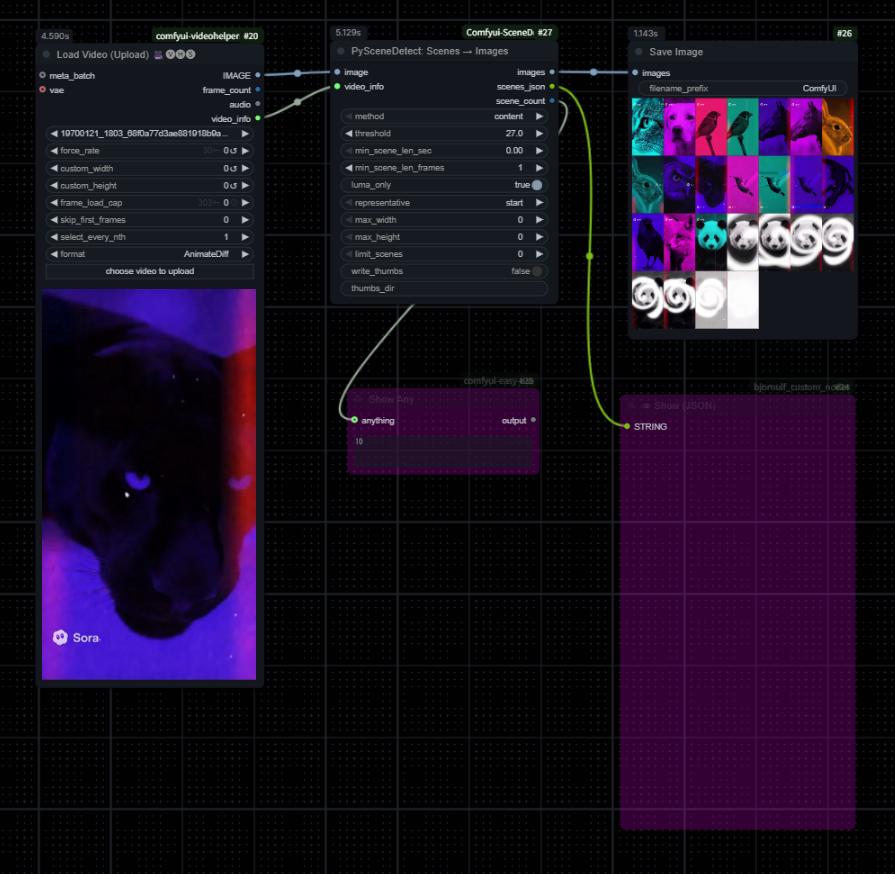
The legacy node keeps its original node ID, inputs, and outputs so existing workflows continue to load.
The same detection methods and detector settings are available on both nodes. The backend option applies only to Video → Scenes; Legacy VHS receives already-decoded images. Legacy keeps its existing widget order.
- Connect
IMAGEoutput 1 from VHSLoad Video (Upload)toimage. - Connect
VHS_VIDEOINFOoutput 4 tovideo_info. - Do not connect a VAE; latent batches are unsupported.
- The node processes the supplied tensor one frame at a time, but the full VHS
IMAGEbatch still remains resident in memory.
Legacy interprets the supplied frames at loaded_fps (falling back to source_fps). Ordinary VHS metadata has no per-frame timestamps, so this preserves the existing constant-FPS timing behavior rather than recovering the original VFR presentation times.
Using VHS images in new workflows
Use the native VIDEO node for new workflows, including those that already use VHS or edit an image batch:
- Connect VHS
IMAGEto ComfyUI'sCreate Video.images. - Connect VHS
video_infotoVideo Info (Loaded), then itsfpsoutput toCreate Video.fps. Useloaded_fpsso forced rate and frame selection are reflected. - Connect
Create Video.VIDEOtoPySceneDetect: Video → Scenes.video. - If the source has audio and it is needed in the created video, also connect VHS
audiotoCreate Video.audio.
Create Video assigns a constant frame rate to the supplied images; setting VHS force_rate is optional. This makes detection times consistent with the newly created video, but it does not restore the original VFR timestamps. VHS's regular loader also uses nominal-FPS timing for force_rate, so that option alone does not preserve the original VFR timeline. For original-source timing, connect the built-in Load Video directly to Video → Scenes instead.
This bridge retains the full image batch and encodes it before detection. Prefer direct Load Video for lower memory use and to avoid re-encoding. Existing VHS → Legacy workflows can remain unchanged; migration is not required.
JSON Output Example (scenes_json)
{
  "video_path": "",
  "video_info": {
    "loaded_fps": 29.97,
    "loaded_frame_count": 120,
    "source_fps": 29.97
  },
  "fps": 29.97,
  "method": "content",
  "threshold": 27.0,
  "min_scene_len_frames": 15,
  "representative": "start",
  "backend": "opencv",
  "scenes": [
    {
      "index": 1,
      "start_frame": 0,
      "end_frame": 153,
      "duration_frames": 153,
      "fps": 29.97,
      "start_time": "00:00:00.000",
      "end_time": "00:00:05.105",
      "duration_sec": 5.105105105105105
    }
  ]
}
Each entry in the scenes array provides the start/end frame indices, SMPTE-style timestamps, and the duration of the scene.
Usage in ComfyUI
- Load a video with ComfyUI's built-in
Load Videonode. - Add
PySceneDetect: Video → Scenesand connect theVIDEOoutput directly. - Adjust
method,threshold, andmin_scene_len_*to match the video source. - Configure the representative frame position, optional resizing, and thumbnail export settings.
- Execute the graph to receive representative frames on
imagesand scene metadata onscenes_json.
The samples use ComfyUI's built-in Preview Image and Preview as Text nodes:
- Recommended:
workflow/pyscene_workflow.json - VHS images through native VIDEO (new workflows):
workflow/pyscene_workflow_vhs_video.json - Existing Legacy VHS workflows:
workflow/pyscene_workflow_legacy_vhs.json
Existing workflows containing PySceneDetectToImages continue to load as the Legacy VHS node.
Memory Behavior
The recommended node receives a lazy VIDEO object from ComfyUI's built-in loader. PySceneDetect reads the original compressed file directly, and only the selected representative frames are returned as an IMAGE batch. It does not create a full float32 frame batch.
Representative extraction seeks one second before the first selected scene, then decodes sequentially through PySceneDetect. If seeking fails or lands past the scene start, it restarts from the beginning to preserve frame selection. It selects actual decoded PTS within each scene's start-inclusive/end-exclusive bounds, including one-frame and VFR scenes; it does not change upstream scene boundaries.
The Legacy VHS path cannot release the frame batch supplied by VHS, but SceneDetect processes that batch one frame at a time without creating full RGB/BGR copies. For new workflows, use the built-in Load Video path to avoid the VHS batch allocation entirely.
Project Layout
- The root
__init__.pyfollows the standard ComfyUI structure and registersnodes. - The built-in
VIDEOimplementation lives innodes/pyscenedetect_video.py, the VHS-compatible implementation lives innodes/pyscenedetect_to_images.py, and shared helpers reside inutils/video_ops.py.
Troubleshooting
- High memory use with VHS: Prefer the built-in
Load VideoandPySceneDetect: Video → Scenes. The legacy VHS path must keep its fullIMAGEbatch in memory. - Latent batches in legacy workflows: If a VAE is connected to the VHS
Load Video, its LATENT output is unsupported. Output RGB frames instead. - OpenCV fails to open the video: Check codecs and file paths. Confirm that
opencv-python-headlessis installed. - PySceneDetect version mismatch: Reinstall within the range defined in
requirements.txt. - Empty or 1x1 black output: Indicates the input failed to decode. Validate the source frames and configuration.
Releases
See the release history for version-specific changes and fixes.
License
This project is licensed under the MIT License. See LICENSE for the complete text. Files that specify a different license are governed by the terms noted within those files.
Third-party notices:
- PySceneDetect is distributed under the BSD 3-Clause License. When redistributing binaries or source packages that bundle PySceneDetect, ensure that its copyright notice, license text, and disclaimer are included alongside your distribution.