
ComfyUI-TabAudioCapture
Record Chrome tab or system playback audio and output standard ComfyUI AUDIO, with saved recordings and rolling snapshots.
ComfyUI-TabAudioCapture
Capture playback audio from a Chrome/Chromium tab or the entire PC and output standard ComfyUI AUDIO. Tab capture also includes cross-origin iframes without accessing their DOM.
Tab/System Audio Capture
This is the main recording node. It records playback audio from a Chrome tab or the entire PC, then saves the recording when you stop.
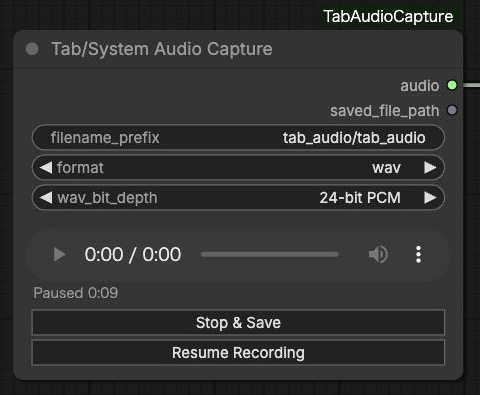
- Set the save options before
Start Recording, then share tab or system audio.Stop & Savesaves the recording and updates the native audio player without running the workflow. Pause Recording/Resume Recordingkeeps the same sharing session and joins only the recorded portions. You can useStop & Savewhile paused. The timer and 10-minute limit count recorded audio, excluding pauses.filename_prefixselects a folder and filename insideComfyUI/output. For example,music/takecreatesoutput/music/take_00001.wav. The default remainstab_audio/tab_audio.format:originalpreserves captured float32 PCM in WAV;wavwrites 16/24/32-bit PCM (default: 24-bit);m4awrites AAC at 128/192/256/320 kbps (default: 256 kbps). The relevant depth or bitrate control appears under Advanced for the selected format.Runoutputsaudio(AUDIO) andsaved_file_path(STRING). The path is absolute and connects directly to Video Helper Suite's Load Audio (Path) →audio_fileinput.- Saved file references remain in workflows and work after restarting ComfyUI. Recordings stop after 10 minutes and preserve the AudioContext sample rate. Saved recordings are not automatically deleted.
Select the audio source
In Tab/System Audio Capture, click Start Recording, then choose what to record in Chrome's sharing dialog:
| Audio you want to record | Select in Chrome | Enable | | --- | --- | --- | | Playback from one tab, including embedded audio | Chrome Tab, then the source tab | Share tab audio | | Playback from all applications on the PC | Entire Screen, then the screen | Share system audio |
The source tab can be the ComfyUI tab or another tab. Entire-PC recording includes other applications and notification sounds, and requires browser/OS support for system audio sharing. Screen/audio recording permission may be required.
Only audio is sent to ComfyUI and saved. Enable audio sharing each time you start; selecting a screen alone does not provide audio. The captured audio is playback audio rather than microphone input.
Tab/System Audio Capture · Live (optional)
Use this node when you need the latest N seconds at queue time. It supports the tab and entire-PC audio sources described above.
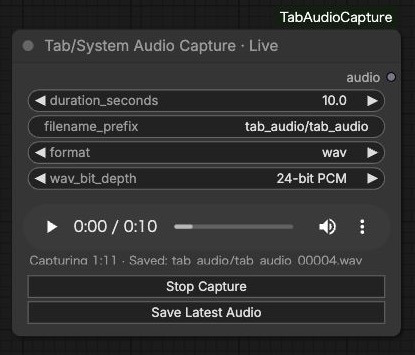
- Click
Start Captureand share tab or system audio. Capture continues independently of workflow execution and retains the latest 120 seconds. - Set
duration_seconds(0.5–60 seconds), then clickRun. The node snapshots the latest audio when you queue the workflow, so waiting for GPU execution does not change that snapshot. Save Latest Audiofreezes that many seconds and saves them without stopping capture or running the workflow. It uses the same filename prefix, Original/WAV/M4A formats, depth and bitrate settings as the recorder. The default is 24-bit WAV. You can save repeatedly, including after capture has stopped; each save gets a new numbered filename.- The native audio player supports playback and seeking after a snapshot or stop. The last captured buffer remains available after
Stop Capture. - Output:
audio(AUDIO). The node does not automatically queue or repeat workflows.
Audio Meter
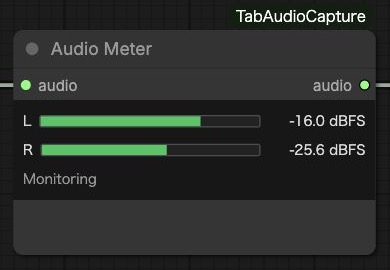
Connect Recorder or Live → Audio Meter using AUDIO. It displays left/right peak levels in dBFS while capture is running, without queueing the workflow. Mono capture is shown on both channels. Both channels below −60 dBFS for two seconds display Silence; disconnected or inactive captures display a waiting state.
The meter uses its own browser analysis branch and keeps working while the recorder is paused. Removing it does not stop capture. Its audio output passes the input through unchanged. Place it directly after Recorder/Live (or through a Reroute or another Meter); after an audio transform it cannot monitor that transform's output in real time.
Audio Range Select
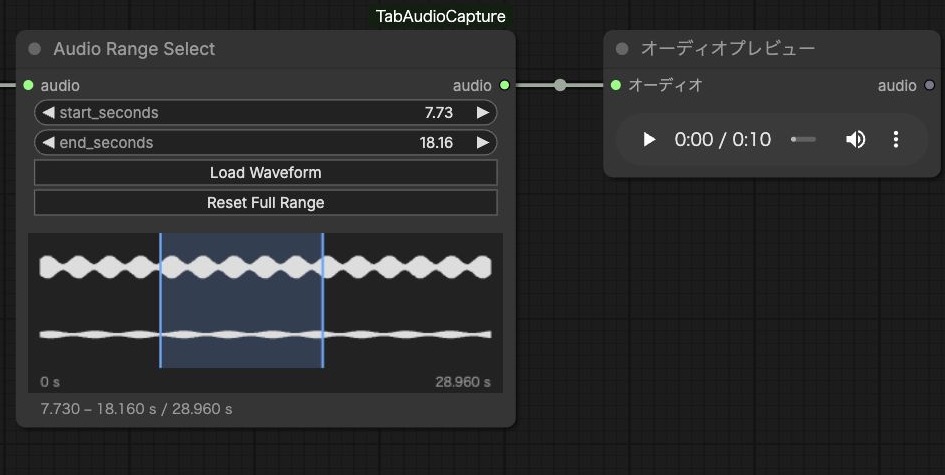
Connect any standard AUDIO → Audio Range Select → your downstream audio node.
- Click
Load Waveformto execute only through this node and display the full source waveform. - Drag across the waveform to select a range, drag either edge to adjust it, or enter
start_seconds/end_seconds. End0means the source end;Reset Full Rangerestores the full audio. - Run the workflow. The
audiooutput contains only that range, with the original sample rate, channels and batches. No audio file is created or modified.
The waveform displays the first batch; the same time range applies to every batch. Bounds are measured from the start of the current input. For a stable selection from Live, use Stop Capture before loading the waveform; continuing capture supplies a new snapshot on each Run. The recorder's saved_file_path continues to refer to its complete saved recording.
Example workflows
Drag a JSON file into ComfyUI. Choose the audio source when starting capture.
- Record, save and inspect outputs: recorder → Preview Audio and saved path display.
- Load the saved path:
saved_file_path→ Load Audio (Path) → Preview Audio. Requires Video Helper Suite. - Snapshot the latest audio: Live → Preview Audio.
- Monitor and select a range: recorder → Audio Meter → Audio Range Select → Preview Audio.
The existing node IDs (TabAudioCaptureLive, TabAudioCaptureRecorder) and example filenames are unchanged so existing workflows remain compatible.
Installation
- Place this repository in
ComfyUI/custom_nodes/ComfyUI-TabAudioCapture. - Restart ComfyUI and reload the browser.
- Search for
Tab/System Audio Capture, add the main recording node, and connect itsaudiooutput to an audio input. Use the optionalLivenode for rolling snapshots. - Start capture and share tab or system audio as described above.
Runtime dependencies are listed in requirements.txt: torch, numpy, aiohttp and av. All four are already required by ComfyUI, with the same version constraints. This node adds no other runtime packages. If any are missing, install them using ComfyUI's Python environment:
python -m pip install -r requirements.txt
Notes
- Chrome/Chromium is the intended browser. Audio capture requires HTTPS or a localhost connection. Browser and OS support determines whether entire-PC audio is available.
- Tab capture mixes all playback within the selected tab; it cannot isolate one iframe. Protected playback or source restrictions may prevent capture.
- Audio passes through AudioWorklet → float32 PCM → WebSocket → ComfyUI. The native
AUDIOvalue containswaveformshaped[1, channels, samples]andsample_rate. AUDIOsockets carry fixed snapshots or completed recordings, not a continuous stream that updates an already-running generation.- Live snapshots use temporary disk files and do not survive a server restart. Snapshots older than 24 hours are cleaned up when starting a new session.
- Capture stops if pending WebSocket data exceeds 4 MiB. Network interruptions or closing the browser tab may interrupt recording. HTTPS reverse proxies must support WebSocket upgrades.
- Intended for a local ComfyUI installation and browser. Environments that restrict custom nodes may not support these nodes.
License
MIT.