
ComfyUI-Jev
Jev text interpretation and judgments for ComfyUI: candidate selection, condition evaluation, scoring, number extraction, and local Skill selection. Includes OpenRouter text generation.
Nodes (3)
ComfyUI-Jev
<sub>WORK IN PROGRESS</sub>
English | 日本語
Custom nodes for using Jev's text interpretation and judgments in ComfyUI. Use natural-language instructions to select candidates, evaluate conditions, score text, or extract numbers, then pass the results to other nodes. Jev judgments use the TypeSafe API by default.
| Node | Purpose |
| --- | --- |
| Jev Interpret | Select, judge, or score text, and extract numbers |
| Jev Skill Choice | Select local Skills (SKILL.md files) for a request |
| OpenRouter Text | Generate text or selection candidates with OpenRouter |
Installation · API keys · First workflow · Examples · Node reference · Releases
Installation
Requires ComfyUI v0.36.0 or later and Python 3.10 or later. Choose either method below.
Install with ComfyUI Manager
- Open Manager in ComfyUI and search for
ComfyUI-Jev. - Click Install for ComfyUI-Jev.
- Restart ComfyUI after installation.
Install with git clone
With Git installed, open a terminal in your ComfyUI custom_nodes directory. Replace the path with your own installation:
cd /path/to/ComfyUI/custom_nodes
git clone https://github.com/hndrr/ComfyUI-Jev.git
The dependencies, aiohttp and PyYAML, are included in a standard ComfyUI installation. If they are missing, run this command in the Python environment used by ComfyUI:
python -m pip install "aiohttp>=3.11.8" PyYAML
For Windows Portable, use its bundled Python from the ComfyUI_windows_portable directory:
.\python_embeded\python.exe -m pip install "aiohttp>=3.11.8" PyYAML
Restart ComfyUI and refresh the interface. Search for Jev Interpret, Jev Skill Choice, and OpenRouter Text to confirm installation.
API key setup
TypeSafe (default)
Jev Interpret and Jev Skill Choice use TypeSafe by default (provider = typesafe). Create an API key at TypeSafe and set it in the environment that starts ComfyUI.
macOS / Linux:
export TYPESAFE_API_KEY="your-typesafe-key"
Windows PowerShell:
$env:TYPESAFE_API_KEY="your-typesafe-key"
Start ComfyUI from that terminal. Leave provider set to typesafe and api_key empty in both nodes. If configuring the launch environment is inconvenient, enter your TypeSafe key directly in each node's api_key field.
An explicit key takes precedence; an empty field uses the environment variable. Keys entered in nodes are saved in workflows and execution history, so remove them before sharing. After changing environment variables, restart ComfyUI from that environment.
Using OpenRouter
OpenRouter Text requires an OpenRouter API key for text generation. Set OPENROUTER_API_KEY in the same launch environment, or enter it in that node's api_key field:
export OPENROUTER_API_KEY="your-openrouter-key"
In PowerShell, use $env:OPENROUTER_API_KEY="your-openrouter-key".
To use OpenRouter for Jev judgments as well, change provider to openrouter in Jev Interpret or Jev Skill Choice. An empty api_key field then uses OPENROUTER_API_KEY. When entering a key directly, use the key for the selected provider.
Text and JSON decisions with optional images
Jev Interpret and Jev Skill Choice use Decisions models to make judgments from text and JSON. They load only Decisions models from the public catalog and switch their choices with provider; text-only Decisions models can also be selected. Set provider = openrouter and keep api_key empty to use OPENROUTER_API_KEY. The images input is optional: both nodes work with it disconnected. To add images, select an image-capable Decisions model such as Luna, Clef, or Clef Flash, then connect a Load Image output to images. Judgments use the Decisions API; OpenRouter Text remains a text-generation node.
The entire image batch and optional content_json parts are included in both ranking and verification. Use existing ComfyUI nodes for resizing, selecting video frames, transcribing audio, or extracting document pages. See input formats, limits and measured results.
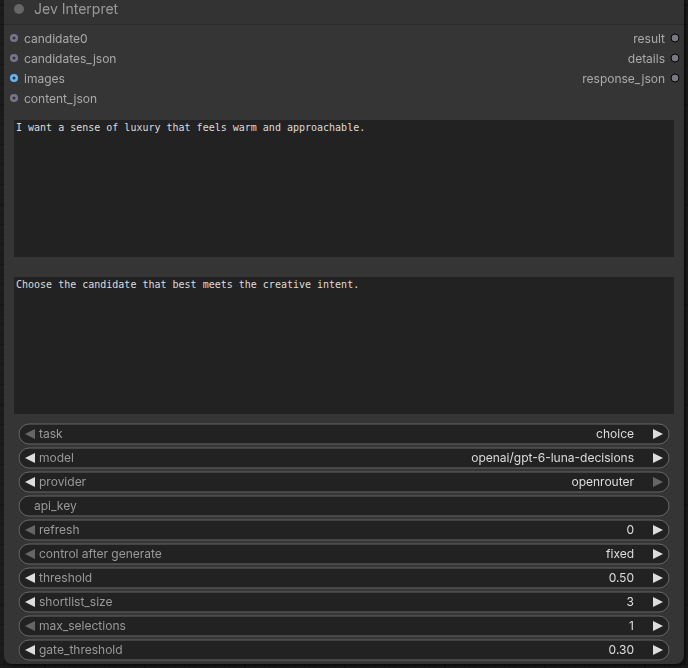
Jev Interpret with Luna Decisions selected through OpenRouter.
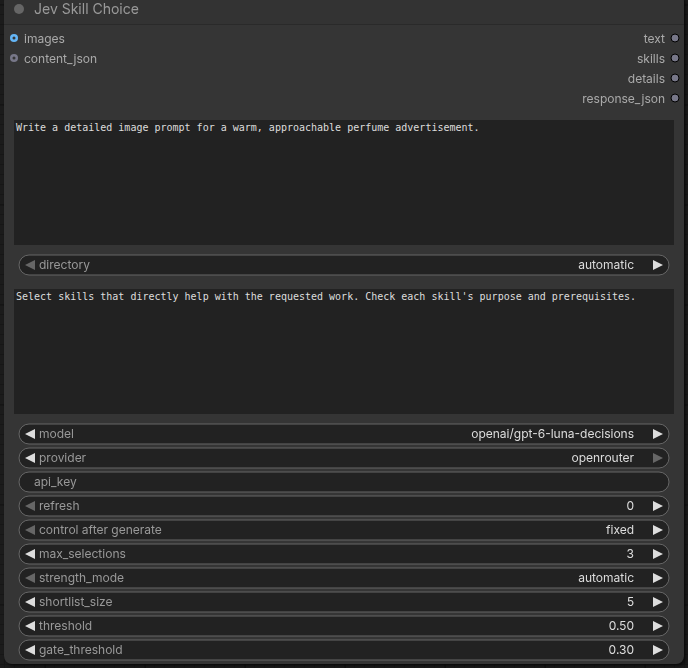
Jev Skill Choice with image inputs and skill selection controls.
First workflow
After setting your TypeSafe key, try judging whether a sentence meets a condition.
Jev Interpret → Preview as Text
- Add Jev Interpret and set
task = boolean,provider = typesafe, andmodel = jev-latest. No candidate connections are needed. - Set
statetoWhat time does tomorrow's meeting start?andinstructionstoIs this text a question asking someone to provide an answer?. - Connect
resultto a standard Preview as Text node and run the workflow. The judgment appears as the stringtrueorfalse.
To branch on the result, use standard nodes such as Compare Text and Switch. See the node reference for candidate selection, scoring, and other judgment tasks.
Example workflows
The bundled workflows demonstrate ways to use judgment results, such as choosing a prompt for image generation or selecting local Skills. Save a .workflow.json file below and drag it into ComfyUI. The example text is in English.
The bundled examples are saved with provider = openrouter. To use TypeSafe, change the Jev node's provider to typesafe after loading the workflow. Text generation with OpenRouter Text still requires an OpenRouter key.
| Example | What it does | Needed in addition to the Jev API key | | --- | --- | --- | | 02_manual_candidates.workflow.json | Choose an existing prompt with Jev and generate an image | SD 1.5 / SDXL checkpoint | | 01_generate_and_select.workflow.json | Generate four photographic prompts and create an image from Jev's choice | OpenRouter key and checkpoint | | 03_select_and_expand.workflow.json | Generate and select a concept, then expand it into a detailed image prompt | OpenRouter key and checkpoint | | 04_skill_choice.workflow.json | Select local Skills and preview their contents and priorities | Installed Skills |
For the three image generation examples, replace YOUR_SD_OR_SDXL_CHECKPOINT.safetensors in Checkpoint Loader with an installed SD 1.5 / SDXL checkpoint that includes CLIP and VAE. Adjust image size, seed, and steps in the standard nodes.
Troubleshooting
| Symptom | What to check |
| --- | --- |
| Nodes are missing | Check your ComfyUI version, restart it, and look for import failed in the startup log |
| Missing key or authentication error | Check that the key matches provider and that api_key does not contain an old or different key |
| OpenRouter model list is unavailable | Restart ComfyUI to retry. Decisions nodes use the last verified or bundled Decisions list; OpenRouter Text also supports custom |
| Candidate generation fails | Use a model that supports Structured Outputs. Increase max_tokens if the response was truncated |
| Running again returns the same result | ComfyUI reuses cached results. Change the relevant node's refresh to request a new result |
Changing only the image generation seed or size reuses previous text generation and Jev judgments. See execution and caching for details.
For testing and Registry publishing, see the development guide. Release policy and retries are documented in MAINTAINERS.md (Japanese).
License
Licensed under the MIT License.