
ComfyUI Extension
comfyui-my-lighting
A custom node for ComfyUI that lets you visually set up a lighting scene and automatically generate a detailed prompt string describing it.
fabricemantion-wq/comfyui-my-lighting
Nodes1
On cloudLocal install
CategoryMY NODES
Stars0
Updated6 months ago
Nodes (1)
Readme
My Lighting — ComfyUI Custom Node
A custom node for ComfyUI that lets you visually set up a lighting scene and automatically generate a detailed prompt string describing it.
Features
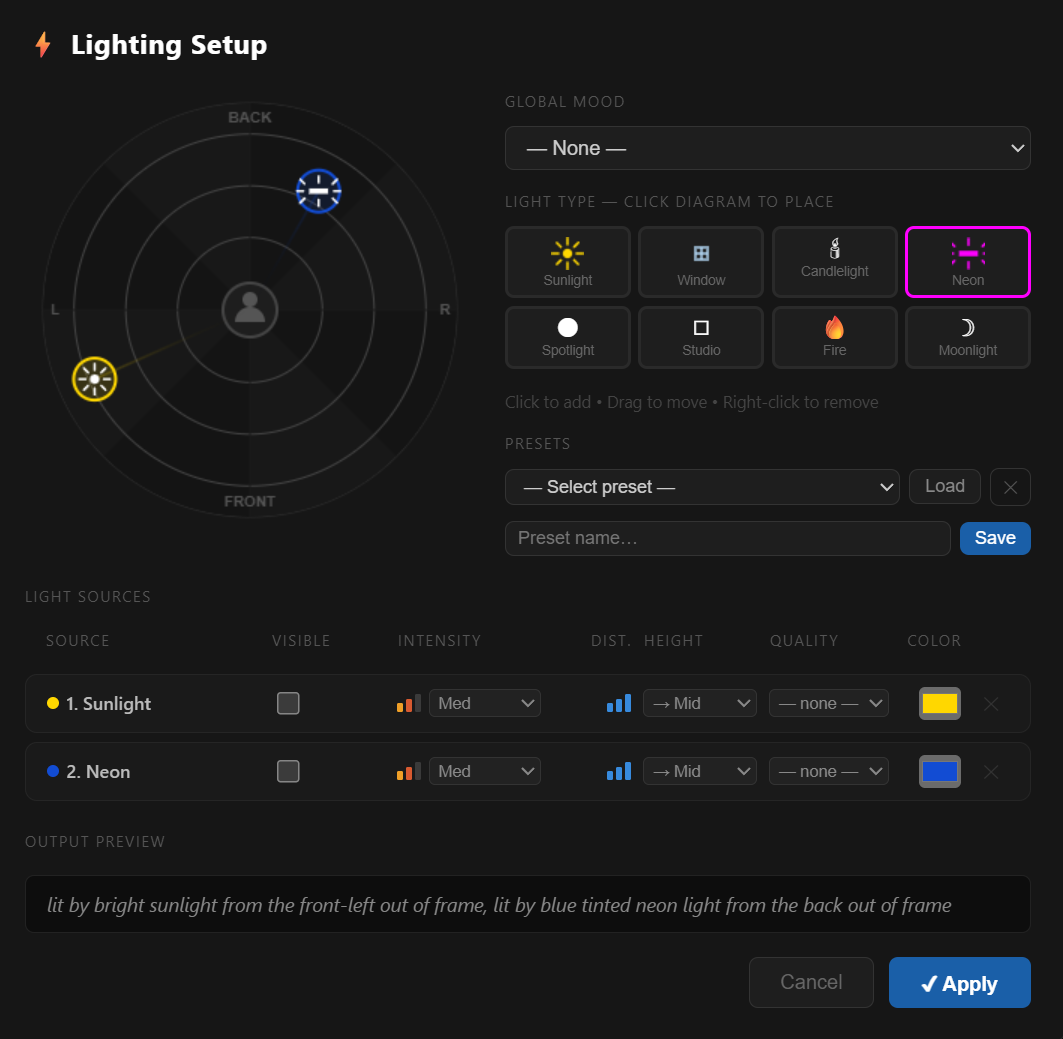
- Visual diagram — place light sources on a top-down circular canvas by clicking and dragging
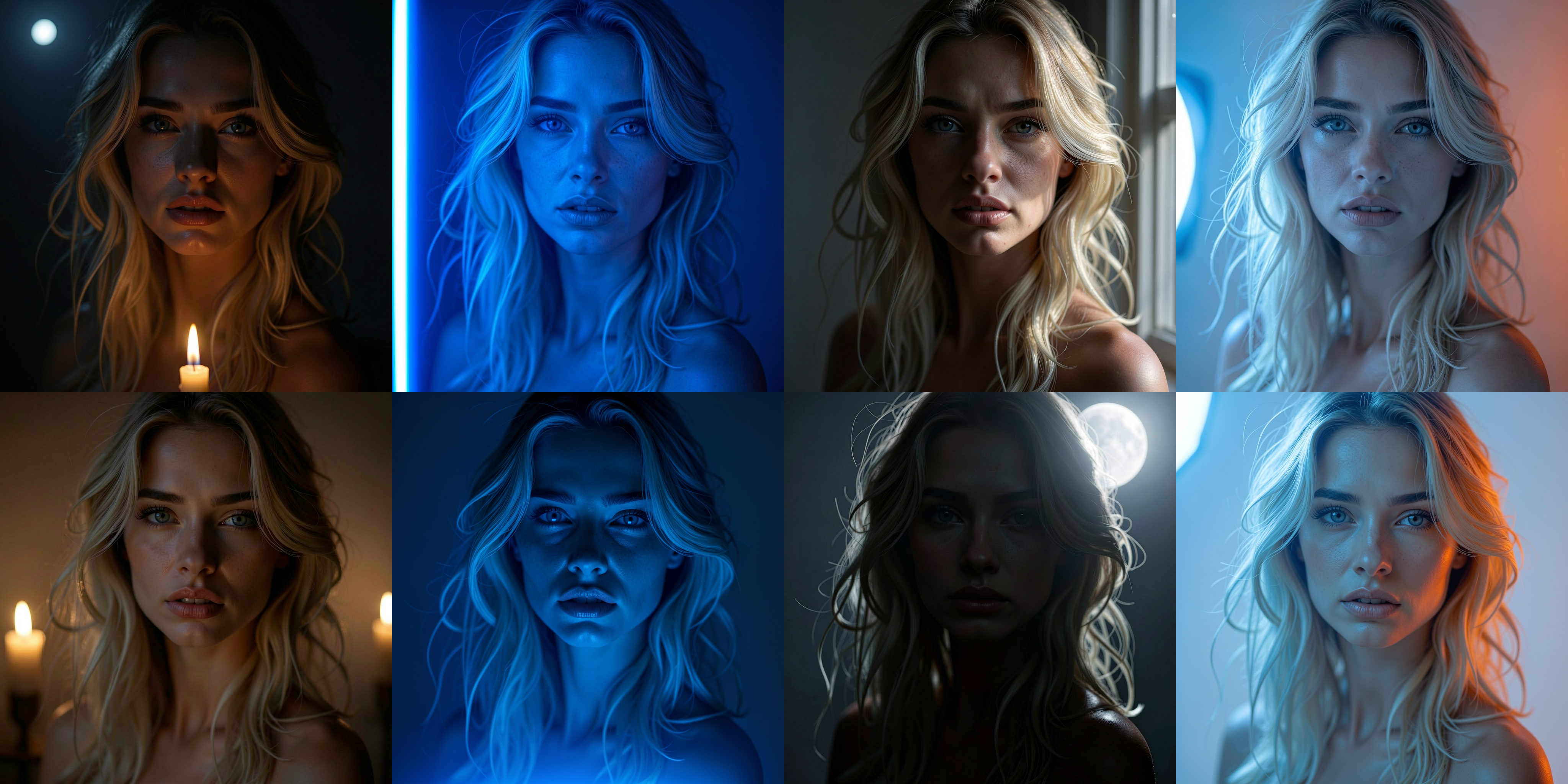
- 8 light types — Sunlight, Window, Candlelight, Neon, Spotlight, Studio, Fire, Moonlight
- Per-light controls — visibility (in frame / off frame), intensity, distance, height, quality, color
- Global mood — Golden Hour, Blue Hour, Cinematic, Chiaroscuro, and more
- Presets — save and reload full lighting setups, stored locally in a JSON file
- Live preview — the generated prompt updates in real time inside the modal
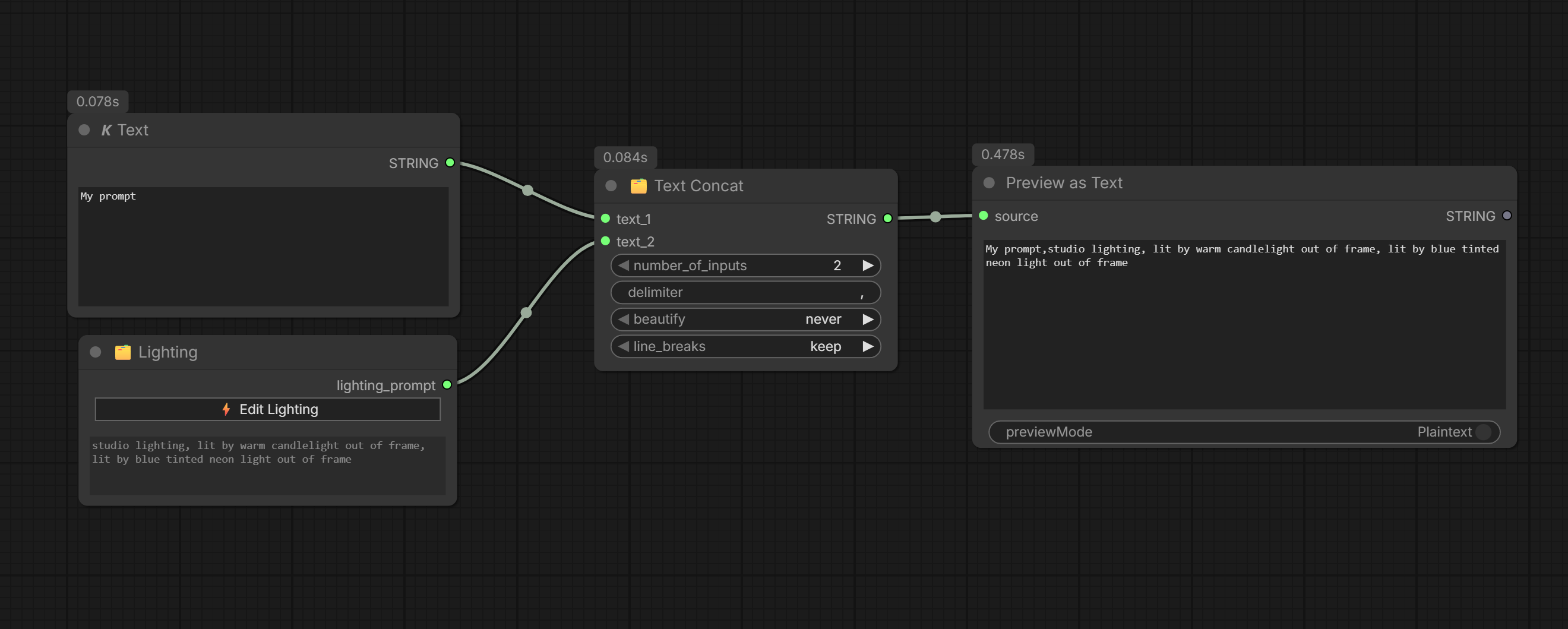
- Output — a single
STRINGoutput ready to plug into any prompt node
Installation
- Clone or download this repository into your ComfyUI
custom_nodesfolder:
ComfyUI/
└── custom_nodes/
    └── comfyui-my-lighting/   ← this folder
cd ComfyUI/custom_nodes
git clone https://github.com/YOUR_USERNAME/comfyui-my-lighting
-
Restart ComfyUI.
-
The node appears in the node menu under MY NODES → My Lighting.
File Structure
comfyui-my-lighting/
│
├── __init__.py                  # Registers the node with ComfyUI
├── My_Lighting.py               # Python node + REST endpoints for presets
├── my_lighting_presets.json     # Created automatically when you save your first preset
│
└── web/
    └── My_Lighting.js           # Frontend — modal, canvas diagram, UI logic
Note: The
web/subfolder must be named exactlywebso ComfyUI serves the JS file automatically.
Usage
- Add the My Lighting node to your workflow.
- Click ⚡ Edit Lighting to open the setup modal.
- Select a light type in the grid, then click anywhere on the diagram to place it.
- Drag the light icon to adjust its position and distance.
- Right-click a light on the diagram to remove it.
- Adjust per-light settings in the list below the diagram:
- Visible — checked = light is visible in the frame, unchecked = off frame
- Intensity — Low / Med / High
- Dist. — distance from subject (read from diagram position)
- Height — Low / Mid / High (angle relative to subject)
- Quality — optional: Soft, Hard, Diffuse, Harsh, Warm, Cold
- Color — custom color tint via color picker
- Set a Global Mood if needed.
- Use Presets to save or reload full lighting configurations.
- Click ✔ Apply — the prompt updates in the node and is sent to Python on generation.
Output Example
golden hour, soft golden sunlight from the front-right nearby, lit by warm candlelight out of frame from above, hard spotlight from the left very close
Preset Storage
Presets are saved in my_lighting_presets.json in the node folder. This file is created automatically on first save. You can back it up, version it, or share it manually.
Compatibility
- ComfyUI (any recent version)
- Python 3.10+
- No additional dependencies required
License
MIT