
comfy-my-prompt
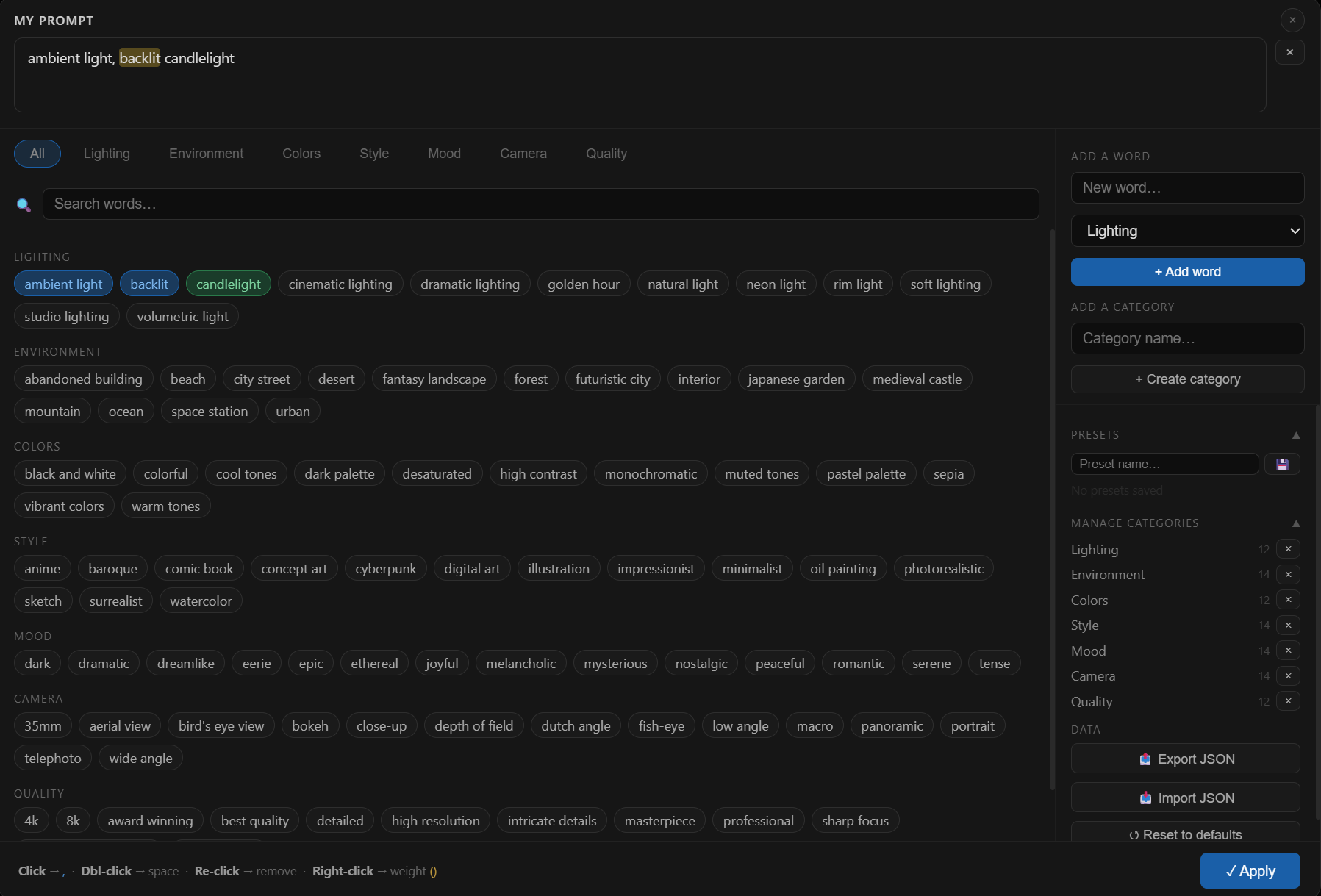
A visual prompt builder node for ComfyUI. Build your prompts by clicking categorized word chips, set token weights, save presets — all from an interactive modal.
My Prompt 📝
A visual prompt builder node for ComfyUI.
Build your prompts by clicking categorized word chips, set token weights, save presets — all from an interactive modal.
Features
- Clickable word chips — single click adds with
,, double-click adds with a space, re-click removes - Token weight — right-click any word to open a weight slider and wrap it as
(word:1.30) - Hover highlight — hovering a word highlights its occurrence in the prompt textarea
- Optional tooltip — each word can have a secondary label (e.g. a translation) shown on hover
- Categories — words are organized in tabs; the tab bar scrolls horizontally with the mouse wheel
- Search — filters words across all categories in real time (searches both the word and its tooltip)
- Presets — save and recall full prompts by name, stored persistently server-side
- Alphabetical sort — words are always sorted automatically on load and on add
- Manage categories — add, delete categories and individual words from the right-hand sidebar
- Import / Export — save your entire word library as a JSON file and reload it on any machine
- Reset — restore the built-in default categories at any time
- Prompt preview — the current prompt is displayed directly on the node in ComfyUI
File structure
My_Prompt/
├── __init__.py               # Registers the node and exposes the web directory
├── my_prompt_node.py         # Python node — INPUT_TYPES, API routes (get/save/reset)
├── my_prompt_data.json       # Auto-created on first run — stores your categories & presets
└── web/
    └── my_prompt.js          # Frontend — modal UI, word rendering, weight menu, ComfyUI extension
Key files explained
my_prompt_node.py
Defines the My_Prompt ComfyUI node. Returns a single STRING output (the prompt).
Also registers three API routes used by the frontend:
| Route | Method | Purpose |
|---|---|---|
| /my_prompt/data | GET | Load categories & presets from JSON |
| /my_prompt/data | POST | Save categories & presets to JSON |
| /my_prompt/reset | POST | Restore default categories |
my_prompt_data.json
Created automatically next to my_prompt_node.py on first launch.
You can edit it manually — just make sure it is valid JSON.
Structure:
{
  "categories": [
    {
      "id": "lighting",
      "label": "Lighting",
      "words": [
        { "en": "golden hour", "fr": "heure dorée" },
        "soft lighting"
      ]
    }
  ],
  "presets": [
    { "name": "My preset", "prompt": "golden hour, soft lighting, bokeh" }
  ]
}
Words can be plain strings or objects with an en key and an optional secondary label key (used as tooltip on hover).
web/my_prompt.js
Pure vanilla JS — no dependencies.
Registers a ComfyUI extension that:
- Adds an "Open Prompt Builder" button widget on the node
- Repositions the
promptwidget below the button (read-only display) - Opens the modal on button click
- Persists the prompt in the workflow via
onSerialize/onConfigure
Installation
- Clone or copy this folder into your
ComfyUI/custom_nodes/directory:
cd ComfyUI/custom_nodes
git clone https://github.com/fabricemantion-wq/comfy-my-prompt
-
Restart ComfyUI.
-
The node appears under My_Nodes → text → My Prompt 📝.
Usage
- Add the My Prompt node to your graph.
- Click ✏️ Open Prompt Builder.
- Browse categories using the tab bar at the top of the modal.
- Click a word to add it (comma-separated).
Double-click to add it with a space instead.
Click again on an active word (blue) to remove it.
Right-click to set a weight(word:1.30). - Edit the textarea directly at any time.
- Click ✓ Apply — the prompt is written to the node output.
Customizing the word library
The easiest way is to use the right-hand sidebar inside the modal:
- Add a word — type the word, an optional tooltip label, choose a category, press Enter or click the button.
- Add a category — type a name and press Enter.
- Delete a word or category with the
×button. - Export JSON to back up your library.
- Import JSON to restore or share it.
You can also edit my_prompt_data.json directly in a text editor (VS Code will flag JSON errors inline).
Output
| Name | Type | Description |
|---|---|---|
| prompt | STRING | The full prompt string, ready to connect to a text encoder or any node that accepts a string |
Notes
- The word library is shared across all nodes in all workflows — it lives in a single JSON file next to the Python file.
- Presets are also global, not per-workflow.
- Token weights use the standard Stable Diffusion syntax:
(word:1.30).